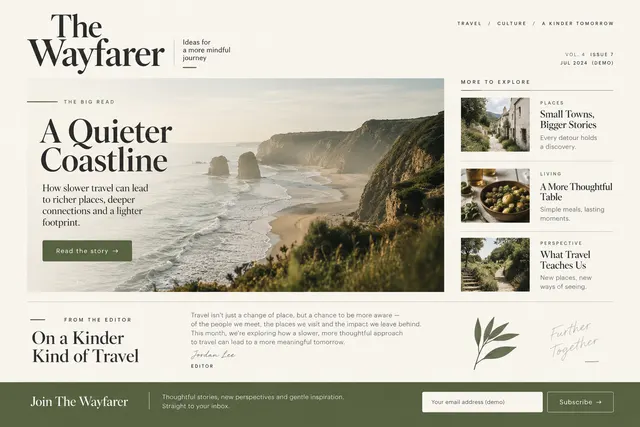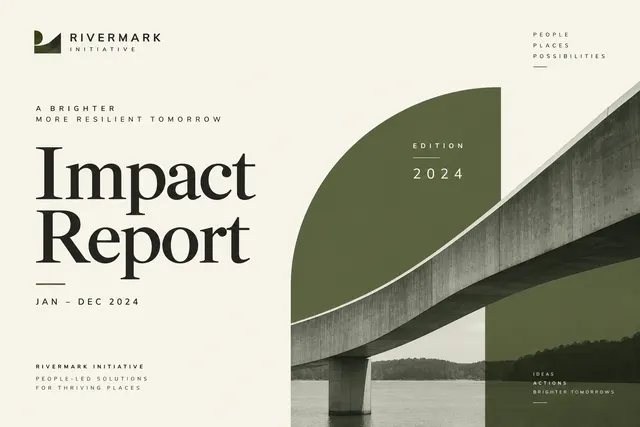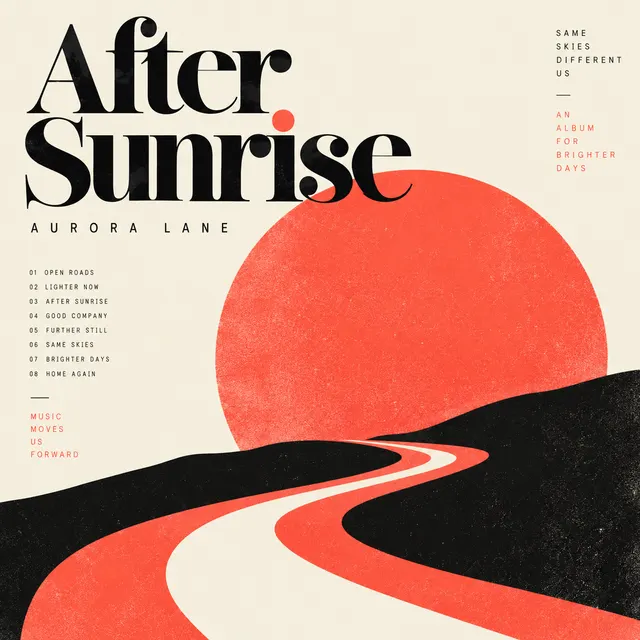
Use the Prompt
Add Your Brief
Add your context below. It will be included with the prompt when you copy or download.
Create an editable HTML/CSS composition with selectable text and a print stylesheet; treat any raster illustration as a separate local asset for [PROJECT] and [AUDIENCE]. The task is: Editorial Article Cover.
Required content and structure
Translate the article's main tension into an original restrained visual with room for the title.
Use [APPROVED_CONTENT] as the source of names, dates, figures, claims and destinations. List missing inputs before substituting anything. If a demonstration is needed, label its content as fictional. Do not invent customer quotes, rankings, partner logos or product capabilities.
Design direction
Use [BRAND_RULES] and the design system already selected in the project. If no system is supplied, start with this direction: cream, charcoal and olive green; asymmetrical editorial hierarchy with generous negative space. Keep type, spacing and color roles consistent. Prioritize the task over decorative elements and avoid a generic collection of unrelated cards.
Content preparation
Read the article's central argument and identify its main tension. Supply the exact headline, intended crop and any brand or publication constraints.
Layout and behavior
Choose one visual metaphor that supports the argument. Leave deliberate space for the title instead of collaging every keyword into an illustration.
Task-specific acceptance check
- Avoid literal collage of every keyword and keep the metaphor relevant.
- View the cover without the article and check whether it suggests the correct subject.
- Test headline placement and thumbnail scale; decorative complexity should not obscure the editorial idea.
Implementation and review
Keep text editable. Use semantic structure, descriptive controls, visible keyboard focus and appropriate empty/error states. Check narrow and wide layouts. Respect reduced-motion preferences. Preserve any existing project framework and dependencies; do not silently replace the stack. Return the editable files and explain any incomplete behavior or unsupported inputs. Review this specific task before proposing extra features.
Keep exact text and required credits as live text. Ask for the intended dimensions when they are missing. Do not invent a functional QR code, barcode, signature or official seal.
Reference attachment and reconstruction goal
Attach reference.webp from this prompt’s download bundle alongside this prompt in OpenDesign. Build an editable result with a similar composition and hierarchy; do not embed the whole reference image as the finished interface. Preserve approved project content and brand rules if they conflict with fictional sample labels. If the image is missing or unreadable, ask for it instead of claiming visual fidelity.
Reference composition and content
Use the attached reference.webp as the visual reference for Editorial Article Cover. Before building, identify the major regions from top to bottom, their relative widths and heights, alignment, spacing, typography hierarchy, surface colors, borders, imagery and repeated components. Preserve those relationships rather than substituting a generic template. Required task content: Translate the article's main tension into an original restrained visual with room for the title. Use the following task-specific layout guidance when translating the image into editable elements: Choose one visual metaphor that supports the argument. Leave deliberate space for the title instead of collaging every keyword into an illustration.
Visual direction from the example brief
cream, charcoal and olive green; asymmetrical editorial hierarchy with generous negative space.
Output and editability
Recreate the finished graphic as editable text, shapes and image layers. The reference is a composition, not an editor interface; do not add navigation, forms or dashboard widgets that are absent from it. Choose one visual metaphor that supports the argument. Leave deliberate space for the title instead of collaging every keyword into an illustration. Confirm intended dimensions and preserve text hierarchy when adapting the artwork. Avoid literal collage of every keyword and keep the metaphor relevant.
Visual comparison and delivery
- Compare the result with the attached image at matching proportions. Review major region placement, relative image sizes, line breaks, spacing, typography hierarchy, contrast, active states and content density before polishing decorative details.
- Then test the narrow layout without squeezing desktop text into tiny labels.
- Keep logos, photos and icons as separate assets and all meaningful labels editable. List any unavailable fonts/assets and any intentional departures. Return the working files plus a concise account of implemented behavior and remaining integrations; do not promise a pixel-identical result from the prompt alone.
Download Prompt + Image
Includes the complete prompt and full-size reference image. Attach both in OpenDesign to guide the layout.
How to Write an Editorial Article Cover Design Prompt
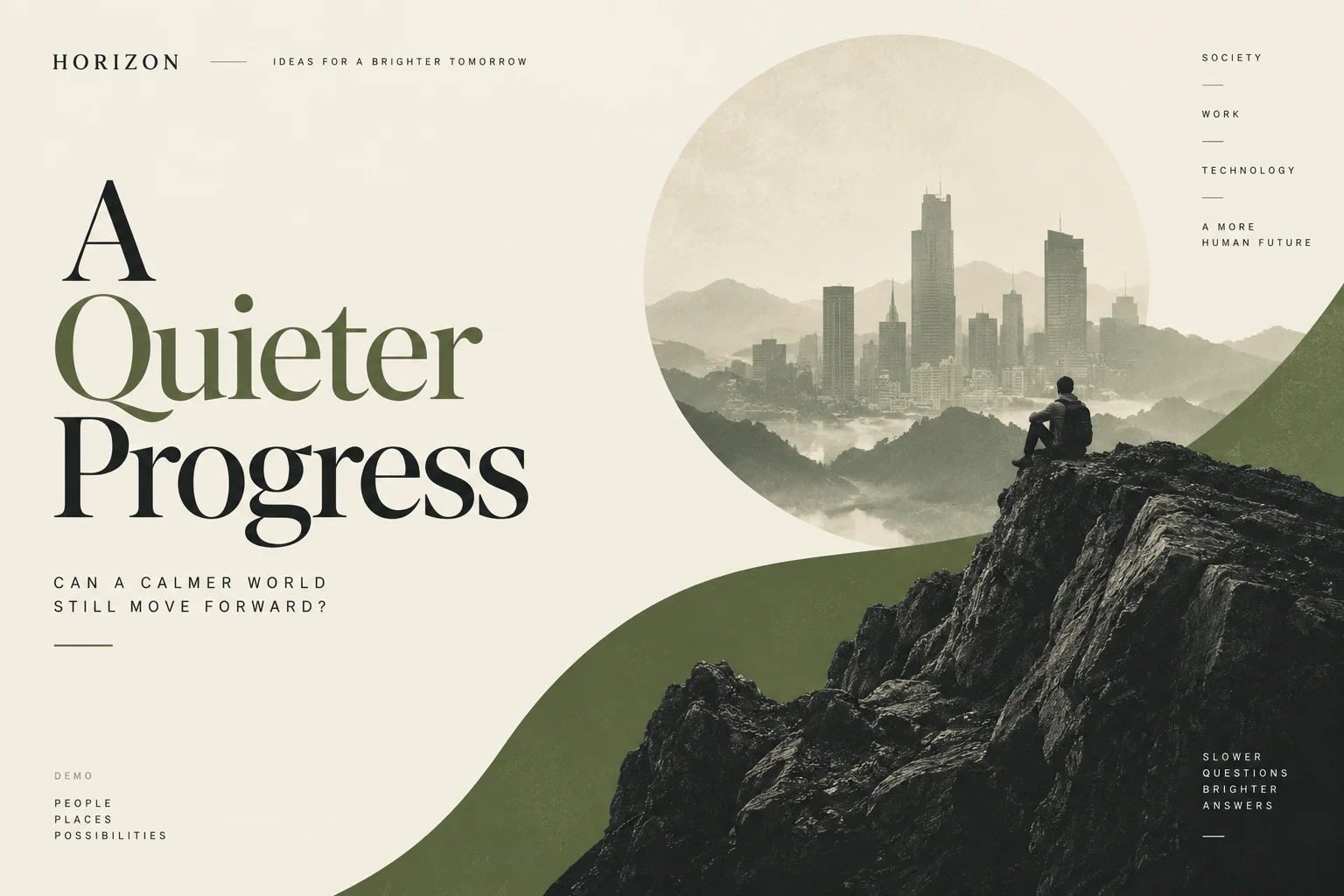
A useful editorial article cover design prompt explains the argument, the composition and the reading order—not just a mood. This example pairs an oversized serif headline with a circular city landscape and a dark rocky foreground. The walkthrough below turns those visible decisions into instructions you can adapt to your own article.
The three detail views below are crops of the same AI-generated reference. They explain composition and typography; they are not screenshots of a working interface.
Build One Visual Metaphor Around the Article
The city is not presented as a conventional skyline photograph. It sits inside a large pale circle, softened by mountain ridges and haze. A small seated figure appears closer to the viewer on the rock at the right. Together with the fictional headline “A Quieter Progress,” this creates a possible tension between urban growth and a slower, more reflective point of view. That reading is an interpretation of the composition; an actual article may need a different metaphor.
Start your editorial cover prompt with the article’s central question, then name the few visual elements that express it. “Make it thoughtful and editorial” leaves the subject, scale and relationship undecided. The reference is more specific: distant city, small person, large rock and one circular frame. Their relative size matters as much as their identity. Do not add clocks, charts, leaves or other symbols merely because they occur in the article. Each extra object competes with the central idea. If your article concerns a different tension, replace the metaphor before preserving this composition.
From the Prompt
Choose one visual metaphor that supports the argument.
Make It Your Own
The article examines [CENTRAL_QUESTION]. Express the tension between [IDEA_A] and [IDEA_B] through one scene: [DISTANT_SUBJECT] inside a large circular field, with [FOREGROUND_SUBJECT] in the lower-right foreground. Keep the human-scale detail small and the background quiet. Reserve the left side for the approved headline. Avoid additional symbolic objects unless they are necessary to explain the argument.
Specify the Headline Hierarchy and Line Breaks
The title occupies most of the left half. “A” sits on its own line, “Quieter” is olive, and “Progress” returns to charcoal. The high-contrast serif letterforms carry the composition; the short uppercase question beneath uses wide tracking and a much smaller size. This hierarchy creates a clear first and second reading. It is not a template for forcing every title into three lines: a longer approved headline needs different breaks and may require more horizontal space.
Give the model the exact headline, supporting sentence and publication name separately. Then describe their roles and relative scale. Asking for “beautiful typography” does not tell the model which text must win. Specify editable text, a large serif headline, a compact sans-serif supporting line and one restrained emphasis color. Review the actual words at the intended cover size: thin serif strokes can disappear in a small thumbnail, and long words can collide with the image. Revise line breaks or the title region before shrinking all text equally. The fictional copy in this image is a composition reference, not approved copy for your publication.
From the Prompt
Translate the article's main tension into an original restrained visual with room for the title.
Make It Your Own
Use the exact headline [APPROVED_HEADLINE] as editable text in the left region. Set it in a high-contrast serif with tight but readable line spacing. Choose line breaks around the meaning of the words; do not split a word. Emphasize only [KEY_PHRASE] in the accent color. Place [SUPPORTING_LINE] below in a smaller, widely tracked sans-serif. Keep the publication name visually secondary and leave a clear gap between the title and the circular illustration.
Describe Color, Layers and the Final Crop
The warm cream field is the largest color area. Olive appears in the emphasized title word and the sweeping shape beneath the image; charcoal anchors the headline and rock. The foreground rock overlaps the circular landscape rather than remaining inside it. That overlap links the geometric frame to the lower edge of the cover. Small publication labels sit near the margins, but they do not compete with the headline or the main scene.
Color names are only a starting point. Assign each color a job and describe the layer order: cream canvas, olive supporting shape, pale circular landscape, dark foreground rock, then editable typography. This is more reproducible than requesting a vague minimalist style. Also state the output dimensions and safe area before generation. The reference uses a 3:2 landscape canvas. A square social crop or portrait cover will need a recomposed layout, not a center crop that cuts off the title. At thumbnail scale, the main silhouette and title should remain legible even when the small margin labels disappear.
From the Prompt
cream, charcoal and olive green; asymmetrical editorial hierarchy with generous negative space.
Make It Your Own
Build a [WIDTH] × [HEIGHT] editorial cover. Use warm cream for the canvas, charcoal for the main type and foreground, and muted olive for a single emphasis word and one supporting curve. Place the circular landscape behind the foreground image so the rock overlaps its edge. Keep all approved copy within [SAFE_MARGIN]. For a square or portrait version, recompose the title and image as separate layers; do not crop the finished landscape cover or flatten the text into the image.
Review Your Editorial Article Cover Result
Compare the result with the reference at the same aspect ratio, then check it at the size readers will actually see. Review the article’s meaning before polishing surface details. The image is a visual concept; editable text, final dimensions and asset permissions still need to be checked in the delivered files.
- Meaning: hide the headline. Does the remaining scene still suggest the article’s central tension, or does it imply a claim the article does not make?
- Hierarchy: view a small thumbnail. Can you identify the main title and silhouette immediately? Remove competing details before making everything larger.
- Composition: check that the title has its own space, the circle remains recognizable and the foreground overlap is intentional. Compare the whole cover, not isolated decorative details.
- Copy and delivery: verify the exact title, punctuation and publication credit. Confirm editable type, separate image layers, the requested dimensions and any alternate crops.
Follow-Up Prompt
Use this after the first result. It narrows the revision to the most important part of this task.
Refine the current editorial article cover. View the cover without the article and check whether it suggests the correct subject. Test headline placement and thumbnail scale; decorative complexity should not obscure the editorial idea. Preserve the approved content and visual direction; change only the parts needed to resolve these issues.