Use the Prompt
Add Your Brief
Add your context below. It will be included with the prompt when you copy or download.
Create an interactive frontend prototype using the existing project stack and explicitly labeled demo data for [PROJECT] and [AUDIENCE]. The task is: Version History Interface.
Required content and structure
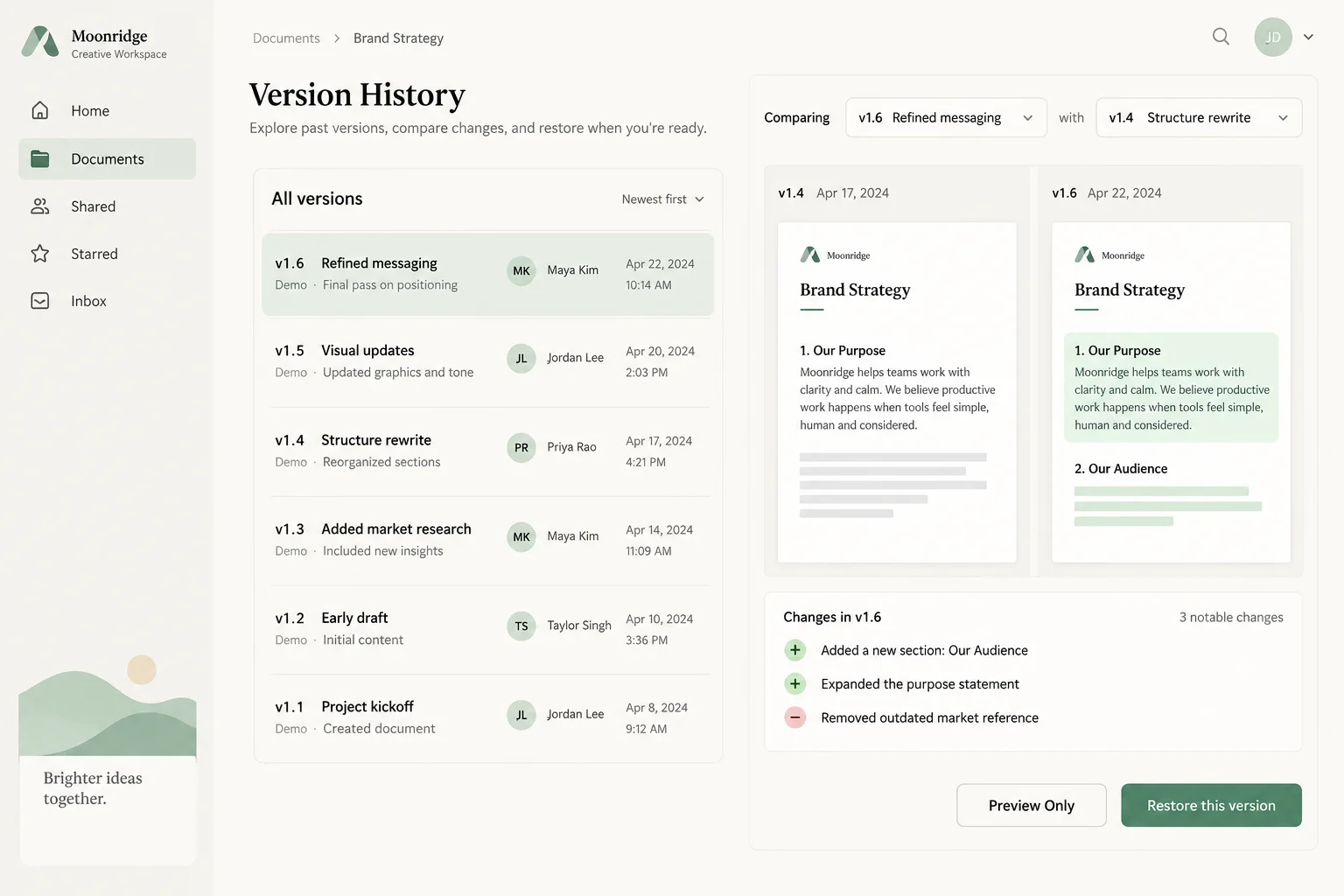
List named versions, authors, timestamps and a comparison view with restore preview.
Use [APPROVED_CONTENT] as the source of names, dates, figures, claims and destinations. List missing inputs before substituting anything. If a demonstration is needed, label its content as fictional. Do not invent customer quotes, rankings, partner logos or product capabilities.
Design direction
Use [BRAND_RULES] and the design system already selected in the project. If no system is supplied, start with this direction: warm white, ink text and restrained mint selected states; generous spacing and simple controls. Keep type, spacing and color roles consistent. Prioritize the task over decorative elements and avoid a generic collection of unrelated cards.
Content preparation
Prepare version names, authors, timestamps, change summaries and the behavior of preview, comparison and restore. Clarify which version is currently active.
Layout and behavior
Keep the version list and comparison context connected. Previewing should be reversible without changing the current document; restoring needs an explicit summary of the effect.
Task-specific acceptance check
- Separate previewing a version from restoring it.
- Preview an older version, dismiss it and compare two revisions.
- Confirm that restore does not occur through a simple selection and that unsaved current work is handled deliberately.
Implementation and review
Keep text editable. Use semantic structure, descriptive controls, visible keyboard focus and appropriate empty/error states. Check narrow and wide layouts. Respect reduced-motion preferences. Preserve any existing project framework and dependencies; do not silently replace the stack. Return the editable files and explain any incomplete behavior or unsupported inputs. Review this specific task before proposing extra features.
Reference attachment and reconstruction goal
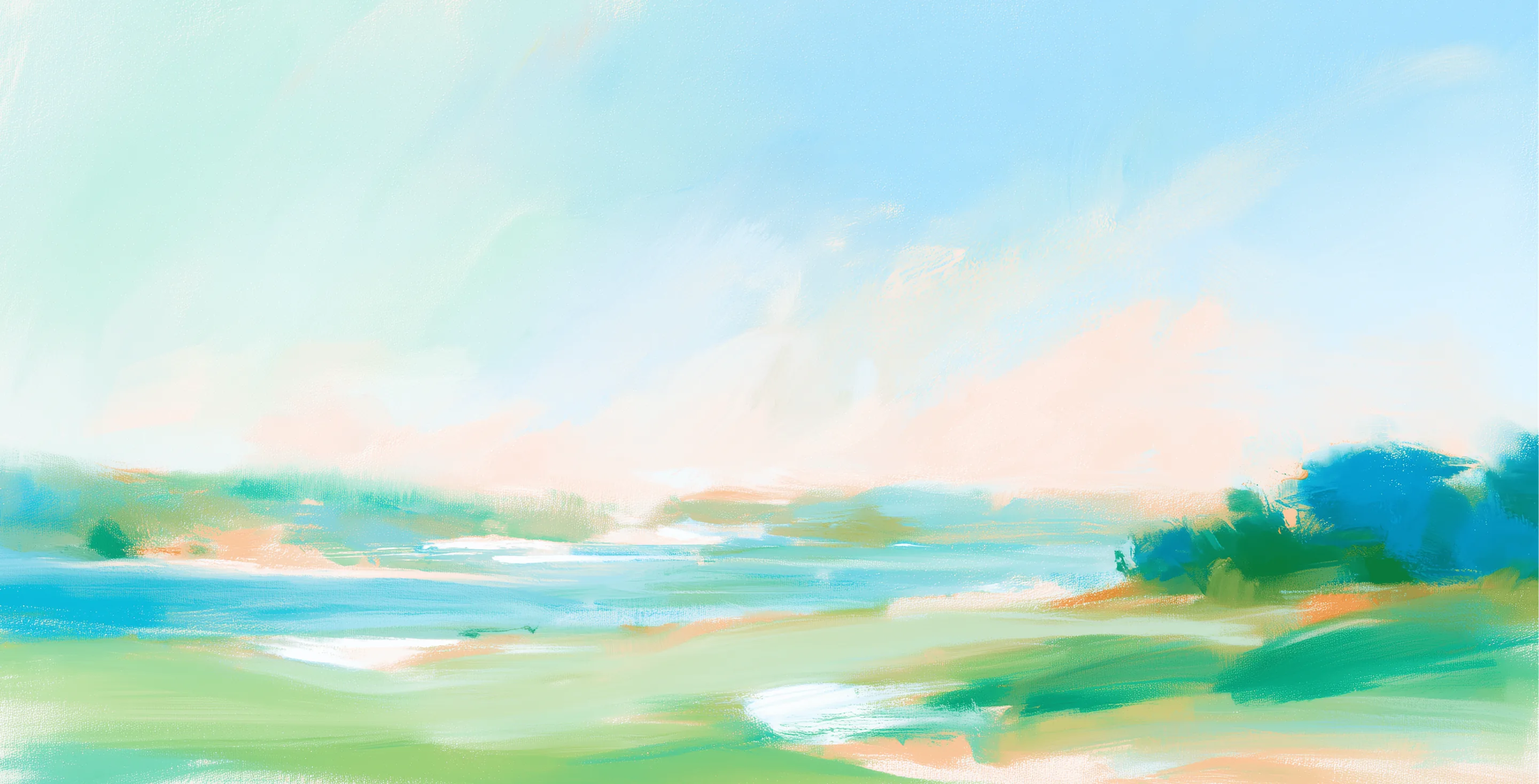
Attach reference.webp from this prompt’s download bundle alongside this prompt in OpenDesign. Build an editable result with a similar composition and hierarchy; do not embed the whole reference image as the finished interface. Preserve approved project content and brand rules if they conflict with fictional sample labels. If the image is missing or unreadable, ask for it instead of claiming visual fidelity.
Reference composition and content
Use the attached reference.webp as the visual reference for Version History Interface. Before building, identify the major regions from top to bottom, their relative widths and heights, alignment, spacing, typography hierarchy, surface colors, borders, imagery and repeated components. Preserve those relationships rather than substituting a generic template. Required task content: List named versions, authors, timestamps and a comparison view with restore preview. Use the following task-specific layout guidance when translating the image into editable elements: Keep the version list and comparison context connected. Previewing should be reversible without changing the current document; restoring needs an explicit summary of the effect.
Visual direction from the example brief
warm white, ink text and restrained mint selected states; generous spacing and simple controls.
Interaction specification
The reference is a static concept: the behavior below is a requirement to implement, not proof that the picture already works. Copy the customized prompt into your working project. Start with the core task: List named versions, authors, timestamps and a comparison view with restore preview. Separate previewing a version from restoring it. For each visible control, specify its trigger, affected state and feedback; implement local changes with consistent state across related views. Give search and filters real results, selection controls an explicit active state, and save actions visible pending/success/failure feedback where relevant. Do not add unrelated workflows. Use proper links for navigation, buttons for actions and accessible names for icon controls. Do not imply a backend operation succeeded when only a local demo changed.
Visual comparison and delivery
- Compare the result with the attached image at matching proportions. Review major region placement, relative image sizes, line breaks, spacing, typography hierarchy, contrast, active states and content density before polishing decorative details.
- Then test the narrow layout without squeezing desktop text into tiny labels.
- Keep logos, photos and icons as separate assets and all meaningful labels editable. List any unavailable fonts/assets and any intentional departures. Return the working files plus a concise account of implemented behavior and remaining integrations; do not promise a pixel-identical result from the prompt alone.
Download Prompt + Image
Includes the complete prompt and full-size reference image. Attach both in OpenDesign to guide the layout.
How to Write a Version History Interface Design Prompt
Use this version history interface design prompt to list named versions, authors, timestamps and a comparison view with restore preview.
The reference is an AI-generated concept. The instructions below describe what to build and test; the image does not demonstrate working behavior.
Separate Inspection from Restoration
A version history interface should let users compare earlier work without changing the current document.
Restoration is a distinct action with a clear target. Keep the version list and comparison context connected. Previewing should be reversible without changing the current document; restoring needs an explicit summary of the effect.
From the Prompt
Keep the version list and comparison context connected.
Make It Your Own
List [VERSIONS] with names, authors and timestamps. Preview differences before offering Restore, and explain which version will become current.
Prepare the Version History Interface Content
The version list keeps identity, author and time together; define the selected comparison pair separately from the latest version.
Prepare version names, authors, timestamps, change summaries and the behavior of preview, comparison and restore. Clarify which version is currently active.
From the Prompt
List named versions, authors, timestamps and a comparison view with restore preview.
Make It Your Own
For [PROJECT], use [APPROVED_CONTENT] as the source for this version history interface. Prepare version names, authors, timestamps, change summaries and the behavior of preview, comparison and restore. Clarify which version is currently active. Identify missing inputs before replacing them with demonstration content.
Preview Several Versions
Two document versions appear above a change summary and restore action; preserve a preview step before changing the current document.
The current document should remain unchanged until restoration is confirmed. Returning from a preview should preserve the user's position and selected comparison. Preview an older version, dismiss it and compare two revisions. Confirm that restore does not occur through a simple selection and that unsaved current work is handled deliberately.
From the Prompt
Separate previewing a version from restoring it.
Make It Your Own
Review the version history interface against this requirement: Separate previewing a version from restoring it. Preview an older version, dismiss it and compare two revisions. Confirm that restore does not occur through a simple selection and that unsaved current work is handled deliberately. Preserve approved content and revise only the parts that fail this check.
Review Your Version History Interface Result
A convincing screen is not a working backend. Test validation, permissions, persistence and failure behavior separately before connecting real data.
- Preview an older version, dismiss it and compare two revisions. Confirm that restore does not occur through a simple selection and that unsaved current work is handled deliberately.
Follow-Up Prompt
Use this after the first result. It narrows the revision to the most important part of this task.
Refine the current version history interface. Preview an older version, dismiss it and compare two revisions. Confirm that restore does not occur through a simple selection and that unsaved current work is handled deliberately. Preserve the approved content and visual direction; change only the parts needed to resolve these issues.