FURTHER READING
Further Reading for Copilot
Tutorials, documentation and walkthroughs for design work with Copilot, as listed in the published guide.


 Copilot
  OpenDesign
 How to design interfaces with GitHub Copilot CLI in OpenDesign: a screenshot as the input, your repository’s components reused, one launch-page task from brief to reviewed file, and the limits to know before you start.
THREE STARTING POINTS FOR COPILOT DESIGN
In this guide: a brief, reference images, design rules and an HTML artifact you review.
Read this guide SETUPThe complete path from a clean machine to Copilot CLI building and verifying UI.
Go to setup COMPARISONWhere Copilot diverges from Codex, Claude Code and Cursor on design work—and when another workflow fits better.
See the comparisonOne Complete Copilot Design Task
One task traced across its full arc: the brief and constraints you give Copilot, the artifact it returns, and the checks you still run before it is done. The interface below is an illustrative example made for this page—not a recorded Copilot run.
BriefUsing the attached competitor screenshot, design the launch landing page for a CLI product: hero with install command, three feature blocks and proof points. Reuse the repository’s components. Desktop and phone.
data-od-id hooksWrite the brief, pick the design system and set the acceptance criteria.
Copilot plans the layout, writes HTML, CSS and JavaScript, and revises on request.
OpenDesign provides the design system and skill, renders the preview and stores every version as a file in the project.
Before handoff, check visual hierarchy, spacing on the 8px grid, both breakpoints and every interaction.
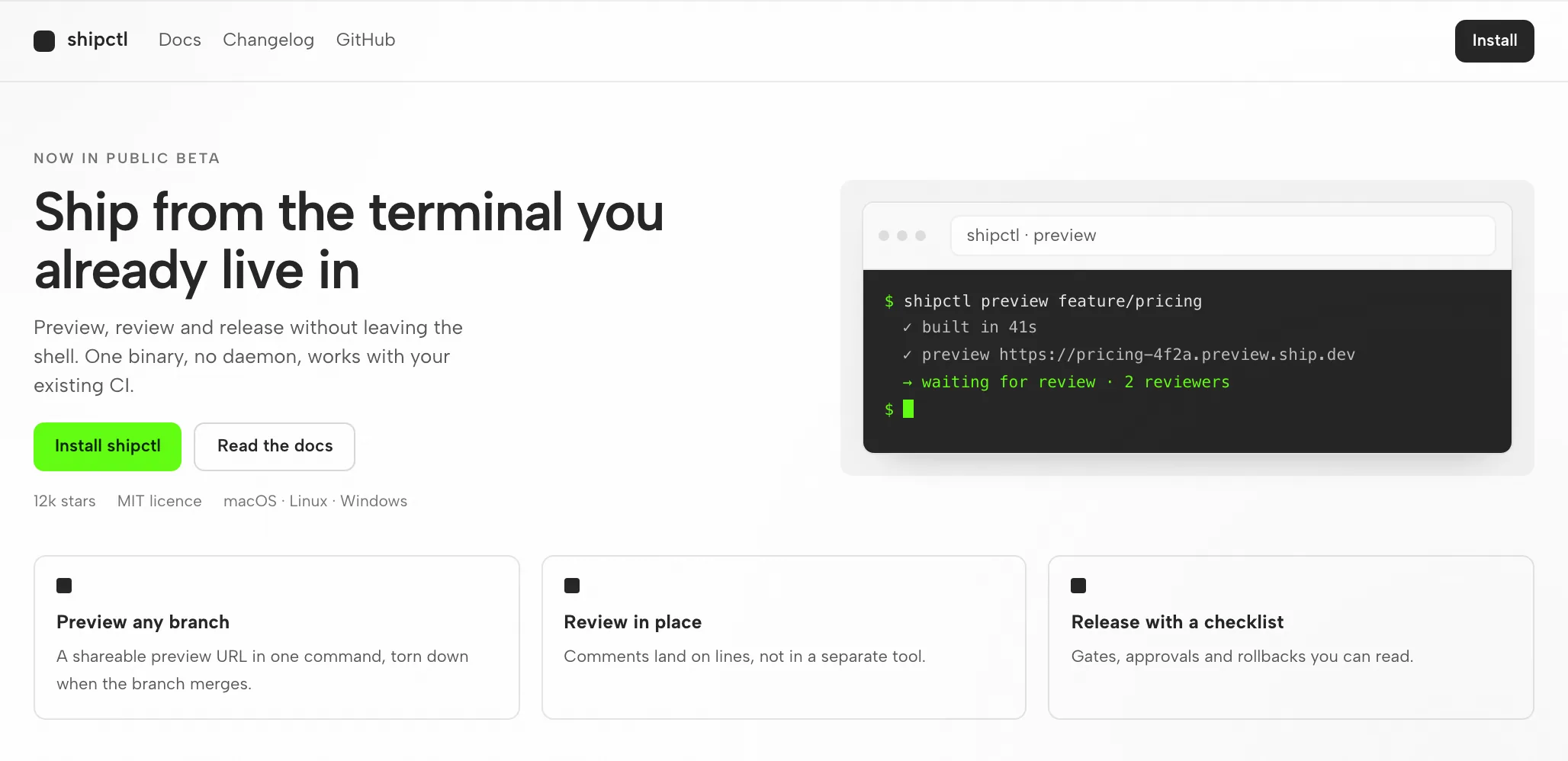
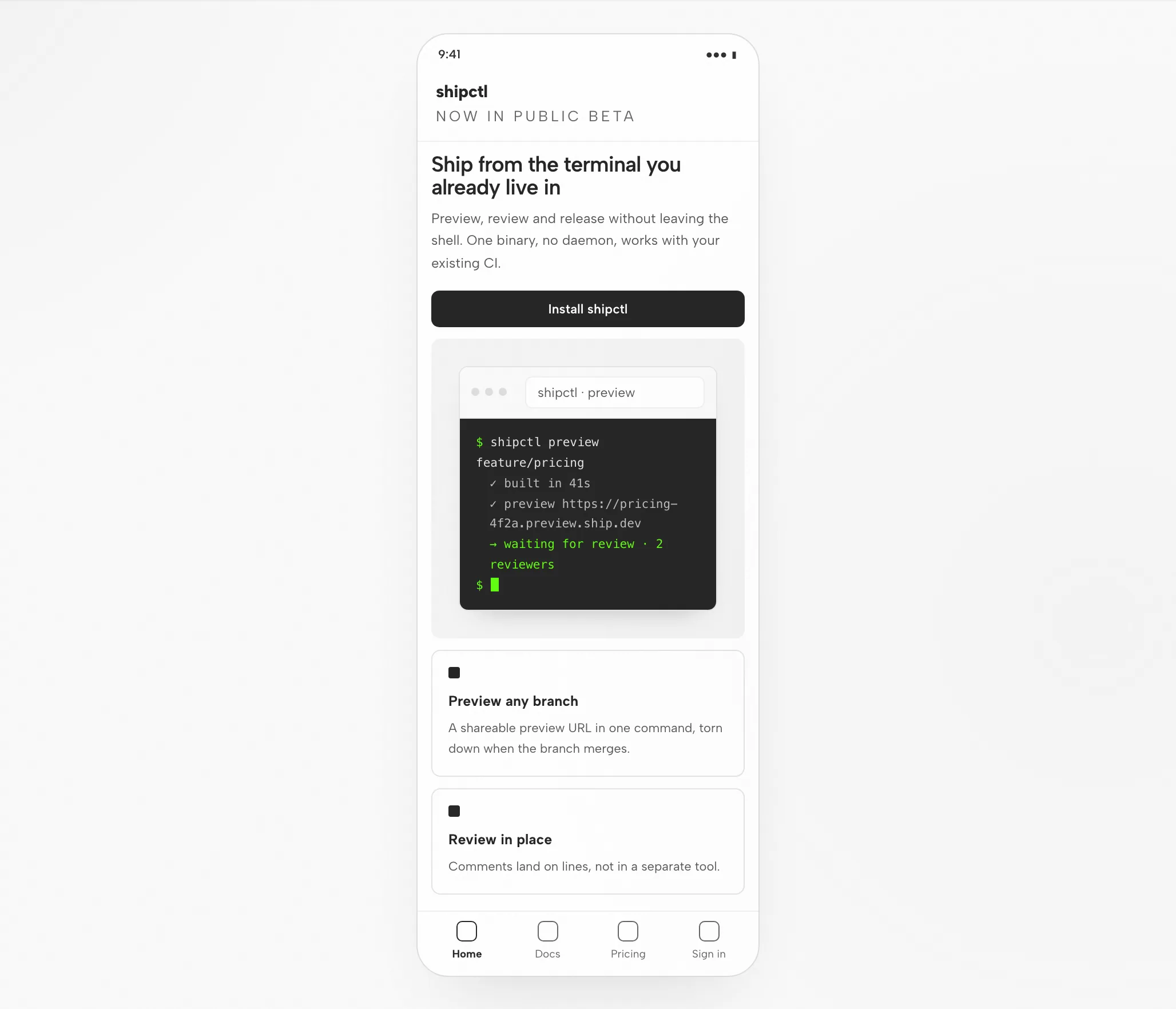
Hero, features and proof share the 8px grid; the art column never pushes copy below the fold.
Headline, install command, then features; the accent marks the install button only.
Copy first, art second, features stacked; the install command stays copyable.
Copy the command, follow both CTAs, jump to a feature anchor.
Fit
Compatibility
This page covers Copilot as connected through the OpenDesign desktop app. Published references checked on 6 September 2026.
GitHub Copilot CLI is GitHub's terminal-native coding agent, powered by the same agentic harness as the Copilot coding agent. It reads your codebase, edits files, runs commands, and works with your GitHub issues, PRs, and repositories. This page is about designing interfaces with Copilot through OpenDesign, not about Copilot’s own interface. OpenDesign’s setup notes list the available agents.
GitHub Copilot subscription. Authenticate with your GitHub Copilot subscription — credentials stay on your machine. This page does not promise a quota or price.
Check the download page for desktop builds. The Node.js and pnpm requirements in the source quickstart apply to running from source, not to installing a desktop package. Minimum compatible Copilot version: not verified here.
Follow the connection instructions shown by your installed version, then run a small task. Confirm that Copilot handled it and that the artifact opens. A download alone does not establish a working connection.
Start with the desktop app
Download first, complete the Copilot setup for your installed version, then check a small result. You do not need to build OpenDesign from source to follow this path.
Choose the package for your computer, install it and open the app.
Download OpenDesignFollow the Copilot instructions in your installed version. Authenticate with your GitHub Copilot subscription — credentials stay on your machine.
Using GitHub Copilot CLI# 1. Install Copilot CLI (Node.js required)
npm install -g @github/copilot
# 2. Start it in your project and authenticate on first run
cd your-project
copilot # run /login and follow the prompts to sign inFrom the Copilot setup notes in the published guide; check the vendor documentation for the current command.
Start with a brief small enough to judge the whole loop, including one revision.
Build a settings screen with a profile form and a save confirmation. Use my design rules. Check it at desktop and mobile widths.
To run OpenDesign from source, follow the technical quickstart instead.
The Copilot design workflow
One launch page, traced from the first brief to a file you have reviewed. Every step sets out your input, Copilot CLI’s work, OpenDesign’s part and the check you still owe.
Write the brief in plain language, three to six lines. Say who it is for, what the screen must do and which platforms matter.
A design system and firm rules are what keep Copilot CLI from falling back to a default look.
Copilot CLI writes a self-contained HTML artifact: layout, styles, interactions and stable hooks.
The file renders in OpenDesign at the widths you requested. This is where the design gets judged.
data-od-id targets for comments and edits.Ask for changes by pointing at elements in the preview. Each revision arrives as a new file; nothing is overwritten without notice.
Resources
Tutorials, documentation and walkthroughs for design work with Copilot, as listed in the published guide.
The artifact types Copilot produces in OpenDesign, with one skill for each type.
Brand tokens and components to bind before Copilot generates a file.
Templates to start decks, landing pages and product screens.
Limitations
FAQ
# 1. Install Copilot CLI (Node.js required)
npm install -g @github/copilot

# 2. Start it in your project and authenticate on first run
cd your-project
copilot           # run /login and follow the prompts to sign in
# 3. Choose a model for the task
# inside the session:
/model # pick a frontier model from Anthropic, OpenAI, or Google
# 4. Add custom instructions and the Figma MCP server (optional)
# write .github/copilot-instructions.md or AGENTS.md
/mcp add # add the Figma MCP server for design handoffcopilot
# in the prompt:
> Implement the design in reference-desktop.png and reference-mobile.png
in React + Vite + Tailwind + TypeScript.
Reuse my existing design-system components and tokens described in
.github/copilot-instructions.md.
Match spacing, layout, and hierarchy; make it responsive.
Render it in the browser and iterate until it matches the references
across breakpoints.