FURTHER READING
Further Reading for Qwen
Published guide links to tutorials, documentation, and walkthroughs for Qwen design work.


 Qwen
Qwen  OpenDesign
 How to design interfaces with Qwen Code in OpenDesign: a reference image as the input, QWEN.md as the rulebook, one team-calendar task from brief to reviewed file, and the limits to know before you start.
THREE WAYS INTO THIS QWEN CODE GUIDE
This guide covers a brief, references, design rules, and a reviewed HTML artifact.
Read this guide SETUPFrom a clean machine to Qwen Code that builds and verifies UI: the full setup path.
Go to setup COMPARISONHow Qwen Code compares with Codex, Claude Code, and Cursor for design work, and when another workflow fits better.
See the comparisonOne Complete Qwen Design Task
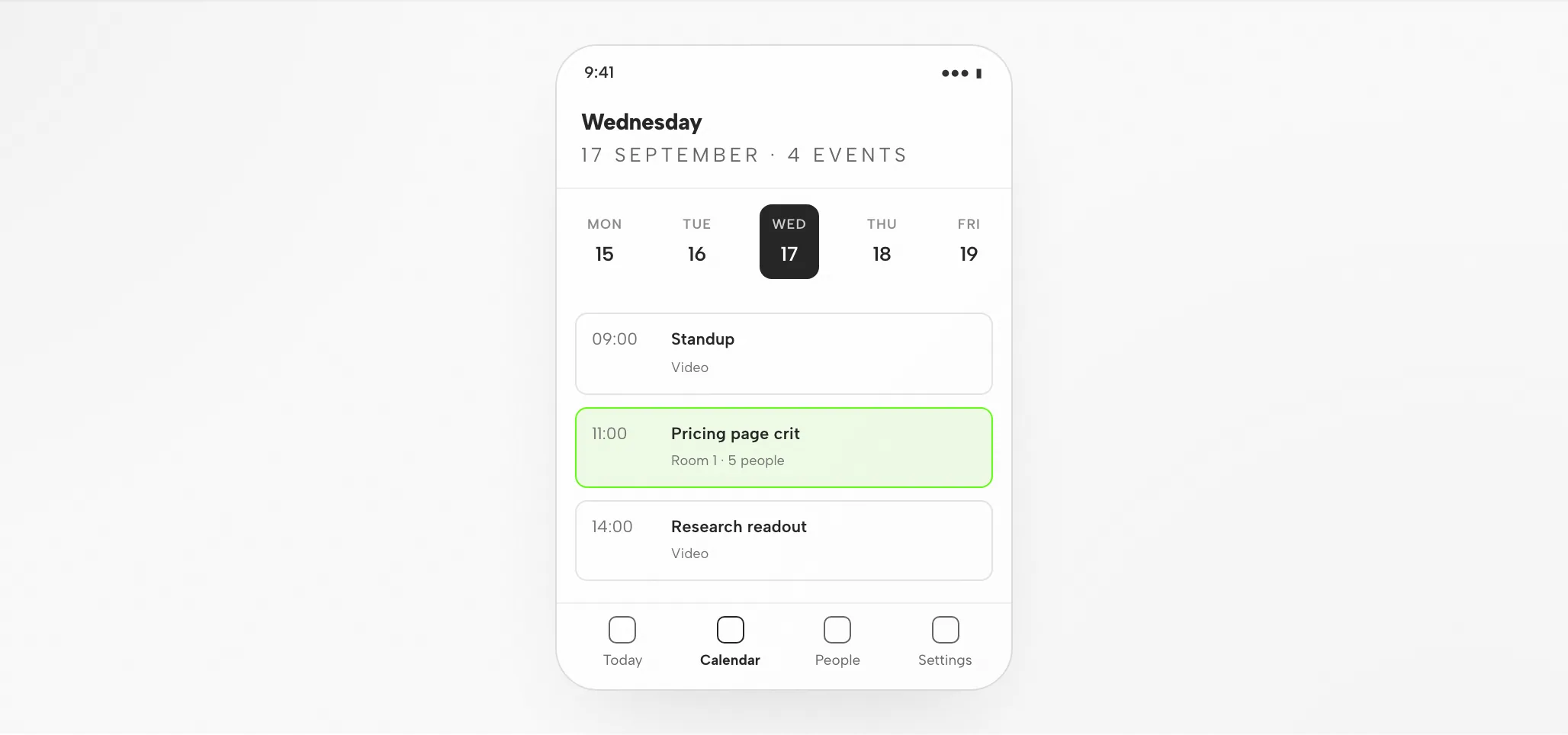
This walkthrough follows one task: what you hand over as brief and constraints, the artifact Qwen Code returns, and the checks left before sign-off. The interface below is illustrative for this page, not a captured Qwen Code run.
BriefFrom the attached reference, design a team calendar week view: five days, working hours, colour-coded by calendar, plus a day agenda on phone. Cover desktop and phone.
data-od-id hooksYou write the brief, choose the design system, and set acceptance criteria.
Qwen Code plans the layout, writes HTML, CSS, and JavaScript, then revises on request.
OpenDesign supplies the design system and skill, renders the preview, and saves each version as a project file.
Before handoff, you check visual hierarchy, 8px-grid spacing, both breakpoints, and every interaction.
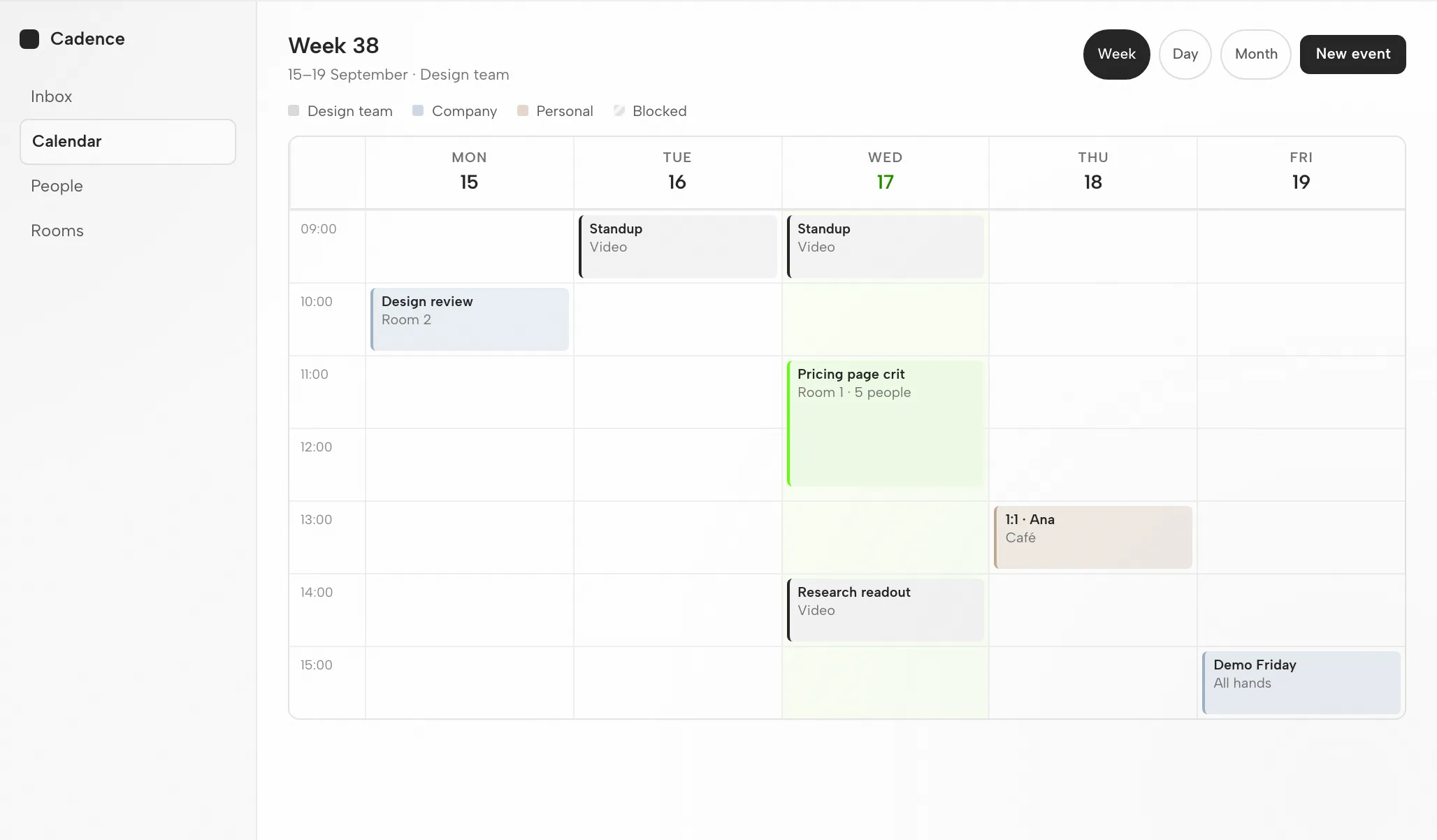
Hour rows and day columns sit on the 8px grid; events align to the hour lines.
Today and the focused event come first; the accent appears only on that event and today’s header.
The week collapses to a day strip plus an agenda list; today stays selected.
Test moving a week, opening an event, toggling a calendar, and jumping to today.
Fit
Compatibility
This page is about Qwen connected through the OpenDesign desktop app. Published references were checked on 6 September 2026.
Qwen Code is Alibaba’s open-source (Apache-2.0) terminal AI agent, adapted from Google’s Gemini CLI. It reads your codebase, edits files, runs commands, and works the web. This page focuses on designing interfaces with Qwen through OpenDesign, not on Qwen’s own interface. OpenDesign’s setup notes list the available agents.
DashScope / Qwen API key (BYOK). Authenticate with your DashScope or Qwen API key (BYOK); credentials remain on your machine. No quota or price promise is made on this page.
Look to the download page for desktop builds. The Node.js and pnpm requirements in the source quickstart apply when running from source, not when installing a desktop package. Minimum compatible Qwen version: not verified here.
Use the connection instructions your installed version shows, then run a small task. Confirm Qwen handled it and the artifact opens. A download by itself does not prove a working connection.
Start with the desktop app
Start with the download, finish the Qwen setup for your installed version, then verify a small result. This path does not require building OpenDesign from source.
Pick the package for your computer, install it, and open the app.
Download OpenDesignFollow the Qwen instructions that ship with your installed version. Authenticate with your DashScope or Qwen API key (BYOK); credentials stay on your machine.
Qwen Code documentation# 1. Install Qwen Code (Node 22+)
npm install -g @qwen-code/qwen-code@latest
# or: brew install qwen-code
# 2. Start it in your project and authenticate on first run
cd your-project
qwen # run /auth, or set a key in ~/.qwen/settings.jsonFrom the Qwen setup notes in the published guide; confirm the current command in the vendor documentation.
Keep the brief small enough to judge the full loop, including one revision.
Build a settings screen with a profile form and save confirmation. Use my design rules. Check it at desktop and mobile widths.
If you plan to run OpenDesign from source, follow the technical quickstart instead.
The Qwen design workflow
Follow one team calendar task from the brief through to a verified file. Each step separates your input, Qwen Code's work, OpenDesign's role, and the check you perform.
Three to six plain lines are enough. State who the screen serves, what it must do, and which platforms matter.
A design system plus a few firm rules. That combination is what keeps output on-brand instead of generic.
Qwen Code writes one self-contained HTML file: layout, styles, interactions, and stable hooks.
OpenDesign renders the file at the widths specified in the brief. This is where the design gets judged.
data-od-id targets for comments and edits.Ask for changes by pointing at preview elements. Each revision becomes a new file; nothing is overwritten without notice.
Resources
Published guide links to tutorials, documentation, and walkthroughs for Qwen design work.
Artifact types Qwen Code can produce in OpenDesign, with one skill per type.
Brand tokens and components to bind before Qwen Code generates anything.
Starting points for decks, landing pages and product screens.
Limitations
FAQ
# 1. Install Qwen Code (Node 22+)
npm install -g @qwen-code/qwen-code@latest
# or: brew install qwen-code

# 2. Start it in your project and authenticate on first run
cd your-project
qwen              # run /auth, or set a key in ~/.qwen/settings.json
# 3. Configure a DashScope (OpenAI-compatible) key in settings.json
# baseUrl: https://dashscope.aliyuncs.com/compatible-mode/v1
# model: qwen3-coder-plus (set DASHSCOPE_API_KEY)
# 4. Add a QWEN.md and wire the Figma MCP server (optional)
# add MCP under "mcpServers" in ~/.qwen/settings.jsonqwen
# in the prompt:
> @reference-desktop.png @reference-mobile.png
Implement this design in React + Vite + Tailwind + TypeScript.
Reuse my existing design-system components and tokens from QWEN.md.
Match spacing, layout, and hierarchy; make it responsive.
Render it in the browser and iterate until it matches the references
across breakpoints.