Use the Prompt
Add Your Brief
Add your context below. It will be included with the prompt when you copy or download.
Create an editable interactive demo launch video for [PROJECT] and [AUDIENCE]. Use the attached reference video to study composition and pacing, then build a new result with approved content and your own visual identity.
Objective and Inputs
Hook with one customer task; show product proof; explain the approved AI-assisted step; finish on a concrete demo outcome.
Ask for the required assets, exact on-screen copy, intended destination, output size and licensed audio. Use [APPROVED_CONTENT] for names, quantities, claims and interface labels, and [BRAND_RULES] for the visual system. If an input is missing, list it before choosing a substitute. Treat any demonstration data as fictional and label it.
Scene Plan
- Hook with one customer task. Specify its entrance, reading hold, visible action and transition to the next scene.
- Show product proof. Specify its entrance, reading hold, visible action and transition to the next scene.
- Explain the approved AI-assisted step. Specify its entrance, reading hold, visible action and transition to the next scene.
- Finish on a concrete demo outcome. Specify its entrance, reading hold, visible action and transition to the next scene.
Before implementation, return a timing table with scene start, end, copy and assets. The reference runs approximately 23.9 seconds at 1920 × 1080; use that as a comparison, not a requirement to cram longer copy into the same duration. Propose a shorter state list or longer reading holds when the supplied material needs them.
Task-Specific Motion
Use brand-accurate interface elements and write the narrative before syncing it to music. Distinct proof and AI scenes should answer different viewer questions.
Keep transitions tied to the story. Preserve a recognizable anchor between adjacent scenes and avoid changing scale, color, type and camera direction all at the same time. Hold information still long enough to read. If a cursor, pointer or highlight is used, align it with the exact target and show the resulting response.
Typography, Assets and Audio
- Make the main message readable at normal phone playback size.
- Preserve approved asset proportions; do not stretch a logo, device, chart or screenshot.
- Keep editable text separate from images where the project allows it.
- Mark music and sound cues on the timing table. Use only supplied or properly licensed audio.
- Use a silent timing preview when audio is unavailable, rather than claiming the film is synchronized to a track that was not provided.
Implementation and Deliverables
Use the existing project stack. Build an explicit timeline whose state can be inspected at any timestamp. Keep copy, input data, colors and scene timing in editable configuration rather than scattering them through rendering logic. Reuse authorized assets locally and report missing fonts or integrations.
Return editable source, the timing table, a poster and an MP4 render. Preview one frame from every scene and inspect the transitions before the full export. Do not use the reference video itself as the finished deliverable or imply that a visual demonstration implements real product functionality.
Review This Specific Result
Show only capabilities represented in the actual product and avoid substituting motion spectacle for a demonstrated result.
Check the first and last frame, the longest line of copy, the smallest important label and every scene boundary. Verify that the exported frame count, aspect ratio and audio length agree with the approved timeline. Review a silent playback first to confirm the visual story is understandable. Record any differences from the reference and any behavior not implemented.
Reference and Attribution
Reference creator: @jhylee95. Source: https://x.com/jhylee95/status/2103604431627452427 This is an OpenDesign editorial adaptation of the public task idea. Use the reference to learn from its structure; obtain permission before redistributing creator media beyond your authorized use.
Download Prompt + Video
Download the editable prompt and the creator reference video together. Use both to guide your own motion study.
How to Write a Interactive Demo Launch Video Prompt
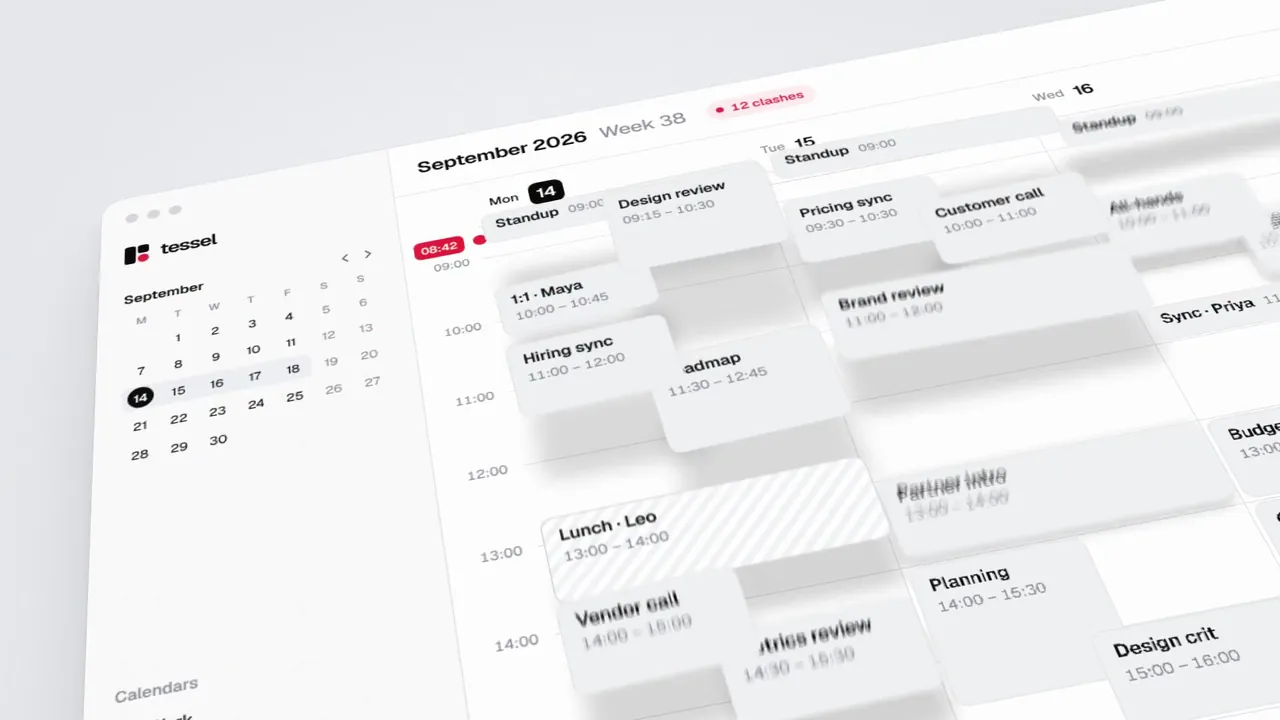
Use this interactive demo launch video prompt to plan the content, motion and timing of your own adaptation. Hook with one customer task; show product proof; explain the approved AI-assisted step; finish on a concrete demo outcome. This guide turns that particular sequence into an editable brief, with a separate decision for content, motion, timing and validation.
Reference frames: @jhylee95. The instructions are an OpenDesign editorial adaptation. Source media is credited above; this is not a verified OpenDesign reproduction.
Define the Story Before the Animation
The task is to hook with one customer task. The source provides a motion idea, but your own version still needs real copy, assets and a clear audience. Decide what should be understood at the end before choosing effects. A named product in the reference is context, not permission to reuse its claims or identity.
In the Adapted Prompt
Hook with one customer task; show product proof; explain the approved AI-assisted step; finish on a concrete demo outcome.
Apply It to Your Version
Write one sentence describing the intended viewer outcome. Supply the real assets for this sequence: hook with one customer task, then show product proof. Remove any scene that cannot be supported by those inputs.
Make the Scene Changes Explain the Task
Use brand-accurate interface elements and write the narrative before syncing it to music. Distinct proof and AI scenes should answer different viewer questions. The important distinction is between a visible change and a meaningful one. Give the viewer a stable relationship between the content before and after a transition, and name the part of the frame that should attract attention. Use the reference checkpoint to discuss the composition; the exact timestamp is a review aid, not a claim that every adaptation must follow it.
In the Adapted Prompt
Use brand-accurate interface elements and write the narrative before syncing it to music. Distinct proof and AI scenes should answer different viewer questions.
Apply It to Your Version
Turn each scene into an action/result pair. For this case, start with “Hook with one customer task”, then explain how it becomes “show product proof”. Specify what stays fixed, what moves and when the copy may change.
Budget Time for the Information
The reference is 23.9 seconds long and uses a 1920 × 1080 frame. Those measurements are facts about the reference, not a universal production recipe. Divide your actual copy into the scene plan and estimate a readable hold for each message before assigning transitions. A vertical crop may require new line breaks; it should not stretch the original layout or silently remove important information. In this sequence, reserve a clear hold to finish on a concrete demo outcome. Do not spend that reading time on the preceding transition.
In the Adapted Prompt
Before implementation, return a timing table with scene start, end, copy and assets.
Apply It to Your Version
Make a low-cost timing preview with your longest real label. Watch it once without pausing. If the message cannot be read, simplify the scene or increase its hold before adding more motion.
Review the Case-Specific Failure
Show only capabilities represented in the actual product and avoid substituting motion spectacle for a demonstrated result. Review this issue separately from visual polish: a smooth animation can still communicate the wrong relationship, claim or result. Keep a record of approved data and assets so a revised render can be checked against the same inputs. The downloadable reference helps compare pacing; it does not prove that the new implementation is correct.
In the Adapted Prompt
Show only capabilities represented in the actual product and avoid substituting motion spectacle for a demonstrated result.
Apply It to Your Version
Ask the agent to return the affected before/after frames, the exact timing change and any remaining limitations. Preserve the approved content while fixing the specific failure rather than regenerating every scene.
Check the Story and the Export
Show only capabilities represented in the actual product and avoid substituting motion spectacle for a demonstrated result.
- Show only capabilities represented in the actual product and avoid substituting motion spectacle for a demonstrated result.
- Read every important label at normal playback speed without pausing.
- Inspect the frame before and after each transition for continuity.
- Confirm the source, permissions and accuracy of any claim, asset or dataset.
- Compare export duration, dimensions and audio alignment with the approved timeline.
Follow-Up Prompt
Use this after the first result. It narrows the revision to the most important part of this task.
Refine only the interactive demo launch animation. Keep the approved story and supplied content. Use brand-accurate interface elements and write the narrative before syncing it to music. Distinct proof and AI scenes should answer different viewer questions. Show only capabilities represented in the actual product and avoid substituting motion spectacle for a demonstrated result. Show the affected scene-boundary frames and a short preview before exporting again.