Figma to WebsiteOpenDesign

AI Website Builder for Figma Designs

Bring the design file, not just a screenshot. OpenDesign can decode a local .fig file into its node tree, tokens, assets, and preview, then use that material to build reusable design context. Generate a website from the approved direction and review the responsive behavior and code it still needs.

Branded Frontend · Real Files · Continue With Your Coding Agent

Approved Direction, Working Frontend01 / OpenDesign
figma-to-website.website · Desktop Preview
Design HandoffDesign System   Pages   HandoffReview the Frontend
Approved Direction, Working FrontendKeep the Visual Intent. Complete the Website Behavior.

A responsive implementation that maps the Figma system into components, states, breakpoints, and editable source.

Review the Frontend
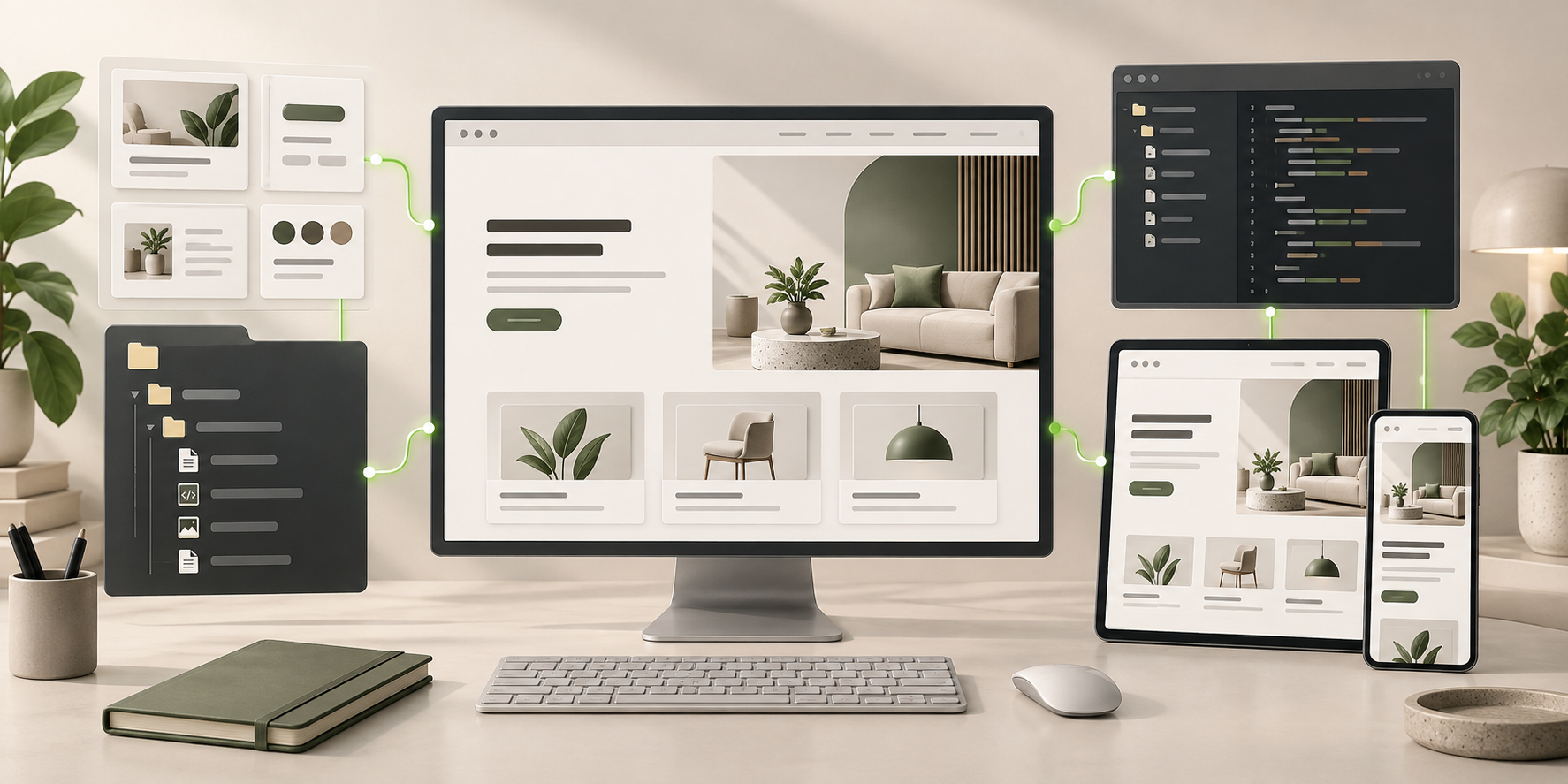
Illustrative desktop website direction for the Figma to Website workflow in OpenDesign.
Visual Mapping · Responsive Rules · Editable Code
Visual MappingResponsive RulesEditable Code
One Specific Brief↗

“Convert an approved SaaS homepage and component sheet into a responsive website with real navigation, mobile behavior, reusable sections, and code ready for repository review.”

Illustrative Website · Desktop CompositionReal Editable Frontend Files
01Local .fig InputDecode the exported file into a node tree, tokens, assets, and preview without relying only on screenshots.
02Reusable Design ContextCarry the source direction into the design system used for website generation.
03Responsive ReviewCompare the working page at several widths and resolve decisions the source did not specify.
04Editable Website OutputInspect and export the frontend for the engineering work after visual review.
Figma to Website Example

The Case Is the Finished Website, Not the Export Button.

Figma provides visual evidence. The work is complete only after components, responsive behavior, states, assets, and editable frontend code form a coherent website.

Design-System-to-Frontend Workflow

Approved Visual Direction Mapped Into a Responsive Website System.

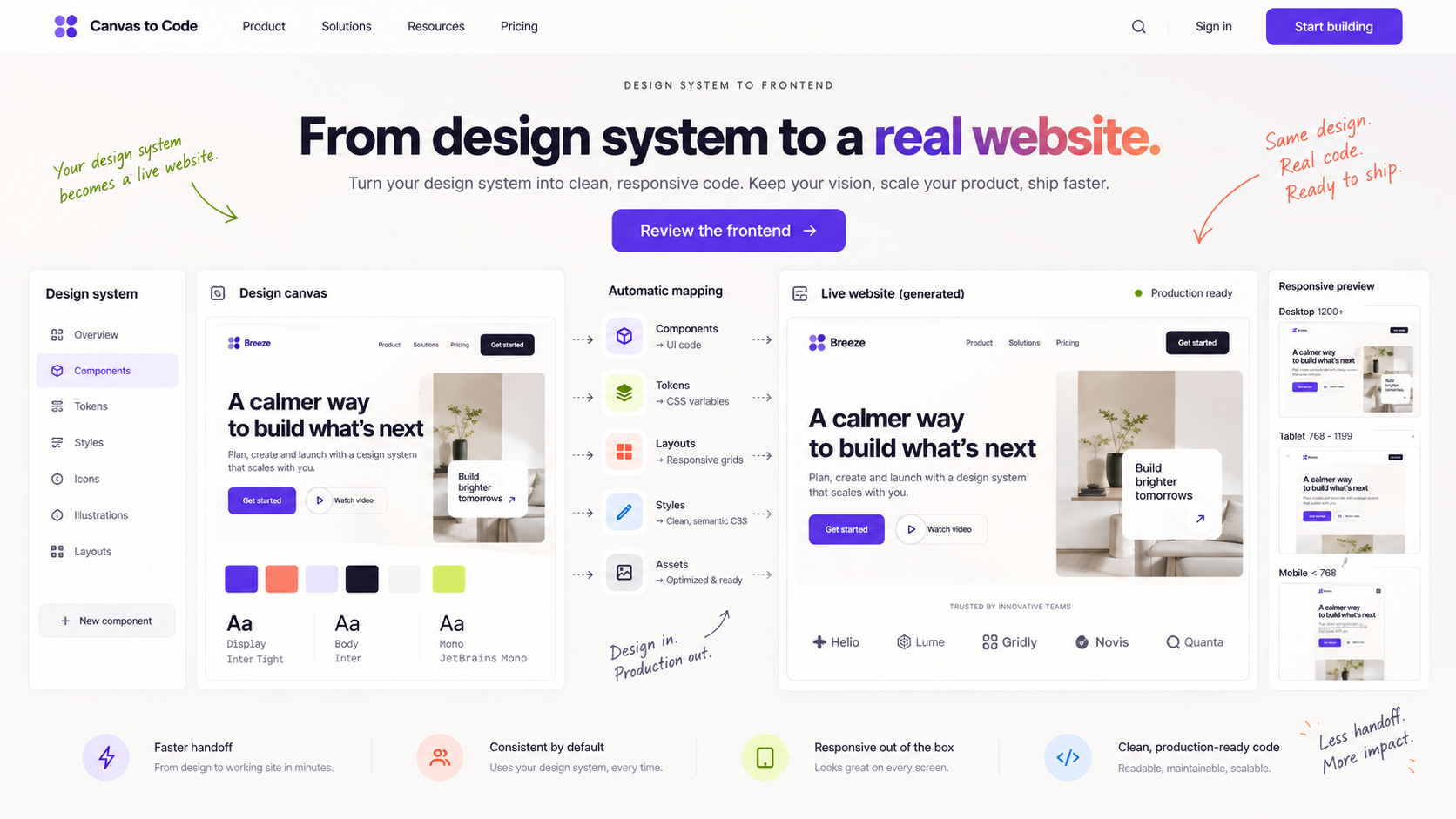
This illustrative workflow brings design material, components, and website review together. The actual OpenDesign path starts with the approved .fig snapshot and its structured context, then uses generation and viewport review to resolve the responsive decisions that the source alone does not settle.

  • Approved frames and tokens mapped to reusable frontend components
  • Desktop and mobile behavior reviewed beyond the supplied canvas
  • Editable source ready for engineering review and completion
Design MappingResponsive RulesEditable Code
Figma to website example showing a complete desktop design-system-to-frontend workflow with design canvas, tokens, component mapping, responsive previews, and finished website output.
Illustrative Design · Not a Customer Build1672 × 941 · 16:9
Design Evidence Map

The Hard Part Is Not Exporting Layers. It Is Completing the Website.

A local .fig file supplies structured material for generation. The website still needs responsive decisions and a comparison with the approved source.

Figma SourceOpenDesign StepReview
01

Local .fig Export

Decode tree, tokens, assets, and preview

The intended source is available
02

Design Snapshot

Create reusable design context

Type, assets, and component intent
03

Website Requirements

Generate the working frontend

Reflow and states beyond the source frames
04

Visual Differences

Send marked feedback and refine HTML

Fidelity plus implementation review
Canvas-to-Code Flow

Prepare Evidence → Map the System → Generate and Compare → Finish in Development.

Missing design decisions are surfaced and resolved instead of silently guessed.

  1. 1

    Export and Bring the .fig File

    Supply the approved local file and required assets. A Figma URL may not be accessible; a local export gives the workflow a concrete source to decode.

  2. 2

    Create the Design Context

    Use the decoded snapshot to establish type, color, assets, and component intent. Add responsive and interaction constraints that the file leaves open.

  3. 3

    Generate and Review the Website

    Compare the result with the source direction at desktop, tablet, and mobile sizes. Mark mismatches for the agent and refine supported HTML visual details.

  4. 4

    Finish in Development

    Resolve accessibility, semantics, interactions, assets, performance, integrations, testing, and repository conventions.

A Focused Revision to Try

Use this decoded .fig snapshot and approved assets. Preserve the type, colors, and repeated patterns, then define the missing tablet and phone behavior. Mark visual mismatches and list the code decisions that need review.

Implementation Map

From Figma to Website: Design Context, Responsive Review, and Code.

The output is evaluated as a working frontend, not as a screenshot that happens to resemble the design.

01

A Decoded Design Snapshot

Import a local .fig file to make its tree, tokens, assets, thumbnail, and agent-facing design context available as generation material.

02

Responsive Page Behavior

Decide how grids, type, navigation, images, controls, and spacing adapt beyond the supplied frames.

03

An Inspectable Frontend

Keep the implementation connected to a rendered website and editable files rather than a flattened export.

Fidelity Without False Precision

Design Fidelity With an Honest Implementation Boundary.

The Figma workflow starts with structured design material: an exported file can supply more than a flattened image. OpenDesign makes that context useful for generation, then brings the result into working-page review where visual fidelity and responsive behavior can be judged separately.

One Clear BriefWebsite System
Your Direction

“Convert an approved SaaS homepage and component sheet into a responsive website with real navigation, mobile behavior, reusable sections, and code ready for repository review.”

index.htmlstyles.csscomponents/CodexClaude CodeCursor
01

More Context Than a Screenshot

A local .fig snapshot includes tree, token, and asset material that can inform the website direction instead of relying on visual interpretation alone.

02

Design Rules Available to the Agent

Create reusable design context from the source and use it alongside the page brief and implementation constraints.

03

Responsive Gaps Made Reviewable

Check the working frontend between the supplied frames, then send marked feedback for missing reflow, navigation, or state behavior.

04

Fine Visual Corrections After Generation

Refine supported HTML typography, color, dimensions, and spacing, then export the website for code review and further implementation.

Scope · Figma to Website

A Decoded Design File Is a Starting Point, Not Production Certification.

Imported design context does not guarantee pixel parity, complete interaction logic, or repository compliance. Resolve those differences in visual and engineering review.

Your Website Deliverables

  • A Decoded Design Snapshot
  • Responsive Page Behavior
  • An Inspectable Frontend

Separate Services and Responsibilities

  • Guaranteed lossless conversion
  • Automatic live Figma synchronization
  • Production backend integration
  • Guaranteed framework conventions

Treat Figma as evidence, not executable specification. Verify content, fonts, assets, licenses, semantics, responsiveness, interaction, accessibility, and code quality in the final implementation.

Figma to Website FAQ

Figma to Website Questions About Fidelity, Responsiveness, Components, and Production Readiness.

Local .fig input, source accessibility, responsive decisions, and the review between design and implementation.

Can OpenDesign Turn Figma Into a Website?

OpenDesign can decode a local .fig file into a structured design snapshot, including its node tree, tokens, assets, and preview. That material can inform the design system and generated frontend. Review the result; structured input does not guarantee a lossless conversion of every layer or effect.

Do I Need to Export a .fig File?

A local .fig export is the concrete source for offline decoding. If a Figma URL is inaccessible, export the approved file and bring it into the workflow. Screenshots and other assets can supplement the brief, but they do not contain the same structured design information.

Will Components Match the Figma Component Library?

Repeated patterns can be mapped to frontend components, but naming, variants, properties, tokens, and architecture need deliberate review.

Can Developers Continue the Code?

Yes. The purpose of the workflow is an editable frontend that can move into a repository for engineering review and continued work.

Is the Conversion Production-Ready?

It is a starting implementation. Production readiness requires accessibility, semantics, performance, interaction, asset, security, testing, and repository checks.

Start Building

Keep the Direction. Complete the Website.

Turn approved visual evidence into a responsive frontend, then finish the implementation with files your developers can inspect.

Download OpenDesign

Free and Open Source · No Lock-In · Works With Your Coding Agent

Figma to Website frontend connected to editable files, reusable components, and coding-agent continuation.
Ready to Keep EditingFigma to Website Frontend GeneratedHTML · CSS · JavaScript · Components