

Graphics
Daily Email Digest Design
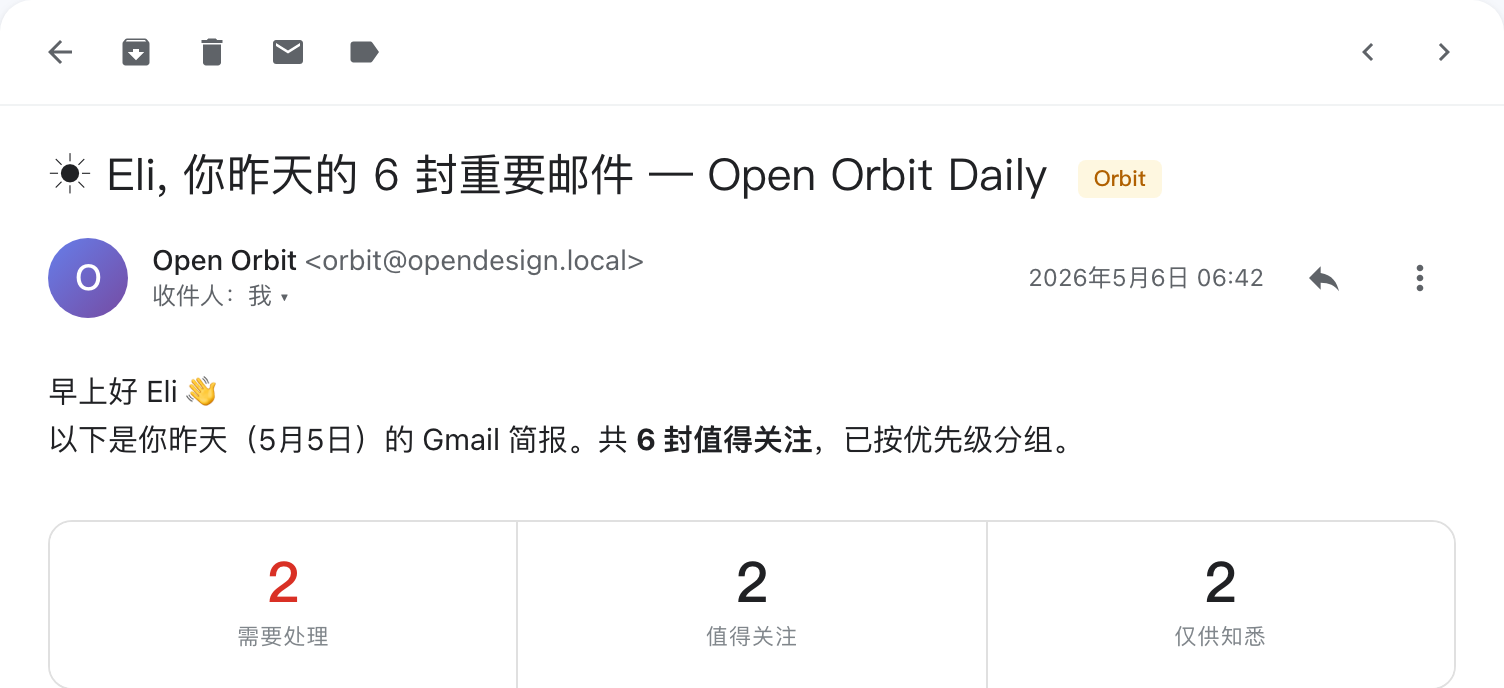
Daily Email Digest Design turns a six-message Gmail briefing into a priority-ordered reading path for deciding what to handle first.

Daily Email Digest Use Cases
- Inbox TriageSort messages by urgency before opening individual threads
- Daily BriefingsPresent yesterday's important mail in one readable summary
- Email Automation ConceptsStudy a visual model for grouped message prioritization
- Digest Layout DesignBalance summary counts with actionable message details
Priority Digest Design Highlights
- Priority BandsThree labeled groups separate action, attention, and awareness
- Compact CountsEqual category totals summarize the six-message workload
- Message ContextSender roles and subjects support faster scanning
- Action ContrastBlue reply buttons distinguish urgent responses from reference links
The Email Digest, Section by Section
1 / 4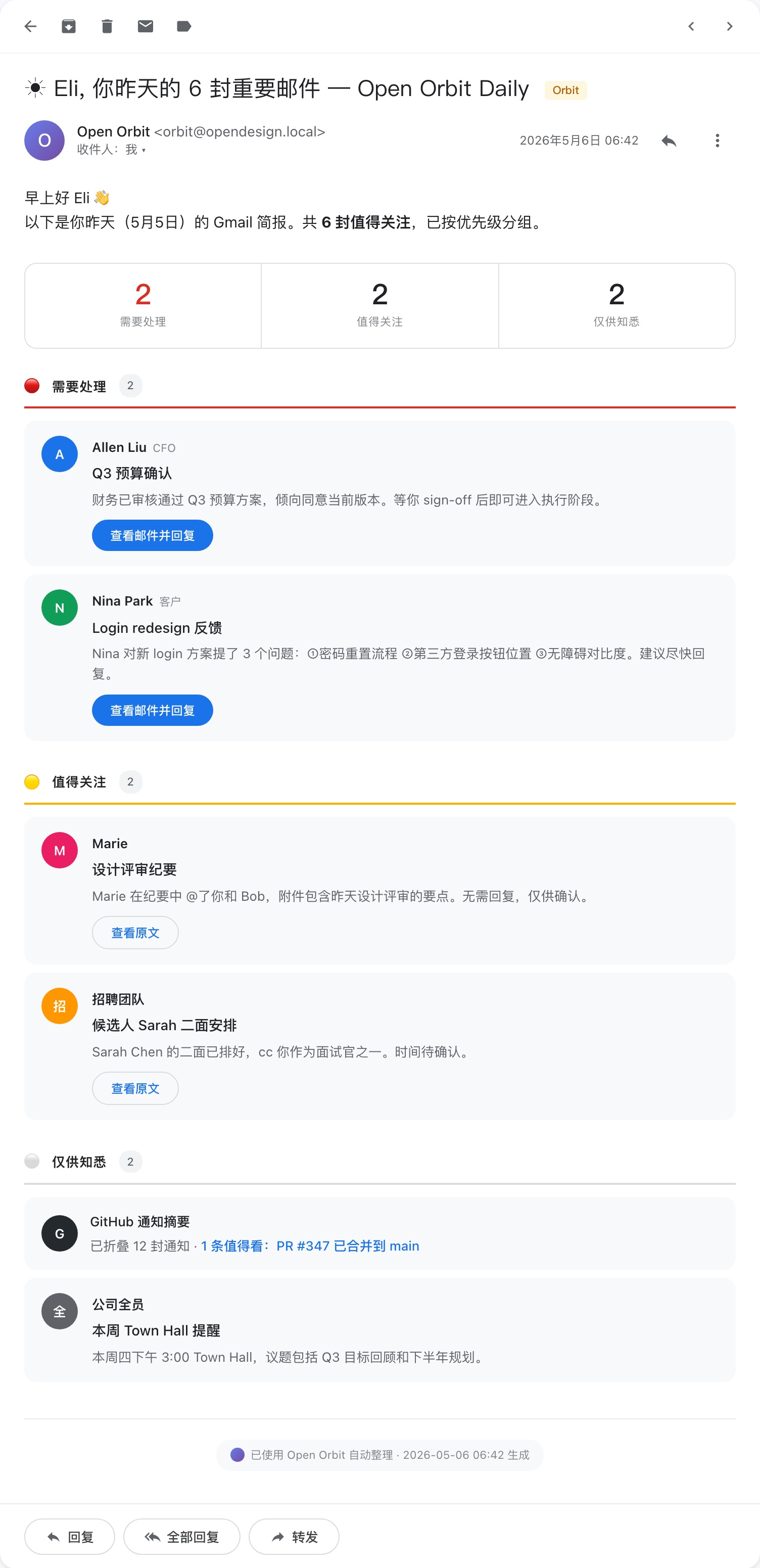
Daily Email Digest Design
This official OpenDesign example presents a priority-grouped Gmail daily digest as one tall HTML email layout. Its authored heading addresses Eli directly and states that six important messages from May 5 are grouped by priority. That framing establishes the digest as a morning review document, rather than a mailbox replacement.
The visual order moves from summary to action. A greeting and date range introduce the digest, a three-column count strip reports two messages in each category, and the message groups follow in the same order: 需要处理, 值得关注, and 仅供知悉. The repeated count of two makes the composition easy to scan, while the equal distribution also avoids implying that one category dominates the sample.
The design uses restrained surfaces and strong semantic color. Red marks the action group, yellow marks attention, and gray marks awareness. These cues are reinforced by section rules and circular sender avatars, so color is not carrying the entire classification by itself.
Personal Entry Point
The recipient name Eli and the morning greeting make the digest read like a scheduled briefing.
Summary Before Detail
The two-two-two count strip gives readers a workload preview before they scan any sender or subject.
Reading The Opening
The header combines the authored subject, the Open Orbit sender identity, recipient metadata, and a timestamp of 2026年5月6日 06:42. Below it, the line “共 6 封值得关注” connects the headline count to the digest's purpose. This sequence lets a reader verify the time window before interpreting the category totals.
A useful tradeoff appears here: the large opening title gives the digest a personal, email-like entry point, but its mixed Chinese and English wording creates a longer line that depends on generous horizontal space. A narrower adaptation would need to preserve the date and total without allowing the product label to overwhelm the recipient context.
Priority-Grouped Email Reading
This composition is most useful when the reader needs to decide what deserves a response before reviewing every message. The first group contains Allen Liu's “Q3 预算确认” and Nina Park's “Login redesign 反馈.” Both cards use the blue “查看邮件并回复” action, connecting the category label to a concrete next step.
The second group changes the action to the outlined “查看原文.” Marie's design review summary and the recruiting team's Sarah Chen interview update are presented as items to confirm, not immediate replies. That difference is a meaningful interaction cue in the visual design: filled actions signal response pressure, while outlined actions lower the visual priority.
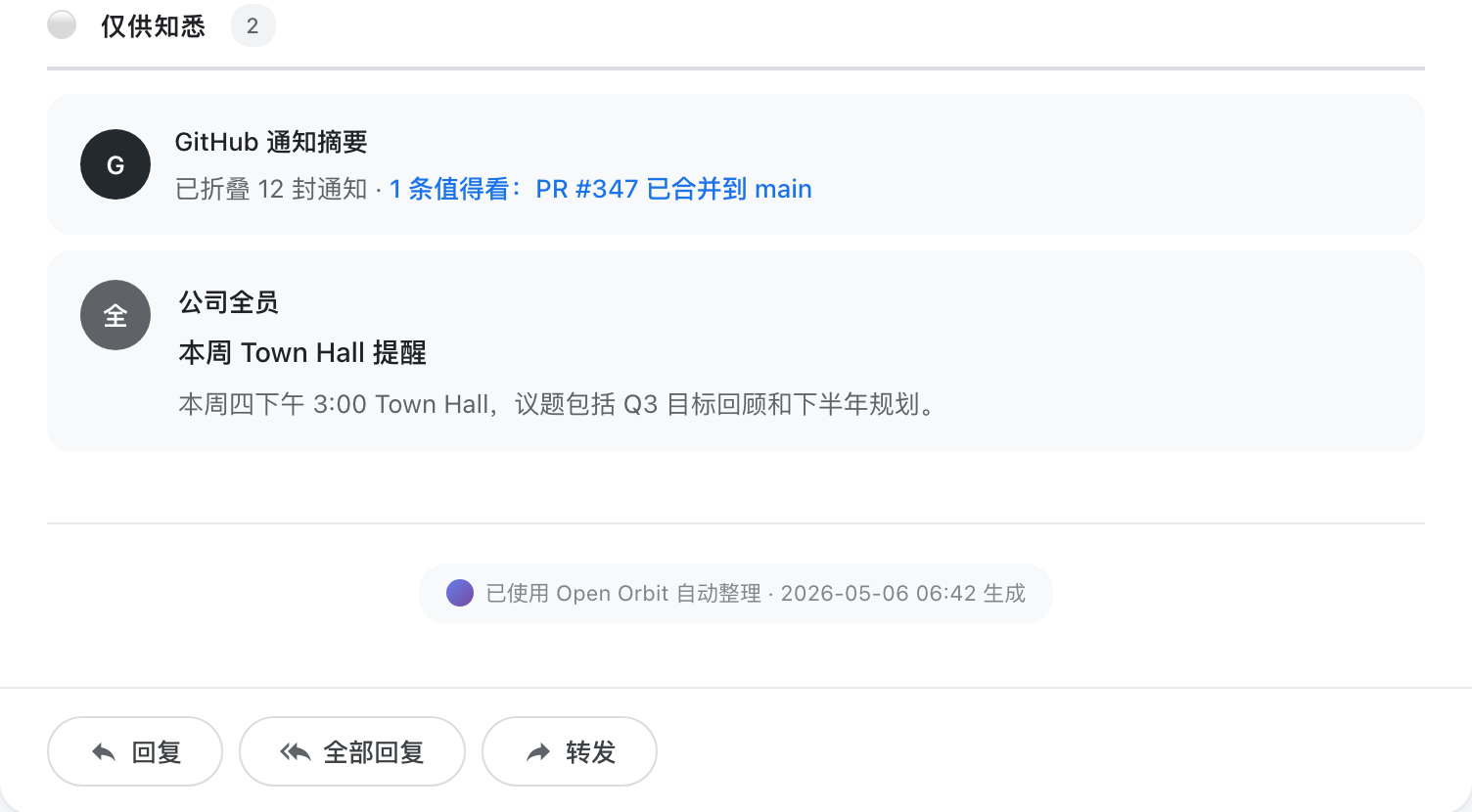
The final group compresses lower-priority information further. The GitHub card says “已折叠 12 封通知 · 1 条值得看,” while the Town Hall card gives a single event reminder. These examples show two forms of compression: many notifications become one summarized row, while a broad announcement remains a short standalone item.
Respond First
Filled blue buttons accompany the budget and login feedback items that explicitly call for a reply.
Review Later
Outlined source links keep design notes and interview scheduling available without matching reply emphasis.
Compress Awareness
The GitHub notification summary reduces twelve notices to one highlighted pull request reference.
Who Benefits From The Grouping
An individual contributor can start with direct decisions, a manager can review approvals and planning reminders, and a product team can separate feedback requiring follow-up from notes that only need acknowledgement. The design supports these tasks through ordering and labels, not through a large control panel or dense mailbox navigation.
The tradeoff is that a single priority classification hides the reasoning behind each placement. The sample says that Nina's message contains three questions and that the budget awaits sign-off, but it does not show a scoring rule. A production adaptation would need an explicit policy or editable rationale if users must audit why a message appears in one band.
Summary, Cards, And Rhythm
The main content is a broad white email surface on a pale background, with generous left and right margins around the digest. Each message sits in a light-gray rounded card. The cards repeat a stable internal pattern: avatar, sender and role where available, subject, explanatory copy, then an action. This repetition makes different content types comparable without making every message identical.
The first two action cards include sender roles, “CFO” and “客户,” beside the names Allen Liu and Nina Park. Marie's card omits a role, while the recruitment card uses the team name as its sender. That variation is important: the layout tolerates missing role metadata without removing the subject or explanatory sentence, though the cards become less horizontally consistent.
Each sender avatar has a fixed 36px width, while the card body uses flex: 1 with min-width: 0. This lets the text region take the remaining space and wrap longer subjects and summaries beside a consistent identity column. Long multilingual copy can still increase card height and extend the digest, so the stable row anatomy trades a predictable scan pattern for variable vertical length.
| Priority Group | Visible Examples | Action Treatment |
|---|---|---|
| 需要处理 | Q3 预算确认; Login redesign 反馈 | Filled blue reply action |
| 值得关注 | 设计评审纪要; 候选人 Sarah 二面安排 | Outlined source action |
| 仅供知悉 | GitHub 通知摘要; Town Hall reminder | No per-card action shown |
Color As A Secondary Index
The red, yellow, and gray section markers establish a repeated visual rhythm across the overview. Sender avatars use varied colors and initials, so identity remains separate from priority. This is a strong compositional distinction: the section owns urgency, while the avatar owns source recognition.
The footer repeats the Open Orbit label and generation timestamp before the reply, reply-all, and forward controls. That placement closes the digest as an email artifact. It also leaves the main reading path uninterrupted, although a very long digest would make the footer distant from the first urgent item.
Visible Design And Capability Boundary
The supplied artifact is an HTML email digest design with illustrative names, message contents, dates, counts, and product language. The capture proves the visible hierarchy, Chinese labels, color treatment, card structure, and footer controls. It does not establish that Gmail is connected, that messages were actually classified, or that the displayed counts came from a running mailbox.
The four message actions construct Gmail search links from each sender's display name. They do not identify a verified thread or open a reply composer. The three footer reply, reply-all, and forward controls all open the Gmail inbox rather than sending mail. The search field and toolbar controls have no mailbox handlers. This is a locally rendered digest with illustrative content, not a connected classification or email-delivery workflow.
A working digest would need authenticated message retrieval, a stated priority-classification policy, correct thread destinations, and separate reply and forwarding behavior. The source demonstrates the reading hierarchy and local outbound links; it does not provide those mailbox functions or establish that the sample messages were received.
How to Create Daily Email Digest Design in OpenDesign
Set The Digest Structure
Start with one email-shaped overview: recipient greeting, date range, total message count, three priority bands, repeated message cards, and a footer action row. Keep the reading order from urgent decisions to awareness items.
Suggested PromptCreate a Daily Email Digest Design for a priority-grouped Gmail daily briefing. Use a Chinese-English email subject, a greeting for Eli, a six-message summary, three groups named 需要处理, 值得关注, and 仅供知悉, and message cards with sender, role, subject, summary, and action treatment. Show illustrative data only; do not claim Gmail connectivity, live classification, or real performance.
Refine Priority Treatments
Use red, yellow, and gray section markers for the three bands, then distinguish filled reply actions from outlined source actions. Check that the counts, labels, and action styles agree with the intended priority without adding an unsupported scoring rule.
Check Long-Form Email Content
Test Chinese and English subjects, sender roles, wrapped summaries, and missing role metadata inside the repeated card pattern. Preserve the flexible text region and verify that longer messages expand vertically without obscuring later groups or the footer.
Export and Get a Share Link
Export your finished design, then use Share in OpenDesign to get a share link. Open the link in a separate browser window and check that the intended version and its assets are available before sending it.
AI Workflow Editorial Poster Design
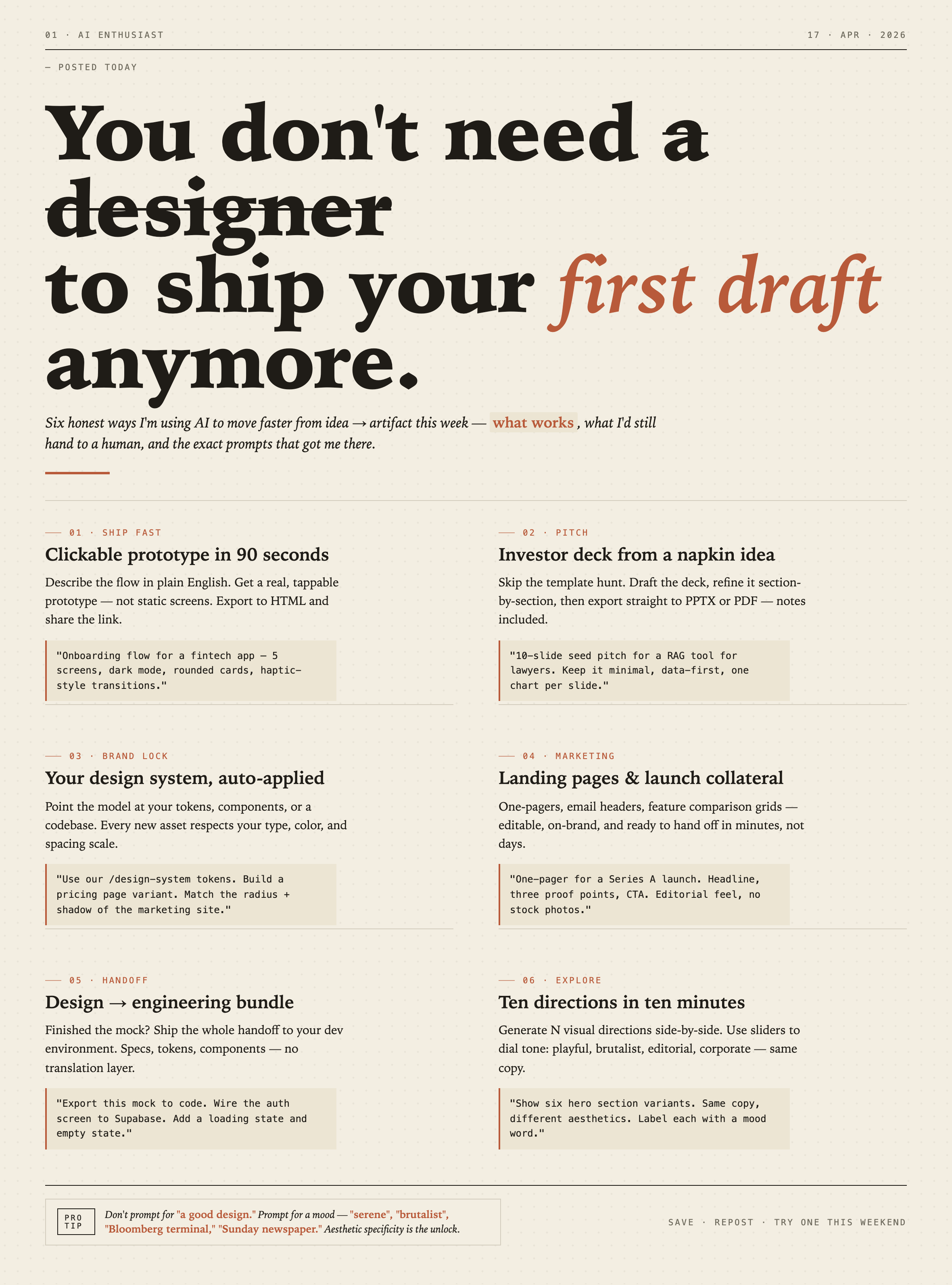
AI Workflow Editorial Poster Design presents six illustrated workflow claims with numbered chapters, concrete prompt specimens, and cream-and-rust typography.
Graphics
AI Workflow Social Carousel Design
Seven portrait cards use oversized Chinese headings, numbered habits, changing color fields, and a closing statement to explain AI editing workflows.
Graphics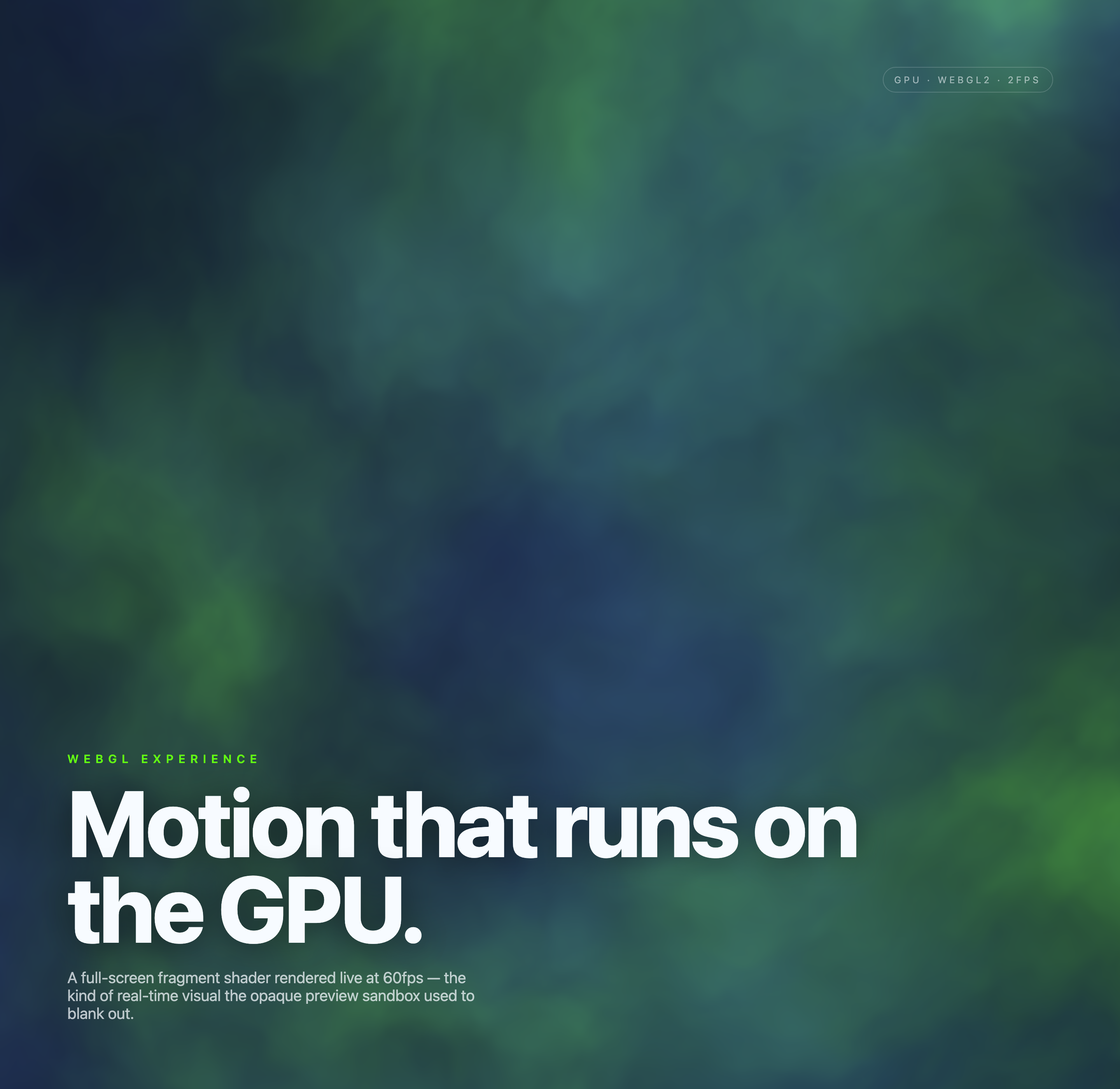
Aurora Field Shader Design
An automatically animated blue-green noise field gives a WebGL hero its atmosphere, while a fixed headline and small local frame-rate badge anchor the scene.
Graphics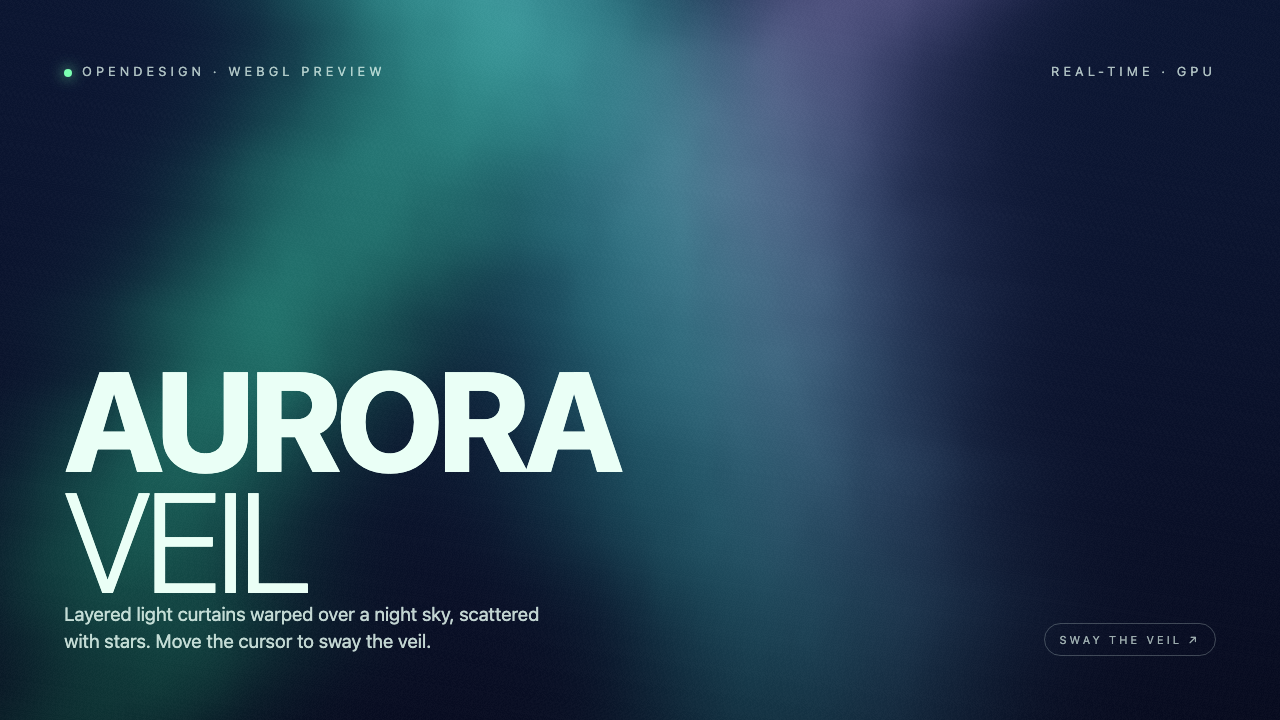
Aurora Veil Shader Design
Aurora Veil is an interactive shader composition that turns layered light, stars, and cursor motion into an atmospheric WebGL hero.
Graphics