

Graphics
Aurora Field Shader Design
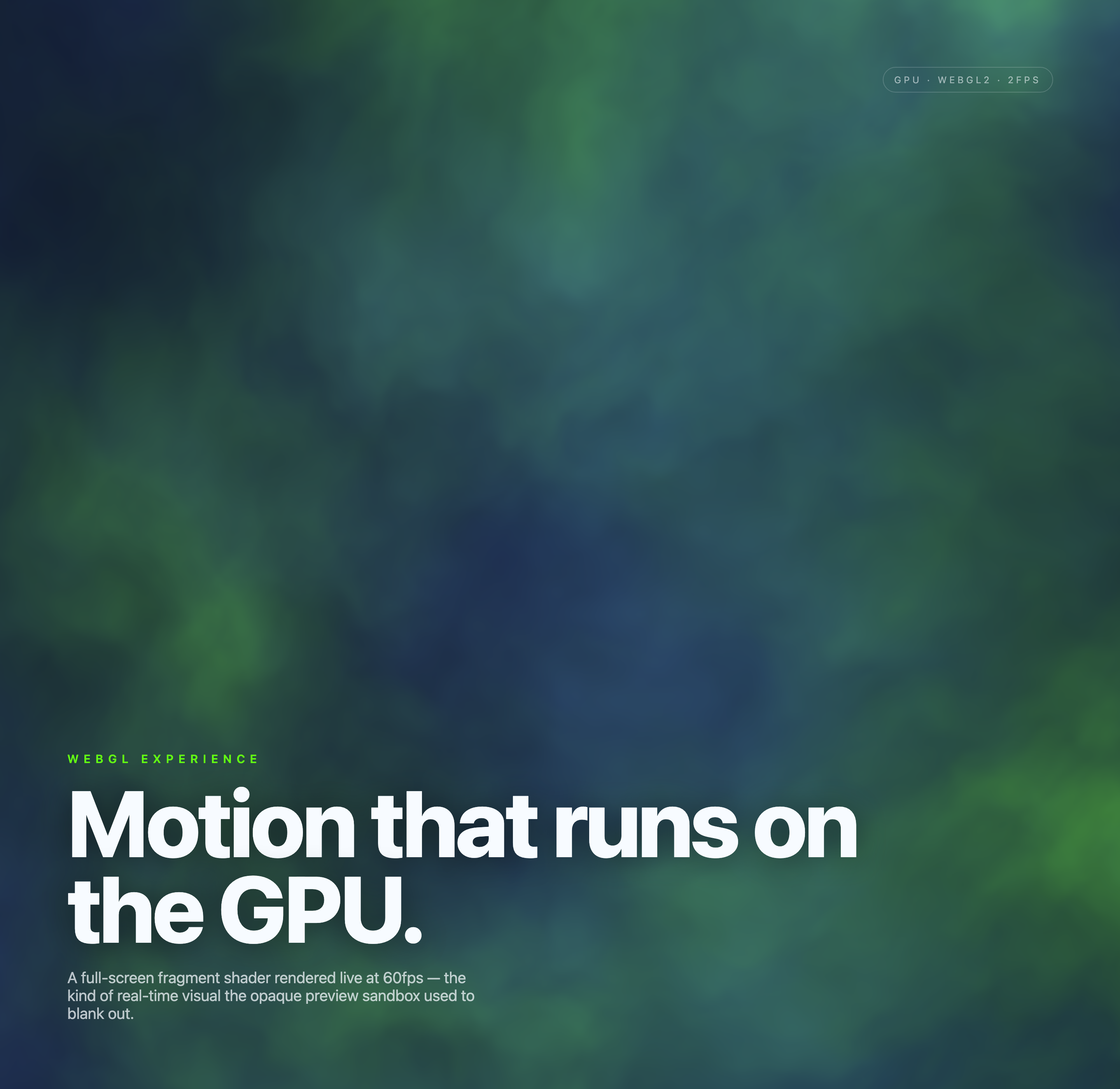
An automatically animated blue-green noise field gives a WebGL hero its atmosphere, while a fixed headline and small local frame-rate badge anchor the scene.

Aurora Field Use Cases
- WebGL Experience DesignersFull-screen visual compositions with shader-driven motion
- Creative TechnologistsGPU experiments that need an editorial presentation layer
- Interactive Art DirectorsAtmospheric visuals with readable supporting context
Shader Hero Highlights
- Full-Screen CanvasThe shader occupies the visual field behind the editorial overlay
- GPU Status LabelA compact badge shows WebGL2 context and a local frame-rate estimate.
- Editorial TypographyLarge headline anchors the composition near the lower left
- Color-Field MotionBlue and green gradients create a shifting atmospheric surface
Three States of the Aurora Field
1 / 3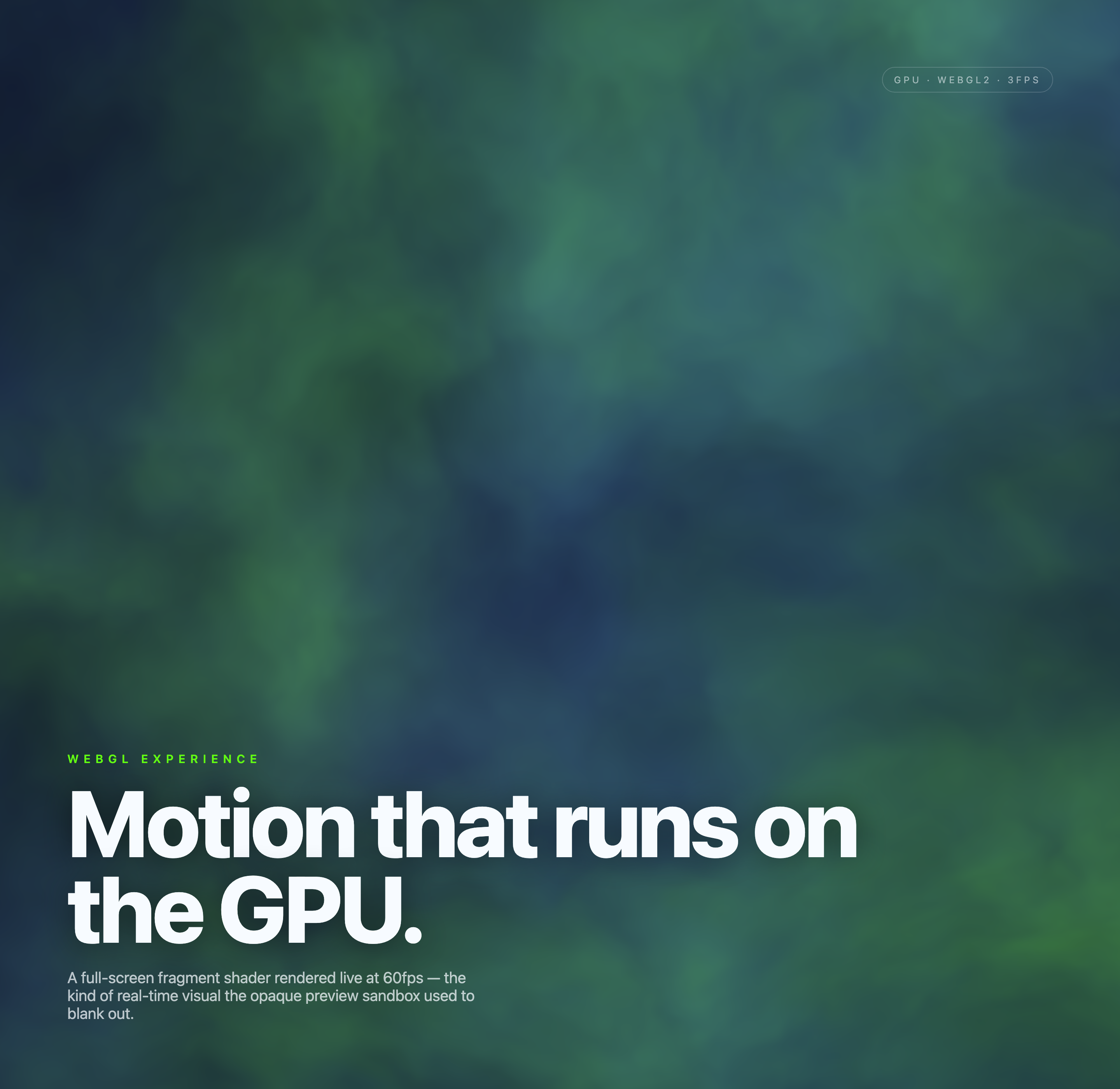
Aurora Field As A WebGL Experience
Aurora Field is an official OpenDesign graphic example built around an automatically animated WebGL2 canvas. Its primary authored heading, “Motion that runs on the GPU.”, states the design premise directly: the visual field is the subject, while fixed lower-left text gives it an editorial frame.
The capture shows a full-screen canvas filled with soft blue, green, and teal color regions. A small “WEBGL EXPERIENCE” label appears above the headline, and the supporting sentence sits beneath it. This reading order moves from category, to claim, to technical explanation without adding controls or secondary navigation.
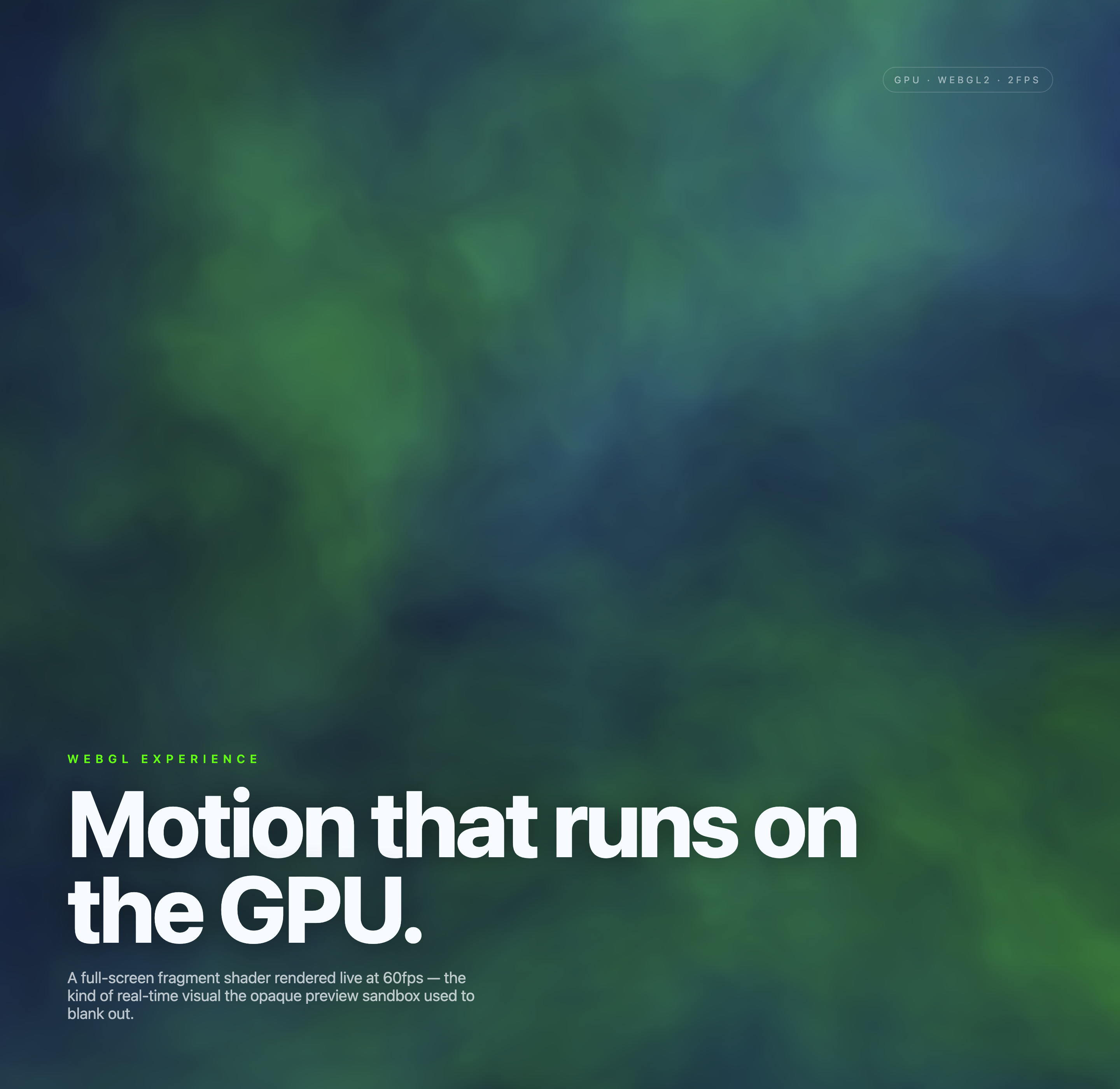
The work is presented as a composition rather than a collection of distinct screens. The supplied frames retain the same typographic structure while the atmospheric field changes, making the relationship between persistent overlay and changing background the central design device.
Where This Composition Fits
This design is suited to a landing-page opening, an experimental portfolio introduction, or an installation-style visual study where atmosphere needs to arrive before detailed interaction. The canvas establishes mood at a glance, while the lower-left text identifies what the visitor is looking at.
Its strongest use is communicative rather than operational. There are no authored controls in the static markup, so the visible design does not demonstrate parameter editing, content management, or connected data. Any such behavior would be a proposed adaptation rather than a documented capability.
Immersive Openings
Use the full-screen shader to establish an immediate visual setting before conventional page content begins.
Technical Demonstrations
Pair the status badge and explanatory copy with a shader study to connect implementation context to visual output.
Portfolio Experiments
Present a single evolving surface when the work is primarily about rendering, color, and motion.
How The Visual Composition Works
A six-layer noise function drives the fragment shader. Two nested warp fields change with elapsed time, shaping navy and blue regions with lime illumination and softer blue highlights. The effect uses a fullscreen triangle rather than scene meshes or external textures. Most of the frame remains open, while a fixed lower-left text block supplies the only substantial typographic mass.
The headline is set at a very large size and wraps across two lines: “Motion that runs on” followed by “the GPU.” The break makes the technical subject legible as a statement rather than a small caption. Beneath it, the longer sentence explains that the visual is a full-screen fragment shader and references the opaque preview sandbox that previously blanked out.
The upper-right badge combines WebGL2 context with a local animation-frame-rate estimate updated roughly every half second. The supplied captures display values around 2–3 FPS in their capture environment, while the original descriptive copy claims 60fps. Neither that authored claim nor these isolated local readings establish general performance across browsers or devices.
Read The Layering
Start with the small “WEBGL EXPERIENCE” label, move to the oversized GPU statement, then use the supporting sentence to interpret the visual field.
Compare The States
The three supplied frames preserve the overlay while the background and displayed FPS label vary, showing a persistent editorial layer over changing visual output.
Notice The Tradeoff
The open canvas gives the shader room to breathe, but its lack of visible controls leaves the visitor with observation rather than direct manipulation.
Capability Boundaries
The source compiles a WebGL2 shader, resizes its canvas, and redraws using elapsed time in requestAnimationFrame. It supplies no pointer, click, keyboard, or parameter-editing controls, so the visitor observes automatic motion rather than manipulating the field. The three captures are temporal states of one canvas, not independent workflows.
The source does not establish connected services, production deployment, an original generation model, universal compatibility, or guaranteed 60fps rendering. Its sentence about an opaque preview sandbox is authored context, not a verified statement about every OpenDesign environment. The local frame-rate badge and source code explain this specimen; production acceptance would require separate device and runtime testing.
Verified In The Artifact
A full-screen shader composition, persistent editorial typography, WebGL2/GPU status text, resize handling, and local animation logic are supported by the supplied evidence.
Not Established By The Captures
Backend services, stored data, production performance, user controls, and the original creation prompt are not demonstrated.
How to Create Aurora Field Shader Design in OpenDesign
Set The Visual Contract
Start with one full-screen canvas, a lower-left editorial block, and a compact upper-right technical badge. Keep the composition focused on the shader rather than adding unverified controls.
Suggested PromptCreate an Aurora Field Shader Design as a full-screen WebGL2-style visual composition with blue, teal, and green atmospheric color motion; place the label “WEBGL EXPERIENCE,” the headline “Motion that runs on the GPU.”, and a short explanatory sentence in the lower-left, with a small “GPU · WEBGL2” status badge in the upper-right. Show only local visual behavior and do not imply backend services, live data, audio, video, or verified performance metrics.
Shape The Shader Field
Refine the color movement as a broad atmospheric surface with gradual transitions rather than distinct panels or screens. Compare several visual states while preserving the text overlay and its reading order.
Check The Editorial Balance
Review the headline wrap, supporting-copy width, badge legibility, and canvas coverage at different viewport proportions. Keep the open field visible, but make sure the typographic statement remains the first readable anchor.
Export and Get a Share Link
Export your finished design, then use Share in OpenDesign to get a share link. Open the link in a separate browser window and check that the intended version and its assets are available before sending it.
AI Workflow Editorial Poster Design
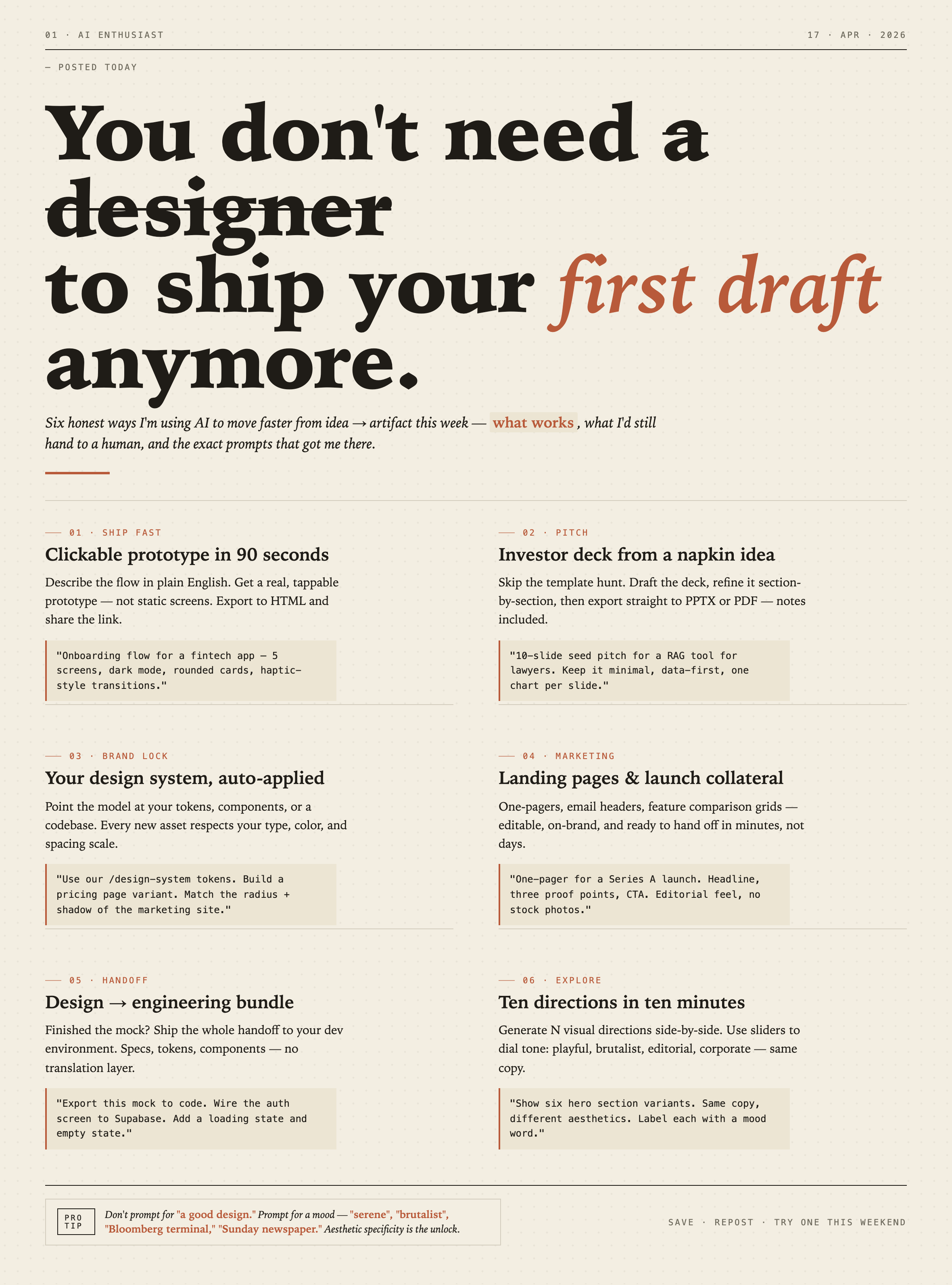
AI Workflow Editorial Poster Design presents six illustrated workflow claims with numbered chapters, concrete prompt specimens, and cream-and-rust typography.
Graphics
AI Workflow Social Carousel Design
Seven portrait cards use oversized Chinese headings, numbered habits, changing color fields, and a closing statement to explain AI editing workflows.
Graphics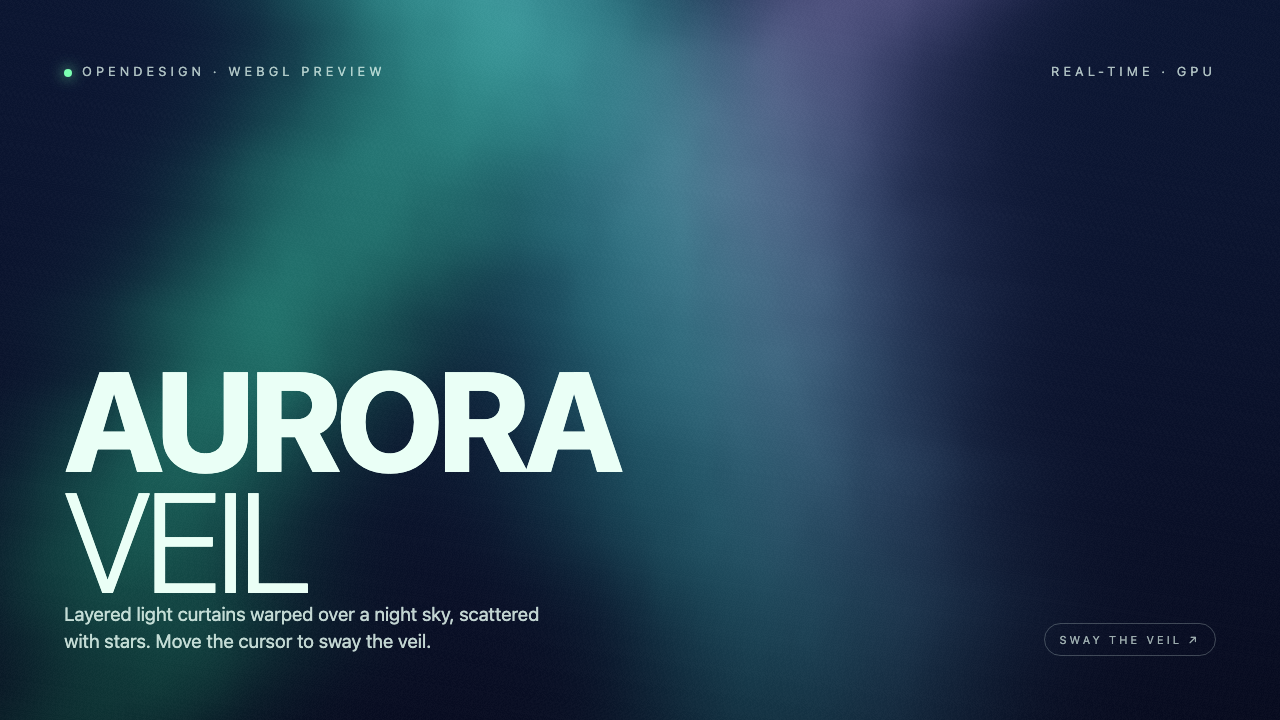
Aurora Veil Shader Design
Aurora Veil is an interactive shader composition that turns layered light, stars, and cursor motion into an atmospheric WebGL hero.
Graphics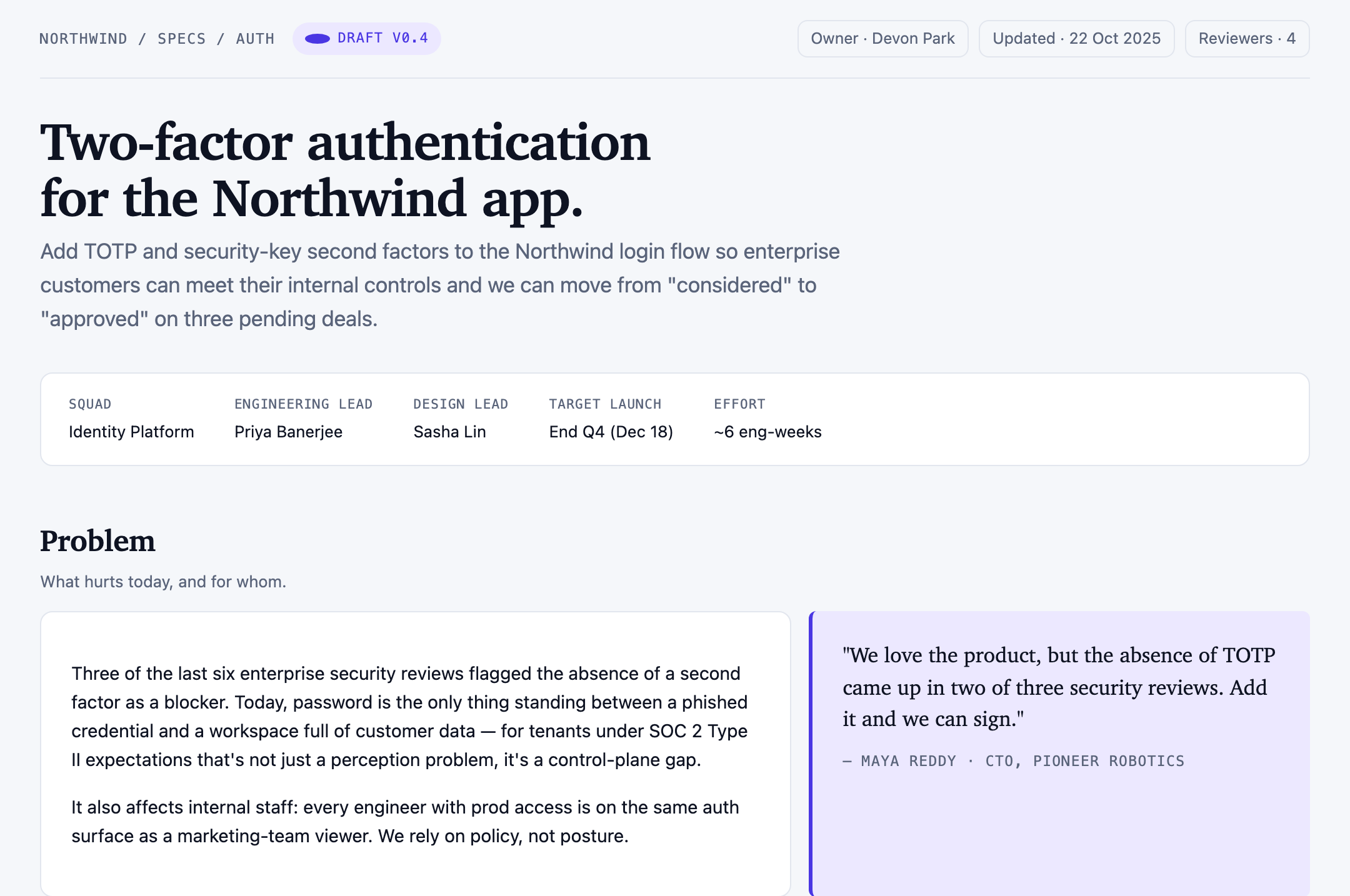
Authentication Product Specification Design
A Northwind two-factor authentication proposal links ownership, scope, user stories, four sample targets, rollout phases, and unresolved decisions.
Graphics