

Graphics
Particle Field Visualizer Design
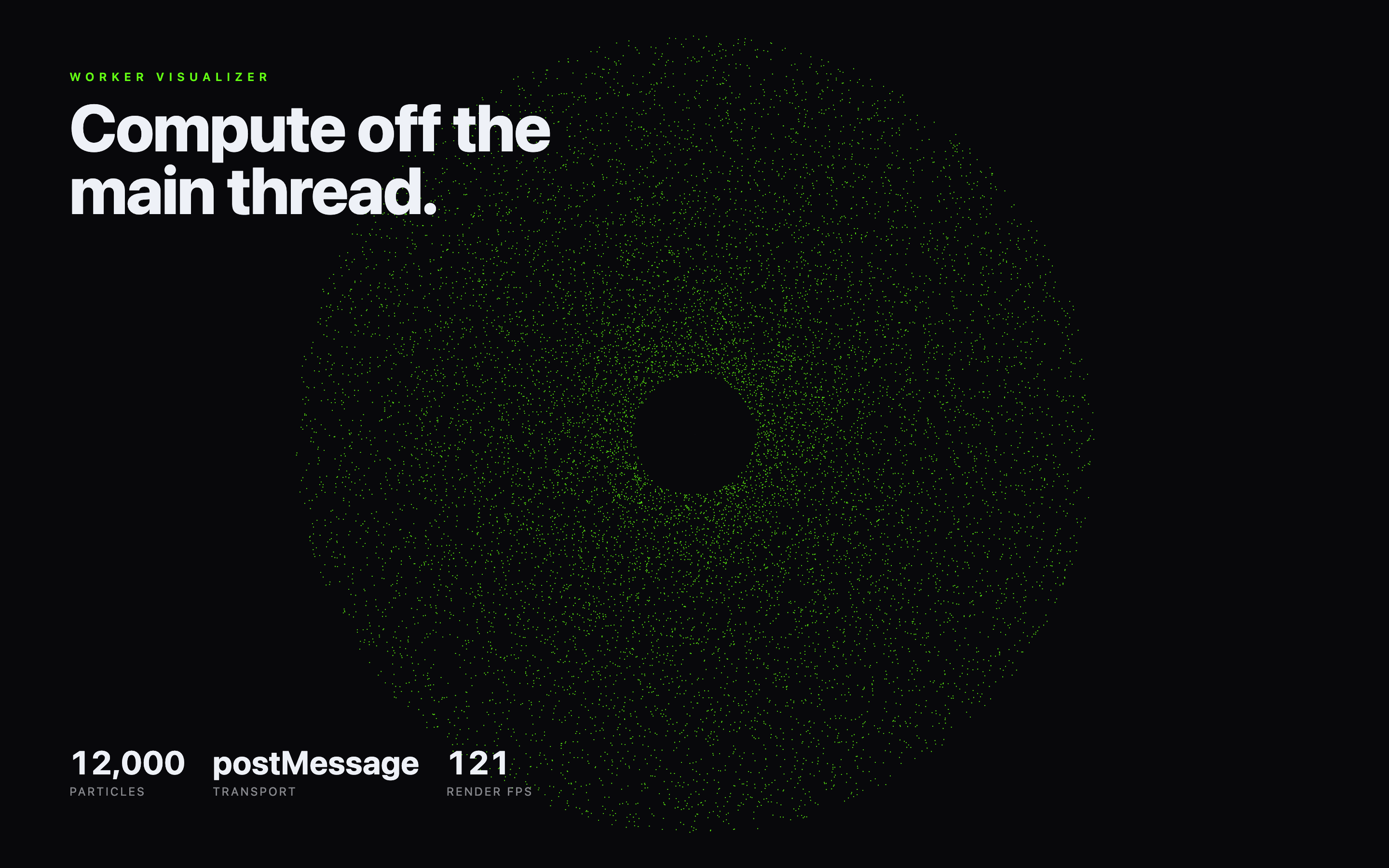
A dense green point field pairs an off-main-thread headline with particle-count, transport, and local rendering labels on a near-black canvas.

Particle Visualizer Use Cases
- Creative Coding StudiesStudy particle composition, worker transport, and local canvas drawing.
- Technical Graphic PrototypesFrame technical behavior as a focused visual composition.
- Canvas 2D ExplorationExplore dense point fields without adding interface controls.
Worker and Canvas Highlights
- 12,000 ParticlesA visible count establishes the scale of the particle field.
- postMessage TransportThe transport label names the local communication approach.
- Render FPSA runtime readout separates visual output from implementation detail.
- Off-Main-Thread FramingThe headline gives the graphic a precise technical premise.
The Particle Field Composition
1 / 1A Particle Field With Runtime Context
This official OpenDesign example presents a Canvas 2D particle-field visualizer as a single, high-contrast graphic. The composition places the large white heading, “Compute off the main thread.”, in the upper-left while a broad green particle formation occupies the center and right. A Web Worker initializes the points, and the main thread draws them; the source has no user-manipulation controls.
The particle field is not a generic cloud. Its points gather into a rounded, ring-like mass with a dark opening near the center. That negative space creates a readable focal point inside a very dense surface, so the viewer can inspect structure rather than seeing only uniform noise. The neon-green points against the near-black background also preserve contrast at the scale of the full composition.
Use Cases For Technical Visuals
The design is useful when a technical demonstration needs to feel like a finished visual rather than a debugging panel. Its restrained information layer supports a presentation, landing-page interlude, or creative-coding study where the field is the primary subject and the implementation vocabulary stays visible but compact.
The bottom row contains three different kinds of information: “12,000” names the particle count, “postMessage” names the transport, and “121” appears above “RENDER FPS” in the captured runtime state. Keeping these values adjacent but separate lets a reader distinguish scene scale, communication mode, and a local rendering observation. The tradeoff is that the labels explain the concept without explaining how the values are calculated.
Scene Scale
The 12,000 PARTICLES label makes density an explicit part of the visual study.
Transport Context
The postMessage TRANSPORT label connects the rendered field to browser communication.
Runtime Observation
The RENDER FPS value gives local context without serving as a comparative benchmark.
Composition And Reading Order
The upper-left heading is oversized and wraps across two lines, making “Compute off the” and “main thread.” the first stable reading anchor. The small spaced “WORKER VISUALIZER” label identifies the subject above it. This typographic scale creates a strong editorial entry point, but it also means the heading occupies substantial horizontal and vertical territory beside the field.
The source initializes 12,000 points using evenly distributed angles and randomized radii from 0.15 to 1.0. That inner radius explains the visible dark center, while the radial distribution concentrates many points near it. Canvas 2D draws small green squares over a translucent dark repaint. The fixed lower labels remain outside any panel, preserving the poster-like composition without implying a WebGL renderer or a GPU benchmark.
Observable Relationships
The three statistics use a consistent pattern: a larger value or word sits above a smaller uppercase label. “12,000” and “121” are numeric observations, while “postMessage” is a textual transport value. The shared treatment makes them scan as one group, although the differing value types require the labels to interpret their meaning.
Two Transport Paths, Different Motion
The source supports two worker transport paths. In the supplied non-isolated preview, postMessage delivers initial positions but never starts the step function, so repeated canvas drawing does not demonstrate continuing particle simulation. The captured 121 RENDER FPS value estimates local redraw cadence, not particle-update frequency or comparative performance. No connected service, stored data, production deployment, or scientifically validated particle dynamics is established.
| Transport Path | Worker Behavior | Meaning of the Visible Field |
|---|---|---|
| SharedArrayBuffer | Requires cross-origin isolation; initializes shared positions and starts the recurring step function. | The main thread reads shared positions while worker code evolves the point field. |
| postMessage fallback | Initializes and sends one position buffer, but does not call step. | The main thread repeatedly redraws those initial positions; a changing render-FPS label is not proof that particles move. |
How to Create Particle Field Visualizer Design in OpenDesign
Establish The Visual Grammar
Start with a near-black canvas, a neon-green point field, a small spaced subject label, and a two-line white heading. Keep the heading in the upper-left and reserve the right side for the particle formation.
Suggested PromptCreate a Particle Field Visualizer Design with a near-black canvas, a large two-line heading reading “Compute off the main thread.”, a dense green particle field with a dark central opening, and a bottom statistics row for 12,000 PARTICLES, postMessage TRANSPORT, and a local RENDER FPS observation. Show visual behavior only; do not imply connected services, continuous fallback simulation, or benchmark performance.
Refine The Particle Structure
Shape the points into a broad rounded field with a visible central void rather than distributing them evenly. Check that the field remains legible beside the headline and that point density does not erase the negative space.
Check The Runtime Layer
Keep count, transport, and rendering observation distinct in the lower statistics. Match the source's Canvas 2D drawing and local worker initialization. If continuous motion is required, implement and test recurring updates in the selected transport path rather than treating a high redraw-FPS value as simulation proof.
Export and Get a Share Link
Export your finished design, then use Share in OpenDesign to get a share link. Open the link in a separate browser window and check that the intended version and its assets are available before sending it.
AI Workflow Editorial Poster Design
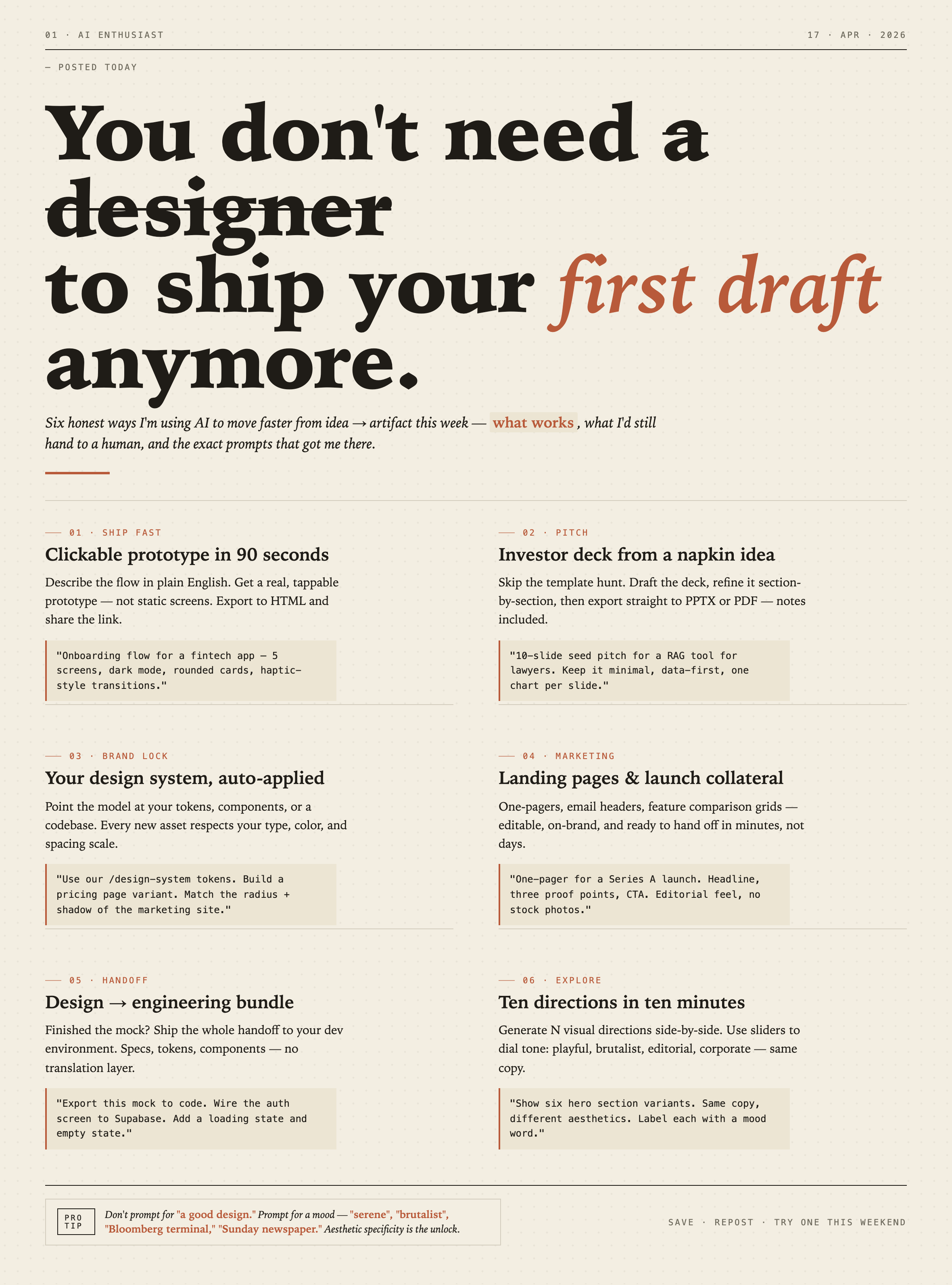
AI Workflow Editorial Poster Design presents six illustrated workflow claims with numbered chapters, concrete prompt specimens, and cream-and-rust typography.
Graphics
AI Workflow Social Carousel Design
Seven portrait cards use oversized Chinese headings, numbered habits, changing color fields, and a closing statement to explain AI editing workflows.
Graphics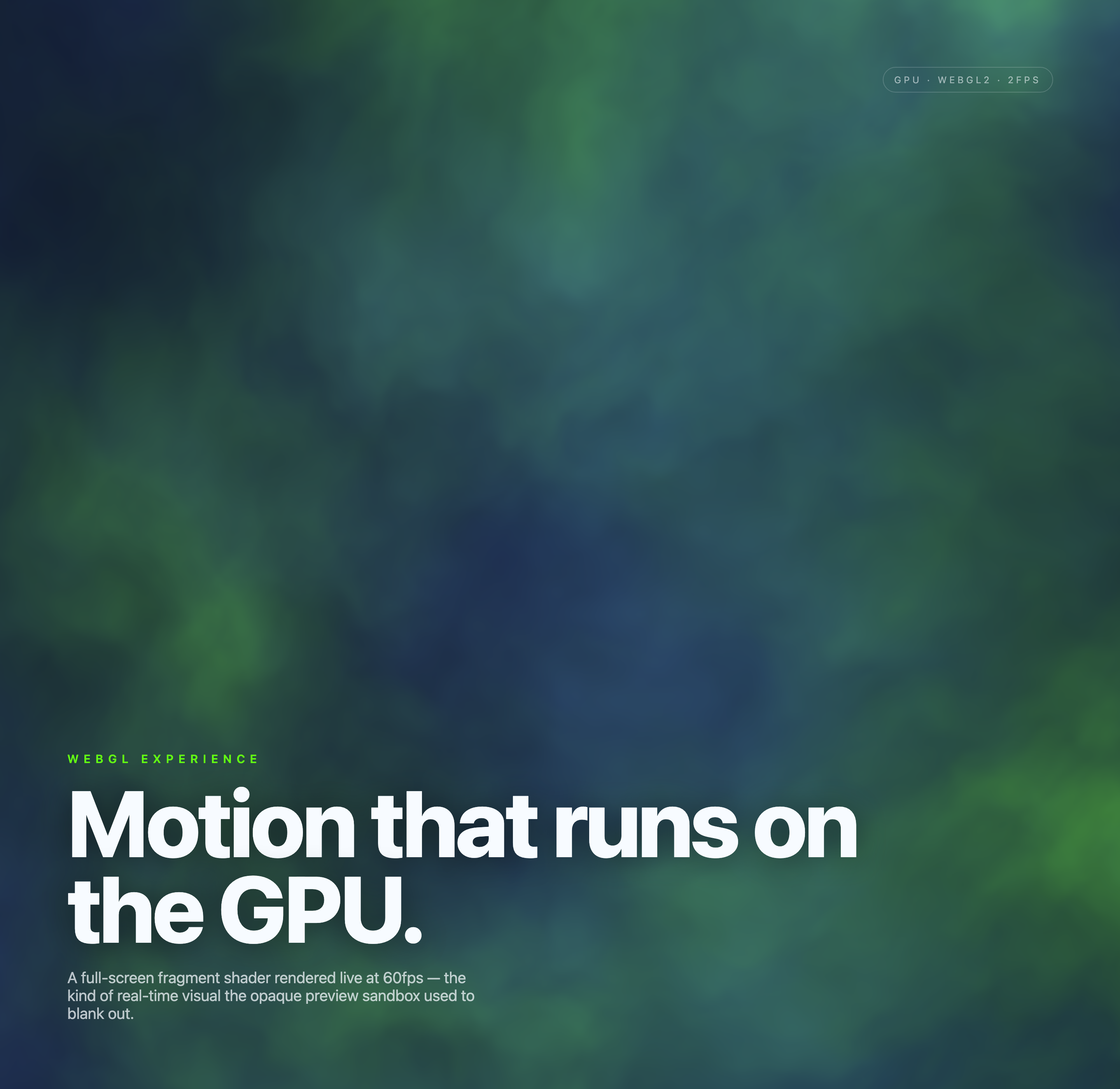
Aurora Field Shader Design
An automatically animated blue-green noise field gives a WebGL hero its atmosphere, while a fixed headline and small local frame-rate badge anchor the scene.
Graphics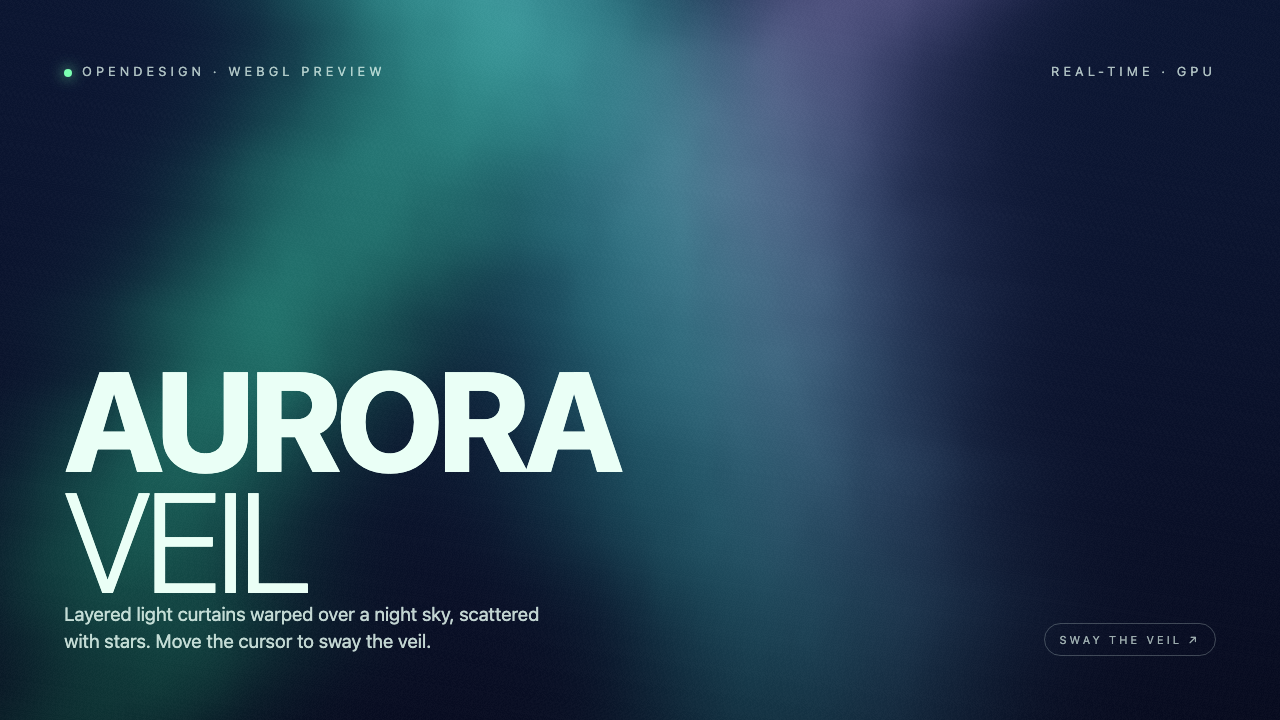
Aurora Veil Shader Design
Aurora Veil is an interactive shader composition that turns layered light, stars, and cursor motion into an atmospheric WebGL hero.
Graphics