

Desktop app
SaaS Revenue Dashboard Design
This SaaS revenue dashboard design brings subscription metrics, a 30-day revenue chart, account statuses and recent events into one overview.

Dashboard Design Use Cases
- SaaS Revenue ReviewsScan revenue, account, churn and latency measures together.
- Account MonitoringCompare account names, plans and statuses in one table.
- Subscription Event TrackingRead recent account events alongside their times and plans.
Dashboard Layout Highlights
- Four Summary MetricsMRR, active accounts, churn and P95 latency lead.
- Revenue and AccountsA wide trend chart sits beside new-account rows.
- Recent EventsFour sample events are ordered by displayed time.
Dashboard View
1 / 1A SaaS Revenue Overview
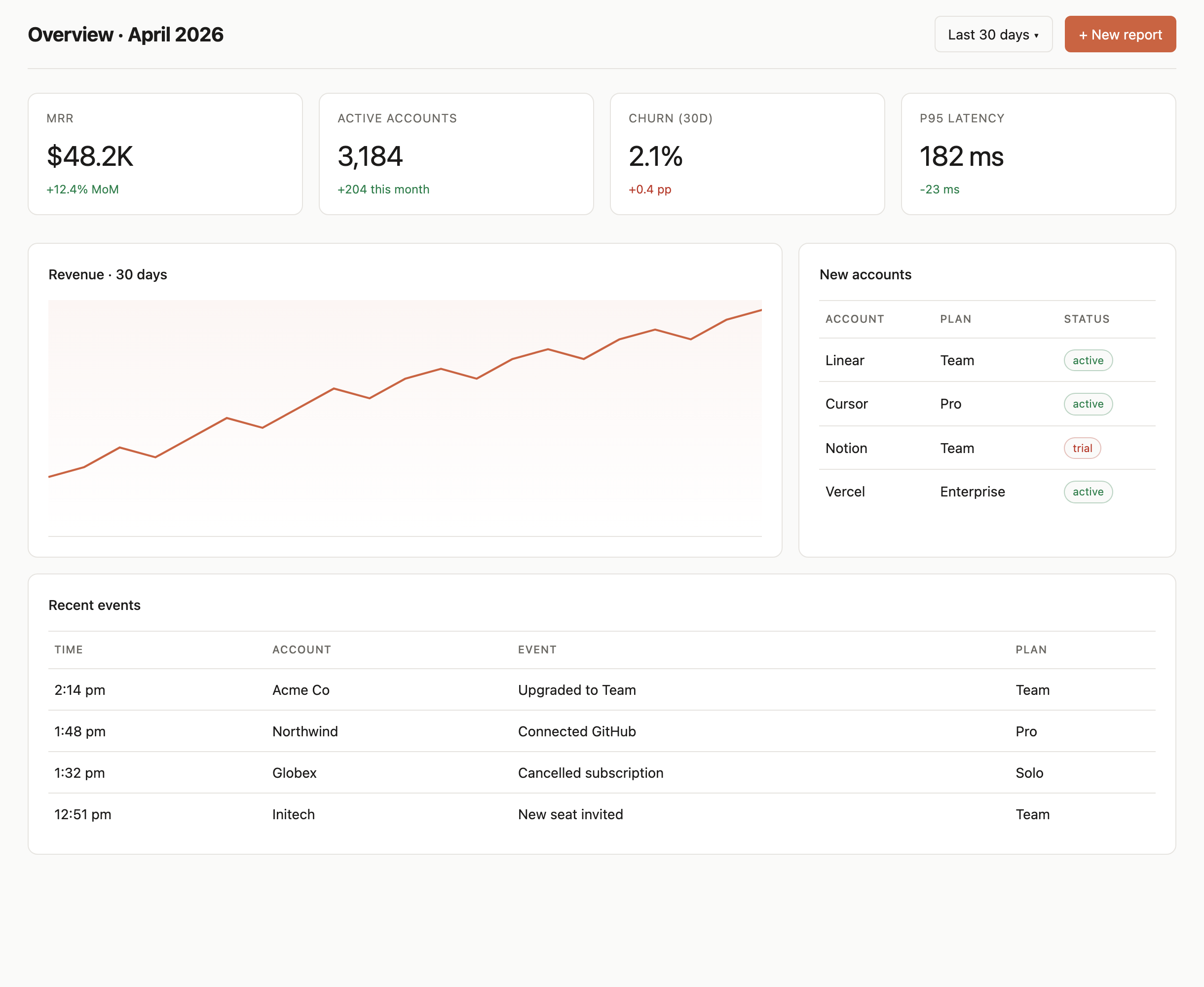
The screen is headed “Overview · April 2026,” with a “Last 30 days” control and a “+ New report” button at the top. Below, four metric panels present MRR ($48.2K), active accounts (3,184), churn (30d) (2.1%) and P95 latency (182 ms), each with a secondary change value. This puts commercial and technical measures in the same first scan, though it does not explain how those different measures are defined.
Color gives the secondary figures a quick visual distinction: three are green, while churn’s “+0.4 pp” is red. The sign alone does not explain whether a change is favorable, so the label and unit matter. The supplied figures and account details are illustrative sample content, not verified operating results.
Reading the Revenue and Account Panels
The next row pairs “Revenue · 30 days” with “New accounts.” The CSS defines this row as a 2:1 column ratio, giving the line chart more room than the account table. That proportion makes the revenue shape the main visual while keeping plan and status available for a quick account check.
The chart rises overall but includes visible dips; it communicates direction and variation rather than a precise daily value, since no axis labels or plotted numbers are shown. The adjacent table has three explicit fields: Account, Plan and Status. For example, Linear is Team and active, while Notion is Team and trial. Keeping plan and status in separate columns helps distinguish subscription tier from account state.
Metric Scan
Compare the four headline values and their accompanying changes, while checking each unit and label before interpreting the direction.
Account Check
Use the account table to relate an organization to its plan and status without treating plan names as status labels.
From Summary to Recent Events
The visual reading order moves from the four metrics to the chart and new-account table, then down to “Recent events.” The stylesheet makes that event section span the full row beneath the two-column panels. Its table uses Time, Account, Event and Plan, so a reader can connect a recorded action with both an organization and a plan.
The listed examples include “Upgraded to Team” for Acme Co and “Cancelled subscription” for Globex. Those rows add context that the summary metrics and account status table do not provide, but the screen does not specify how the events relate to the displayed metrics. The ordering and sample timestamps make this a recent-activity view, not evidence of a complete audit history.
| Area | Visible Fields | Reading Purpose |
|---|---|---|
| Metric panels | Metric, value, change | Scan headline measures and their accompanying deltas. |
| New accounts | Account, plan, status | Compare account tier with its displayed state. |
| Recent events | Time, account, event, plan | Relate a sample activity entry to an account and plan. |
Visible Design and Capability Boundaries
This artifact presents a dashboard design with sample values and visible controls. “Last 30 days” and “+ New report” appear interactive, but the available evidence does not establish that they change the date range, create a report, or connect to a live service. The chart, metrics and tables should therefore be read as designed content, not proof of live data, storage, or completed actions.
The source defines a 220px sidebar beside the main workspace. The captured view focuses on the main area: a 2:1 chart-to-account row followed by a full-width event table. Below 900px, the source stacks those two panels and changes the metric cards to two columns; it does not supply a complete phone-specific navigation layout.
How to Create SaaS Revenue Dashboard Design in OpenDesign
Set the Overview and Metric Definitions
Start with a dated overview heading and four metric panels. Choose measures that belong together for your audience, and specify what each value and change means, including units and comparison periods. Keep sample values visibly distinct from verified operational data.
Suggested PromptCreate a SaaS revenue dashboard design with a dated overview, four metric panels for MRR, active accounts, 30-day churn and P95 latency, a 30-day revenue line chart, a new-accounts table, and a recent-events table. Use clearly identified illustrative sample data. Show the visible date-range and new-report controls as design elements only; do not imply working services or live data.
Arrange the Chart and Account Context
Refine the balance between the revenue chart and account table. Preserve the distinction between account, plan and status, and decide whether the chart needs visible axes or values for the intended reading task. Check that the more detailed table remains legible beside the trend view.
Connect Events to Their Context
Give the event list fields for time, account, event and plan, then check that sample rows communicate an action without implying a complete history. Review the transition from summary metrics to chart, account rows and events at the intended workspace width.
Export and Get a Share Link
Export your finished design, then use Share in OpenDesign to get a share link. Open the link in a separate browser window and check that the intended version and its assets are available before sending it.
Analytics Dashboard Wireframe Design
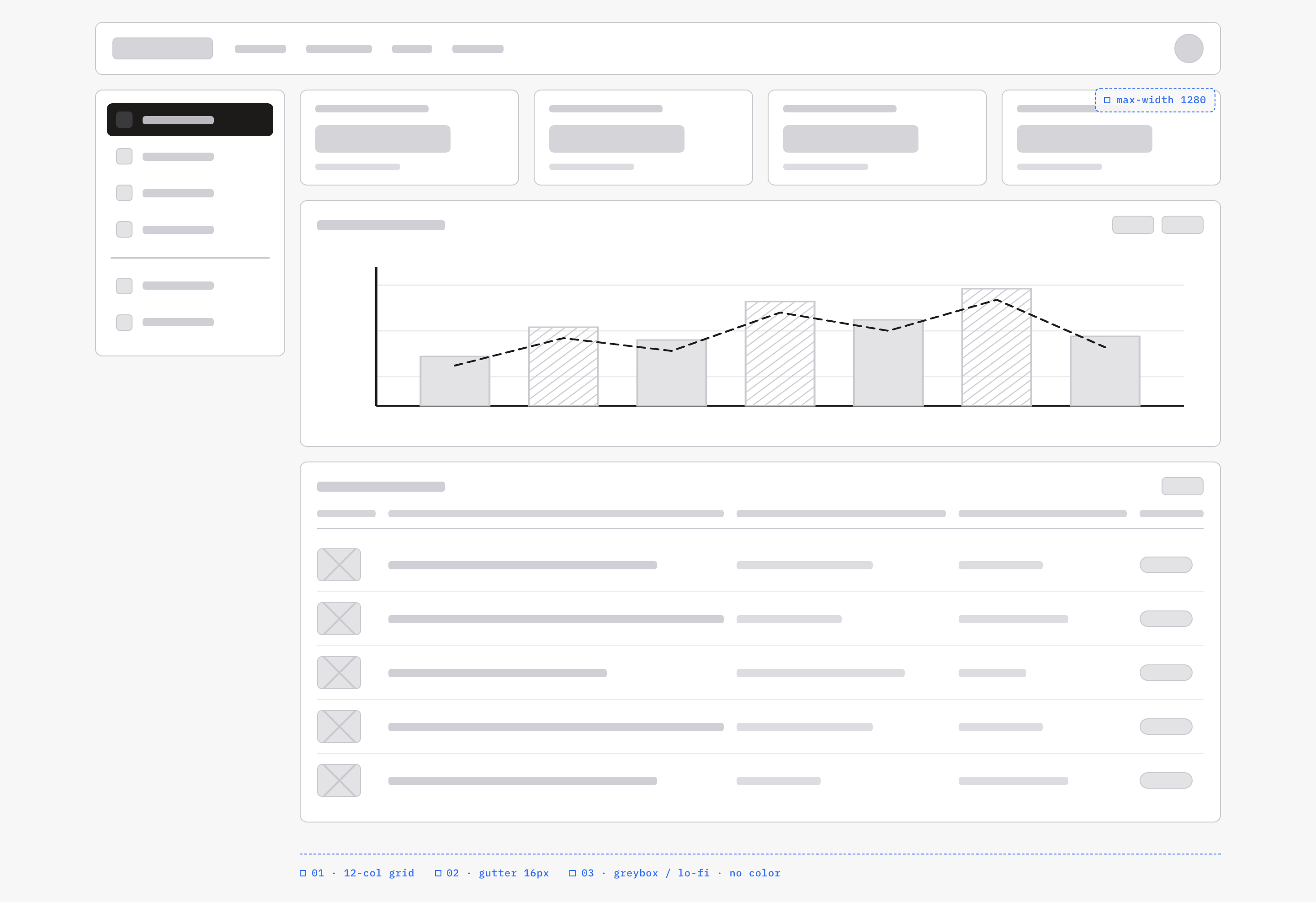
An OpenDesign greybox dashboard maps an analytics workspace through a sidebar, four KPI placeholders, a schematic chart, five table rows and blue layout annotations.
Desktop app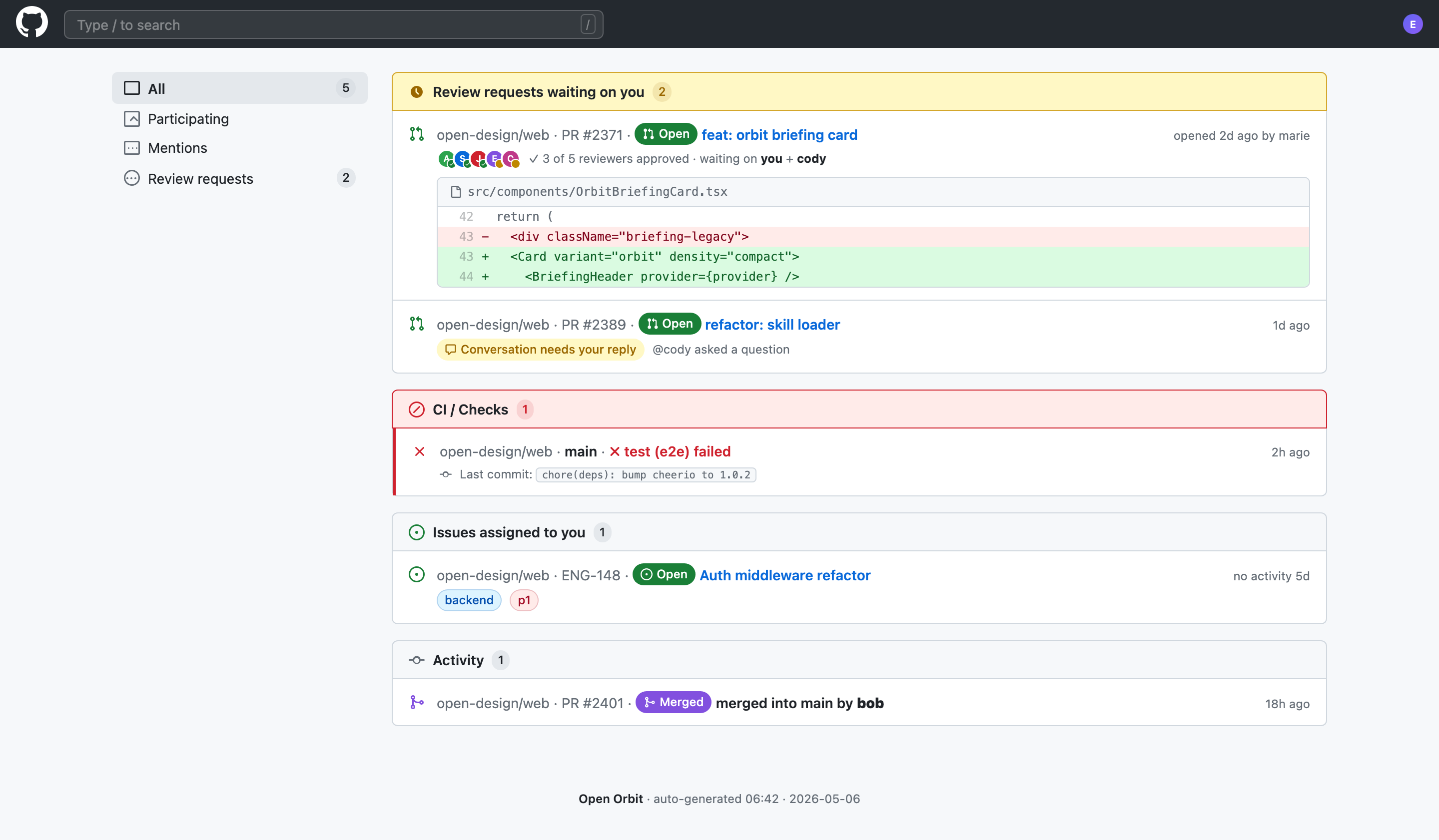
Code Review Inbox App Design
Code Review Inbox App Design brings review requests, CI failures, assigned issues, and activity into one scan-ready workspace for daily triage.
Desktop app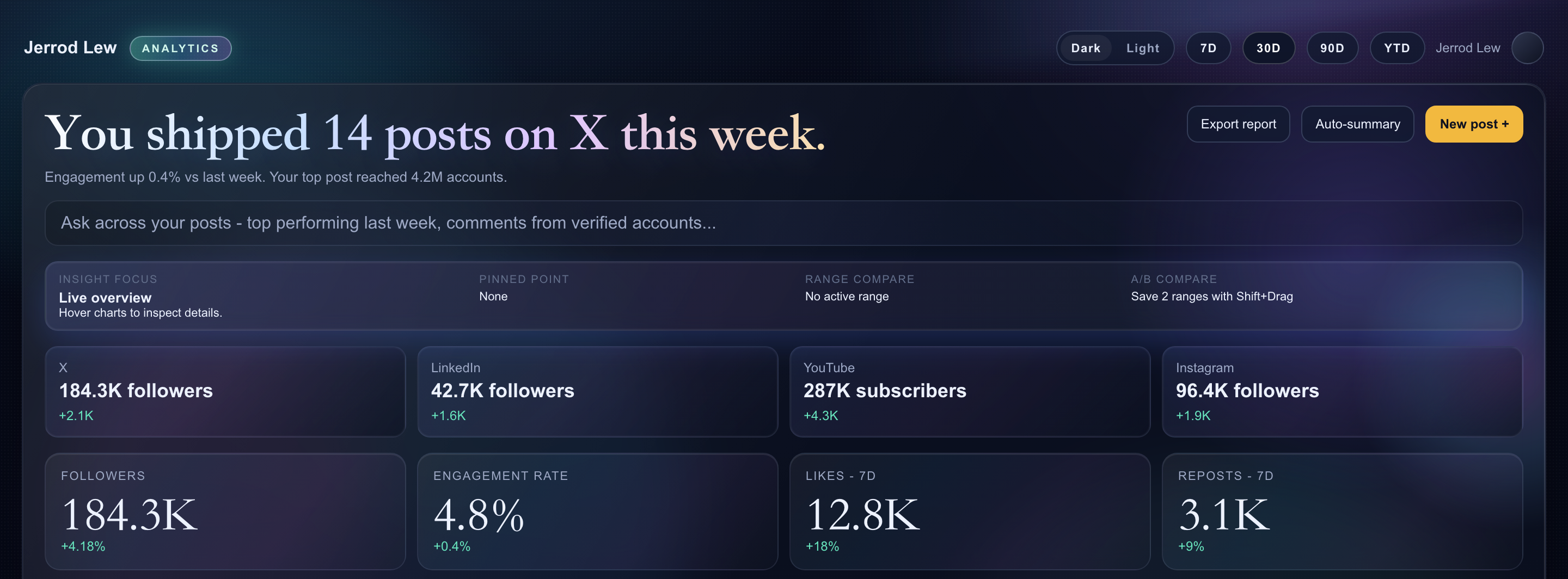
Content Performance Dashboard Design
A dark content dashboard connects platform snapshots with chart inspection, draft planning and a deeper view of audience and conversion signals.
Desktop app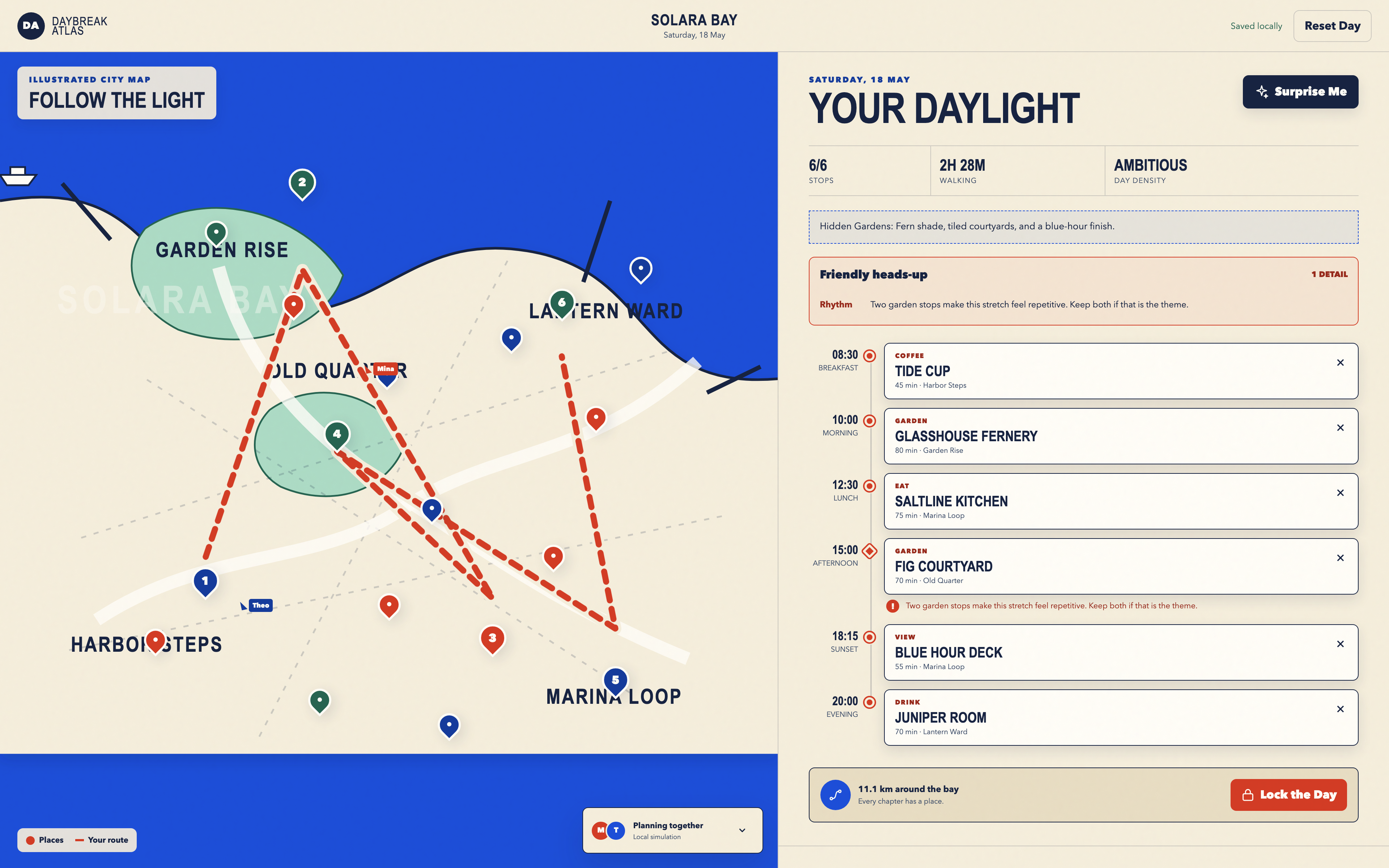
Day Trip Planner Design
Plan six timed stops in fictional Solara Bay, with an illustrated map, walking estimates and useful route warnings.
Desktop app