

Desktop app
Analytics Dashboard Wireframe Design
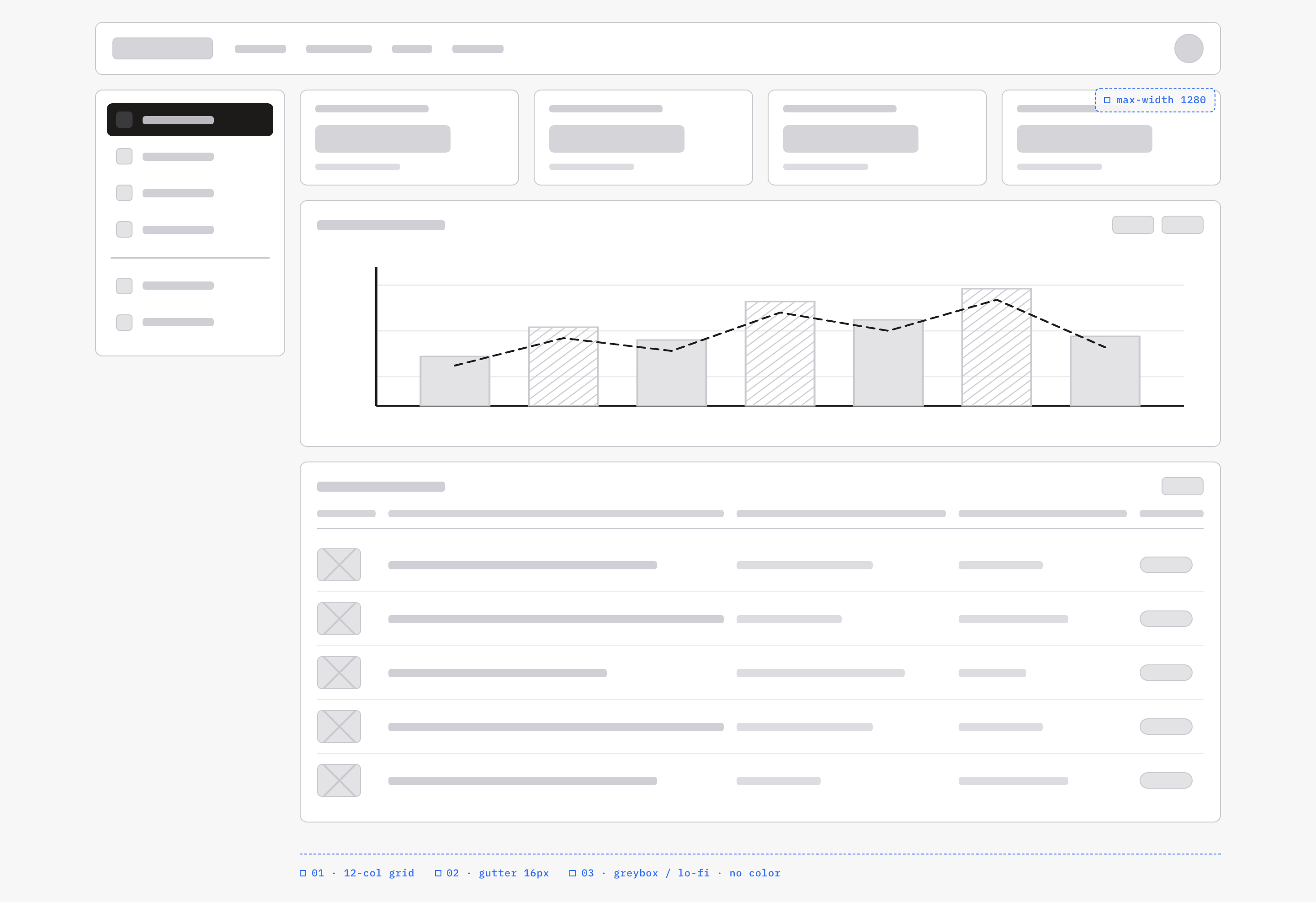
An OpenDesign greybox dashboard maps an analytics workspace through a sidebar, four KPI placeholders, a schematic chart, five table rows and blue layout annotations.

Analytics Wireframe Use Cases
- Dashboard Information ArchitectureMap analytics content into a scannable desktop workspace
- Greybox Product ExplorationTest structure before committing to visual styling
- Chart And Table PlanningArrange comparative data views within one workspace
- Responsive Layout HandoffDocument widths, columns, gutters, and panel relationships
Greybox Dashboard Design Highlights
- 1280px FrameConstrains the workspace to a defined desktop reading width
- Annotated Layout IntentBlue footer notes document a twelve-column concept and 16px gaps; the actual shell uses two tracks.
- Greybox CompositionSeparates structural decisions from color and branding
- Chart-Table PairingPlaces visual trends above row-based detail
The Analytics Wireframe, Region by Region
1 / 2Analytics Dashboard Structure
This Acme analytics greybox is a desktop workspace study by OpenDesign. Its footer labels a 12-column concept, 16px gutters and greybox / lo-fi · no color. The analytical blocks are grayscale, while annotations are blue. The implemented shell has a 208px sidebar and one main track; the twelve-column note expresses design intent rather than a twelve-track CSS grid.
The overview begins with a wide top navigation strip, then divides the working area into a 208px sidebar and a larger main region. The sidebar contains a dark selected item, several lighter navigation rows, and a divider before additional entries. That ordering establishes a left navigation rail beside the analytical content, while the main column reserves the strongest width for data review.
Four repeated KPI-style panels appear across the top of the main region. Each uses a short heading line, a larger value block, and a smaller supporting line. The captures show the visual roles of these fields, but the bundled evidence does not provide verified metric names or live values. The useful design decision is therefore the repeated information hierarchy, not a claim about business performance.
Frame Constraint
The 1280px maximum gives the desktop workspace a stable reading boundary and keeps the chart and table aligned. The tradeoff is reduced room for additional comparison panels at narrower widths.
Navigation Split
The 208px sidebar stays distinct from the main analytical region, making workspace location visible without competing with the data panels.
Analytics Review Tasks
The layout supports a review sequence rather than a collection of unrelated panels. A user can orient in the sidebar, scan the repeated KPI blocks, inspect the central chart, and then move into row-level detail. Because the top navigation strip is part of the shell rather than an independent screen, the composition reads as one workspace state.
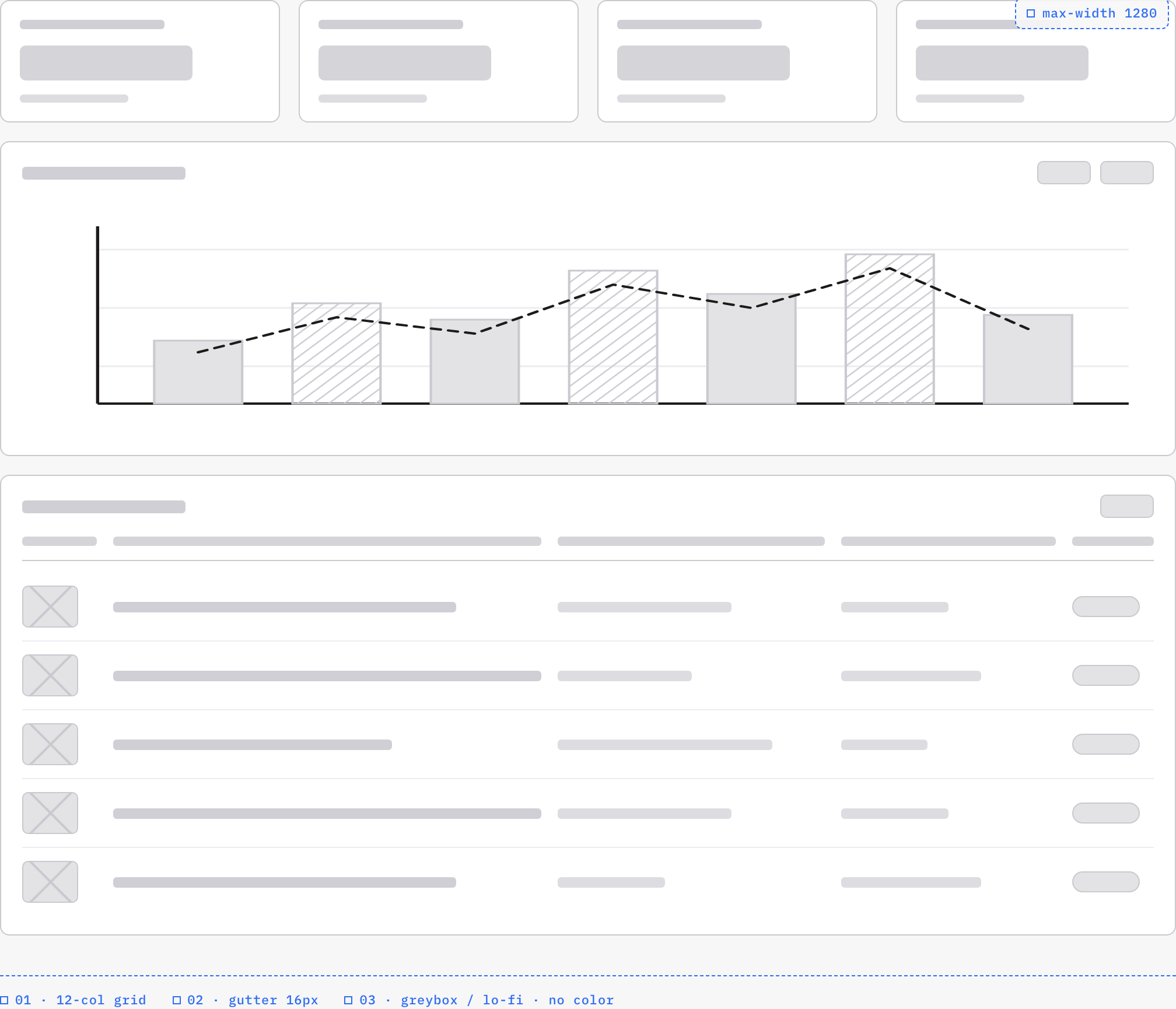
The chart area pairs light filled bars with a dashed line. The bars alternate between solid and hatched treatment, while horizontal guide lines support comparison across the plot. This combination gives the wireframe two visibly different series without introducing a color palette. Its tradeoff is that the meaning of each treatment must later be stated through labels or a legend; pattern alone does not define the measure.
Below the chart, the table structure repeats rows with a leading image or thumbnail placeholder, a wide primary field, several shorter fields, and a rounded status-like control at the end. The differing widths establish a scan order from identity to supporting attributes to state. Since the source does not specify column names or statuses, the structure should be adapted only after those definitions are known.
Trend Comparison
The dashed line crosses the alternating bar sequence, encouraging comparison between two data treatments. Add explicit series labels before treating the visual as a meaningful metric relationship.
Row Inspection
The narrow leading thumbnail is followed by the widest text column and shorter supporting fields, ending with a compact state-like pill. That spatial order suggests identity-first scanning without defining actual record fields.
Workspace Reading Flow
The design’s strongest flow is spatial: shell navigation on the left, summary blocks at the top, a wide chart in the middle, and a detailed table below. The chart receives more horizontal space than any KPI card because it is intended to carry a broader comparison. The table then changes the reading rhythm from visual trend inspection to repeated horizontal rows.
In the chart capture, two small controls sit at the panel’s upper right. Their labels are not verified in the evidence, so they should be understood as reserved control positions rather than confirmed filters or actions. Keeping them at the chart edge preserves a future interaction zone without asserting that the wireframe already implements one.
The lower table repeats five visible row bands in the capture. Each begins with a crossed rectangular thumbnail slot, 48px wide by 36px high in source, followed by long and short grey lines that vary by row. That variation demonstrates how uneven content lengths affect rhythm and density. A final implementation will need rules for wrapping, truncation and status width rather than assuming every record has identical text.
Orient
Use the sidebar and top strip to establish the workspace boundary before reading the analytical panels.
Compare
Scan the repeated KPI blocks, then compare the alternating bars with the dashed line in the central chart.
Inspect
Move to the lower table to examine identity placeholders, variable field lengths, and the trailing state control.
Capability Boundary
This artifact is a low-fidelity structural wireframe, not a working analytics platform. The visible chart, KPI blocks, navigation rows, controls, and table are design representations; they do not verify live calculations, connected services, storage, filtering, or interaction behavior. Names, figures, and document contents are illustrative unless separately verified.
The official bundled example declares MIT in its plugin manifest, without establishing separate rights to every depicted asset. The source already supplies a narrow-width layout: the sidebar wraps, KPIs become two columns and one table field disappears below 1000 pixels. This is local responsive composition, not proof that arbitrary real data or every phone width is ready for production.
How to Create Analytics Dashboard Wireframe Design in OpenDesign
Set The Structural Boundary
Start with the source's 1280px maximum frame, 208px sidebar, four-card KPI row and 16px gaps. Keep analytical content in grayscale with blue layout annotations; the footer names a 12-column concept, but the supplied CSS does not implement a twelve-track grid.
Suggested PromptCreate a low-fidelity analytics dashboard wireframe with a 1280px maximum frame, a 208px sidebar, 16px gaps, four KPI placeholders, seven alternating solid and hatched chart bars with a dashed line, and a five-row table. Keep analytical content grayscale and layout annotations blue. Label any proposed 12-column alignment as a concept rather than an implemented grid; use placeholders only, with no live data or working analytics controls.
Refine The Comparison Region
Keep four repeated KPI blocks above one wide chart panel. Use alternating solid and hatched bars with a dashed line, then add explicit labels and units during refinement so the visual treatments do not carry unsupported meaning.
Check The Detail Rhythm
Build the lower table around a leading identity placeholder, a wide primary field, shorter supporting fields, and a compact trailing state area. Test uneven text lengths, wrapping, and narrow widths while preserving the sidebar-to-main relationship.
Export and Get a Share Link
Export your finished design, then use Share in OpenDesign to get a share link. Open the link in a separate browser window and check that the intended version and its assets are available before sending it.
Code Review Inbox App Design
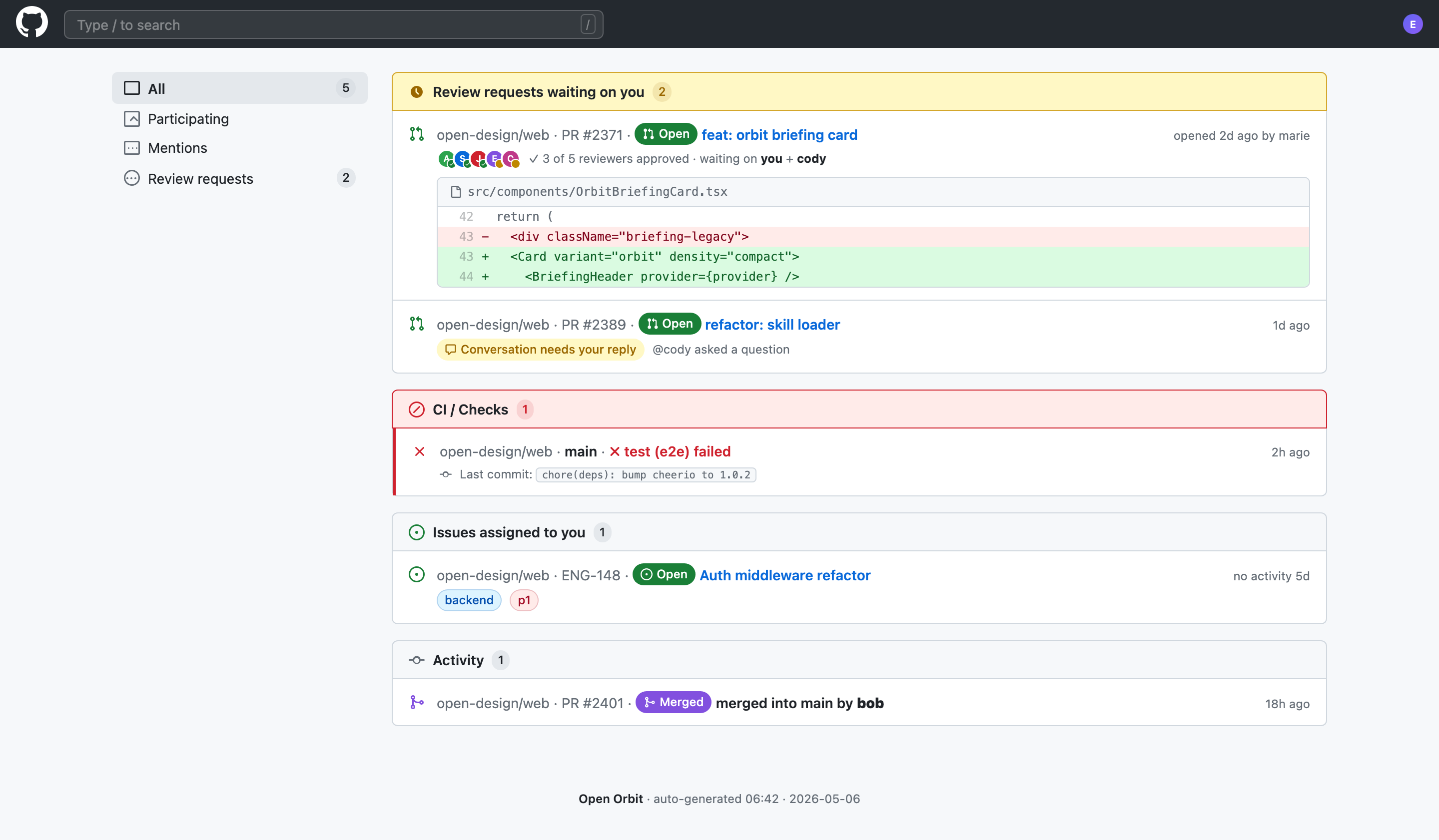
Code Review Inbox App Design brings review requests, CI failures, assigned issues, and activity into one scan-ready workspace for daily triage.
Desktop app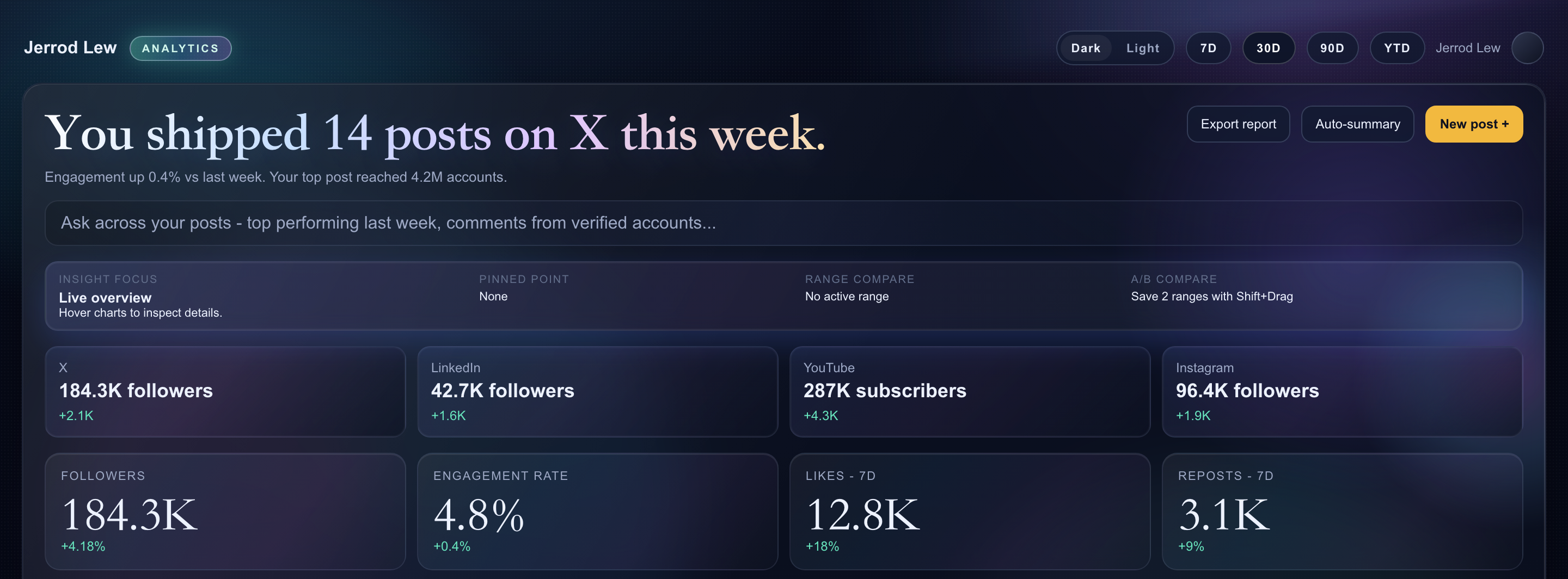
Content Performance Dashboard Design
A dark content dashboard connects platform snapshots with chart inspection, draft planning and a deeper view of audience and conversion signals.
Desktop app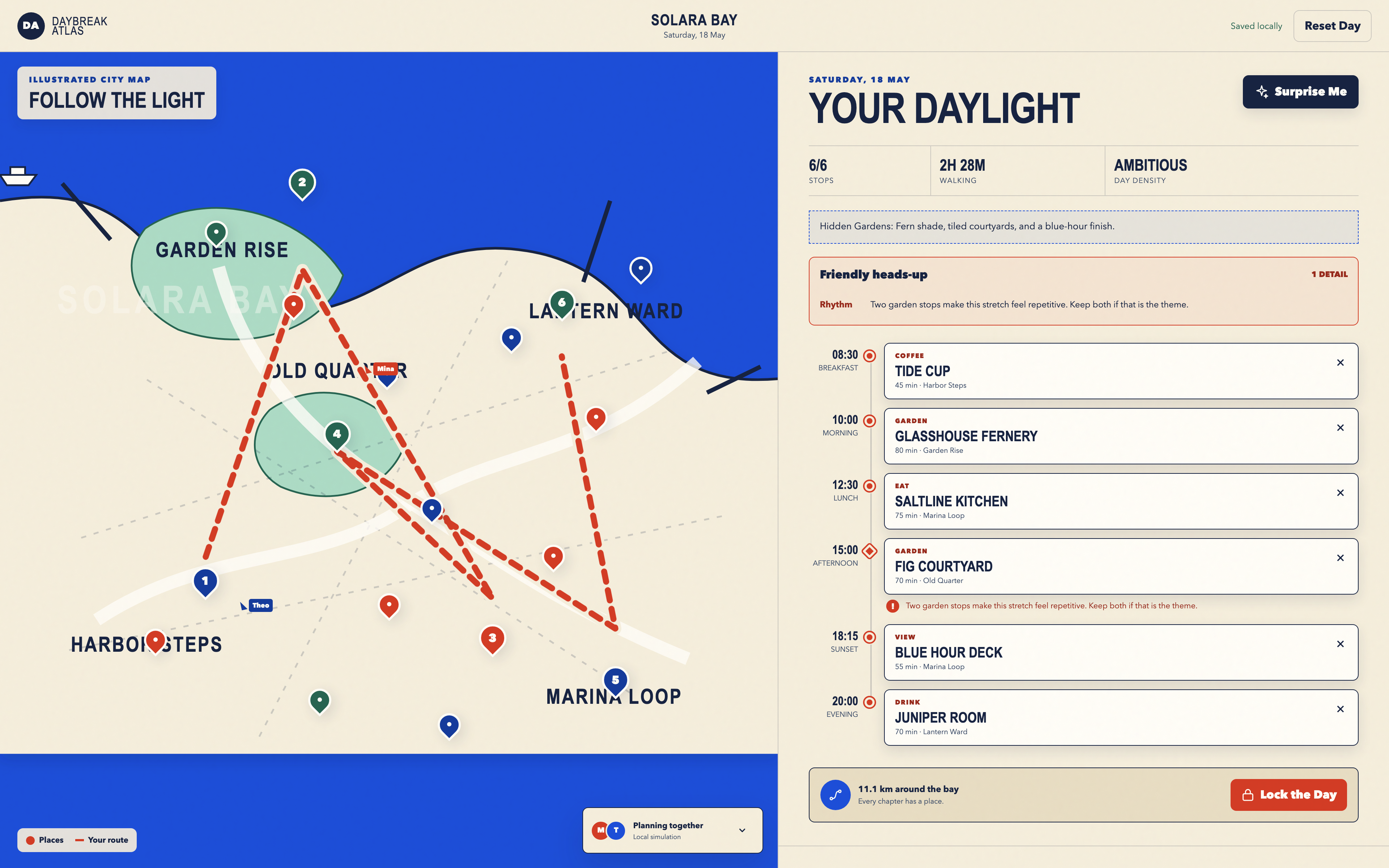
Day Trip Planner Design
Plan six timed stops in fictional Solara Bay, with an illustrated map, walking estimates and useful route warnings.
Desktop app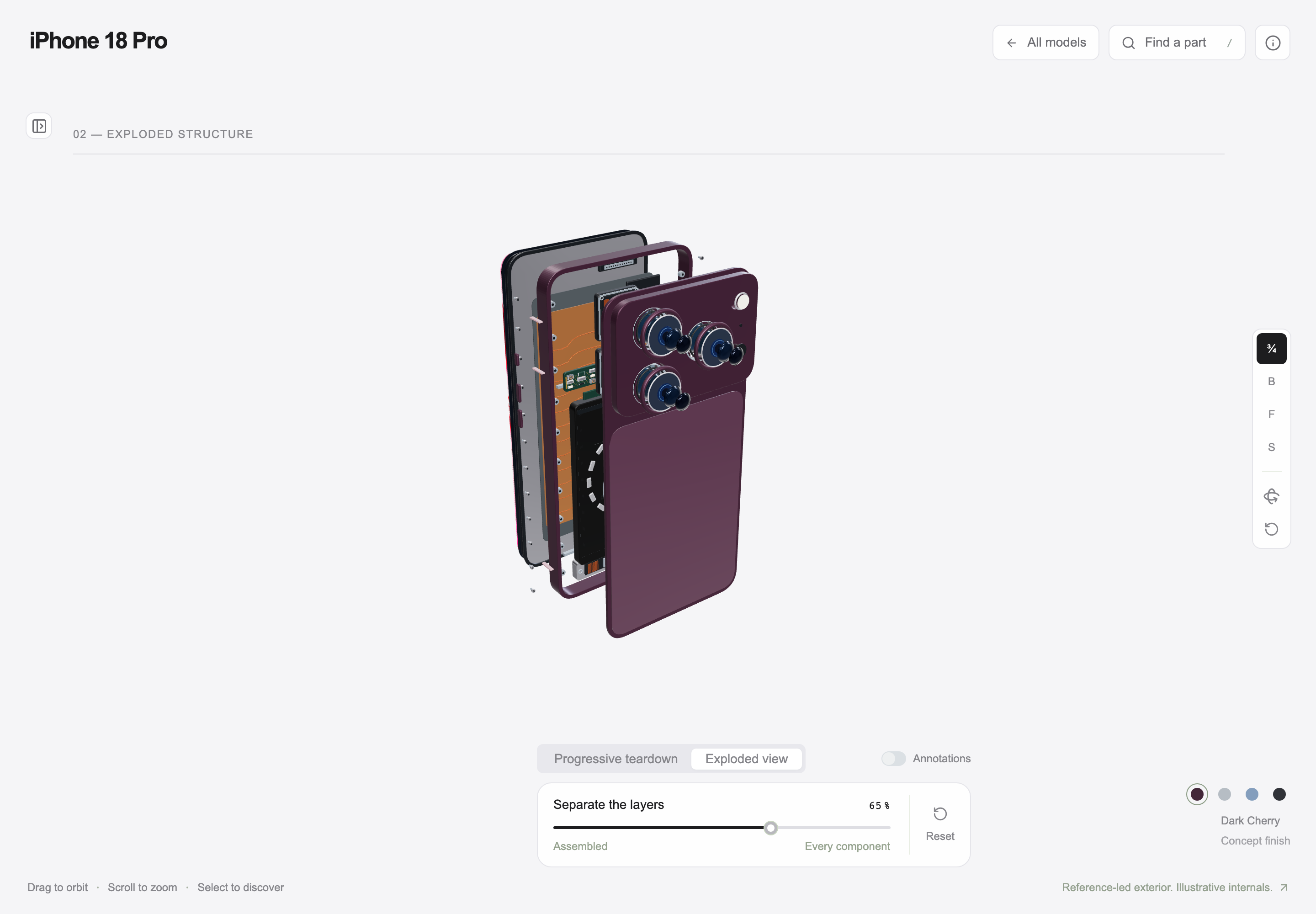
Interactive Product Explainer Design
Explore a concept phone’s separated layers with camera presets, a slider and a panel of eight assembly groups.
Desktop app