
Desktop app
Day Trip Planner Design
Plan six timed stops in fictional Solara Bay, with an illustrated map, walking estimates and useful route warnings.

LLM Arena Sep 2026
Case notes- Model
- GPT 5.6 Sol
- Design task
- Drag-and-drop city day-trip planner
- Output
- Desktop app
Designed For
- Day Trip PlanningTurn saved places into a sequence with arrival times.
- Map-Based ProductsKeep geography visible while comparing possible stops.
- Travel App PrototypesTest route feedback before connecting real travel data.
Key Highlights
- A Map-First WorkspaceThe illustrated city remains visible beside the planning panel.
- Six Timed StopsThe timeline runs from an 8:30 start to an evening finish.
- Warnings With a ReasonRoute feedback calls out repeated stops and an ambitious pace.
- A Final Day CardReview the itinerary as a complete sequence after planning.
Explore the Day Trip Planner
1 / 3A Day Trip Planner Built Around the Map
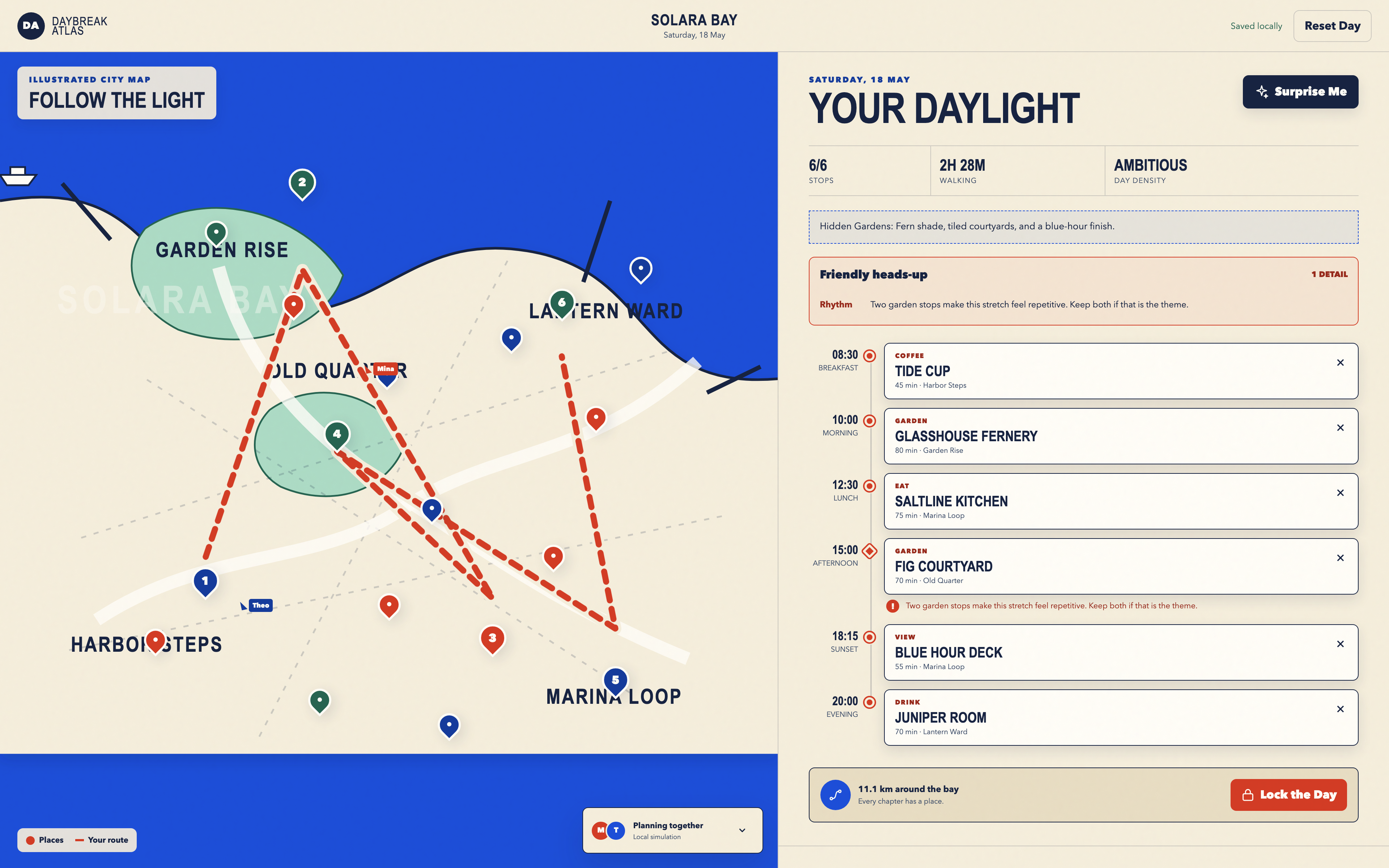
Daybreak Atlas gives fictional Solara Bay most of the screen. District names, paths and numbered stops form the working surface; The Day and Saved Places share the panel on the right. This is a different emphasis from a list-first itinerary. Visitors can see how far apart their choices sit while the schedule stays within reach.
The captured Hidden Gardens route fills six slots, beginning at 8:30 and ending with an evening stop at 20:00. A place name alone would not explain that sequence. Each timeline entry adds a district and visit duration, while walking time appears between stops. Together, those labels distinguish where the visitor goes, how long they stay and how they move onward.
Read a Route Beyond Its Six Filled Slots
The same route can be complete and still be demanding. Here, 6 of 6 stops appears beside 2h 28m walking and an Ambitious assessment. The page makes useful distinctions instead of presenting a single success state. A visitor can inspect the cause of a crowded day before choosing whether to change it.
| Visible Detail | Meaning in the Plan | Design Lesson |
|---|---|---|
| 6 of 6 stops | Every scheduled slot has an assigned place. | Completion describes coverage, not whether the day is practical. |
| 2h 28m walking · 11.1 km | Travel contributes substantial time beyond the visits themselves. | Show the cost of transitions separately from time spent at each venue. |
| Ambitious | The local demonstration classifies this as a demanding route. | Pair an assessment with quantities that help someone interpret it. |
| Repeated Garden Stops | A Friendly heads-up explains a repetitive part of the suggested day. | Give a reason someone can act on, not just a warning color. |
Move From a Place on the Map to a Timed Stop
Surprise Me offers a populated starting point. It is useful because the user can react to an actual sequence: Tide Cup for an early stop, Glasshouse Fernery in the morning, then lunch and later visits. The suggested route remains editable. It should read as a proposal, not a claim that the application found the best possible day.
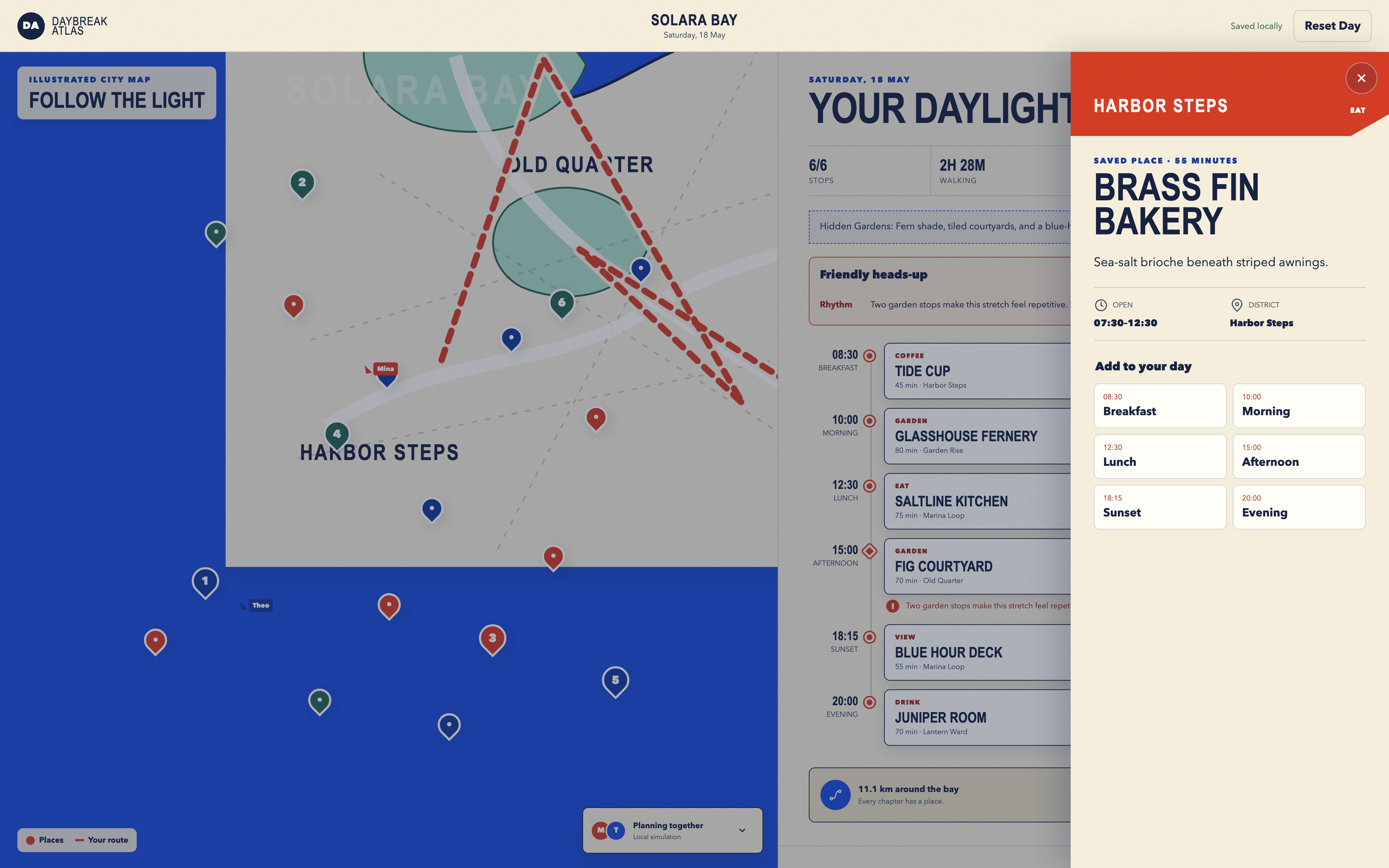
Make Place Details Useful for Scheduling
The drawer brings a place description and visit information together with assignment controls. This connects a spatial choice to a time slot. A map pin is useful for locating a venue, but the drawer is where a visitor can decide whether it belongs in the morning or later in the day.
Preserve the Meaning of Each Time Label
Tide Cup is shown with a 45-minute visit, while Glasshouse Fernery carries 80 minutes. These values describe the stops, not the walk between them. Keeping the units and roles visible prevents a compact timeline from becoming a set of numbers the reader has to decode.
Choose a Starting Route
Open the planner and use Surprise Me. Read both the place sequence and the walking summary before accepting the theme as a good fit.
Inspect a Questionable Stop
Open a map pin or saved place. Compare its visit length and district with the preceding stop, then review the available assignment controls.
Review the Whole Day
Check the route warning and travel total, then open the finished day card. A full set of slots is a reason to review the day, not a reason to skip that review.
What the Solara Bay Prototype Covers
Solara Bay, its places and its walking figures are fictional demonstration data. The planner uses local interaction logic rather than a live navigation or recommendation service. The displayed collaborators are not evidence of shared editing. Isolated Show Preview playback does not preserve progress across visits; it demonstrates the planning interface, not a travel account or booking system.
How to Create a Day Trip Planner Design in OpenDesign
Define the Map and the Timed Itinerary
Start with a fictional city, six time slots and a clear distinction between visit time and travel time. Use this new example prompt to describe the intended interface; it is not the original prompt used to produce the case.
Suggested PromptCreate a day trip planner design for a fictional coastal city. Give most of the desktop workspace to an illustrated map, with a scrollable panel on the right for The Day and Saved Places. Include six timed slots from breakfast to evening. Each place needs a district, category and typical visit duration. Display walking estimates between successive stops and a total travel time separate from visit lengths. Add a Surprise Me action that supplies an editable themed route. Use one example that fills all six slots but has a demanding walking total, and explain the reason in a short warning. A place drawer should show details and explicit assignment controls. Add a final itinerary card for reviewing the completed sequence. Use labeled fictional data and local interactions; do not imply live directions, shared accounts or reservations.
Design a Warning That Helps Change the Plan
Ask OpenDesign to show why an itinerary feels ambitious: a long transition, repeated venue category or a visit that conflicts with opening hours. Keep the reason next to the schedule and provide a clear way back to the affected stop.
Review the Map and Timeline at Smaller Widths
Test a long place name and a long walking duration. Keep both readable without covering map controls. On phones, choose a map or timeline as the primary view and make switching explicit instead of shrinking the entire desktop workspace.
Export and Get a Share Link
Export your finished design, then use Share in OpenDesign to get a share link. Open the link in a separate browser window and check that the intended version and its assets are available before sending it.
Travel Planner Dashboard Design
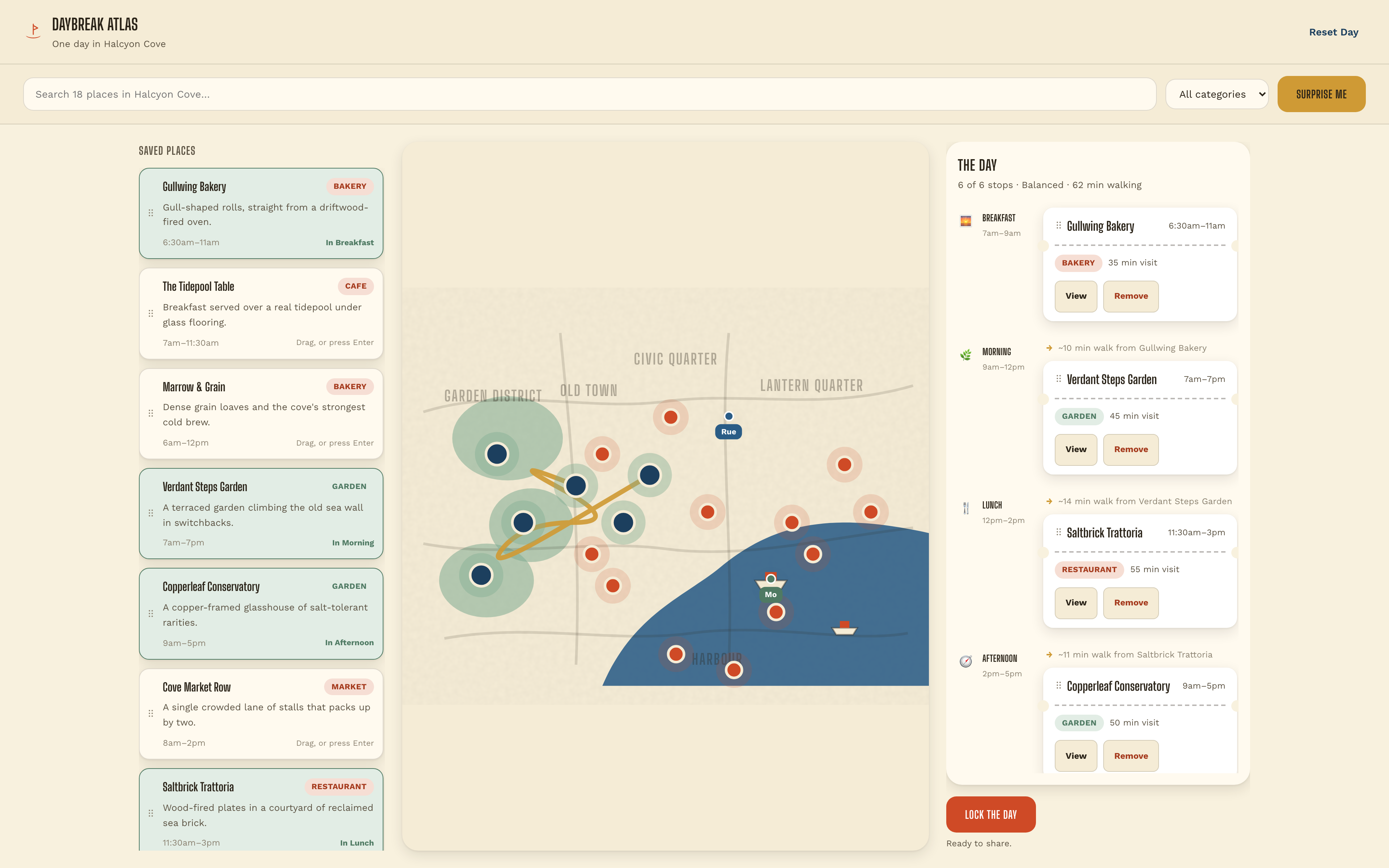
Build a six-stop day in Halcyon Cove. Link saved places, map locations and walking time.
Desktop app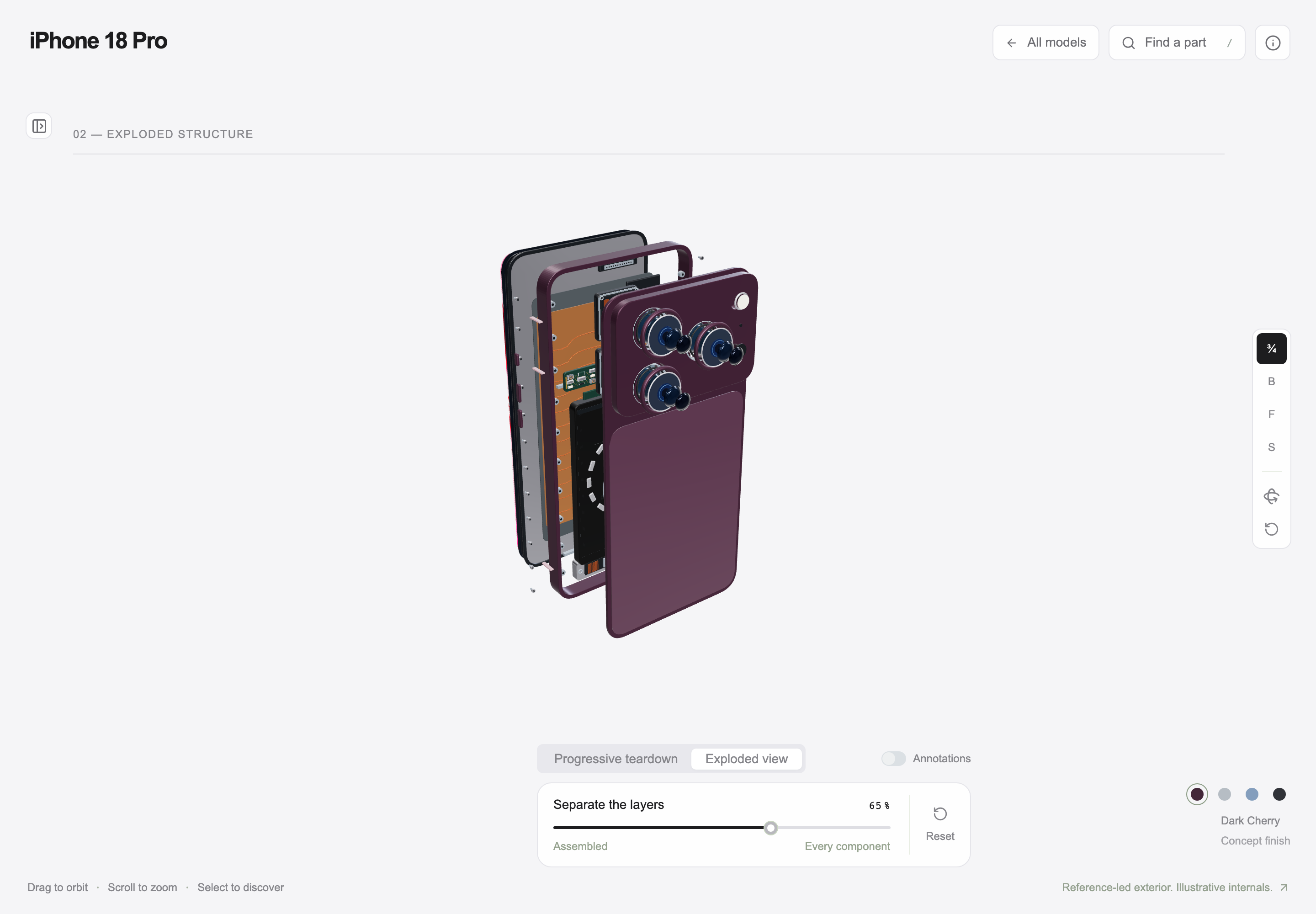
Interactive Product Explainer Design
Explore a concept phone’s separated layers with camera presets, a slider and a panel of eight assembly groups.
Desktop app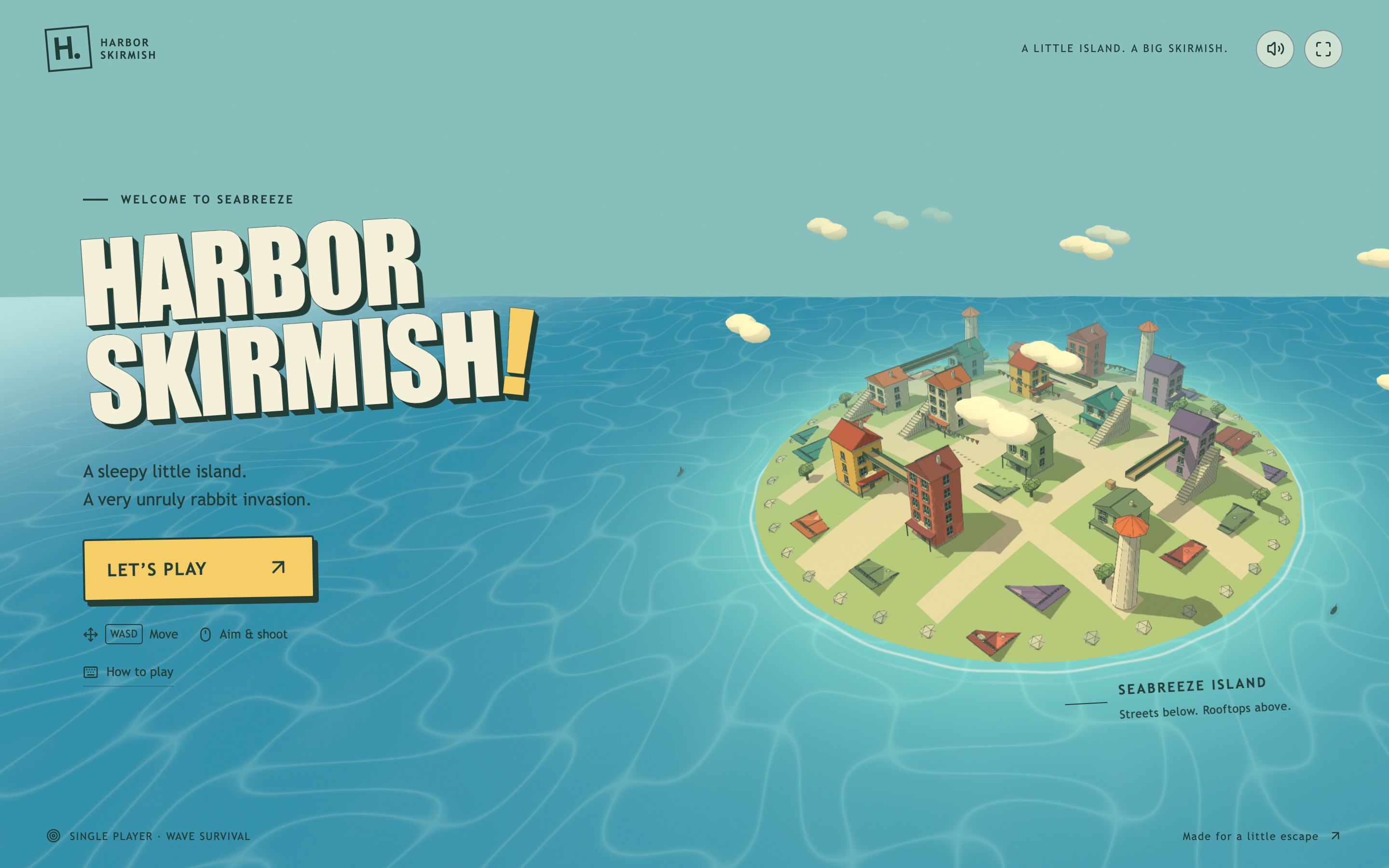
Island Adventure Game Design
Explore Harbor Skirmish, a small seaside island with rooftop routes, three weapon slots and a playful first-person interface.
Desktop app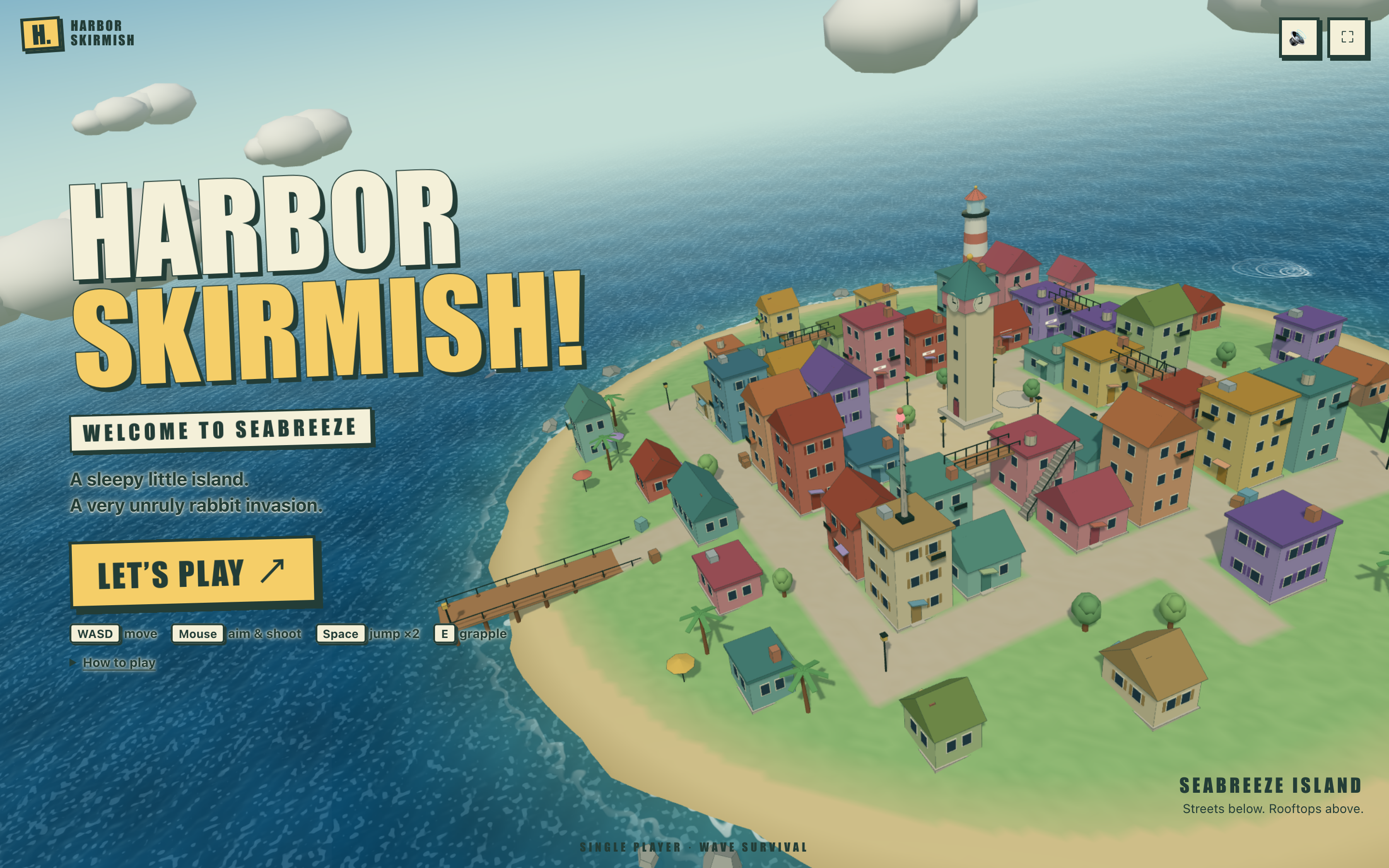
Island FPS Game Design
Step into Harbor Skirmish, where a bold island title screen leads to first-person play with boxed status panels and numbered weapon controls.
Desktop app