
Desktop app
Travel Planner Dashboard Design
Build a six-stop day in Halcyon Cove. Link saved places, map locations and walking time.

LLM Arena Sep 2026
Case notes- Model
- Claude Opus 5
- Design task
- Drag-and-drop city day-trip planner
- Output
- Desktop app
Designed For
- Itinerary PlanningOrganize a day around places, opening hours and visit lengths.
- Map-Based DashboardsConnect location choices to a visible sequence of stops.
- Travel Product PrototypesTest planning interactions before adding live travel services.
Key Highlights
- Three Linked ViewsA place library, city map and itinerary share each selection.
- Six Named Time SlotsBreakfast through Evening gives the day a recognizable structure.
- Contextual Place DrawerCheck hours and move a stop without leaving the plan.
- Visible Route CostWalking estimates reveal the travel between successive stops.
Explore the Travel Planning Dashboard
1 / 3A Travel Dashboard That Connects Place and Time
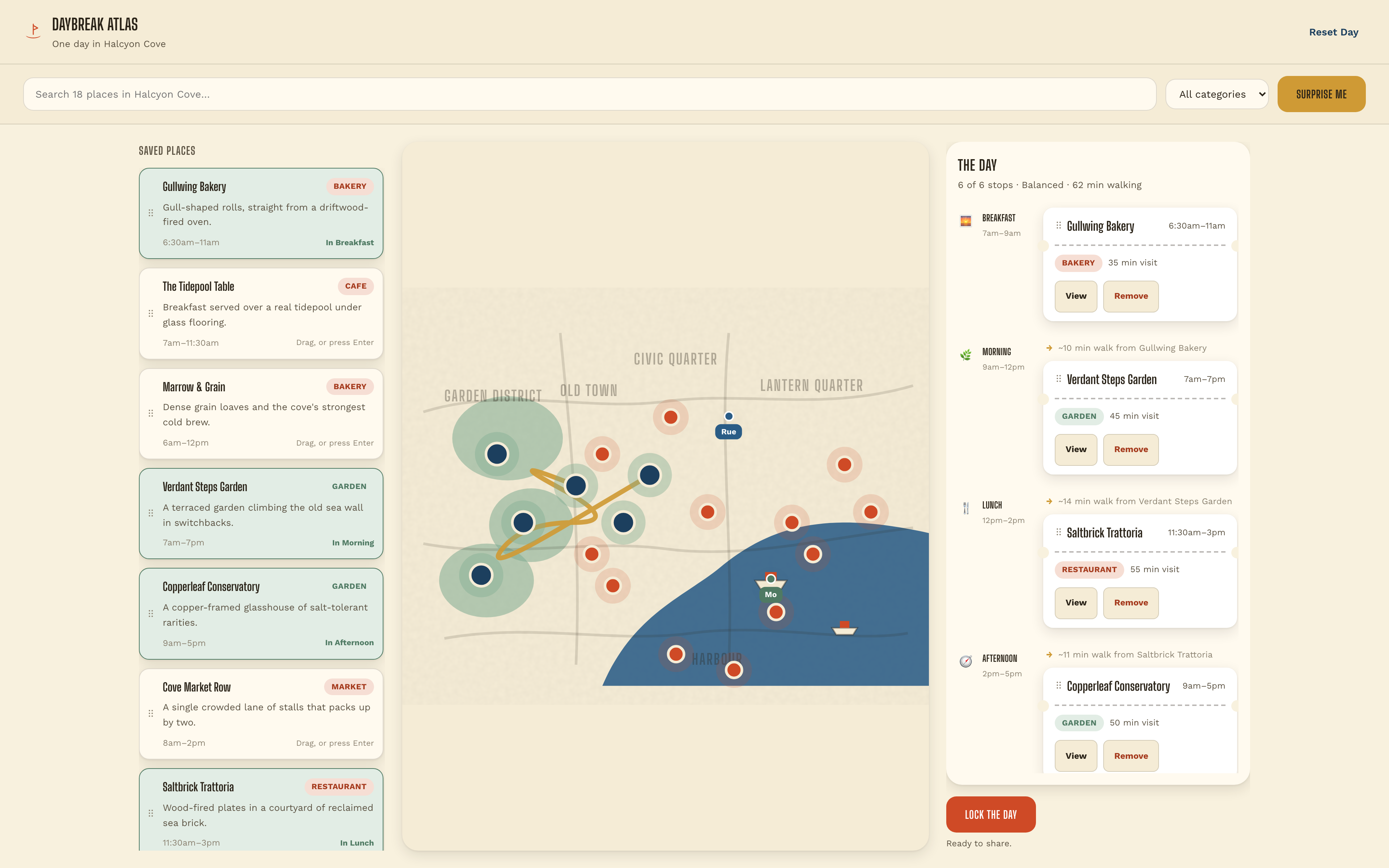
Daybreak Atlas turns a fictional day in Halcyon Cove into three linked views. Saved places sit on the left, an illustrated city map occupies the center, and The Day runs down the right. The map answers where a stop belongs; the timeline answers when to visit it. Keeping both visible makes the consequences of choosing a place easier to compare.
The place library is not just a list of names. Gullwing Bakery has an opening window of 6:30am–11am and becomes marked In Breakfast when it joins the route. The same place then appears in the Breakfast slot, with a visit duration and View and Remove controls. This repeated identity is the connection between browsing and planning: the card changes its role, but not its name.
Separate Opening Hours, Visit Duration and Travel Time
The most useful part of this travel planner dashboard design is its treatment of time. An opening window, a visit length and a walking estimate describe different constraints. They should not be compressed into one ambiguous duration. This example places them near the decision each one informs.
| Time Signal | Where It Appears | What the Reader Can Decide |
|---|---|---|
| 6:30am–11am | Gullwing Bakery card and place drawer | Whether the venue is open during the intended visit window. |
| 35 min visit | The bakery in the Breakfast slot | How much time to allow at that stop, separate from getting there. |
| ~10 min walk | Before Verdant Steps Garden | How much transition time the next stop adds to the plan. |
| 62 min walking | The Day summary for Hidden Gardens | How travel accumulates across this particular six-stop route. |
From a Suggested Route to a Deliberate Itinerary
Surprise Me supplies a starting route instead of asking the visitor to fill six empty slots. In the captured Hidden Gardens state, the sequence moves from Gullwing Bakery through gardens, lunch and a reading hall. It gives the user something concrete to edit. It is still a suggestion, not evidence that this is an optimized or geographically accurate route.
One Place, Several Useful Entry Points
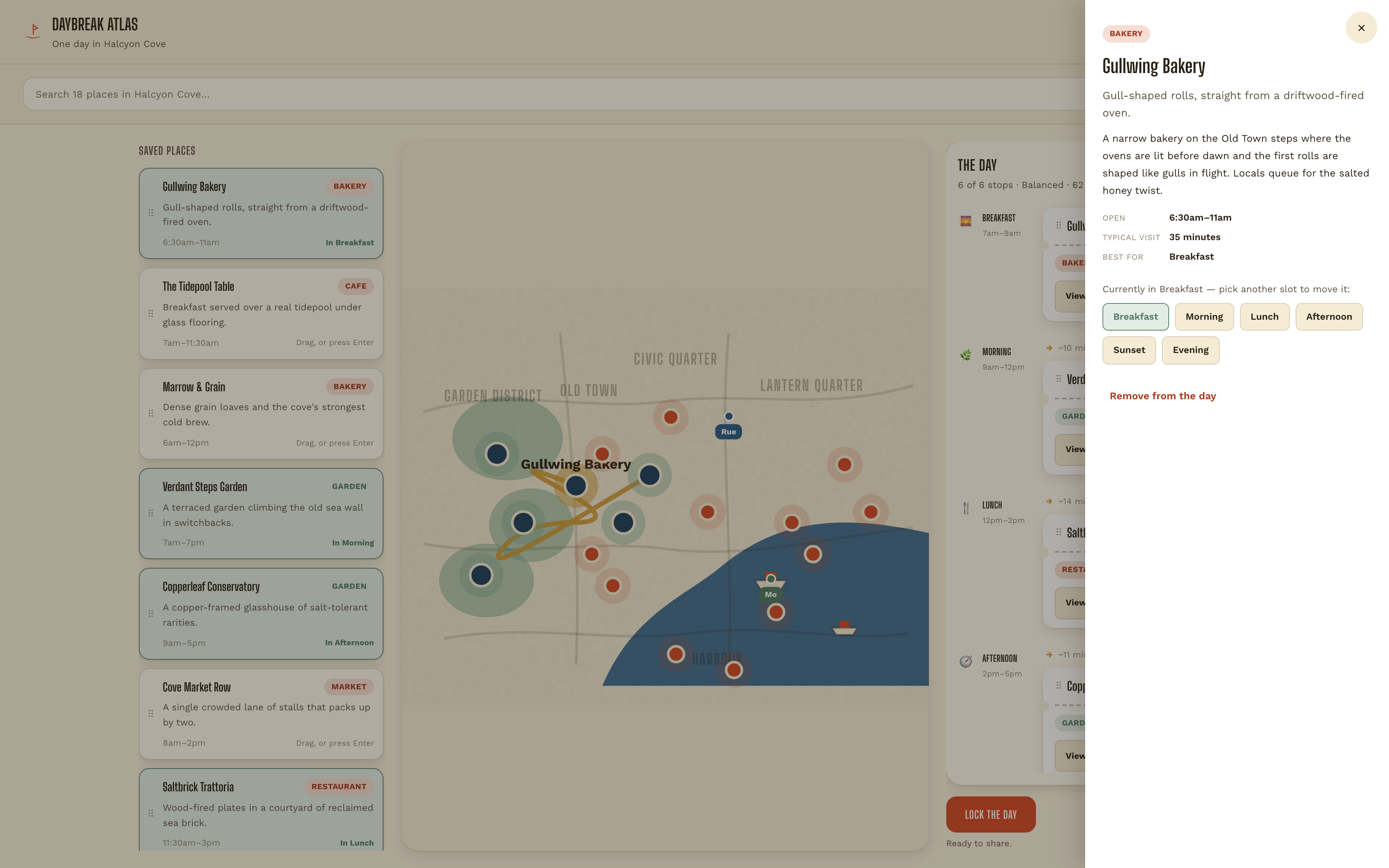
A saved-place card and a map pin can both lead to details. The drawer combines the description, opening hours, typical visit duration and best-fit slot. Someone who starts from the map can therefore make the same scheduling decision as someone browsing the library.
Named Destinations Make Moving Predictable
The drawer identifies the current assignment and offers Breakfast, Morning, Lunch, Afternoon, Sunset and Evening as buttons. This makes moving a place a visible action rather than a gesture that must be discovered. A production version should make occupied-slot replacement equally explicit before committing it.
Start With a Complete Example
Choose a Surprise Me theme and read its stop sequence alongside the map. Check whether the proposed theme is reflected in actual place categories, not only in its label.
Inspect Before Moving
Open one place, compare its opening window with the available time slots, and use a named slot to move it. Follow the resulting change in the timeline and route.
Review the Day as a Whole
Before using Lock the Day, compare the filled-slot count with the walking total. These provide a more useful final review than treating a completion button as proof of a workable itinerary.
What This Travel Planner Prototype Demonstrates
Halcyon Cove, its venues and its walking estimates are demonstration content. The artifact is a local front-end prototype, not a live map, booking service or multi-user planner. Its original local-storage behavior is unavailable in the isolated Show Preview environment, so saved progress should not be relied on there. Claude Opus 5 is the label supplied with the owner’s export, not an independently verified benchmark result.
How to Create a Travel Planner Dashboard Design in OpenDesign
Describe the Three Connected Views
Give OpenDesign a small fictional city and specify how a place appears in the library, on the map and in the timeline. Define the shared place identity before adding decoration. The prompt below is a new design exercise inspired by this case, not its original generation prompt.
Suggested PromptCreate a travel planner dashboard design for a fictional coastal city. Use a warm paper background, a compact place library on the left, an illustrated map in the center and a day timeline on the right. Provide six named slots: Breakfast, Morning, Lunch, Afternoon, Sunset and Evening. Each sample place needs an opening window, a typical visit duration and a category. Selecting a map pin or library card should open the same place drawer. Let users assign a place with explicit slot buttons as well as drag and drop. Show estimated walking time between successive stops, separate from visit duration, and a total in the day summary. Include a suggested-route starting state and a final review state. Label places and route estimates as fictional demo data; do not imply live maps, reservations, shared editing or cloud persistence.
Trace One Change Across the Dashboard
Ask OpenDesign to move one place to another slot and carry the change through the card label, selected map pin and timeline. Compare the before and after states. Keep the same place name and duration everywhere, and specify what happens if the destination slot already contains a stop.
Test a Route That Does Not Fit
Use a sample venue that closes before its assigned slot, then inspect how the design explains the mismatch. On smaller screens, decide which panel takes priority and make the other two reachable without squeezing three desktop columns into a phone viewport.
Export and Get a Share Link
Export your finished design, then use Share in OpenDesign to get a share link. Open the link in a separate browser window and check that the intended version and its assets are available before sending it.
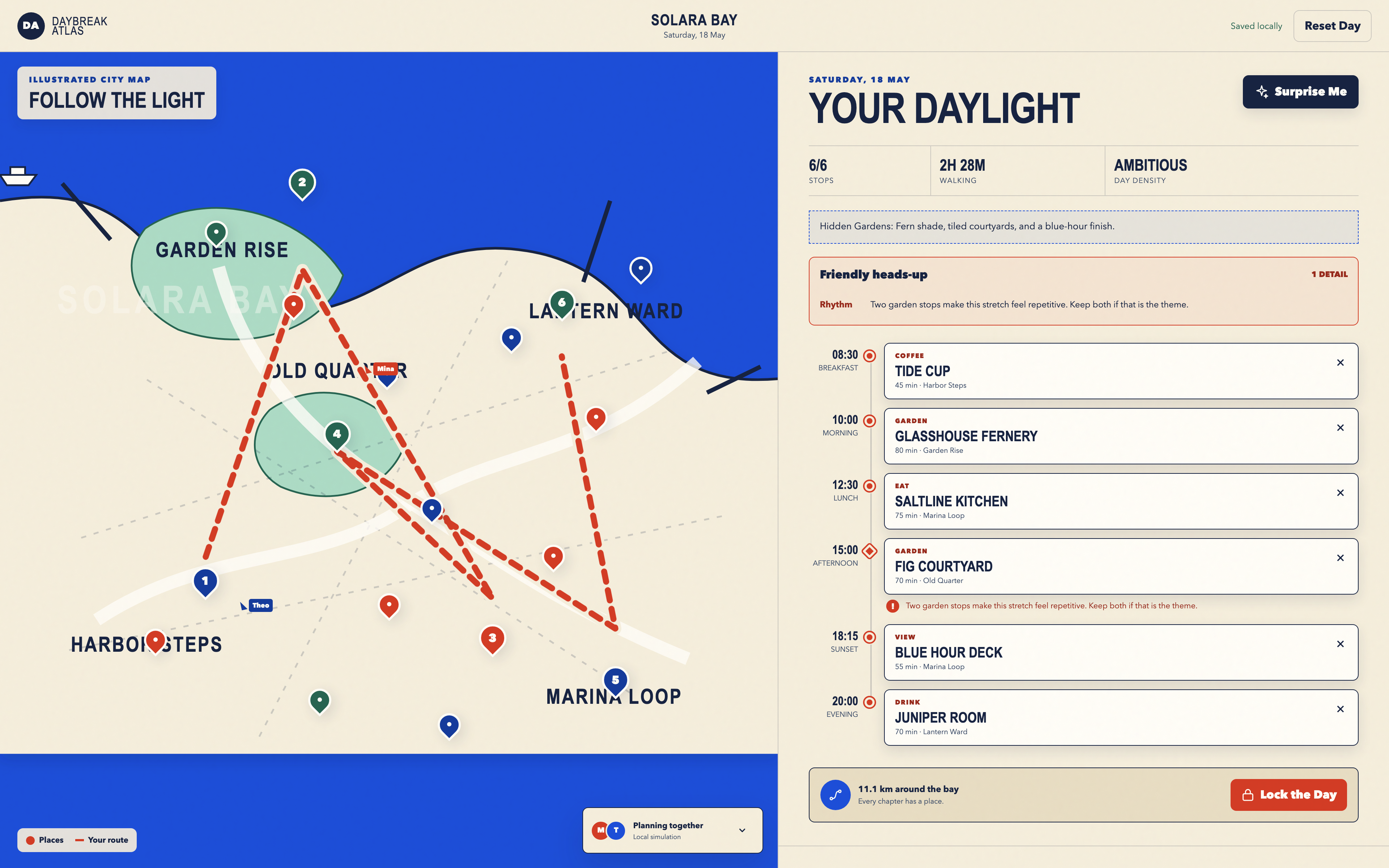
Day Trip Planner Design
Plan six timed stops in fictional Solara Bay, with an illustrated map, walking estimates and useful route warnings.
Desktop app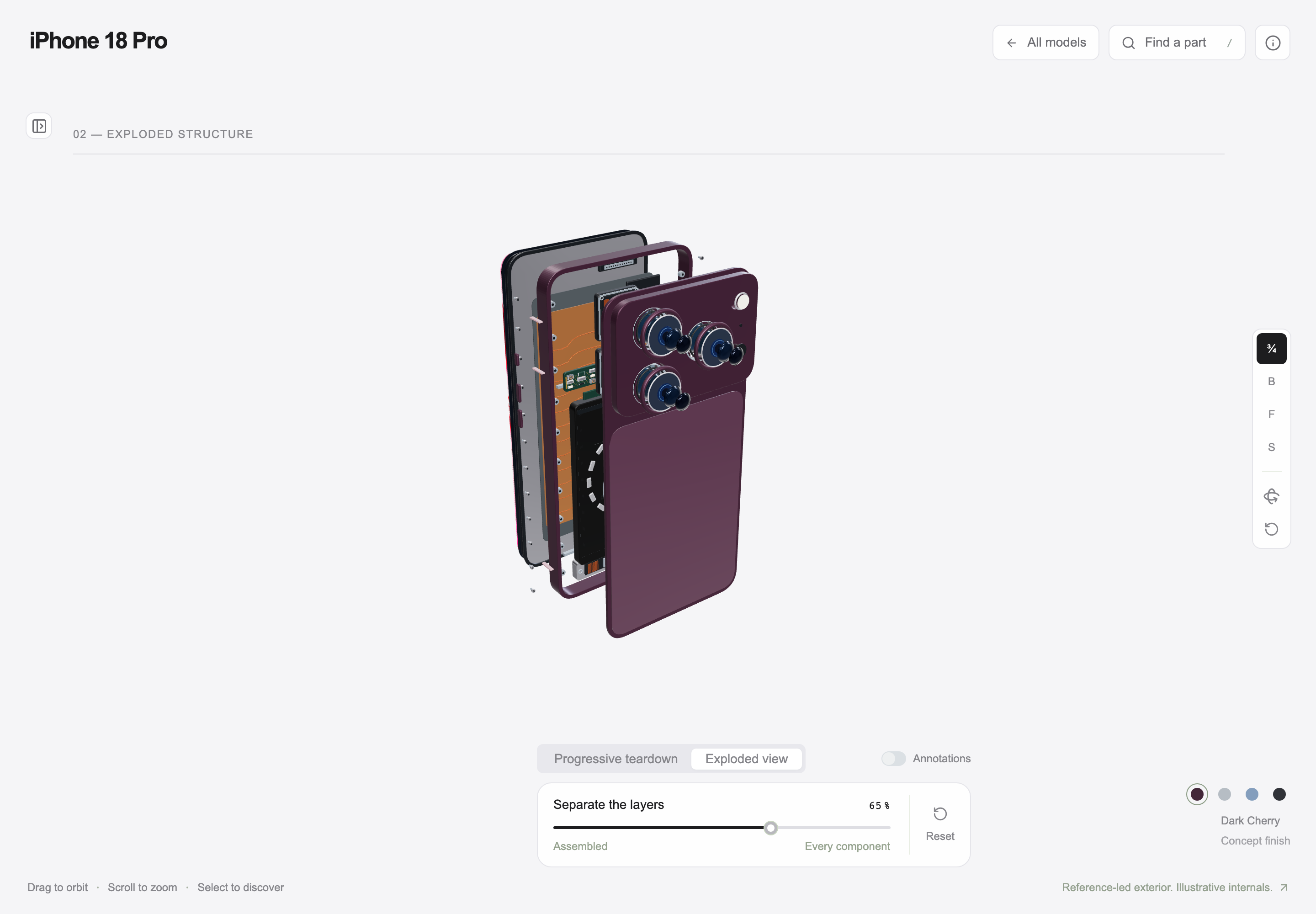
Interactive Product Explainer Design
Explore a concept phone’s separated layers with camera presets, a slider and a panel of eight assembly groups.
Desktop app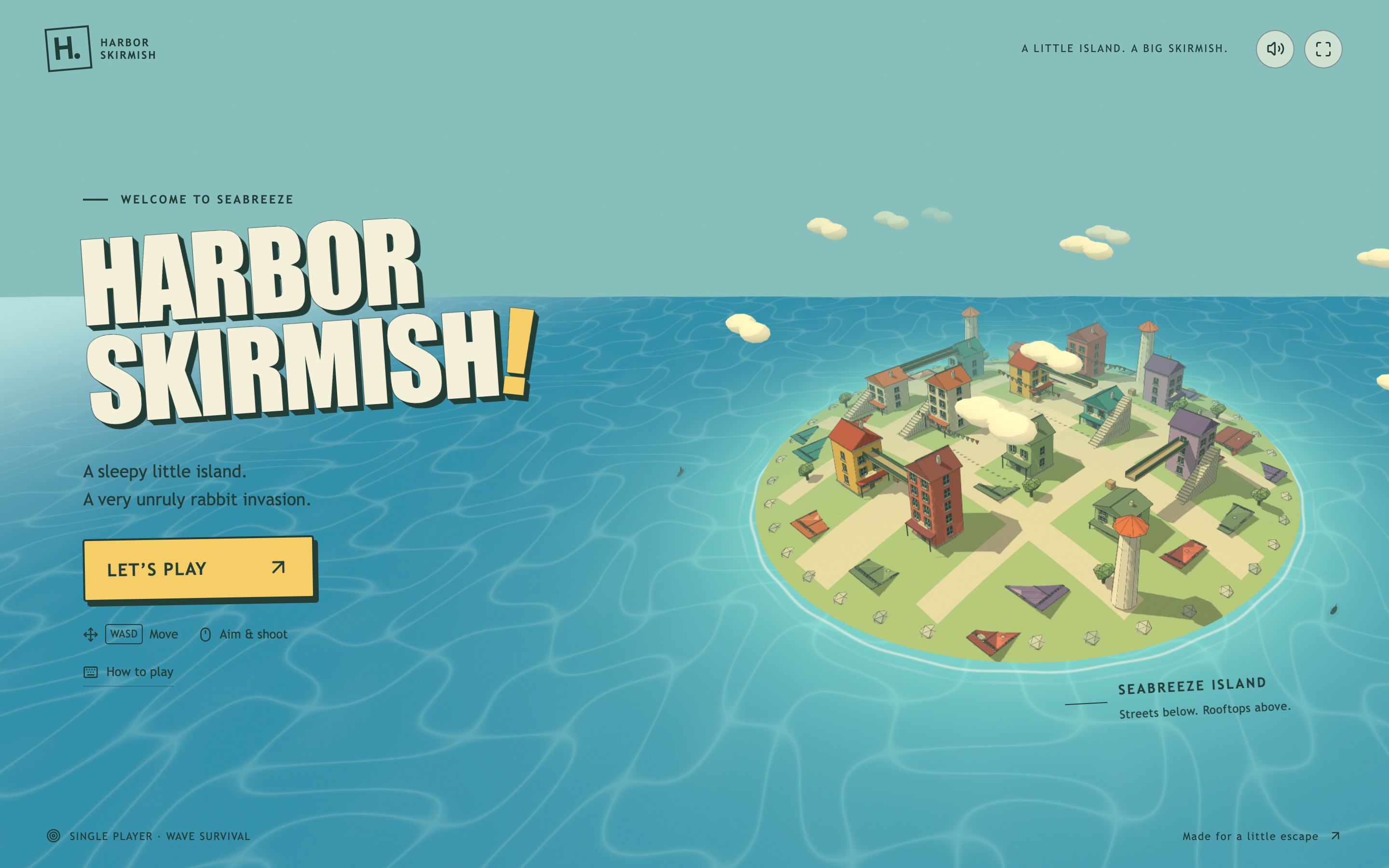
Island Adventure Game Design
Explore Harbor Skirmish, a small seaside island with rooftop routes, three weapon slots and a playful first-person interface.
Desktop app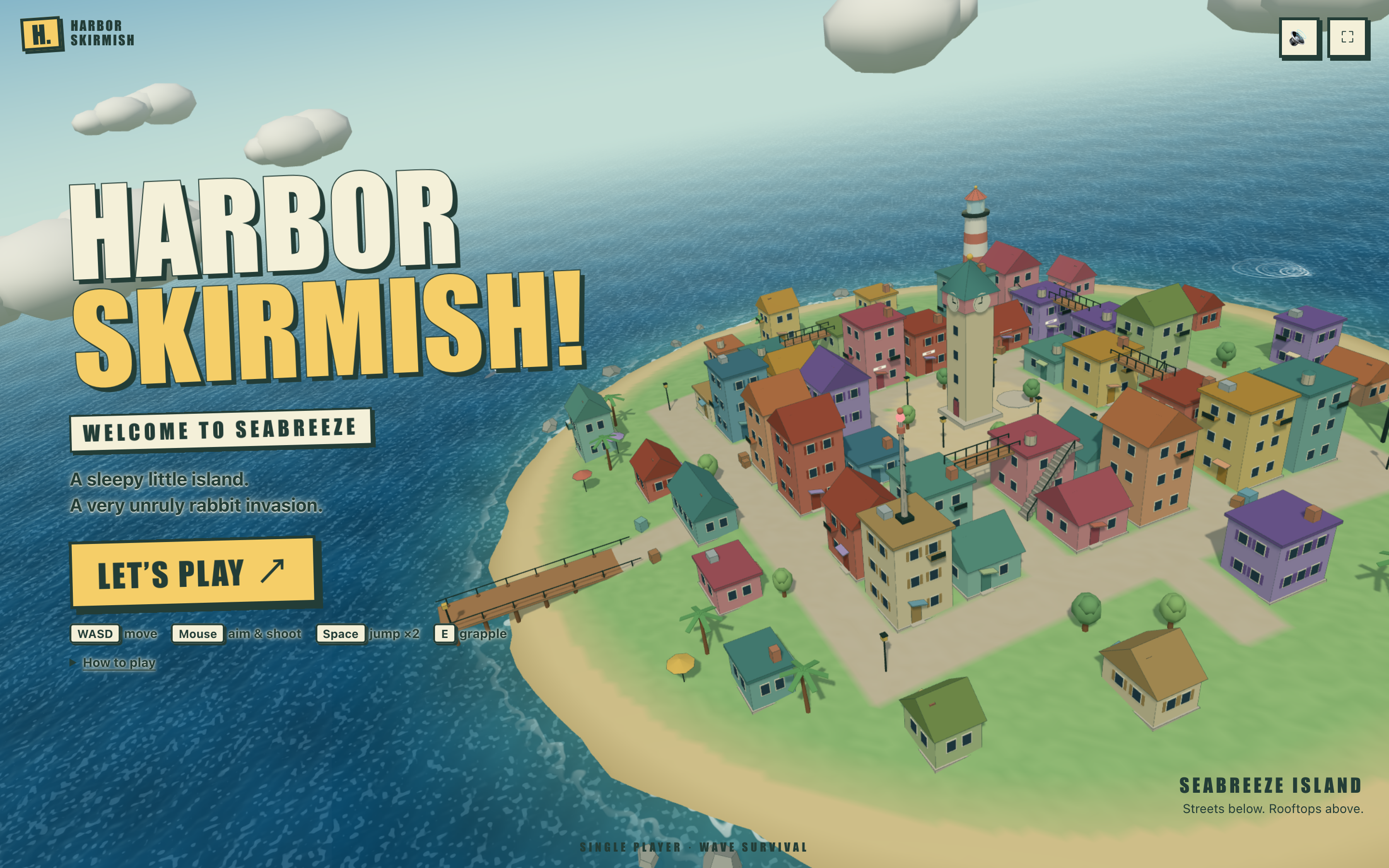
Island FPS Game Design
Step into Harbor Skirmish, where a bold island title screen leads to first-person play with boxed status panels and numbered weapon controls.
Desktop app