

Desktop app
Content Performance Dashboard Design
A dark content dashboard connects platform snapshots with chart inspection, draft planning and a deeper view of audience and conversion signals.

Content Dashboard Use Cases
- Publishing Performance ReviewsCompare audience snapshots with a featured post and publishing queue.
- Chart Interaction PrototypesExplore local point pinning and interval comparison on sample arrays.
- Cross-Platform Workspace StudiesSeparate network summaries from deeper shared analysis panels.
Content Analytics Design Highlights
- Persistent Inspection ContextKeeps selected points and ranges in a sticky insight strip.
- Overview to DetailMoves from platform cards into timing, sentiment and conversion panels.
- Local Comparison MechanicsCalculates interval statistics without implying a connected analytics service.
- Distinct Visual SignalsUses serif totals, gradient charts and restrained status color.
The Content Dashboard, Panel by Panel
1 / 6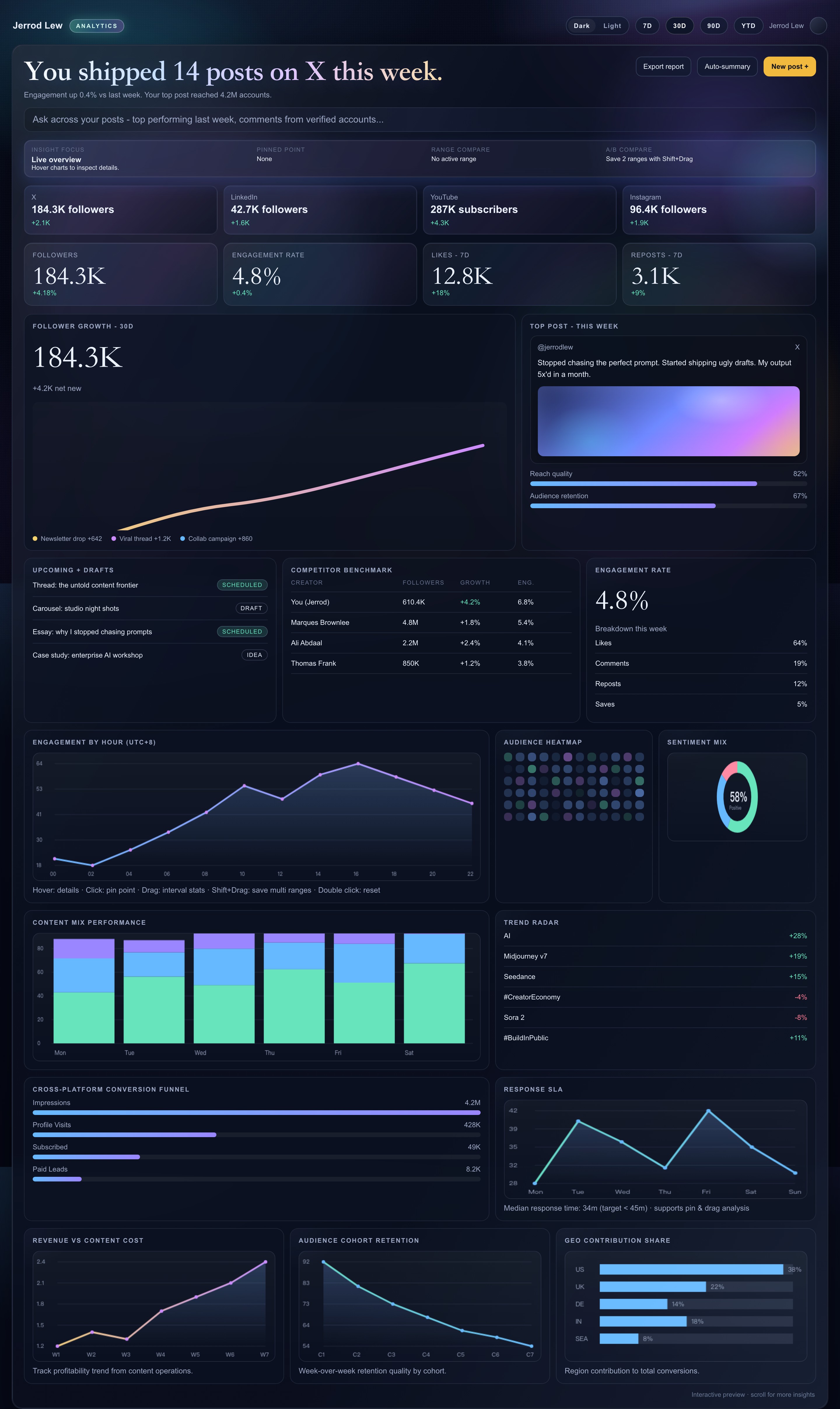
From Publishing Snapshot to Analysis
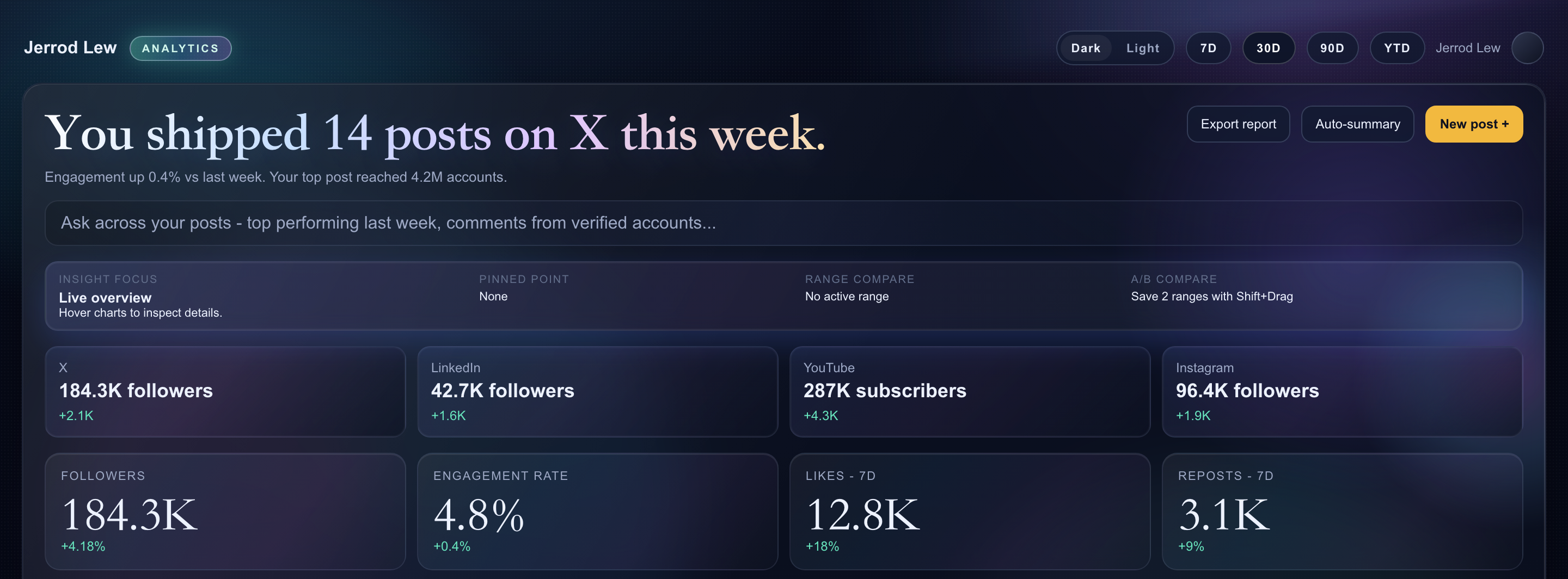
This official OpenDesign example is a dark content-performance workspace for the sample identity Jerrod Lew. The opening combines a compact theme and period toolbar with a large serif publishing headline. In the captured X state, the summary says fourteen posts were shipped that week. Four network cards establish the wider audience context before a separate KPI row presents the active sample network.
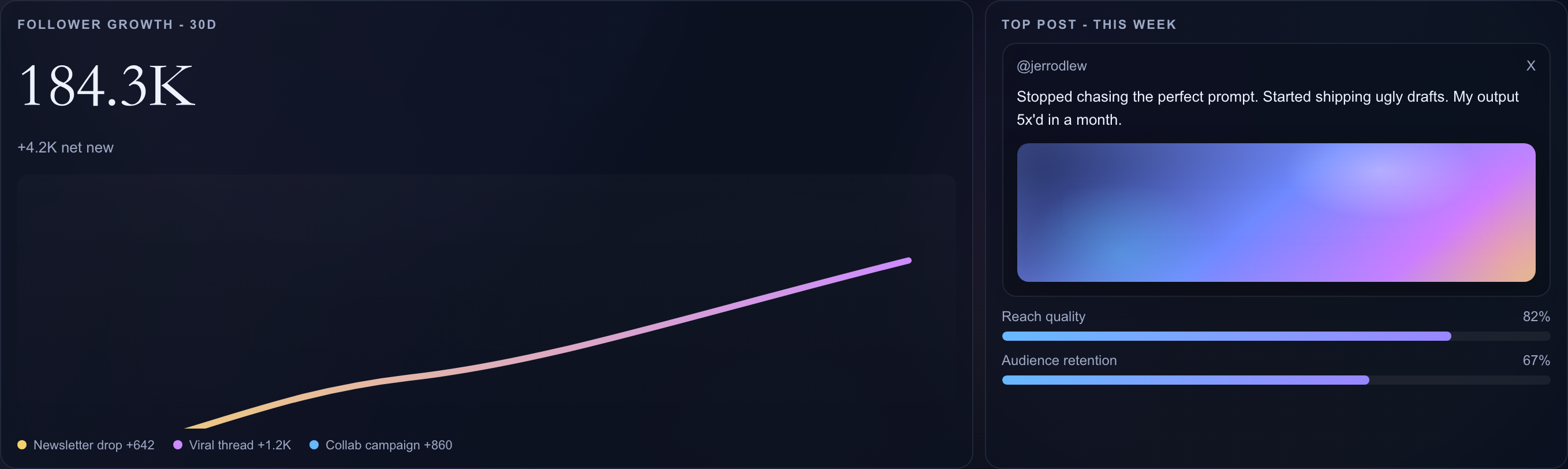
The X KPI row shows 184.3K followers, 4.8% engagement, 12.8K likes and 3.1K reposts. The first analytical pair then gives the follower curve more width than the featured-post card, using a two-to-1.2 column ratio. That asymmetry privileges the trend while keeping one publishing example beside it. The gradient thumbnail is an authored CSS surface, not a photograph or proof of a real campaign.
Several reporting windows coexist: the toolbar highlights 30D, the headline says this week, likes and reposts say 7D, and the follower card says 30D. The period buttons have no filtering handler. A reader should therefore treat these as differently labeled sample views, not infer that one toolbar selection recalculates every panel.
Separate Audience, Planning and Conversion Questions
The workspace does not stop at reach. Upcoming + Drafts distinguishes two Scheduled entries, one Draft and one Idea; the adjacent competitor table gives four named sample rows. Those planning states sit beside a weekly engagement breakdown of 64% likes, 19% comments, 12% reposts and 5% saves. The latter totals 100%, but its measurement rule is not supplied.
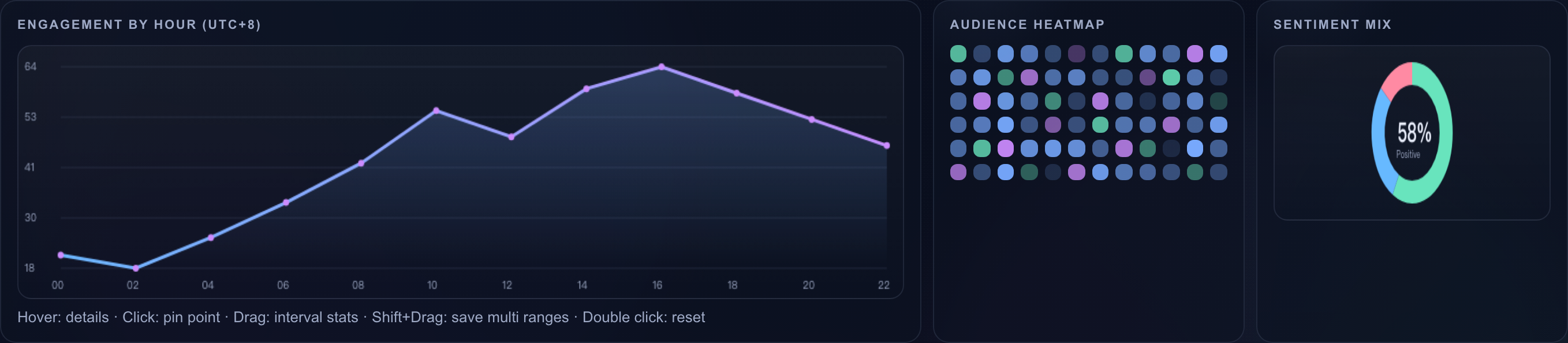
Later panels narrow the questions further. An hourly line uses twelve two-hour positions from 00 to 22 in UTC+8; a sentiment ring divides Positive, Neutral and Negative into 58%, 28% and 14%. The neighboring heatmap creates 72 cells with randomly chosen color intensity. Its color is decorative sample variation, not a measured explanation of when an audience is available.
The conversion panel labels impressions at 4.2M, profile visits at 428K, subscriptions at 49K and paid leads at 8.2K. Its authored bar widths are 100%, 41%, 24% and 11%, not ratios derived from those counts. Keeping count labels and bars together makes the proposed funnel readable, but those widths must not be interpreted as actual conversion rates.
| Panel | Visible Sample | Reading Boundary |
|---|---|---|
| Hourly Engagement | Twelve two-hour values, peaking at 64 at 16:00 | The selected point belongs to a fixed local array. |
| Sentiment | 58% Positive, 28% Neutral, 14% Negative | The ring is illustrative, not a verified classifier output. |
| Conversion Funnel | Four counts beside independently authored bar widths | Widths do not establish count-derived conversion rates. |
| Geography | US 38%, UK 22%, DE 14%, IN 18%, SEA 8% | The five sample shares total 100%, without a verified attribution source. |
Inspect a Point, Then Compare a Range
A sticky inspection strip keeps four roles distinct: current focus, pinned point, active range and A/B comparison. This turns pointer movement into visible context rather than leaving every chart tooltip isolated. On the hourly, response, ratio and cohort lines, hovering identifies a nearby sample point; clicking pins it. Arrow keys also move the pin on a focused canvas, while Escape clears that local selection.
Dragging a line selects an interval and calculates its average, peak and low. Shift-drag stores up to four ranges, and the A/B label compares the last two using mean and volatility differences. This is a local numerical comparison of selected sample values, not an experiment assignment, significance test or measured causal lift. Touch handlers support pinning and active interval inspection but do not implement the mouse Shift-drag saved-range path.
The lower Revenue vs Content Cost panel is one ratio series labeled in x, from 1.2 to 2.4 across W1–W7; it is not separate revenue and cost lines or currency totals. Cohort Retention uses C1–C7 labels rather than explicit dates. Both can illustrate a proposed analytical relationship, but their definitions need real data before someone can use them to assess profitability or retention.
Locate the Sample Context
Read the active network headline and KPI row before interpreting a deeper panel. The four-network summary remains separate from the active snapshot.
Inspect a Specific Value
Hover or pin a local line-chart point and follow its label into the persistent insight strip; the interaction does not fetch external data.
Compare Selected Intervals
Use desktop Shift-drag ranges to compare local means and volatility, keeping range comparison separate from experimental evidence.
Local Prototype Behavior and Data Limits
The source implements theme switching, canvas inspection and automatic sample-network rotation every 3.6 seconds. Rotation updates the headline, KPI cards, follower total and featured post; the deeper fixed arrays, drafts, benchmark and funnel do not become platform-specific datasets. Number tweening briefly displays intermediate values. Neither animation nor the Live overview label establishes a live feed, stored account connection or verified cross-platform measurement.
Export report, Auto-summary, New post and the date-range buttons are visible without action handlers; the query-like strip is a div, not a working input. The source contains no platform API, publishing service or reporting backend. Its hover baseline comparison uses the current series mean, so its label does not establish a year-over-year cohort comparison. The official bundle license likewise does not verify rights to every depicted name or claim.
How to Create Content Performance Dashboard Design in OpenDesign
Frame the Workspace Questions
Start with the publishing overview, four platform cards, active-network KPIs and a wider follower-trend panel beside a featured post. Keep each reporting period explicit instead of suggesting that an inactive toolbar filters everything.
Suggested PromptCreate a dark content-performance dashboard with a compact theme toolbar, weekly publishing headline, four platform snapshots, four active-network KPIs, a sticky focus/pin/range comparison strip, follower trend and featured post, planning rows, hourly chart, sentiment ring, conversion funnel and ratio/cohort/geographic panels. Use fictional sample data only. Separate implemented local canvas interactions from proposed publishing, export and querying. Normalize funnel bars to counts only if their units and denominator are defined; do not invent connected APIs, measured results, experiment significance or original authorship history.
Define the Inspection State
Specify hover, pinned-point and selected-range feedback separately. If saved intervals are needed, distinguish a comparison of means from an A/B experiment and provide a touch-accessible alternative to keyboard modifiers.
Check Units and Capability Claims
Verify percentage shares, reporting windows, cohort labels and ratio definitions against the proposed data. Label sample claims and decorative heatmap colors honestly, and test controls before describing export, querying or publishing as working.
Export and Get a Share Link
Export your finished design, then use Share in OpenDesign to get a share link. Open the link in a separate browser window and check that the intended version and its assets are available before sending it.
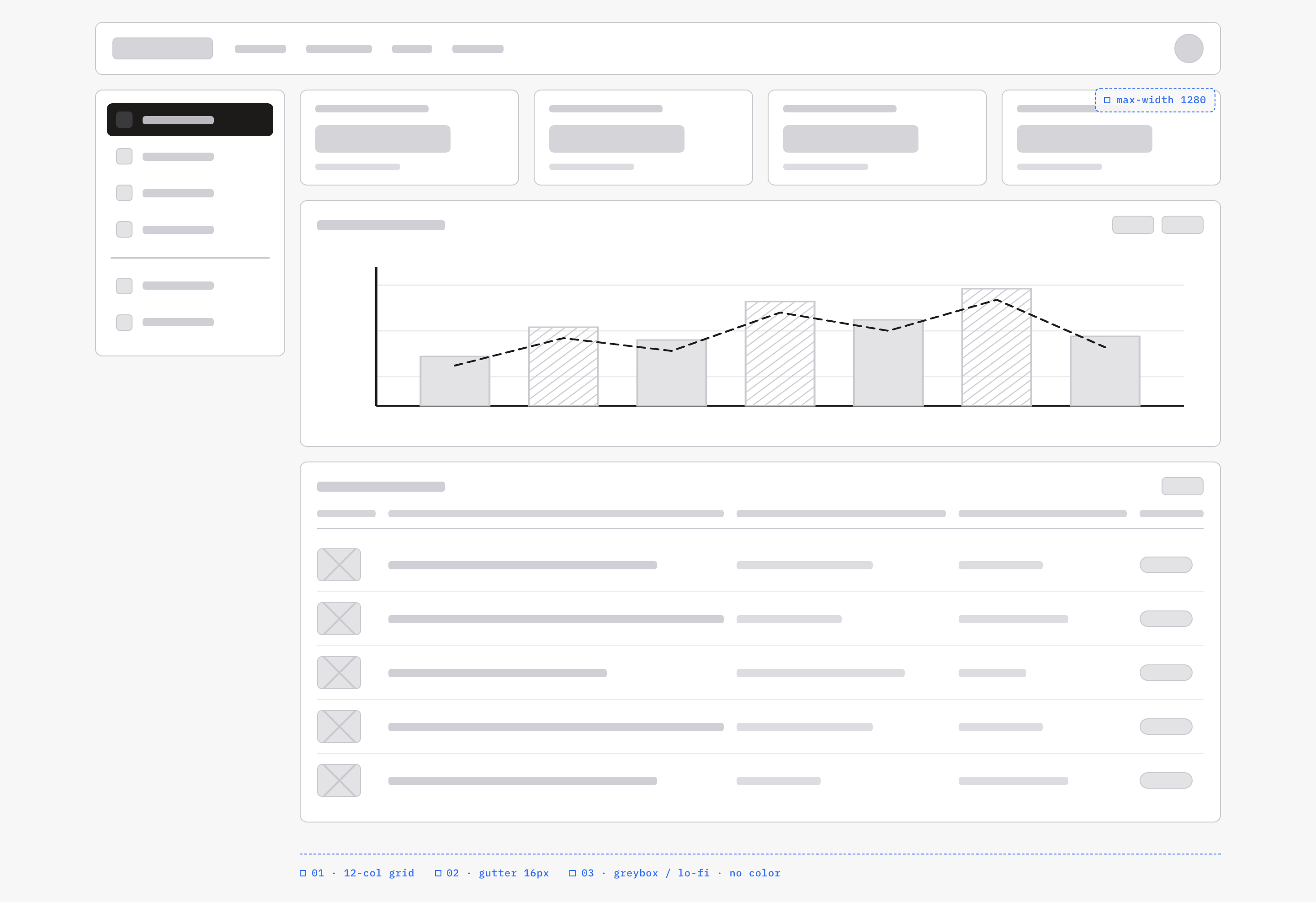
Analytics Dashboard Wireframe Design
An OpenDesign greybox dashboard maps an analytics workspace through a sidebar, four KPI placeholders, a schematic chart, five table rows and blue layout annotations.
Desktop app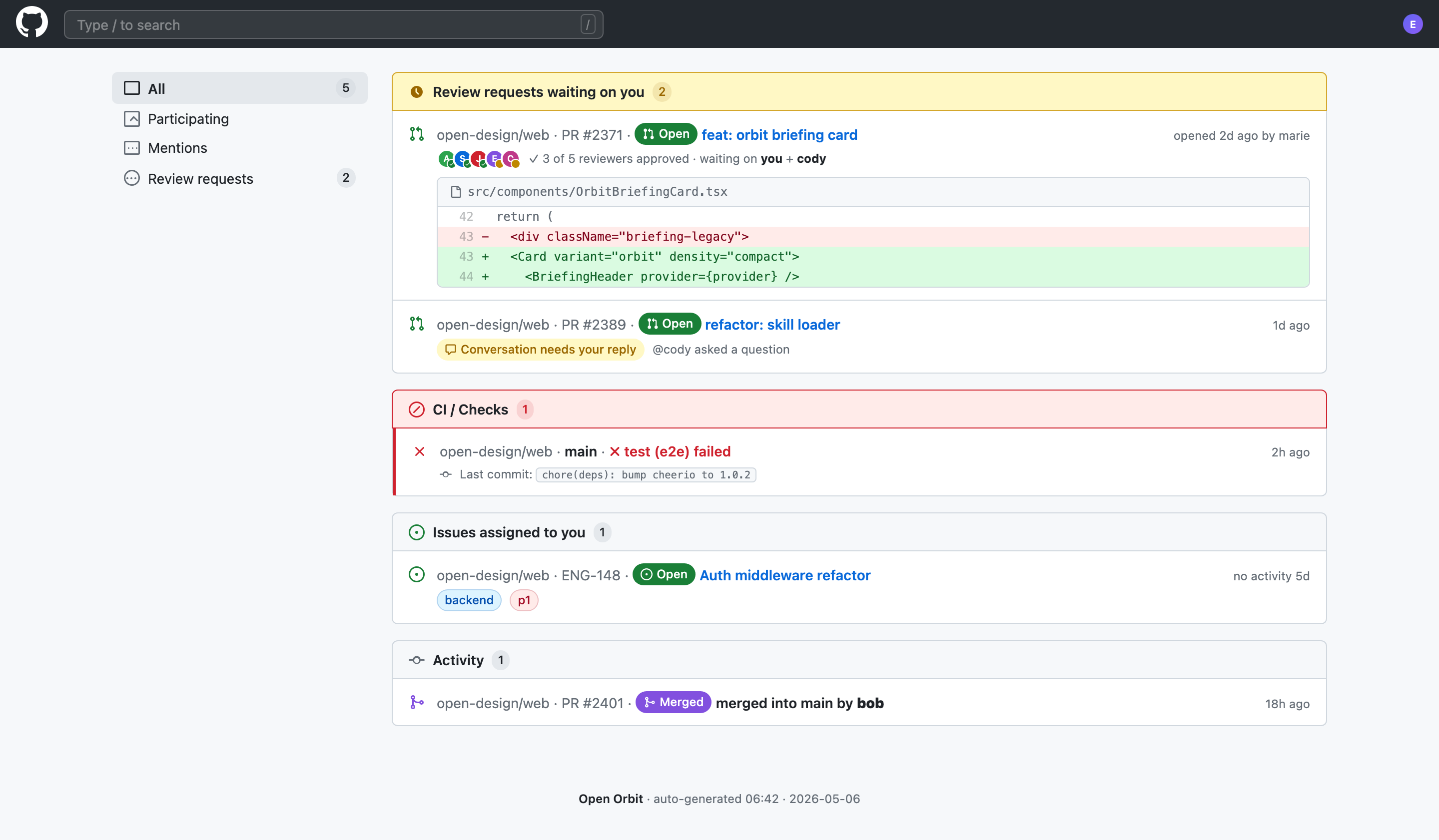
Code Review Inbox App Design
Code Review Inbox App Design brings review requests, CI failures, assigned issues, and activity into one scan-ready workspace for daily triage.
Desktop app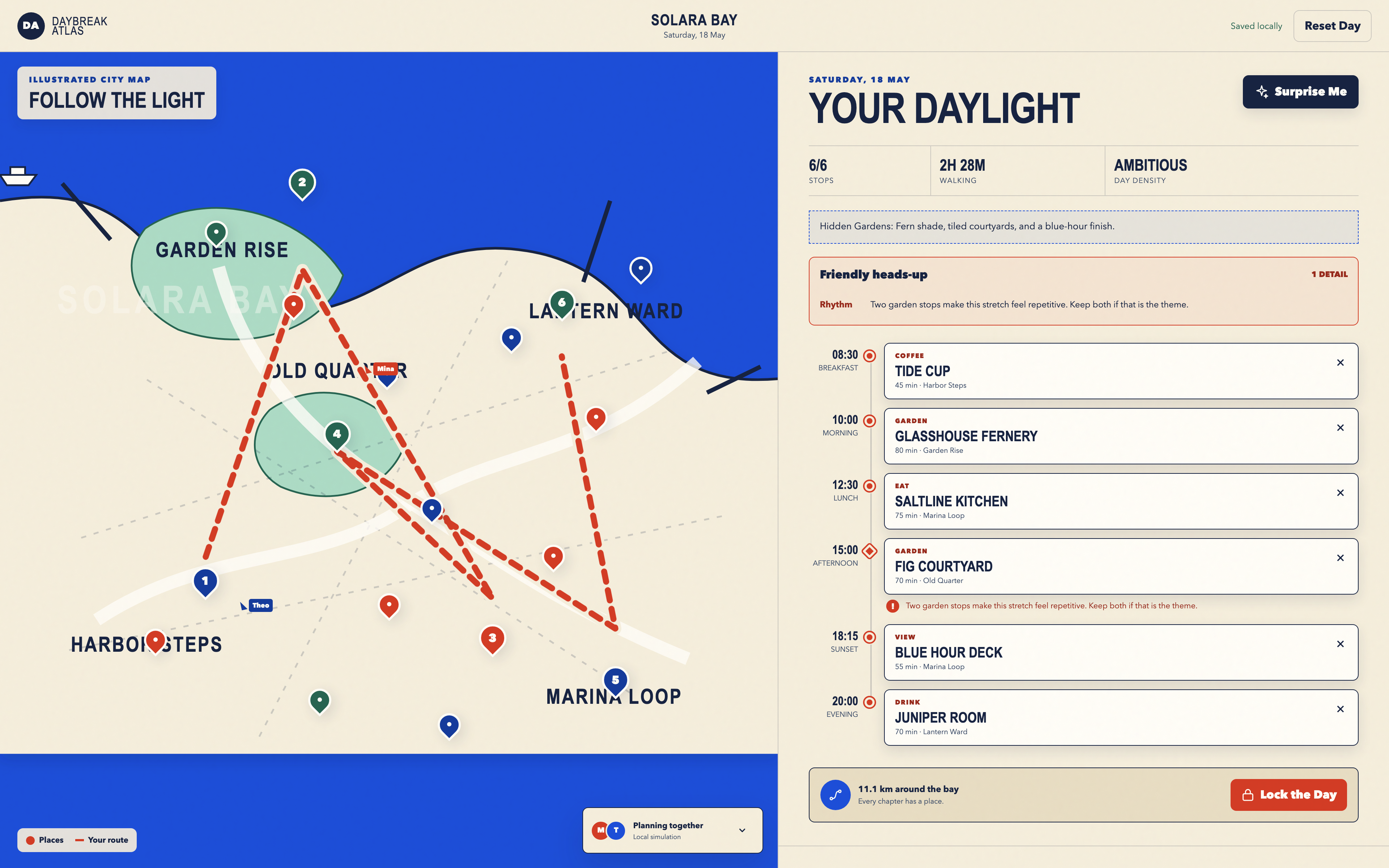
Day Trip Planner Design
Plan six timed stops in fictional Solara Bay, with an illustrated map, walking estimates and useful route warnings.
Desktop app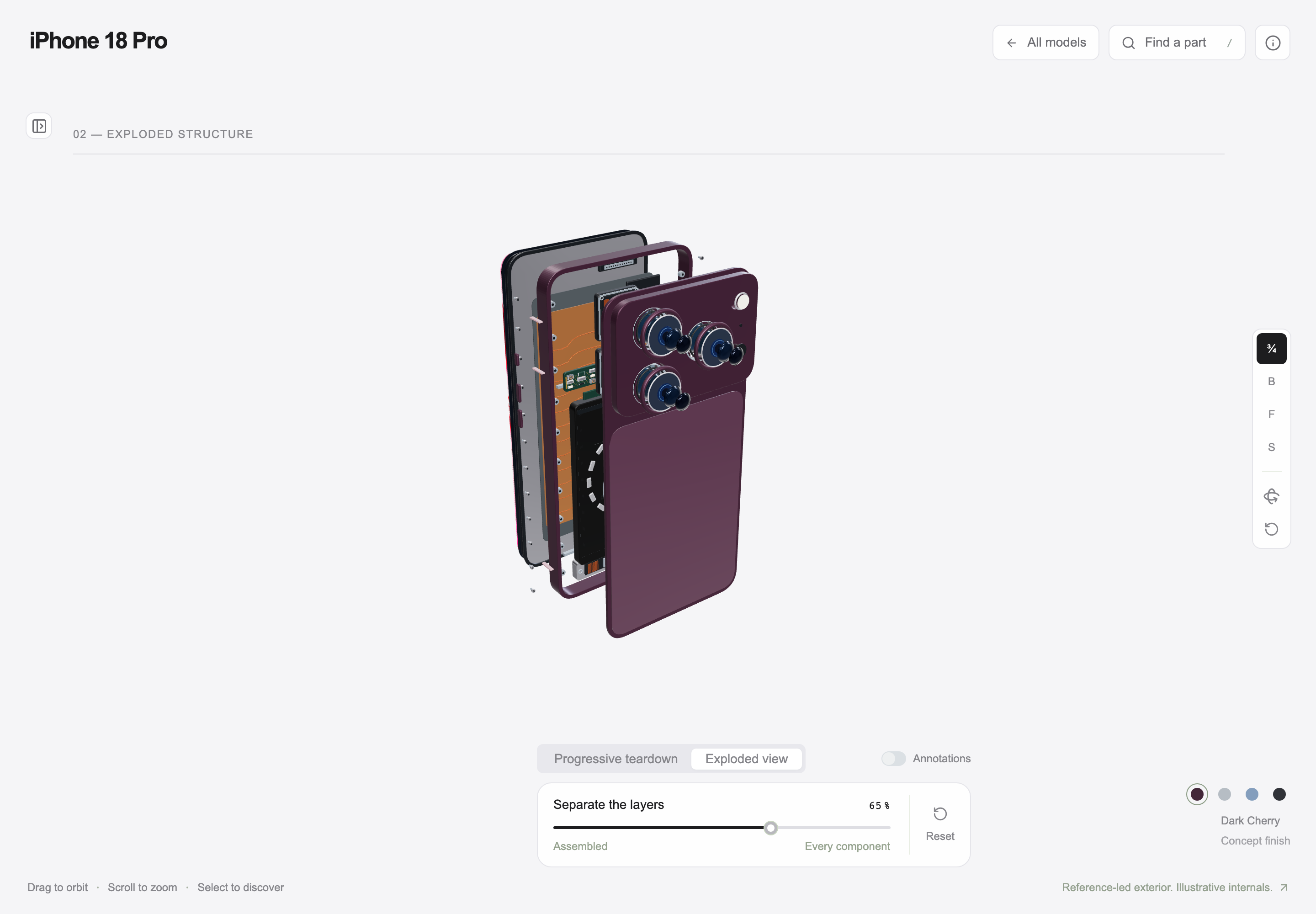
Interactive Product Explainer Design
Explore a concept phone’s separated layers with camera presets, a slider and a panel of eight assembly groups.
Desktop app