

Motion
Product Launch Motion Video Design
A 37-second OpenDesign launch film moves from a painterly opening through dense design samples and kinetic type to a restrained logo close.

Designed For
- Product Launch FilmsIntroduce a creative product through short statements, interface scenes, and a branded resolution.
- Motion Video DirectionPlan changes in type, scale, color, and visual density across a compact sequence.
- Brand Reveal SequencesBuild from varied demonstrations toward a simple, recognizable closing mark.
Motion Video Highlights
- Typography Becomes the SubjectOversized lettering, concentric phrases, and repeated outlined words make type behave like imagery.
- Density Changes With the MessageA tilted wall of examples suggests breadth before the film returns to focused cards and a single workspace.
- A Restrained Logo ResolutionBlue wireframe geometry reinterprets the cursor symbol before the black OpenDesign mark closes the film.
Product Launch Motion Video Design Preview
How the Launch Sequence Is Structured
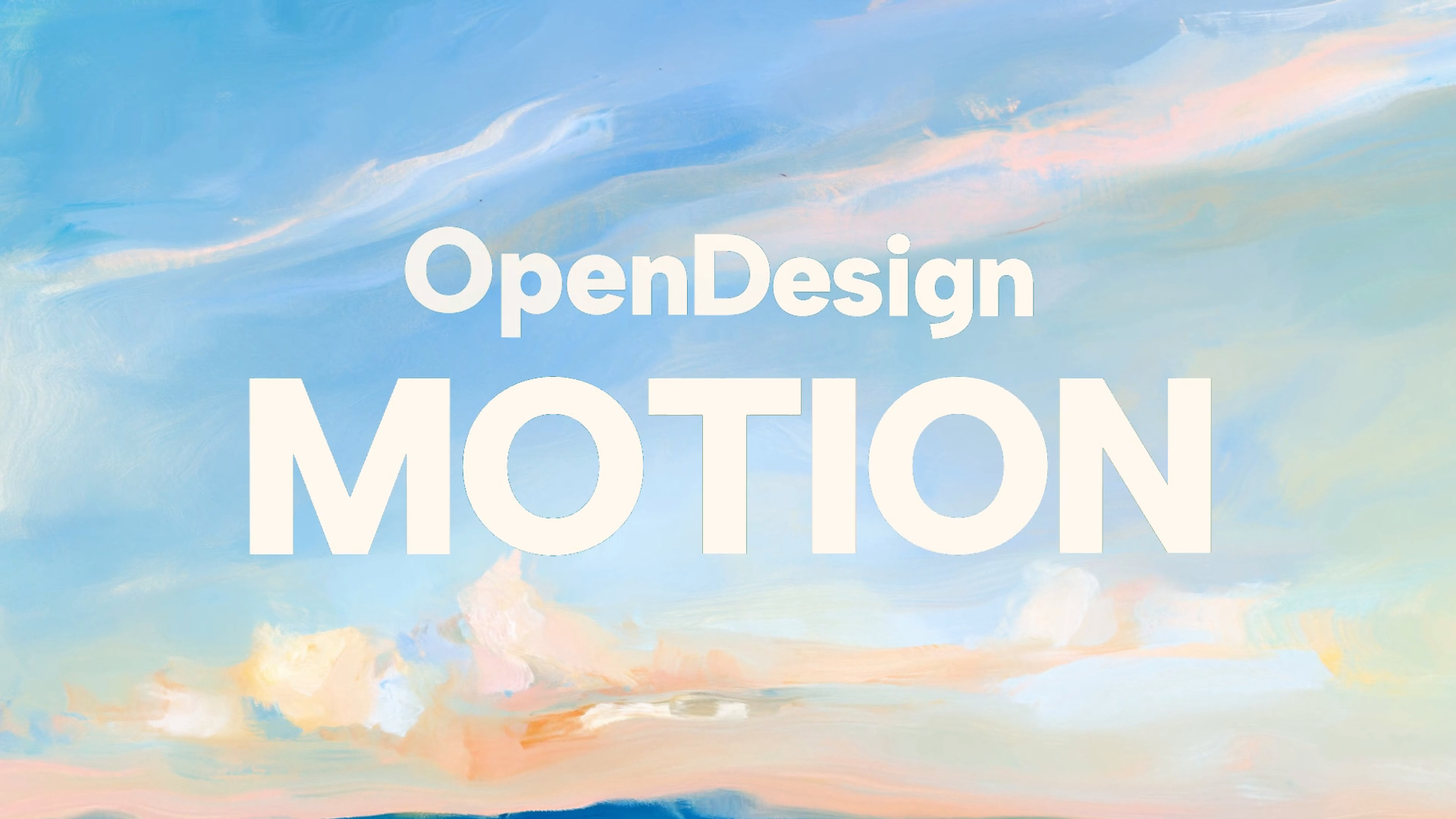
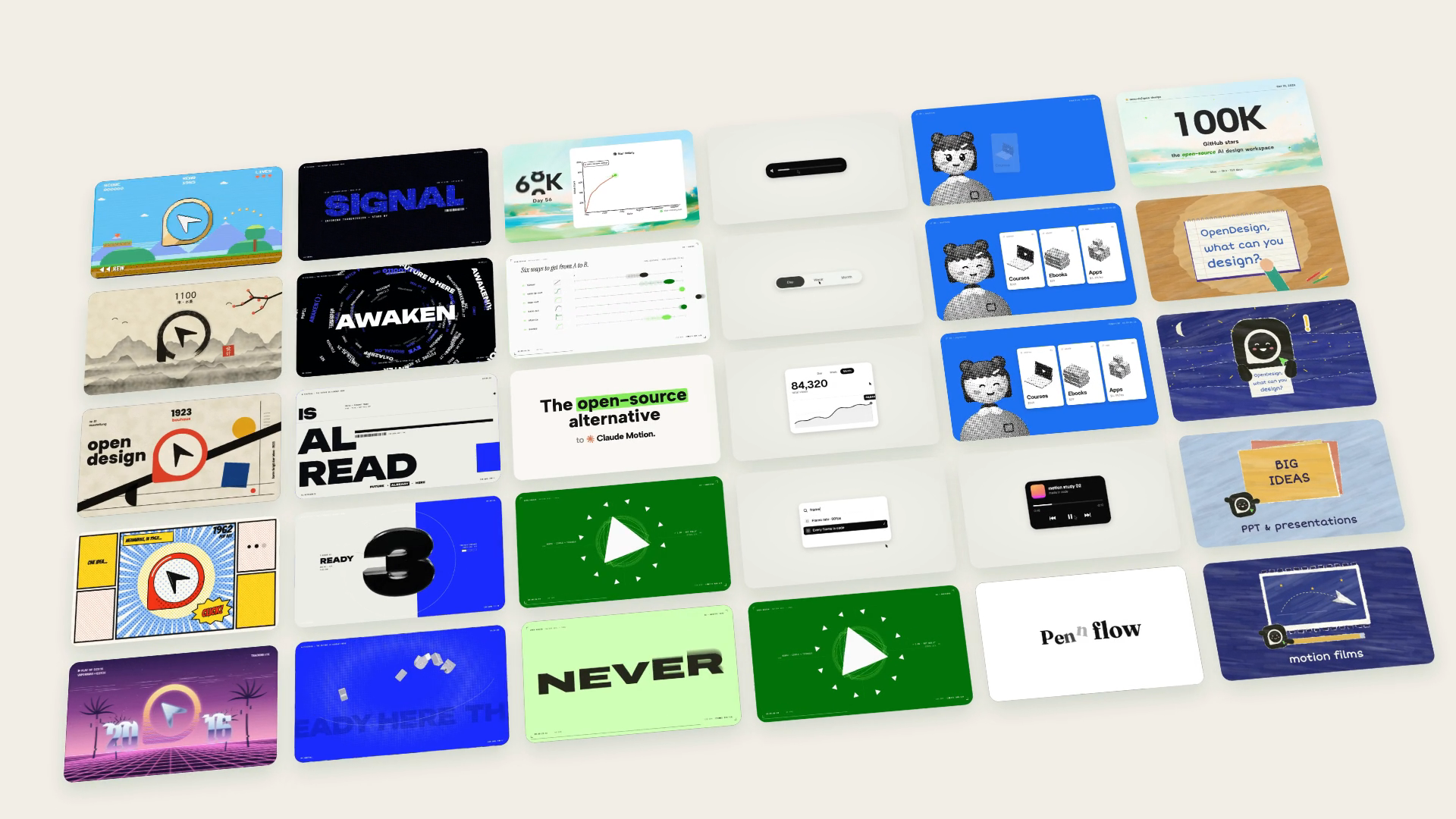
The film uses a broad-to-specific-to-brand progression. A prompt composer and painterly sky introduce the idea of making motion, then large OpenDesign MOTION lettering establishes the subject. A cream claim card leads into a wall of small examples, kinetic type compositions, short message cards, a depicted creation workspace, and the final OpenDesign mark.
This order alternates proposition, evidence, and identity rather than presenting a continuous software walkthrough. The approach gives a 37.3-second film room to show range, but each tiny example receives little inspection time. An adaptation for a narrower product should replace some breadth with two or three longer, more legible demonstrations.
| Sequence Area | Visible Composition | Design Effect and Tradeoff |
|---|---|---|
| Opening | Prompt composer, painterly blue-and-cream sky, and oversized white OpenDesign MOTION lettering. | The soft background makes the large type feel expansive. Its atmospheric texture is memorable, although it initially says more about tone than workflow. |
| Range Montage | A tilted wall filled with many distinct design examples. | The oblique grid communicates variety quickly. Small labels and thumbnails become texture at this scale, so they should not carry essential information. |
| Message Run | Concentric black-and-white type, lime NEVER rows, and compact black or muted-green cards. | Abrupt shifts in scale and palette reset attention. Frequent visual changes can weaken continuity if typography and recurring colors do not hold the sequence together. |
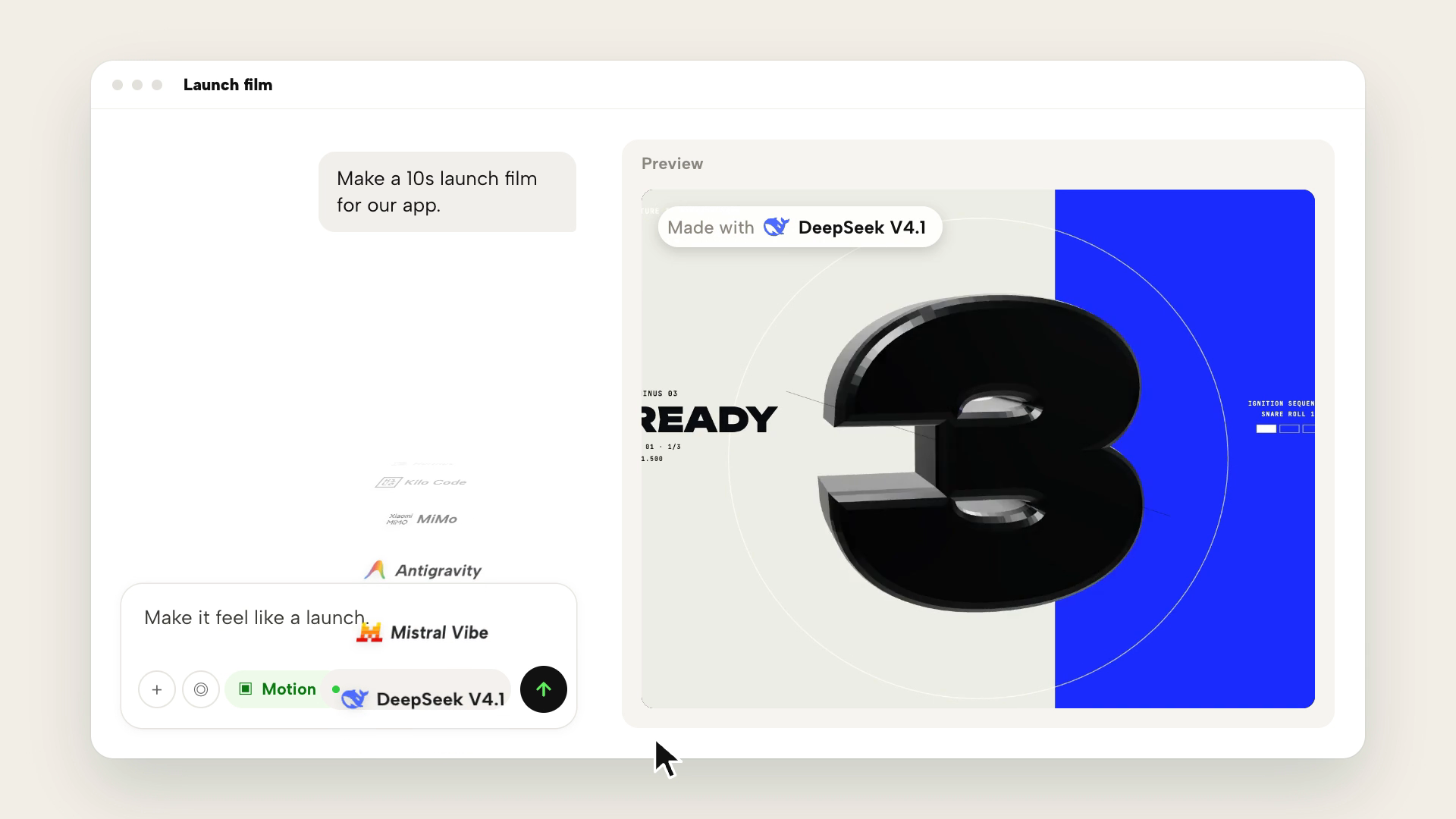
| Workspace and Close | A left prompt area, right preview with a black numeral three, blue geometry, and the OpenDesign mark on cream. | The interface scene grounds the concept before the logo close removes detail. The calm ending gains emphasis through contrast with the earlier montage. |
Typography as a Moving Visual System
Several scenes treat words as the principal graphic material. THE FUTURE IS ALREADY HERE forms black-and-white concentric rings, making reading compete with pattern recognition. The lime sequence repeats outlined NEVER across rows while one solid black row becomes the anchor. Short cards such as “Not just” interrupt these dense fields with fewer words and more negative space.
These treatments separate macro messaging from supporting labels. Large phrases can be understood as shapes even during a brief appearance, while tiny technical-looking text supplies atmosphere rather than dependable explanation. For a practical adaptation, keep the central statement short and reserve small labels for secondary context that viewers can afford to miss.
Concentric Type Creates Pressure
Circular repetition pulls attention inward and gives a static phrase spatial depth. The tradeoff is reduced reading speed, especially when letters rotate away from a normal baseline.
One Solid Row Sets the Priority
The central black NEVER row stands apart from lime outlines through fill rather than size. This is a reusable way to establish hierarchy without adding another color or caption.
Short Cards Reset the Eye
Sparse black and muted-green cards create pauses between more elaborate arrangements. Longer copy would undermine their role as visual punctuation.
Using Scale Changes to Control Pacing
The sequence repeatedly moves between one dominant object and many small objects. The opening gives nearly the whole frame to a title; the tilted wall divides attention among dozens of examples; the workspace returns to one oversized black numeral three. The change in scale creates a visible rhythm that remains understandable when the film is muted.
A wall of examples is useful when the message is range, but it offers limited time for comparison. The numeral scene does the opposite: it withholds variety and creates a single focal point. A longer product film could pause on selected tiles, enlarge one into a full-frame example, and then return to the wall so breadth and legibility support each other.
Establish One Large Idea
Begin with a short title whose size makes the category immediately visible. Keep the background expressive but quiet enough to preserve the letterforms.
Expand Into a Field of Examples
Use a grid or angled wall to show variation. Treat miniature labels as optional texture and enlarge anything the audience must actually read.
Return to a Single Focal Object
Follow the montage with one number, word, or product state. The reduction in visual density acts as a pause and prepares the brand resolution.
Framing a Depicted Creation Workflow
The later workspace places a prompt area on the left and a preview on the right. Inside the preview, a glossy black three overlaps cream and vivid blue fields, with fine circular lines and tiny labels around it. The split makes the request and the visual result readable in one frame, while the large numeral keeps the preview from becoming another dense interface montage.
This scene depicts a workflow rather than proving an interactive backend or current product capability. For another launch video, the same composition could show a campaign request beside a poster, packaging frame, or title sequence. Preserve the contrast between a restrained input area and an assertive result; equal visual weight would make the viewer unsure where to look.
What the Supplied Film Establishes
This page presents a finished 37.3-second video by OpenDesign, supplied at 1920 × 1080 and 30 fps with audio. An editable project and original prompt were not supplied. Comparison statements, model labels and numerical claims belong to the film’s promotional narrative; this design analysis does not independently verify them.
How to Create Product Launch Motion Video Design in OpenDesign
Outline the Message and Sequence
For a proposed recreation, divide the film into an opening proposition, a range montage, a typography-led message run, a depicted workspace, and a quiet brand close. Assign one purpose to each section before styling frames. This keeps rapid visual changes from turning into an unrelated reel.
Suggested PromptCreate a 35–40 second product launch motion video for OpenDesign in 1920 × 1080. Open with a prompt composer over a painterly blue-and-cream sky and large white OpenDesign MOTION lettering. Move to a tilted wall of varied design examples, then show concentric black-and-white typography and lime rows of outlined words with one solid black central row. Add two sparse message cards, followed by a depicted workspace with a left prompt area and a right preview featuring a large black 3D numeral on cream and blue. End with blue geometric wireframe elements resolving into the black rounded-square OpenDesign mark on cream. Use sample labels only, avoid claims of verified integrations or performance, and keep essential copy readable. If automated motion is unavailable, produce ordered keyframes and transition notes for manual assembly.
Build Contrasting Visual Densities
Design the hero title, montage, type patterns, workspace, and end card as separate keyframes. Check each at full-frame scale: the title should read instantly, the montage should communicate variety without requiring tiny text, and the workspace should maintain a clear left-to-right relationship between request and preview.
Review the Narrative and Adaptations
Play your sequence without audio first to confirm that scale and composition communicate the story independently, then review it with an audio track you have permission to use. For a shorter adaptation, remove montage rows rather than compressing every scene; for a longer version, enlarge selected examples and hold them long enough to inspect.
Export and Get a Share Link
Export your finished design, then use Share in OpenDesign to get a share link. Open the link in a separate browser window and check that the intended version and its assets are available before sending it.
Art History Logo Motion Video Design
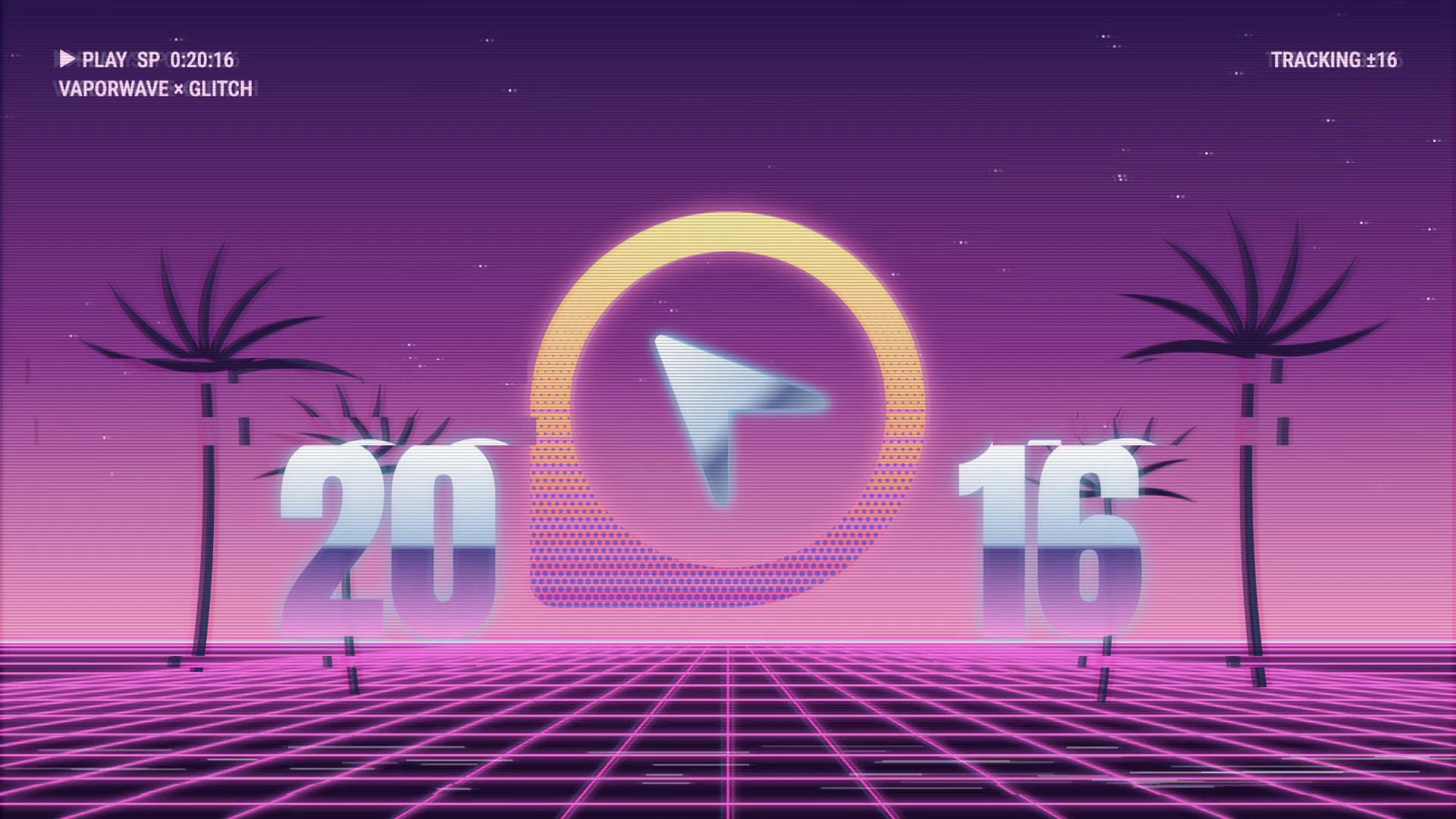
A 15-second 16:9 OpenDesign film keeps one circular cursor logo recognizable through fast art-history-inspired looks, then ends on a still white-on-black logo.
Motion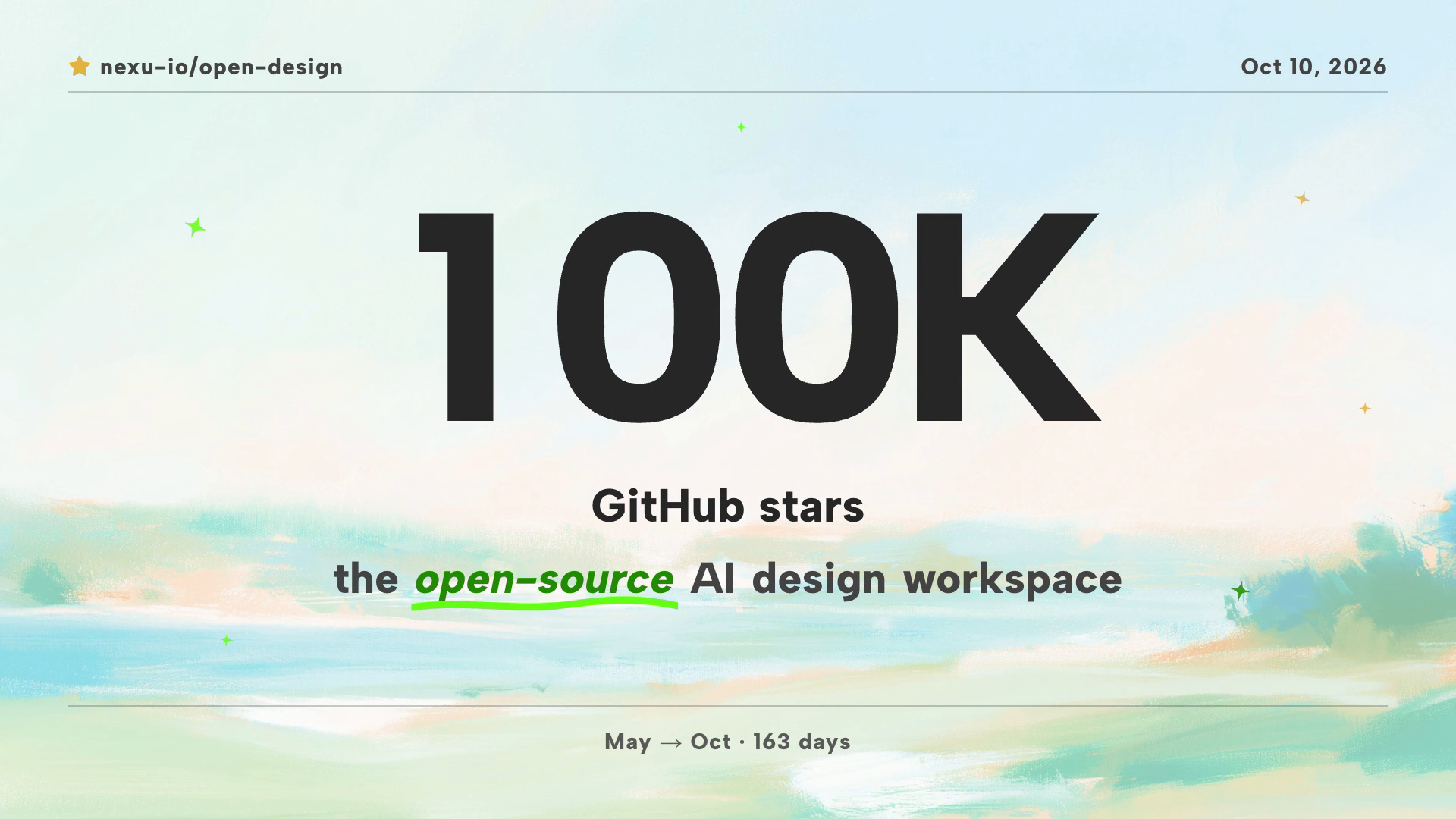
Community Milestone Motion Video Design
A 30-second OpenDesign motion video moves from a 100K star reveal to a contributor mosaic, a product montage and a closing prompt invitation.
Motion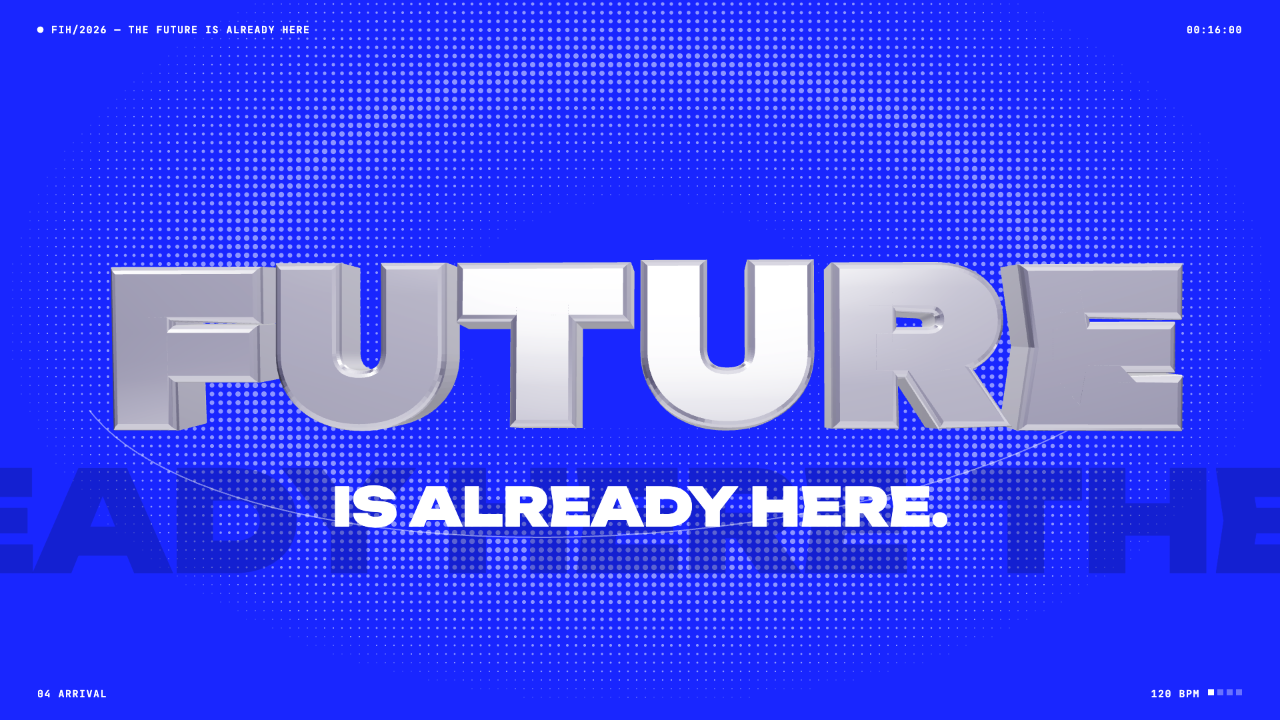
Futuristic Motion Video Design
A rendered electric-blue reel with a word tunnel, a SET countdown and a chrome FUTURE finale, remade in code on a 120 BPM cut grid. See its timing and how to adapt it.
Motion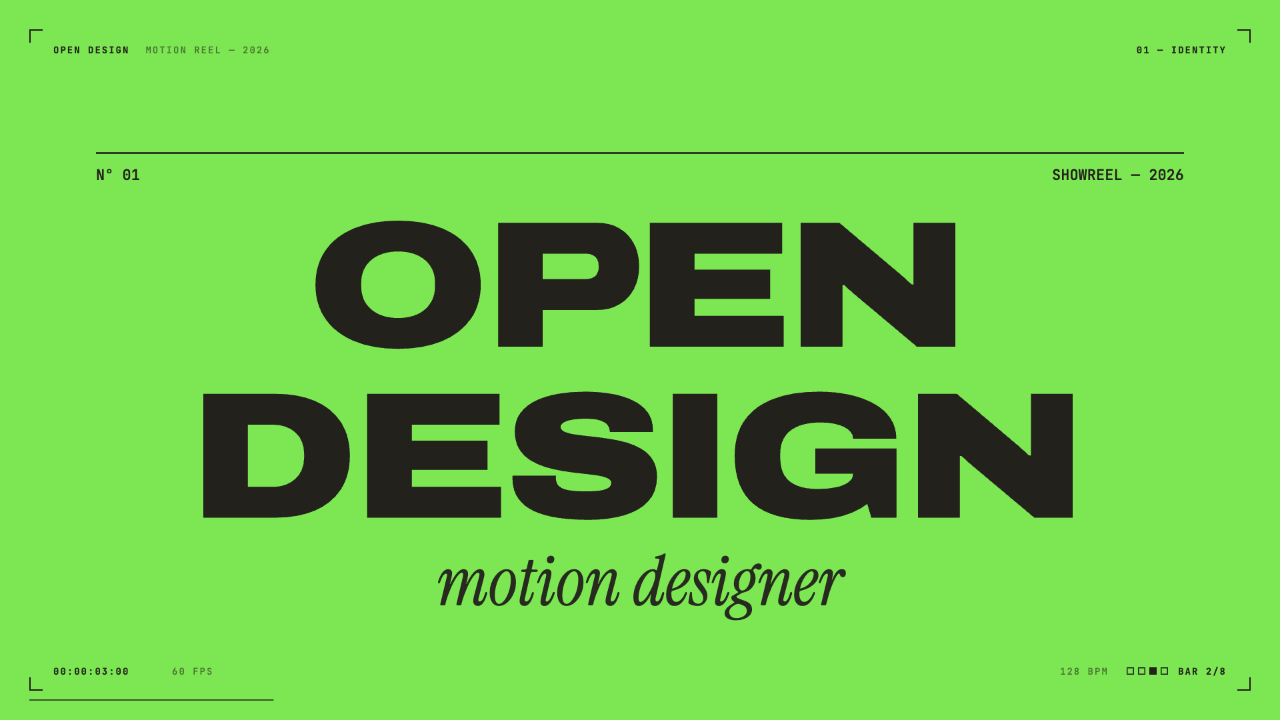
Motion Designer Showreel Design
A 15-second, 128 BPM showreel remade in code, with hard colour cuts, a live HUD and seven chapters timed to the bar. See how the timing, type and palette work.
Motion