

Website
SaaS Pricing Website Design
SaaS Pricing Website Design turns tier selection into a readable purchase path, pairing billing choices, plan details, comparison rows, and focused questions.

Pricing Website Use Cases
- Pricing Page DesignPresent plans without burying important purchase details
- SaaS Product MarketingTranslate service differences into scannable website sections
- Purchase Decision FlowsHelp visitors compare cost, limits, and support
- Feature Comparison DesignOrganize shared and plan-specific capabilities
Plan Comparison Highlights
- Billing ToggleMonthly and yearly choices appear before tier selection
- Three-Tier LayoutSolo, Team, and Enterprise use consistent plan structures
- Comparison TableRows expose differences that cards cannot show
- Focused QuestionsPricing concerns become expandable, native disclosures
From Billing Labels to Common Questions
1 / 3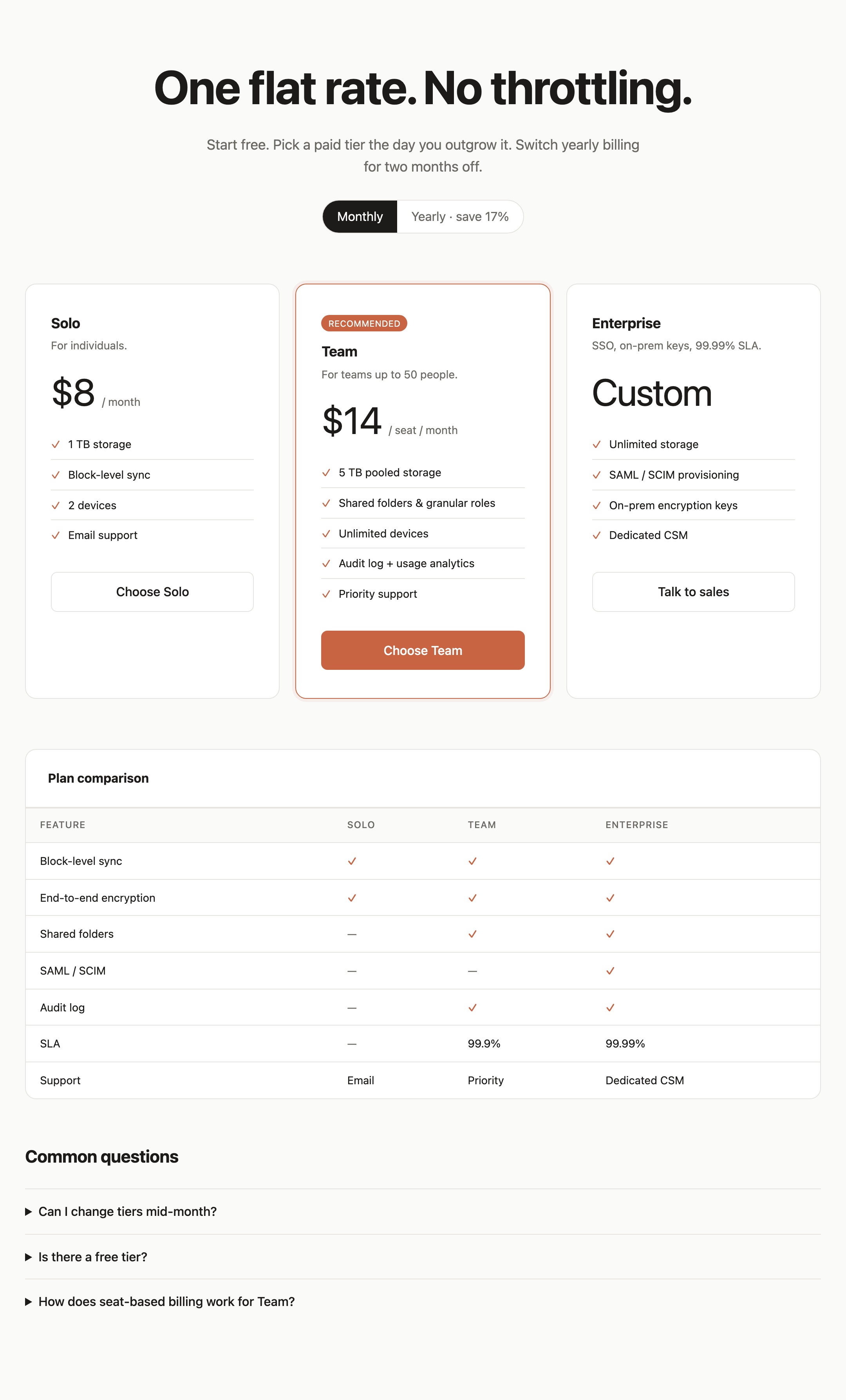
SaaS Pricing Website Design
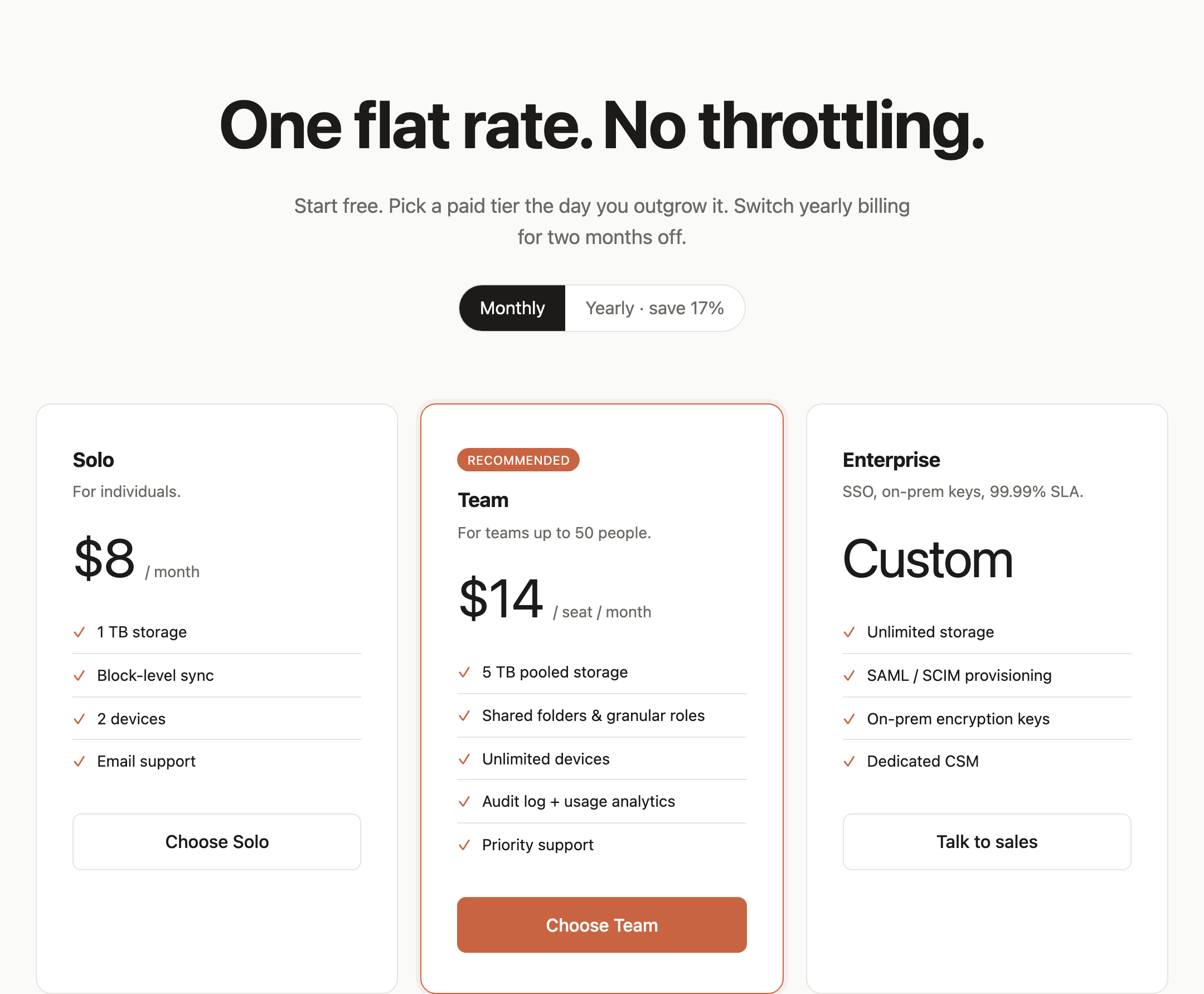
This official OpenDesign bundled example presents a Filebase SaaS pricing and purchase-decision page. Its primary heading, “One flat rate. No throttling.”, establishes a direct pricing proposition before the visitor encounters plan details.
The supporting line, “Start free. Pick a paid tier the day you outgrow it. Switch yearly billing for two months off.”, gives the page a progression: begin, upgrade when needed, and consider annual billing. It frames the page as a decision path rather than a catalog of isolated features.
The design uses a centered content area specified at a maximum width of 1080px. That constraint keeps the headline, billing control, tier cards, comparison table, and questions within one readable horizontal system, while limiting how much supporting detail can fit beside each plan.
Decision First
The heading and static billing control appear before plan information. Monthly is styled as the initial selection, while Yearly is shown as an alternative; the source does not implement a price change.
Plan Roles
Solo is framed for individuals, Team for groups up to 50 people, and Enterprise through SSO, on-prem keys, and a 99.99% SLA.
Choosing Between SaaS Plans
The tier cards are designed for visitors who need to match a working context to a purchase level. Solo lists “$8 / month,” 1 TB storage, two devices, and email support. Team changes the pricing unit to “$14 / seat / month” and adds pooled storage, roles, audit information, and priority support.
The cards repeat a useful pattern: audience description, price or custom state, capability list, and action. That consistency makes plan differences easier to scan, but it also creates a tradeoff: long feature labels compete with the action area, especially in the Team card.
Team is marked “RECOMMENDED” with an orange outline and filled “Choose Team” button. The emphasis proposes a preferred route within the design, while the neutral Solo and Enterprise actions preserve alternatives. The label is a visual recommendation, not evidence that the plan performs better.
Individual Storage
Solo foregrounds a fixed monthly price, storage amount, device limit, and email support.
Team Operations
Team combines per-seat billing with pooled storage, shared folders, roles, audit log, and usage analytics.
Enterprise Requirements
Enterprise replaces a listed price with Custom and leads with SSO, provisioning, encryption keys, and dedicated support.
Plan Comparison And Page Structure
The page sequence is explicit: Solo, Team, Enterprise, Plan comparison, then Common questions. The comparison section repeats the plan names as columns rather than forcing visitors to remember the cards while scanning rows.
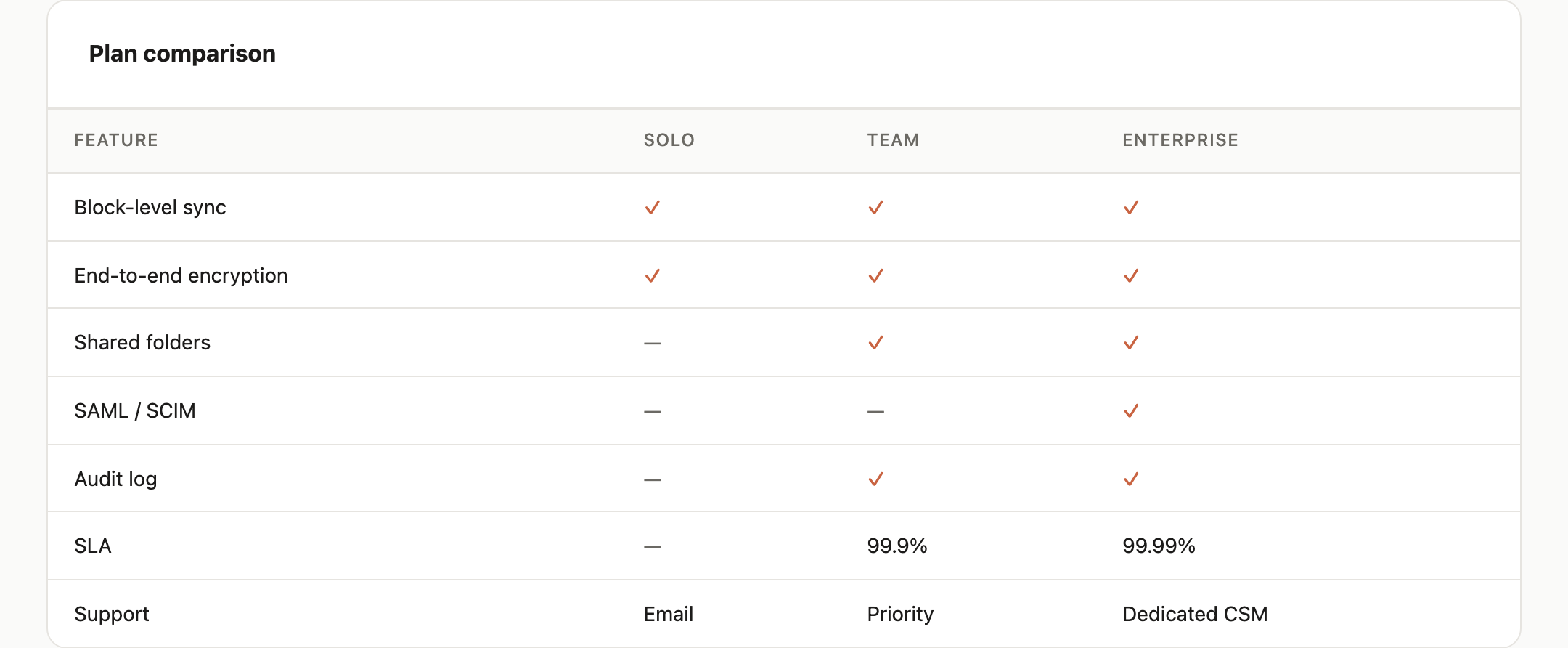
The table makes shared capabilities visible first. Block-level sync and end-to-end encryption show checkmarks across all three plans, while shared folders begins at Team, SAML / SCIM appears only for Enterprise, and Audit log begins at Team. This ordering separates baseline capabilities from upgrade-specific differences.
The SLA row uses different values for Team and Enterprise, while the Support row changes from Email to Priority to Dedicated CSM. Those rows demonstrate why the table exists: price cards summarize a plan, but a table exposes the exact dimension along which plans diverge.
| Feature | Solo | Team | Enterprise |
|---|---|---|---|
| Block-level sync | Yes | Yes | Yes |
| End-to-end encryption | Yes | Yes | Yes |
| Shared folders | No | Yes | Yes |
| SAML / SCIM | No | No | Yes |
| Audit log | No | Yes | Yes |
| SLA | No | 99.9% | 99.99% |
| Support | Priority | Dedicated CSM |
Common Questions And Capability Boundaries
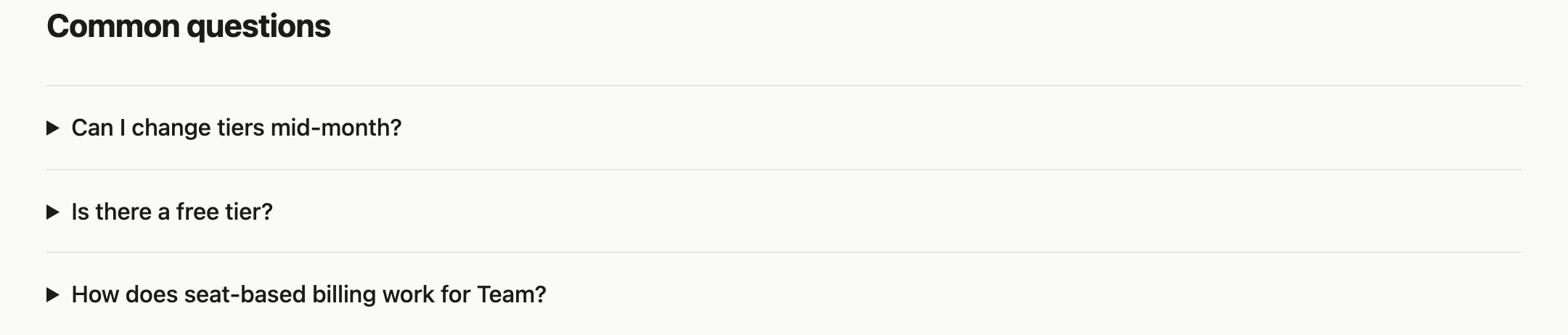
The final section is titled “Common questions” and contains three visible prompts: “Can I change tiers mid-month?”, “Is there a free tier?”, and “How does seat-based billing work for Team?”. Their order follows likely purchase uncertainty: changing plans, entry cost, then the billing model behind the team option.
Each question uses the browser's native details/summary disclosure pattern and can expand locally. The Monthly, Yearly, Choose Solo, Choose Team and Talk to sales buttons have no event handlers in this source: they neither change prices nor open purchase or sales flows. The page does not establish connected billing, account, sales or support services.
The names, figures, product claims, and comparison contents are illustrative unless separately verified. The captures show the authored visual design and stated sample data; they do not prove live pricing, operational limits, external service responses, or the original generation process.
How to Create SaaS Pricing Website Design in OpenDesign
Set The Purchase Sequence
Start with a short pricing proposition, one supporting sentence, and a billing choice. Place the billing mode before the plan cards so the visitor reads all prices in the same context.
Suggested PromptCreate a SaaS pricing website design for a file-storage product with a centered 1080px content area. Use the heading “One flat rate. No throttling.”, a static Monthly and “Yearly · save 17%” billing control, and three plans named Solo, Team, and Enterprise. Mark prices and product promises as illustrative. Keep purchase buttons as unconnected examples and use native details/summary for FAQ expansion; do not imply implemented price switching, live billing or verified operational data.
Build Comparable Plan Cards
Give every tier the same information rhythm: audience, price state, capabilities, and action. Keep the Team recommendation visually distinct, but preserve neutral paths to Solo and Enterprise. Check that the longest Team feature labels do not displace the action.
Add Decision Evidence
Follow the cards with a comparison table that distinguishes shared features from upgrade-only capabilities. End with three concise disclosure questions covering tier changes, free access, and seat-based billing. Keep proposed interactions local to the design and verify all product claims separately.
Export and Get a Share Link
Export your finished design, then use Share in OpenDesign to get a share link. Open the link in a separate browser window and check that the intended version and its assets are available before sending it.

AI Design Studio Website Design
OpenDesign’s AI Design Studio Website Design turns a local-first studio concept into an editorial landing page that makes skills, experiments, and method easy to scan.
Website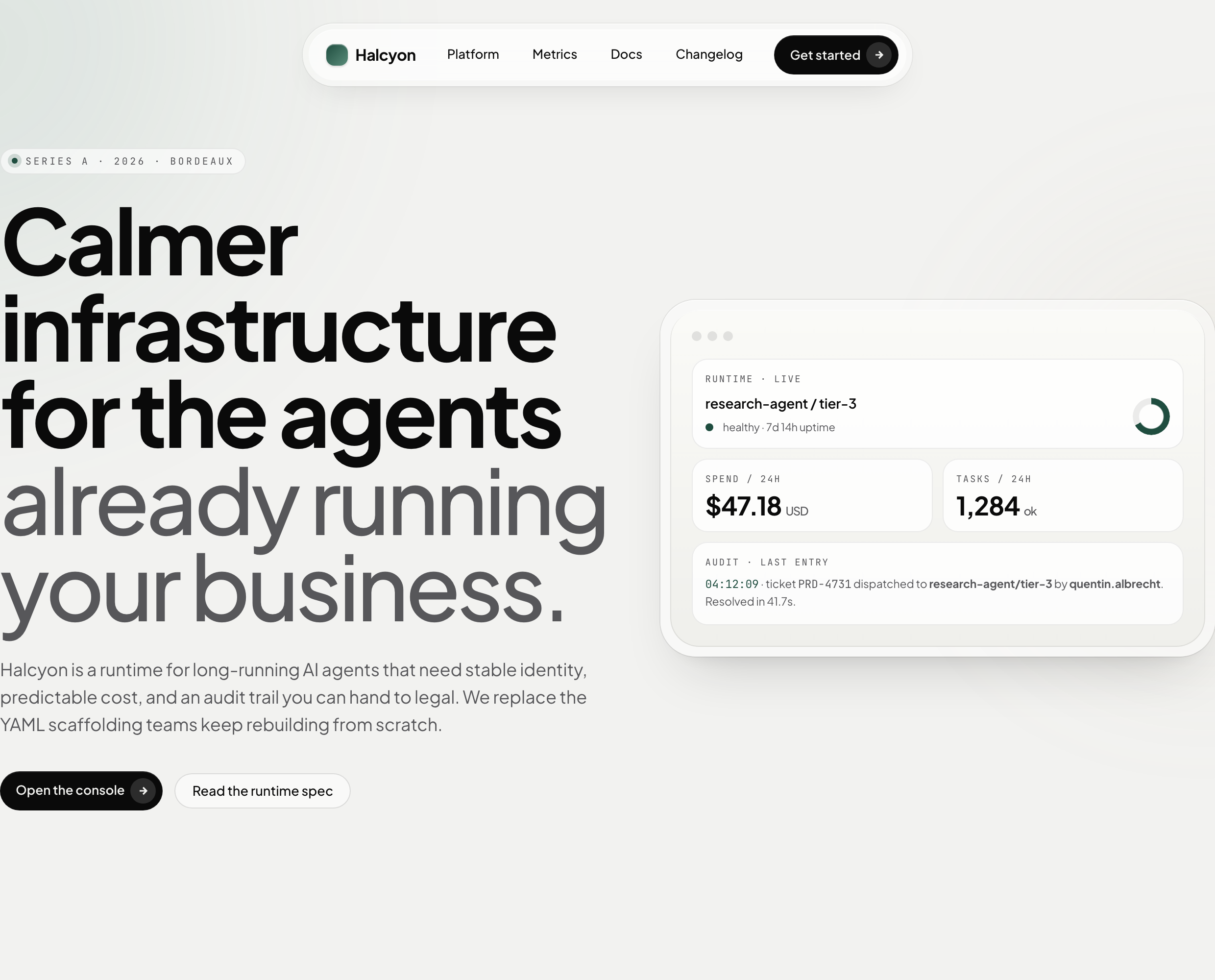
AI Infrastructure Website Design
A soft AI-infrastructure landing concept with sample runtime metrics, nested feature cards, subtle motion and a single sales invitation.
Website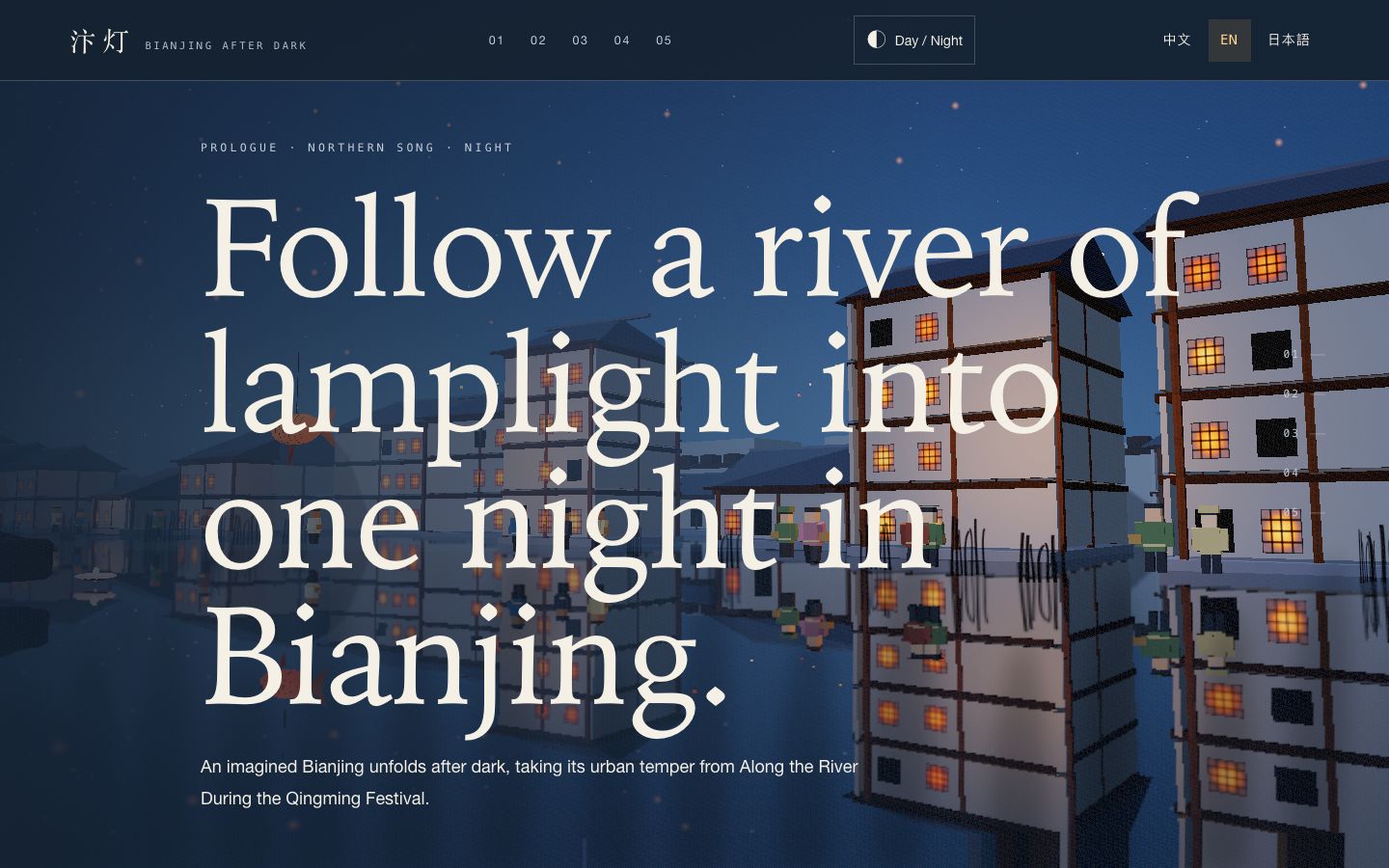
Bianjing Night Tour Website Design
An interactive night journey through an imagined Song-era Bianjing, combining a persistent river city, poetry, lanterns and multilingual chapter pacing.
Website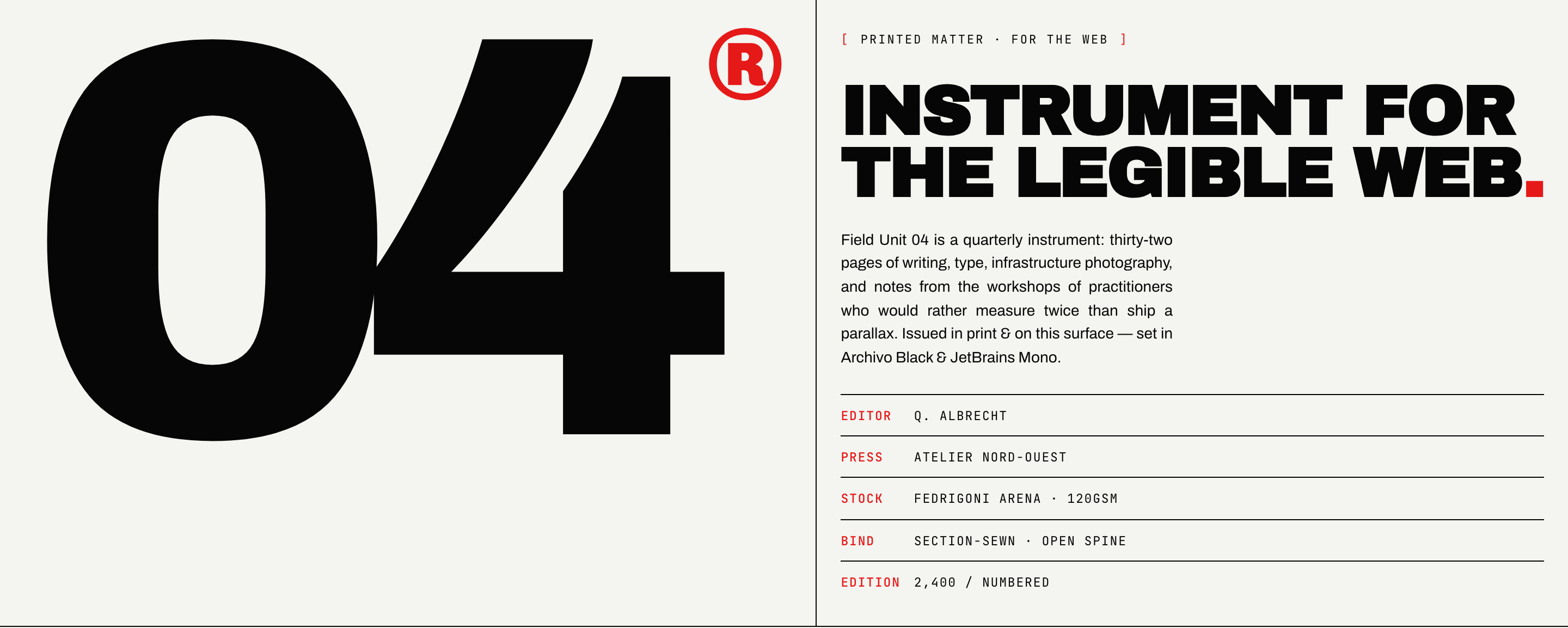
Brutalist Journal Website Design
Brutalist Journal Website Design turns a print-shaped issue into a legible web reading system, pairing bold type with measured editorial structure.
Website