

Motion
UI Morph Animation Design
A 14-second code-only film where one shape morphs through a player, tabs and a command palette, with every change caused by a cursor at 120 BPM.

Designed For
- Product Motion Teaser DesignShort loops that show several interface states without cutting between screens.
- Micro-Interaction ShowreelsSequences that demonstrate toggles, sliders, tabs and palettes as one connected story.
- Music-Synced Interface AnimationPieces where cursor actions land on a fixed beat grid.
Motion Highlights
- One Shape That Never CutsEach state is a deformation of the same container, not a scene change.
- Cursor-Caused ChangesEvery transition begins with a visible pointer action.
- A Loop That ClosesThe final frame matches the first, so playback repeats cleanly.
UI Morph Animation Design Preview
How One Shape Carries the Whole Film
The film runs 14 seconds at 120 BPM, which the source notes divide into 7 bars. A single shape starts as a Generate button, then becomes a loader, check, dynamic island, music player, volume slider, toggle, tab indicator, chart, command palette and toast before returning to the button.
The tradeoff is that every state must be reachable from the previous one by resizing and re-rounding the same body. Content that does not fit that shape change has to be dropped or redesigned.
| Stage | Visible Change | Design Implication |
|---|---|---|
| Button to loader to check | The Generate button becomes a progress state, then a confirmation. | A request, wait and result read as one object rather than three screens. |
| Dynamic island to music player | A compact pill expands into a dark card with an album tile, title, scrub bar and transport controls. | The pill-to-card growth shows how one container can hold both a glance state and a detail state. |
| Slider, toggle, tabs | A volume slider stretches past its maximum, then a toggle and a Day / Week / Month tab pill follow. | Small controls reuse the same rounded language, so the change is felt in the motion more than the styling. |
| Chart, palette, toast | A chart draws itself, a palette types “frame”, and a toast closes the loop. | The densest states sit late, after the viewer has learned the shape's logic. |
Reading the Player, Tabs and Palette Frames
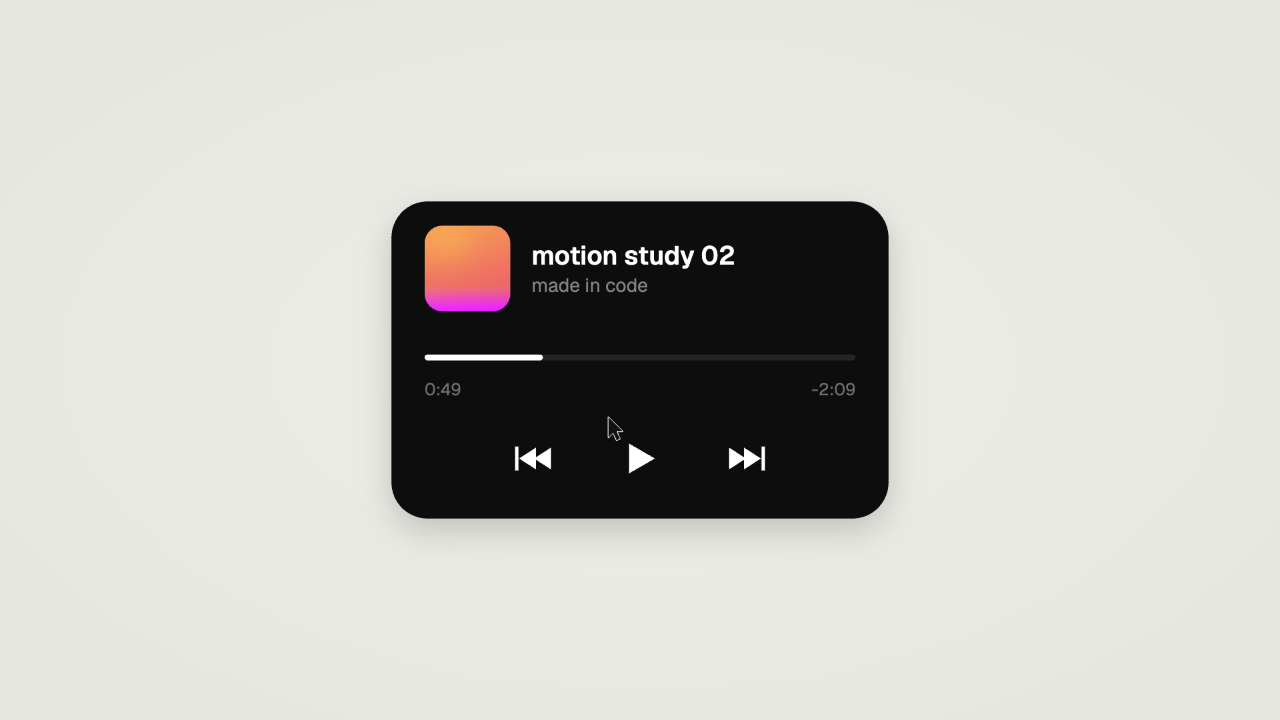
Three captured frames show how different the same shape can look. In the player, a black rounded card carries a gradient tile, “motion study 02”, a scrub bar at 0:49 with −2:09 remaining, and previous, play and next icons. In the tab frame, a white pill holds Day, Week and Month, with a black indicator behind Day.
In the palette, the typed word “frame” leads to two results, “Frame rate · 60fps” and “Every frame is code”, with the first highlighted.
Readable Playback States
Elapsed and remaining labels sit beneath the progress bar. They are illustrative interface content inside a 14-second film, not the runtime of the showcase video. Keep both labels clear when adapting the player to a smaller canvas.
The Tab Indicator Is a Moving Object
The black Day pill sits inside a white track while the cursor hovers Month. Because the indicator is a separate shape, it can slide and stretch between labels instead of swapping highlights.
Palette Text Matches the Film
The results “Frame rate · 60fps” and “Every frame is code” talk about the piece itself. Reuse that idea, but replace the strings with your own product vocabulary.
Time-Driven Construction and Its Tradeoffs
The source notes describe a single render(t) function that draws the whole frame from master timeline time. Each visible value is a pure function of t, using eases, springs or keyframes, and no state carries between frames. Backward seeks therefore reproduce identical frames.
This makes export predictable, but it asks more of the author. Interactions that would be trivial with event handlers, such as hover or typing, must be written as timed keyframes.
Keep One Clock
The GSAP master timeline is the only clock. Layers read its current time rather than running their own timers.
Sum Springs Per Change
The adaptation notes call for springs summed per change, so overlapping moves blend rather than restart.
Let the Cursor Cause Everything
Each state change needs a pointer action before it. Without that rule the morphs read as decoration rather than interaction.
Source and Scope
This is an official OpenDesign code remake and adaptation of a motion piece originally posted by @twoclipping on X. It is rebuilt in code from the published piece, and the 14-second soundtrack is an original score rather than audio from the source. Credit is a factual reference and implies no endorsement by the original author.
This is a rendered motion study, not a usable interface product. The player, chart and palette inside the film do not respond to input. The template comes from a proposed OpenDesign video workflow; availability depends on the installed version.
Adapting the Morph to Your Own Product
The notes suggest replacing the states in the SHAPE definition and their contents while keeping the three rules: one shape that never cuts, springs summed per change, and a cursor behind every change. Start by listing the five product states you most need to show, then order them from smallest to largest container.
Keep the first and last states identical if you want a loop. If your states differ greatly in size, expect the in-between frames to look stretched and slow the tempo accordingly.
Choose Fewer, Stronger States
The film shows about ten states in 14 seconds. A product teaser with four states gives each one more time on screen.
Re-theme in One Place
Copy, palette and timing sit in constants at the top of the reference, so changing the warm gray canvas or black components is a small edit.
Avoid Heavy Canvas Effects
The notes warn that large gradients and per-pixel noise make each captured frame expensive, which slows MP4 export.
How to Create UI Morph Animation Design in OpenDesign
Define the Shape and Its States
List the states your single container must pass through, from a compact button to its largest form. Decide which pointer action triggers each change and fix the tempo before drawing anything.
Suggested PromptCreate a 14-second looping UI motion film on a 1920x1080 warm light-gray canvas. Use one black-and-white rounded shape that never cuts. At 120 BPM, morph it from a Generate button into a loader, a check, a music player with a scrub bar, a Day / Week / Month tab pill, and a command palette that types a short word. A visible cursor must cause every change. Make the last frame match the first so it loops. Use sample text only and do not add real data or working controls.
Drive Everything From Time
Ask for each visible value to be computed from the timeline time, so scrubbing backward gives identical frames. Keep copy, palette and timing as constants you can edit in one place.
Check Sound, Loop and Pacing
Review that the end frame equals the start, that cursor actions land on beats, and that dense states are not rushed. Use only audio you are permitted to use, or keep the film silent.
Export and Get a Share Link
Export your finished design, then use Share in OpenDesign to get a share link. Open the link in a separate browser window and check that the intended version and its assets are available before sending it.
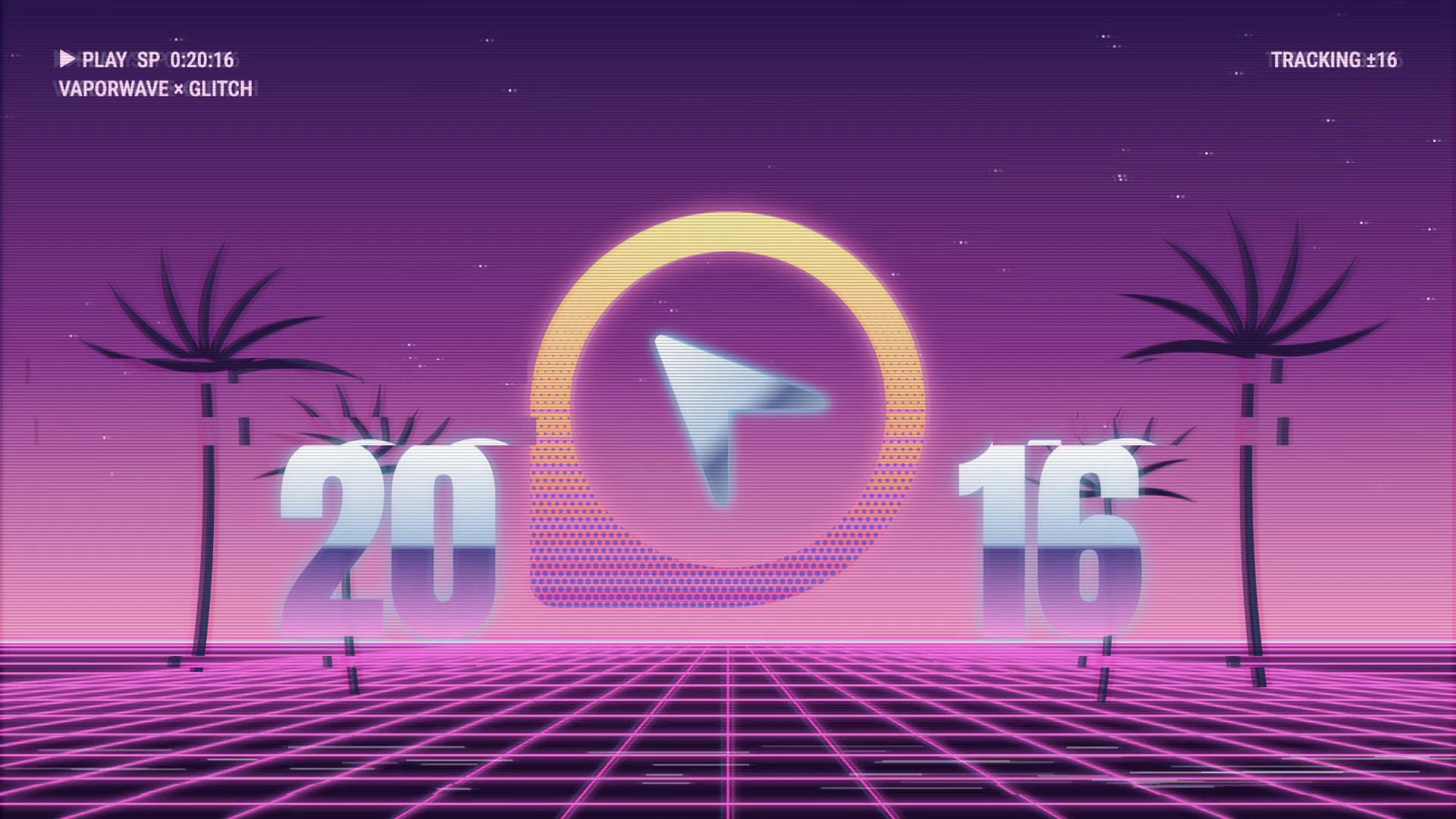
Art History Logo Motion Video Design
A 15-second 16:9 OpenDesign film keeps one circular cursor logo recognizable through fast art-history-inspired looks, then ends on a still white-on-black logo.
Motion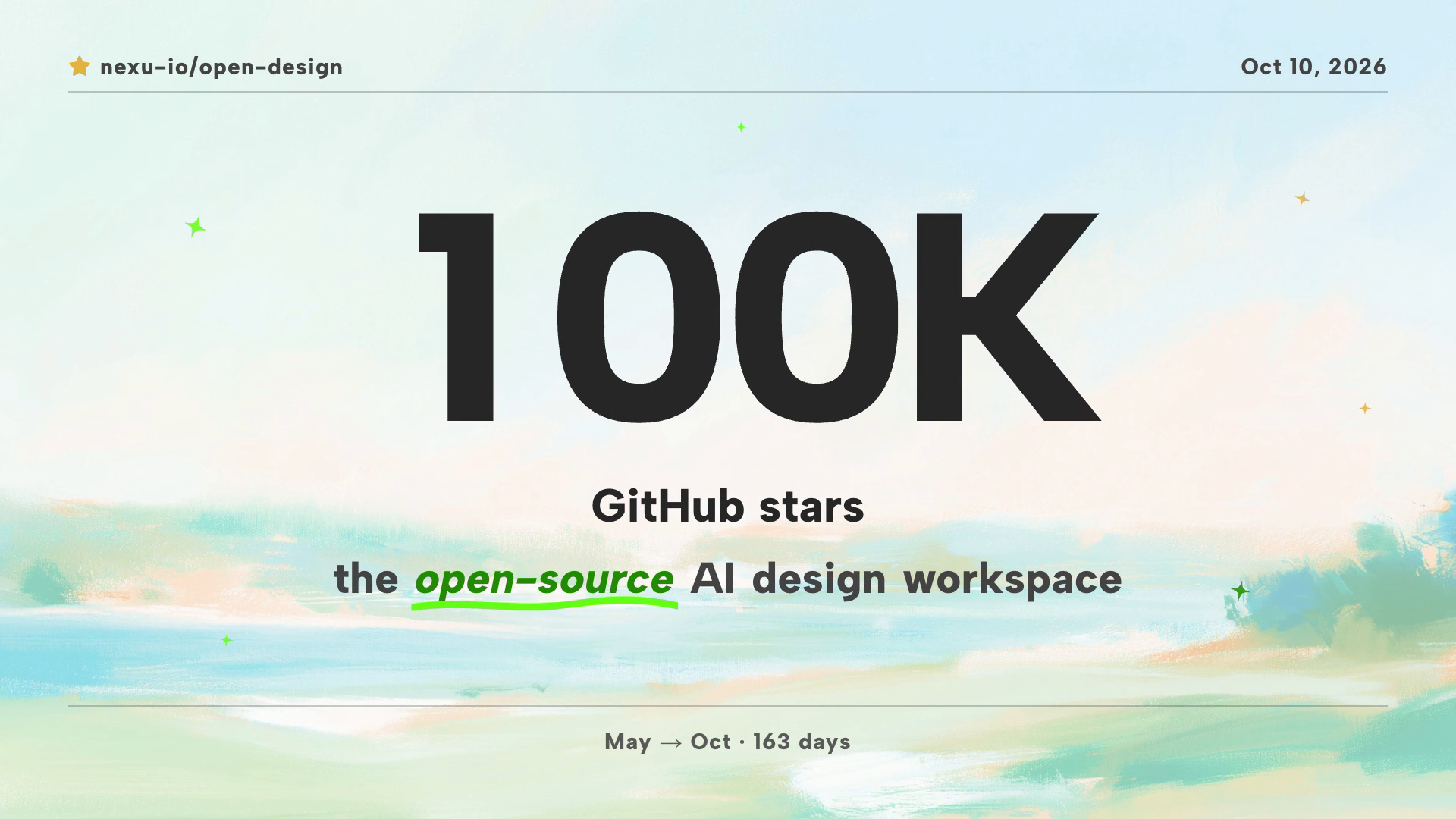
Community Milestone Motion Video Design
A 30-second OpenDesign motion video moves from a 100K star reveal to a contributor mosaic, a product montage and a closing prompt invitation.
Motion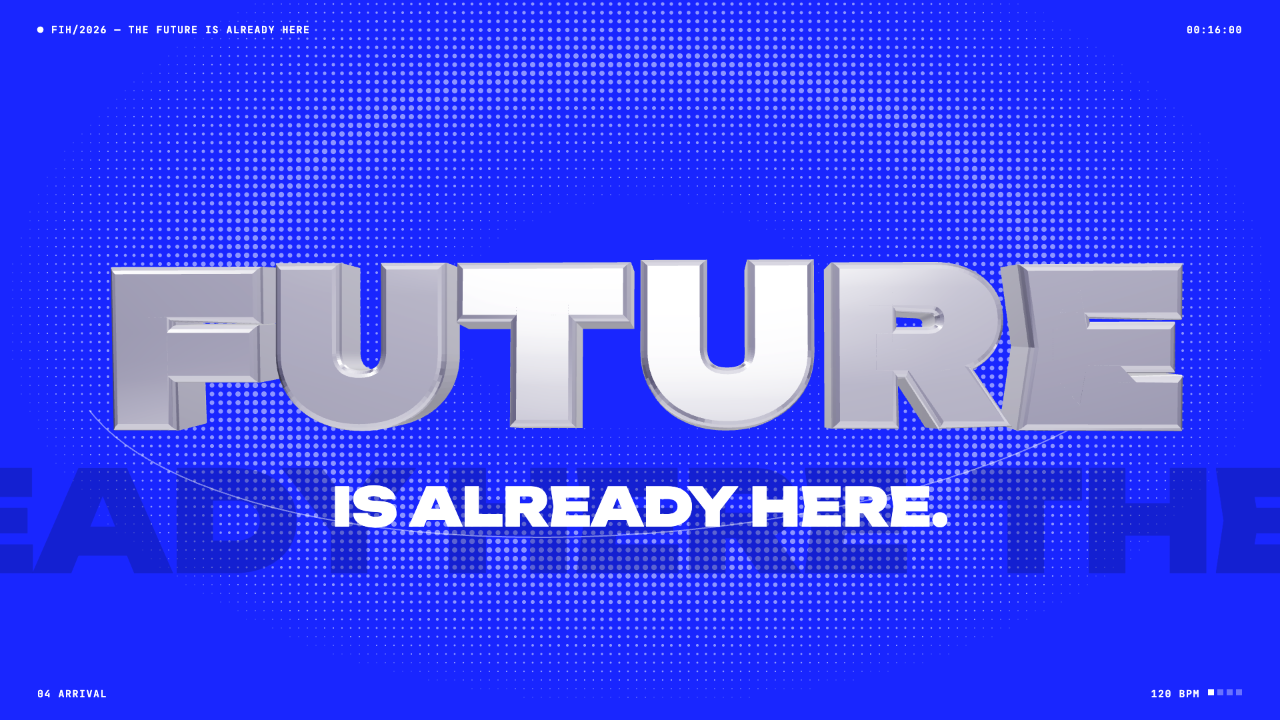
Futuristic Motion Video Design
A rendered electric-blue reel with a word tunnel, a SET countdown and a chrome FUTURE finale, remade in code on a 120 BPM cut grid. See its timing and how to adapt it.
Motion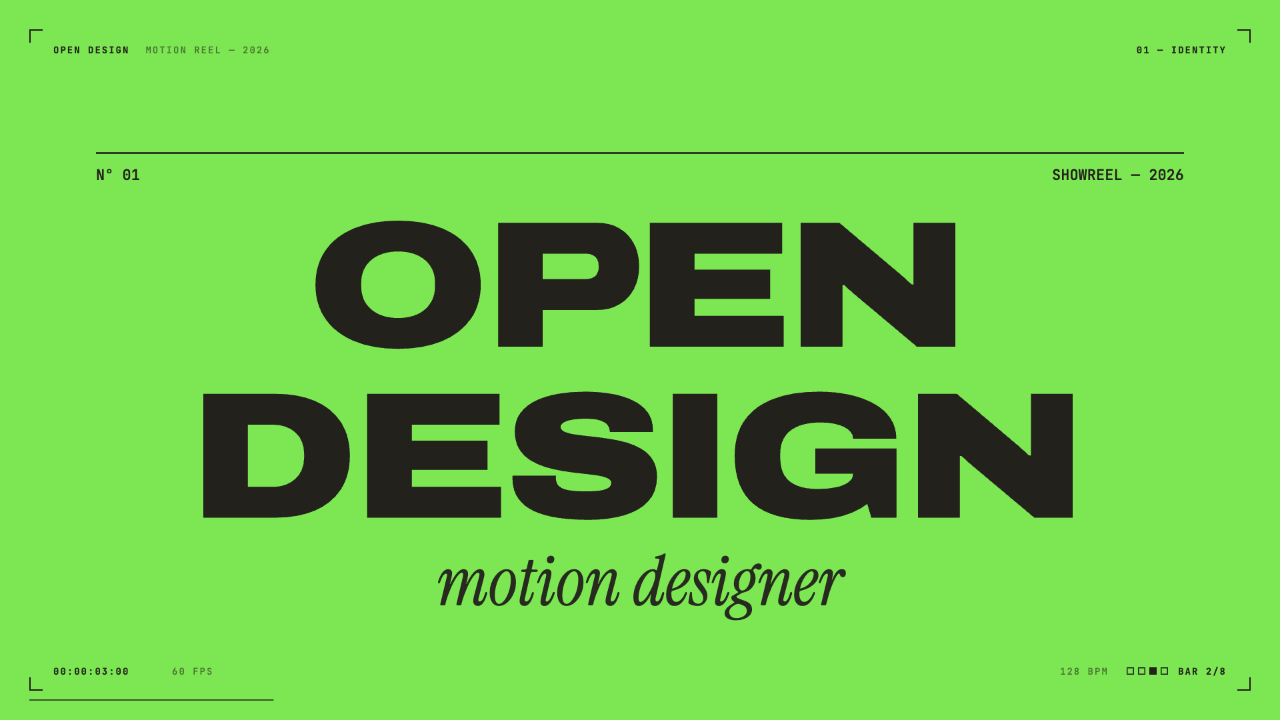
Motion Designer Showreel Design
A 15-second, 128 BPM showreel remade in code, with hard colour cuts, a live HUD and seven chapters timed to the bar. See how the timing, type and palette work.
Motion