

Desktop app
Quarterly OKR Dashboard Design
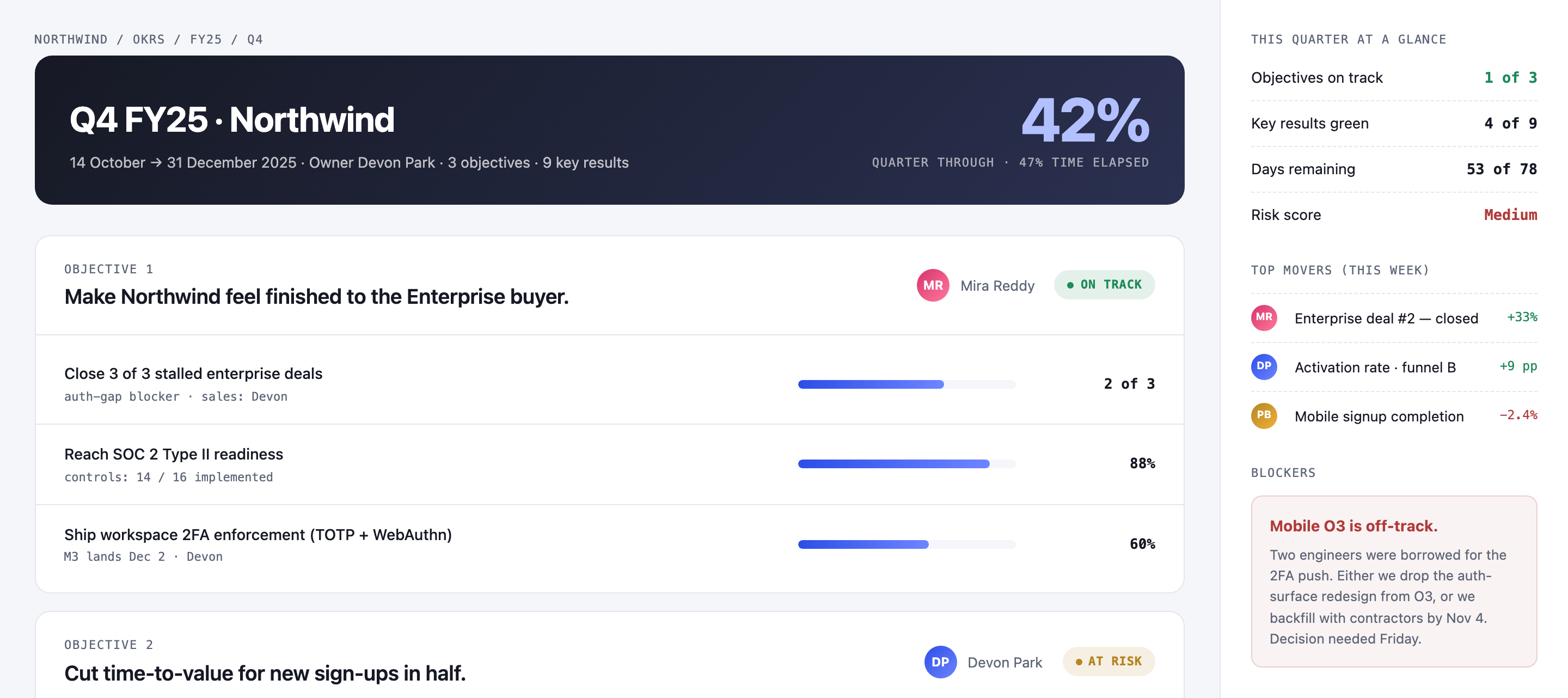
This quarterly OKR dashboard groups objectives, owners, key-result progress, and a staffing blocker so teams can read delivery status alongside a decision.

Quarterly OKR Dashboard Use Cases
- Quarterly PlanningReview objectives, owners, and deadlines in one team workspace.
- Key-Result TrackingCompare targets, current values, and completion indicators.
- Delivery Risk ReviewsConnect status summaries to specific blockers and tradeoffs.
Objective Tracking Design Highlights
- Three Owned ObjectivesEach objective pairs an owner with a distinct delivery status.
- Contextual ProgressKey results combine progress bars with units, baselines, or deadlines.
- Decision-Oriented CloseA staffing conflict ends the page with a concrete choice.
The Quarterly OKR Workspace
1 / 3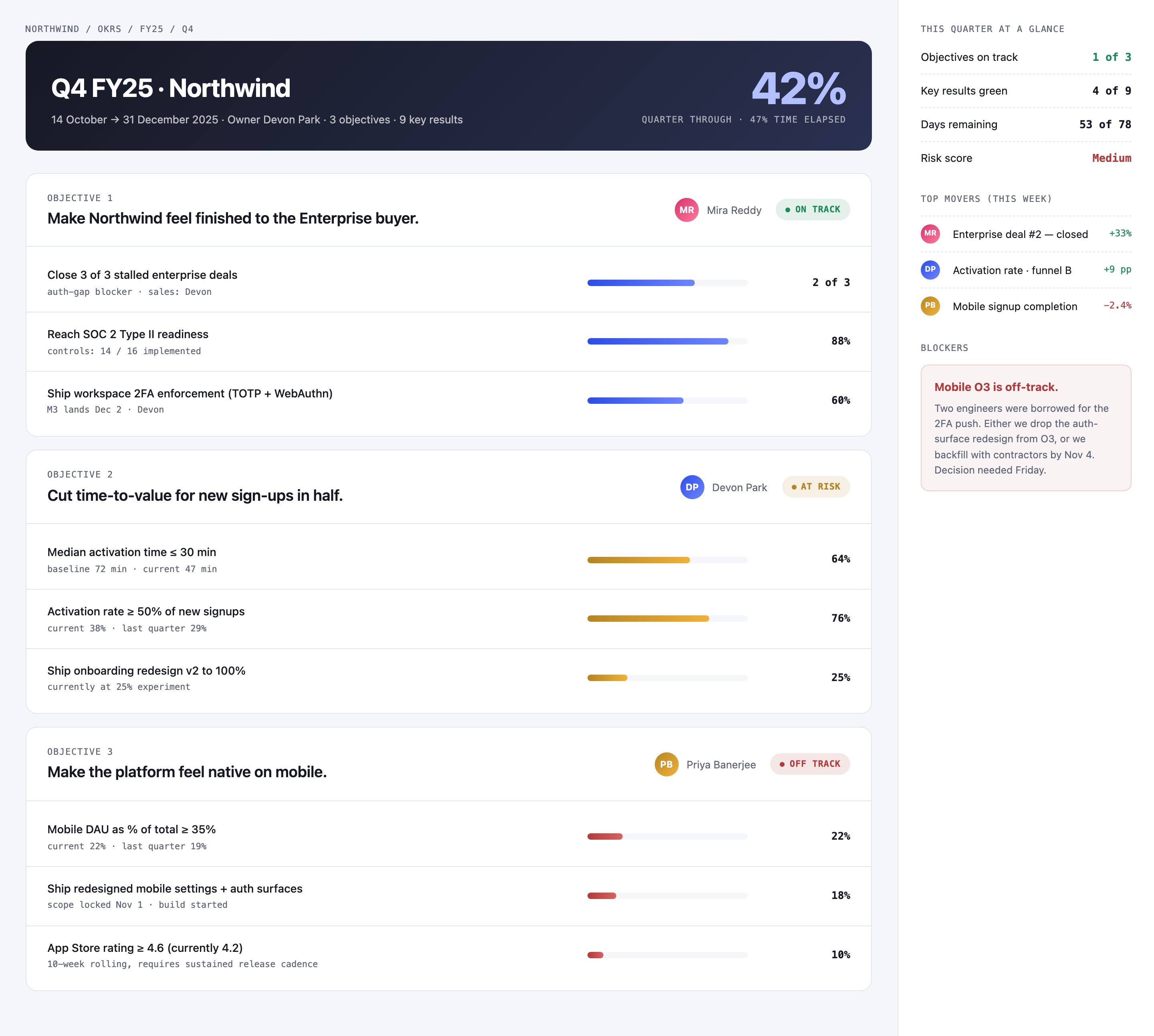
A Quarter, Its Owners, And Its Tradeoffs
The dashboard is headed Q4 FY25 · Northwind, with 14 October to 31 December 2025, Devon Park as owner, three objectives and nine key results. The dark banner shows 42% beside the label Quarter through · 47% time elapsed, without defining what 42% measures. The sidebar separately says 53 of 78 days remaining, which does not reconcile with 47% elapsed. These are illustrative, inconsistent time indicators rather than a verified schedule or scoring model.
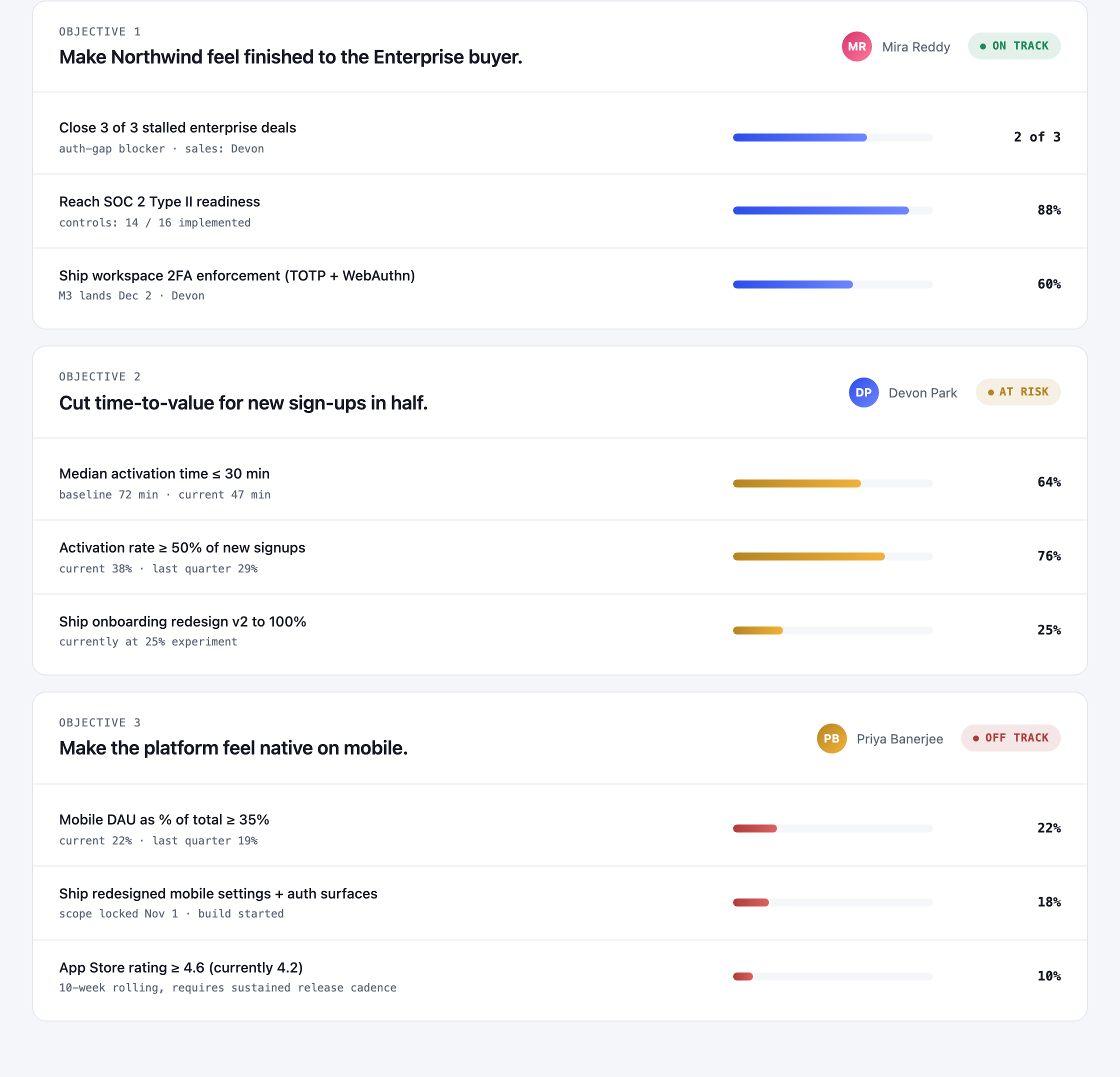
Below, three objective groups carry the page’s main structure: enterprise readiness, signup time-to-value, and mobile platform experience. Each group names an owner and uses an “On Track,” “At Risk,” or “Off Track” label. That pairing makes responsibility and status visible before the reader scans individual results, while the colored status treatment emphasizes judgment alongside the numbers.
Enterprise Readiness
Mira Reddy owns the objective marked On Track. Its results mix a count of stalled deals, SOC 2 controls implemented, and a dated 2FA milestone.
Signup Time-To-Value
Devon Park’s At Risk objective includes a time target, an activation-rate comparison, and an onboarding experiment, each with a different kind of progress context.
Mobile Experience
Priya Banerjee’s Off Track objective ties mobile usage and shipped surfaces to a rating target, making several distinct delivery concerns visible together.
Reading Targets Beside Their Measures
The key-result rows place a short target on the left and a progress bar with a value on the right. Supporting text supplies context where a percentage alone would be hard to interpret: the SOC 2 row says “controls: 14 / 16 implemented,” while activation time compares a 72-minute baseline with a current 47 minutes against a target of 30 minutes or less. These details help readers distinguish a count of completed controls from a time-based measure.
Other rows show why progress percentages should not be read as the outcome itself. “Activation rate ≥ 50% of new signups” is accompanied by a current 38% and last-quarter 29%, while its bar reads 76%. The two percentages answer different questions: one is the displayed completion figure, and the other is the current rate against a target, with a prior-quarter reference. The design presents both but does not explain the progress formula.
The nine sample key results span counts, minutes, percentages, an experiment rollout, and a rating. Their shared row layout supports scanning, but comparisons across rows remain limited: a 64% bar for activation time and a 64% bar elsewhere would not necessarily describe comparable units or methods.
From Quarter Summary To Blocker
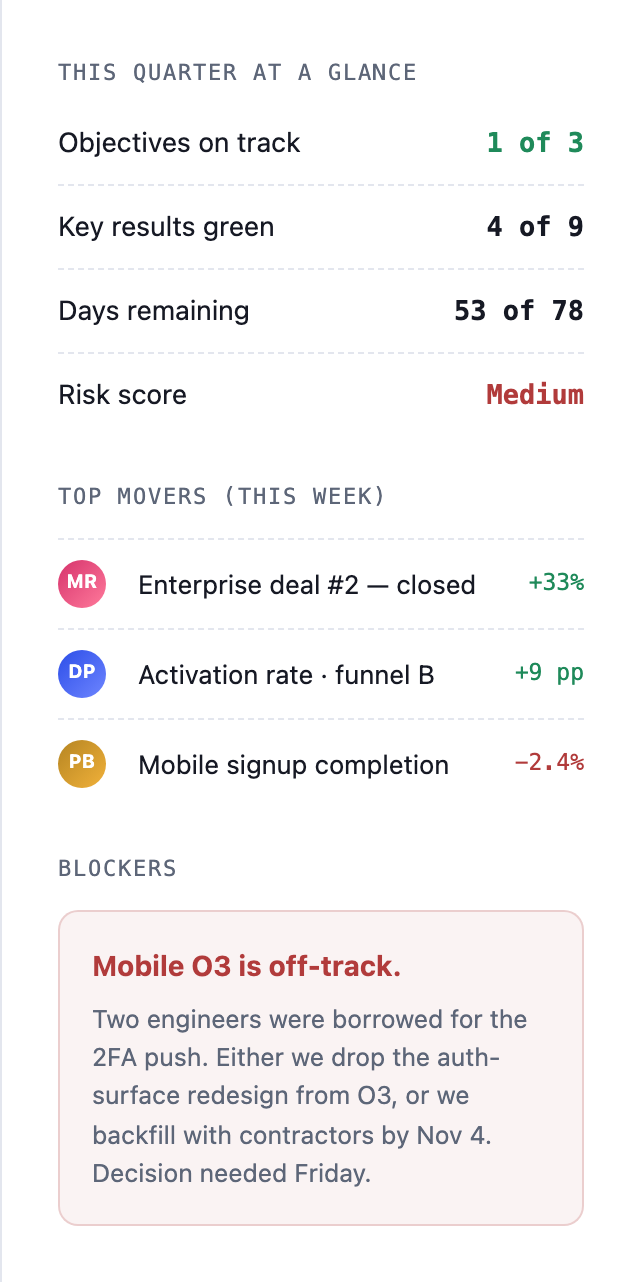
The original wide layout places the quarter banner and three objective groups in the main column, with This quarter at a glance, Top movers (this week) and Blockers in a right sidebar. At widths below 1080 pixels the source stacks that sidebar beneath the main work. The two arrangements support either side-by-side risk context or a top-down reading order, not an unexplained single desktop sequence.
The final blocker gives the dashboard a concrete planning use. It says mobile Objective 3 is off track because two engineers were borrowed for the 2FA push, then frames two options: drop the auth-surface redesign or backfill with contractors by Nov 4. “Decision needed Friday” makes the timing explicit. This turns the earlier status and ownership information into context for a staffing choice, without claiming which option was selected.
Establish The Quarter
The date range, named owner, objective count, and key-result count define the reporting frame before readers encounter individual work.
Inspect Owned Work
Objective headings, owner names, and status labels organize the detailed rows around responsibility and delivery condition.
Follow Signals To A Decision
The summary and weekly movers lead into a blocker that states the staffing conflict, alternatives, and decision deadline.
What The Sample Data Can And Cannot Say
Names, objectives, owners, deadlines and progress figures are illustrative, not verified company performance. The static HTML has no live update or scoring handler. The sidebar says four of nine key results are green although only the first objective's three bars use blue styling, and its days-remaining value does not reconcile with the elapsed-time label. Color and status fields therefore need explicit definitions before reuse, rather than being treated as computed delivery judgments.
The visual structure is most useful as a way to study how objectives, measures, risks, and a decision can share one desktop workspace. When adapting it, preserve the distinction between a target, a current measurement, and a progress indicator, and make the basis for any status or completion value explicit.
How to Create Quarterly OKR Dashboard Design in OpenDesign
Set The Reporting Frame
Start with a quarter title, date range, named owner, objective count and key-result count. Clearly label what each summary percentage measures and reconcile elapsed and remaining time; the source's 42%, 47% and 53-of-78 indicators do not supply a consistent calculation.
Suggested PromptCreate a quarterly OKR dashboard for a fictional team with a quarter banner, dates, owner and counts of objectives and key results. Clearly distinguish goal completion from elapsed time and reconcile any days-remaining display. Use illustrative values with explicit units and definitions; do not imply live data or an undisclosed scoring formula.
Build Objective Groups
Arrange three owner-led objectives with status labels and several key results beneath each. Give every result a target, a visible progress indicator, and only the supporting unit or context needed to interpret it, such as a baseline, current value, or deadline.
Connect Status To A Decision
Add a quarter summary and a short weekly-movers list after the objective groups. Finish with a blocker that names the affected objective, the resource constraint, the available tradeoff, and a decision date. Check that the sample figures remain clearly illustrative.
Export and Get a Share Link
Export your finished design, then use Share in OpenDesign to get a share link. Open the link in a separate browser window and check that the intended version and its assets are available before sending it.
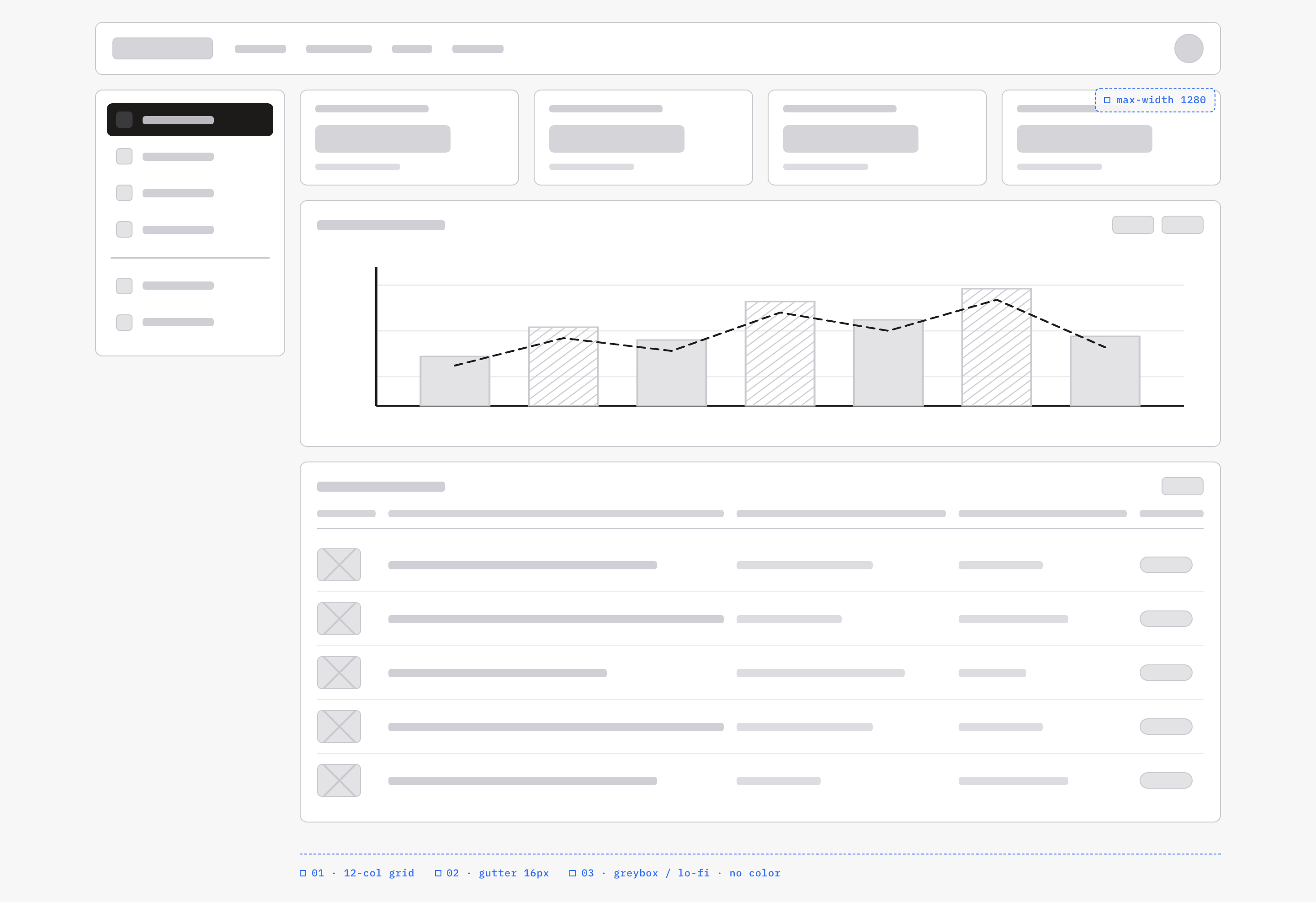
Analytics Dashboard Wireframe Design
An OpenDesign greybox dashboard maps an analytics workspace through a sidebar, four KPI placeholders, a schematic chart, five table rows and blue layout annotations.
Desktop app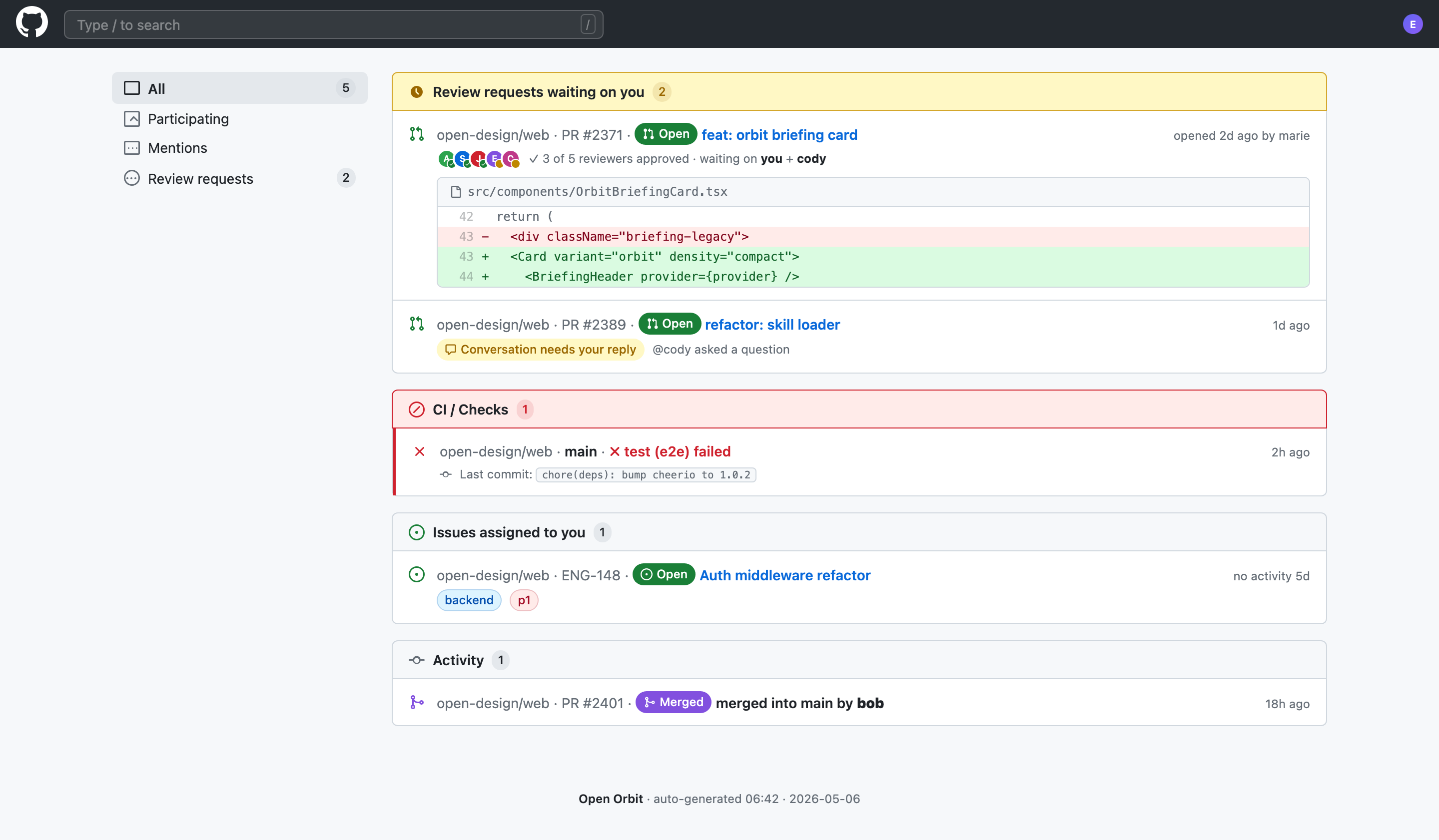
Code Review Inbox App Design
Code Review Inbox App Design brings review requests, CI failures, assigned issues, and activity into one scan-ready workspace for daily triage.
Desktop app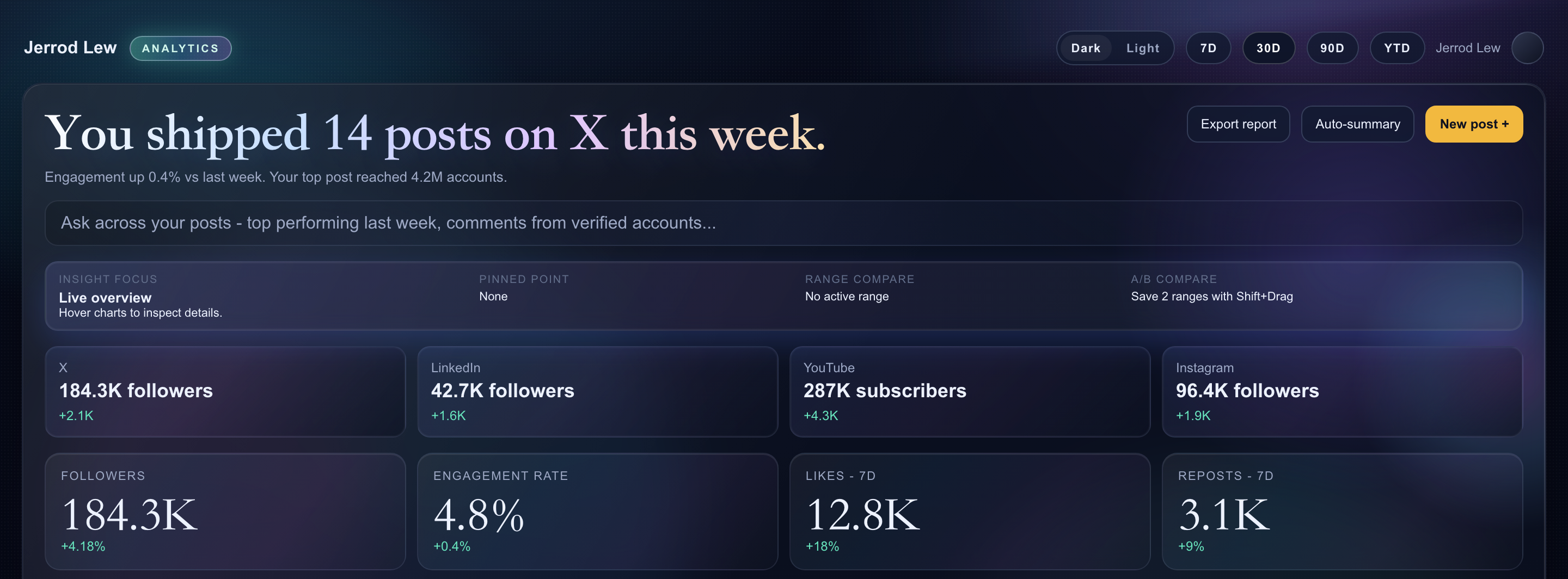
Content Performance Dashboard Design
A dark content dashboard connects platform snapshots with chart inspection, draft planning and a deeper view of audience and conversion signals.
Desktop app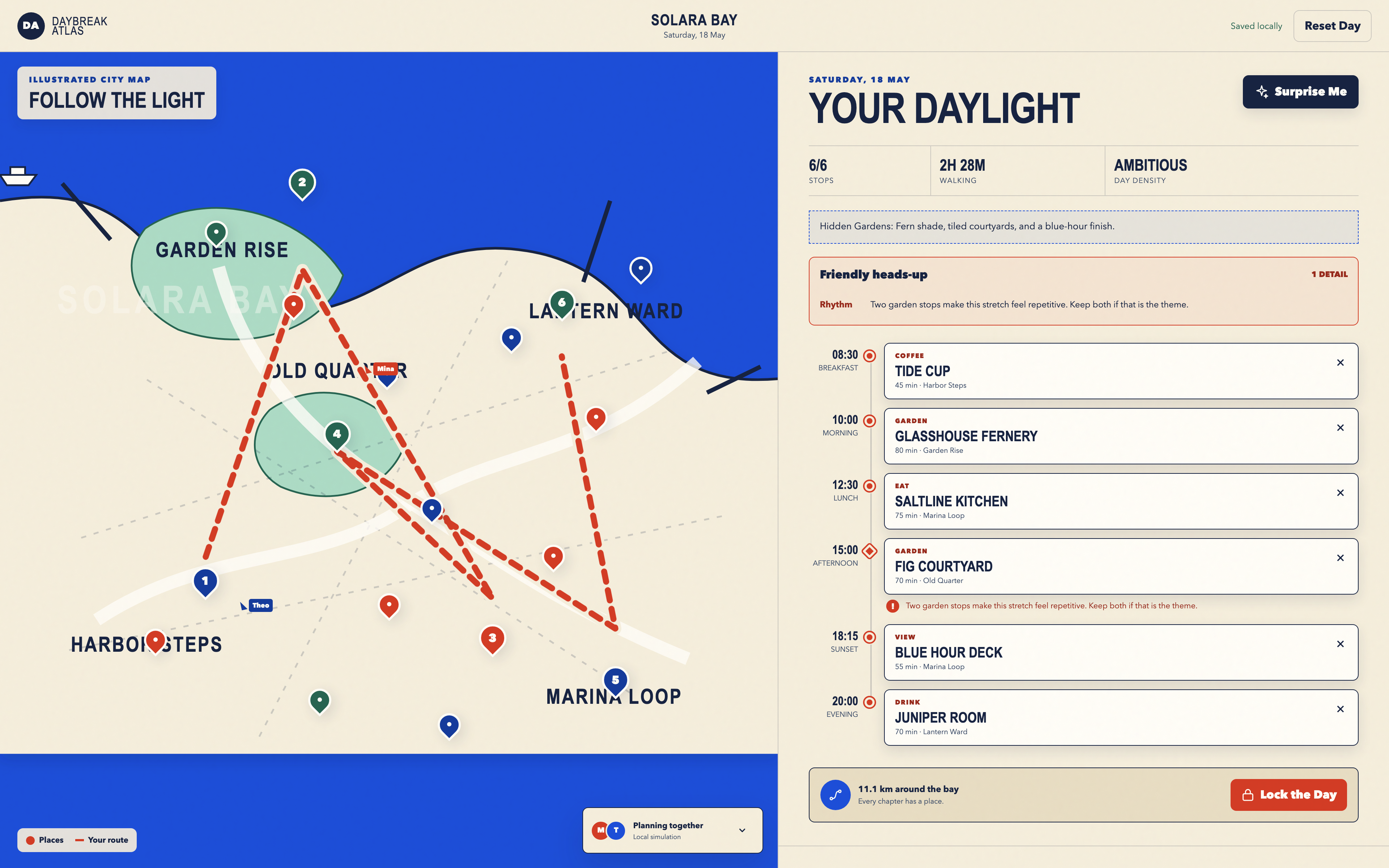
Day Trip Planner Design
Plan six timed stops in fictional Solara Bay, with an illustrated map, walking estimates and useful route warnings.
Desktop app