

Website
Service Runbook Website Design
The auth-service runbook design turns service ownership, alert response, deployment procedures, and incident handoffs into one scannable operational reference.

Runbook Website Use Cases
- On-Call Incident ResponseFind severity, first response, and escalation guidance quickly.
- Service Ownership DocumentationExplain scope, dependencies, and customer-facing service impact.
- Deployment Recovery WorkflowsKeep release, rollback, and key-rotation procedures together.
- Operational Runbook DesignStructure dense technical guidance for fast repeated use.
Operational Reference Highlights
- Service ContextOwnership, version, review date, and production tier appear together.
- Alert Response TableThresholds connect severity, meaning, and first action.
- Procedure BlocksCommands and operational cautions share one readable sequence.
- Incident TimelineFive response steps organize the first thirty minutes.
From Service Context to Incident Handoff
1 / 5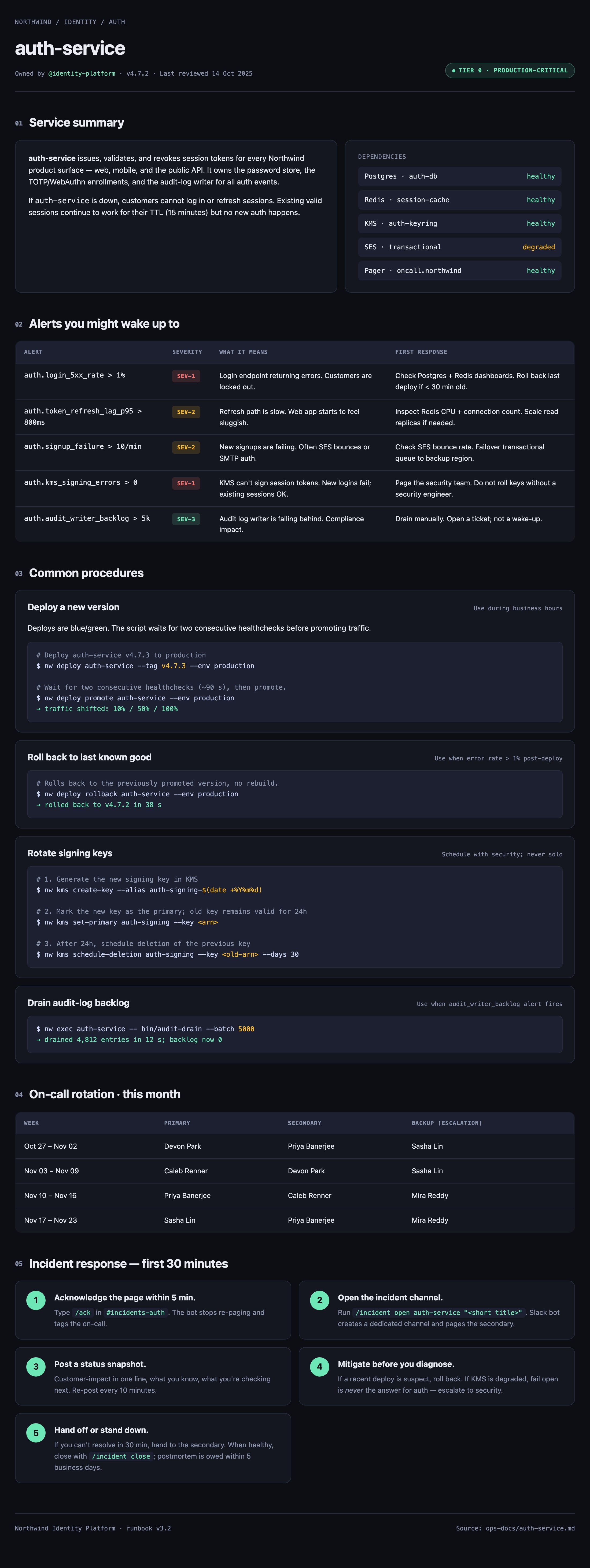
Auth-Service Runbook Design
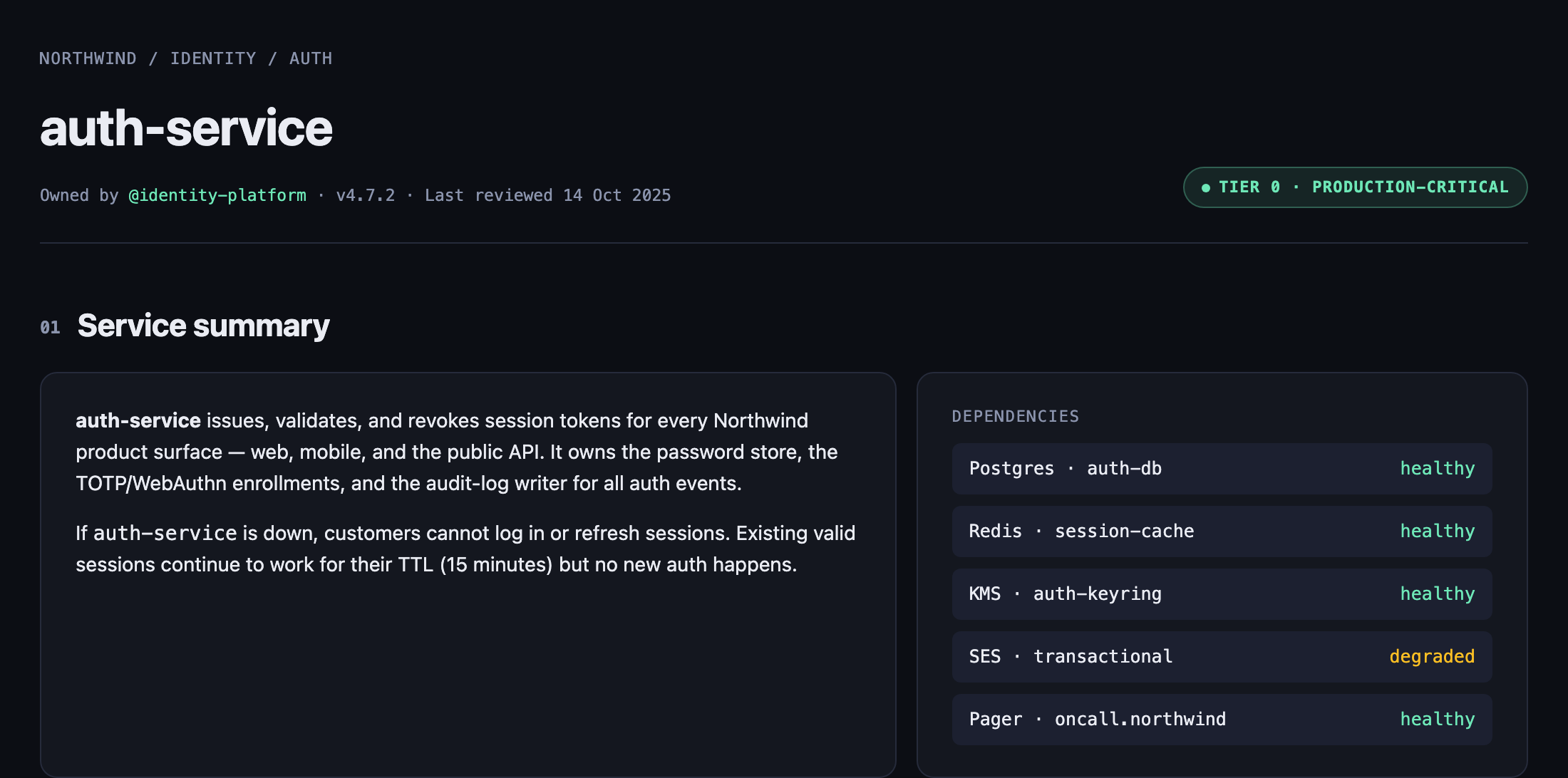
This official OpenDesign website example presents a Northwind identity-service runbook as a single operational reference. The authored heading is “auth-service,” followed by ownership, version, review date, and the “TIER 0 · PRODUCTION-CRITICAL” status. That opening establishes the service’s responsibility before the reader reaches alerts or commands.
The service summary names session-token issuance, validation, and revocation across web, mobile, and the public API. It also identifies the password store, TOTP/WebAuthn enrollments, and audit-log writer. This makes the page useful for orientation: a responder can see which customer-facing and security-related responsibilities belong to the service before selecting a procedure.
Operational Tasks Supported
The design serves several related tasks without splitting them into separate pages. Its ordering moves from service scope to dependencies, then alerts, procedures, on-call coverage, and incident response. That sequence reduces the need to interpret an alert in isolation: the reader first learns what the service owns, then how to respond when one part is impaired.
The dependency list repeats a name-and-state pattern for Postgres, Redis, KMS, SES and Pager. Four entries are marked healthy, while SES · transactional is marked degraded. The right-aligned states support scanning, but they are a snapshot of the sample design, not demonstrated live health checks.
| Section | Visible Content | Reader Use |
|---|---|---|
| Service Summary | Ownership, scope, session behavior, and dependencies | Establish impact and system boundaries |
| Alerts You Might Wake Up To | Threshold, severity, meaning, and first response | Choose an initial investigation path |
| Common Procedures | Deploy, rollback, key rotation, and backlog commands | Follow a named operational workflow |
| Incident Response | Five numbered actions for the first 30 minutes | Coordinate acknowledgement, mitigation, and handoff |
From Alert To Procedure
The alert section is designed as a four-column decision surface: alert, severity, what it means, and first response. For example, “auth.login_5xx_rate greater than 1%” is paired with “SEV-1,” a customer lockout explanation, and guidance to inspect Postgres and Redis dashboards. The explicit threshold gives the responder a trigger, while the prose supplies interpretation; the tradeoff is that the sample values still need a verified monitoring source in a real runbook.
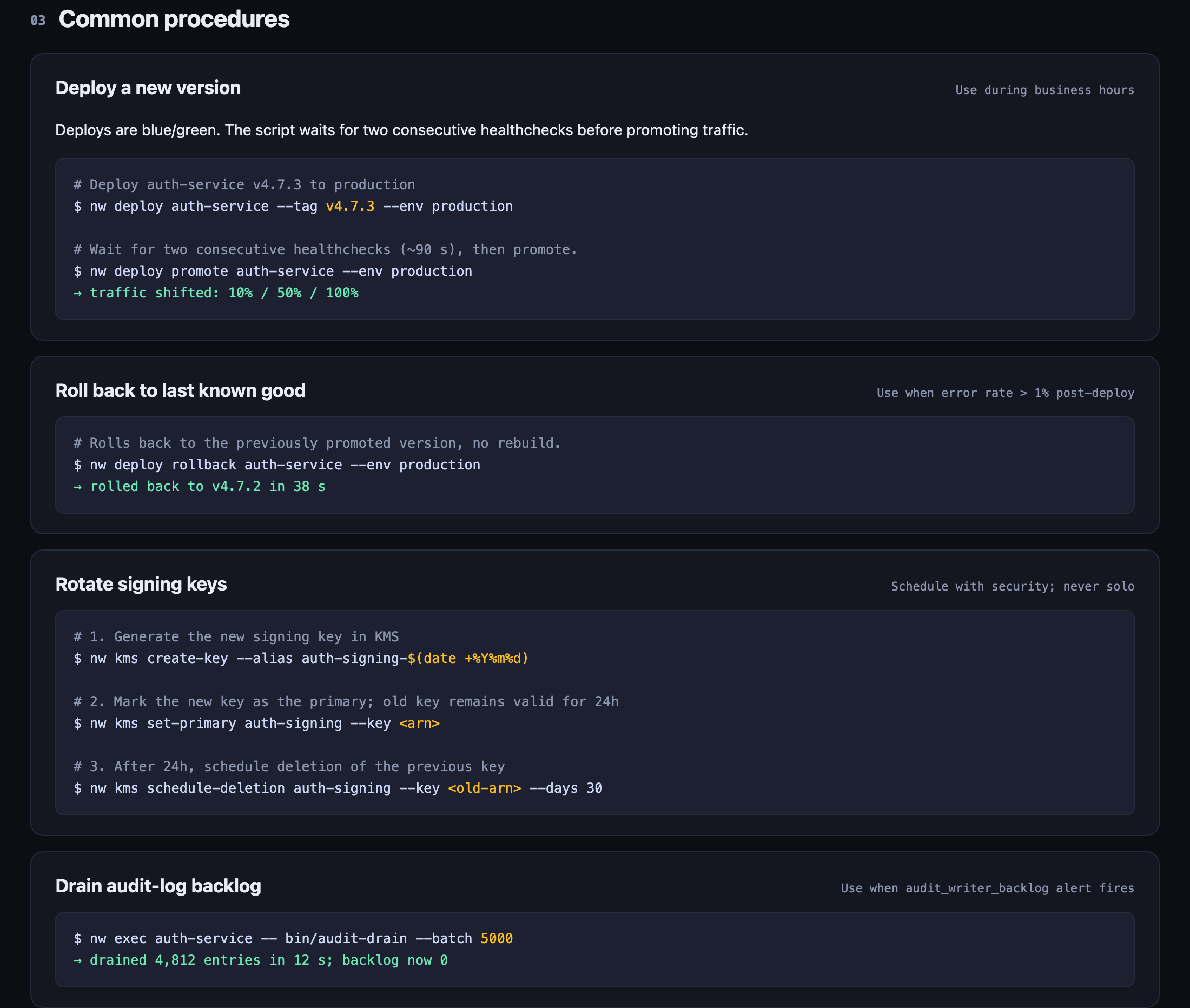
The procedure section changes rhythm from compact rows to large blocks with a heading, usage note, explanatory sentence, and command panel. “Deploy a new version” states that the flow is blue/green and waits for two consecutive healthchecks before promotion. The visible traffic sequence, “10% / 50% / 100%,” communicates staged rollout, while the larger block consumes more vertical space in exchange for safer command-level reading.
Commands And Constraints
The procedure blocks keep action and caution adjacent. Rollback is labeled for use when the post-deploy error rate exceeds 1%, while signing-key rotation says “Schedule with security; never solo.” The audit-log procedure is explicitly tied to the backlog alert. These pairings show a useful information design choice: the command is not presented as sufficient on its own, and the surrounding condition defines when it belongs in the workflow.
Incident Sequence And Capability Boundary
The final incident-response section converts the first thirty minutes into five numbered cards. The sequence begins with acknowledgement within five minutes, opens a dedicated incident channel, requires a status snapshot every ten minutes, prioritizes mitigation, and ends with handoff or stand-down. Numbering makes the intended order visible; the two-column arrangement keeps the first four actions compact, while the fifth card spans only its own content.
This is a design-only website example. The captured page visibly presents commands, statuses, names, and sample outcomes such as “rolled back to v4.7.2 in 38 s,” but it does not establish that those commands execute, that the services are connected, or that the displayed operational results were measured. Adaptations should preserve the distinction between documented guidance and verified runtime data.
Acknowledge The Page
The design begins with /ack and a five-minute response window, establishing the first coordination obligation.
Open The Incident Channel
The second card names the service and short-title pattern used to create a dedicated response space.
Post A Status Snapshot
The third card compresses customer impact, current knowledge, and next checks into a repeatable update.
Mitigate And Hand Off
The last two cards prioritize rollback or security escalation, then define handoff and closure.
How to Create Service Runbook Website Design in OpenDesign
Define The Service Boundary
Start with the service name, ownership, version, review date, production tier, customer-facing responsibility, and dependency states. Keep the summary specific enough to distinguish impact from implementation detail.
Suggested PromptCreate a dark, desktop-first service runbook website for auth-service in a Northwind identity platform. Use a wide centered page with a service header, tier badge, two-column summary and dependency panel, an alert table, procedure blocks, on-call coverage, and five numbered incident-response cards. Use sample data only; do not imply live monitoring, executing commands, connected services, or measured outcomes.
Connect Alerts To Actions
Use a table with alert name, severity, meaning, and first response. Preserve the relationship between thresholds such as auth.login_5xx_rate greater than 1% and the action that follows, while labeling values as illustrative until they are verified.
Refine Procedure Readability
Give each procedure a condition, caution, or timing note before its command panel. Check that blue/green promotion, rollback, signing-key rotation, and audit-log drainage remain distinct workflows rather than one undifferentiated code block.
Check Incident Ordering
Review the five response cards as a timed sequence: acknowledge, open the channel, post a status snapshot, mitigate, then hand off or stand down. Confirm that the layout remains readable when the cards stack on smaller screens.
Export and Get a Share Link
Export your finished design, then use Share in OpenDesign to get a share link. Open the link in a separate browser window and check that the intended version and its assets are available before sending it.

AI Design Studio Website Design
OpenDesign’s AI Design Studio Website Design turns a local-first studio concept into an editorial landing page that makes skills, experiments, and method easy to scan.
Website
AI Infrastructure Website Design
A soft AI-infrastructure landing concept with sample runtime metrics, nested feature cards, subtle motion and a single sales invitation.
Website
Bianjing Night Tour Website Design
An interactive night journey through an imagined Song-era Bianjing, combining a persistent river city, poetry, lanterns and multilingual chapter pacing.
Website
Brutalist Journal Website Design
Brutalist Journal Website Design turns a print-shaped issue into a legible web reading system, pairing bold type with measured editorial structure.
Website