

Desktop app
Social Audience Dashboard Design
The Social Audience Dashboard Design brings X growth, audience geography, publishing signals, and community feedback into one scan-ready desktop workspace.

Social Audience Dashboard Use Cases
- Social Performance ReviewRead illustrative follower, engagement, likes and repost signals in a weekly review layout.
- Audience PlanningRead geographic distribution beside growth trends and click-through context.
- Content MonitoringScan trending topics, post activity, and community comments together.
- Desktop Analytics WorkspacesOrganize related social signals into a wide, repeatable review surface.
Audience Workspace Design Highlights
- Platform SwitchingLocal X and GitHub sample modes change summary labels, KPIs, charts and the post-or-contributor panel.
- Annotated GrowthConnect follower movement to named moments on the chart.
- Geographic SplitShow audience regions with percentages beside the map.
- Community ContextPair topic counts with selected comments and reactions.
The Social Audience Workspace, Panel by Panel
1 / 3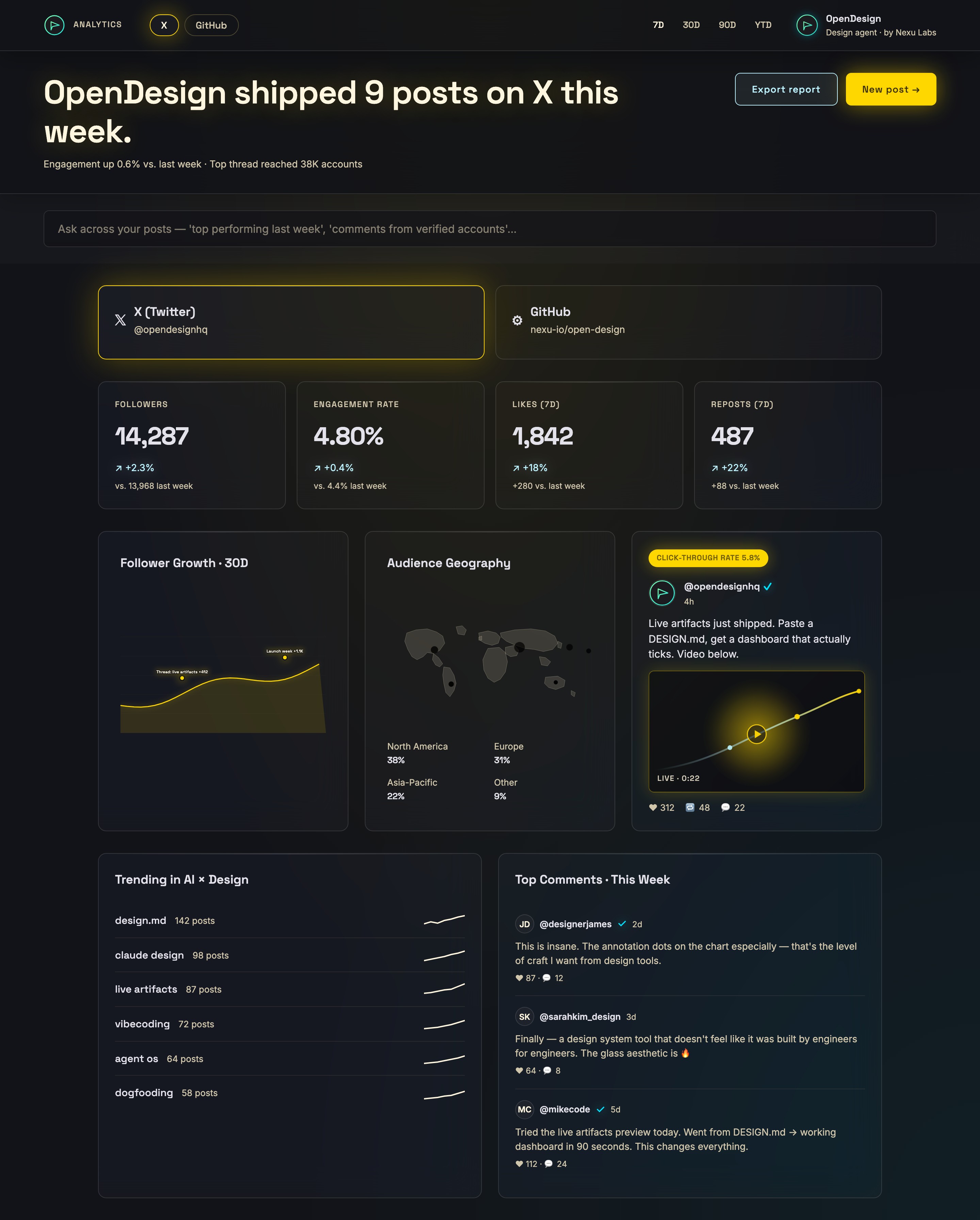
A Social Audience Dashboard Built For Scanning
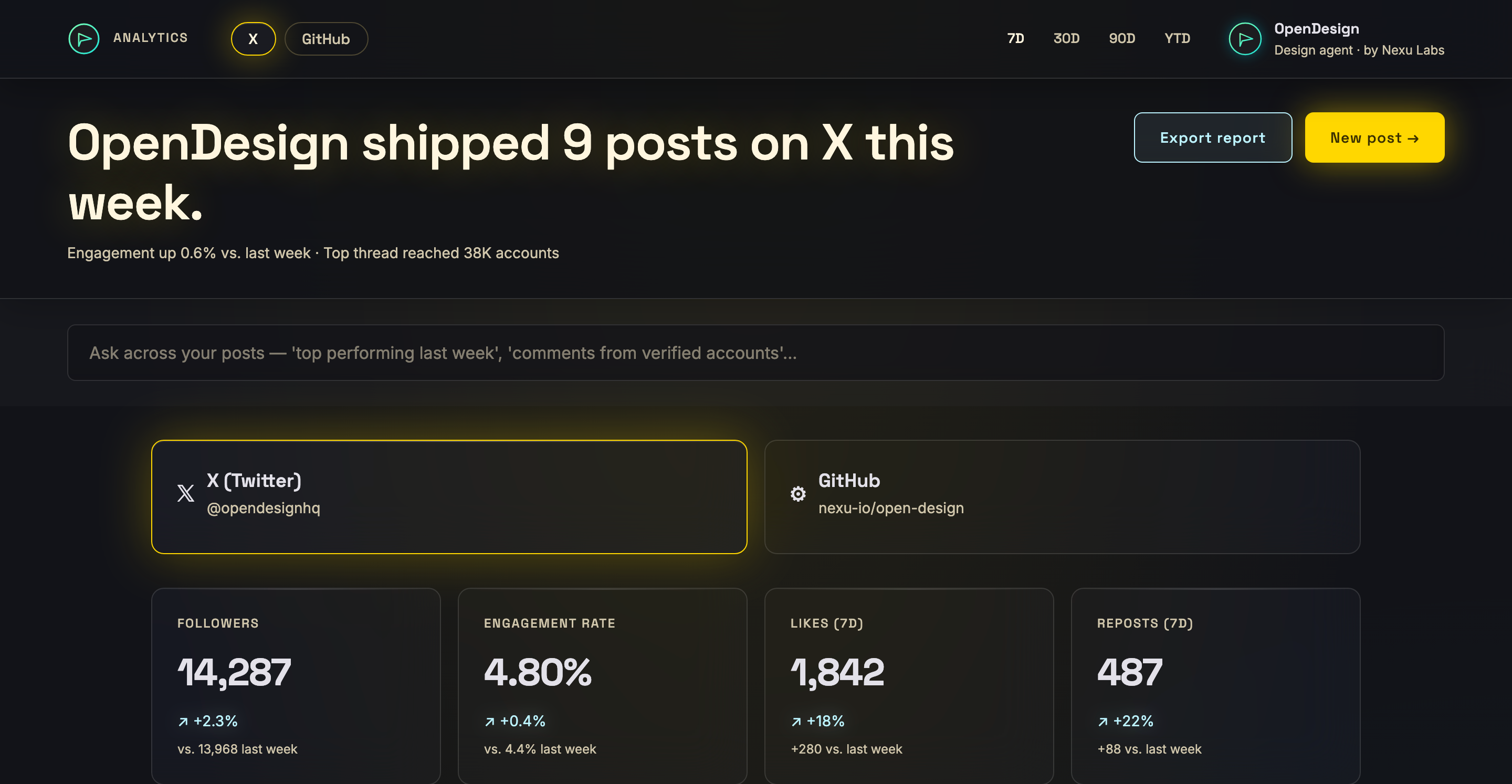
This official OpenDesign example presents a desktop analytics workspace for an X-centered social account. Its authored headline, “OpenDesign shipped 9 posts on X this week,” establishes a weekly publishing frame before the reader reaches the detailed panels. The supporting line pairs “Engagement up 0.6% vs. last week” with a top-thread reach statement, creating a compact comparison point rather than treating publishing volume as the only signal.
The layout uses a 1280px maximum container and a three-column main grid. That proportion gives the growth chart, geography panel, and featured post room to sit beside one another, so a reader can compare trajectory, audience distribution, and an example piece of content in the same horizontal pass. The tradeoff is density: the design depends on strong panel titles and spacing to prevent the simultaneous signals from becoming one undifferentiated block.
Platform Context
The X and GitHub controls establish the account sources represented by the workspace, while the visible X account card identifies @opendesignhq.
Metric Context
Followers, engagement rate, likes, and reposts each show a primary value with a directional comparison, helping separate totals from change.
Editorial Context
The weekly headline, trending topics, and top comments frame social performance as publishing activity plus audience response.
Use Cases For Social Performance Review
The dashboard is suited to a weekly review where a team needs both a top-line read and enough evidence to choose a follow-up question. The four KPI cards make the first pass fast: “FOLLOWERS” shows 14,287 with “+2.3%,” “ENGAGEMENT RATE” shows 4.80% with “+0.4%,” and the 7D cards show 1,842 likes and 487 reposts. Each card also includes a comparison value, so the reader can distinguish a current total from its stated period-over-period movement.
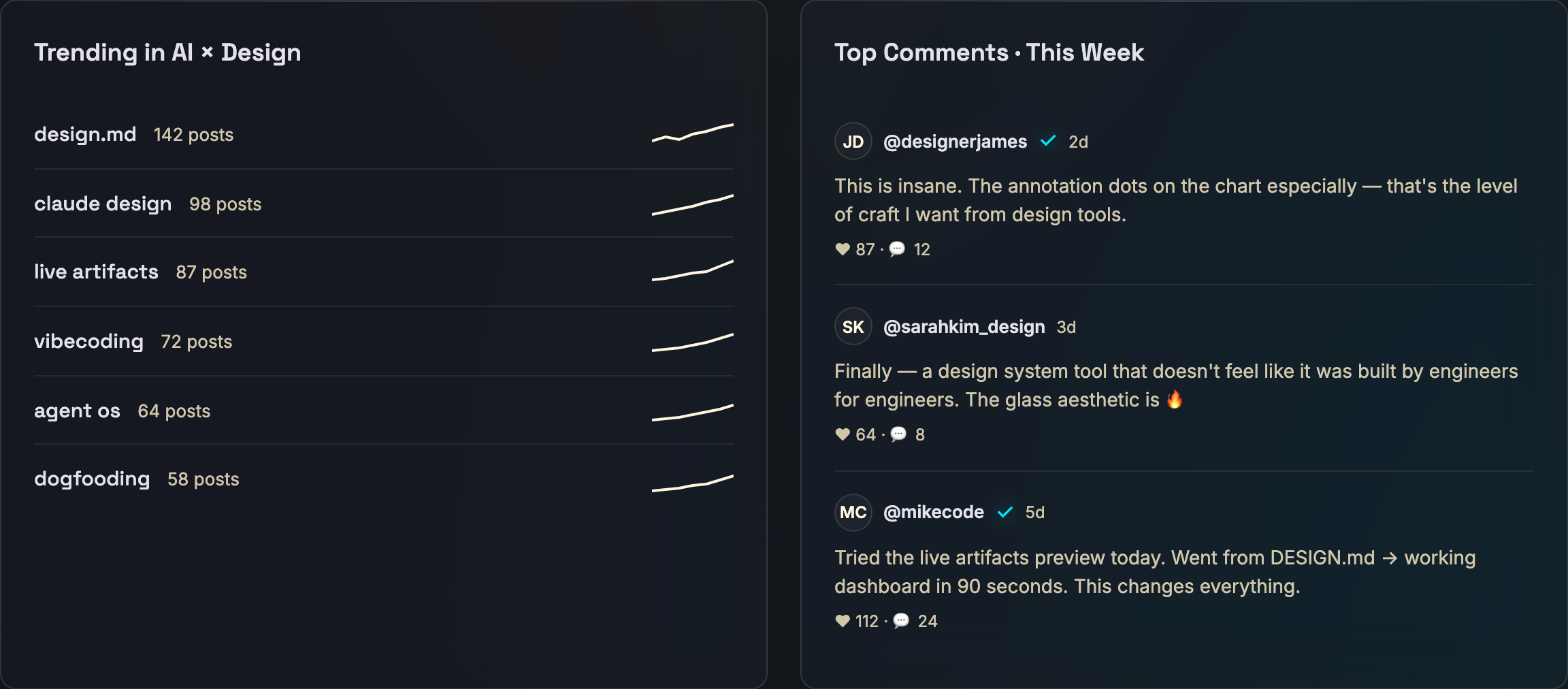
The design also makes audience composition concrete. “Audience Geography” lists North America at 38%, Europe at 31%, Asia-Pacific at 22%, and Other at 9% beneath a map. The map supplies spatial orientation, while the percentages provide the exact reading layer. Keeping both has a cost: the visual map cannot carry precise comparison alone, but the paired labels make the distribution usable without requiring the reader to estimate areas.
Growth Diagnosis
The “Follower Growth · 30D” chart uses labeled points such as “Thread: live artifacts +412” and “Launch week +1.1K,” connecting movement to named publishing moments.
Audience Direction
The geographic percentages reveal where the depicted audience is concentrated, while the map provides a quick regional overview rather than a detailed geographic analysis.
Content Follow-Up
The featured post combines a 5.8% click-through badge, post text, a “LIVE · 0:22” preview, and reaction totals, giving reviewers a specific content example to inspect.
Workspace Flow From Summary To Community
The reading order moves from platform controls to weekly context, then into summary metrics and explanatory panels. Clicking X or GitHub locally swaps authored headings, KPIs, the chart and a post-or-contributor panel. The 7D, 30D, 90D and YTD buttons, Export report and New post have no event handlers. The Ask field accepts text without a query workflow. These distinctions separate the working sample-mode interaction from merely depicted product actions.
The middle row shifts from measurement to interpretation. A yellow-accented growth line uses annotation dots, while the geography card places its regional values below the map. Beside them, the featured post turns the abstract metrics into a content object. This sequence is useful because it asks the reader to move from change, to audience, to an example. It also means that the post preview receives similar visual weight to the analytical panels, which favors editorial inspection over a purely statistical dashboard.
From Trends To Comments
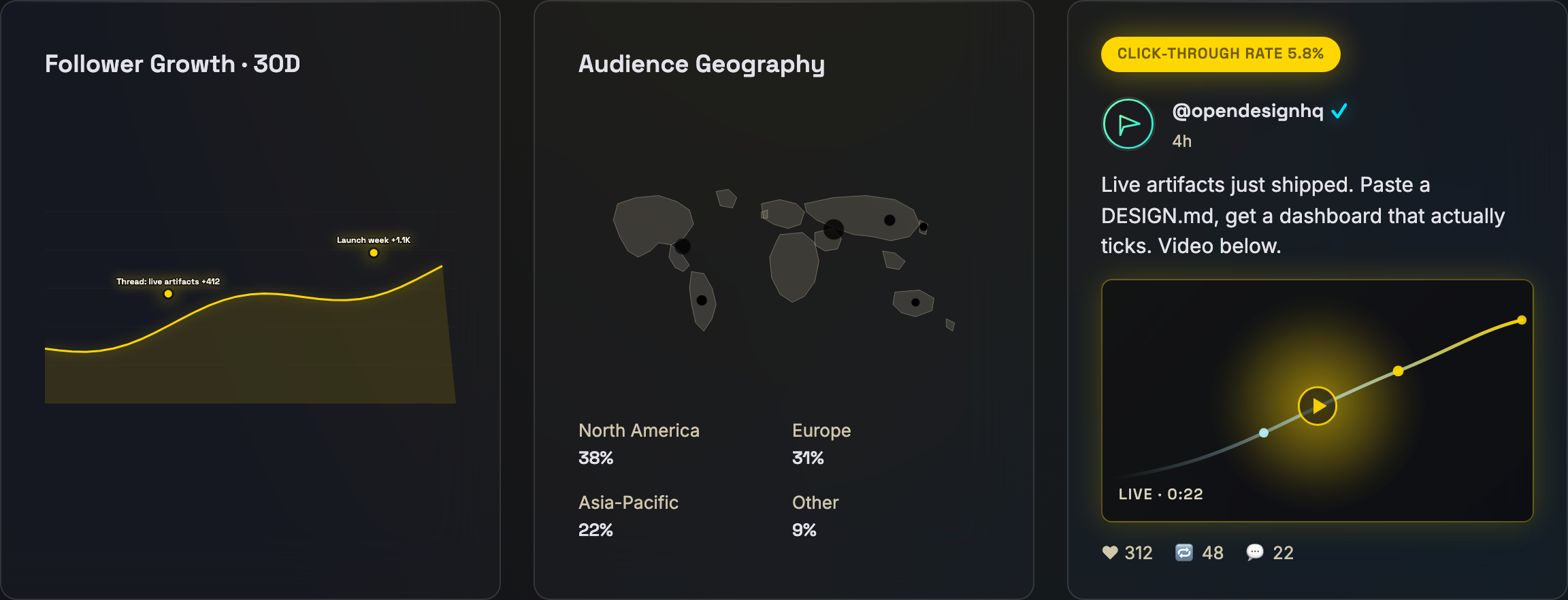
The lower area places “Trending in AI × Design” beside “Top Comments · This Week.” The trend list orders terms such as “design.md” at 142 posts, “claude design” at 98, and “live artifacts” at 87, each with a small line indication. The comments panel then shows three attributed entries with timestamps and reaction counts. Together, these sections connect broad conversation topics with individual audience language, though the design does not define how topic counts or comment selection are calculated.
What This Design Establishes
The source implements local X and GitHub sample modes with a two-second synthetic ticker. Integer KPIs increase randomly, the engagement rate jitters within a bounded range, post reactions change and the X curve's final point moves. Switching platform changes titles, chart data and the post-or-contributor panel; the geography, topic rows and comment bodies remain fixed. These local updates demonstrate prototype behavior, not fresh platform measurements.
There are no X or GitHub connector requests, persisted analytics, working exports or posting actions. The GitHub mode relabels the lower panels but retains the X topic and comment rows, so its context is not fully reconciled. Authored contributor identities and totals are sample data, not independently verified records. Treat the depicted numbers, social claims and reactions as illustrative when adapting the design; the example bundle's MIT manifest does not separately establish rights to every depicted asset.
How to Create Social Audience Dashboard Design in OpenDesign
Set The Desktop Information Model
Arrange the workspace around the source design’s weekly header, four KPI cards, three-column analytical area, and two lower community panels. Keep the summary-to-detail reading order intact.
Suggested PromptCreate a desktop Social Audience Dashboard Design for X analytics with a weekly publishing header, X and GitHub context, 7D/30D/90D/YTD controls, four KPI cards, a 30-day follower chart, audience geography percentages, a featured post, trending topics, and top comments. Use illustrative data only and do not imply live API connections, storage, exports, or working posting behavior.
Refine Chart And Audience Relationships
Use labeled chart annotations for publishing moments and keep geographic percentages adjacent to the map. Check that the exact values remain readable without asking the map to carry precise comparisons.
Check Community Reading Order
Review the featured post, topic list, and comments as related but distinct content layers. Preserve the visual contrast between yellow action accents, cyan status details, and the dark panel field without overstating the sample data.
Export and Get a Share Link
Export your finished design, then use Share in OpenDesign to get a share link. Open the link in a separate browser window and check that the intended version and its assets are available before sending it.
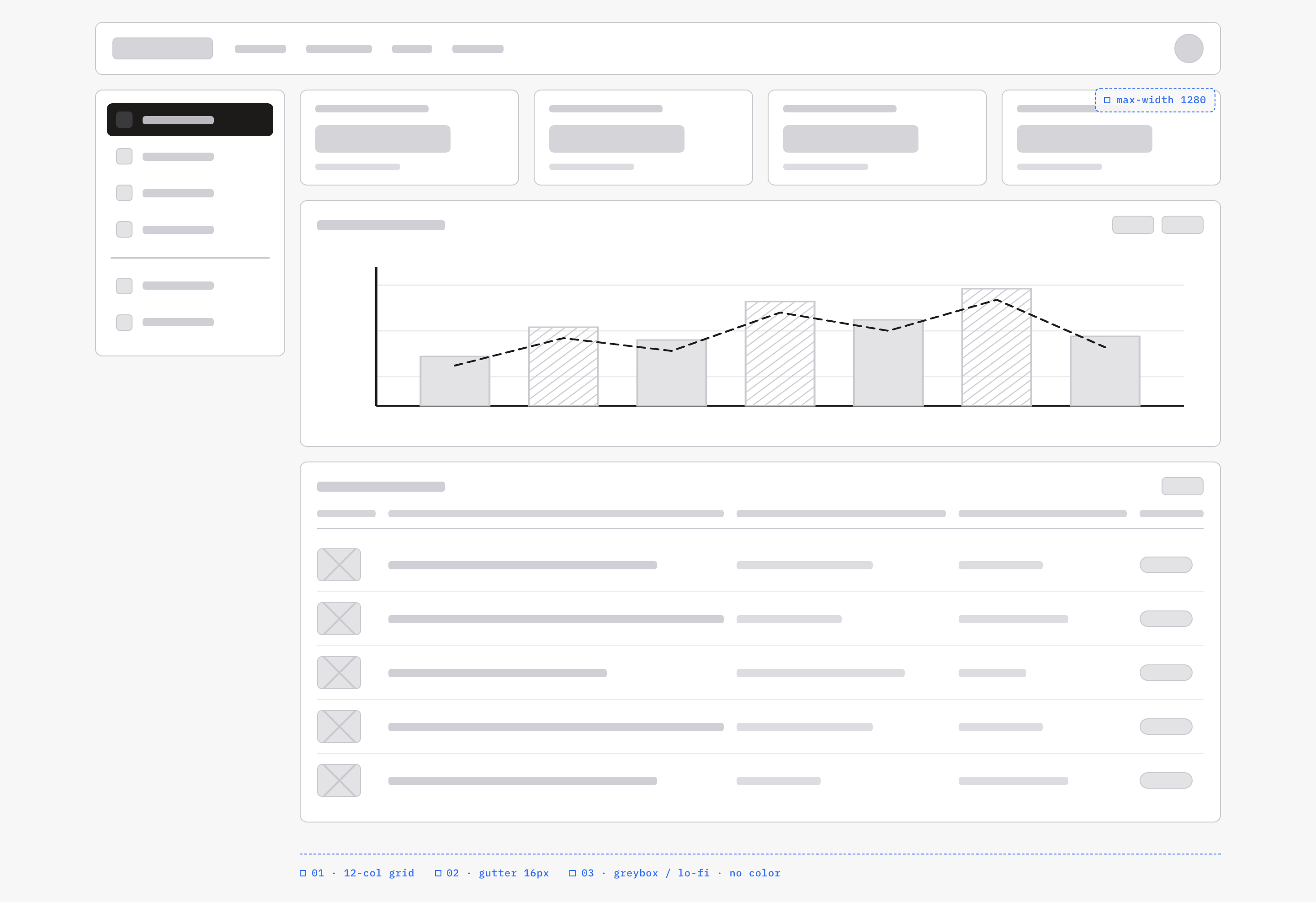
Analytics Dashboard Wireframe Design
An OpenDesign greybox dashboard maps an analytics workspace through a sidebar, four KPI placeholders, a schematic chart, five table rows and blue layout annotations.
Desktop app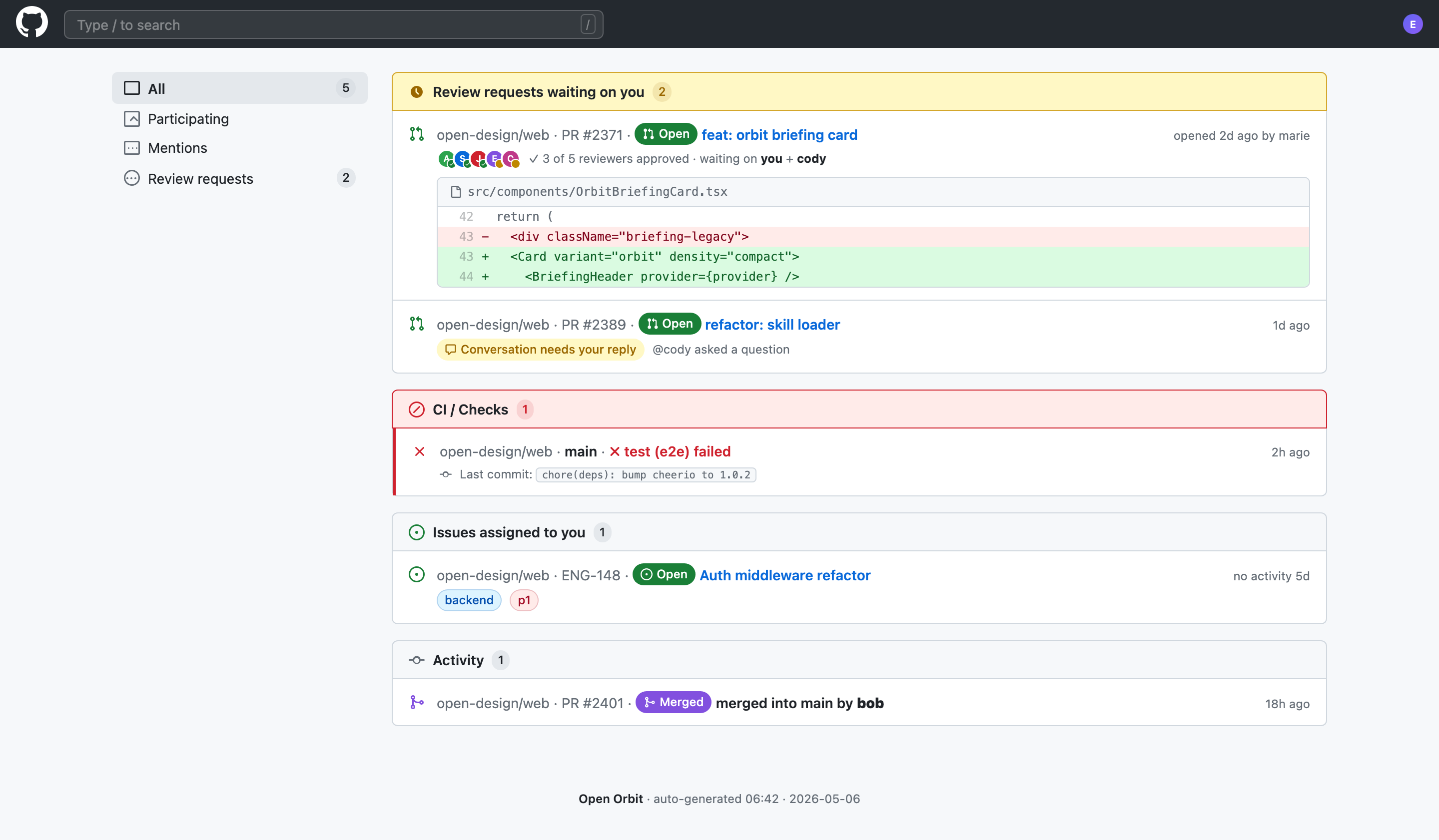
Code Review Inbox App Design
Code Review Inbox App Design brings review requests, CI failures, assigned issues, and activity into one scan-ready workspace for daily triage.
Desktop app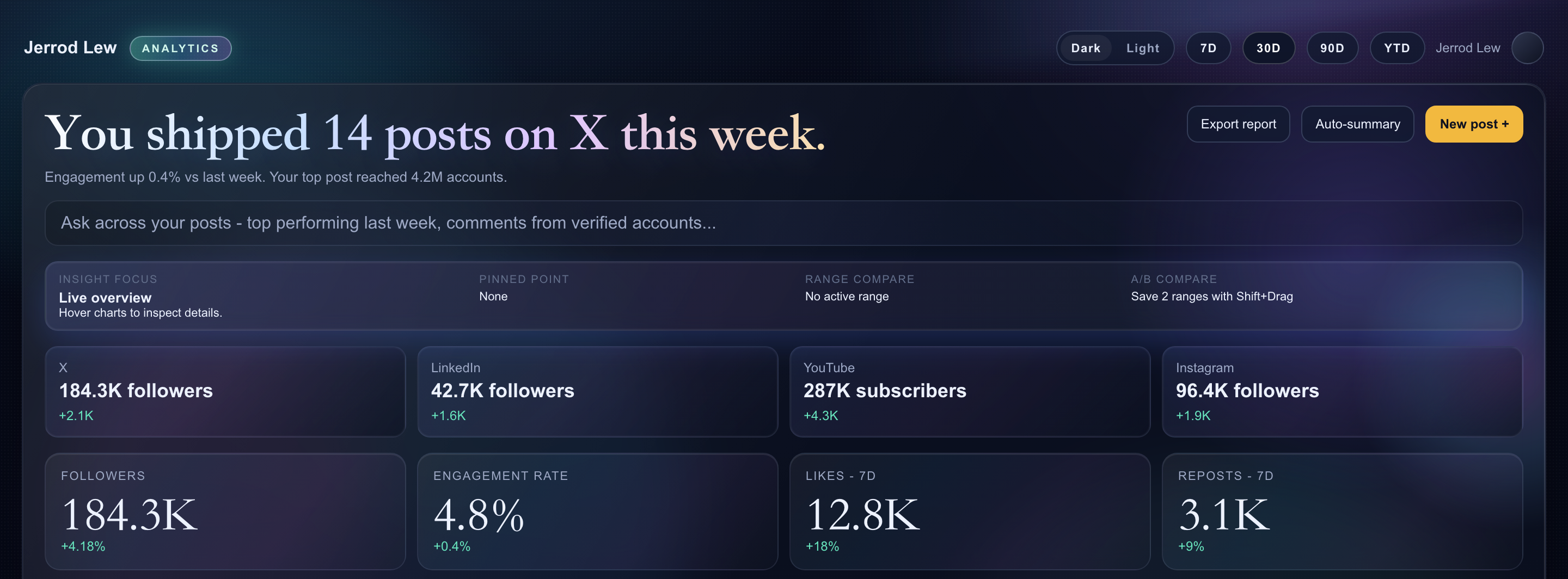
Content Performance Dashboard Design
A dark content dashboard connects platform snapshots with chart inspection, draft planning and a deeper view of audience and conversion signals.
Desktop app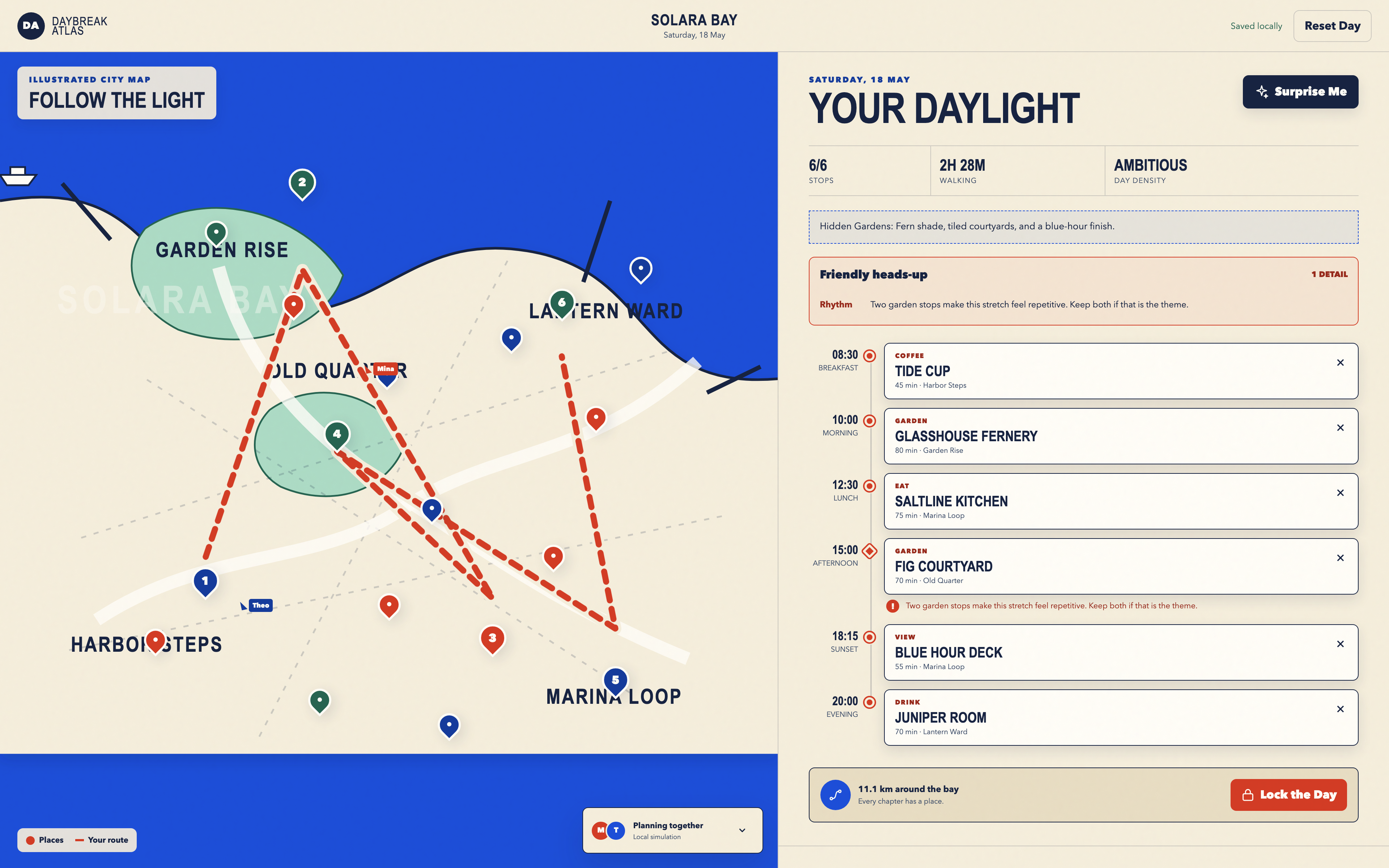
Day Trip Planner Design
Plan six timed stops in fictional Solara Bay, with an illustrated map, walking estimates and useful route warnings.
Desktop app