

Graphics
Team Meeting Notes Design
Team Meeting Notes Design turns a weekly Growth Squad agenda into a readable record of timing, decisions, ownership, open questions, and the next meeting.

Meeting Notes Use Cases
- Weekly Team MeetingsRecord agendas, decisions, owners, deadlines, and unresolved questions together.
- Growth SquadsKeep sprint checks, roadmap choices, and experiment follow-up in one document.
- Meeting FacilitatorsGive each discussion item a time slot, context, and visible completion state.
- Async Follow-UpMake the next meeting, pre-read, and pending decisions easy to find.
Meeting Record Highlights
- Timed AgendaSix agenda entries pair discussion context with start times and durations.
- Recorded DecisionsAgreements preserve conditions, ownership, and the next expected action.
- Action TableOwners, due dates, and status labels support quick follow-up.
- Next MeetingOpen questions and meeting logistics stay together at the end.
The Meeting Record, Section by Section
1 / 4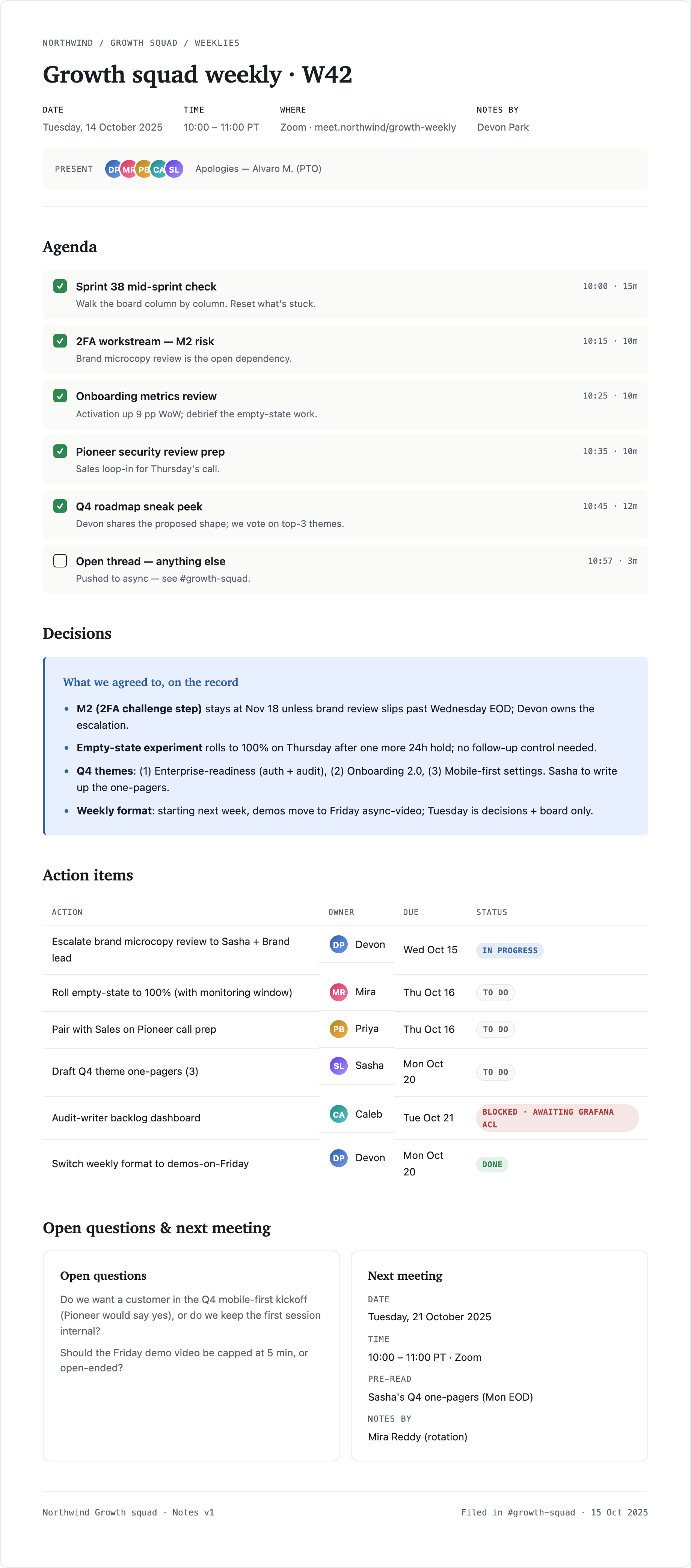
Growth Squad Weekly Meeting Notes
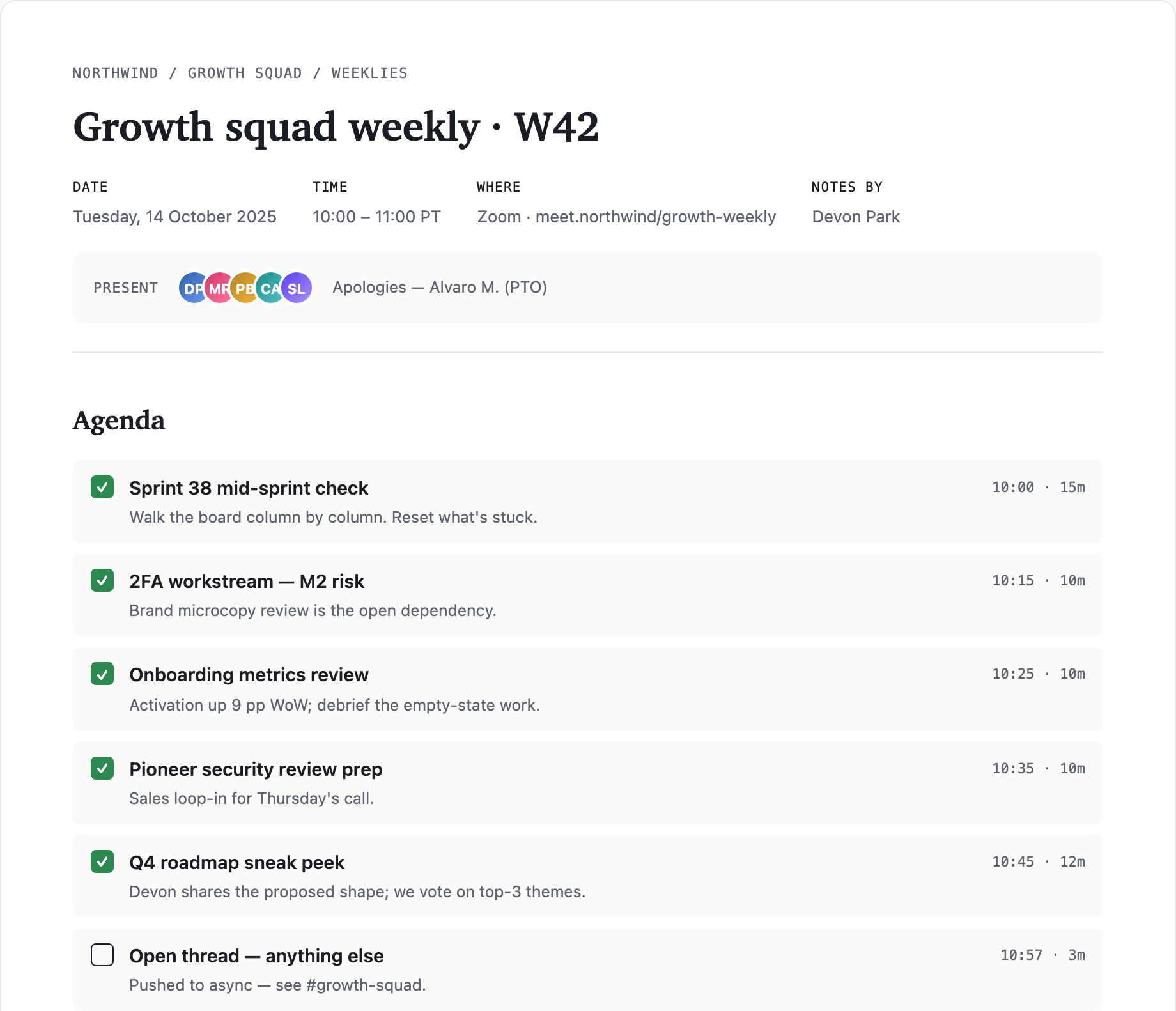
This design presents “Growth squad weekly · W42” as a structured record for a recurring team meeting. The page begins with the meeting identity, then moves through agenda, decisions, action items, and unresolved questions before closing with the next meeting details.
The opening metadata row names Tuesday, 14 October 2025, the 10:00 – 11:00 PT time window, the Zoom location, and Devon Park as the note-taker. That ordering answers when, where, and who documented the meeting before the reader reaches the discussion itself.
Meeting Records With Actionable Follow-Up
The document is designed around the transition from conversation to accountable follow-up. Agenda entries describe the intended discussion, the Decisions section records what was agreed, and the Action items table turns selected outcomes into assigned work.
The sample content makes that transition visible. “2FA workstream — M2 risk” identifies brand microcopy as an open dependency, while a later decision keeps the M2 date at Nov 18 unless review slips past Wednesday EOD. The related action assigns Devon to escalate the review by Wed Oct 15.
Before The Meeting
The agenda pairs titles such as “Sprint 38 mid-sprint check” with short prompts, including “Walk the board column by column. Reset what’s stuck.” Times such as 10:00 · 15m define the intended pace.
During The Meeting
The Decisions section preserves conditions and ownership, including the empty-state rollout after one more 24h hold and Sasha’s responsibility for the three Q4 theme one-pagers.
After The Meeting
Action rows expose work that can be scanned independently from the narrative, while the final section carries open questions, the pre-read, and the next note-taker.
From Agenda To Decisions To Owners
The page uses a single vertical reading order: Agenda, Decisions, Action items, then Open questions & next meeting. That sequence separates planned discussion from recorded outcomes and postpones future-facing questions until the current work is accounted for.
The agenda cards use a checked square for the first five entries and an empty square for “Open thread — anything else.” This visible state distinguishes scheduled or covered topics from the item pushed to async, while the right-aligned times keep the meeting rhythm scannable.
| Action | Owner | Due | Status |
|---|---|---|---|
| Escalate brand microcopy review to Sasha + Brand lead | Devon | Wed Oct 15 | In Progress |
| Roll empty-state to 100% (with monitoring window) | Mira | Thu Oct 16 | To Do |
| Audit-writer backlog dashboard | Caleb | Tue Oct 21 | Blocked · Awaiting Grafana ACL |
| Switch weekly format to demos-on-Friday | Devon | Mon Oct 20 | Done |
Decisions Preserve Conditions
The Decisions panel uses four concise bullets rather than a second table. This suits statements with dependencies: the M2 bullet includes a date and a review-slip condition, while the weekly-format bullet changes Tuesday into a decisions-and-board session and moves demos to Friday async-video. The blue inset panel distinguishes these recorded agreements from the agenda above.
That prose choice carries nuance that a simple status field would lose. Its tradeoff is that a reader cannot scan decision owners and deadlines as quickly as in the action table, so the design places explicit assignments in the following section.
Action Items Separate Four Fields
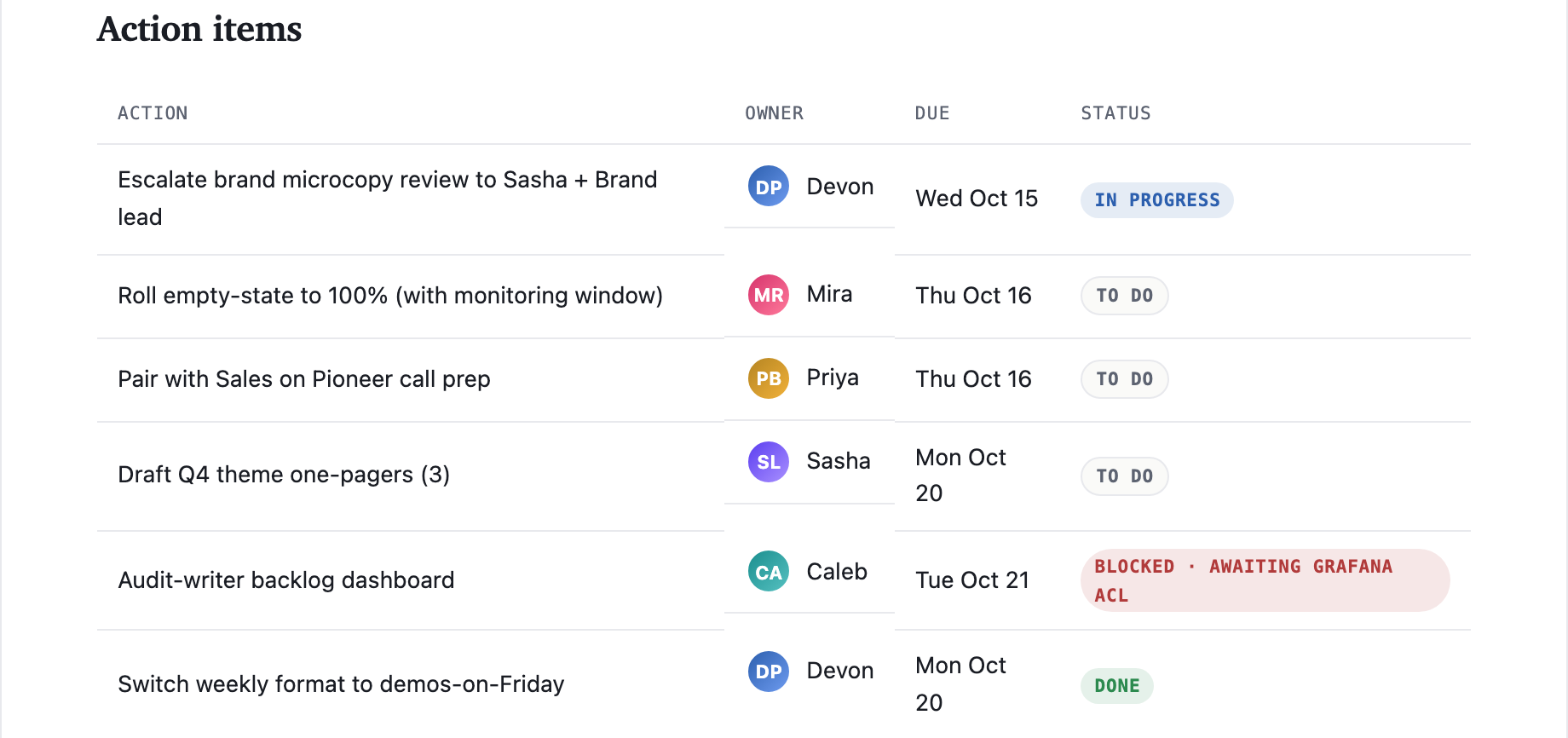
The action table is organized as Action, Owner, Due, and Status. In the supplied sample, Devon’s row is marked IN PROGRESS, Mira and Priya are TO DO, Caleb is BLOCKED · AWAITING GRAFANA ACL, and Devon’s format change is DONE.
The colored owner initials connect a person to each row without introducing a separate participant directory. Status pills emphasize state, but the table does not define the rules behind those states; they should therefore be read as recorded labels, not measured operational performance.
Open Questions And Next Meeting
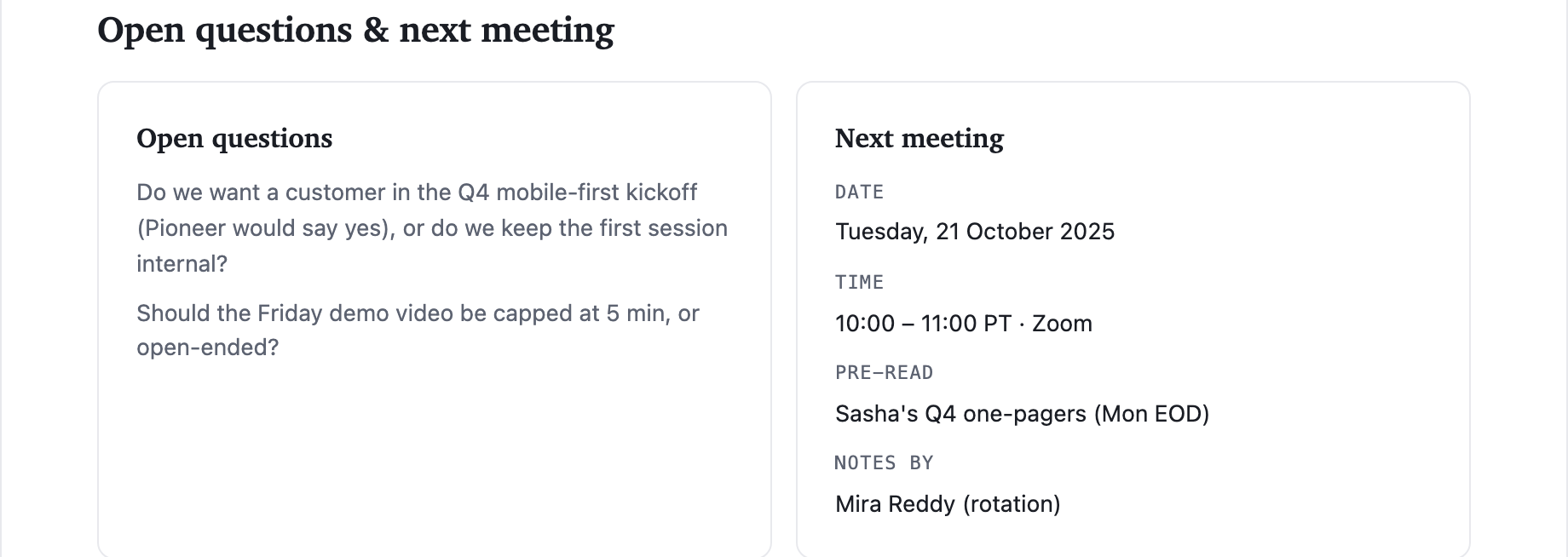
The final section divides future work into two equal columns: Open questions on the left and Next meeting on the right. The questions retain their full wording, including whether to invite a customer to the Q4 mobile-first kickoff and whether Friday’s demo video should be capped at 5 min.
The adjacent card gives Tuesday, 21 October 2025; 10:00 – 11:00 PT · Zoom; Sasha’s Q4 one-pagers as the pre-read; and Mira Reddy as the rotating note-taker. Keeping these fields beside the questions makes the next conversation concrete without mixing it into the current decisions.
Capability Boundary
This is a design example with illustrative names, figures, and meeting content. Its visible layout demonstrates how a meeting document can organize information; it does not establish a connected Zoom meeting, live status updates, stored records, or verified team performance.
How to Create Team Meeting Notes Design in OpenDesign
Set The Meeting Record
Start with a compact title, date, time, location, and note-taker row. Add an attendance line with present initials and any apologies, keeping the record’s context above the agenda.
Build The Decision Flow
Arrange the page as Agenda, Decisions, Action items, and Open questions & next meeting. Give agenda entries a time and duration, then write decisions as concise statements when they include conditions or ownership.
Suggested PromptCreate a meeting-notes design for a weekly growth squad with the title “Growth squad weekly · W42.” Use a metadata row for date, time, Zoom location, and note-taker; a timed agenda; a Decisions section; an Action items table with Action, Owner, Due, and Status; and a two-column ending for Open questions and Next meeting. Treat all names, figures, and meeting content as illustrative design data. Do not imply live Zoom access, connected storage, backend status updates, or verified performance.
Refine Ownership And States
Check that every action row keeps its owner, due date, and status visually distinct. Preserve longer action text such as “Roll empty-state to 100% (with monitoring window)” without hiding its qualifier, and use blocked-state wording when a dependency is part of the sample record.
Export and Get a Share Link
Export your finished design, then use Share in OpenDesign to get a share link. Open the link in a separate browser window and check that the intended version and its assets are available before sending it.
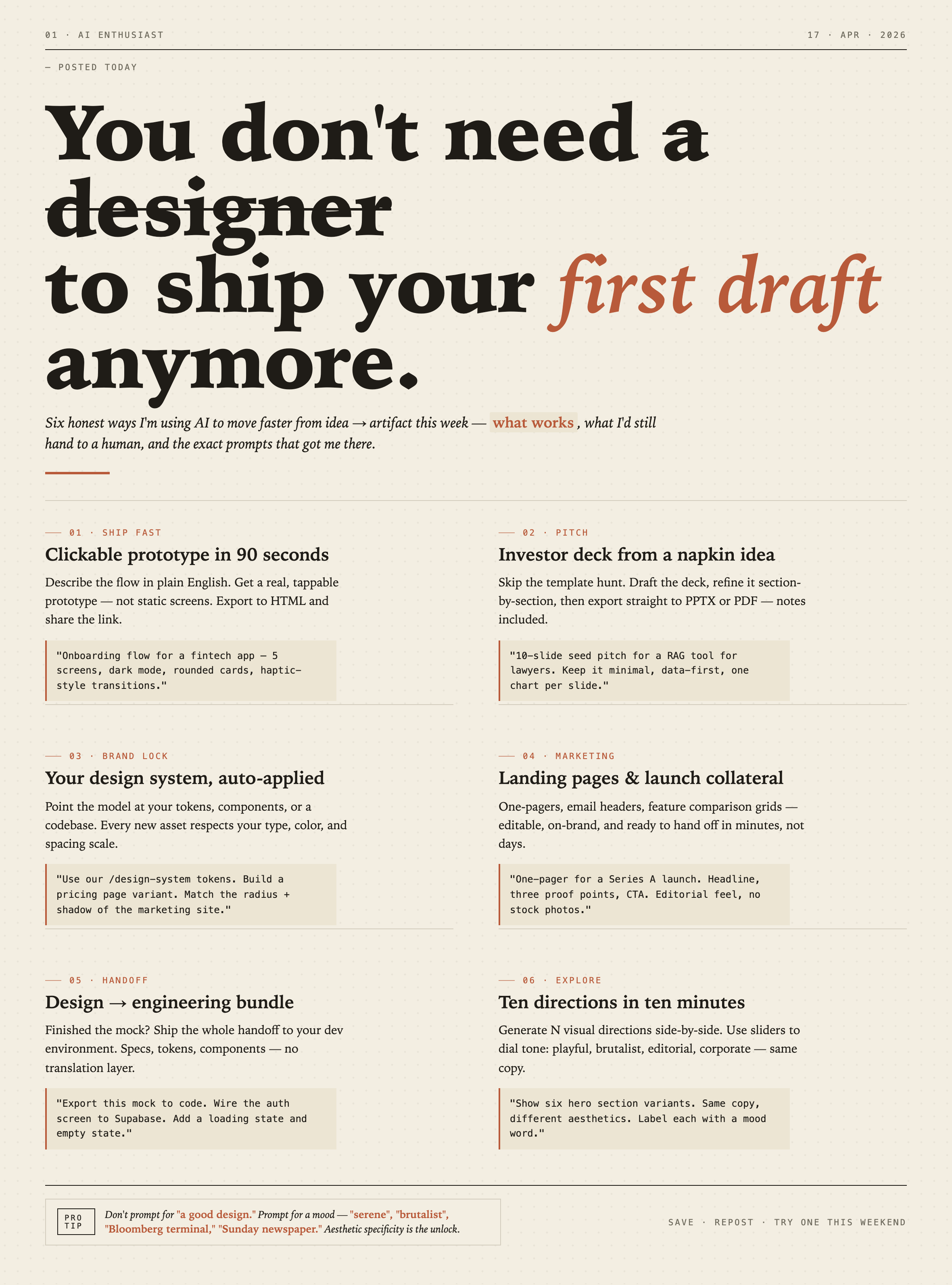
AI Workflow Editorial Poster Design
AI Workflow Editorial Poster Design presents six illustrated workflow claims with numbered chapters, concrete prompt specimens, and cream-and-rust typography.
Graphics
AI Workflow Social Carousel Design
Seven portrait cards use oversized Chinese headings, numbered habits, changing color fields, and a closing statement to explain AI editing workflows.
Graphics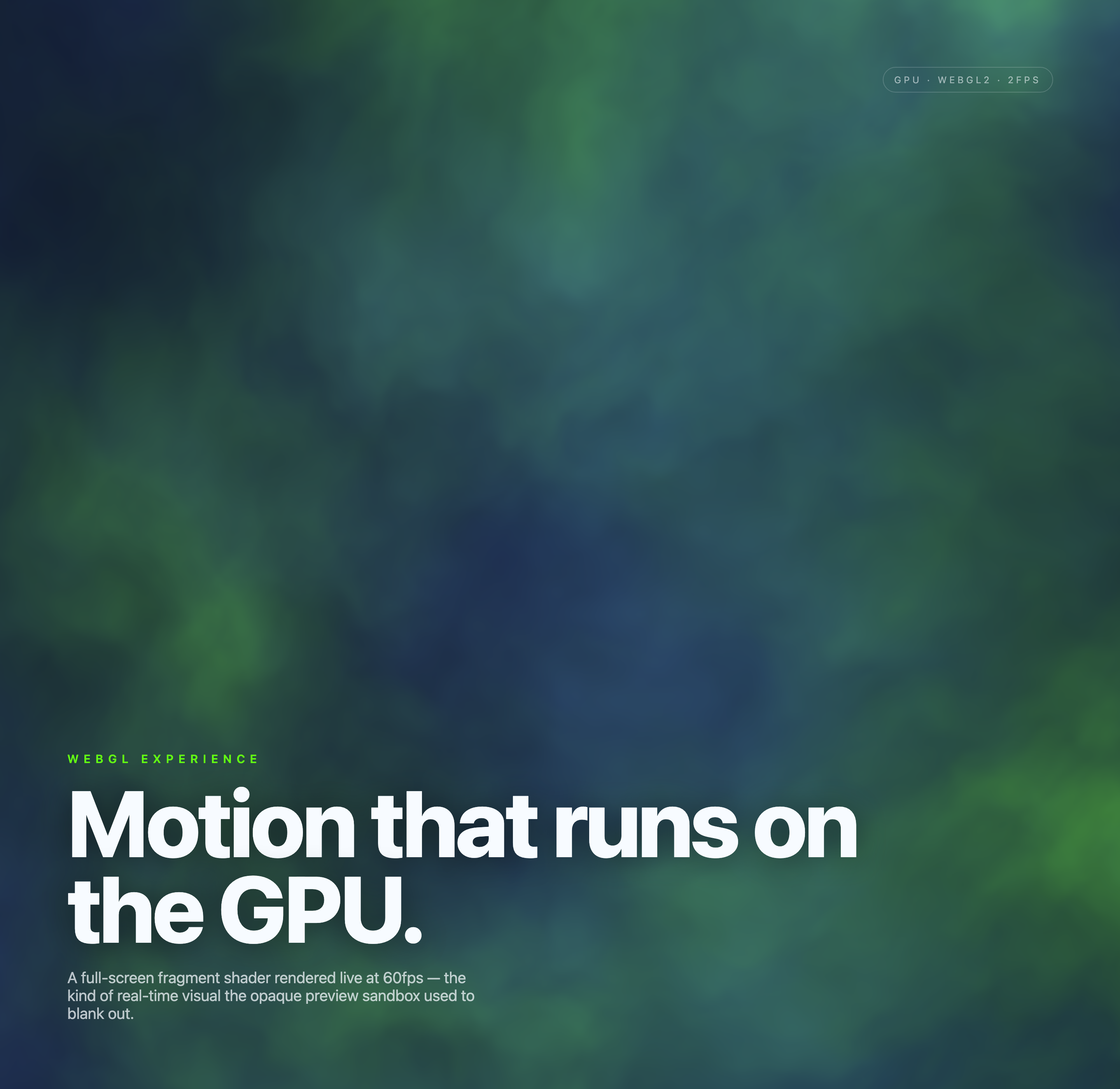
Aurora Field Shader Design
An automatically animated blue-green noise field gives a WebGL hero its atmosphere, while a fixed headline and small local frame-rate badge anchor the scene.
Graphics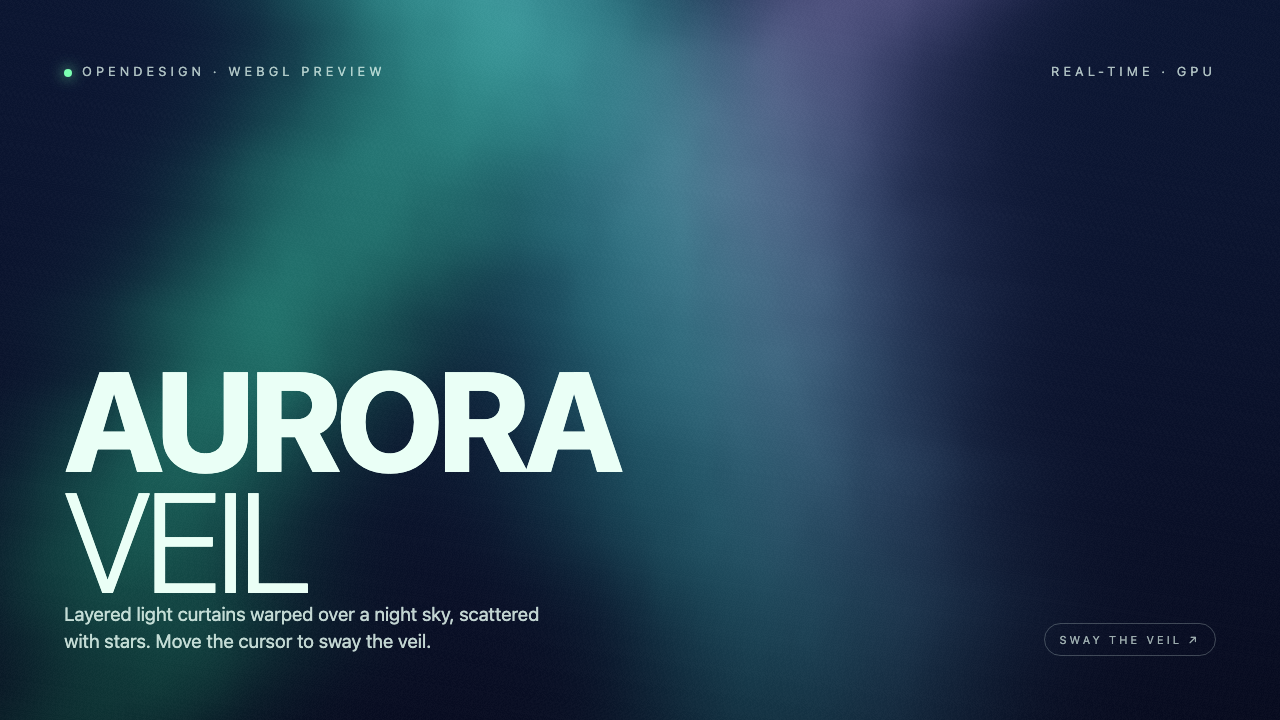
Aurora Veil Shader Design
Aurora Veil is an interactive shader composition that turns layered light, stars, and cursor motion into an atmospheric WebGL hero.
Graphics