

Desktop app
Trading Simulator Dashboard Design
Trading Simulator Dashboard Design combines signals, option-chain context, execution states and risk charts into one simulation workspace for review.

Trading Simulator Dashboard Use Cases
- Risk ReviewCompare exposure, beta, drawdown and concentration in one workspace
- Options AnalysisRead contracts, premiums, sweeps and Greek sensitivity together
- Execution WalkthroughsFollow signal, risk check, order and fill states sequentially
- Trading Interface StudyStudy dense desktop information architecture and chart composition
Simulation Workspace Design Highlights
- Signal SummaryAlpha Pulse pairs Long Bias with confidence and expected move
- Execution StatesSignal, Risk Check, Order and Fill form a visible sequence
- Risk CockpitVAR, beta, exposure, drawdown and concentration share one panel
- Scenario ControlsDemo speed, market mode and risk posture remain close at hand
The Trading Workspace, Panel by Panel
1 / 4
Trading Simulator Dashboard Design
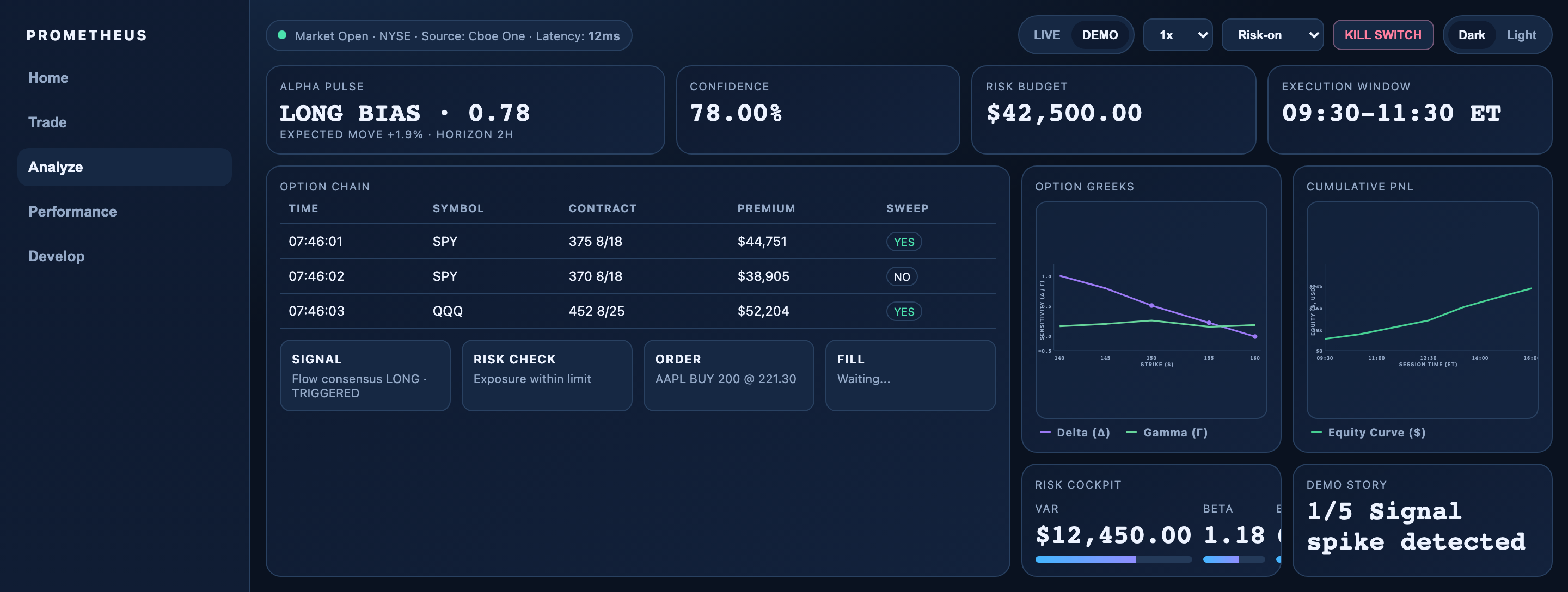
Prometheus is an official OpenDesign desktop-app example for studying a trading risk and execution simulator. Its visible workspace combines market context, scenario controls, signal summaries, an option-chain table, execution states, charts and a risk cockpit. The design presents these elements as a single analytical surface rather than separate pages.
The top status bar places Market Open · NYSE · Source: Cboe One · Latency: 12ms beside LIVE and DEMO controls, playback speeds, a Risk-on selector, KILL SWITCH, and Dark or Light modes. This ordering establishes operating context before the reader reaches the metrics. These are sample status labels; the source opens in its local DEMO mode and does not connect to a market feed or broker.
The four-panel summary starts with Alpha Pulse at LONG BIAS · 0.78 and Expected Move +1.9% · Horizon 2h, followed by Confidence at 78.00%, Risk Budget at $42,500.00 and Execution Window at 09:30–11:30 ET. Those are authored initial values in the capture; synthetic timer updates can change several of them. The row distinguishes direction, confidence, budget and time without defining a real calculation or validated strategy.
Market Context
The status strip frames the dashboard with market, source, latency and mode labels before analysis begins.
Decision Context
Alpha Pulse, confidence, budget and execution window describe different dimensions of the same simulated scenario.
Reading The Composition
The supplied CSS describes a wider hero arrangement of 1.4fr 1fr 1fr 1fr, while lower two-column areas use equal tracks before the responsive layout collapses to one column. Visually, this gives the primary signal and data area more room than supporting metrics, then lets charts and risk summaries sit beside one another. The result favors scanning across related evidence, but narrow screens require a different reading order.
Risk And Options Review
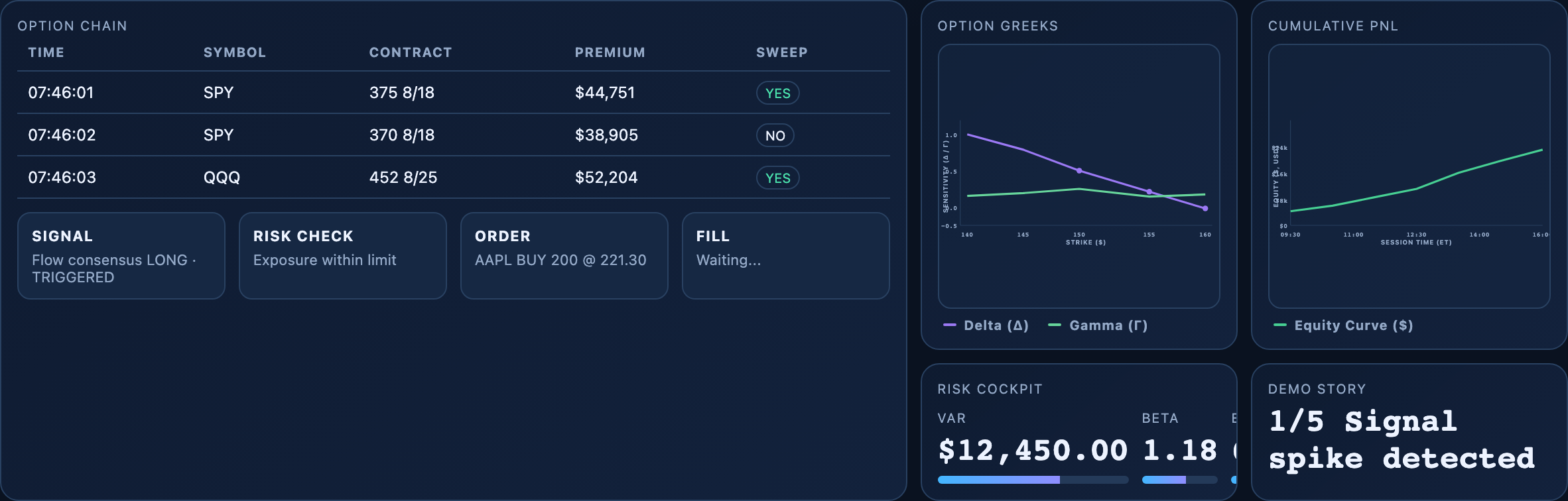
This design is useful when the reader needs to move from a signal to its surrounding risk context without losing the original scenario. The option-chain table begins with Time, Symbol, Contract, Premium and Sweep. Its three visible sample rows move from SPY at 07:46:01 and 07:46:02 to QQQ at 07:46:03, making time ordering and symbol grouping immediately legible.
The table does more than display values: the Sweep column separates YES and NO states from the contract and premium fields. That distinction helps a reader compare an event marker with the financial-looking sample amount rather than treating every cell as the same kind of data. Because the rows are illustrative, the interface demonstrates the relationship between fields, not a trustworthy market conclusion.
To the right, Option Greeks plots Delta and Gamma against Strike ($), while Cumulative PNL plots an Equity Curve ($) against Session Time (ET). The different axes make the charts complementary: one describes sensitivity by strike, and the other presents an equity trajectory over the session. Their compact placement supports side-by-side comparison, though the small chart area leaves little room for definitions or interaction guidance.
The lower execution strip makes state progression concrete. Signal reads “Flow consensus LONG · TRIGGERED”, Risk Check reads “Exposure within limit”, Order reads “AAPL BUY 200 @ 221.30”, and Fill reads “Waiting...”. The sequence lets a reader distinguish an alert, a risk judgment, an order description and an unfinished fill state. It proposes a workflow visually, but the capture does not prove that an order was sent or filled.
Option Chain
Time, symbol, contract, premium and sweep create a compact row model for comparing simulated flow events.
Execution Sequence
Signal, Risk Check, Order and Fill separate intent, constraint, action and completion state.
Chart Pair
Delta and Gamma use strike context, while the equity curve uses session time context.
From Signal To Workspace State
The navigation rail lists Home, Trade, Analyze, Performance and Develop, with Analyze styled as selected. These buttons have no routing or click handlers in the supplied source, so the rail establishes the intended information architecture rather than five working destinations. The local analytical interactions occur within the single captured workspace.
Risk-on, Vol Crush and Panic are real local select options. Scenario changes trigger synthetic metric updates, while demo speed changes the timer cadence. The five-stage demo begins automatically and moves from signal detection through a sample fill to telemetry updates. Its numbers use local random variation, not incoming trades or prices; selecting LIVE stops the demo timers and marks the story Idle rather than opening a market connection.
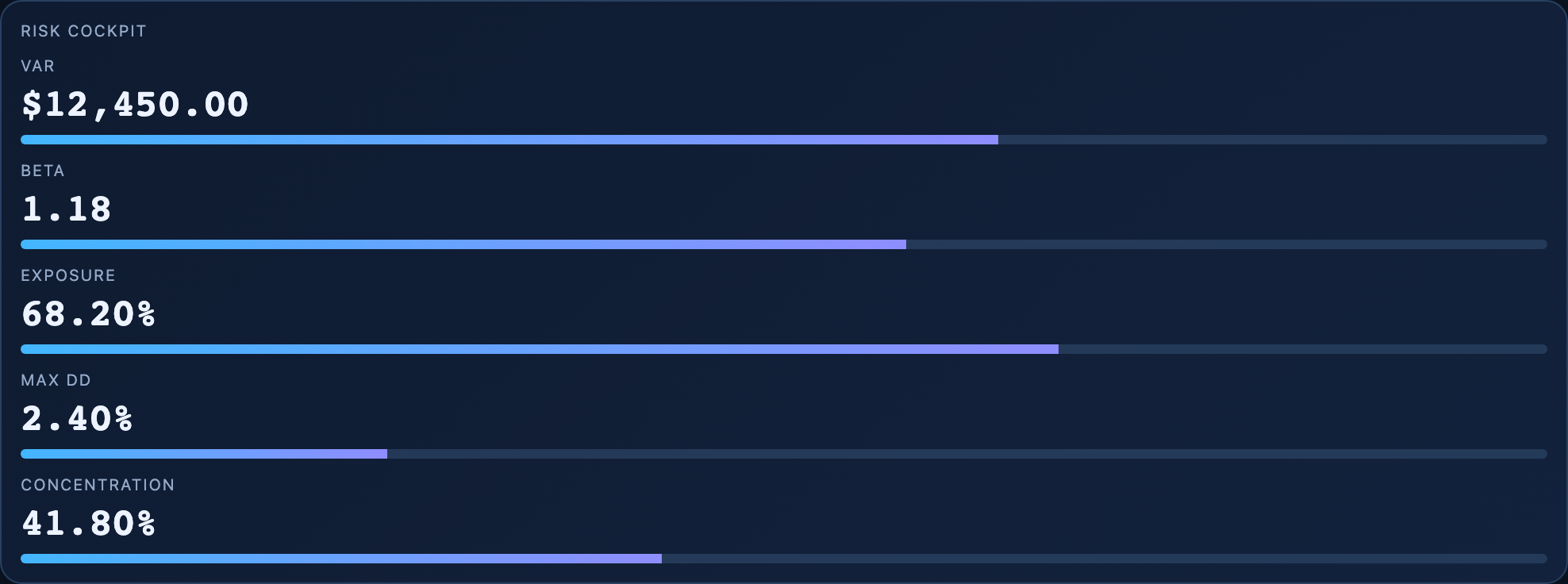
The source markup defines five Risk Cockpit measures: VaR $12,450.00, Beta 1.18, Exposure 68.20%, Max DD 2.40% and Concentration 41.80%. In the captured wide layout, the small card clips the later columns, so those five fields cannot all be read from the screenshot. They remain distinct from risk budget and confidence, but the source supplies neither a reconciled risk model nor enough desktop room for the full row.
The screenshot catches Demo Story at 1/5 Signal spike detected while Fill still reads Waiting. Later local demo steps show Risk checks passed, Order routed, Fill confirmed and PnL + telemetry updated. This progression makes the simulation inspectable, but even the Filled @ 221.31 label is authored sample state rather than evidence that a broker executed an order.
1. Choose A Scenario
Use the visible Risk-on, Vol Crush or Panic labels and DEMO context to frame the scenario being examined.
2. Read The Signal
Start with Alpha Pulse, confidence, expected move and horizon before inspecting the option-chain rows.
3. Check Constraints
Compare the Risk Check state with the separate Risk Cockpit measures instead of treating one value as a complete risk assessment.
4. Follow Execution
Read Signal, Risk Check, Order and Fill in order. Compare the initial Waiting label with the later synthetic fill state without treating either as a broker event.
A Deliberate State Boundary
Waiting describes the captured opening moment, not the last implemented state. The local timed sequence eventually replaces it with a sample fill and repeats. Preserve the distinction between a prototype changing its DOM labels and a service confirming an actual trade; neither the generated numbers nor the simulated fill constitute investment evidence.
Capability Boundary
This bundled prototype implements a five-stage timed demo, random metric updates, scenario and speed controls, chart cursor/focus interactions, a slash-command palette, theme switching and a confirmation-based kill action. Its LIVE button stops the local timers; no code opens a market feed or sends an order. Demo prices, signals, fill labels and equity movement are illustrative simulation states, not investment advice, executed trades or measured returns.
The theme code attempts best-effort localStorage, which can be unavailable in the isolated sandbox. The kill action changes status text after confirmation, rather than cancelling real orders or synchronizing the numeric exposure field. Chart hovering displays normalized cursor coordinates, not a market tooltip. Any adaptation must supply real definitions, service boundaries and consistent state handling; the current wide Risk Cockpit also needs layout work to expose all five fields.
What The Artifact Teaches
The case is most valuable as an information-architecture study. It demonstrates how market context, signal interpretation, risk measures and execution state can share one desktop workspace. Its limitation is equally instructive: dense values become more trustworthy only when their definitions, provenance and state rules are supplied separately.
How to Create Trading Simulator Dashboard Design in OpenDesign
Define The Workspace Model
Create a desktop analysis surface with a navigation rail, market-context strip, four summary metrics, an option-chain table, execution-state cards, two explanatory charts and a risk cockpit. Keep sample data visibly illustrative and do not imply connected trading services.
Suggested PromptCreate a desktop trading simulator dashboard design with a left navigation rail for Home, Trade, Analyze, Performance and Develop; a top market-context bar with DEMO and speed controls; summary panels for Alpha Pulse, Confidence, Risk Budget and Execution Window; an option-chain table with Time, Symbol, Contract, Premium and Sweep; Signal, Risk Check, Order and Fill states; Delta/Gamma and Equity Curve charts; and a risk cockpit. Use sample data only and make no claims about live feeds, executed trades, storage or returns.
Refine The Reading Order
Keep the four summary panels ahead of the option-chain and execution area, then place the Greek and equity charts beside the risk cockpit. Check that the wider primary area still carries the table and state sequence without making supporting measures unreadable.
Check State And Data Meaning
Preserve explicit distinctions between signal, risk check, order and fill. Label illustrative values, define the relationship between confidence, budget and risk measures, and ensure that Waiting... cannot be mistaken for a completed execution.
Export and Get a Share Link
Export your finished design, then use Share in OpenDesign to get a share link. Open the link in a separate browser window and check that the intended version and its assets are available before sending it.
Analytics Dashboard Wireframe Design
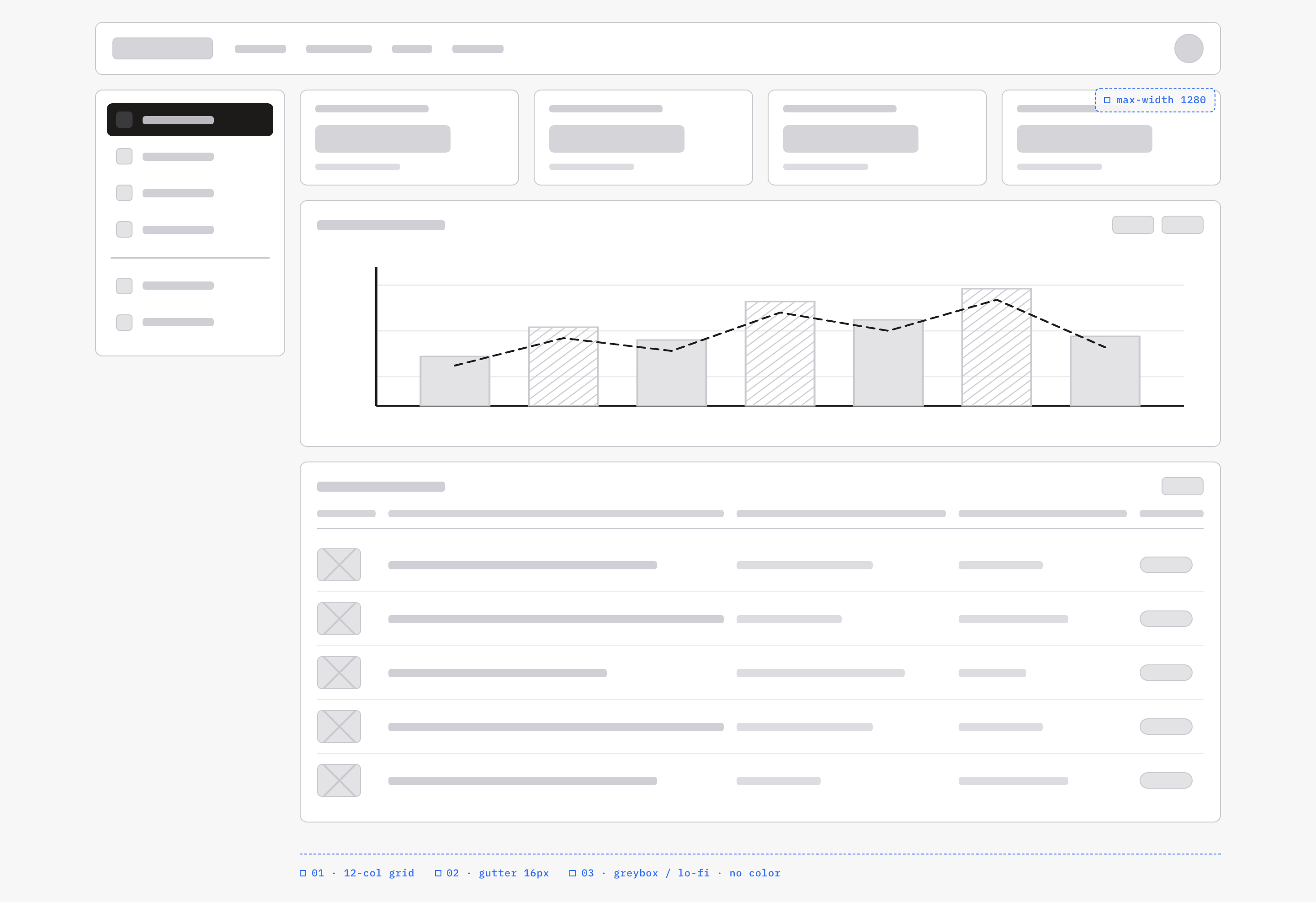
An OpenDesign greybox dashboard maps an analytics workspace through a sidebar, four KPI placeholders, a schematic chart, five table rows and blue layout annotations.
Desktop app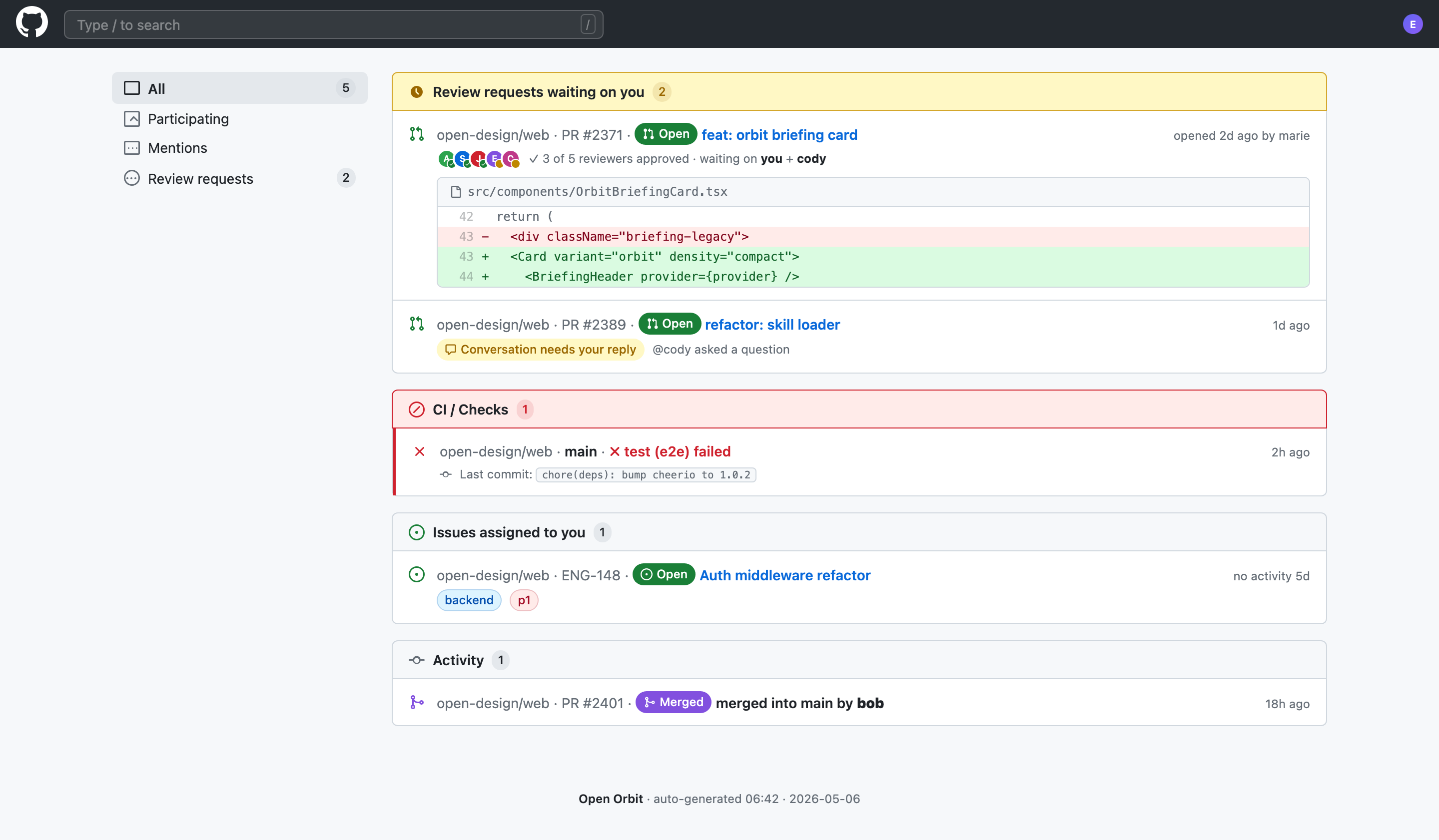
Code Review Inbox App Design
Code Review Inbox App Design brings review requests, CI failures, assigned issues, and activity into one scan-ready workspace for daily triage.
Desktop app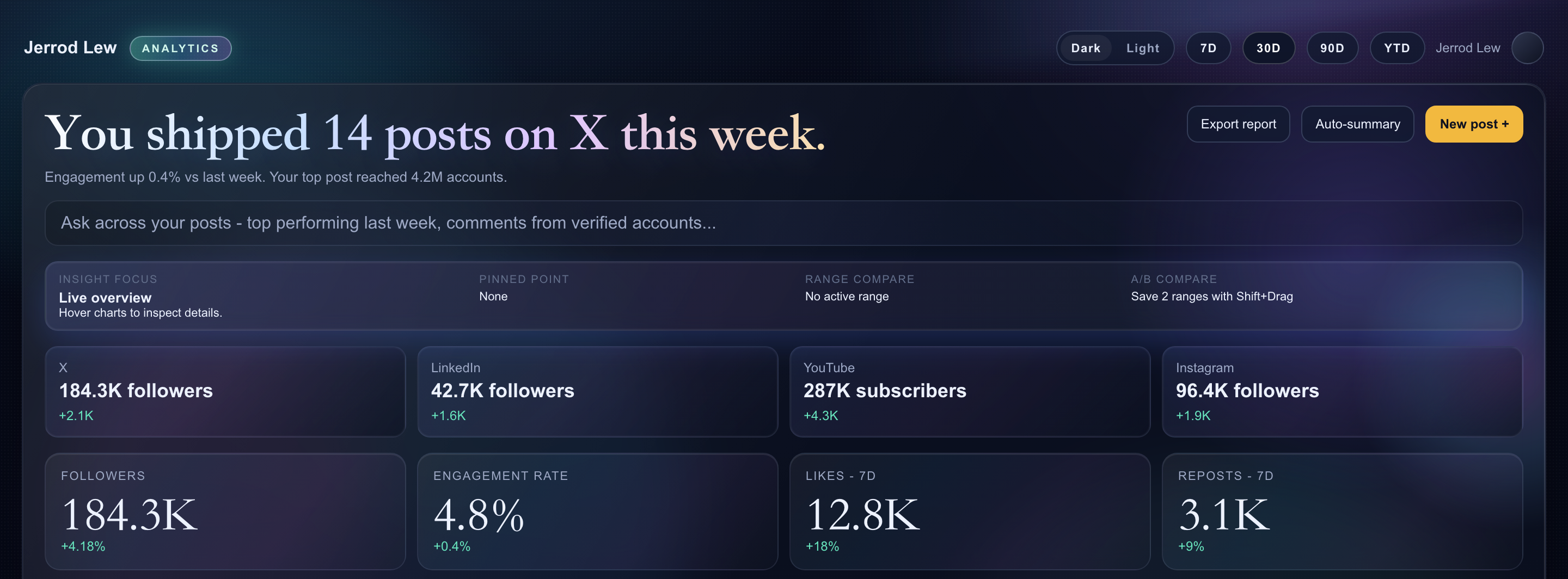
Content Performance Dashboard Design
A dark content dashboard connects platform snapshots with chart inspection, draft planning and a deeper view of audience and conversion signals.
Desktop app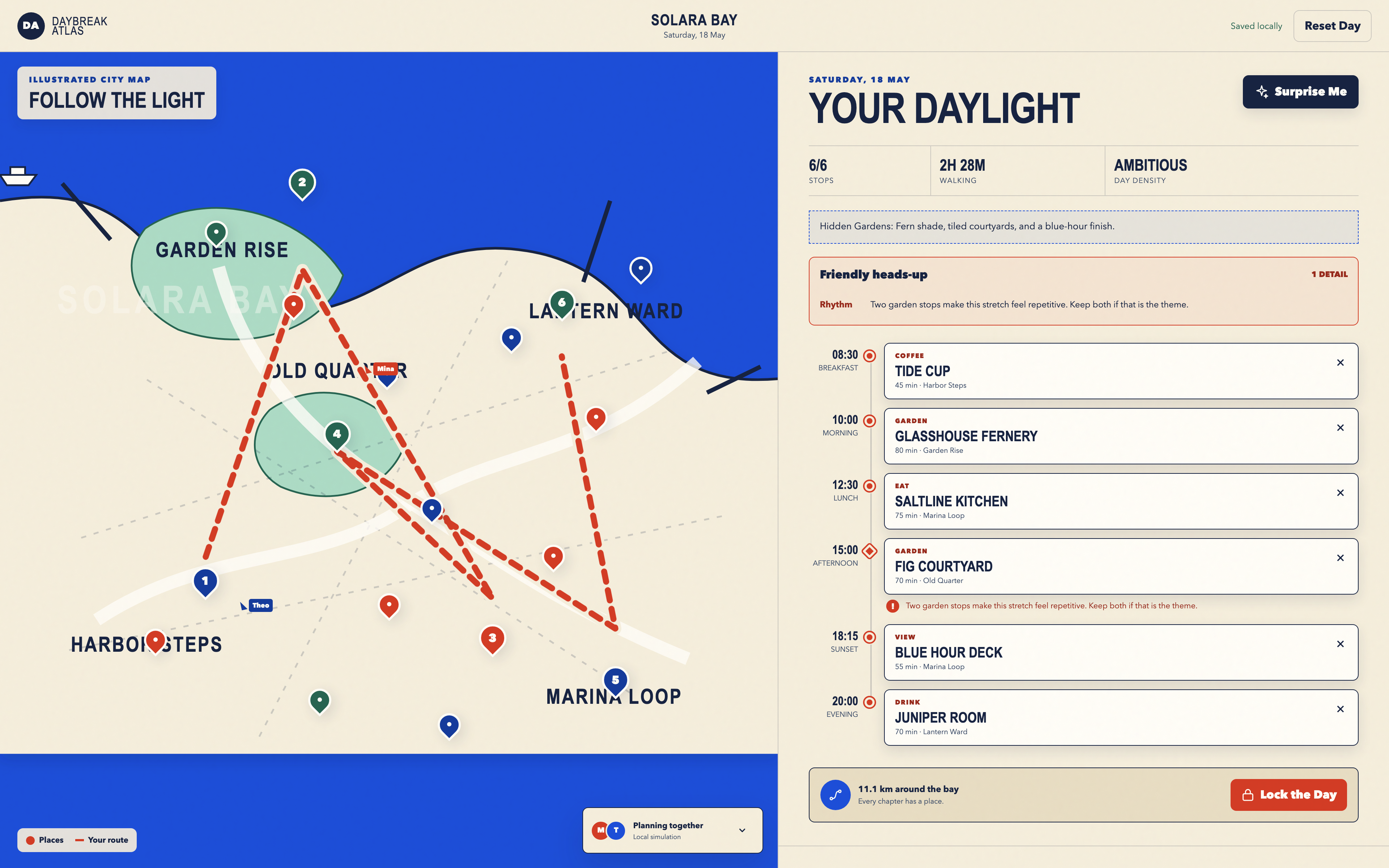
Day Trip Planner Design
Plan six timed stops in fictional Solara Bay, with an illustrated map, walking estimates and useful route warnings.
Desktop app