

Motion
Usage Reset Motion Video Design
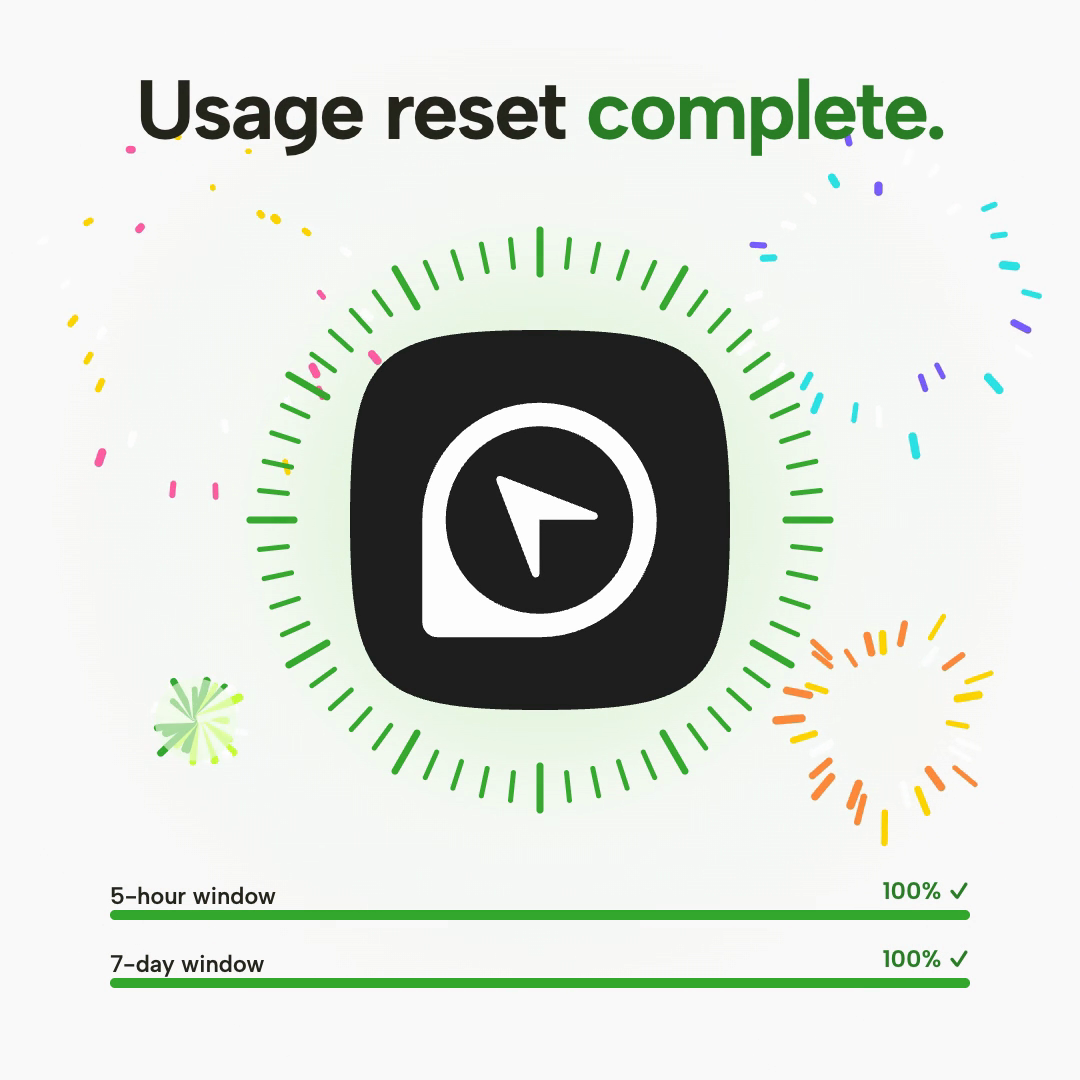
A six-second square OpenDesign motion video pairs a radial tick ring with two labeled progress bars, then settles into a green completed state.

Design Ideas for
- Product Status AnimationsShort square clips that show a process moving from in-progress to finished.
- Progress and Confirmation VisualsScenes that need a clear before, after and final held state.
- Square Social Motion VideosCompact 1:1 pieces that stay readable while the artwork changes.
Motion Video Highlights
- Radial Ring Plus Two BarsCircular ticks carry the mood while the bars carry the readable percentages.
- Five Logo Treatments, One LayoutThe logo cycles through painted, sketch, halftone, vaporwave and graffiti looks without moving the labels.
- Completion at About Three SecondsThe heading, ring, checkmarks and confetti change together, then the clip holds.
Usage Reset Motion Video Preview
How the Square Frame Is Organized
The Usage reset video uses a centered, three-tier composition. A bold heading sits at the top, a rounded-square OpenDesign logo occupies the middle, and two horizontal bars fill the lower band. Everything is centered or edge-aligned inside generous margins, which suits a 1080x1080 frame.
| Zone | What Is Visible | Design Effect |
|---|---|---|
| Heading | Usage reset, later Usage reset complete. with green emphasis | The same position carries both the task and the result, so the change is read instantly. |
| Center | Logo inside a ring of small tick marks | The ring gives the eye a circular motion path around a stable logo shape. |
| Lower Band | Bars labeled 5-hour window and 7-day window | Plain left-aligned labels and right-aligned percentages stay readable under any logo style. |
From Partial Bars to a Held Completion
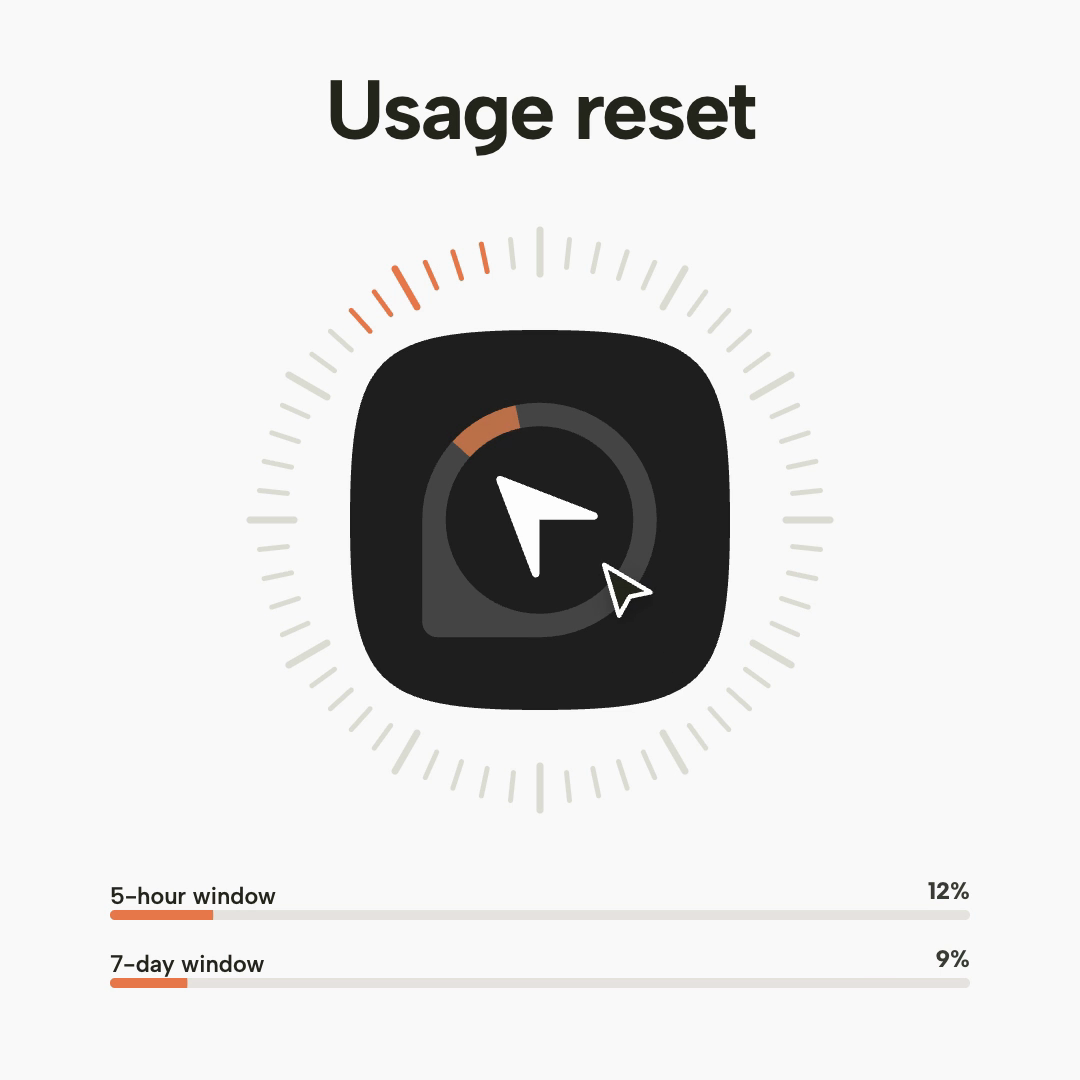
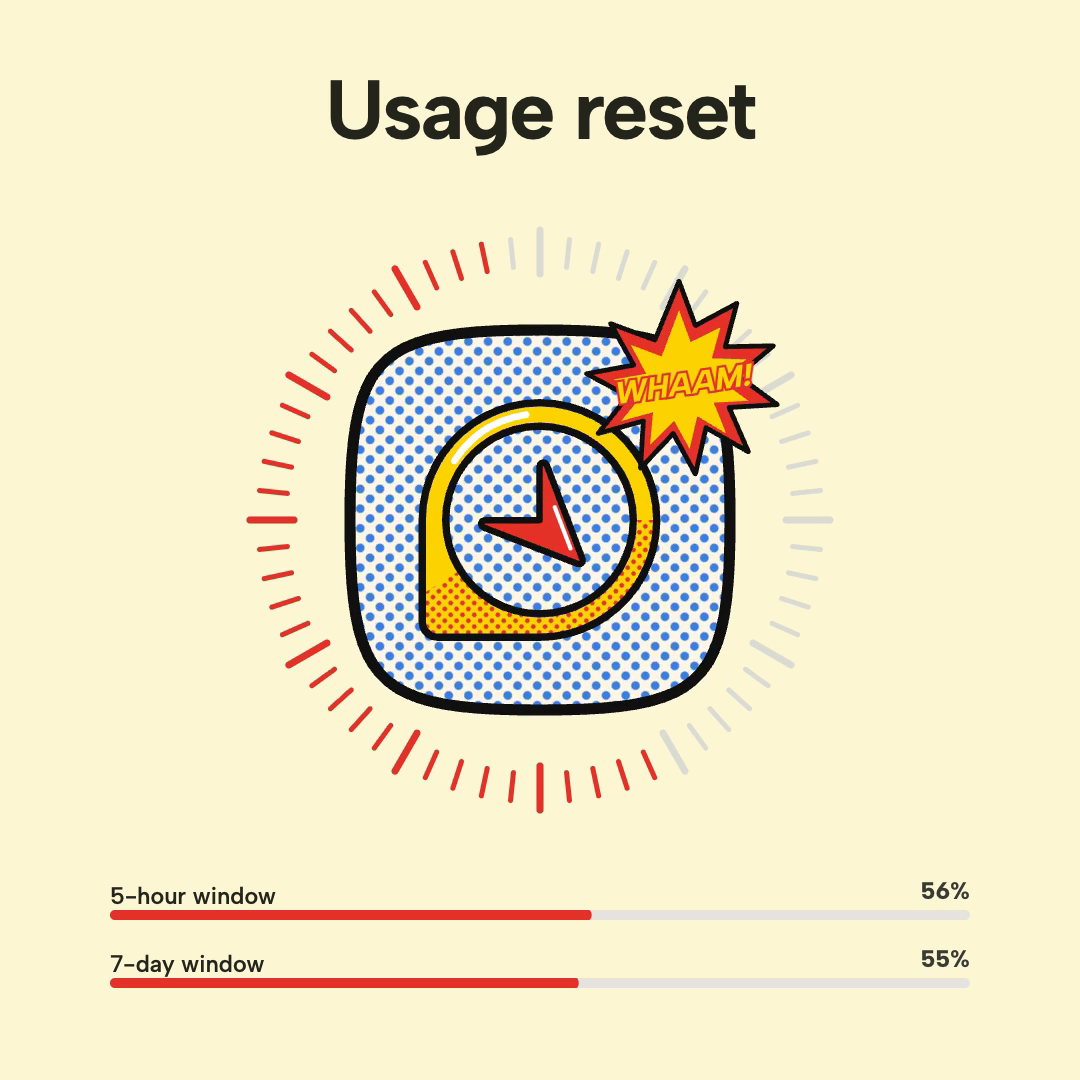
Early frames show different percentages. In the first frame the bars read 12% and 9%; in the pop-art frame they read 56% and 55%. By the final state both read 100%. The mismatched values keep the two bars distinct before they converge.
Start Neutral
A light background, dark logo and orange accents establish the baseline with the lowest percentages.
Cycle the Styles
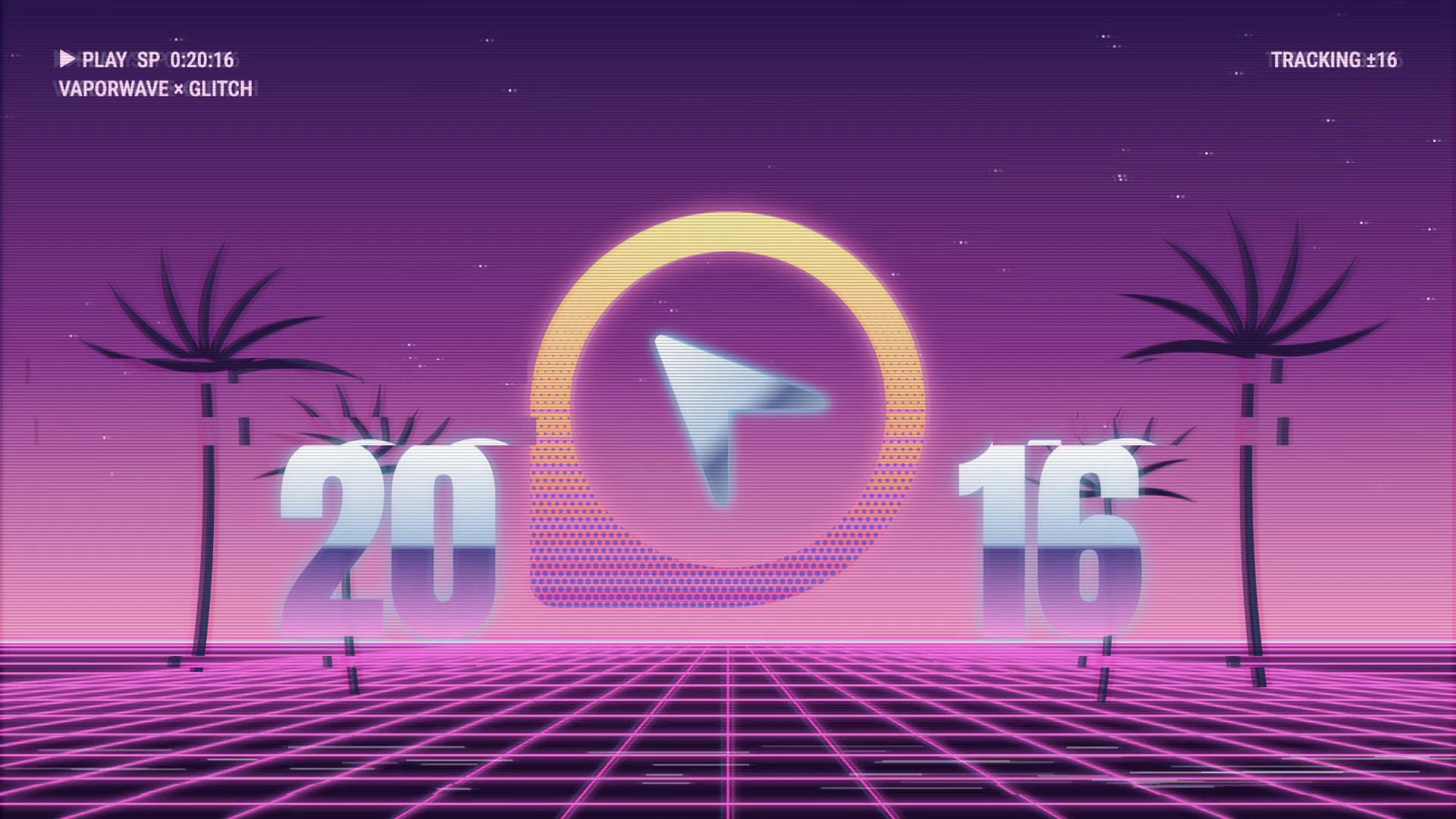
The logo changes through painted blue and yellow, monochrome sketch, halftone comic pop art, vaporwave neon and graffiti colors while the ring keeps advancing.
Resolve and Hold
Around three seconds the heading turns to complete, the ring and bars go green, checkmarks appear, confetti bursts briefly, and the remaining time holds still.
Changing Styles Without Moving the Layout
The pop-art frame is the loudest moment: a blue halftone logo, yellow outline, red hand and a WHAAM! burst, on a cream background with red ticks and bars. Yet the heading, ring diameter and bar positions match the opening frame.
Color Follows State
Orange and red accents belong to in-progress frames; green is reserved for completion, so color alone also signals the outcome.
Tradeoff: Spectacle Versus Reading
Busy artwork in the center is acceptable because the numbers live in a separate, uncluttered band. A burst overlapping the ring edge would be the first thing to trim in a quieter version.
Radial Ticks Versus Linear Bars
The ring and the bars are doing different jobs. The ring is atmospheric: many small ticks, some longer, light up around the logo and give the clip momentum. It has no numbers. The bars are exact: each has a name and a percentage.
Using both lets the animation feel energetic while still letting a viewer compare two values at a glance. The cost is that the ring could be mistaken for a third measure, so keeping it unlabeled and decorative matters.
Completion Confirmation and Quiet Ending
The final frame confirms success in several redundant ways: green heading emphasis, a fully green tick ring, 100% with checkmarks on both bars, and confetti in pink, cyan, yellow, orange and violet. Confetti is a short burst rather than a sustained effect, so the last seconds are calm.
A soundtrack accompanies the video; no further audio details are asserted here.
Scope of This Illustration
This is an illustrative rendered animation by OpenDesign. The windows and percentages are creative content, not a working quota reset, a statement of actual reset policy or current limits. Adaptations should keep that distinction, especially if the labels are replaced with real figures.
How to Create Usage Reset Motion Video Design in OpenDesign
Set the Square Frame and Safe Margins
Define a 1080x1080, 6-second composition with a top heading, a central logo-and-ring zone and a lower band for two bars. Keep wide side margins so labels and percentages never touch the edge.
Prompt the Sequence
This is a proposed recreation prompt, not a recovered original one.
Suggested PromptCreate a 6-second, 1080x1080 motion video titled Usage reset. Center a rounded-square logo inside a radial ring of small tick marks. Below it, add two horizontal progress bars labeled 5-hour window and 7-day window, with percentages right-aligned. Start at low, different values, advance the ring, and cycle the logo through painted, monochrome sketch, halftone pop art, vaporwave and graffiti looks without moving the heading, ring or bars. At about 3 seconds, change the heading to Usage reset complete. with green emphasis, turn the ring and bars green, show 100% with checkmarks, add a brief confetti burst, then hold still. Keep all content illustrative; do not present it as real quota behavior. Include a soft soundtrack.
Review Readability and Reduce Flashing
Check that labels stay legible in every style and the final hold lasts long enough to read. For a gentler version, slow the style changes, shrink the burst graphic, shorten confetti and avoid rapid full-frame color swaps.
Export and Get a Share Link
Export your finished design, then use Share in OpenDesign to get a share link. Open the link in a separate browser window and check that the intended version and its assets are available before sending it.
Art History Logo Motion Video Design
A 15-second 16:9 OpenDesign film keeps one circular cursor logo recognizable through fast art-history-inspired looks, then ends on a still white-on-black logo.
Motion
Community Milestone Motion Video Design
A 30-second OpenDesign motion video moves from a 100K star reveal to a contributor mosaic, a product montage and a closing prompt invitation.
Motion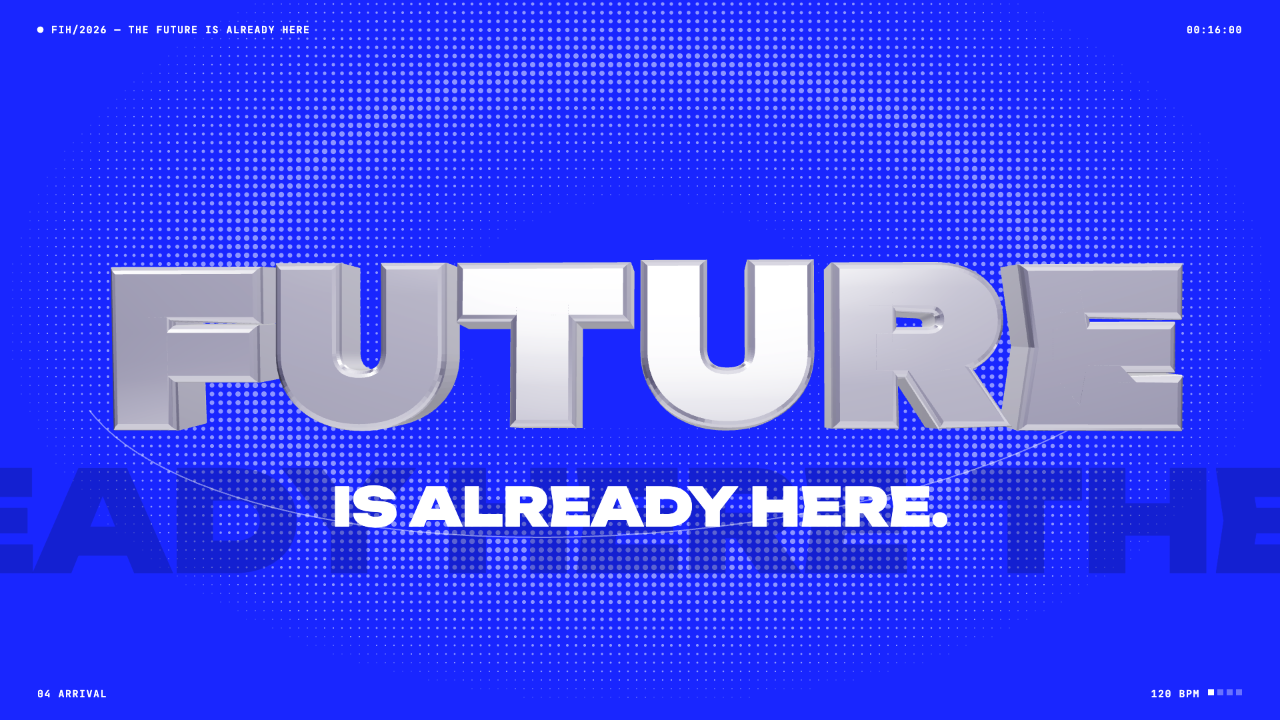
Futuristic Motion Video Design
A rendered electric-blue reel with a word tunnel, a SET countdown and a chrome FUTURE finale, remade in code on a 120 BPM cut grid. See its timing and how to adapt it.
Motion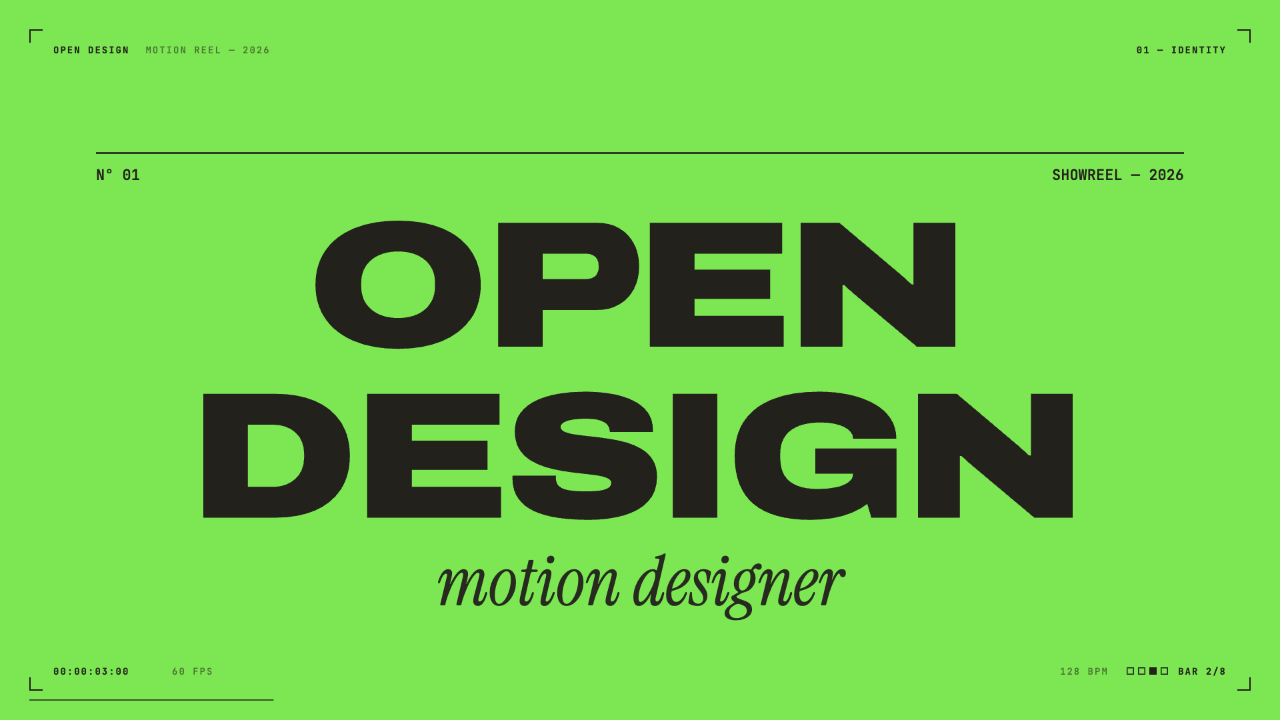
Motion Designer Showreel Design
A 15-second, 128 BPM showreel remade in code, with hard colour cuts, a live HUD and seven chapters timed to the bar. See how the timing, type and palette work.
Motion