

How to Use Design Prompts
Find a starting point, add your own brief and bring the prompt and reference image into OpenDesign.
Choose the task you want to build
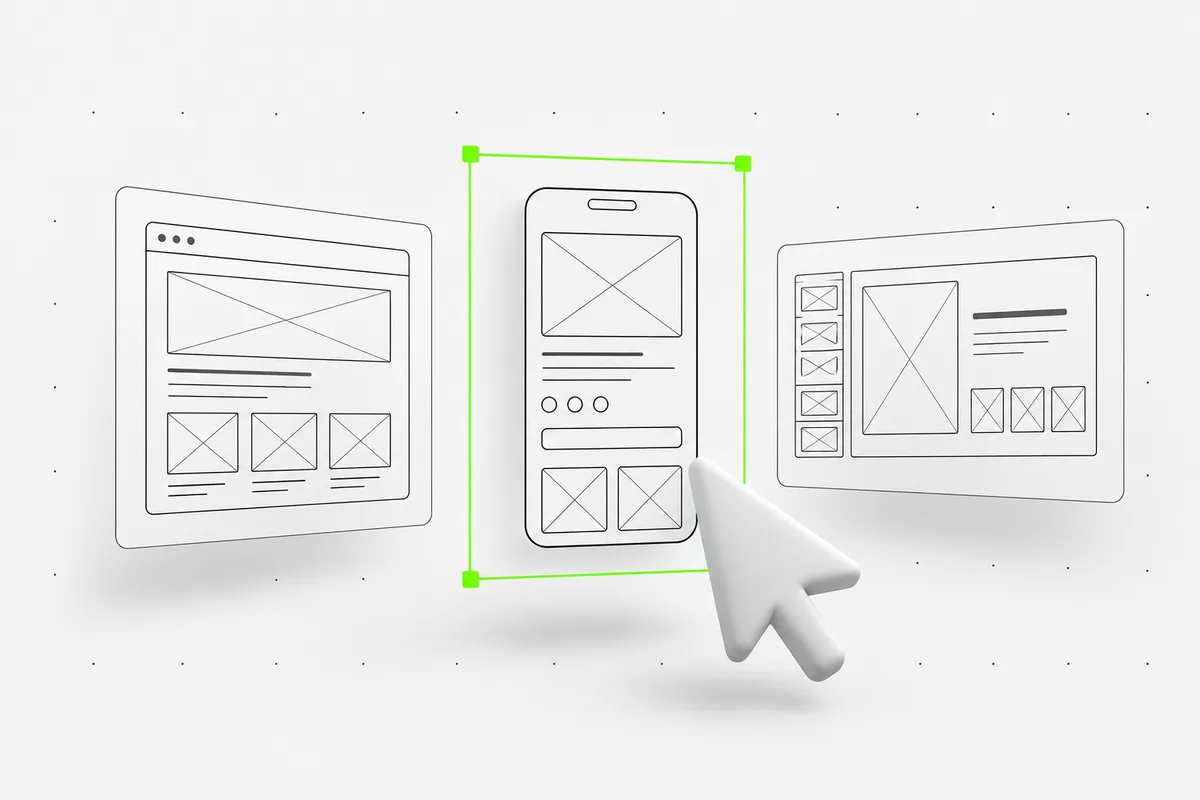
Browse Websites, Apps, Dashboards, Slides or Graphics. Use search to find a task, then open its detail page to read the full prompt and inspect the reference image. Choose by the structure and content you need, not just the colors.
- Check which screens, sections or slides the prompt asks for.
- Click the reference image to view it at full size.
Replace the example with your project
Use Add Your Brief on the detail page to enter your project, audience and constraints. This context is appended to the original prompt and included when you copy or download it. Replace bracketed placeholders and fictional example content with your own.
- Supply real headlines, project descriptions, images and destinations.
- Describe required behavior: what happens when someone clicks, selects or submits.
- State the output you need, such as a responsive website or an editable slide deck.
Copy the prompt or download the files
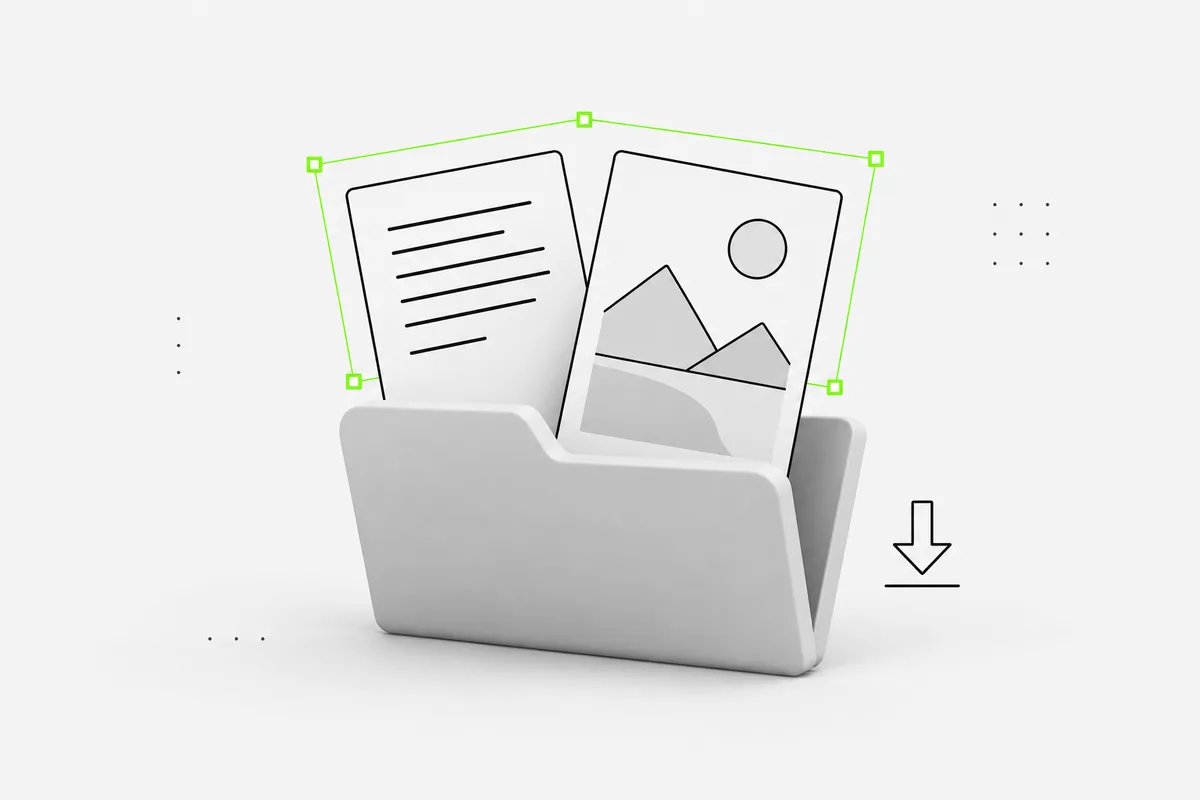
Copy Prompt copies the complete prompt, including any brief you added on the detail page. To keep the visual reference alongside it, open Download Files and choose a format.
- ZIP — the complete prompt, reference image and a short README.
- Image — the reference image on its own.
- Prompt — the full text as a TXT file.
Use the text and image together
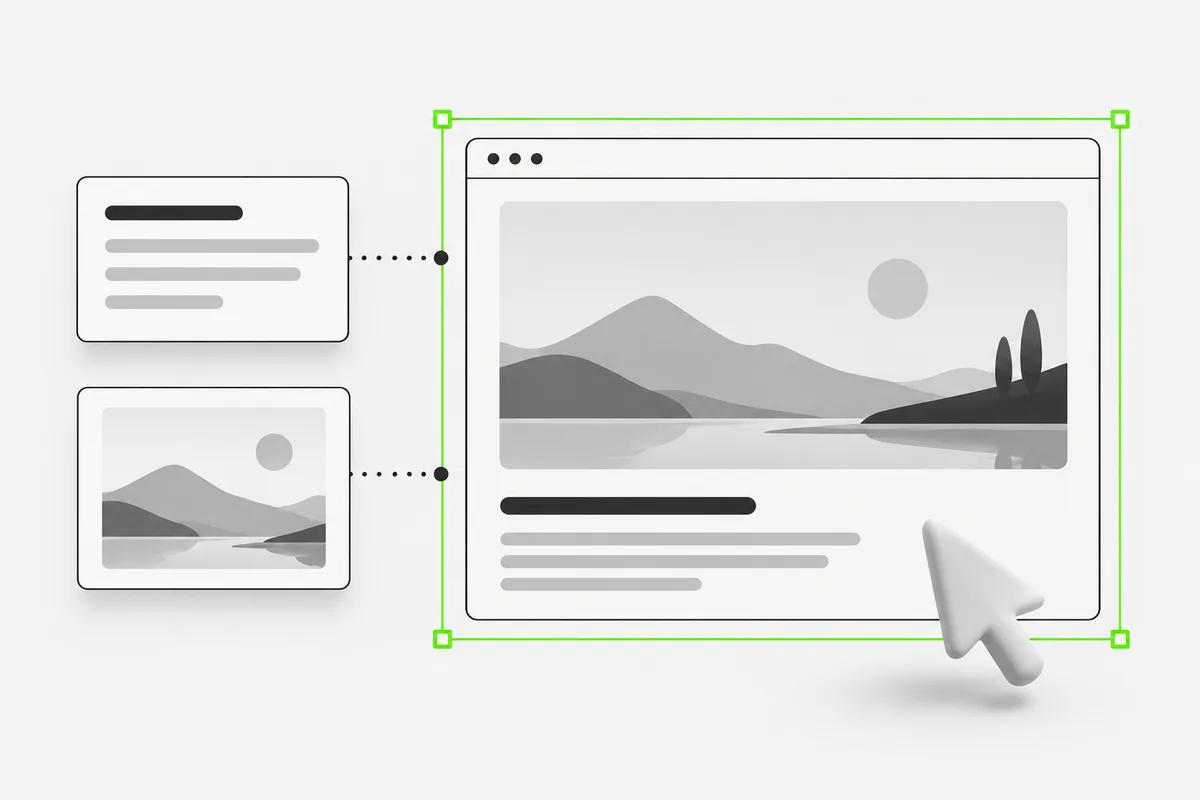
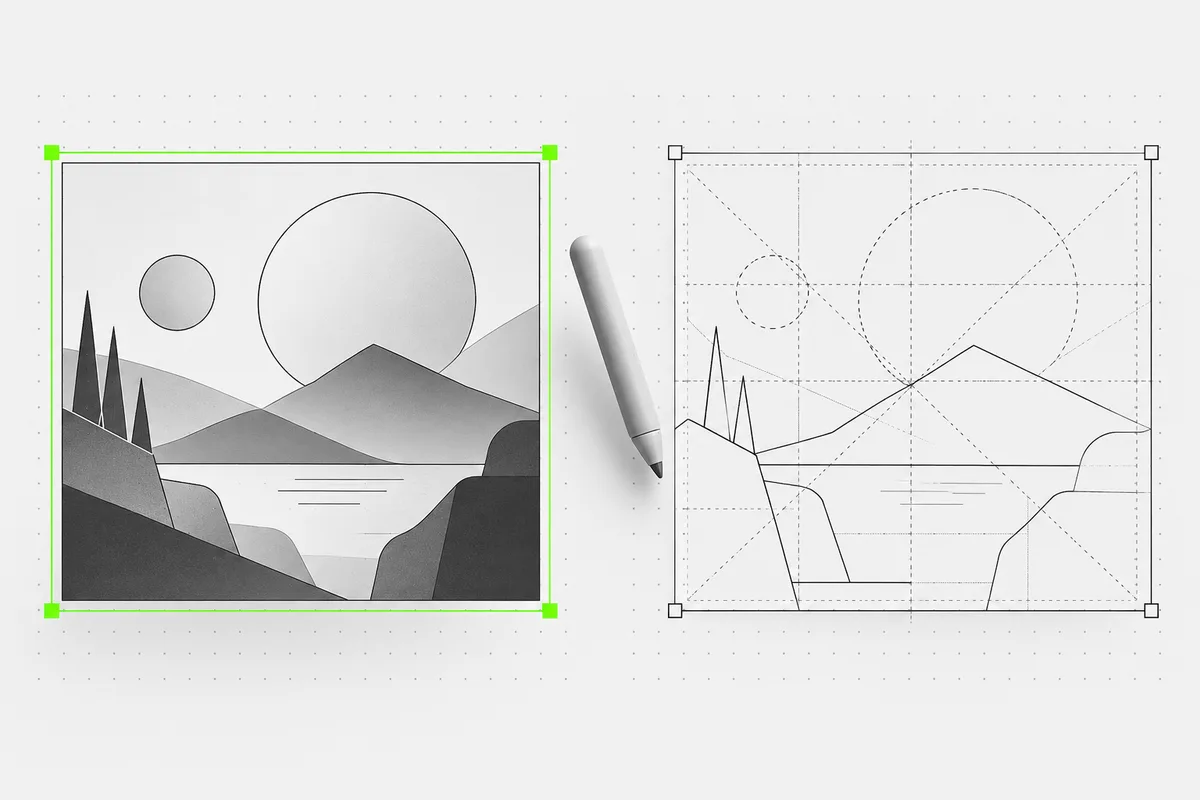
Open your project in OpenDesign. Paste the prompt and add the reference image, along with your own content and brand assets. Start with the page or screen described by the prompt. Use the image to explain composition, hierarchy and proportions; use the text to explain content and behavior.
- Name the parts you want to keep, such as the project grid or navigation structure.
- Describe what should change, such as the copy, palette or image subjects.
Review the first result and refine one part
Compare the result with the reference and your brief. Check the content, layout and interactions before adding more scope. The Follow-Up Prompt on each detail page gives you a starting point for a focused revision.
- Check desktop and mobile layouts, text wrapping and image proportions.
- Try links, buttons and keyboard navigation; check empty and error states where relevant.
- Ask for one specific correction and name the parts that should stay unchanged.
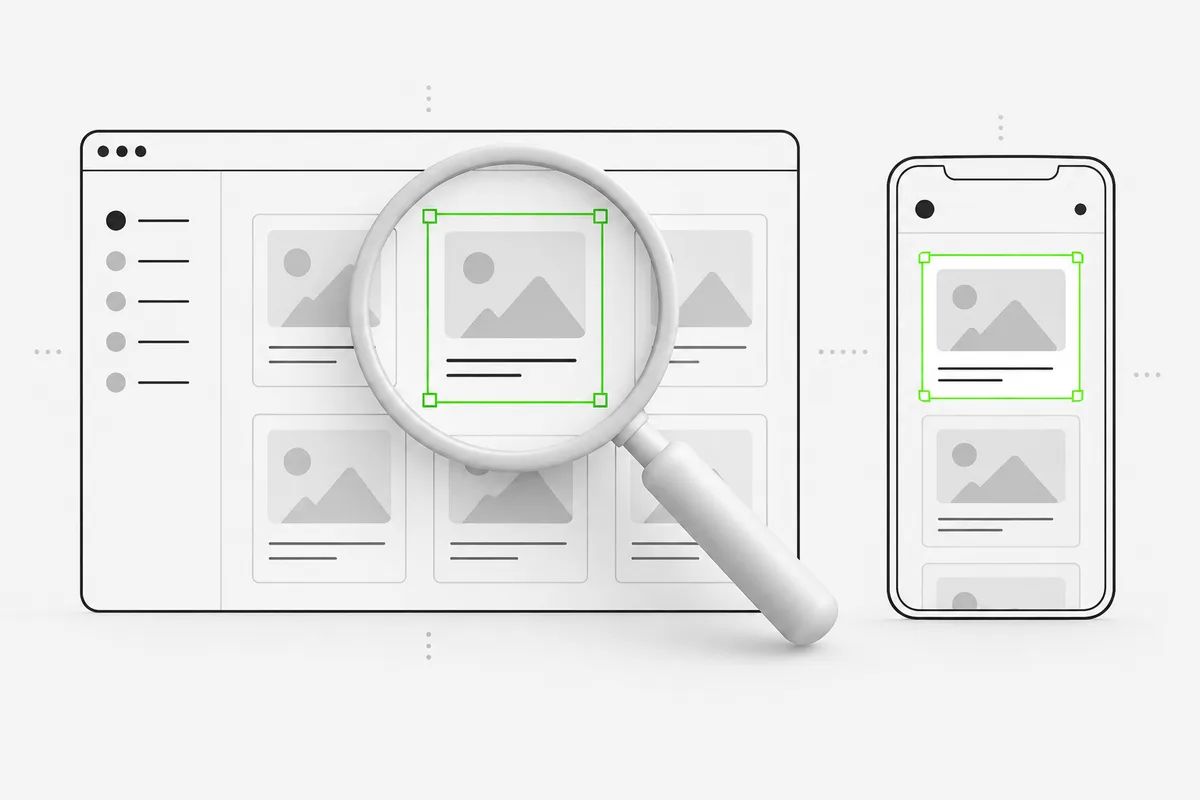
About the prompts and reference images
These are original OpenDesign task briefs with AI-generated visual references. The images are static concepts, not working interfaces or verified results from running every prompt. Use them as guidance: your content, tools and design choices will affect the result.
OpenDesign
Turn Your Prompt into a Design.
Bring the prompt and reference image into OpenDesign. Add your content, build the first version and refine the details.