

Mobile app
Daily Quest App Design
Daily Quest App Design turns everyday goals into a three-screen mobile quest journey with sample XP, category cards, and task detail.

Daily Quest App Use Cases
- Daily Habit PlanningOrganize varied daily activities into one scannable quest list.
- Gamified Mobile FlowsTranslate progress, rewards, and categories into compact phone screens.
- Task Detail DesignBreak one activity into ordered, reward-bearing micro-tasks.
- Prototype StorytellingShow how an idea moves from introduction to action.
Quest Screen Design Highlights
- Three-Screen JourneyMoves from concept introduction to quest list and detail.
- Category-Based CardsGroups Body, Read, Listen, Nourish, Mind, and Watch.
- Visible Progress ModelPairs Level 14 with sample XP and quest counts.
- Micro-Task BreakdownTurns strength training into four individually rewarded steps.
The Daily Quest App, Screen by Screen
1 / 3Daily Quest App Design
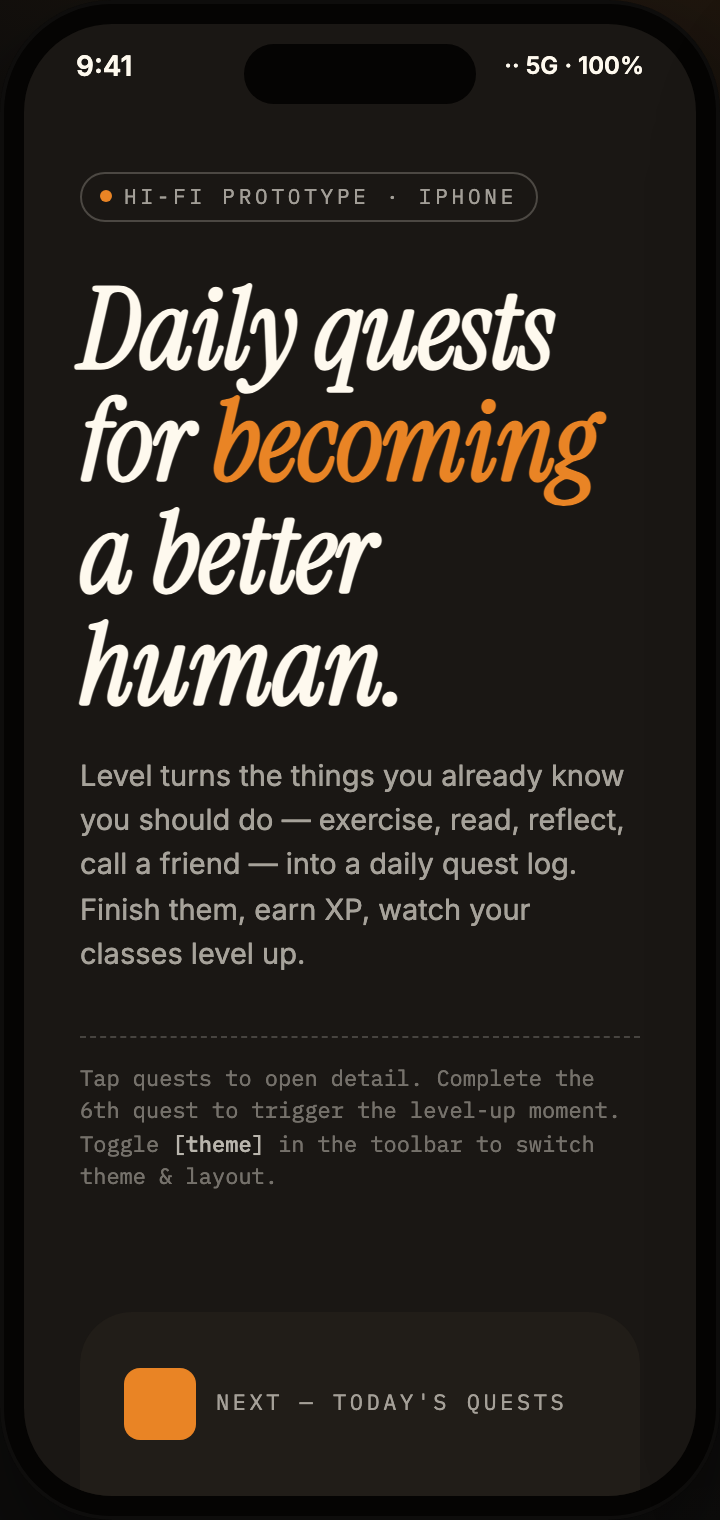
Daily Quest App Design presents Level as a mobile concept for turning familiar self-improvement activities into a daily quest log. The authored heading, “Daily quests for becoming a better human.”, establishes the premise before the interface introduces the next action: “NEXT — TODAY'S QUESTS”.
The welcome screen uses a dark surface, large editorial serif typography, orange emphasis on “becoming”, and a compact mono-style prototype label. This composition makes the idea feel like an introduction rather than an operational dashboard. Its tradeoff is deliberate: the expressive headline takes substantial vertical space, so only the short product explanation and next-step cue remain visible before the transition.
The visible copy describes earning XP and watching classes level up, but the supplied HTML is a static three-screen design. It depicts the proposed information model and completion states rather than implementing quest selection, reward updates, or theme switching. The figures are sample content, not evidence of stored progress or health outcomes.
Daily Quest Planning And Reward Scanning
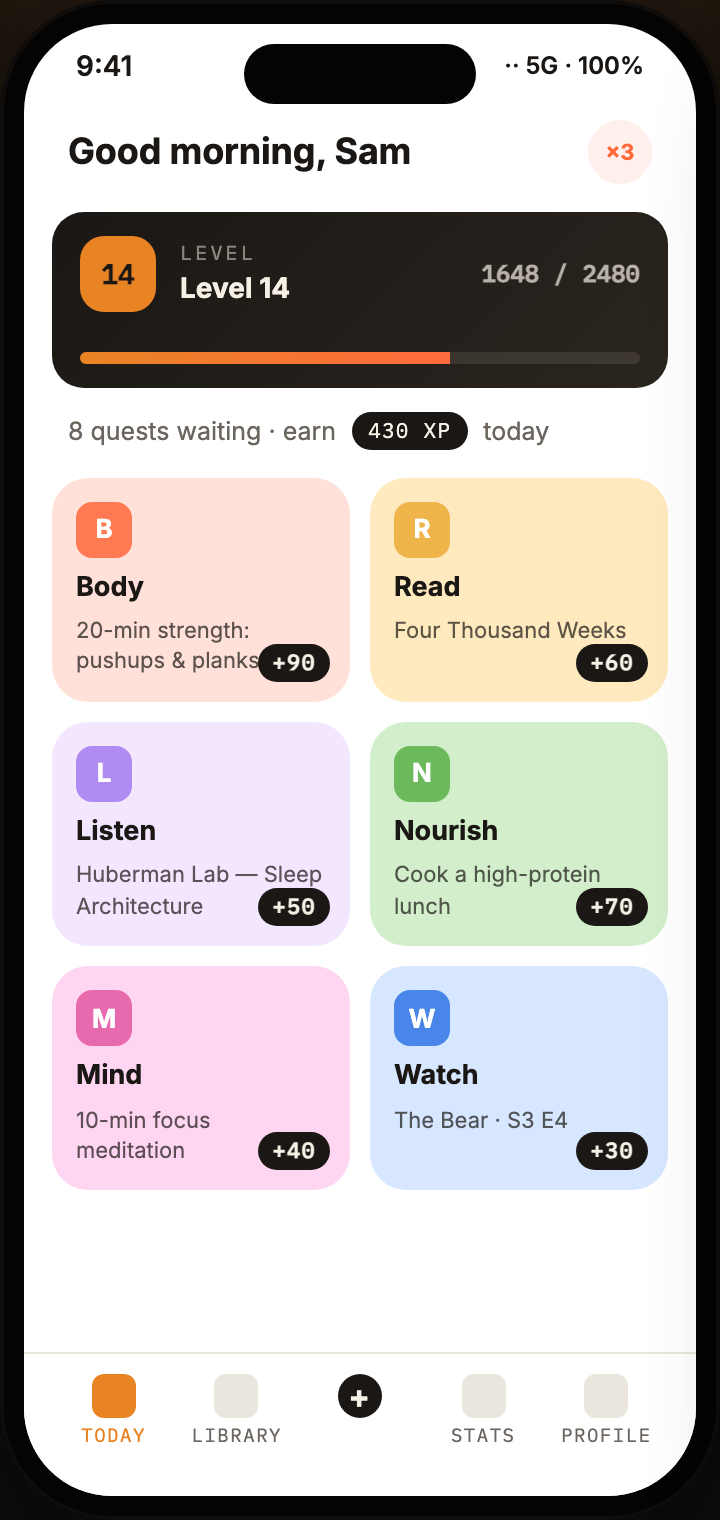
The home screen is organized for quick scanning. “Good morning, Sam” sits above a Level 14 progress panel showing “1648 / 2480”, followed by “8 quests waiting · earn 430 XP today”. These values are presented as sample data, but their ordering explains the intended priority: orientation first, progress second, available work third.
Six colored cards then separate the day into Body, Read, Listen, Nourish, Mind, and Watch. Each card combines a one-letter marker, category name, concrete activity, and XP badge. For example, Body pairs “20-min strength: pushups & planks” with “+90”, while Watch pairs “The Bear · S3 E4” with “+30”. The category grid makes unlike activities comparable without pretending they are the same kind of task.
The two-column card arrangement supports rapid choice and visual variety, while the pastel fills distinguish categories. The tradeoff is that longer labels wrap inside fixed cards, so descriptions need to remain concise. The bottom navigation keeps Today active and reserves Library, a central add control, Stats, and Profile for adjacent destinations.
Progress Before Activity
The Level panel places sample progress and the daily XP opportunity before the quest cards, giving the list a visible motivational frame.
Mixed Activity Types
Exercise, reading, listening, food, meditation, and television occupy the same card system, demonstrating how the concept treats personal routines as one daily set.
Compact Reward Signals
Black XP pills sit at the lower edge of each card, preserving a consistent reward location while allowing the activity copy to wrap.
From Quest List To Micro-Tasks
The three screens form a specific sequence: the dark welcome screen establishes the idea, the light home screen presents the day, and the detail screen expands one selected quest. The transition changes both theme and information density. The home view supports comparison across six categories; the detail view focuses on one strength activity and its completion structure.
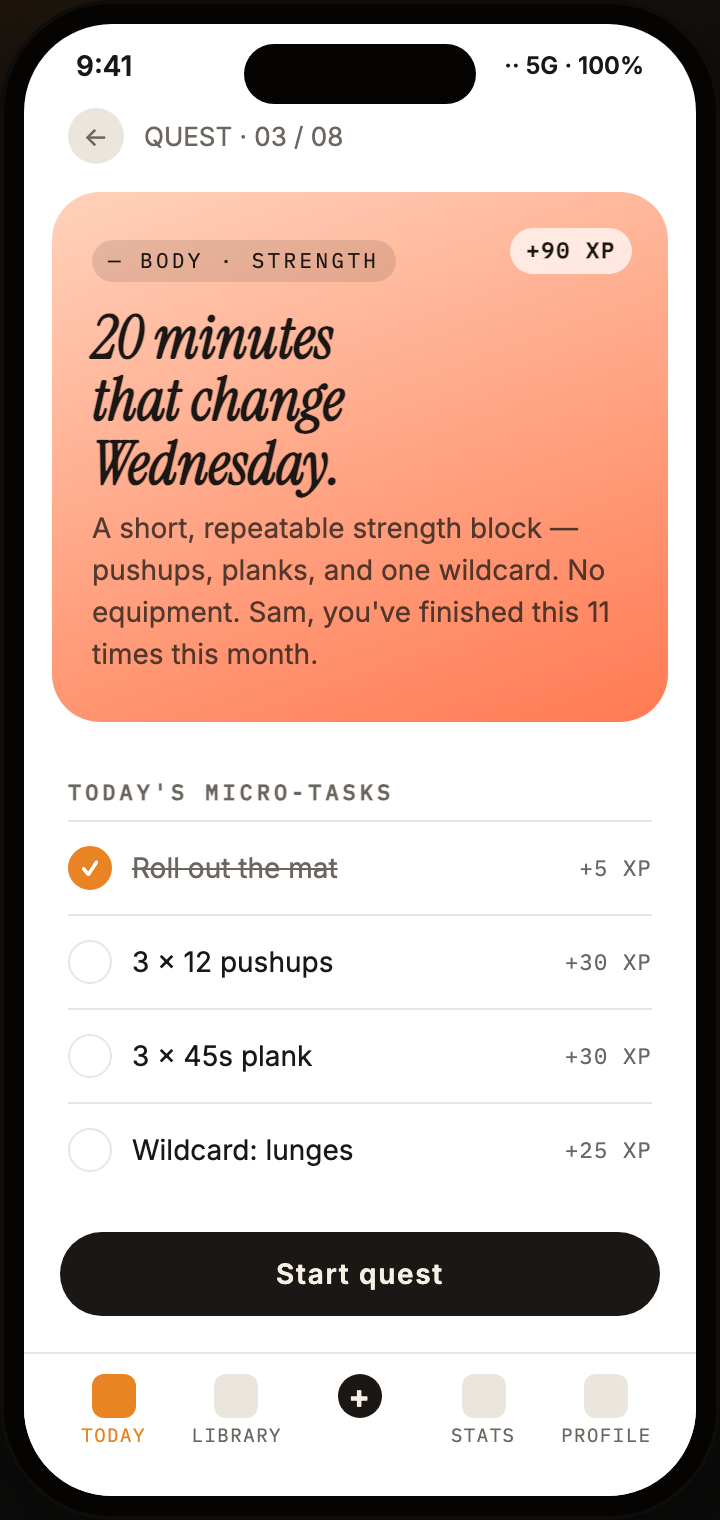
The detail screen identifies itself as “QUEST · 03 / 08” and labels the activity “BODY · STRENGTH”. Its coral panel carries “+90 XP”, the title “20 minutes that change Wednesday.”, and a short description mentioning pushups, planks, one wildcard, and no equipment. The repeated phrase “11 times this month” is visible sample history, not evidence of a measured outcome.
Under “TODAY'S MICRO-TASKS”, the screen lists “Roll out the mat”, “3 × 12 pushups”, “3 × 45s plank”, and “Wildcard: lunges”. The first row is visibly checked and struck through, while the remaining rows use empty circles. XP values of +5, +30, +30, and +25 sit at the right edge. This state distinction lets a reader understand partial completion without leaving the quest detail.
The large “Start quest” button follows the checklist, creating a clear action endpoint. That ordering is useful for a proposed interactive flow, but the capture does not prove that the button, checklist, or level-up moment is wired to persistence. It does show the intended state language and the relationship between a quest reward and its smaller tasks.
| Screen | Visible Cue | Implementation Boundary |
|---|---|---|
| Welcome | Next-step label below the introduction | The source has no click handler. |
| Today | Six category cards below an eight-quest, 430-XP label | The displayed card rewards total 340 XP; the sample does not reconcile the difference. |
| Quest Detail | One checked micro-task and three remaining rows | Completion is depicted, not stored or updated by a script. |
Visible Scope And Capability Boundary
This artifact is a three-screen mobile app design example authored by OpenDesign. It is useful for studying composition, sample data hierarchy, category grouping, screen transitions, and completion-state notation. Its mobile framing includes visible iPhone status bars and bottom navigation, while the provided evidence does not establish platform behavior beyond the rendered screens.
The design proposes interactions such as tapping a quest for detail, completing a quest, triggering a level-up moment after the sixth quest, and switching theme and layout. Those descriptions explain the intended concept, not verified runtime capabilities. The XP totals, Level 14 state, activity history, and daily quest count should therefore be replaced with product data and explicit state rules in a production implementation.
How to Create Daily Quest App Design in OpenDesign
Set The Mobile Narrative
Create three distinct phone screens: a dark welcome introduction, a light daily quest list, and a focused quest detail view. Keep the first screen editorial and concise, then let the later screens carry the operational detail.
Suggested PromptCreate a three-screen mobile app design for daily quests: a dark welcome screen with an editorial serif heading, a light home screen with Level 14 and sample XP progress above six category cards for Body, Read, Listen, Nourish, Mind, and Watch, and a quest detail screen for Body strength with micro-tasks and XP values. Treat all data as illustrative; do not imply backend persistence, health efficacy, or live integrations.
Refine The Reward System
Use the supplied relationships as a design reference: the home screen shows sample daily XP and category rewards, while the detail screen shows one total quest reward plus smaller task rewards. Check that labels remain readable when activity names wrap and that reward values do not obscure them.
Check State And Boundaries
Represent partial completion with one checked, struck-through task and remaining tasks with empty controls, as shown in the strength detail screen. Review proposed level-up, theme switching, and quest completion behavior separately from the visible composition, because this artifact does not verify storage, services, or runtime wiring.
Export and Get a Share Link
Export your finished design, then use Share in OpenDesign to get a share link. Open the link in a separate browser window and check that the intended version and its assets are available before sending it.
Discovery Collection App Design
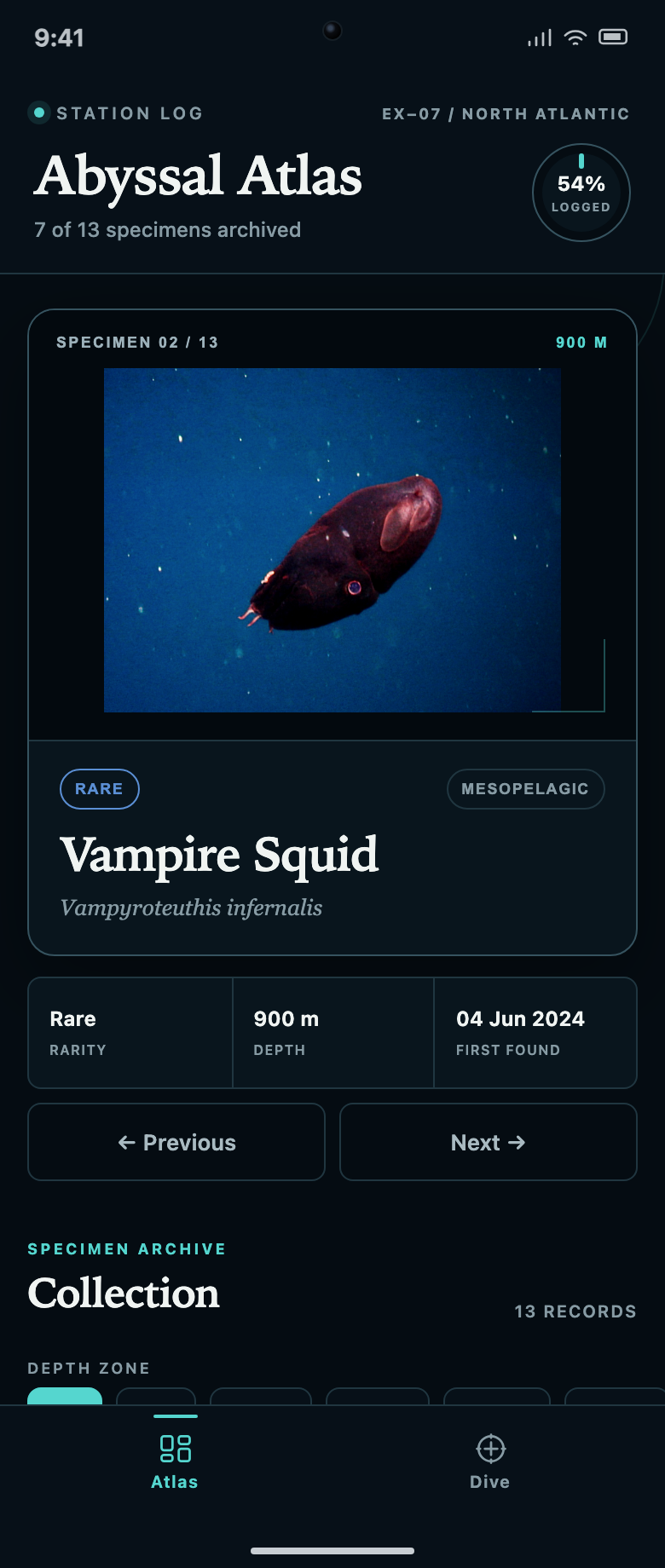
Abyssal Atlas links a specimen collection to a dive queue. Explore how locked records, two filter rows and progress counts explain what to discover next.
Mobile app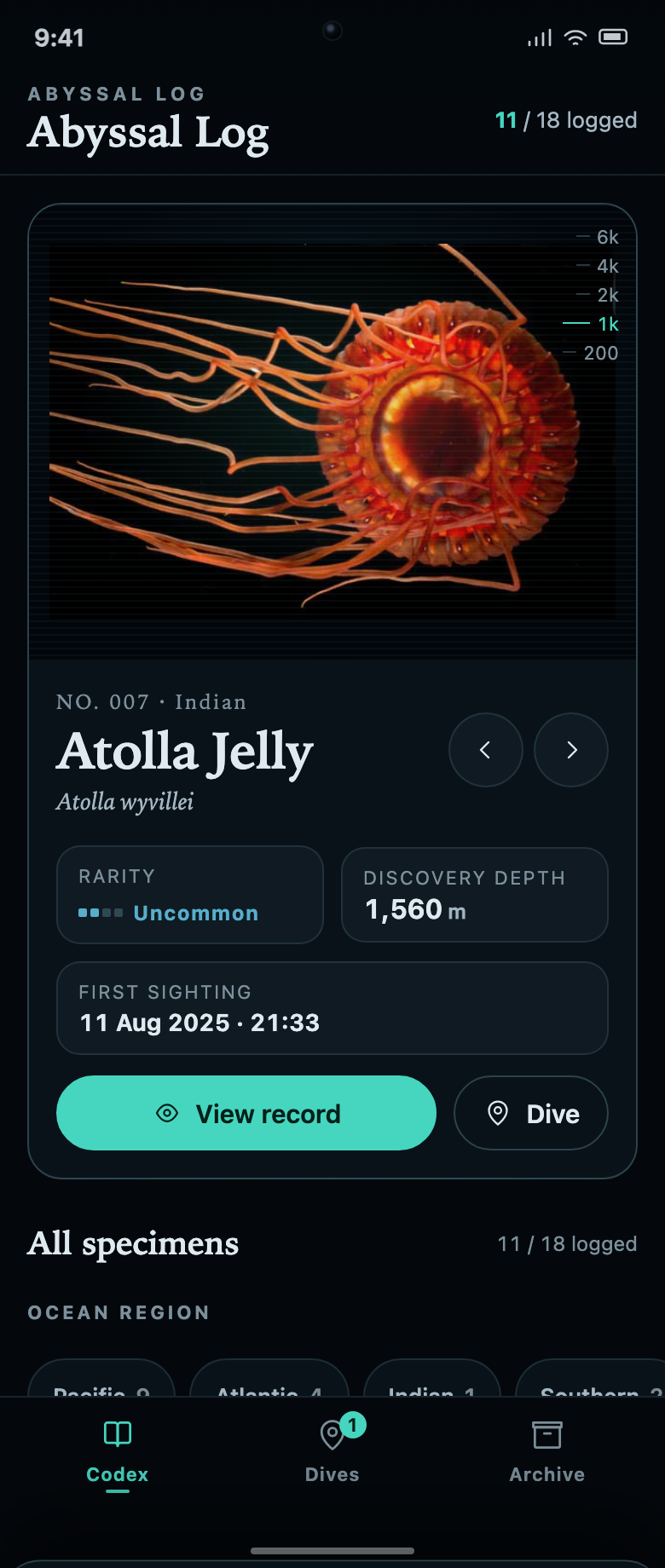
Marine Collection App Design
Abyssal Log connects a marine specimen collection to dive missions. Each unknown record explains the task and remaining progress needed to reveal it.
Mobile app
Marketplace Checkout App Wireframe Design
A four-screen mobile wireframe maps marketplace onboarding, browsing, product detail, and confirmation into a focused purchase path.
Mobile app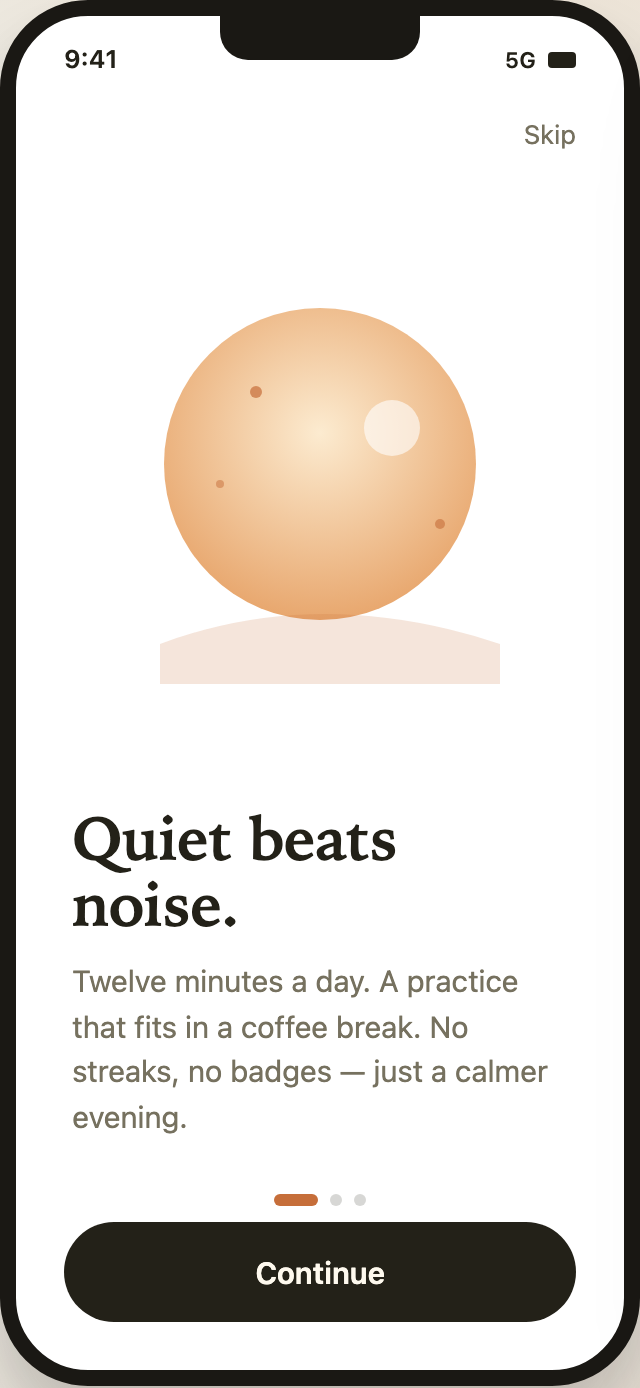
Mindfulness Onboarding App Design
Mindfulness Onboarding App Design uses three calm mobile screens to introduce Lull’s practice, adapt its promise, and present account choices.
Mobile app