

Mobile app
Mindfulness Onboarding App Design
Mindfulness Onboarding App Design uses three calm mobile screens to introduce Lull’s practice, adapt its promise, and present account choices.

Mindfulness Onboarding App Use Cases
- Mobile Onboarding FlowsIntroduce a product across focused, sequential phone screens.
- Mindfulness Product TeamsShape a gentle first-use path around daily practice.
- Content DesignersTest concise messaging across repeated onboarding states.
- Mobile UI DesignersStudy typography, illustration, controls, and progression together.
Lull Onboarding Design Highlights
- Three-Screen NarrativeMoves from calm introduction to practice and account setup.
- Single Visual LanguageUses warm canvas, serif headings, and one accent.
- Progressive CommitmentDelays account choices until the product promise is established.
- Quiet Account ChoiceGroups Apple, Google, and email options clearly.
The Onboarding App, Screen by Screen
1 / 3Lull Onboarding Flow
Lull’s onboarding flow is an official OpenDesign example authored by OpenDesign. Its source describes three screens with one tone of voice: a warm canvas, serif headings, and a single accent. The design is presented as a mobile-app sequence rather than a finished account or meditation service.
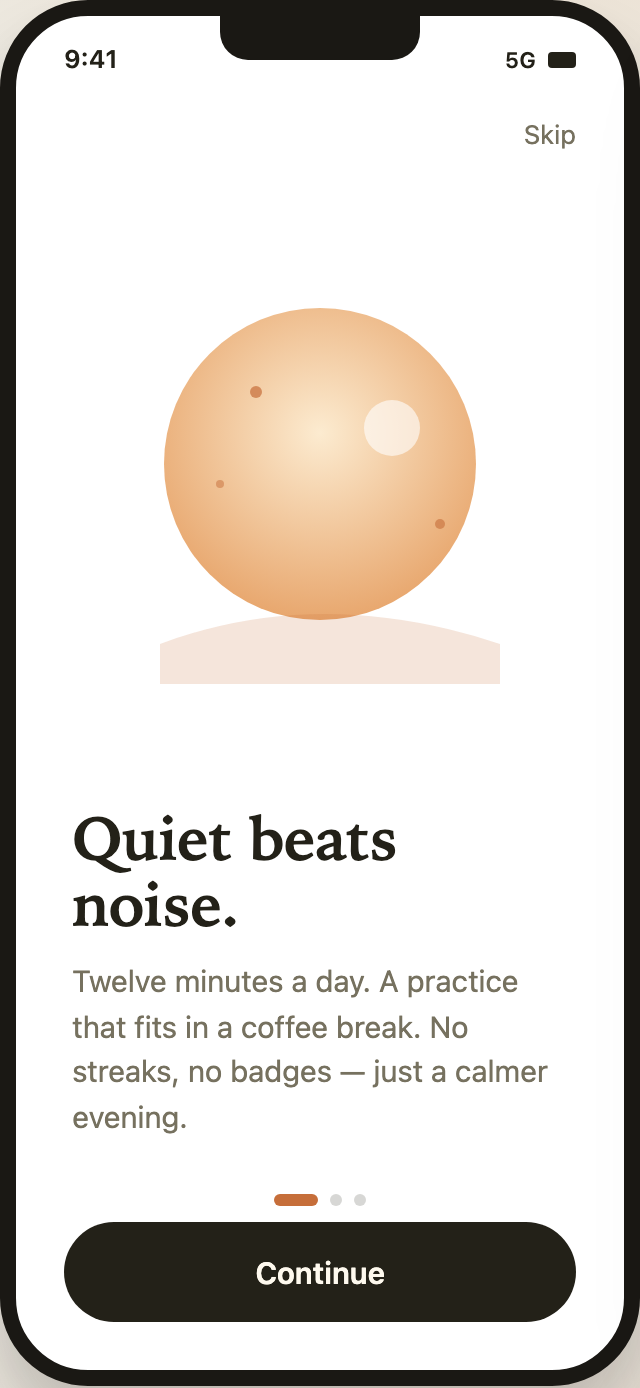
The first screen opens with “Quiet beats noise.” Its supporting copy frames the practice as “Twelve minutes a day” and “a practice that fits in a coffee break,” then explicitly rejects “streaks” and “badges.” That pairing makes the product promise legible before asking the person to create an account.
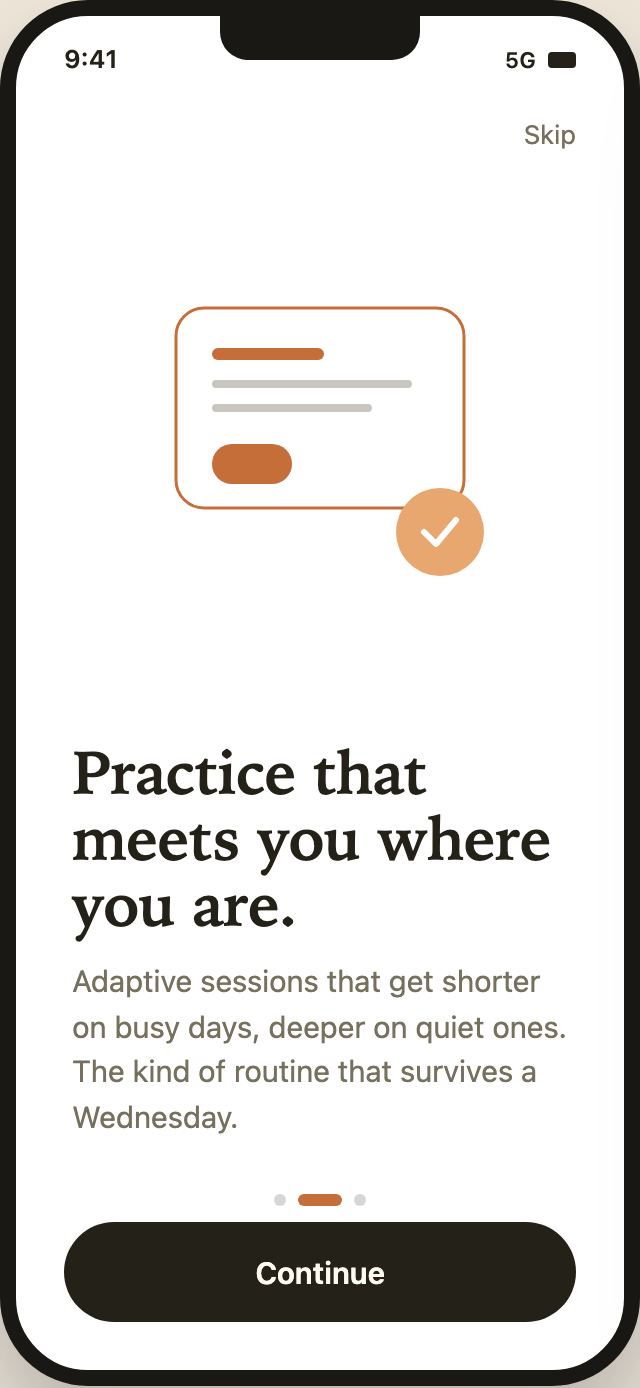
The visual treatment reinforces the same restraint. A warm circular composition leads the first screen; an outlined practice card with an orange check-circle leads the second. Both use the same illustration zone above serif headings and short body copy. The generous space gives the message room to register, but leaves less room for longer copy or additional controls.
A Calm First Impression
The first screen combines a large orange-toned circle, a small pale circle, and a low curved base with the dark serif heading. The illustration is not a data display; it establishes an atmosphere before the text explains the routine. A designer adapting this pattern would need to preserve the image-to-copy balance or accept a denser first viewport.
Use Cases for the Flow
This sequence is suited to a mindfulness app that wants to explain its daily practice before presenting sign-in choices. The ordering is deliberate: the user first sees a calm benefit statement, then a description of adaptation, and only then the account setup screen. That reduces the chance that authentication controls become the first thing the product communicates.
The copy also targets a real onboarding tension: a routine must feel achievable without making an unsupported performance promise. “Shorter on busy days, deeper on quiet ones” explains the intended adaptation in plain language. It communicates flexibility, but the design does not establish how sessions would change or whether that behavior is implemented.
The flow is useful for studying content hierarchy as much as interface styling. The first two screens use “Skip” in the upper-right corner and “Continue” at the bottom, while the final screen changes the auxiliary action to “Help.” Those labels distinguish progression from assistance, although the captures do not establish what either control does at runtime.
Establish the Practice
Lead with “Quiet beats noise.” and a coffee-break-sized daily routine before introducing account decisions.
Explain Adaptation
Use “Practice that meets you where you are.” to describe a flexible promise without adding a settings panel.
Offer Account Choices
Present Apple, Google, and email as separate rows after the product value has been introduced.
From Quiet Introduction to Account Setup
The three phone screens form a compact narrative with a repeated structure. The first two keep the same top status area, “Skip” control, illustration zone, heading, body copy, progress indicators, and bottom “Continue” button. Repetition makes the transition between introductory states easy to recognize, but it also makes the third screen’s different layout feel like a meaningful state change.
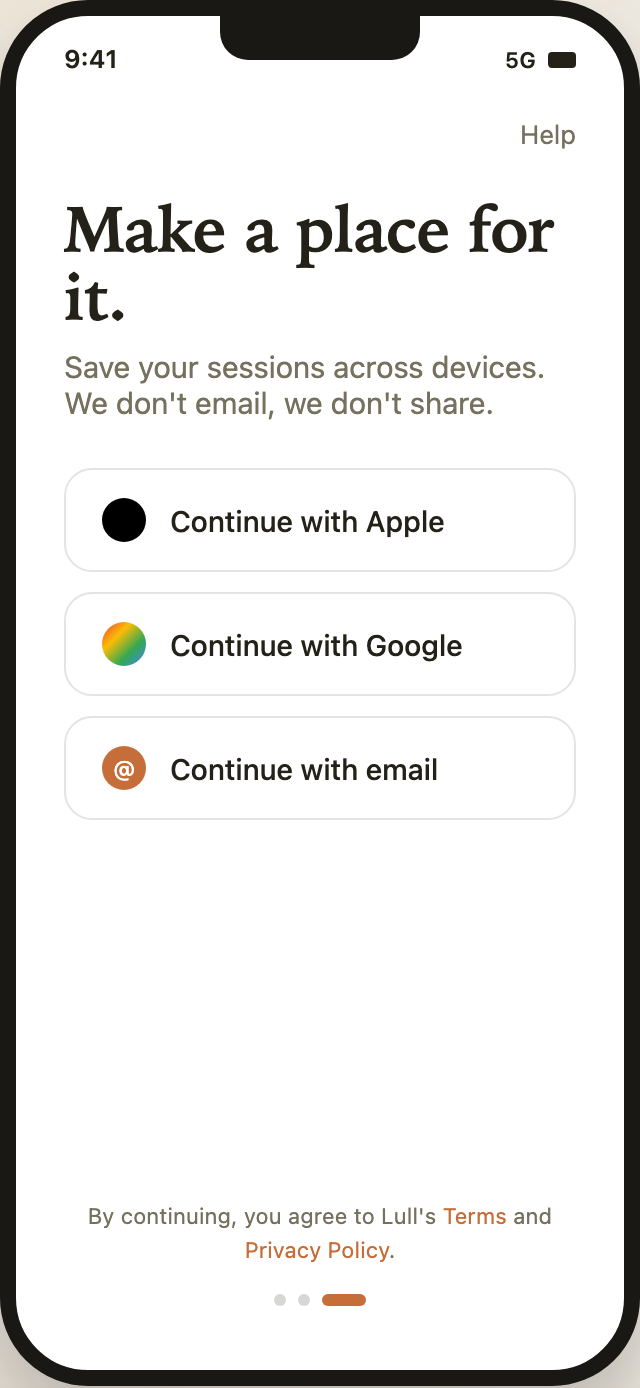
On the first screen, the active progress mark is the left orange pill. On the second, it moves to the middle. The third screen uses the right orange pill and replaces the illustration and bottom action with three account options. The visible markers therefore communicate position in the sequence, while the changing content communicates that onboarding has moved from explanation to commitment.
The final screen begins with “Make a place for it.” and the line “Save your sessions across devices. We don’t email, we don’t share.” It then presents three large bordered rows: “Continue with Apple,” “Continue with Google,” and “Continue with email.” Their consistent row treatment supports comparison, while the distinct circular icons provide a quick visual cue for each provider.
At the bottom, the consent statement places “Terms” and “Privacy Policy” in the accent color. The source identifies those links as placeholders, so the screen demonstrates the intended legal-copy placement rather than completed navigation. The design also shows the tradeoff of putting legal text below the options: it stays out of the main decision area, but it is visually separated from the controls it qualifies.
| Screen | Visual Structure | Progress and Controls | Implementation Boundary |
|---|---|---|---|
| Welcome | Warm circular illustration and Quiet beats noise. copy | First progress pill; Skip and Continue labels | No source click handler or screen transition |
| Practice Introduction | Outlined practice card and white check in an orange circle | Middle progress pill; Skip and Continue labels | Adaptive-session copy is a depicted promise, not an implemented rule |
| Account Choices | Separate Apple, Google, and email rows plus consent copy | Third progress pill; Help label | No authentication handler; Terms and Privacy anchors have no destinations |
Repeated Structure, Changed State
The first and second screens are nearly parallel states, but their illustrations are different. The first uses a warm circular composition; the second uses a bordered panel with short lines, an orange control, and a check mark. This preserves the same visual density while giving each promise its own symbol. The third screen removes that illustration layer entirely, making room for authentication choices and consent text.
Visible Design and Capability Boundary
The captures establish a visual onboarding concept with three distinct phone states, specific copy, controls, provider labels, progress marks, and legal-copy placement. They do not establish authenticated accounts, cross-device session storage, adaptive session logic, completed Terms or Privacy navigation, or a working onboarding flow. The phrases about saving sessions and not sharing information are product copy shown in the design, not verified service behavior.
A new implementation would need its own authentication, session-storage, adaptive-practice, and consent behavior. In this source, Skip and Help are text spans, Continue and the account rows are styled divs, and Terms and Privacy Policy are anchors without destinations. The sequence depicts those decisions without making them operable.
What the Example Teaches
The strongest transferable lesson is the relationship between message order and commitment: explain the practice, explain its intended flexibility, then ask for an account. The specific Lull copy, illustrations, and privacy language belong to this example. A new product would need its own claims, adaptation rules, and consent destinations rather than copying them as established facts.
How to Create Mindfulness Onboarding App Design in OpenDesign
Set the Three-Screen Narrative
Create three mobile states with a consistent status area and progression: introduce the practice, explain how it fits changing days, then present account choices. Keep the primary action in the same place on the first two states before allowing the final state to change layout.
Write the Concrete Screen Copy
Refine short, specific copy for the three roles shown in this artifact: a quiet opening promise, an adaptive-practice explanation, and an account setup statement. Separate visible product claims from behavior that still needs implementation, especially around session saving, privacy, and adaptation.
Suggested PromptCreate a three-screen mindfulness onboarding app design for Lull: Screen 1 uses a warm circular illustration, the serif heading “Quiet beats noise.”, concise daily-practice copy, progress at step one, and Continue; Screen 2 uses a simple outlined practice illustration, “Practice that meets you where you are.”, adaptive-session copy, progress at step two, and Continue; Screen 3 uses “Make a place for it.”, three separate Apple, Google, and email account rows, Terms and Privacy Policy consent copy, and progress at step three. Show visual states only; do not claim working authentication, storage, adaptive logic, or completed links.
Check the State Change
Compare the first two illustration-led screens with the account-led third screen. Check that the progress pill advances from left to middle to right, that “Skip” and “Help” remain distinct labels, and that the account rows and consent copy have enough room without weakening the calm visual spacing.
Export and Get a Share Link
Export your finished design, then use Share in OpenDesign to get a share link. Open the link in a separate browser window and check that the intended version and its assets are available before sending it.
Daily Quest App Design
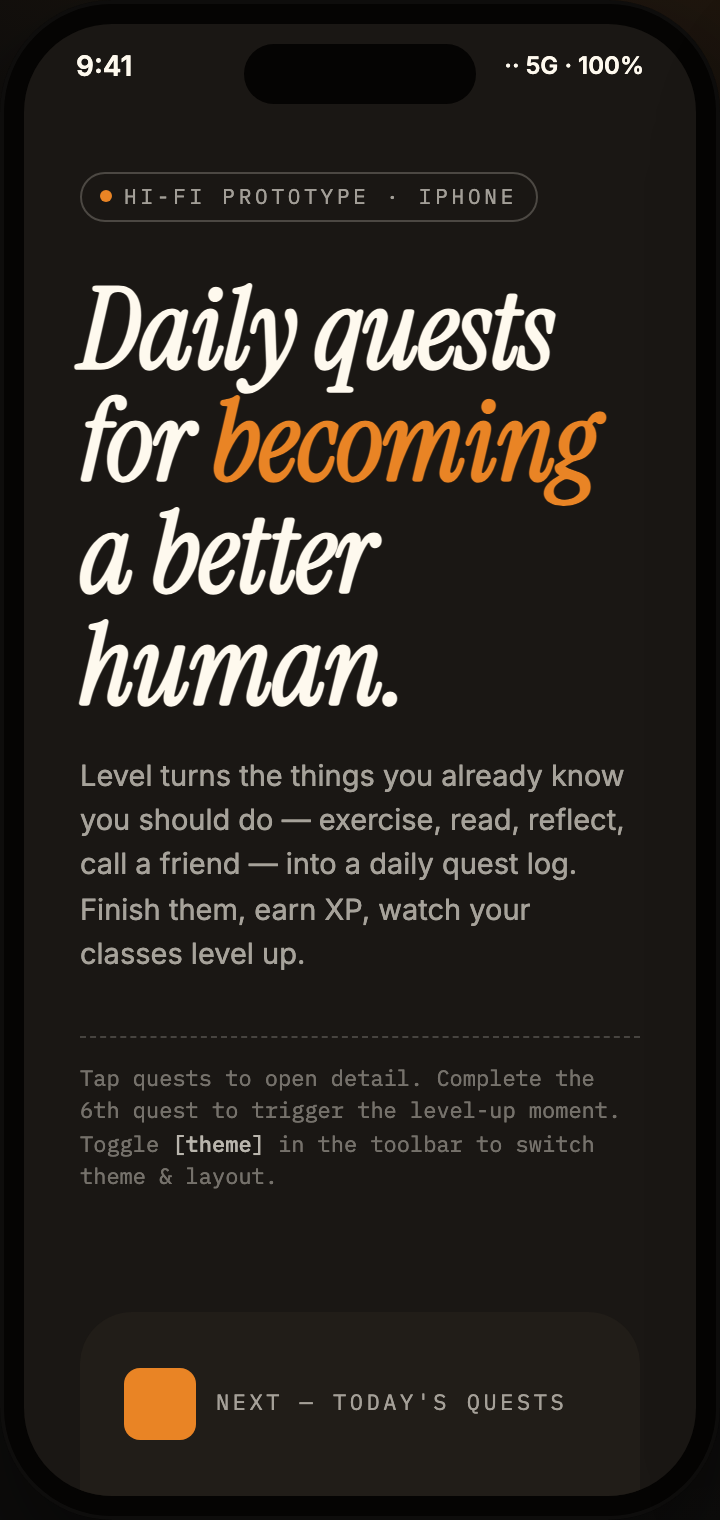
Daily Quest App Design turns everyday goals into a three-screen mobile quest journey with sample XP, category cards, and task detail.
Mobile app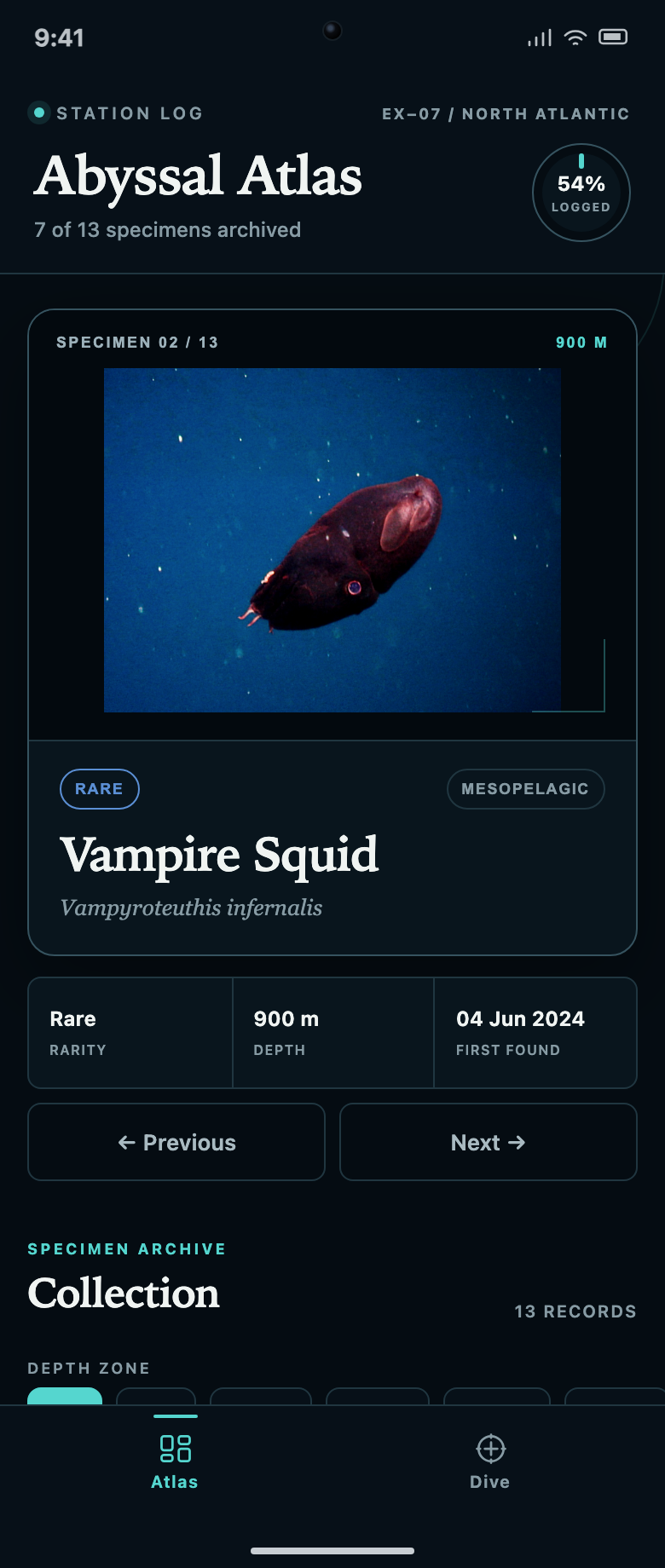
Discovery Collection App Design
Abyssal Atlas links a specimen collection to a dive queue. Explore how locked records, two filter rows and progress counts explain what to discover next.
Mobile app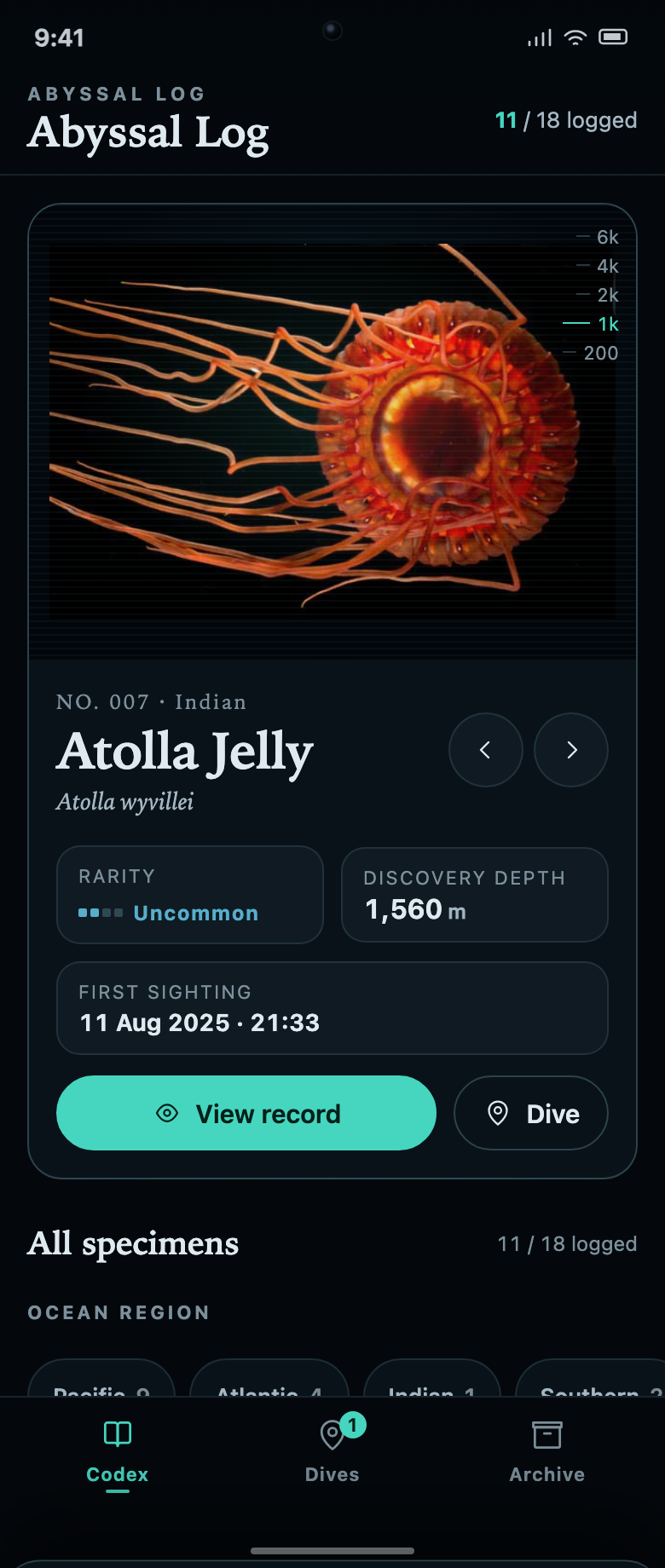
Marine Collection App Design
Abyssal Log connects a marine specimen collection to dive missions. Each unknown record explains the task and remaining progress needed to reveal it.
Mobile app
Marketplace Checkout App Wireframe Design
A four-screen mobile wireframe maps marketplace onboarding, browsing, product detail, and confirmation into a focused purchase path.
Mobile app