
Website
Forest Restoration Website Design
Explore Second Spring, where an interactive fallen branch leads to forest field stories, a restoration plan and simulated ways to contribute.

LLM Arena Sep 2026
Case notes- Model
- DeepSeek V4.1 Flash
- Design task
- Create Second Spring, an interactive forest restoration experience with pointer-grown plants.
- Output
- Website
Designed For
- Restoration CampaignsConnect a nature-led opening with a concrete project explanation.
- Environmental EditorialGive individual field stories their own focused reading space.
- Nonprofit PrototypesPresent illustrative budgets and local participation flows honestly.
Key Highlights
- A Living Field StudyThe opening labels its branch as the subject of observation.
- Four Focused Story DialogsSoil, water, fungi and canopy open as separate reading views.
- A Visible Restoration PlanThe source distinguishes project scale, budget and example gifts.
Explore the Forest Restoration Website
1 / 3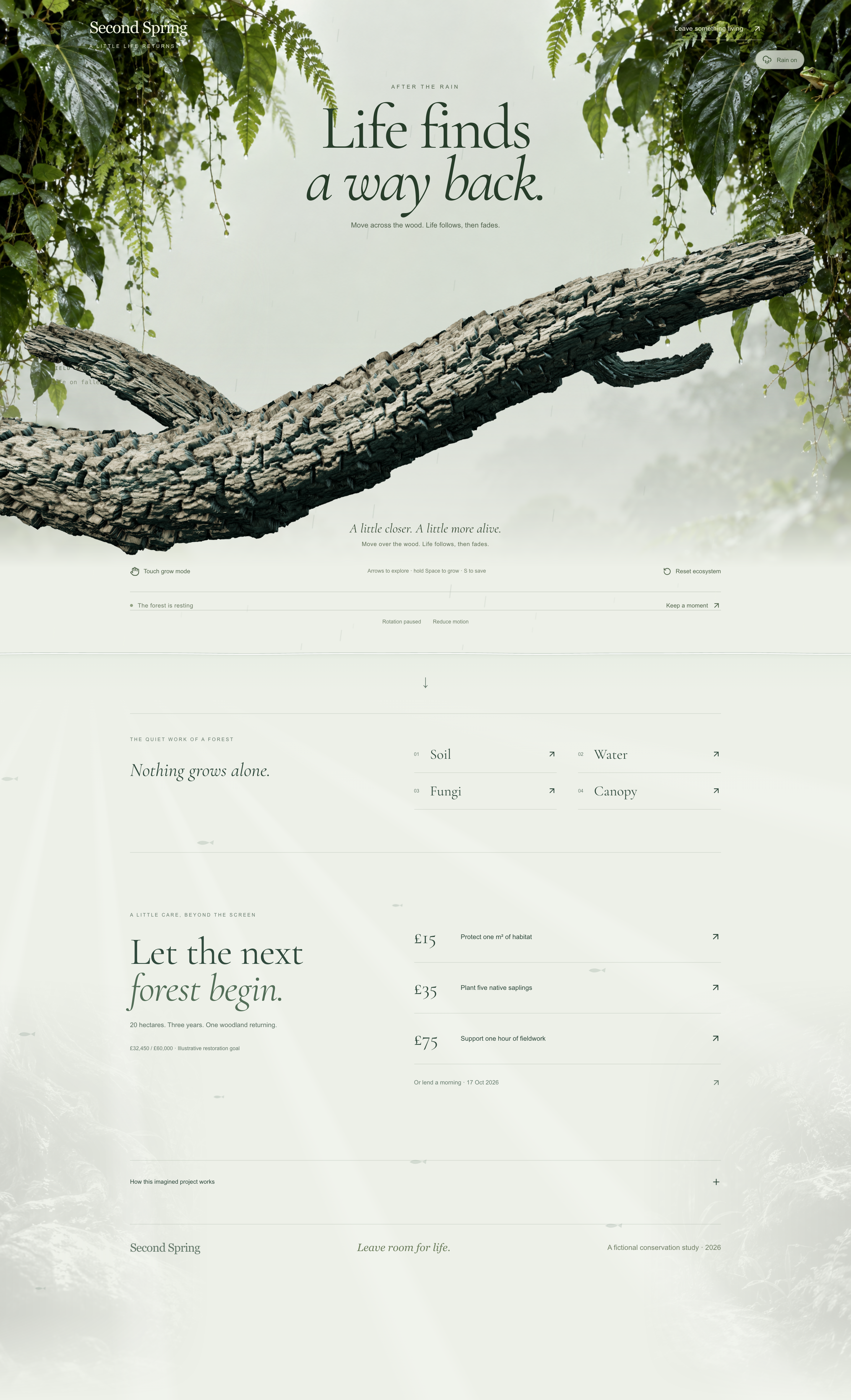
A Forest Restoration Website Design Centered on Fallen Wood
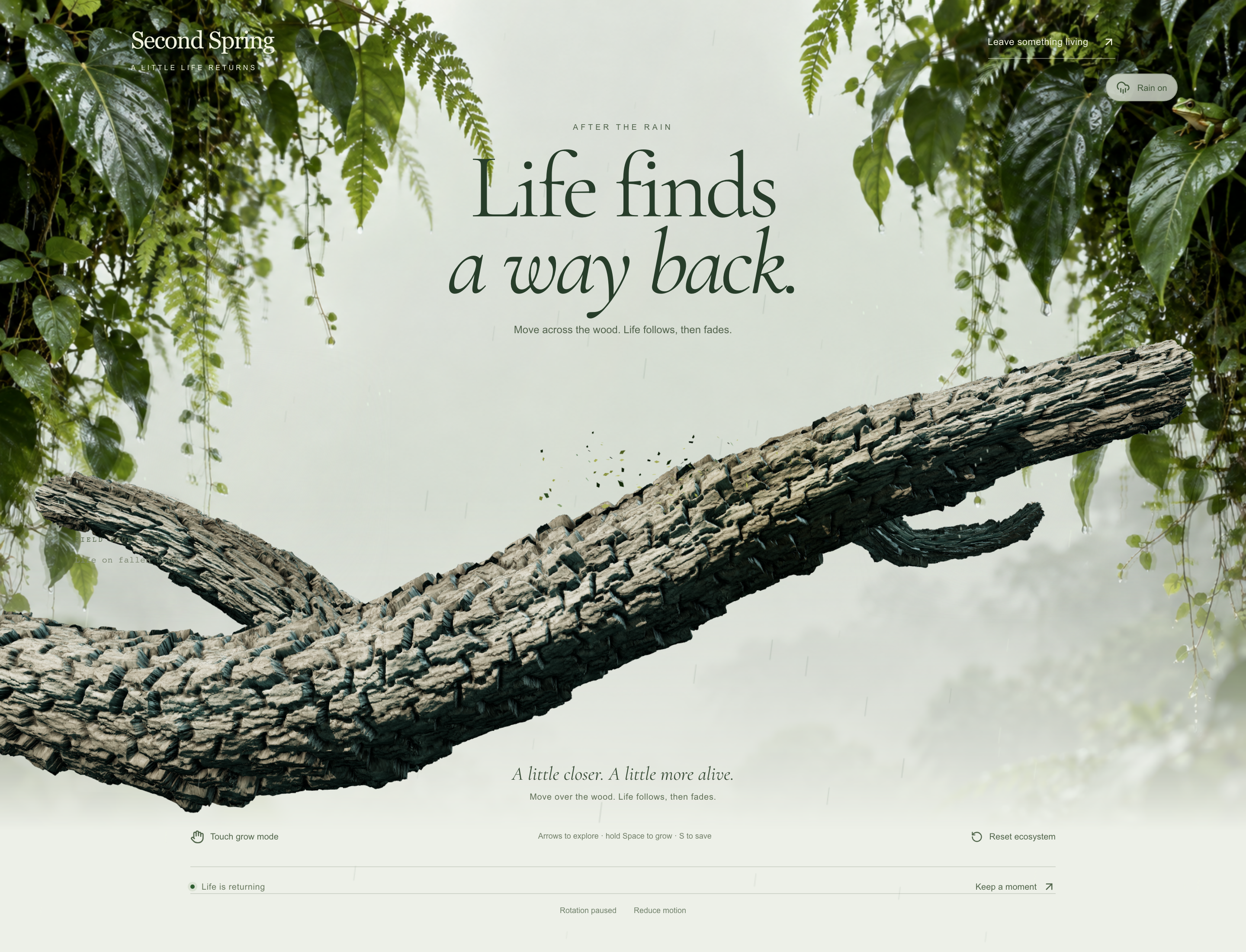
Second Spring places a large fallen branch beneath a two-line serif headline. Leafy edges and rain surround a pale central area, leaving room for the writing. The interface calls the branch Field Study / 001 and invites movement across the wood. That framing makes the object something to examine, not simply background decoration for a fundraising appeal.
The opening separates the headline from a lower interaction area. Touch grow mode, keyboard guidance, reset, rotation, reduced motion and Keep a moment sit around the scene. The resting label explains a quiet state. Without it, a visitor could mistake the absence of growth for a failed interaction, especially before learning where to move the pointer.
An Object With an Editorial Role
Fallen wood appears first as a large textured form and later as the subject of the Soil story. That repetition connects a visible object with the explanation of habitat and decomposition. The page has a more specific starting point than a general forest photograph paired with an abstract appeal to help nature.
Different Controls for Different Needs
Rotation and reduced motion are separate controls. One changes how the object is examined; the other addresses the amount of movement in the experience. The source also displays arrow-key and Space guidance. Those labels are useful affordances, though a complete keyboard-accessibility claim would require testing every focus and input state.
A Moment, Not a Lasting Restoration Result
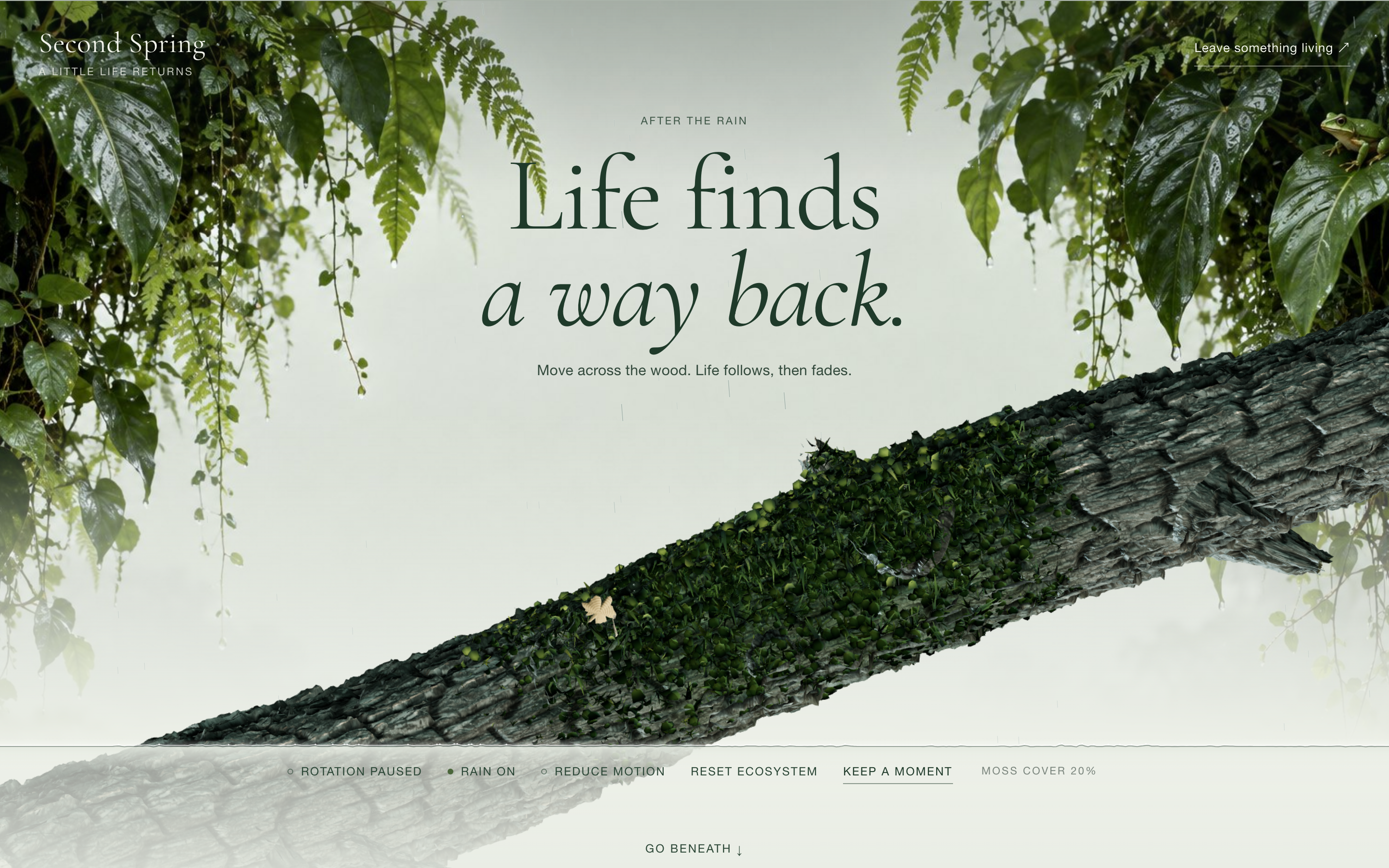
The interaction describes growth that follows attention and later fades. Keep a moment is a separate capture action, so the design distinguishes a temporary scene from a retained image. Neither the visual growth nor an exported card demonstrates real habitat restoration; the later campaign section needs its own explanation.
Separating Restoration Scale, Budget and Example Gifts
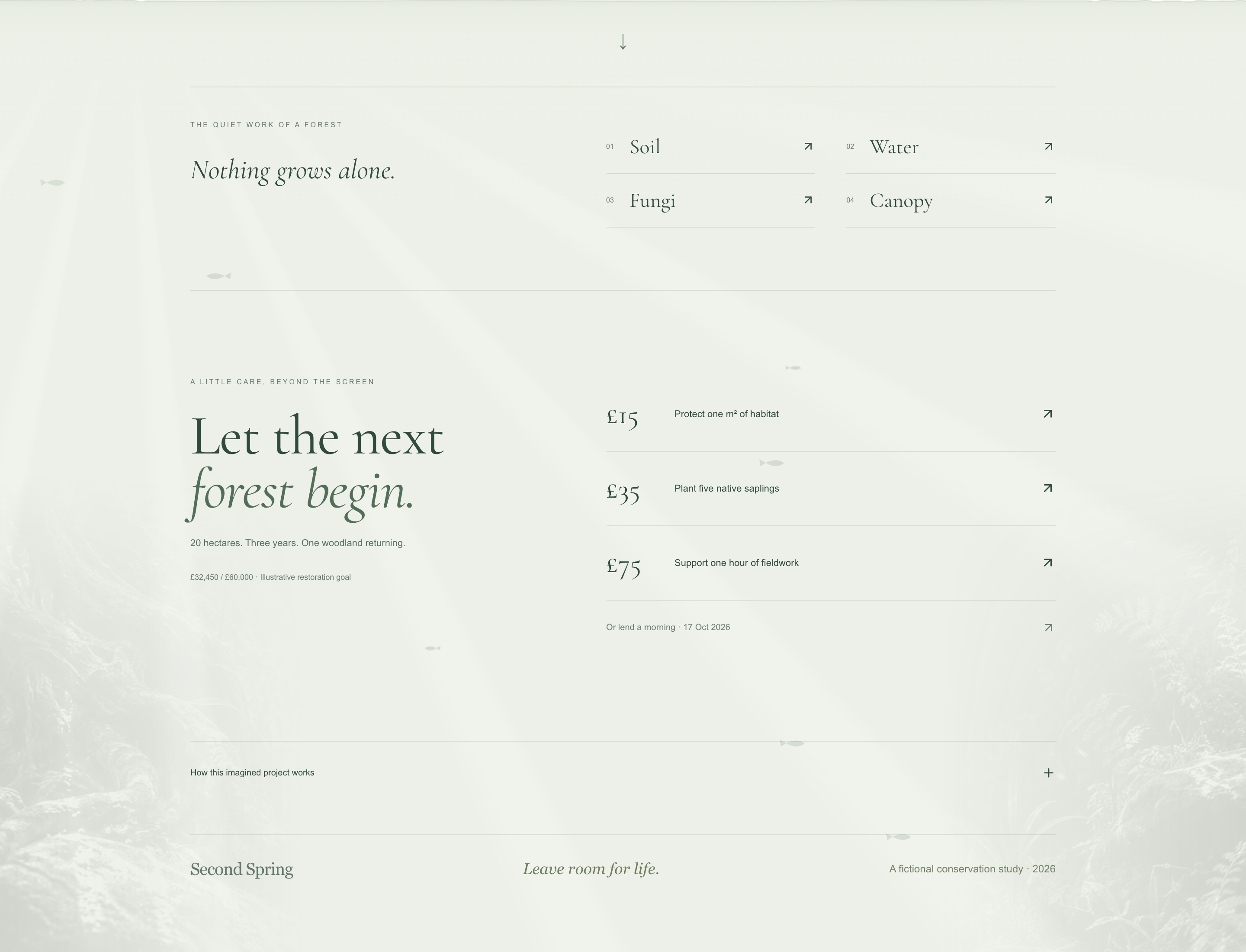
The care section states a project scale of 20 hectares over three years, then displays £32,450 against a £60,000 illustrative restoration goal. These are different kinds of information: the first describes an imagined area and time period, while the second describes a sample funding state. The page does not establish that a given percentage of the money means the same percentage of land has been restored.
Three gift buttons connect amounts with habitat, saplings and fieldwork. Opening a gift explains that costs are indicative and contributions support a pooled budget. This prevents an attractive amount-to-action label from silently becoming a promise that one payment purchases one separately tracked outcome.
| Category | Amount | What It Makes Visible |
|---|---|---|
| Fieldwork | £30,000 | Labour is treated as a substantial part of restoration, not an invisible overhead. |
| Plants and Aftercare | £15,000 | Planting is paired with subsequent care rather than presented as the whole project. |
| Monitoring | £9,000 | Observation continues after the initial intervention. |
| Coordination | £6,000 | The plan includes organizing the work as well as performing it. |
Using Field-Story Dialogs to Keep the Main Page Short
Soil, Water, Fungi and Canopy appear as four numbered links beside Nothing grows alone. Each opens a separate field-story dialog rather than expanding a paragraph in the main layout. The Soil view explains how fallen wood contributes organic matter, then names soil cover, compaction and invertebrate activity as observations for the fictional field team.
This choice keeps the main journey compact, but the explanations are one action away. A visitor who scrolls past the four labels will not read the details. The short visible introduction therefore has to make the links worth opening; the page cannot assume that the depth inside the dialogs has already been encountered.
Move From Scene to a Specific Question
The fallen branch leads naturally to the Soil story. Water discusses moisture and runoff, Fungi discusses decomposition, and Canopy introduces time, light and seedling survival. The four topics broaden the view progressively without abandoning the object that gave the opening its focus.
Return to the Same Reading Path
Each story offers Return to the forest. Keeping the explanation in a dialog lets the reader rejoin the short main page rather than navigate back from another URL. The return control needs to remain obvious, especially when the story is opened on a narrow screen.
Explain the Plan Before the Footer
How this imagined project works is a separate disclosure below the care options. It prioritizes retaining deadwood and existing trees, then natural regeneration and planting where needed. The budget and simulated-flow notice appear in this explanation, giving the participation buttons a context beyond their prices.
What This Fictional Restoration Prototype Includes
The supplied file provides a local nature scene, field-story dialogs, illustrative contribution dialogs and a simulated volunteer sign-up. The support amounts, budget, project scale and event date are fictional examples, not verified fundraising or restoration outcomes. No payment is collected and no email service is connected. The model token is preserved from the uploaded filename rather than expanded into an unverified provider or version claim.
How to Create a Forest Restoration Website Design in OpenDesign
Connect the Branch to the Reading Sequence
Specify what the visitor sees, what they can change and what they learn next. Make the first field story explain the same fallen wood used in the opening scene. Keep the headline independent from the more detailed interaction instructions.
Suggested PromptCreate a forest restoration website design for a fictional campaign called Second Spring. Use a pale, rain-soaked editorial composition with leafy edges, a two-line serif headline and a large fallen branch as Field Study 001. Let pointer interaction produce temporary growth on the wood. Provide reset, rotation, reduced-motion and capture controls with readable keyboard guidance. Below, show four numbered links for Soil, Water, Fungi and Canopy, each opening a focused story dialog with an obvious return action. Add a compact care section that separates an illustrative project area and duration from a sample funding goal. Include three simulated gift choices and a disclosure explaining the pooled budget and restoration method. Keep all contributions and volunteer responses local. Do not equate on-screen growth or funding progress with real habitat restored.
Make Every Number Explain Its Unit
Read the area, duration, funding goal and gift labels independently. Check that each number has a unit and that the fictional status is visible before any confirmation. The expanded method should explain pooled work, not promise a separately measured outcome for each button.
Test the Full Open-and-Return Sequence
Open each field story, return to the page, open a gift and close it without confirming. Repeat on a narrow screen. Then check the reduced-motion view so the core reading and participation explanation remain available without relying on the branch animation.
Export and Get a Share Link
Export your finished design, then use Share in OpenDesign to get a share link. Open the link in a separate browser window and check that the intended version and its assets are available before sending it.
Interactive Conservation Website Design
Grow a patch of moss on a fallen log, then explore the forest-floor stories and simulated ways to help in Second Spring.
Website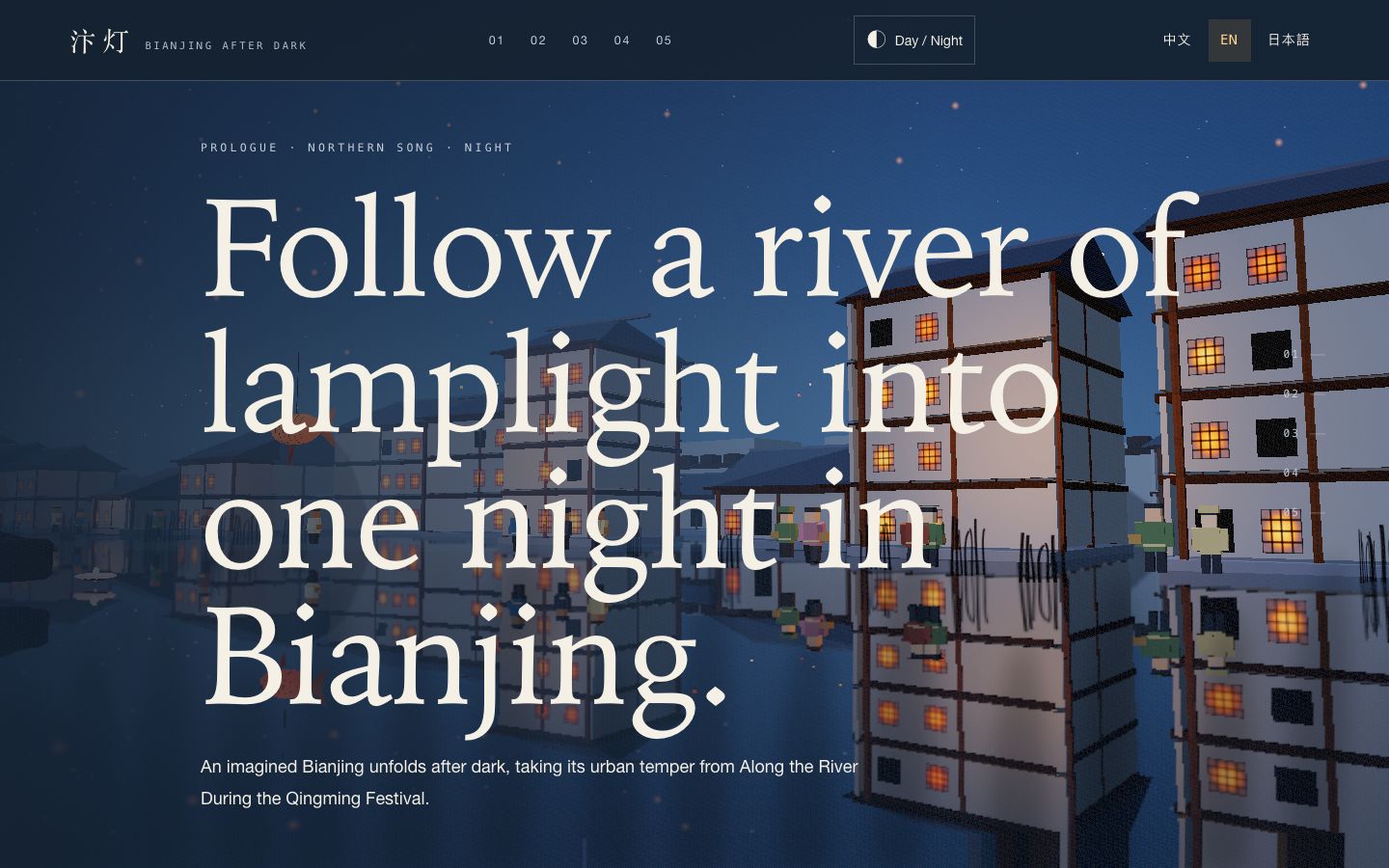
Bianjing Night Tour Website Design
An interactive night journey through an imagined Song-era Bianjing, combining a persistent river city, poetry, lanterns and multilingual chapter pacing.
Website
Careers Website Design
A Kimi careers study built from eight lunar scenes, with scroll-linked transitions and an illustrated application process.
Website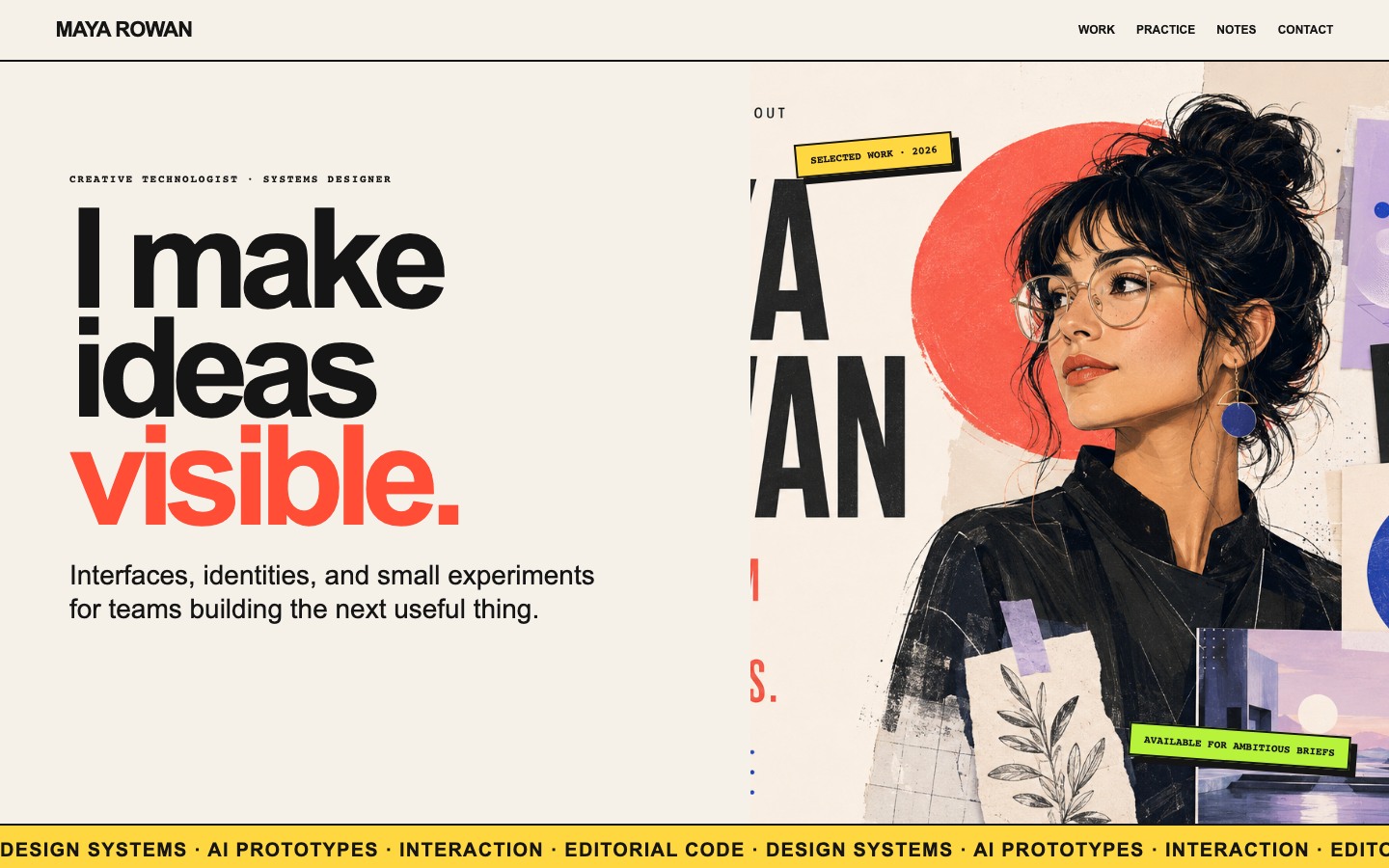
Creative Portfolio Website Design
Maya Rowan’s fictional portfolio connects project cards, practice, and notes.
Website