

Graphics
Growth Metrics Report Design
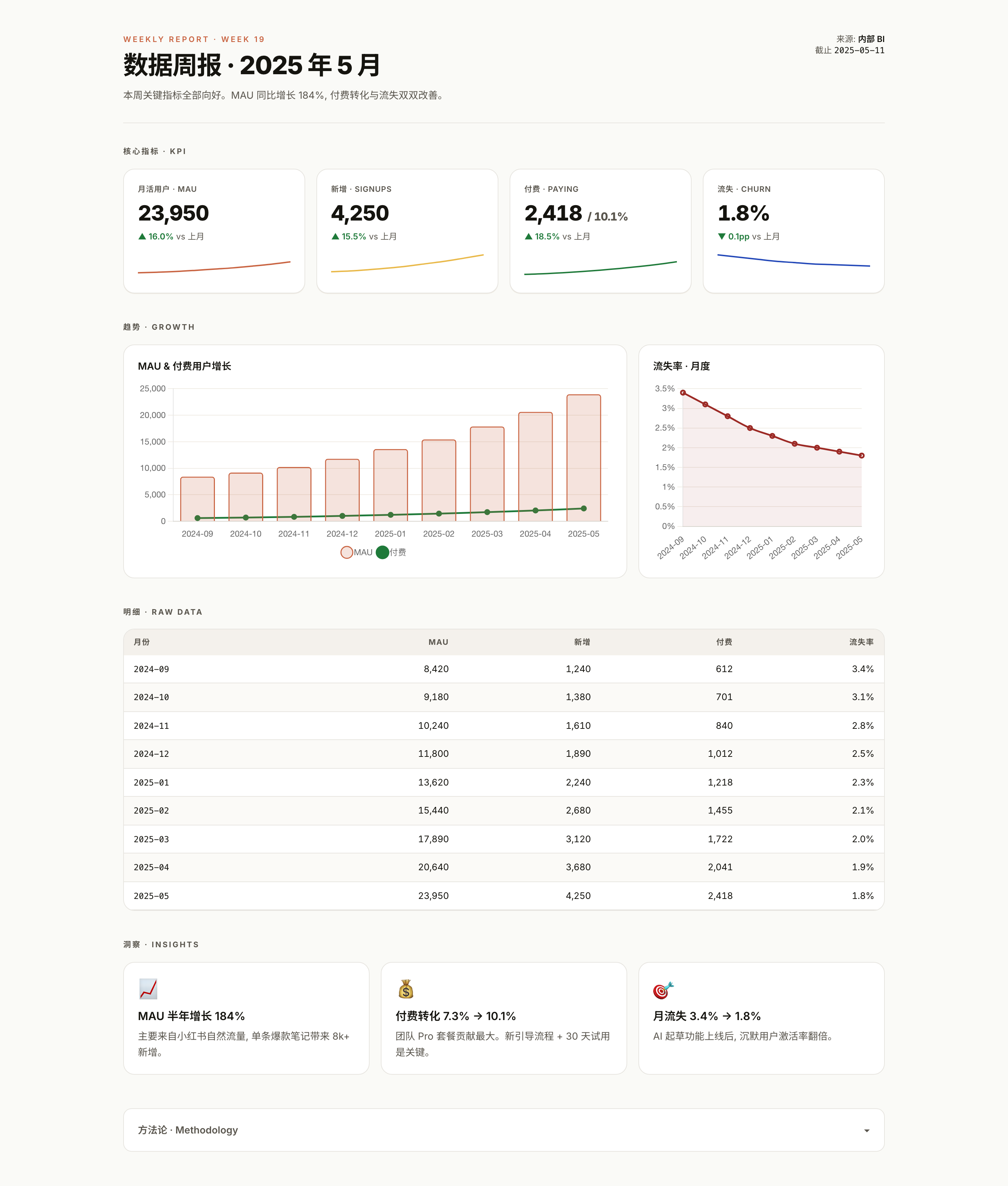
A Chinese report layout brings four KPI cards, paired trend charts, nine monthly sample rows, and three insight cards into one vertical document.

Growth Report Use Cases
- Monthly Growth ReportingPresent recurring growth results in a compact report.
- KPI ReviewCompare headline metrics with month-over-month changes.
- Trend CommunicationSeparate audience counts from monthly churn percentages across time.
- Insight SummariesPair reported figures with concise explanatory takeaways.
Report Layout Highlights
- Four KPI CardsPuts MAU, signups, paying users, and churn first.
- Paired Trend ChartsSeparates audience counts from monthly churn percentages.
- Raw Data TableKeeps nine monthly rows available for checking.
- Insight CardsConnects selected changes with short narrative explanations.
From KPI Snapshot To Insights
1 / 6


A Four-Layer Growth Report
Distributed in the OpenDesign Community library with HTMLAnything declared as its upstream, this Chinese report moves through KPI, Growth, Raw Data and Insights sections. Its heading uses weekly-report wording with a May 2025 title, while the charts and table contain nine monthly sample rows. The layout provides an immediate summary, visual comparison, underlying record and final interpretation; the mixed reporting periods need reconciliation before operational reuse.
The first frame establishes a document rather than a tool workspace. “来源: 内部 BI” and “截止 2025-05-11” sit at the upper right, while the report title and short statement sit at the upper left. This separation makes provenance and timing visible without interrupting the main reading path.
The figures are literal sample values in the supplied HTML and JavaScript. They illustrate relationships between report elements, not live business performance or a connected BI service. The charts and table use that local array, while the KPI comparisons and insight text are separately authored. Those layers therefore need consistent definitions before the layout is adapted to real reporting.
Use Cases For Growth Reporting
This design fits recurring reports where a reader needs both a fast status check and enough underlying detail to question the summary. The four KPI cards expose the current snapshot: “月活用户 · MAU” shows 23,950, “新增 · SIGNUPS” shows 4,250, “付费 · PAYING” shows 2,418 / 10.1%, and “流失 · CHURN” shows 1.8%. The adjacent comparison labels make each movement explicit, such as “▲ 16.0% vs 上月”.
That compact row favors scanning, but it also compresses definitions. The report presents paying users and a percentage in one card, while churn uses a percentage-point change. A production adaptation would need to preserve those distinctions with confirmed metric definitions, because a number and its comparison are not interchangeable.
The report is also suited to a review meeting or written update. The charts provide a directional story, the table lets a reader inspect the monthly sequence, and the insights provide a place for interpretation. The sample content should be replaced with verified reporting inputs before it is used for operational decisions.
Executive Snapshot
Use the KPI row to orient readers around current values and month-over-month movement.
Trend Review
Use paired charts when scale and rate need separate visual treatment.
Evidence Check
Use the raw table to connect a headline trend with its source rows.
Narrative Follow-Up
Use insight cards to state an interpretation beside the relevant change.
Composition And Reading Order
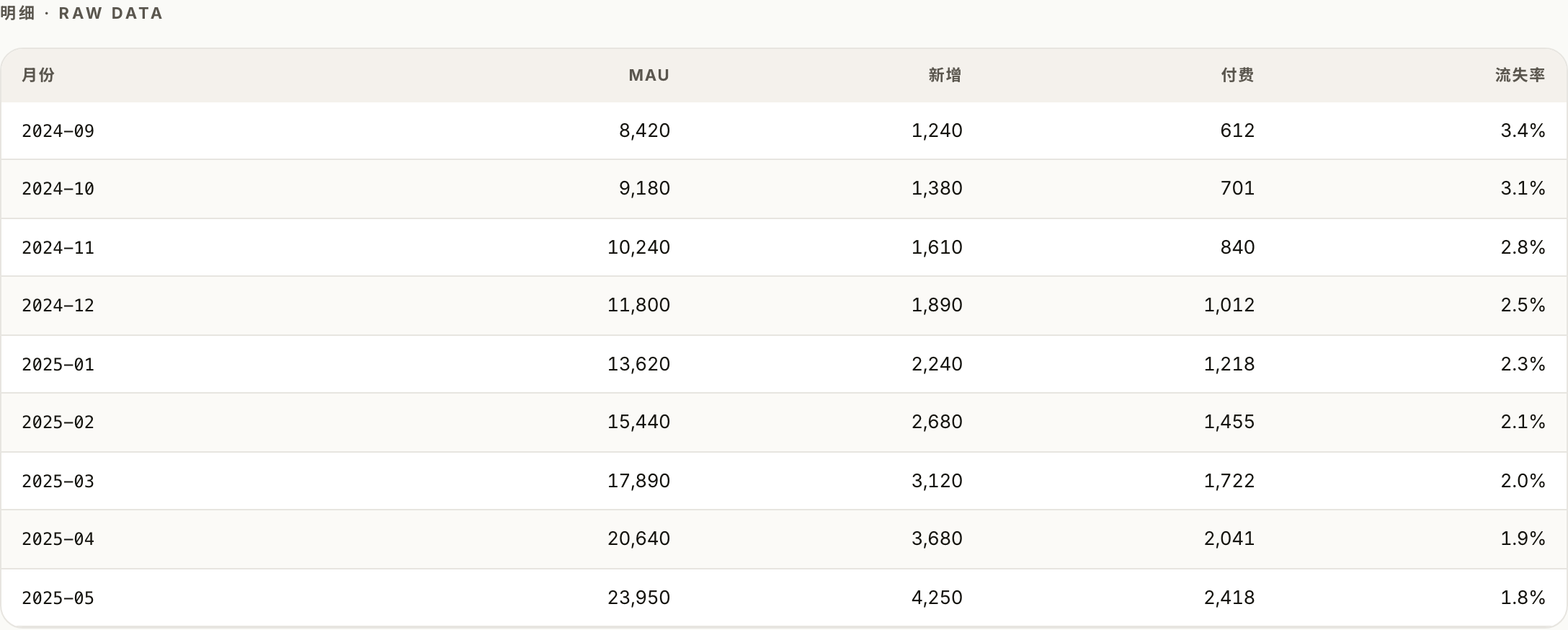
The composition is deliberately vertical. A thin divider separates the report header from the KPI section, and the four cards share one horizontal row. Below them, the growth area gives most of its width to “MAU & 付费用户增长” and a narrower panel to “流失率 · 月度”. This proportion allows the large-count series to use a fuller plotting area while keeping the rate chart readable at its own scale.
In the larger chart, peach MAU bars and a green paying-user line share one count axis across nine labels from September 2024 to May 2025. The smaller panel plots monthly churn as a red percentage line. Separating count and percentage panels avoids mixing units, although the paying-user series remains close to the baseline beside the larger MAU counts. Legends, units and the accompanying table are important because direction alone does not explain the size of each change.
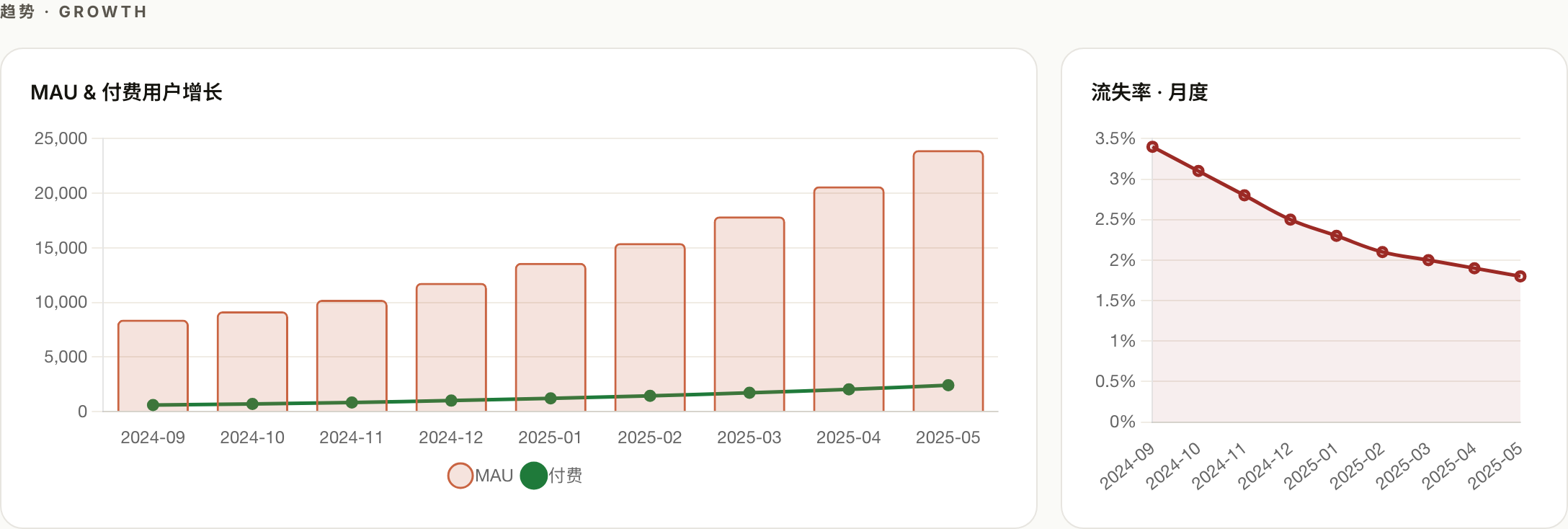
The raw table follows the charts with month, MAU, signups, paying users and churn columns. Its nine sample rows run from 8,420 MAU and 3.4% churn in September 2024 to 23,950 MAU and 1.8% churn in May 2025. This repetition supplies a checkable record behind the configured plots, at the cost of a longer page. The table can show how the series is organized, but it does not verify the report’s causal interpretations or real business performance.
The final insight row changes the reading mode from measurement to explanation. Its three cards cover MAU growth, paying conversion, and churn, using short headings such as “付费转化 7.3% → 10.1%”. The report ends with the collapsed “方法论 · Methodology” disclosure, which offers a reserved place for methodological context without competing with the main findings.
| Layer | Visible Evidence | Reader Task |
|---|---|---|
| KPI | Four current values with comparison labels | Scan the latest reported position |
| Growth | MAU bars, paying-user line, and churn-rate line | Compare direction across nine months |
| Raw Data | Monthly rows for MAU, signups, paying, and churn | Check the values behind the charts |
| Insights | Three written change statements | Understand the sample interpretation |
Scope And Capability Boundary
This artifact is a report document rendered from authored markup, styling, chart configuration, and sample rows. The visible charts communicate relationships in the supplied series, while the native “方法论 · Methodology” disclosure provides a local expandable state. Those visible choices do not establish a live analytics connection, automatic refresh, external storage, or a verified reporting workflow.
Density is traded for traceability: summary, plots, rows and interpretation share one long page. A real adaptation must also reconcile the source’s weekly header, monthly comparisons, May 11 cutoff, and insight wording that alternates between year-over-year and half-year growth. Nine displayed months do not establish either comparison on their own. Confirm reporting periods, metric definitions and data sources before treating the format as an operational report.
The sample insight copy attributes changes to sources, plans, onboarding, and product behavior. Those statements belong to the example content and should be treated as proposed interpretation until independently supported. The layout can present such reasoning; it cannot establish that the cited causes produced the displayed results.
How to Create Growth Metrics Report Design in OpenDesign
Set The Report Sequence
Start with a Chinese report heading, source label and cutoff date, then define KPI, Growth, Raw Data and Insights sections in that order. Use one consistent reporting period for a recreation: the supplied example mixes a weekly heading with monthly rows, so its labels are design references rather than validated definitions.
Suggested PromptCreate a Chinese growth-report design with a clearly labeled reporting period and source cutoff. Arrange four sections in order: KPI, Growth, Raw Data and Insights. Include four KPI cards for MAU, signups, paying users with a conversion percentage, and churn; a wide MAU bar and paying-user line chart; a narrower percentage-based churn chart; a nine-row monthly table; and three bounded insight cards. Use local illustrative sample data only, not a live BI connection. Derive comparisons from the same labeled period, keep count and percentage units distinct, and do not invent causal explanations or operational results.
Match The Chart Roles
Refine the growth section as two separate panels: a wide combined chart for MAU and paying users, and a narrower monthly churn-rate chart. Keep counts and percentages on separate visual scales, and label the series so the comparison remains understandable without relying on color alone.
Check The Evidence Layer
Add a raw table with month, MAU, signups, paying, and churn columns. Compare its rows with the chart labels and KPI snapshot, then review whether every percentage, arrow, and “vs 上月” statement uses the same reporting period.
Write Bounded Insights
Use three concise insight cards for growth, paying conversion, and churn. Distinguish an observed change from an explanation, and reserve the collapsed methodology area for definitions or assumptions that readers need but that would interrupt the primary report flow.
Export and Get a Share Link
Export your finished design, then use Share in OpenDesign to get a share link. Open the link in a separate browser window and check that the intended version and its assets are available before sending it.
AI Workflow Editorial Poster Design
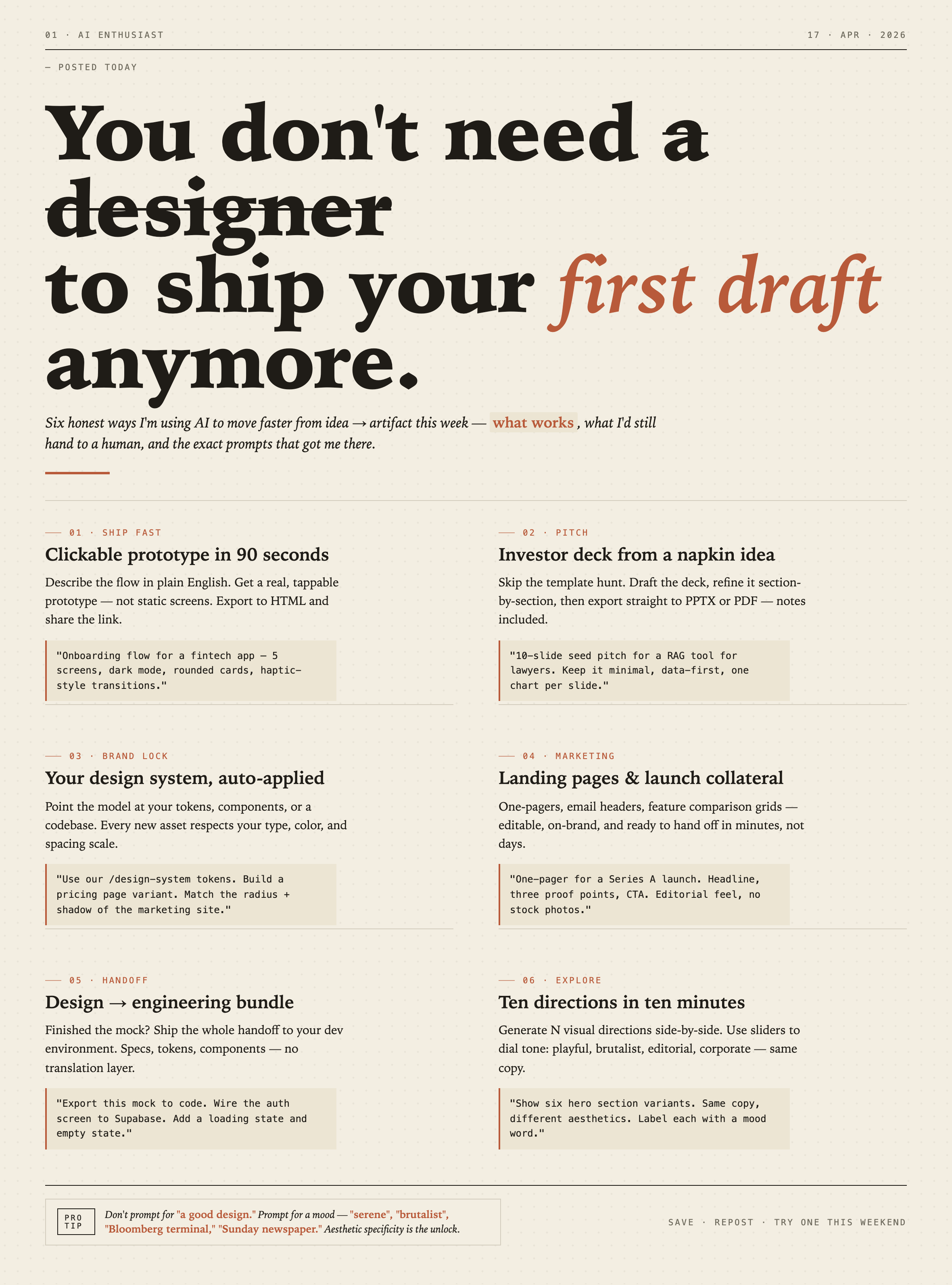
AI Workflow Editorial Poster Design presents six illustrated workflow claims with numbered chapters, concrete prompt specimens, and cream-and-rust typography.
Graphics
AI Workflow Social Carousel Design
Seven portrait cards use oversized Chinese headings, numbered habits, changing color fields, and a closing statement to explain AI editing workflows.
Graphics
Aurora Field Shader Design
An automatically animated blue-green noise field gives a WebGL hero its atmosphere, while a fixed headline and small local frame-rate badge anchor the scene.
Graphics
Aurora Veil Shader Design
Aurora Veil is an interactive shader composition that turns layered light, stars, and cursor motion into an atmospheric WebGL hero.
Graphics