

Graphics
Knowledge Workspace Digest Design
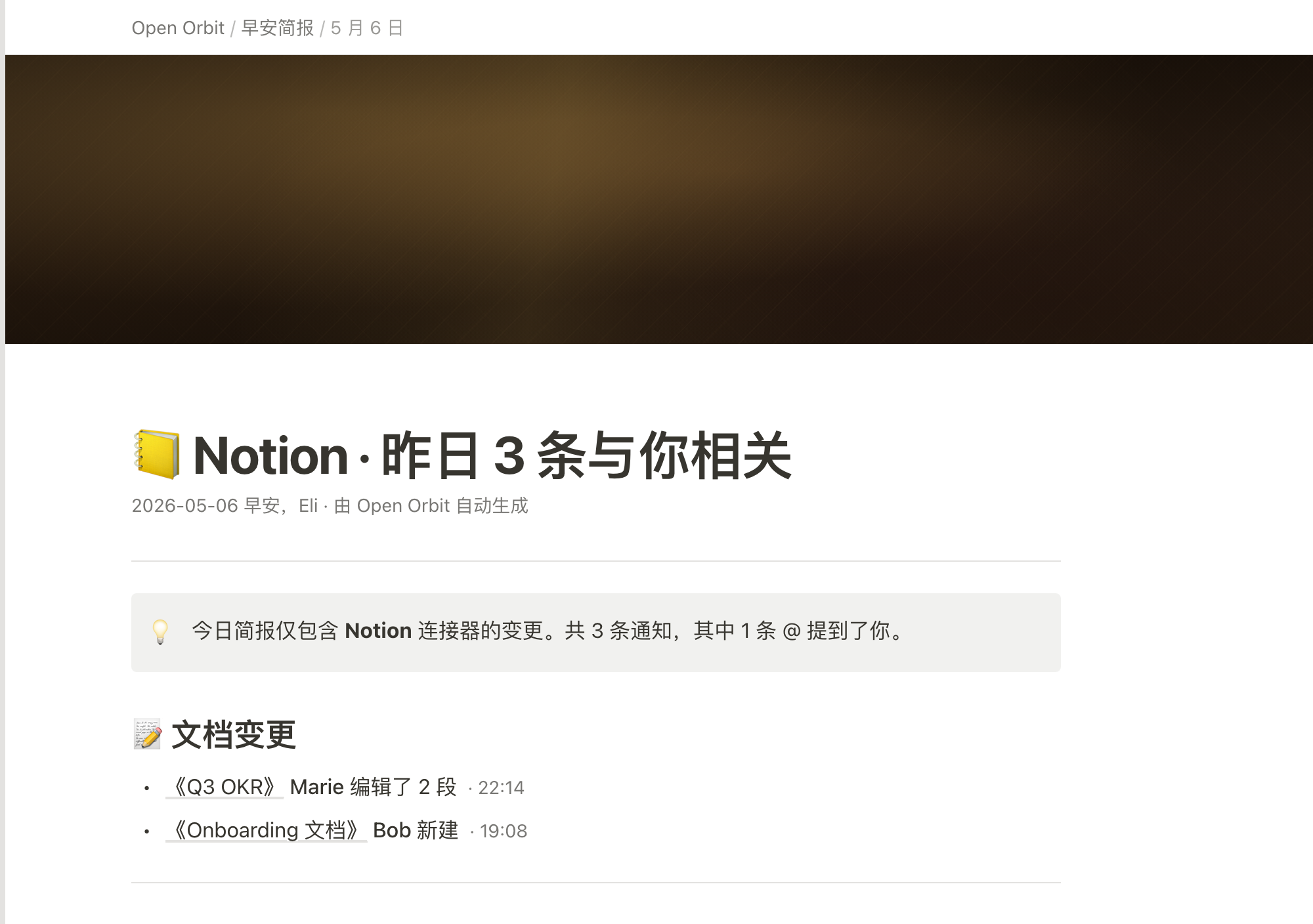
A dated Notion-style morning digest separates document edits, direct mentions, and project-status rows into a compact sequence for daily review.

Knowledge Digest Use Cases
- Morning Knowledge ReviewsScan yesterday’s document activity before starting work
- Mention TriageFind comments and direct requests requiring attention
- Database Status ChecksCompare project items, states, updaters, and update times.
- Digest Document DesignStructure connector summaries as readable daily reports
Workspace Briefing Highlights
- Dated Digest HeaderAnchors the report to a specific morning and source
- Three-Part Reading OrderMoves from documents to mentions to database changes
- Action-Oriented RecordsPairs activity details with people, times, and states
- Local Record DisclosureA collapsible note hints at raw events without supplying full logs.
The Morning Digest, Section by Section
1 / 2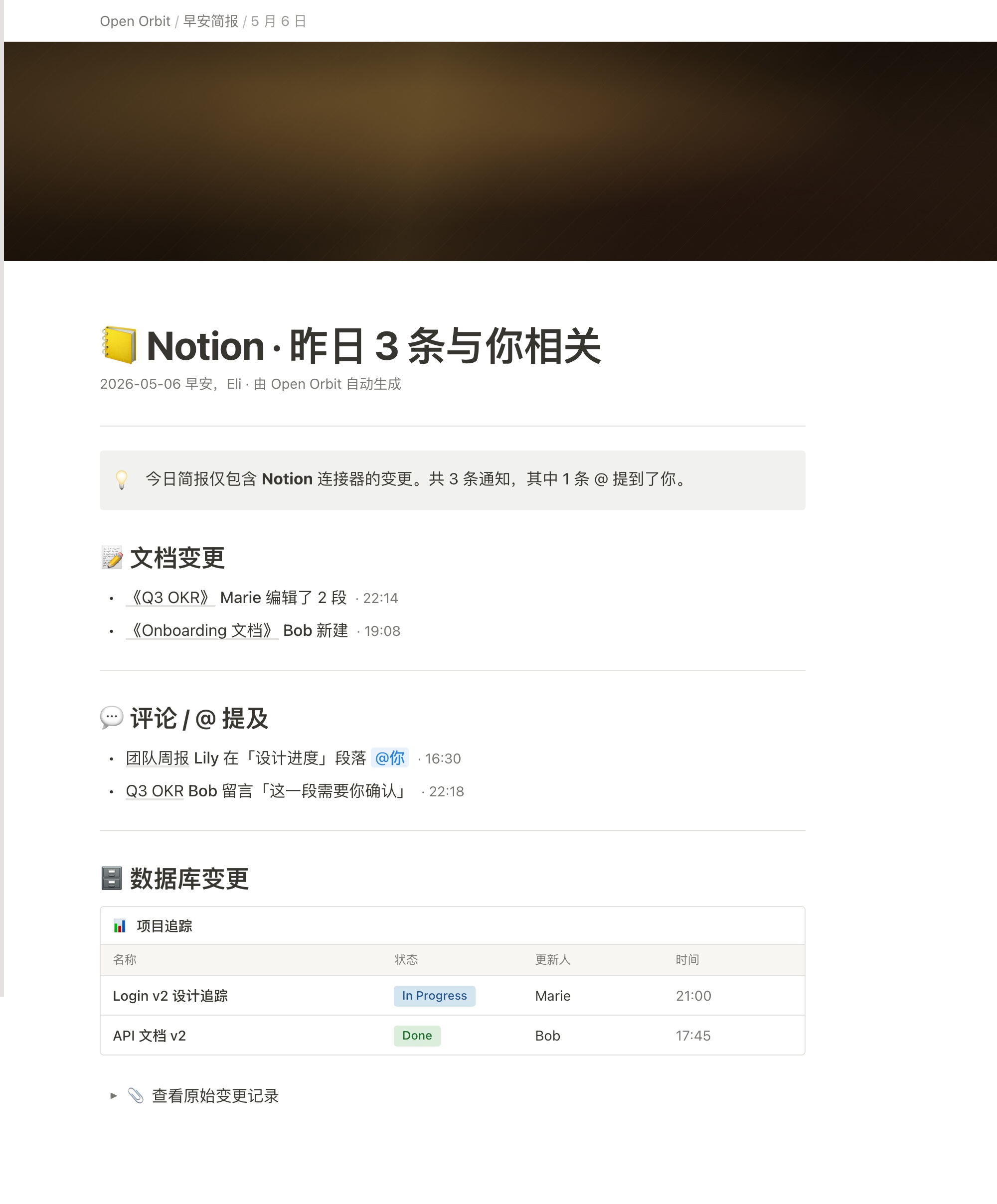
Knowledge Workspace Digest Design
Knowledge Workspace Digest Design is an official OpenDesign example for a Notion morning digest document. Its authored heading, “📒 Notion · 昨日 3 条与你相关”, frames the artifact as a personal review of yesterday’s relevant activity rather than a general workspace view.
The page begins with “Open Orbit / 早安简报 / 5 月 6 日”, then introduces “2026-05-06 早安,Eli · 由 Open Orbit 自动生成”. That sequence establishes source, document type, date, recipient, and stated generator before the activity itself. The visual evidence supports a designed document and sample content; it does not establish a live Notion connection or production automation.
The light callout says the digest contains only Notion connector changes, with three notifications and one mention. The sections below nevertheless show two document entries, two comment or mention entries, and two database rows. The example does not reconcile these counts or define whether several entries represent one notification; the opening totals are illustrative rather than a verified aggregation rule.
Use Cases For Daily Review
The digest is organized for a short morning pass. “📝 文档变更” lists edited or newly created documents, “💬 评论 / @ 提及” isolates conversational requests, and “🗄️ 数据库变更” presents structured project updates. This ordering moves from content changes to personal attention items and then to broader status information.
The document entries combine a title, person, action, and time. “《Q3 OKR》 Marie 编辑了 2 段 · 22:14” distinguishes an edit from “《Onboarding 文档》 Bob 新建 · 19:08”, so a reader can infer whether to inspect changed content or a newly created page. The tradeoff is compactness: the report gives a useful activity cue without showing the changed passages.
The mention section makes the personal relevance more explicit. “团队周报 Lily 在「设计进度」段落 @你 · 16:30” identifies both the context and location of the mention, while Bob’s “这一段需要你确认” comment communicates a request directly. These entries support triage, but the sample does not define priority, due dates, or whether a response has already happened.
| Section | Visible Evidence | Reader’s Next Question |
|---|---|---|
| 文档变更 | Document title, action, person, and time | What changed or was created? |
| 评论 / @ 提及 | Context, mention or comment, and time | Where is my response needed? |
| 数据库变更 | Item, status, updater, and time | Which project state needs follow-up? |
Composition And Data Grouping
The supplied CSS sets “.page-content { max-width: 900px }”, and the captures show a restrained white reading column with horizontal separators between sections. A dark brown patterned band sits above the document body, while the main content uses large black headings and muted gray metadata. This contrast gives the report a document-like identity without making the activity list compete with the title.
The database block contains a “项目追踪” panel with columns for name, status, updated by, and time. Its two sample rows pair Login v2 design tracking with In Progress, Marie, and 21:00, and API documentation v2 with Done, Bob, and 17:45. These names identify the updater, not a task owner. Status colors support comparison without defining the workflow or completion criteria.
Document-title links and database-row clicks locally construct Notion URLs from visible titles, using a fixed workspace prefix rather than verified page IDs. Their external destinations were not tested. The final raw-change control is different: native details opens a short note that refers to five API events, but contains no full event log. The design therefore demonstrates navigation affordances and local disclosure, not a connected change-history service.
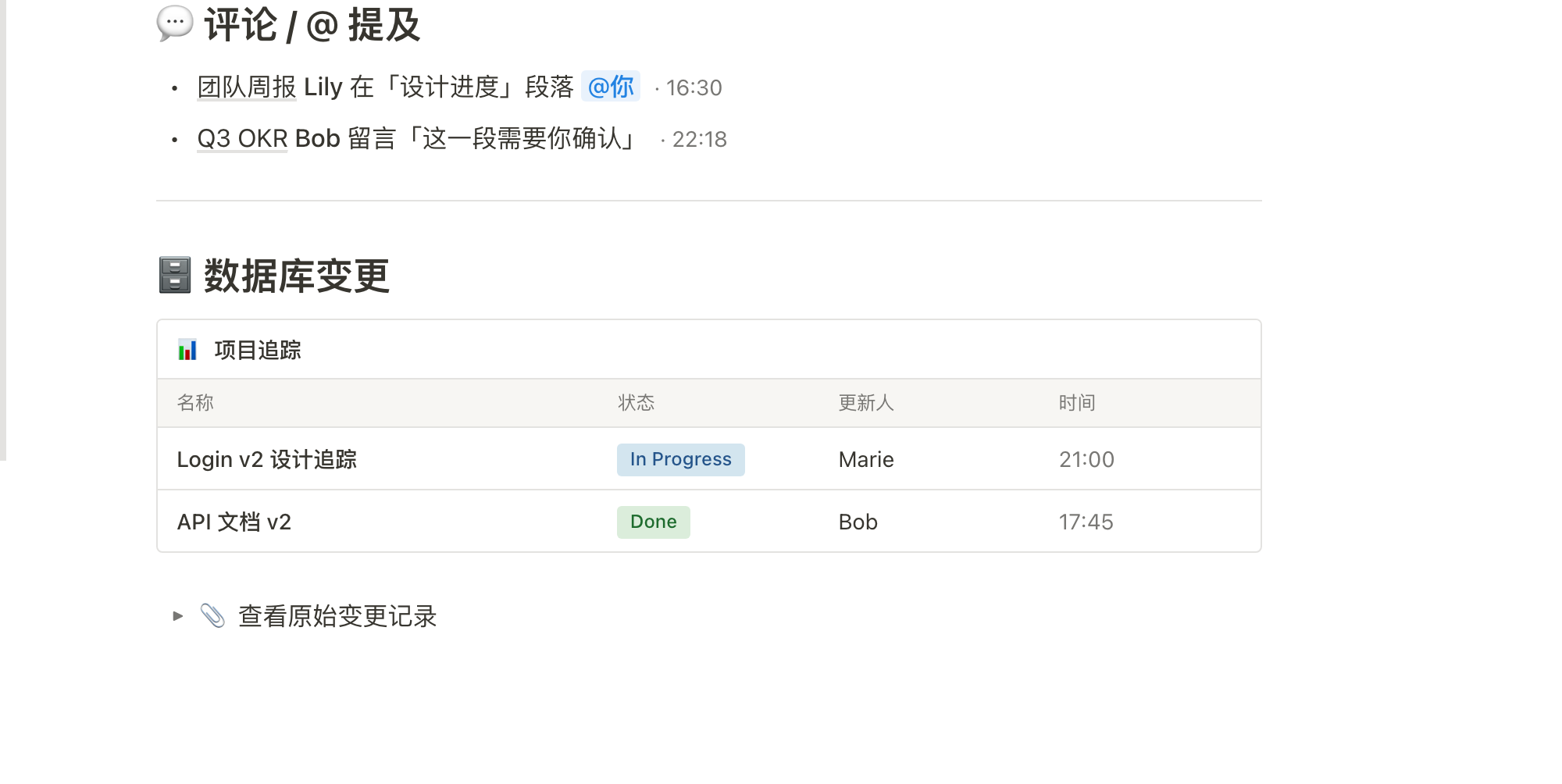
| Item | Status | Updated By | Time |
|---|---|---|---|
| Login v2 Design Tracking | In Progress | Marie | 21:00 |
| API Documentation v2 | Done | Bob | 17:45 |
From Narrative To Table
The first two groups use readable bullet sentences because edits and comments need context. The database group uses aligned fields because comparison matters more than prose. Replacing the table with another bullet list would make the two project states harder to compare at a glance.
Scope And Capability Boundary
This artifact is a design-only graphic example with illustrative names, dates, counts, document contents, and database rows. The captures show the intended visual structure and local presentation details. They do not verify a working Notion integration, connected services, persistent storage, real notifications, or the accuracy of the depicted records.
For adaptation, preserve the distinction between observed design and proposed behavior. A new implementation could replace the sample rows with confirmed source data, but it would need separately defined rules for notification counts, mention detection, status meanings, permissions, and links to original records. The reference supplies the information architecture and visual treatment, not those backend contracts.
How to Create Knowledge Workspace Digest Design in OpenDesign
Set The Digest Structure
Create a dated morning document with a source-and-recipient heading, a short scope callout, and three ordered groups: document changes, comments or mentions, and database changes.
Add Concrete Activity Fields
Use sample records that distinguish edited from newly created documents, identify mention context, and place database items in columns for name, status, updater, and time. Keep sample content visibly illustrative until real data rules exist.
Suggested PromptCreate a Notion-style morning digest titled “Notion · Yesterday's Relevant Updates” with a dated recipient header, scope callout, and sections for document changes, comments and @ mentions, and database changes. Use compact activity rows and a project table with Name, Status, Updated By, and Time. Include a native disclosure containing a short raw-change-note placeholder. Keep document-title links and database-row destinations illustrative; do not claim verified page IDs, permissions, a live connector, backend storage, real notifications, or a complete event log.
Refine The Reading Hierarchy
Match the reference composition with a restrained white reading column, strong section headings, muted metadata, separators, and status colors limited to the project table. Check that the document and mention entries retain context while the database rows remain easy to compare.
Export and Get a Share Link
Export your finished design, then use Share in OpenDesign to get a share link. Open the link in a separate browser window and check that the intended version and its assets are available before sending it.
AI Workflow Editorial Poster Design
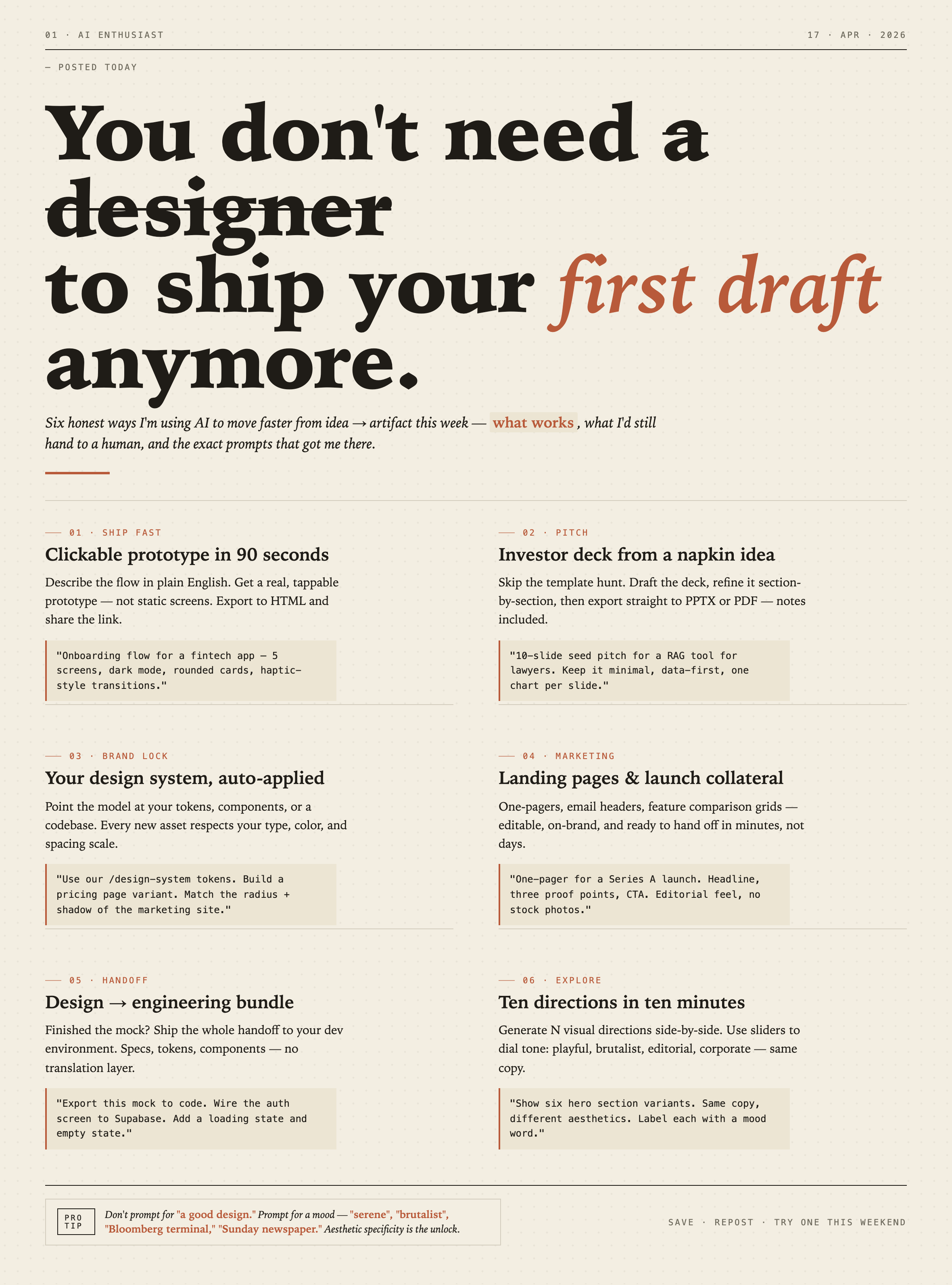
AI Workflow Editorial Poster Design presents six illustrated workflow claims with numbered chapters, concrete prompt specimens, and cream-and-rust typography.
Graphics
AI Workflow Social Carousel Design
Seven portrait cards use oversized Chinese headings, numbered habits, changing color fields, and a closing statement to explain AI editing workflows.
Graphics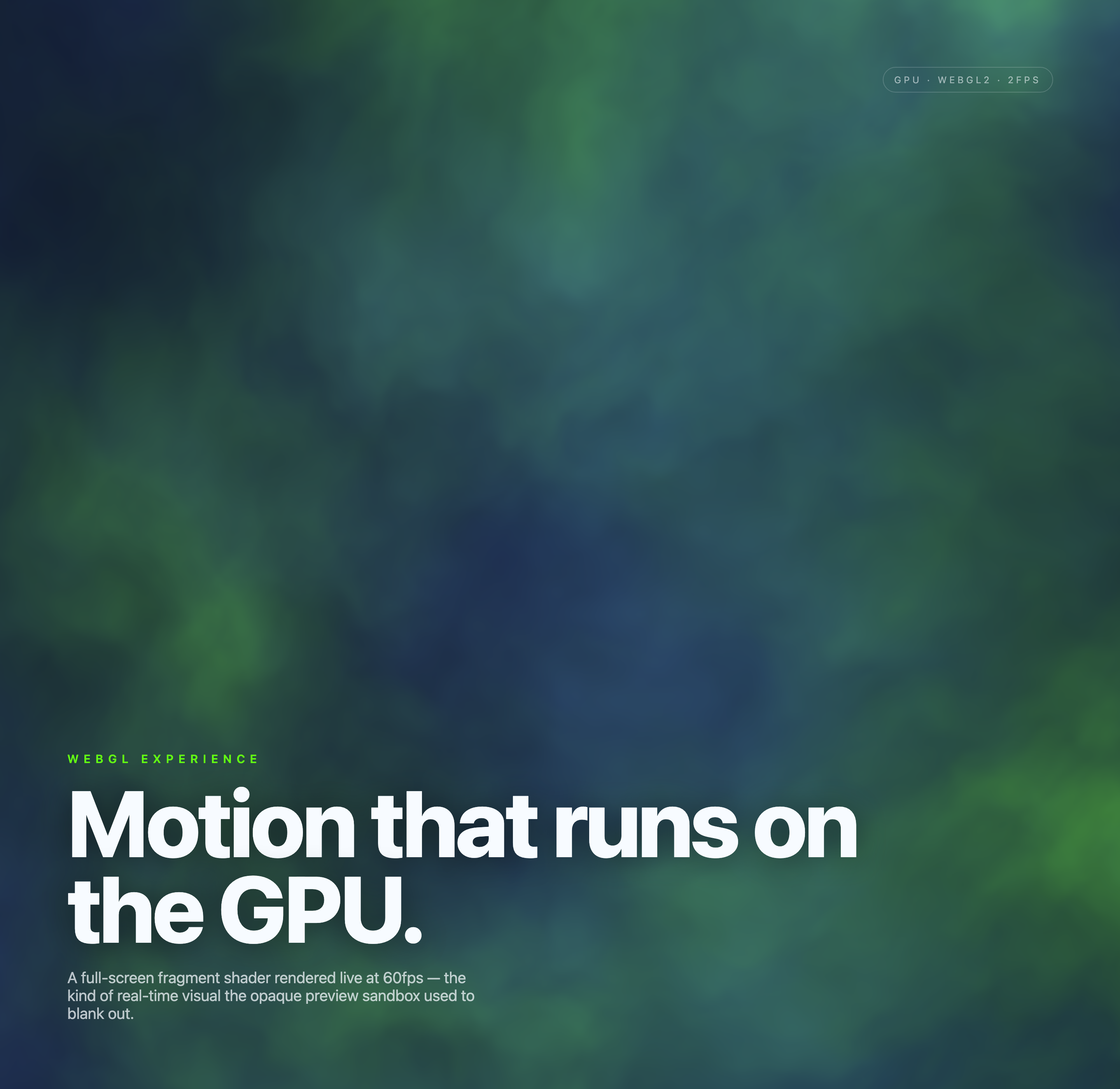
Aurora Field Shader Design
An automatically animated blue-green noise field gives a WebGL hero its atmosphere, while a fixed headline and small local frame-rate badge anchor the scene.
Graphics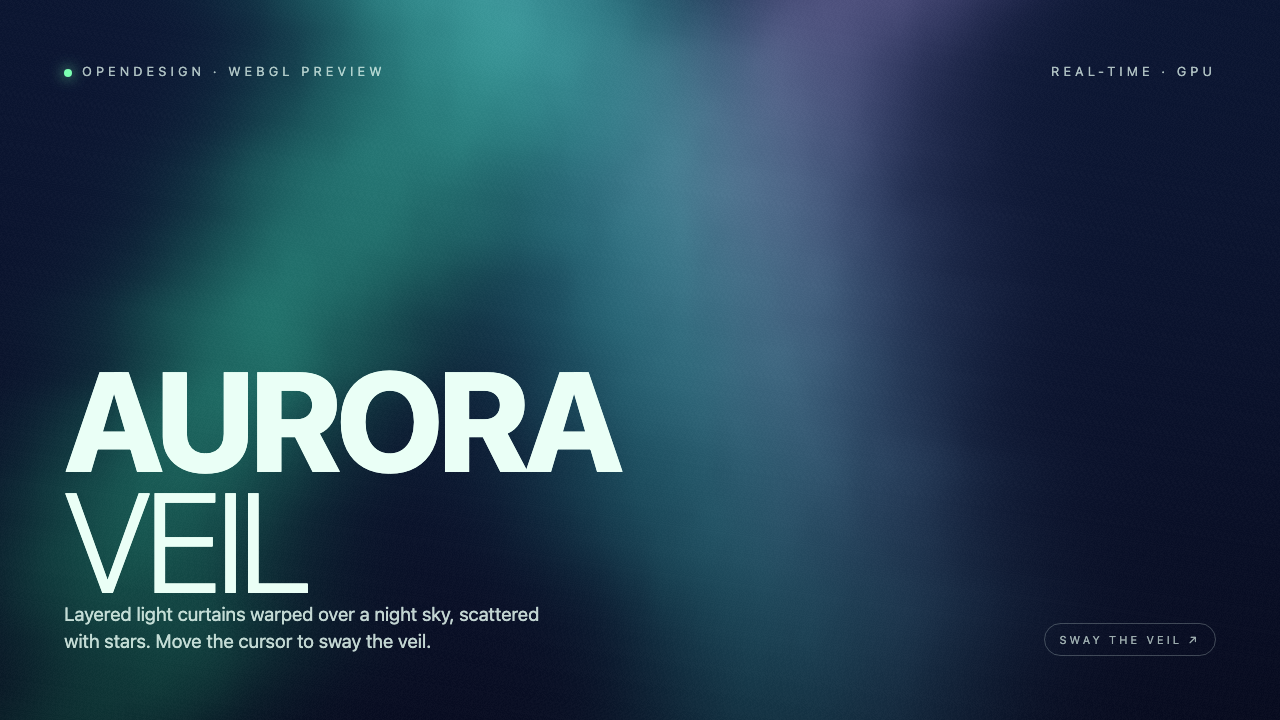
Aurora Veil Shader Design
Aurora Veil is an interactive shader composition that turns layered light, stars, and cursor motion into an atmospheric WebGL hero.
Graphics