

Desktop app
Relationship Analytics Dashboard Design
Relationship Analytics Dashboard design turns sample mutuals, community, and match-rate signals into a scannable desktop workspace for comparing current status with recent trends.

Relationship Dashboard Use Cases
- Relationship Signal ReviewScan mutuals, replies, communities, and match-rate indicators together.
- Community Trend AnalysisCompare recent mutual activity with the communities associated with it.
- Weekly Personal AnalyticsReview a compact set of relationship and activity measures in one workspace.
- Editorial Dashboard StudiesStudy how data labels, charts, and commentary shape a personal analytics view.
Analytics Layout Highlights
- Three-Column MetricsNine measures form a consistent three-column reading grid.
- Thirty-Day ActivityDaily bars show mutual activity from March 18 through today.
- Twelve-Week ContextA second panel frames match rate as a longer trend.
- Narrative AnnotationsShort editorial notes connect figures with suggested interpretations.
Metrics, Activity and Relationship Context
1 / 2Mutuals Dashboard Overview
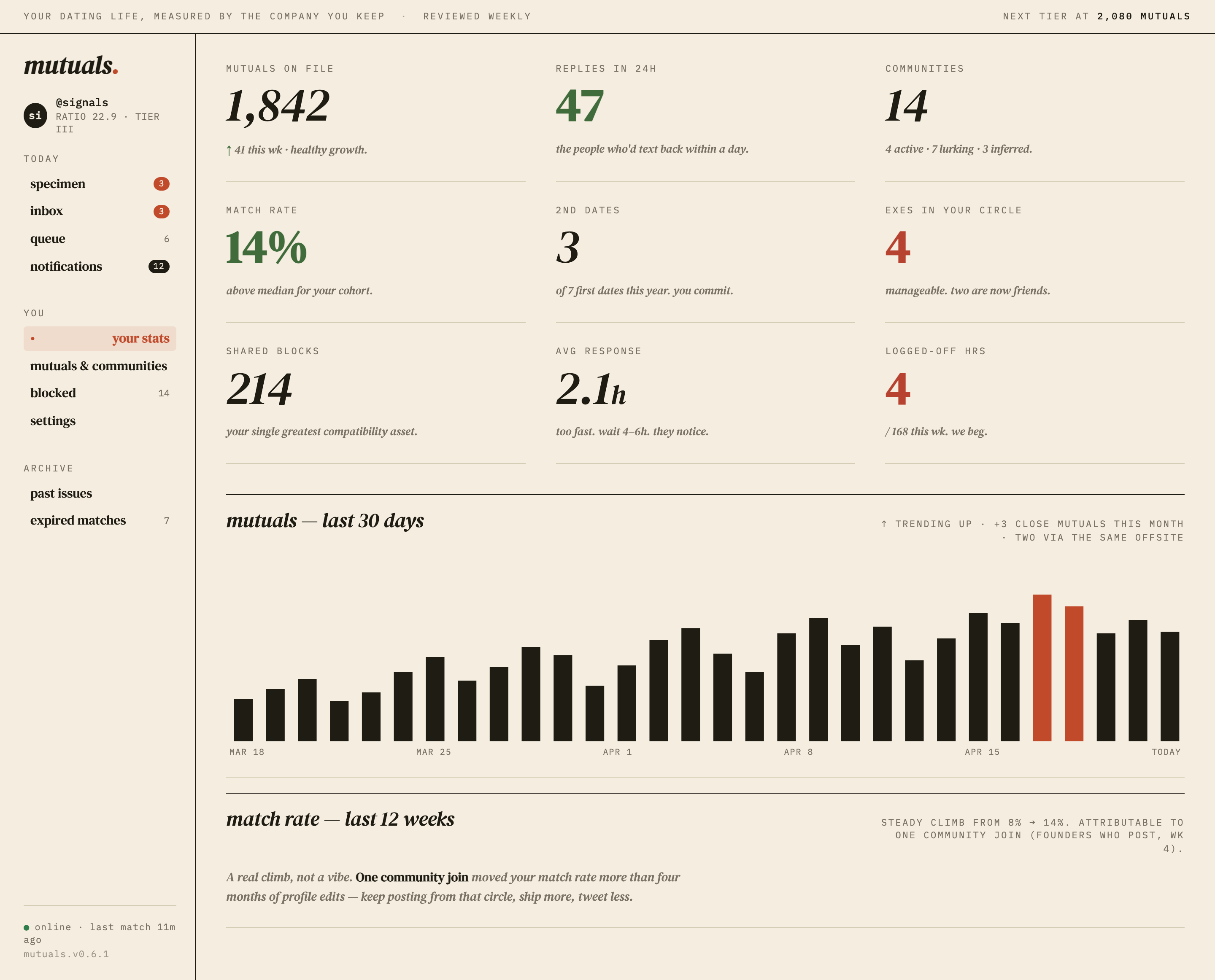
This official OpenDesign desktop-app example presents a relationship analytics dashboard under the line “YOUR DATING LIFE, MEASURED BY THE COMPANY YOU KEEP.” The page pairs a left navigation rail with a broad metrics workspace, so a reader can move from account context to current measures and then into historical activity.
The dashboard is authored by OpenDesign and uses illustrative sample data. The visible numbers, names, relationship claims, and interpretations describe the composition of the design rather than verified personal analytics or a connected service.
Current Snapshot
The nine metric blocks establish a single-view inventory of counts, percentages, time, and relationship categories.
Editorial Reading
Italic notes such as “the people who'd text back within a day” turn raw values into a designed point of view.
Historical Follow-Through
The lower panels continue from snapshot metrics into daily bars and a longer match-rate explanation.
From Status To Context
The first workspace row places “MUTUALS ON FILE,” “REPLIES IN 24H,” and “COMMUNITIES” together. The next rows add “MATCH RATE,” “2ND DATES,” and “EXES IN YOUR CIRCLE,” followed by “SHARED BLOCKS,” “AVG RESPONSE,” and “LOGGED-OFF HRS.” This ordering moves from network size and responsiveness toward relationship history and behavior.
Each metric combines a label, a prominent value, and a short italic interpretation. For example, “1,842” is paired with “↑ 41 this wk · healthy growth,” while “14%” is paired with “above median for your cohort.” That pairing makes the panel read like an editorial assessment, but the accompanying judgments are part of the sample content and do not establish how a real product would calculate them.
A Quiet Sidebar Anchor
The sidebar keeps “mutuals.”, the @signals profile marker, “RATIO 22.9 · TIER III,” and the sections “TODAY,” “YOU,” and “ARCHIVE” visible beside the workspace. “your stats” is highlighted with a pale red field, while badges distinguish specimen, inbox, queue, and notifications. This gives the page a stable navigation spine, although the capture alone does not prove that these items are interactive or connected to live states.
Reading Mutuals And Match Rate
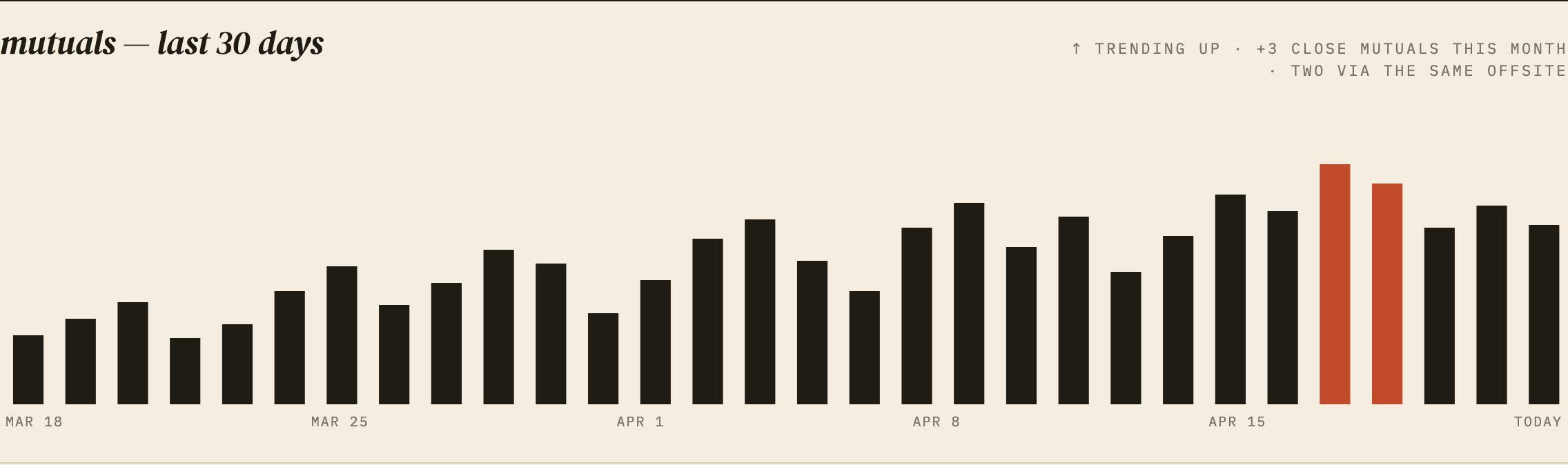
The “mutuals — last 30 days” panel uses daily vertical bars with date anchors at “MAR 18,” “MAR 25,” “APR 1,” “APR 8,” “APR 15,” and “TODAY.” Most bars are black, while two near the end are red. The annotation says “↑ TRENDING UP · +3 CLOSE MUTUALS THIS MONTH · TWO VIA THE SAME OFFSITE,” connecting the highlighted bars to a stated recent event without exposing a detailed underlying data definition.
The visual consequence is fast directional scanning: bar height suggests variation, red isolates a notable interval, and the headline supplies the interpretation. The tradeoff is that the chart does not show a y-axis, explicit daily values, or a legend, so it communicates pattern and emphasis more readily than precise measurement.
| Area | Visible Evidence | Reader Consequence |
|---|---|---|
| Mutuals — Last 30 Days | Daily bars, date anchors, two red bars, and a +3 annotation | Supports recent activity scanning and event emphasis. |
| Match Rate — Last 12 Weeks | 8% to 14% statement, community-join attribution, and explanatory copy | Frames a longer period as a narrative about possible influence. |
The Twelve-Week Claim
The next heading reads “match rate — last 12 weeks.” Its supporting text states “STEADY CLIMB FROM 8% → 14%. ATTRIBUTABLE TO ONE COMMUNITY JOIN (FOUNDERS WHO POST, WK 4).” Beneath it, the larger sentence begins “A real climb, not a vibe.” and contrasts one community join with four months of profile edits.
This creates a causal narrative beside the trend label, but the capture provides no plotted weekly points, calculation method, or corroborating source. For a reader, the section is therefore useful as an example of how an analytics design can foreground an explanation, while the figures and attribution remain illustrative sample content.
From Sidebar To Trend Panels
The workspace flow is sequential rather than screen-based. A reader enters through the sidebar, sees the selected “your stats” state, scans the three-column metric grid, and then reaches the activity and match-rate panels below. The CSS evidence confirms a three-column grid, a maximum text width of 56ch for panel metadata, and full-width panel SVGs; those constraints support a broad desktop reading surface without requiring every label to sit on one line.
The main tradeoff is density. Nine metrics fit above the charts because each block is restrained to a label, value, and note, but the page asks the reader to retain many different definitions. The panel headings and date anchors provide the transitions that keep the long canvas legible.
What Changes Between Areas
The overview uses repeated metric blocks and horizontal rules to make comparison easy. The activity panel changes to repeated bars and sparse date labels, while the match-rate panel changes again to an editorial statement. These are distinct reading modes: compare, scan, then interpret.
Rust-red marks selected navigation, the two highlighted activity bars, and the two sample values of 4 for exes and logged-off hours. Green marks 47 replies, the 14% match rate, and the online indicator. The sample does not define a universal status system behind those colors.
Visible Design And Capability Boundaries
This artifact demonstrates a visual dashboard composition: a sidebar, metric grid, bar chart, typography system, color emphasis, and explanatory copy. The supplied captures do not establish live data retrieval, persistent storage, notifications, account state, chart interaction, or a production relationship model. Any recreated behavior should therefore treat those elements as proposed behavior until separately implemented and verified.
The sample also contains deliberately specific statements such as “above median for your cohort,” “two are now friends,” and “one community join moved your match rate.” They make the interface feel opinionated and concrete, but they should be presented as illustrative content rather than measured outcomes. The design's strongest transferable lesson is the relationship between a value, its time window, and its accompanying interpretation.
Adapting The Pattern Carefully
A new version can preserve the three-column metric rhythm, the thirty-day bar sequence, and the separate twelve-week narrative while replacing the sample values with clearly defined data. Keep the period in each heading, define what each measure counts, and distinguish a visual highlight from a verified status.
For implementation, the capture supports local visual techniques such as CSS layout, typography, color changes, and chart rendering. It does not establish connected services or efficacy. A recreation can use the observed layout as a visual reference while defining its own data and behavior.
How to Create Relationship Analytics Dashboard Design in OpenDesign
Set The Dashboard Frame
Create a desktop workspace with a left navigation rail and a main area divided into a three-column metric grid followed by two full-width trend panels. Preserve the compact labels, horizontal rules, and broad chart area visible in the reference.
Add Defined Sample Measures
Populate the metric grid with explicitly defined sample fields such as mutuals on file, replies in 24h, communities, match rate, shared blocks, and logged-off hours. Give each field a period or definition so the value and its short interpretation are not mistaken for verified personal analytics.
Suggested PromptCreate a Relationship Analytics Dashboard Design for desktop with a left navigation rail, a three-column grid of nine relationship metrics, a 30-day mutuals bar chart labeled from Mar 18 to Today with two highlighted bars, and a separate 12-week match-rate narrative panel. Use illustrative sample data only, preserve the editorial serif and monospaced type contrast, and do not imply live services, storage, notifications, or verified outcomes.
Refine The Reading Sequence
Check that the selected “your stats” navigation state leads naturally into the metric rows, then the “mutuals — last 30 days” chart, and finally the “match rate — last 12 weeks” explanation. Keep chart date anchors readable, keep panel metadata within a comfortable text width, and use red or green emphasis only when its visual meaning is documented.
Export and Get a Share Link
Export your finished design, then use Share in OpenDesign to get a share link. Open the link in a separate browser window and check that the intended version and its assets are available before sending it.
Analytics Dashboard Wireframe Design
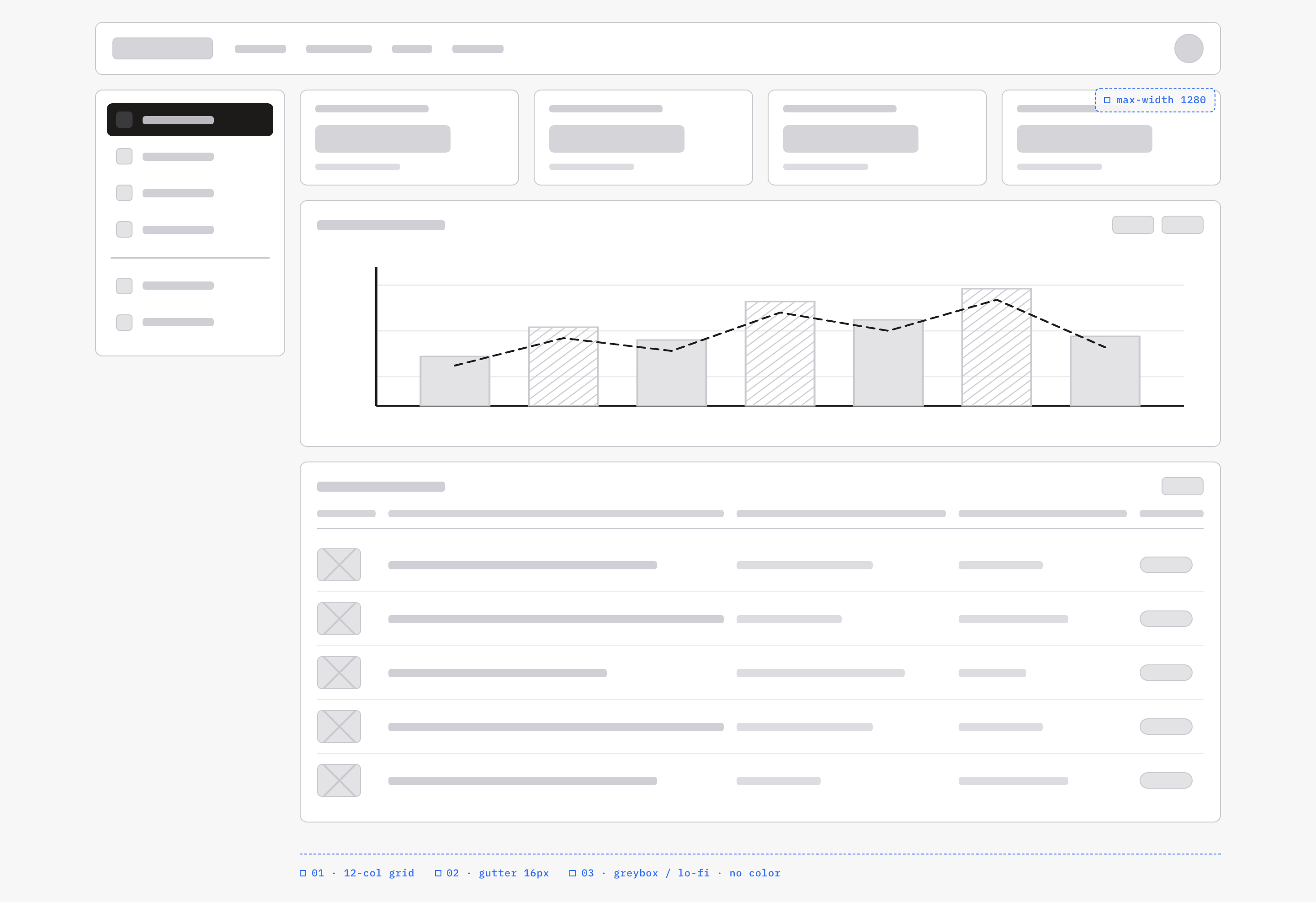
An OpenDesign greybox dashboard maps an analytics workspace through a sidebar, four KPI placeholders, a schematic chart, five table rows and blue layout annotations.
Desktop app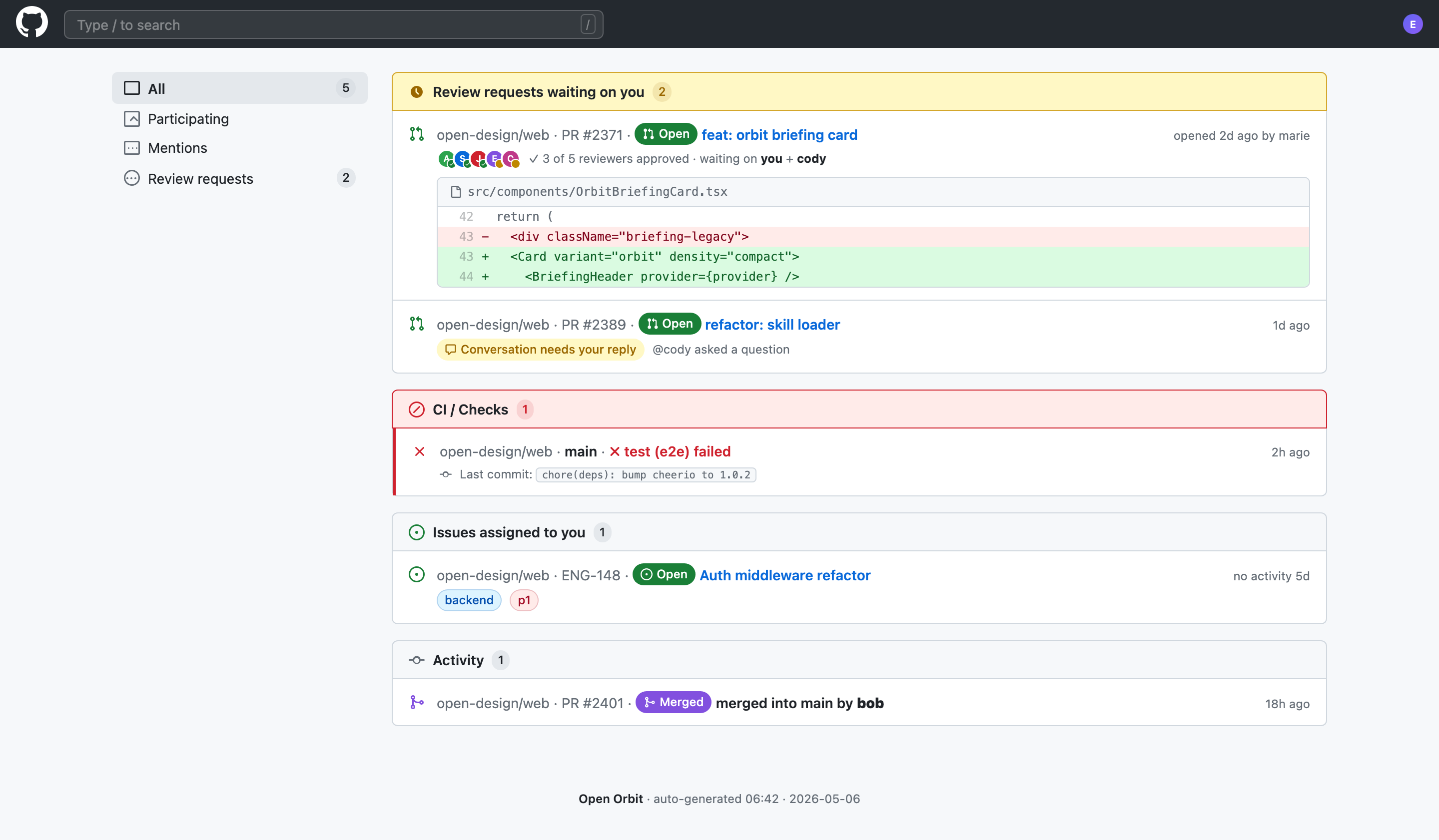
Code Review Inbox App Design
Code Review Inbox App Design brings review requests, CI failures, assigned issues, and activity into one scan-ready workspace for daily triage.
Desktop app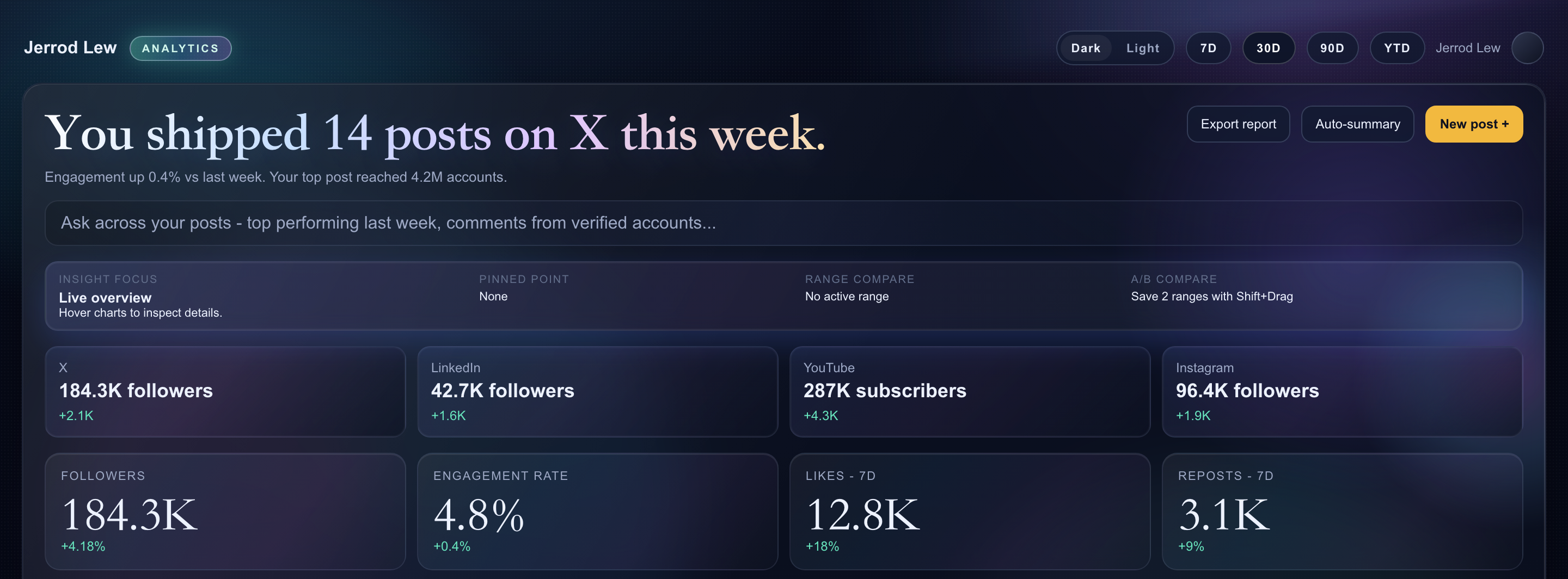
Content Performance Dashboard Design
A dark content dashboard connects platform snapshots with chart inspection, draft planning and a deeper view of audience and conversion signals.
Desktop app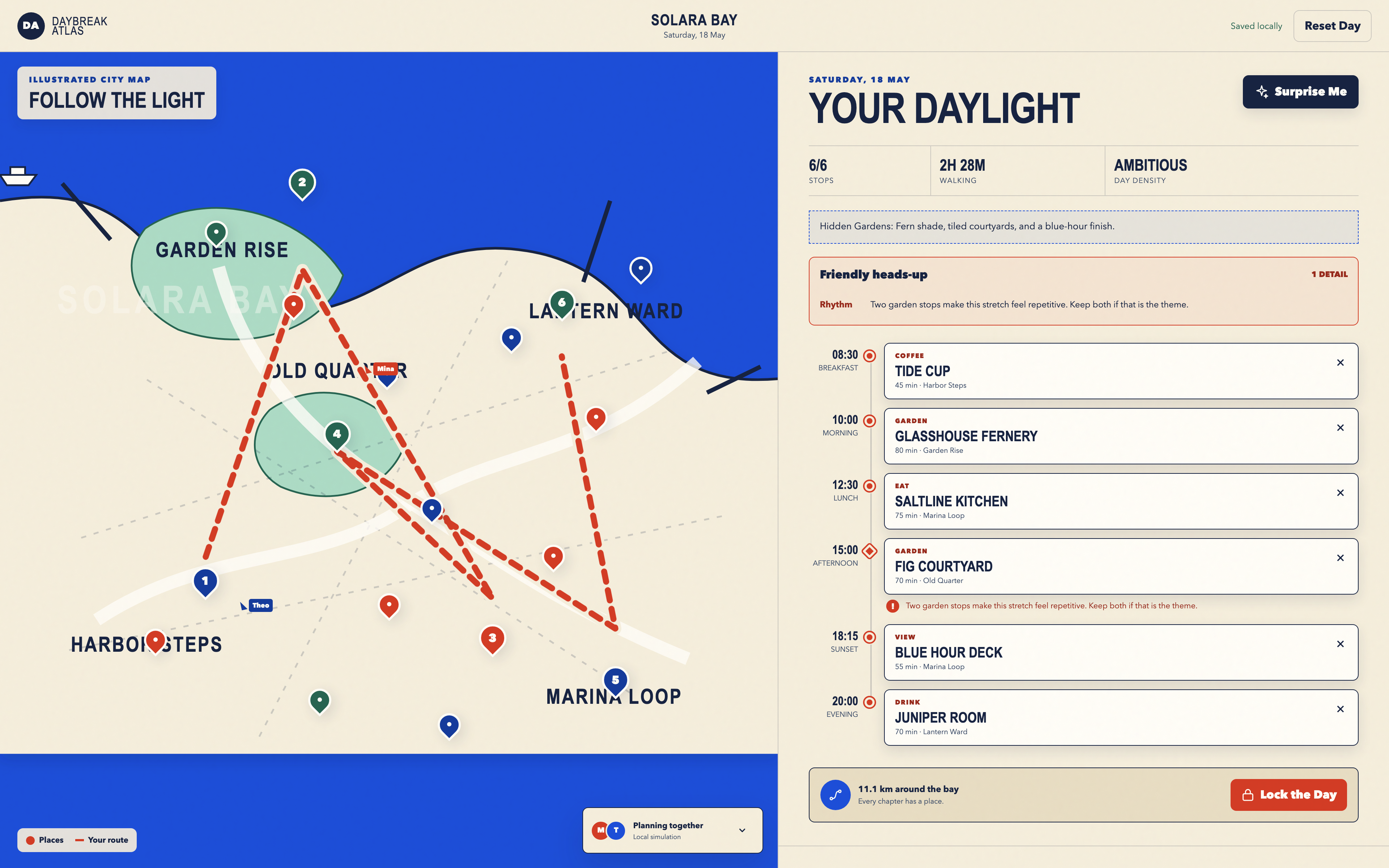
Day Trip Planner Design
Plan six timed stops in fictional Solara Bay, with an illustrated map, walking estimates and useful route warnings.
Desktop app