

Desktop app
Sprint Board App Design
The Northwind Sprint Board App Design turns sprint status, ticket ownership, estimates, and blockers into one scan-ready desktop workspace.

Sprint Board App Use Cases
- Sprint PlanningReview work by status, estimate, owner, and priority.
- Engineering OperationsSurface active tickets, bugs, chores, and review dependencies.
- Team Workload ReviewsCompare contribution points beside the current sprint board.
Sprint Workspace Design Highlights
- Four-Stage WorkflowBacklog, in progress, review, and done share one view.
- Sprint PulseCompletion, contributors, and blockers sit beside active work.
- Ticket-Level ContextEach card combines type, title, owner, points, and ID.
- Visible BlockerNW-205 remains connected to its copy-review dependency.
The Sprint Board, Panel by Panel
1 / 3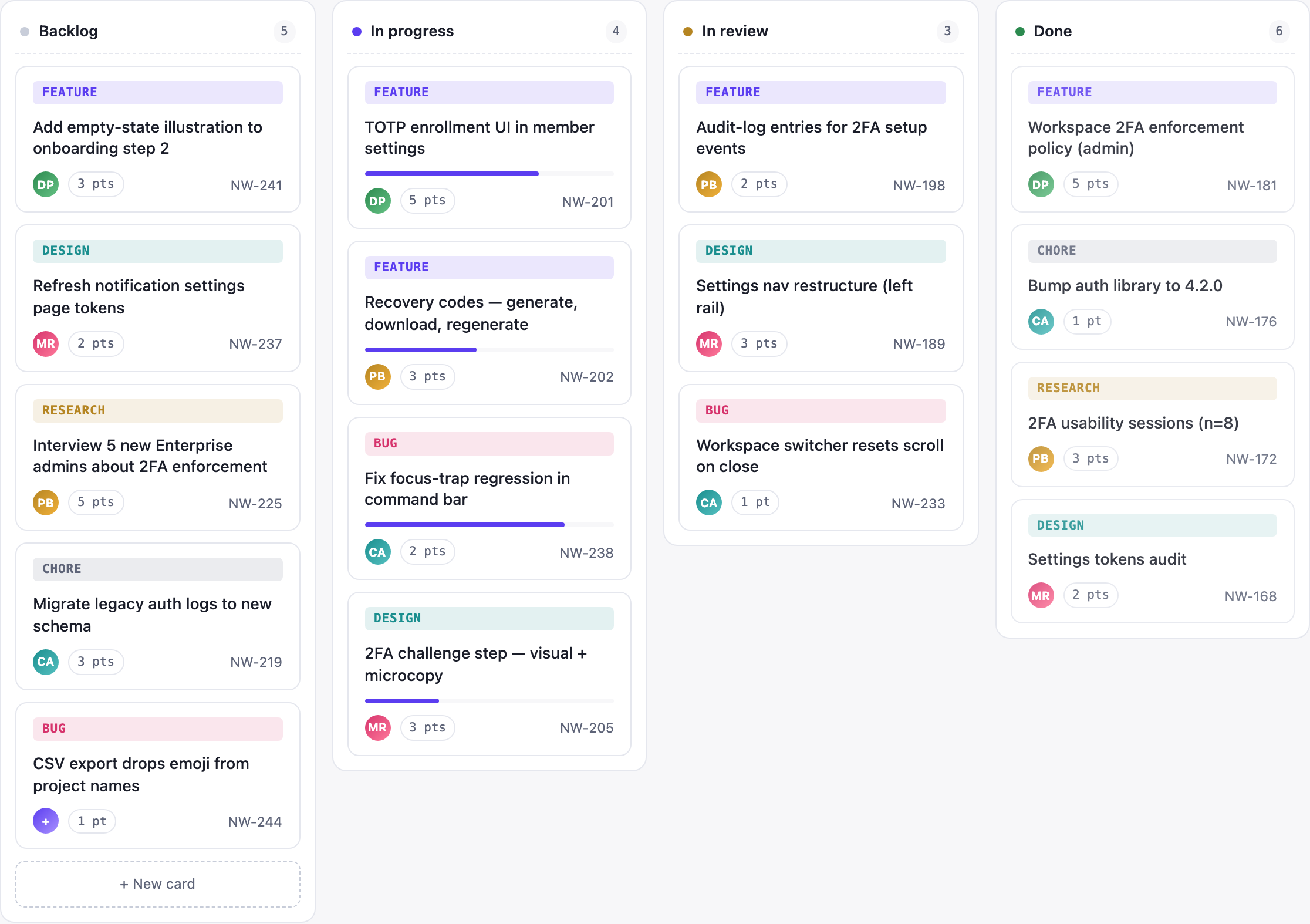
Northwind Sprint Board
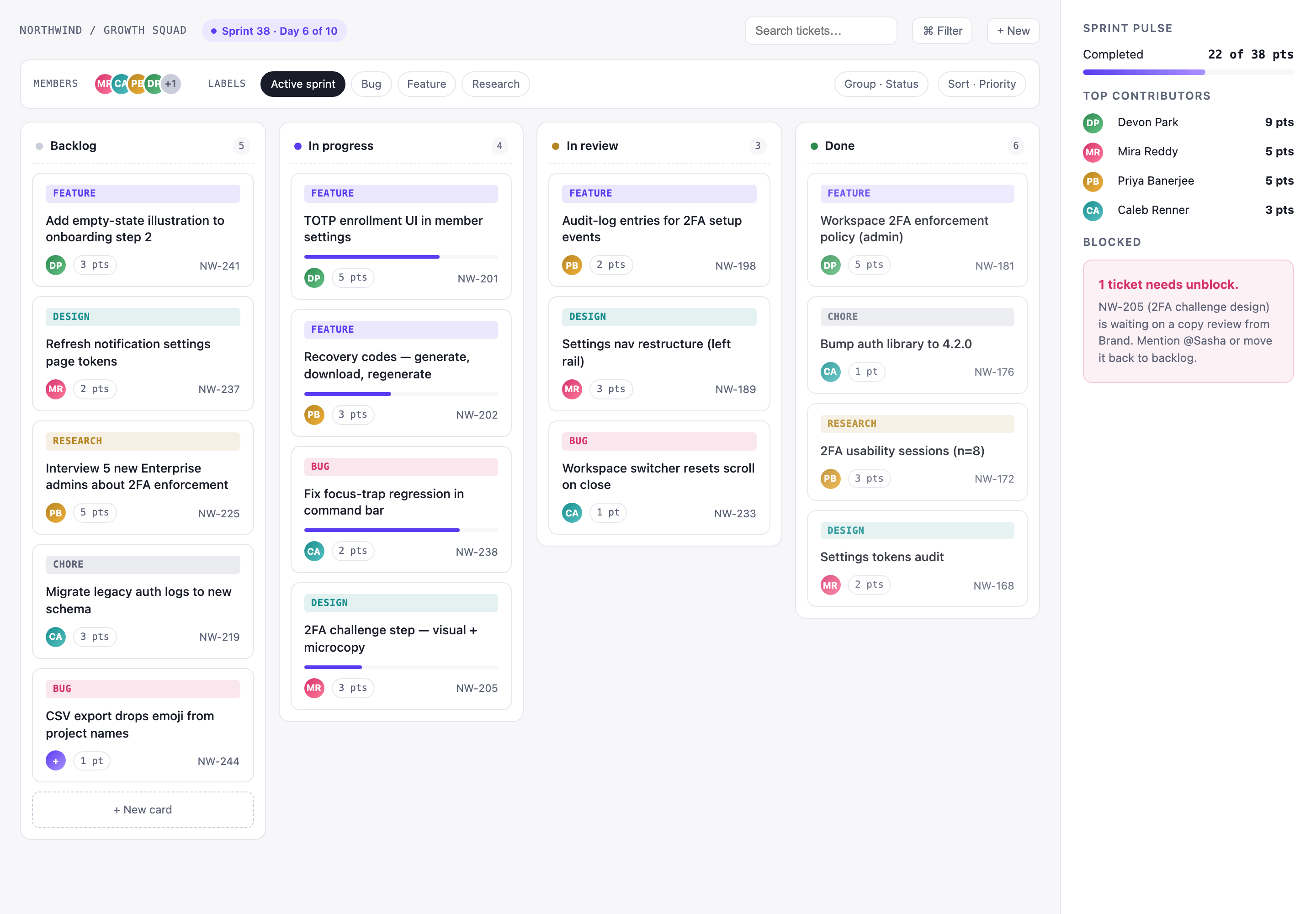
This official OpenDesign example presents the Northwind Growth Squad during Sprint 38, Day 6 of 10. The desktop workspace places the board at the center and keeps a Sprint Pulse sidebar visible on the right, so operational work and summary context can be read together.
The top bar establishes scope before the cards begin: “NORTHWIND / GROWTH SQUAD” is paired with “Sprint 38 · Day 6 of 10.” Search tickets, Filter, and New appear at the opposite edge. This ordering supports a quick transition from identifying the current sprint to locating or adding work, while reserving the main area for task comparison.
A filter strip separates controls from task content. Member initials, the Active sprint, Bug, Feature, and Research labels, plus Group · Status and Sort · Priority controls make the board’s sample organization explicit. The tradeoff is density: many control choices remain visible, but the user can understand the board’s intended grouping without opening another screen.
Workload and Blocker Review
The design is suited to a team reviewing what is waiting, moving, being reviewed, or complete. Cards use a repeated structure: a colored work-type band, a task title, an owner avatar, a point estimate, and an issue ID such as NW-241. That repetition lets readers compare unlike work without losing the ticket’s identity.
The sample data also demonstrates different kinds of work in one queue. “Add empty-state illustration to onboarding step 2” sits beside “Interview 5 new Enterprise admins about 2FA enforcement,” while “CSV export drops emoji from project names” makes a defect visible as a separate class. The type bands distinguish Feature, Design, Research, Chore, and Bug, but the shared card anatomy keeps those categories comparable.
This arrangement favors scanning over detailed ticket discussion. A team can see that the research item carries 5 pts and that the CSV export issue carries 1 pt, but the board does not explain estimation rules or acceptance criteria. Those details would need a deeper task view in a production application; they are outside the visible design.
Status First
Column placement communicates workflow state before the reader inspects individual ticket metadata.
Estimate and Ownership
Point pills and initials make responsibility and relative effort visible at card level.
Actionable Blocker
The sidebar names NW-205, its copy-review dependency, and two proposed next actions.
From Board to Sprint Pulse
The workspace reads from left to right across Backlog, In progress, In review, and Done. Their displayed badges are 5, 4, 3, and 6. The first three match their visible card counts, but Done contains only four cards despite its badge of 6. The left-to-right sequence still distinguishes workflow stages; the sample count mismatch should be resolved before using the board as operational data.
Progress bars appear only on several In progress cards, including TOTP enrollment UI in member settings, Recovery codes, Fix focus-trap regression in command bar, and 2FA challenge step. Their presence visually separates active progress from cards that are simply assigned a state. Because the visual does not define what the bar measures, it should be read as an illustrative progress cue rather than a verified completion metric.
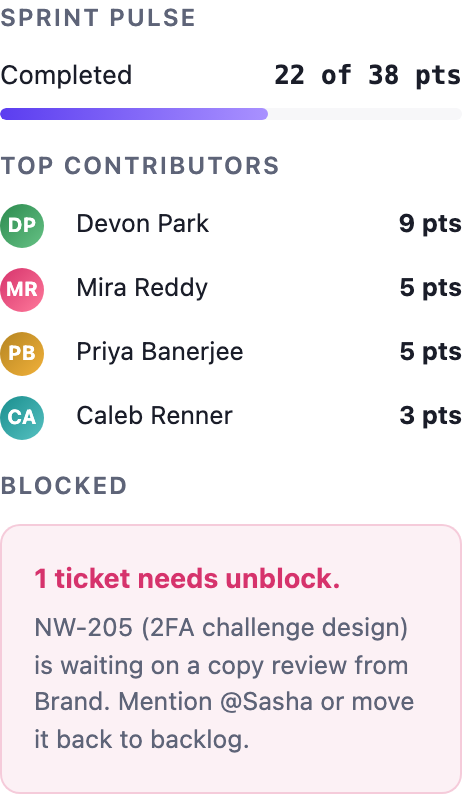
The sidebar changes the reading scale from tickets to a sample sprint summary. It shows Completed 22 of 38 pts and lists Devon Park at 9 pts, Mira Reddy and Priya Banerjee at 5 pts each, and Caleb Renner at 3 pts. Those contributor values total 22, but the four visible Done cards total only 11 points. The source does not explain that difference, so the sidebar and board should not be treated as a reconciled performance report.
The final sidebar block makes a relationship between status and dependency explicit. “1 ticket needs unblock” identifies NW-205, described as waiting on a copy review from Brand, with “Mention @Sasha or move it back to backlog” as visible follow-up guidance. Keeping this beside the board makes the dependency harder to miss, although the sidebar occupies persistent space that could otherwise widen the task area.
| State | Displayed Badge | Visible Cards | Reading Role |
|---|---|---|---|
| Backlog | 5 | 5 | Work awaiting active movement |
| In Progress | 4 | 4 | Active-stage work with illustrative progress bars |
| In Review | 3 | 3 | Work awaiting review or decision |
| Done | 6 | 4 | Completed sample cards; the badge does not match the visible count |
Visible Design Boundary
This artifact is a design-only desktop-app example with illustrative names, figures, task contents, and claims. The captures establish the visible composition, labels, color coding, ordering, and sample state. They do not establish a connected production service, persistent storage, working search, filtering, ticket creation, or real-time updates.
For an adaptation, preserve the specific relationship between the four workflow columns and the Sprint Pulse sidebar. A useful implementation would need an explicit definition for point totals, progress bars, blocker actions, and state changes before presenting them as operational data. The source shows the interface contract clearly enough to prototype those states, but not enough to claim that the controls already perform them.
How to Create Sprint Board App Design in OpenDesign
Set the Workspace Frame
Create a desktop sprint workspace with a Northwind Growth Squad header, Sprint 38 and Day 6 of 10 context, top-right search, Filter, and New controls, a filter strip, four workflow columns, and a persistent right sidebar.
Add the Case Data
Use the visible sample structure: Backlog, In progress, In review, and Done columns with the displayed counts; cards containing work type, task title, owner initials, point estimate, and issue ID; and a Sprint Pulse summary with completion, contributors, and the NW-205 blocker.
Suggested PromptCreate a desktop Sprint Board App Design for the Northwind Growth Squad. Show Sprint 38 · Day 6 of 10, a top control bar with Search tickets…, Filter, and New, a filter strip for members and Active sprint, Bug, Feature, and Research labels, four columns named Backlog, In progress, In review, and Done, and a right Sprint Pulse sidebar. Use illustrative cards with work type, title, owner initials, points, and IDs. Include visible progress bars only on selected In progress cards and a blocker for NW-205 waiting on copy review. Treat search, filtering, creation, storage, and updates as proposed behavior rather than working services.
Refine Reading and State Cues
Check that column order, colored type bands, owner avatars, point pills, issue IDs, selected filters, progress bars, and the pink blocker panel remain distinguishable at desktop widths. Keep the sidebar informative without implying that sample totals are measured team performance.
Export and Get a Share Link
Export your finished design, then use Share in OpenDesign to get a share link. Open the link in a separate browser window and check that the intended version and its assets are available before sending it.
Analytics Dashboard Wireframe Design
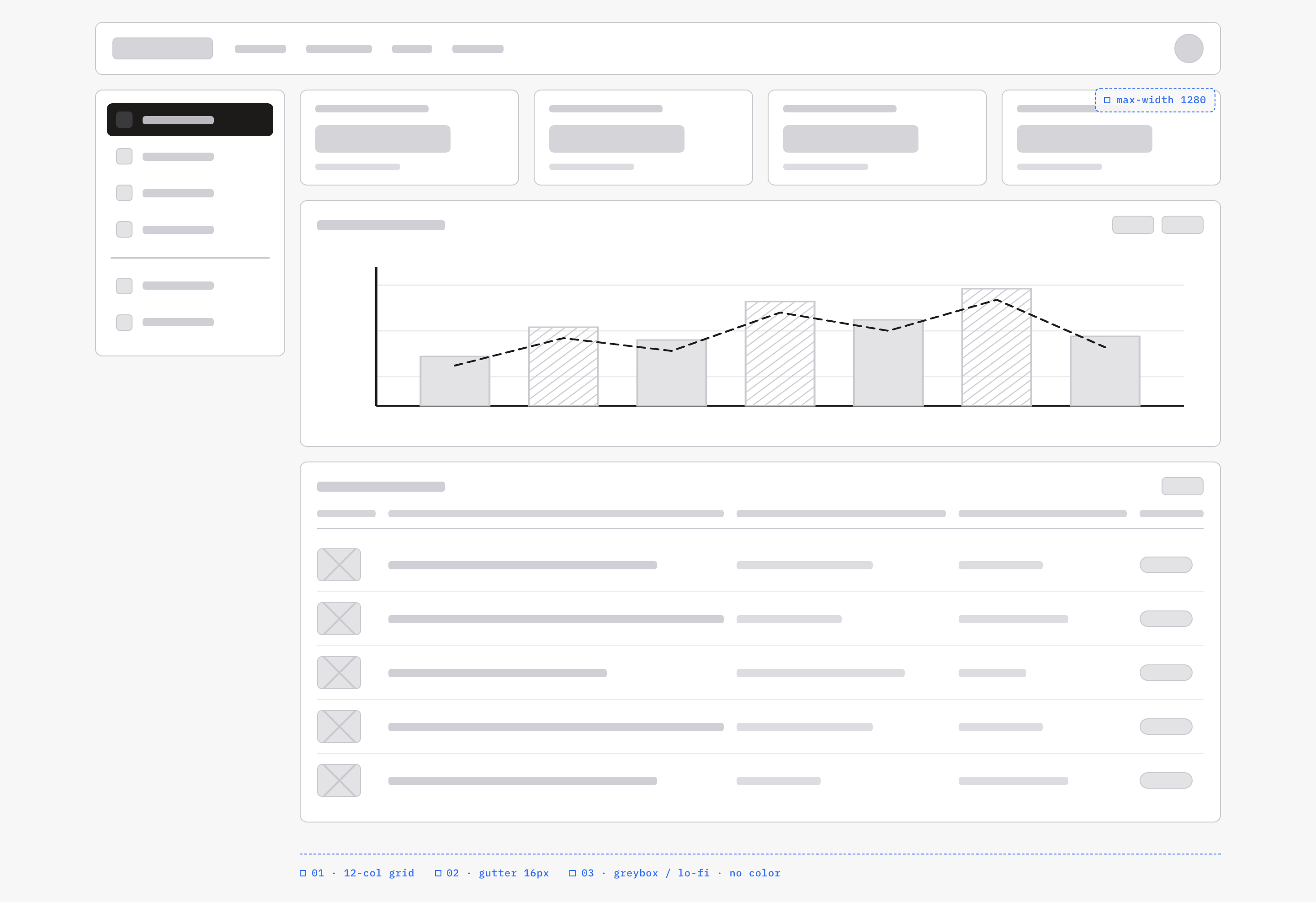
An OpenDesign greybox dashboard maps an analytics workspace through a sidebar, four KPI placeholders, a schematic chart, five table rows and blue layout annotations.
Desktop app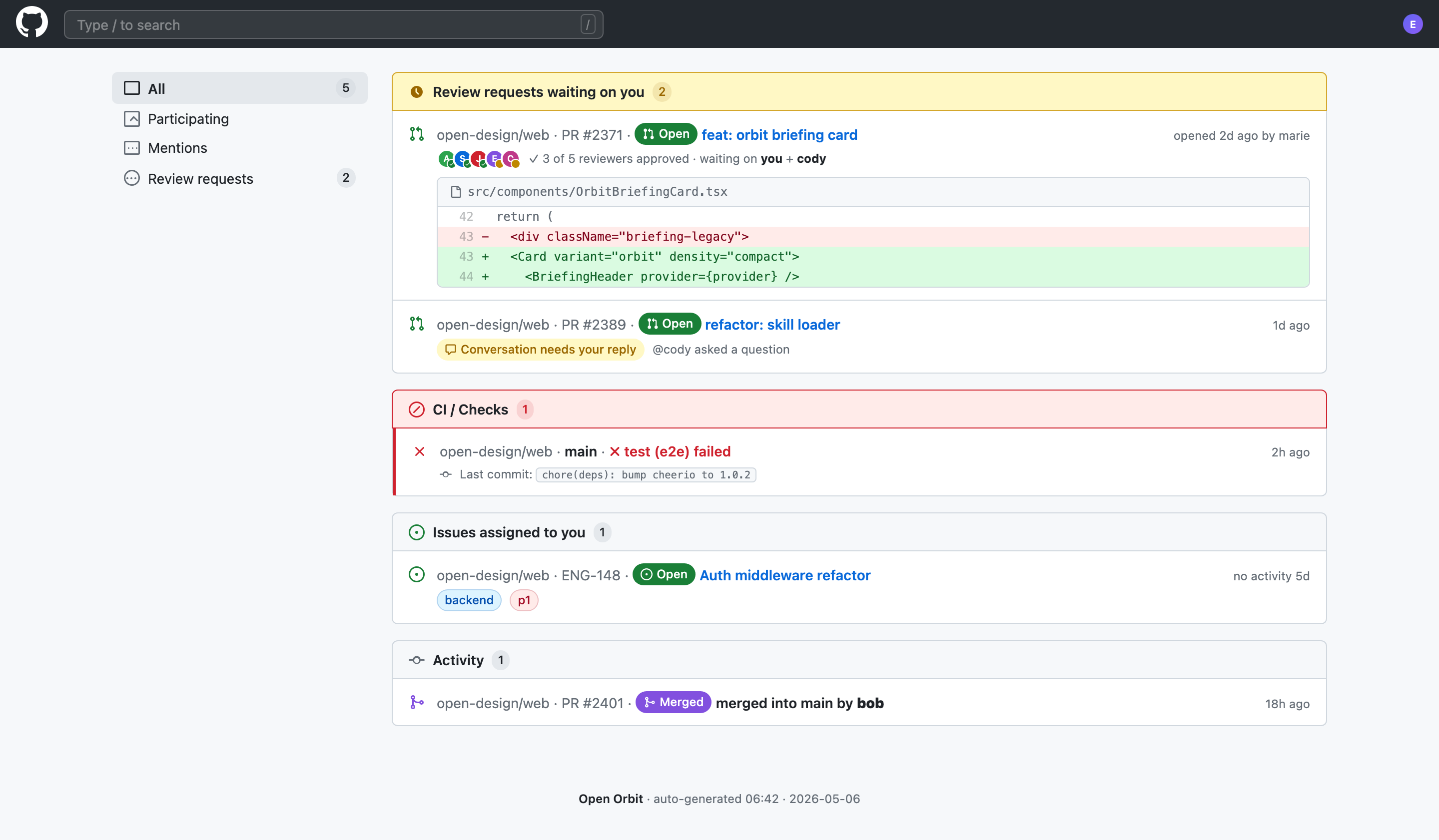
Code Review Inbox App Design
Code Review Inbox App Design brings review requests, CI failures, assigned issues, and activity into one scan-ready workspace for daily triage.
Desktop app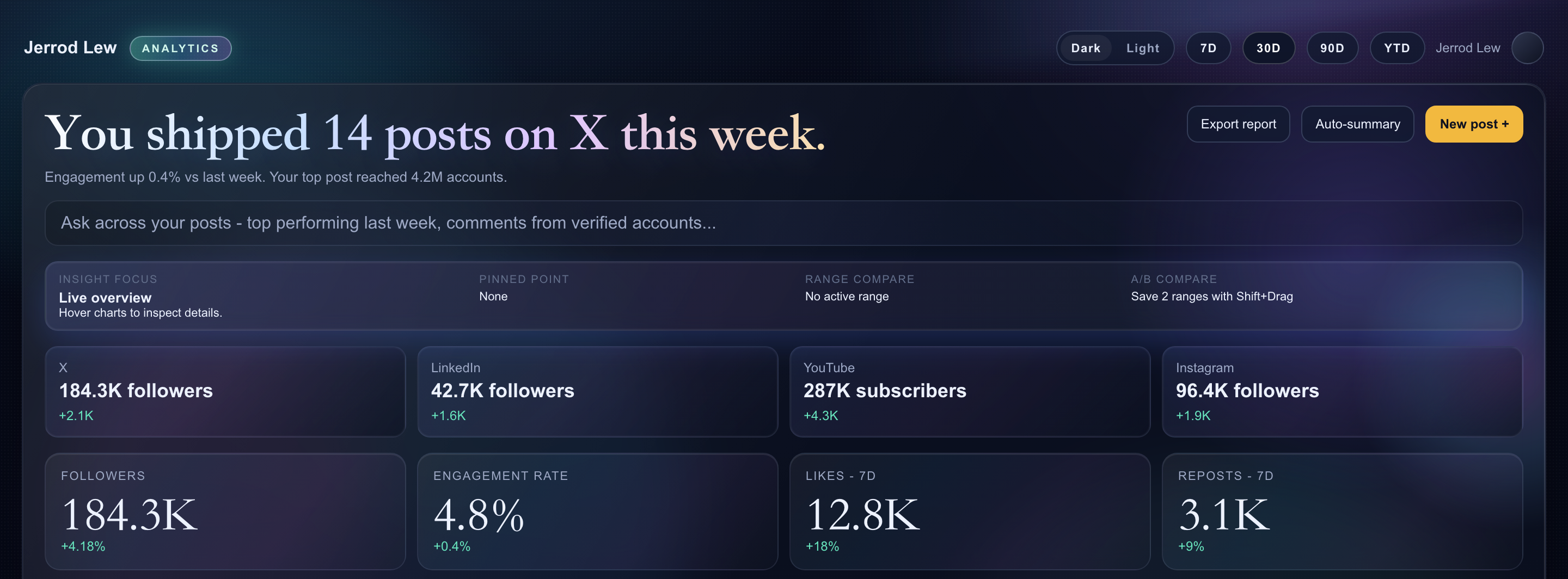
Content Performance Dashboard Design
A dark content dashboard connects platform snapshots with chart inspection, draft planning and a deeper view of audience and conversion signals.
Desktop app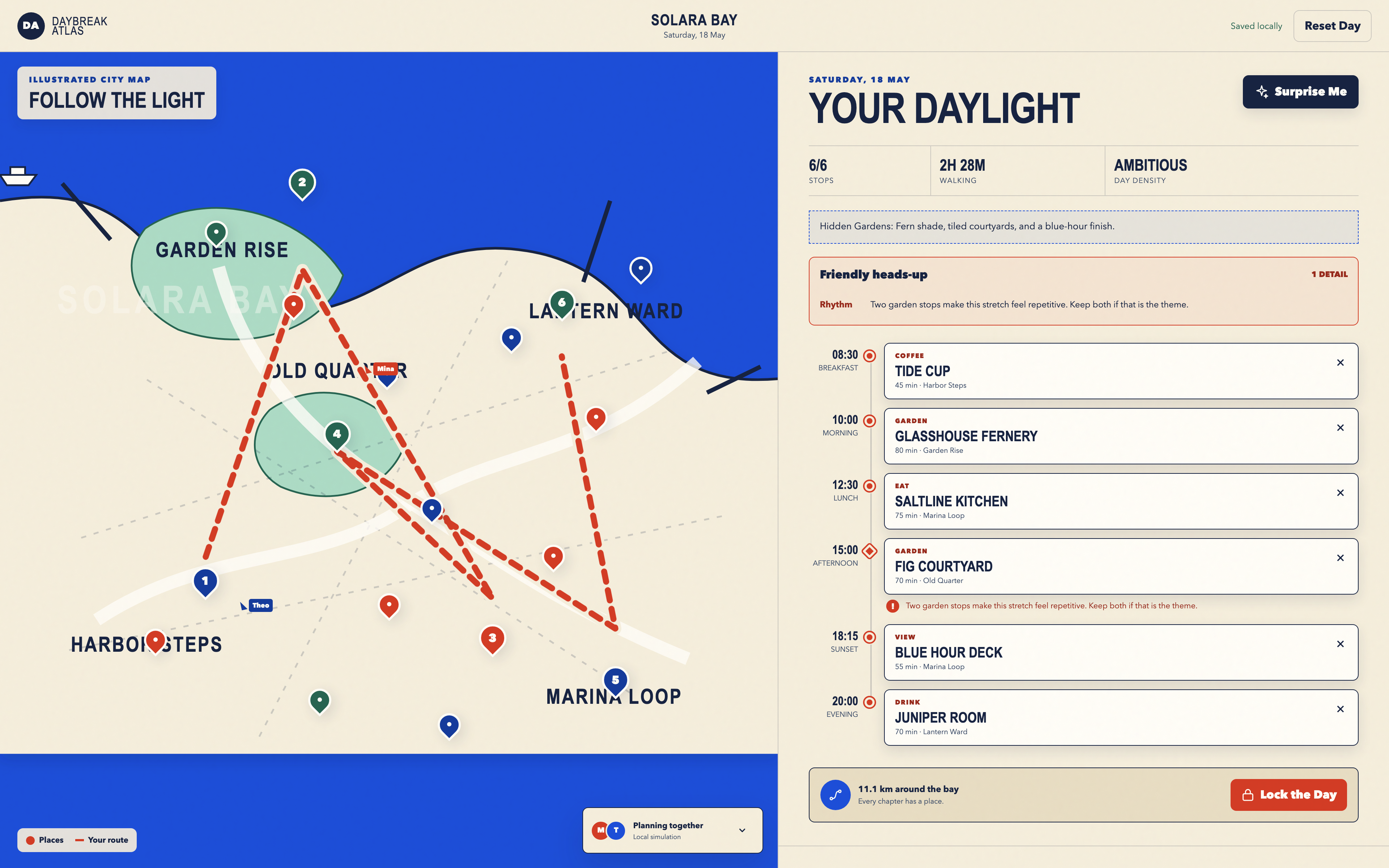
Day Trip Planner Design
Plan six timed stops in fictional Solara Bay, with an illustrated map, walking estimates and useful route warnings.
Desktop app