

Connect Your OpenDesign Plan to a Coding Agent in Three Steps
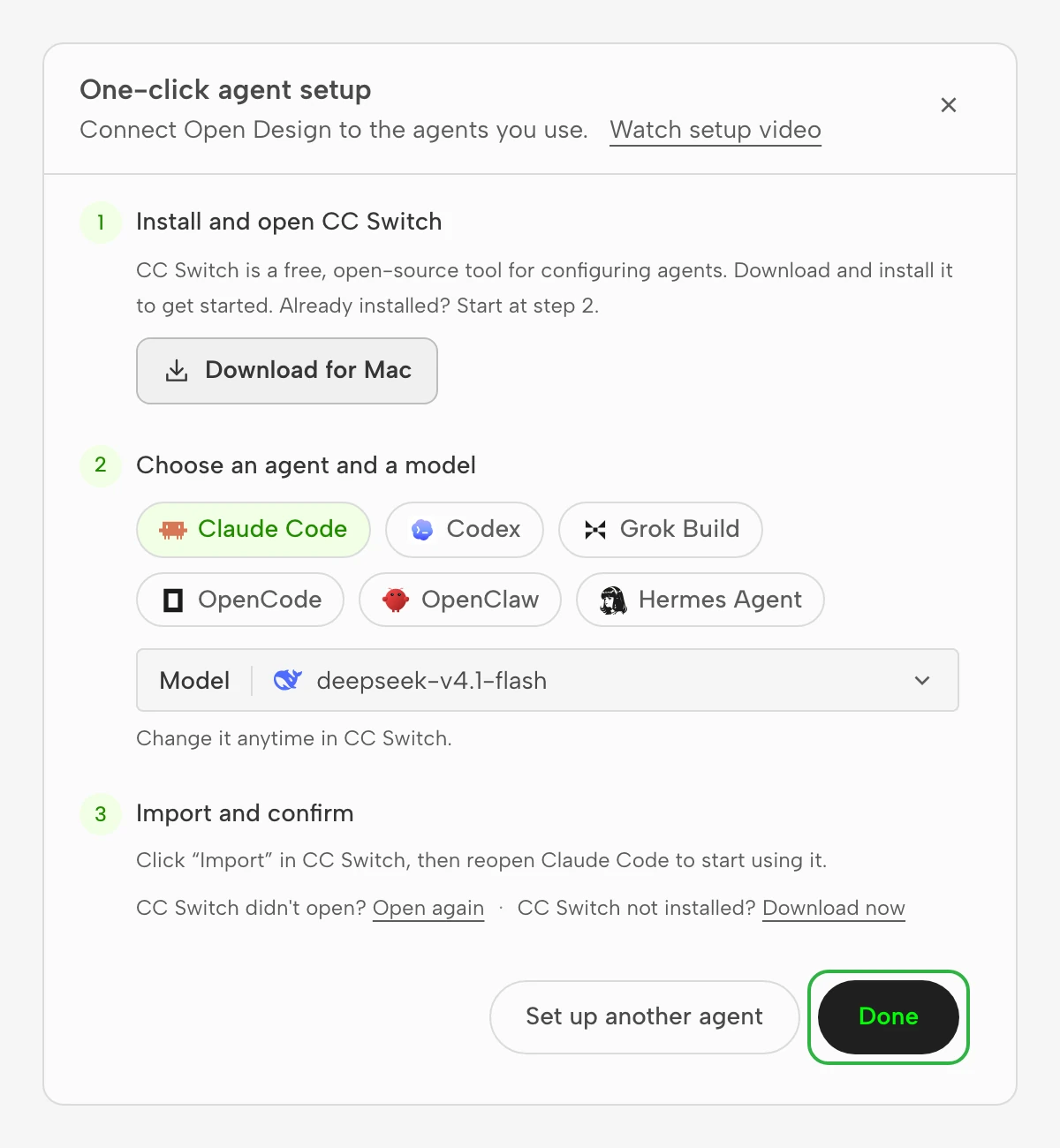
On the API keys page, click One-click agent setup and choose an Agent and a model. CC Switch then connects your OpenDesign plan to Claude Code, Codex and four other Agents, with no config files to edit.
Before You Start
- Plan: Go, Plus, Pro and Max plans are supported. The free plan is not supported.
- Agent: Install the Agent you want to use first. Supported Agents: Claude Code, Codex, Grok Build, OpenCode, OpenClaw, Hermes Agent.
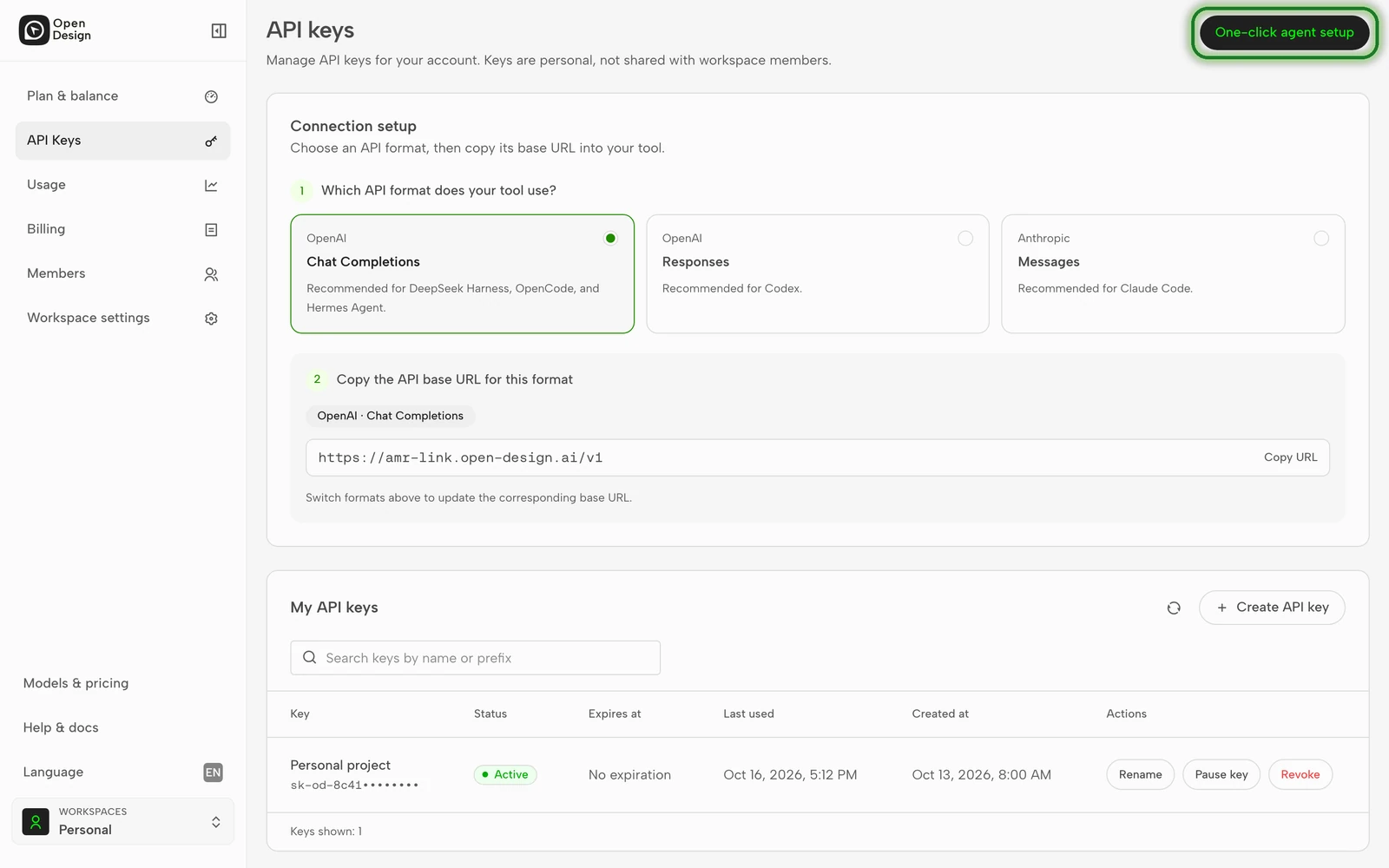
Sign in to OpenDesign, open API keys in the sidebar, and click One-click agent setup in the top right. The button is available even if you have no keys yet.
Step 1: Install and Open CC Switch
If CC Switch is already installed, skip this step.
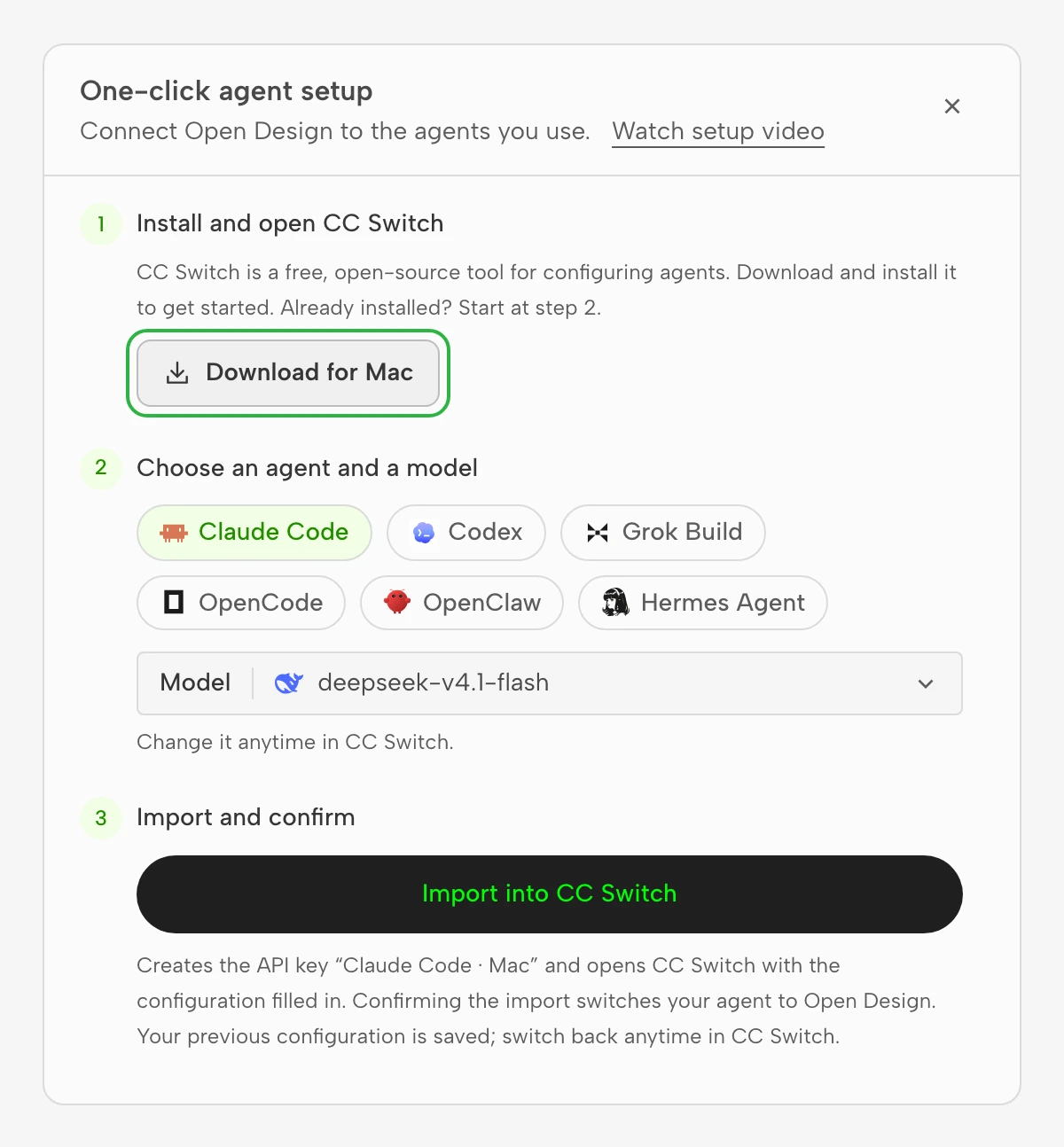
CC Switch is a free, open-source tool that manages API configuration for AI coding tools. Importing adds a new configuration and does not overwrite your existing settings.
- Click Download for Mac or Download for Windows.
- Install CC Switch and open it.
Note: On Windows, install the
.msipackage. The browser cannot open the portable version, so the import will fail.
Step 2: Choose an Agent and a Model
- Choose the Agent to set up. Claude Code is selected by default.
- Choose a model from the Model list. The list shows only the text models available on your plan, with your plan's default model preselected.
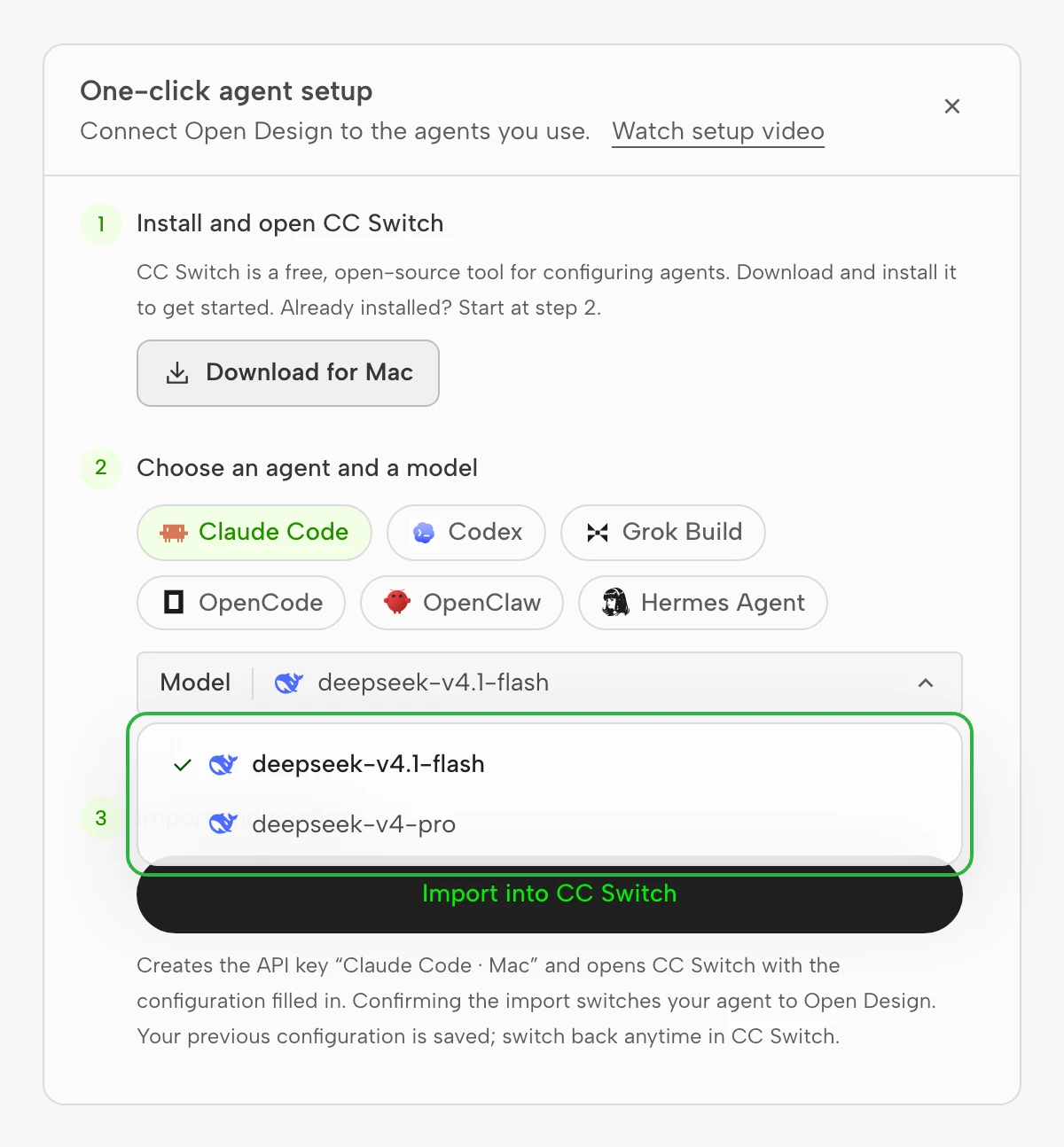
To change the model later, edit it in CC Switch. You do not need to set up again.
Step 3: Import and Confirm
- Click Import into CC Switch. An API key named after the Agent and your system, such as "Claude Code · Mac", is created and CC Switch opens.
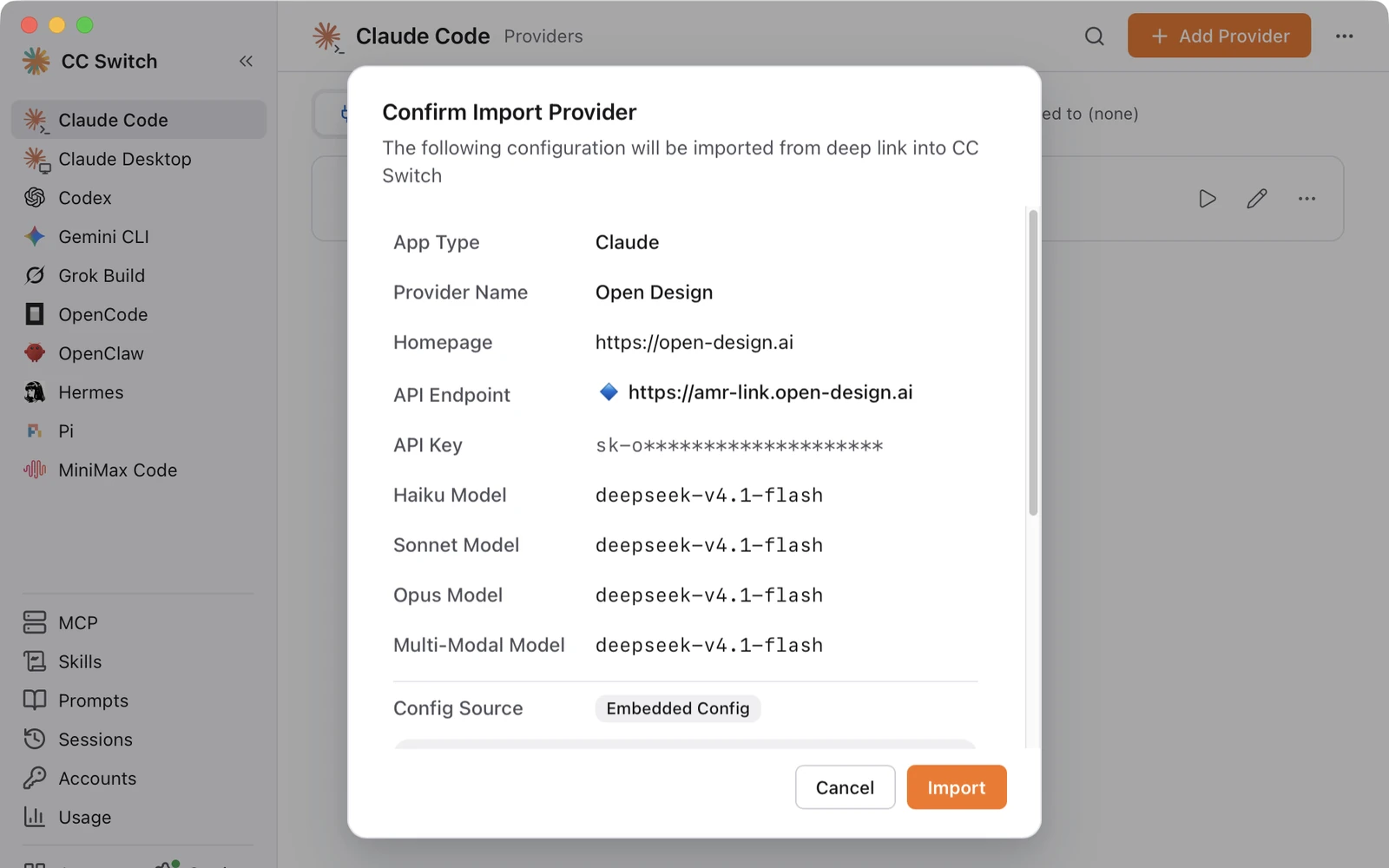
- The first time the browser opens CC Switch, it asks for confirmation. Click Open CC Switch.
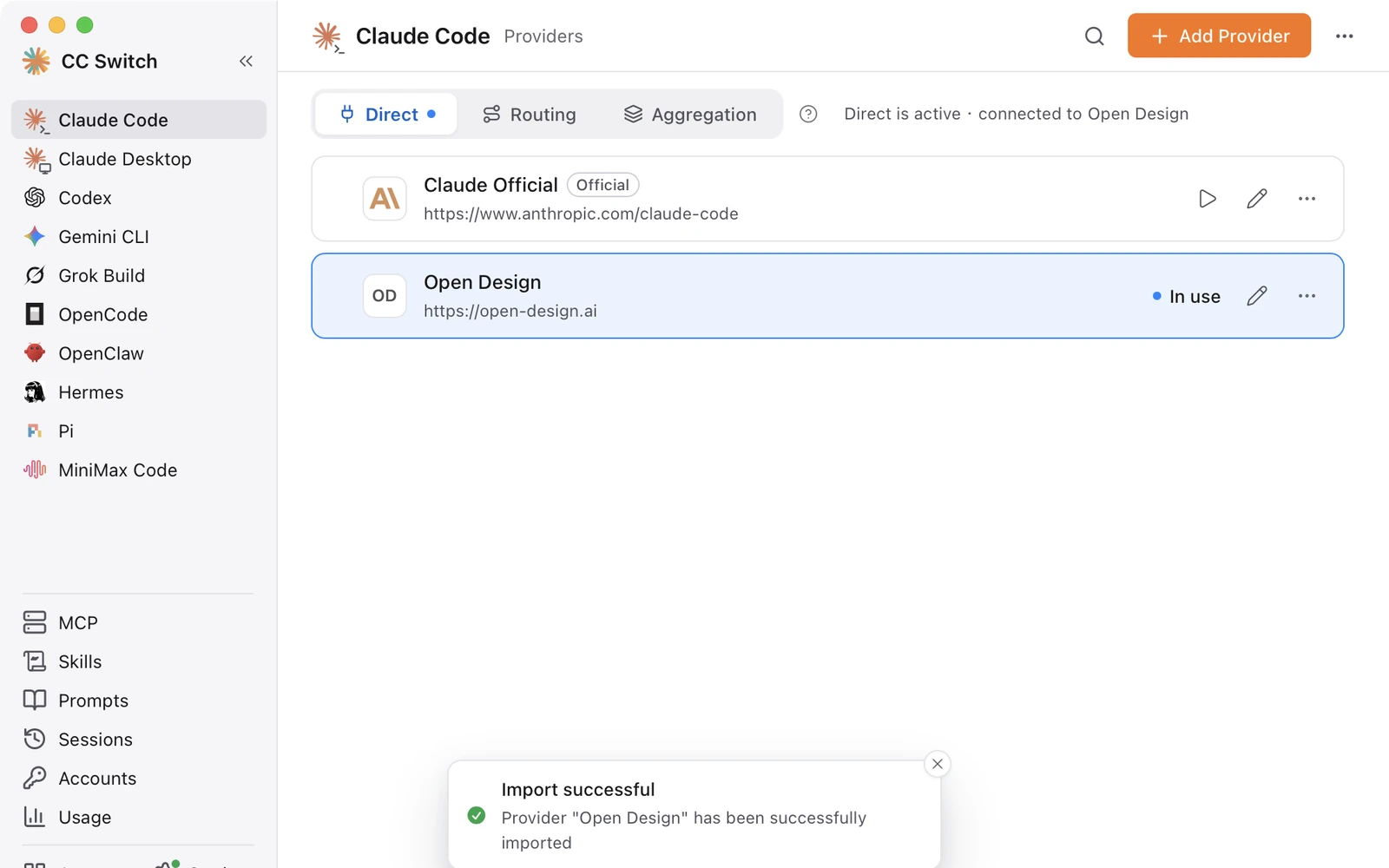
- In the CC Switch confirmation window, click Import. When the import finishes, the "Open Design" row is marked as in use.
- Return to the web page and click Done. To set up another Agent, click Set up another agent.
- Restart the Agent. For Claude Code, close all Claude Code windows and run
claudein a new terminal. You do not need to sign in again.
Verify the Setup
- Send any message in Claude Code, such as
hello. A reply means the setup worked. - Type
/statusand check that the model matches the one you chose in step 2.
For other Agents, restart and send any message to verify. You can also check the API keys page: the new key's Last used time updates.
Switch Back
Open CC Switch, find the configuration you used before under the Agent, and click ▷ to switch back.
Deleting the configuration in CC Switch does not disable the key. To disable it, revoke the key on the API keys page.
Frequently Asked Questions
Nothing happens after I click Import into CC Switch.
The first time the browser opens CC Switch, it shows a confirmation prompt. Look for it near the address bar, allow it, and click Open again. If you declined earlier, open CC Switch manually, then click Open again.
The import does nothing on Windows.
Install the .msi version of CC Switch. The browser cannot open the portable version.
The Agent still uses the old configuration after the import.
Exit the current session and restart the Agent. For Claude Code, type /exit and run claude again.
Do I need to sign in again?
No. The key is written to the Agent's configuration and works after a restart.
Can I set up several Agents at once?
One at a time. When you finish, click Set up another agent to set up the next one.
Can I use an existing API key?
No. Each setup creates a new key. Your existing keys are not affected.
The dialog says my plan has no available model.
Your plan has no model for this Agent, so the import button is disabled. Choose another Agent or upgrade your plan.