

Website
Developer Documentation Website Design
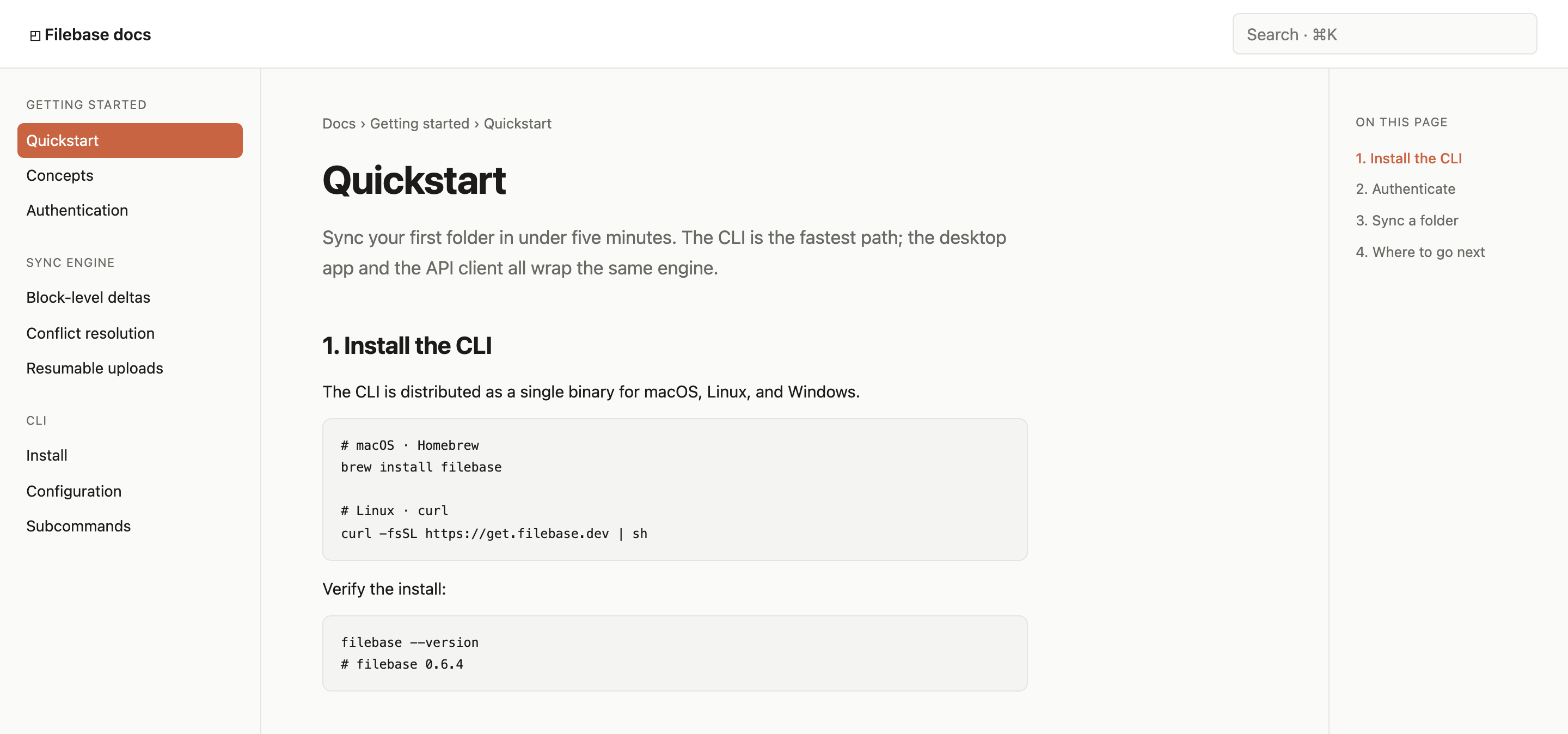
A Filebase CLI quickstart pairs documentation navigation with a clear installation, authentication and folder-sync reading sequence.

Documentation Website Use Cases
- CLI OnboardingGuide developers from installation to a first successful sync.
- Technical DocumentationOrganize commands, explanations, navigation, and follow-up references.
- Developer Tool WebsitesPresent a focused workspace for learning product workflows.
- Quickstart FlowsTurn a multi-step setup into a readable sequential path.
Quickstart Layout Highlights
- Sequential QuickstartFour numbered stages establish a direct route through setup.
- Matched Section LabelsThe local outline repeats the four numbered article headings.
- Command-First GuidancePlatform commands and verification output make instructions concrete.
- Next-Step RoutingRelated documentation links continue the learning path.
From CLI Installation to Next Steps
1 / 4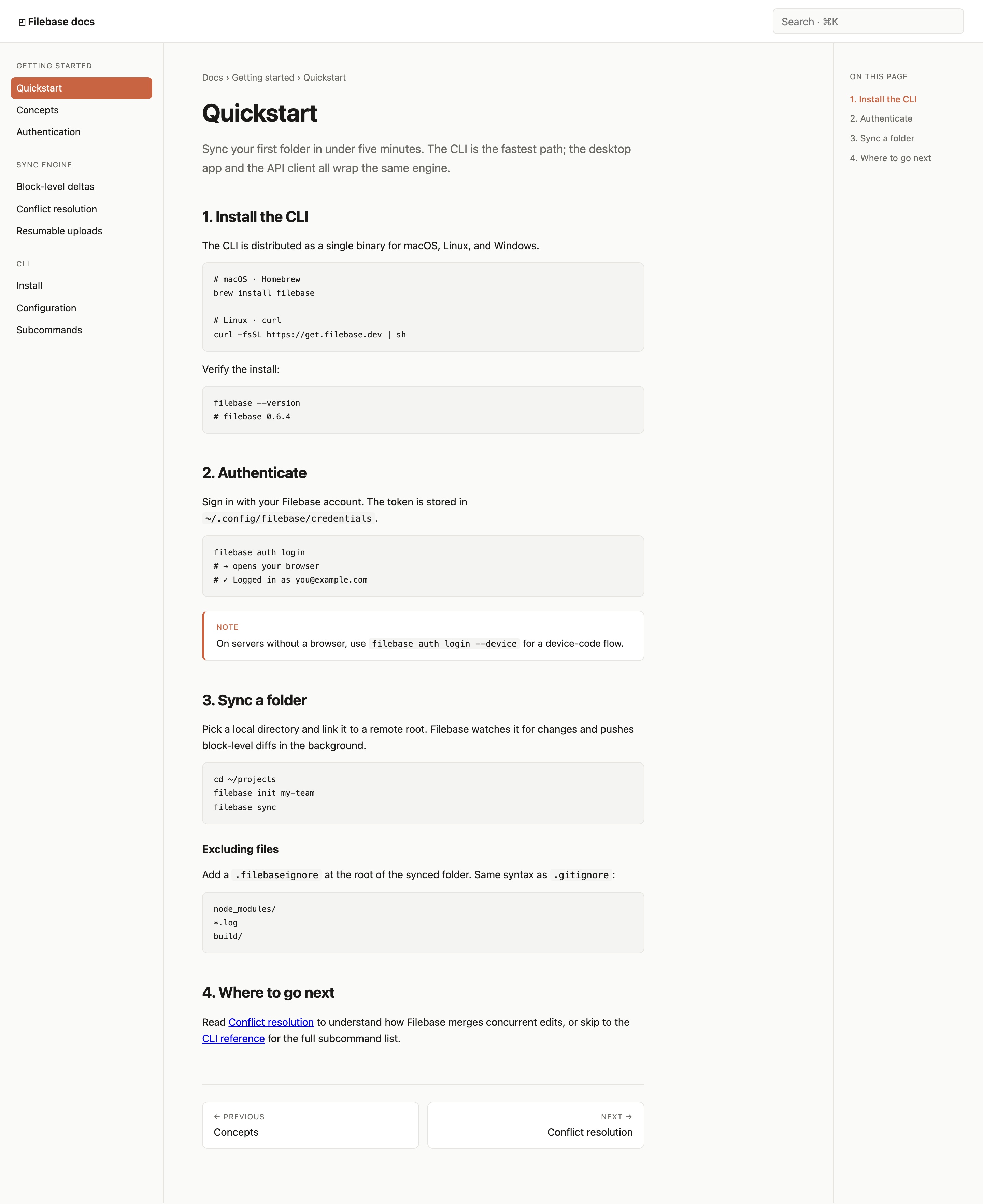
About The Quickstart Design
Developer Documentation Website Design presents a Filebase quickstart as a focused documentation page rather than a product marketing screen. The authored heading is “Quickstart,” and the opening sentence sets a concrete task: “Sync your first folder in under five minutes.” That framing gives the page an immediate job to perform while the remaining content explains the route to it.
The composition uses three reading zones. A left navigation groups “Getting Started,” “Sync Engine,” and “CLI”; the center article carries the instructions; and a right “On This Page” list mirrors the four numbered stages. This arrangement supports both browsing and sequential reading, although the three-column structure gives the central content less horizontal space than a single-column guide.
The page also exposes “Search · ⌘K” in the top bar. It is a visible search affordance in the supplied design, but the evidence does not establish a working search service or keyboard handler. The useful design lesson is the placement: search remains available above the documentation hierarchy without competing with the quickstart title.
A Concrete Reading Contract
The introductory claim names three access paths: the CLI, the desktop app, and the API client. The page then chooses the CLI as its working example. That contrast helps readers understand the scope of the quickstart while avoiding a separate explanation for every interface. Its tradeoff is that the other paths remain contextual rather than demonstrated.
Use Cases For Developer Documentation
This design is suited to documentation that must move a developer from a known starting state to a small, testable setup milestone. The sequence begins with installation, then authentication, then local folder synchronization, so each section narrows the gap between reading and attempting the workflow.
The command blocks make the instructions scannable. The installation section separates Homebrew and curl examples under platform labels, then follows with “filebase --version” and the illustrative output “filebase 0.6.4.” That ordering matters: it places acquisition before verification. The tradeoff is vertical length, but the extra verification block gives the reader a visible checkpoint instead of treating installation as complete immediately after the command.
The authentication section uses “filebase auth login,” followed by comments indicating a browser launch and a logged-in account. A note then introduces “filebase auth login --device” for servers without a browser. This is a useful branch because it preserves the main path while acknowledging a different environment without interrupting the primary sequence.
Installation Guidance
Separate platform commands and place a version check directly after them.
Authentication Branching
Keep the browser path primary while exposing device-code authentication as a note.
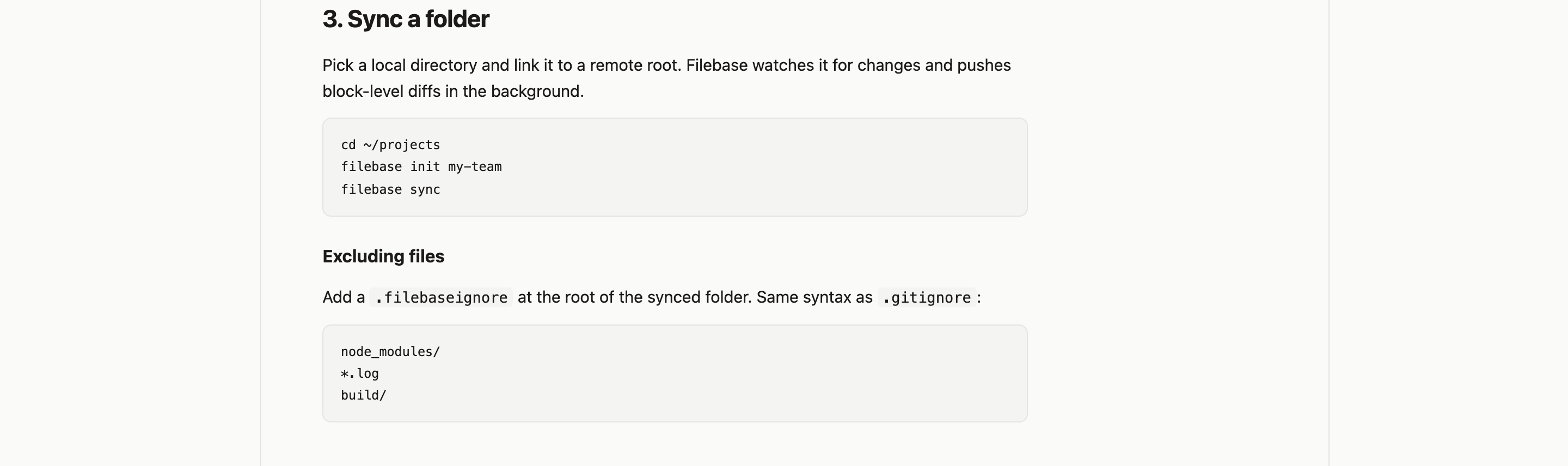
Folder Synchronization
Move from a local directory to initialization and sync commands in one block.
Page Structure And Information Flow
The right-side “On This Page” list repeats “1. Install the CLI,” “2. Authenticate,” “3. Sync a folder,” and “4. Where to go next.” Because these labels match the article headings, the navigation acts as a compact map of the document rather than introducing alternate terminology. The current first item is accented, making the visible state legible in the captured frame.
The folder section changes the instructional pattern from setup to ongoing organization. It explains linking a local directory to a remote root, then shows “cd ~/projects,” “filebase init my-team,” and “filebase sync.” A separate “Excluding files” subsection follows with a .filebaseignore example using the same syntax as .gitignore. This adjacency helps readers connect synchronization with the boundary of what should be included.
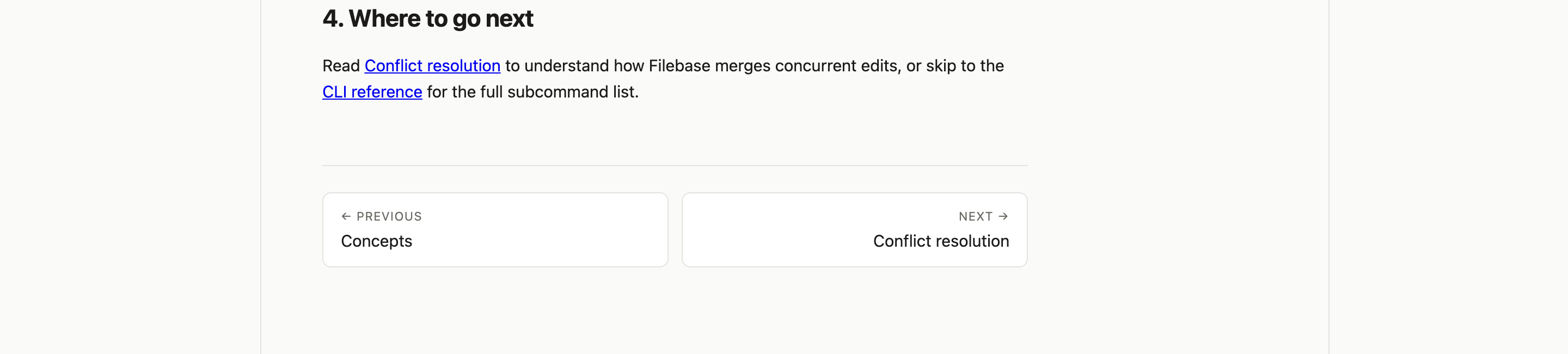
The final section changes from commands to routing. “Where to go next” links to “Conflict resolution” and the “CLI reference,” then the page ends with Previous and Next panels for “Concepts” and “Conflict resolution.” The result is a deliberate exit from the quickstart. Its tradeoff is that the end navigation introduces two related paths, so link labels need to stay specific as the documentation set grows.
| Stage | Visible Content | Reader Consequence |
|---|---|---|
| 1. Install The CLI | Platform install commands and version verification | Establishes the starting tool and a visible check. |
| 2. Authenticate | Login command and device-code note | Accounts for browser and server environments. |
| 3. Sync A Folder | Directory, initialization, and sync commands | Connects a local project workflow to the documented remote root. |
| 4. Where To Go Next | Conflict resolution and CLI reference links | Moves readers from first setup toward deeper documentation. |
Navigation As A Second Outline
The left navigation describes the broader documentation system, while the right navigation describes only the current page. That distinction lets the page show both product concepts, such as “Block-level deltas” and “Resumable uploads,” and the immediate quickstart route. The design is effective for a growing docs site, but it depends on consistent labeling between page headings and local navigation.
Scope And Capability Boundary
The supplied artifact is a design example for Filebase developer documentation and a CLI quickstart. Its visible content includes illustrative names, commands, account text, version output, and product descriptions. Those details show how the page communicates a workflow, but the capture does not prove that the CLI, authentication flow, search control, links, storage system, or synchronization behavior is connected to a live service.
The strongest reusable pattern is therefore structural: establish the task, sequence the setup, show concrete command blocks, provide an environment-specific note, define exclusions, and route readers into related material. Adaptations should preserve the distinction between visible documentation and implemented capabilities. They should also replace illustrative commands and claims with verified product information before publication.
The page outline uses native links to four section IDs. Broader sidebar, related-document and previous/next links point to #, and the search field has no search handler. The illustrative CLI commands are not executed by this preview.
How to Create Developer Documentation Website Design in OpenDesign
Set The Documentation Route
Create a focused quickstart page with a left documentation tree, a central article, and a right local outline. Use the concrete sequence Install the CLI, Authenticate, Sync a folder, and Where to go next so the page has a testable reading order.
Suggested PromptCreate a developer documentation website design for a Filebase-style CLI quickstart. Use a three-zone layout with a left navigation tree, a central article, and a right On This Page outline. Include sections for CLI installation, authentication with a browser and device-code note, folder initialization and sync, a .filebaseignore example, and next links. Treat commands and service behavior as illustrative content unless implemented.
Refine Commands And States
Keep platform-specific installation commands together, place version verification after installation, and use a separate note for server authentication. Check that code blocks, inline filenames such as .filebaseignore, and explanatory text remain distinguishable at the article width.
Check The Navigation Handoff
Make the local outline match the four article headings, then review the final related links and Previous/Next panels. Confirm that the broader left navigation and the page-specific outline use complementary labels rather than duplicating the same hierarchy.
Export and Get a Share Link
Export your finished design, then use Share in OpenDesign to get a share link. Open the link in a separate browser window and check that the intended version and its assets are available before sending it.

AI Design Studio Website Design
OpenDesign’s AI Design Studio Website Design turns a local-first studio concept into an editorial landing page that makes skills, experiments, and method easy to scan.
Website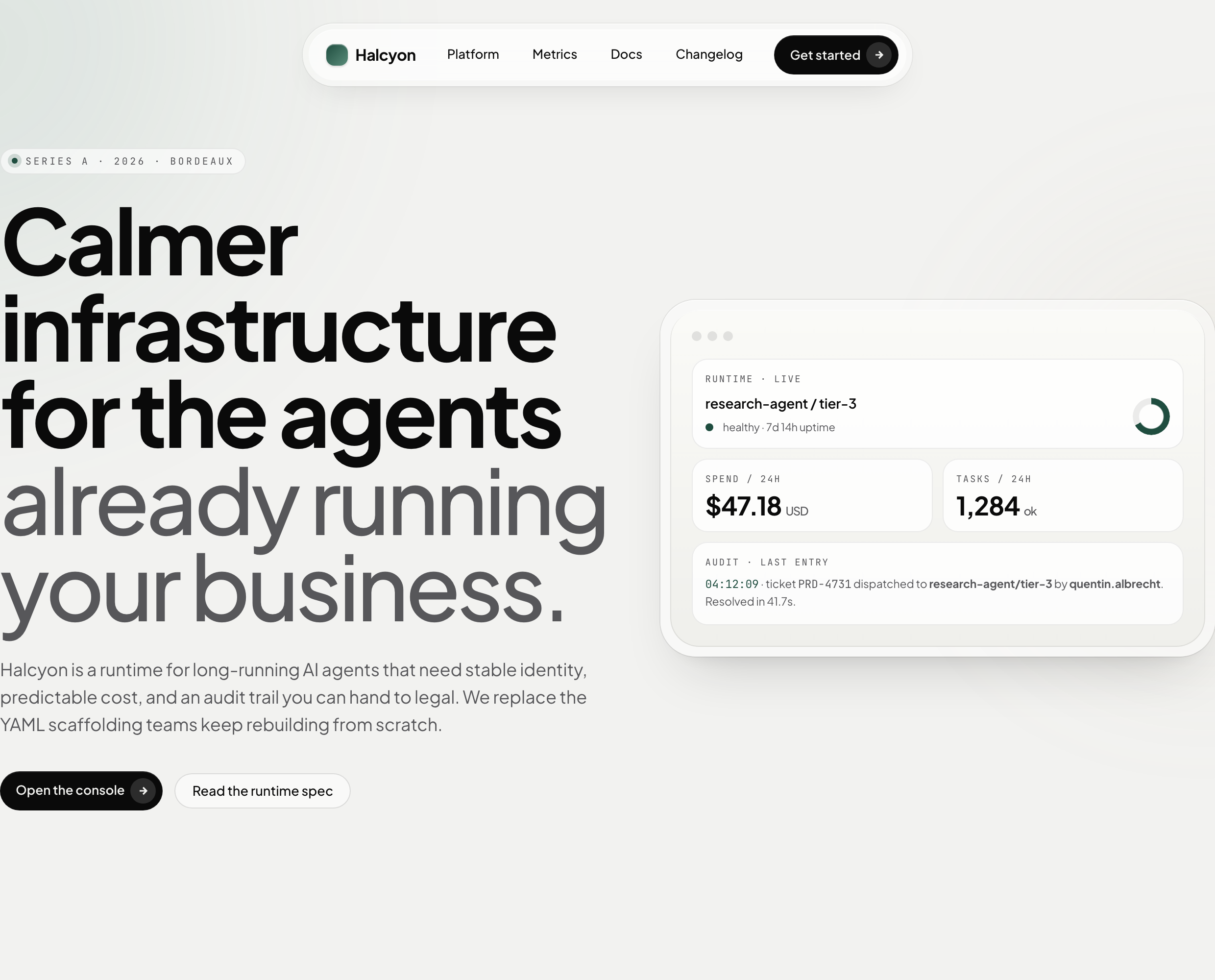
AI Infrastructure Website Design
A soft AI-infrastructure landing concept with sample runtime metrics, nested feature cards, subtle motion and a single sales invitation.
Website
Bianjing Night Tour Website Design
An interactive night journey through an imagined Song-era Bianjing, combining a persistent river city, poetry, lanterns and multilingual chapter pacing.
Website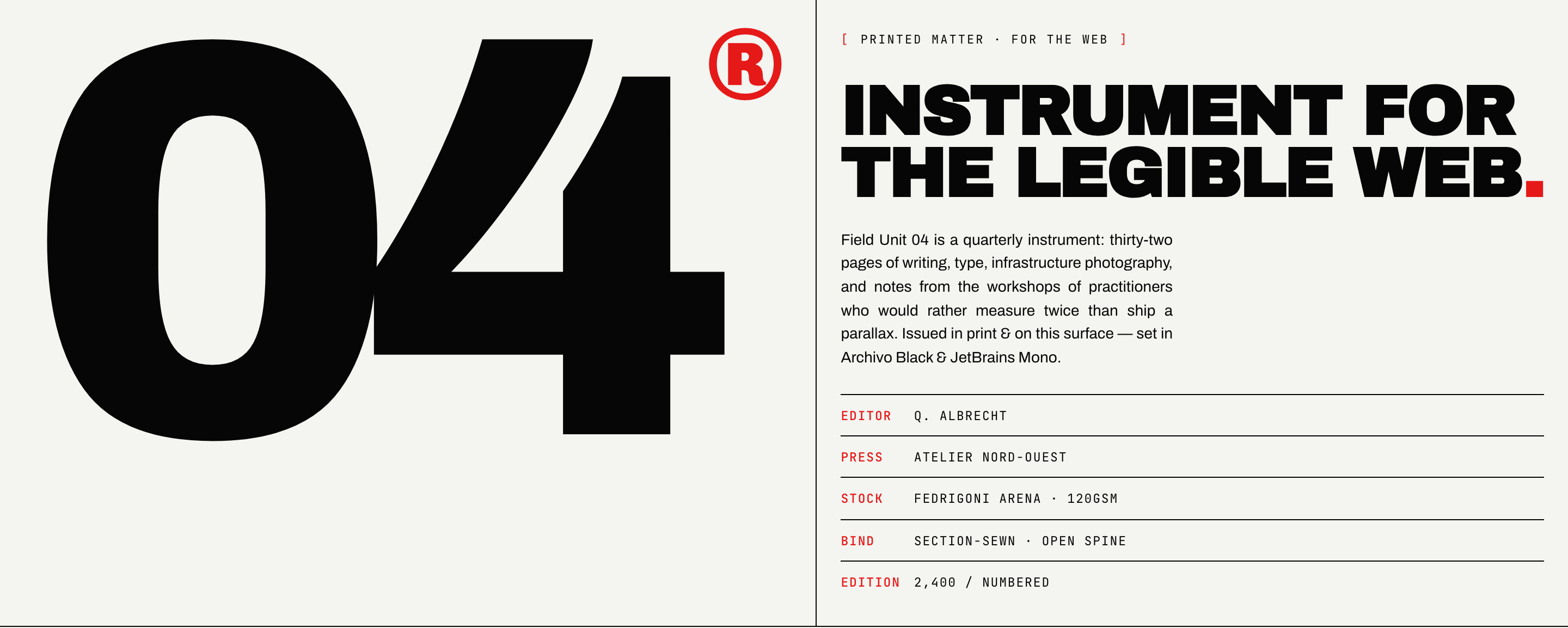
Brutalist Journal Website Design
Brutalist Journal Website Design turns a print-shaped issue into a legible web reading system, pairing bold type with measured editorial structure.
Website