

Desktop app
Student Exam Dashboard Wireframe Design
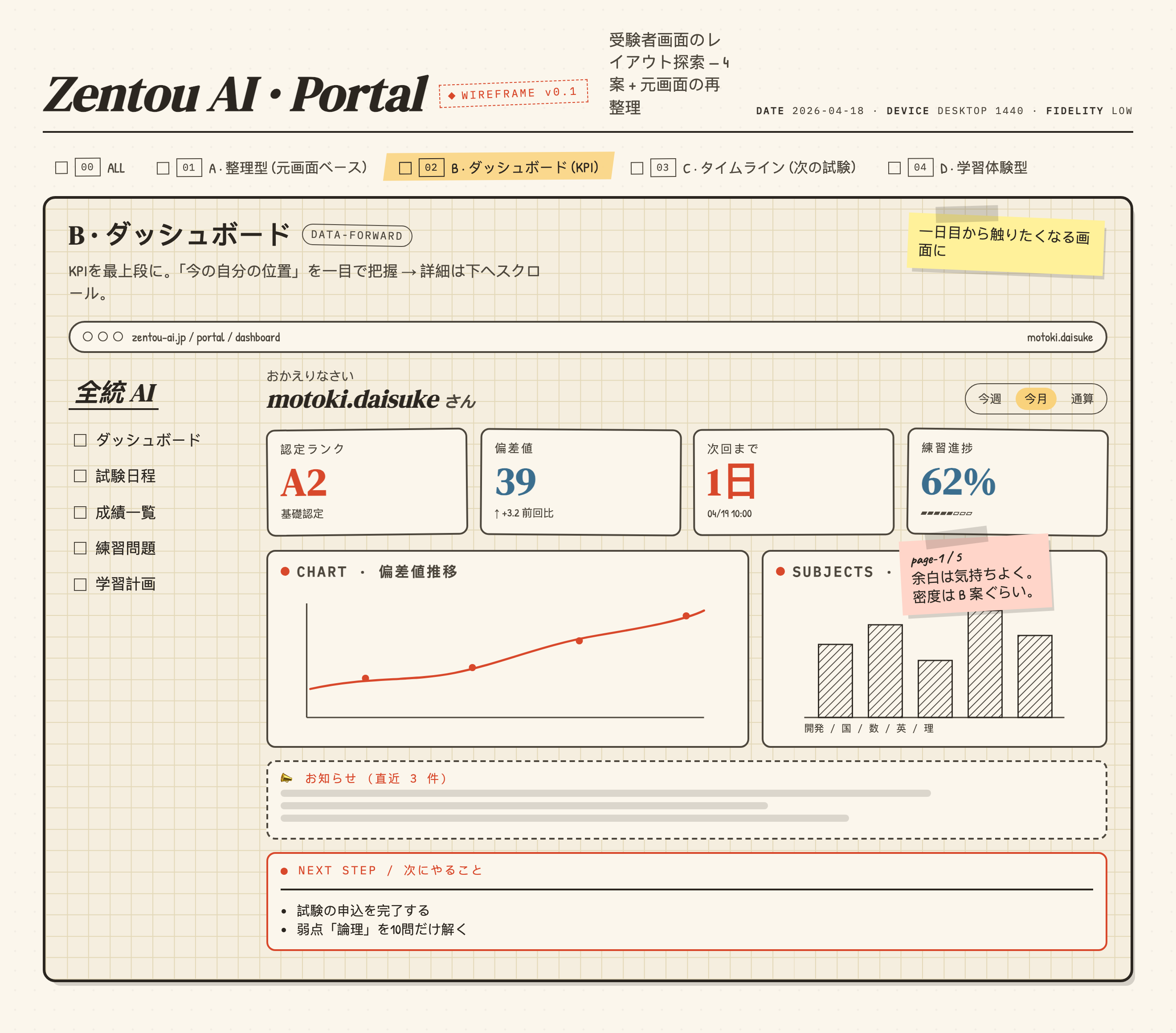
Student Exam Dashboard Wireframe Design arranges sample scores, progress, subjects, and next steps into a sketched desktop study overview.

Student Exam Dashboard Use Cases
- Exam Progress ReviewsScan rank, deviation score, deadline, and practice progress together.
- Student Portal ConceptsExplore a dashboard structure before committing to production behavior.
- Desktop Learning WorkspacesOrganize navigation, trends, subjects, notices, and actions in one view.
Sketched Study Workspace Highlights
- KPI-First LayoutFour top cards establish the learner’s current position immediately.
- Trend And Subject ViewsSeparate chart panels distinguish score movement from subject comparison.
- Action-Oriented Follow-UpNext-step items connect dashboard status with concrete study actions.
The Student Dashboard Wireframe
1 / 1A KPI-First Student Dashboard
Zentou AI · Portal WIREFRAME v0.1 presents a desktop student portal as a low-fidelity exploration. The selected concept is “B · ダッシュボード,” labeled DATA-FORWARD, and its stated structure places KPIs first so the learner can understand their current position before scrolling into detail.
The dashboard greets motoki.daisuke and shows three static period labels: 今週, 今月 and 通算, with 今月 highlighted. Four cards display 認定ランク A2 with 基礎認定, 偏差値 39 with +3.2 前回比, 次回まで 1日 with 04/19 10:00, and 練習進捗 62%. They separate rank, comparison, urgency and activity; the HTML does not wire the period labels to data changes.
The tradeoff is intentional density. Four cards support fast comparison, but the values do not explain their calculation or relationship. In this artifact they are sample content in a visual design, not evidence of live assessment data or connected student records.
Rank
A2 and 基礎認定 communicate a categorical certification state, separate from the numeric 偏差値.
Change
39 and ↑ +3.2 前回比 pair a current score with a comparison, implying movement without defining the comparison window.
Urgency
1日 and 04/19 10:00 turn the next exam into a deadline-oriented status.
Activity
62% with a segmented bar suggests completion, while leaving the underlying activity definition open.
Study Decisions Supported By The Composition
The layout is useful for a student deciding what to do next after opening the portal. A left navigation column lists ダッシュボード, 試験日程, 成績一覧, 練習問題, and 学習計画, while the main area moves from summary to evidence and then to action. That ordering reduces the need to choose a destination before seeing the current state.
CHART · 偏差値推移 uses a red line and plotted points, while SUBJECTS · 科目別 uses five hatched bars beneath the source labels 開発 / 国 / 数 / 英 / 理. The panels have drawn axis lines but no numerical scales, dates or per-bar values. They distinguish a proposed score trend from subject comparison without supplying measured performance data.
The lower “NEXT STEP / 次にやること” panel lists two concrete actions: completing the exam application and solving ten questions on the weak area 論理. This is a useful transition from diagnosis to behavior. The tradeoff is that the design proposes action labels without showing completion state, ownership, or how recommendations are generated.
Read The Trend
Use the line panel to inspect the direction of 偏差値推移; the points imply repeated observations but do not define dates or scale.
Compare Subjects
Use the bar panel to compare five named subjects; the differing heights show relative emphasis, not verified performance values.
Choose An Action
Use NEXT STEP to connect the overview with application and targeted practice tasks.
From Portal Entry To Next Step
The visible reading flow begins at the portal label “zentou-ai.jp / portal / dashboard,” continues through the learner greeting and period control, and then reaches the four KPI cards. This creates a workspace sequence from identity and time scope to current status. The period switcher visibly highlights 今月, but the capture does not establish that the control changes data at runtime.
Below the KPIs, the chart and subject panels provide two different forms of context. The chart is wider than the subject panel, matching the CSS relationship of a 1.4fr to 1fr panel grid. That proportion gives the trend more room while preserving a compact comparison panel. The choice supports the dashboard’s emphasis on movement, but it also gives the chart greater visual authority even though its scale is unspecified.
Notices follow in a dashed container labeled お知らせ(直近 3 件), and the next-step area sits below with a red outline. The sequence places passive information before explicit action. A production adaptation could test whether urgent tasks should move above notices, but that would be a proposed change rather than a behavior shown by this sample.
Enter The Overview
The portal path and greeting establish the dashboard as the learner’s starting workspace, with navigation available on the left.
Check Current Status
The period control and four KPI cards frame the selected time view, score context, deadline, and practice progress.
Inspect Supporting Views
The trend and subject panels provide different kinds of context: movement across observations and relative subject distribution.
Act On The Recommendation
The NEXT STEP block turns the overview into two proposed tasks: finish the exam application or practice the weak area 論理.
Visible Structure And Capability Boundary
This official OpenDesign bundled example is one static B-dashboard canvas. The A, C and D concept tabs and the page-1 / 5 sticky note do not establish additional authored screens; there are no click handlers for tabs, periods, sidebar items or next steps. Student identity, dates, ranks and progress values are illustrative. The wireframe demonstrates visual hierarchy, not a live portal, stored records, exam submission or validated educational outcomes.
The design’s strongest reusable lesson is structural: separate categorical status, numeric comparison, deadline, and practice completion before presenting trend, subject, notice, and action areas. Any adaptation should define the meaning and source of each metric, add chart units and time ranges, and decide which controls and recommendations are real before treating the wireframe as an operational dashboard.
How to Create Student Exam Dashboard Wireframe Design in OpenDesign
Set The Dashboard Frame
Create a desktop student portal with a left navigation column and a main workspace. Keep the B dashboard concept as the selected view, and reserve the top of the workspace for four distinct KPI cards.
Suggested PromptCreate a low-fidelity desktop student exam dashboard wireframe for a Zentou AI-style portal. Use a left navigation with Dashboard, Exam Schedule, Results, Practice Questions, and Study Plan; place four top KPI cards for certification rank, deviation score with comparison, next-exam deadline, and practice progress; follow with a wider score-trend chart, a narrower subject comparison chart, notices, and a red-outlined next-step area. Use Japanese source labels with sample values, hand-drawn borders, a lightly gridded background, and no live services, storage, submissions, or implied measured outcomes.
Define The Data Relationships
Keep rank, score change, deadline, and practice completion visually separate. Add explicit definitions, units, comparison windows, chart axes, and time ranges when adapting the concept so readers can distinguish categorical status from measured values.
Refine The Action Sequence
Preserve the flow from greeting and period scope to KPIs, supporting charts, notices, and next steps. Check whether application and weak-area practice tasks need visible status, ownership, or priority before presenting them as actionable workflow items.
Export and Get a Share Link
Export your finished design, then use Share in OpenDesign to get a share link. Open the link in a separate browser window and check that the intended version and its assets are available before sending it.
Analytics Dashboard Wireframe Design
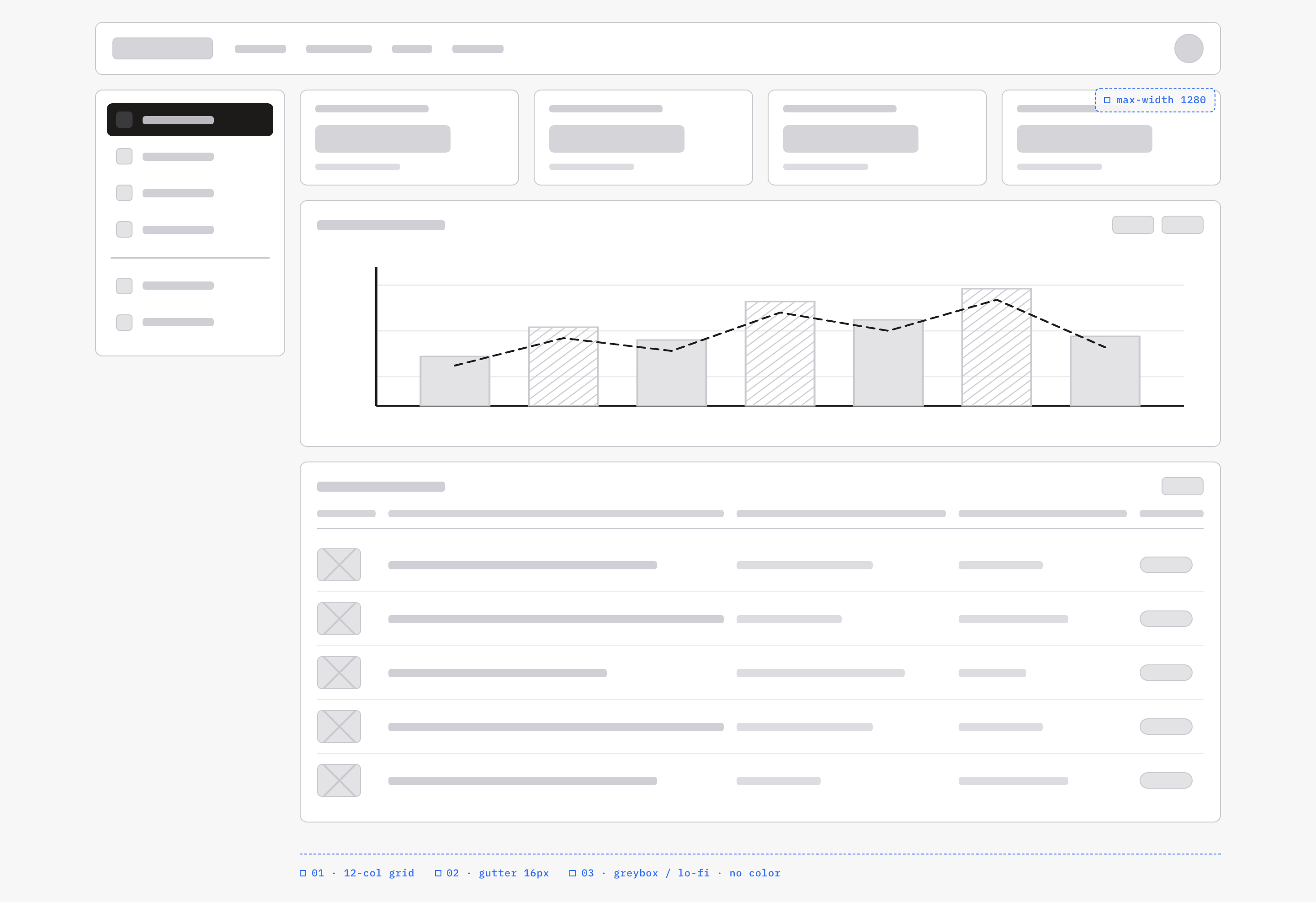
An OpenDesign greybox dashboard maps an analytics workspace through a sidebar, four KPI placeholders, a schematic chart, five table rows and blue layout annotations.
Desktop app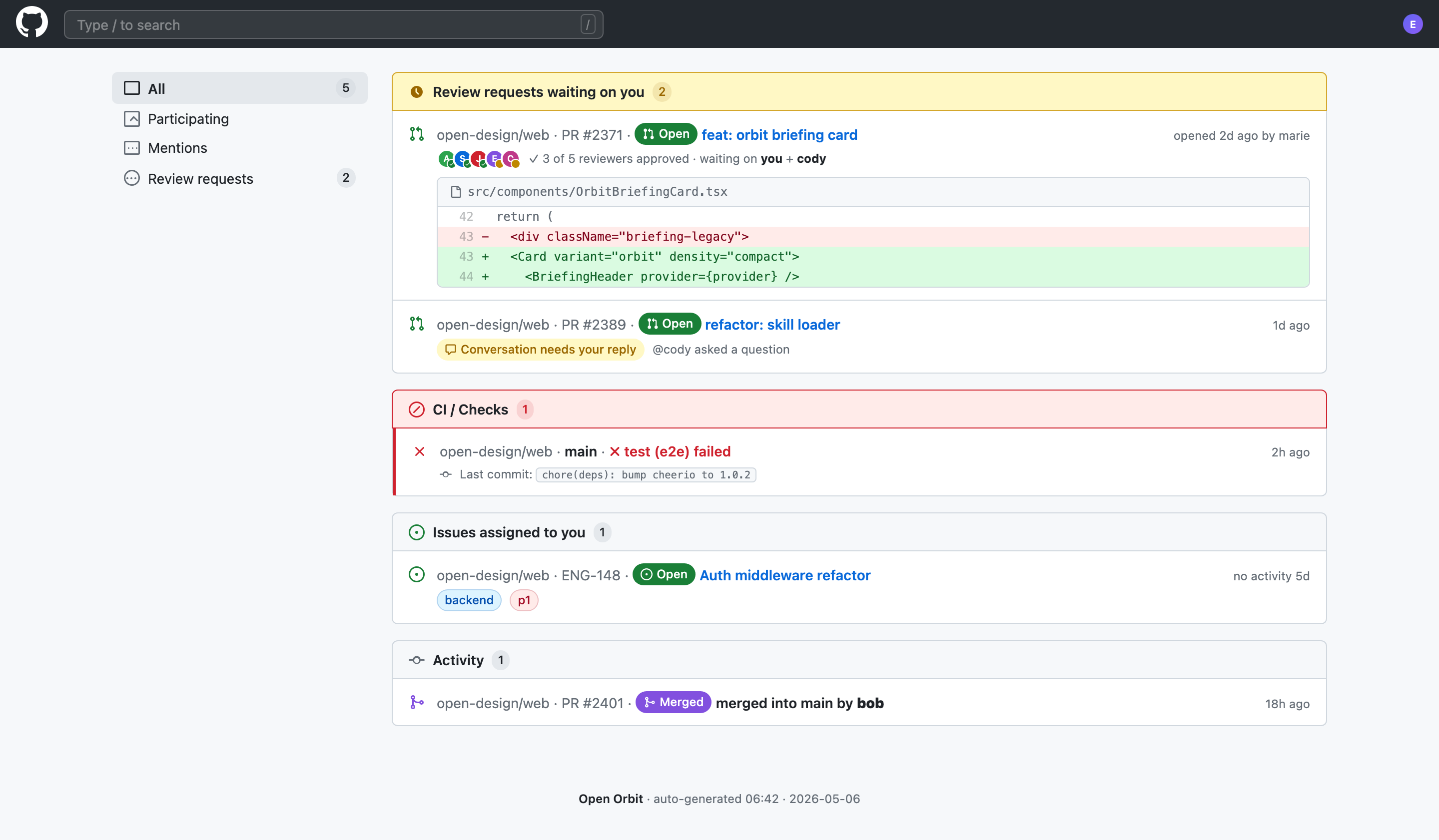
Code Review Inbox App Design
Code Review Inbox App Design brings review requests, CI failures, assigned issues, and activity into one scan-ready workspace for daily triage.
Desktop app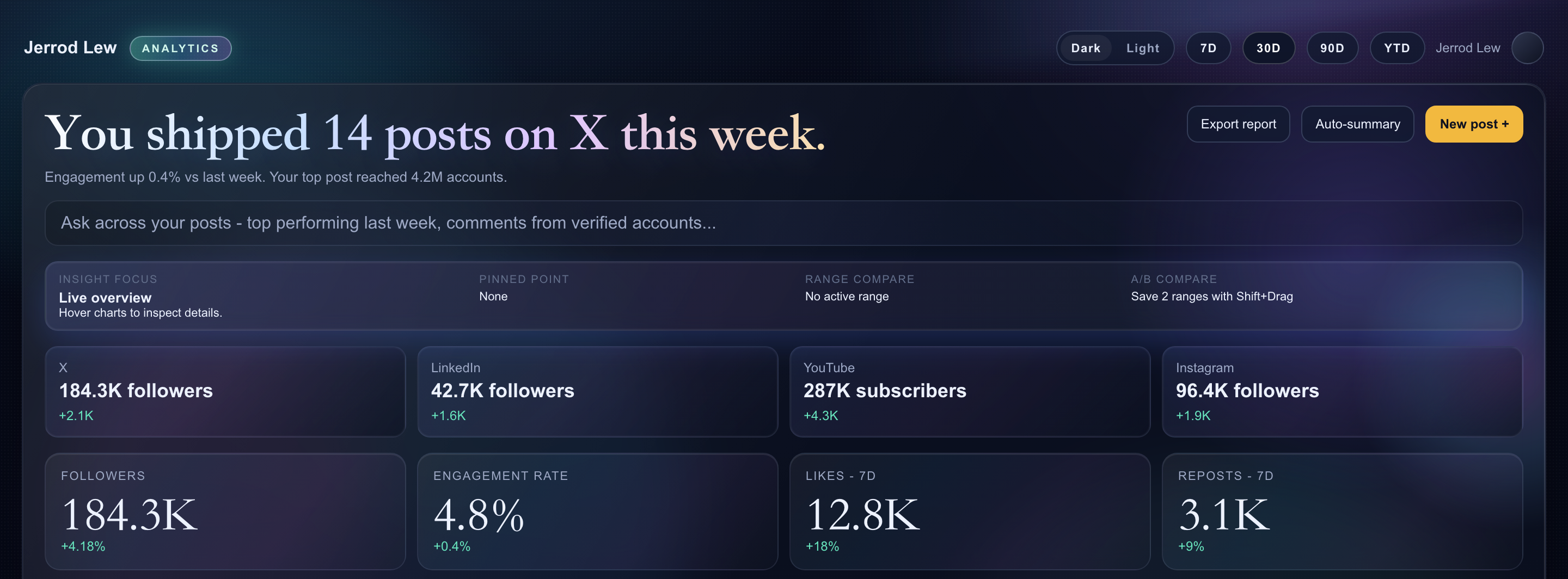
Content Performance Dashboard Design
A dark content dashboard connects platform snapshots with chart inspection, draft planning and a deeper view of audience and conversion signals.
Desktop app
Day Trip Planner Design
Plan six timed stops in fictional Solara Bay, with an illustrated map, walking estimates and useful route warnings.
Desktop app