

Desktop app
Team Workspace Dashboard Design
Team Workspace Dashboard Design combines task status, activity, weekly volume, and review signals in one scannable desktop workspace view.

Team Workspace Dashboard Use Cases
- Team OperationsReview workload, ownership, and current priorities together.
- Project CoordinationScan active work without opening individual project pages.
- Workspace AdministrationTrack members, documents, and workspace activity.
- Dashboard Design StudyStudy how sample data becomes an operational overview.
Team Dashboard Design Highlights
- Four-Part KPI RowPairs totals with weekly movement and membership context.
- Weekly Task TrendShows seven ordered days as one volume pattern.
- Recent ActivityConnects named people with timestamped workspace changes.
- Active Sprint TableCombines status, assignee, due date, and priority.
The Workspace Dashboard, Panel by Panel
1 / 3
Team Workspace Dashboard Design
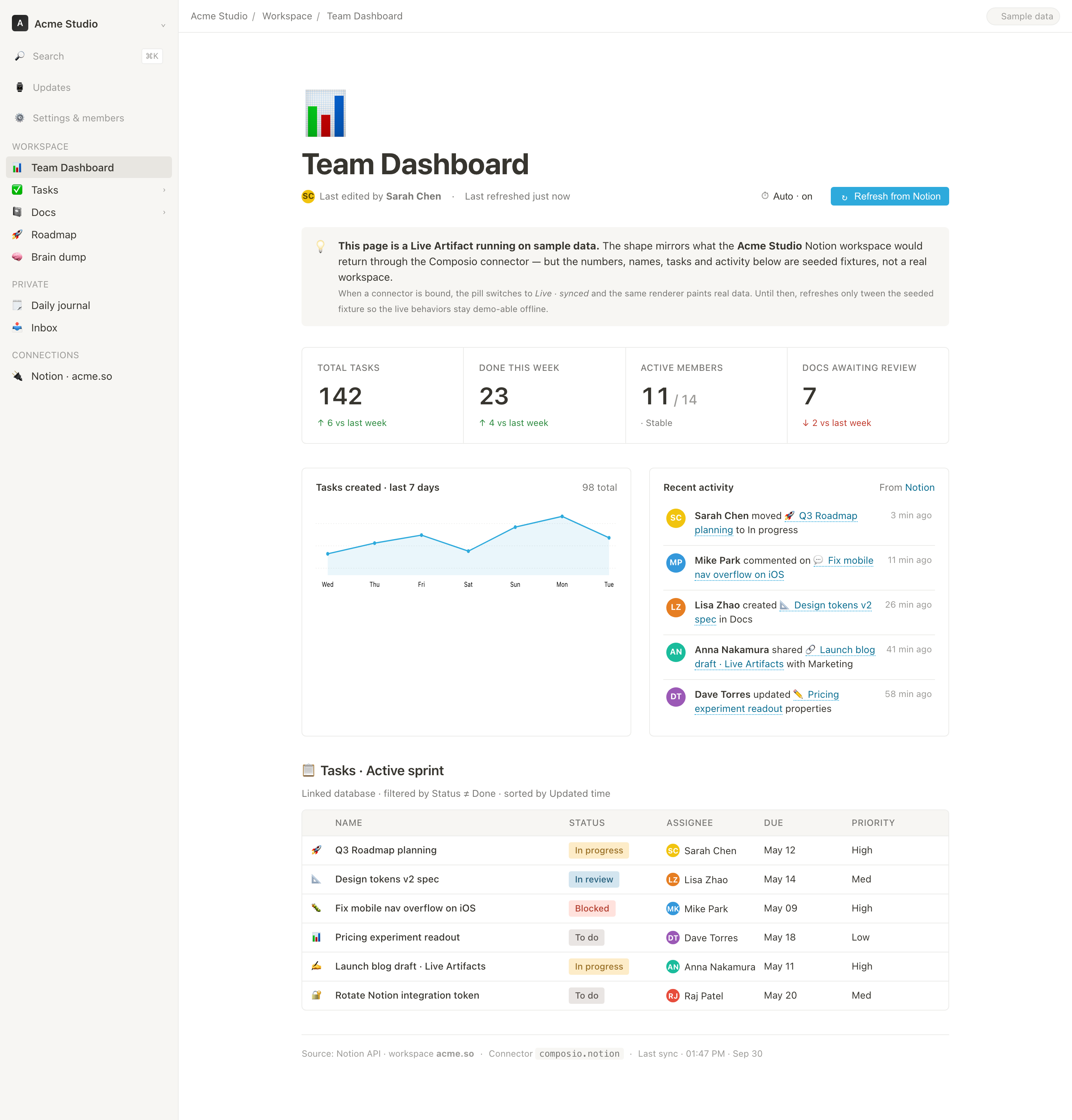
OpenDesign's Team Workspace Dashboard Design presents an Acme Studio workspace as a desktop operations surface. The left navigation separates Workspace, Private, and Connections areas, while the main page follows the path “Acme Studio / Workspace / Team Dashboard.” That structure establishes where the reader is before the dashboard content begins.
The authored heading is “Team Dashboard,” followed by “Last edited by Sarah Chen” and “Last refreshed just now.” The refresh controls sit on the same horizontal band as this metadata: “Auto · on” and “Refresh from Notion.” This makes recency and refresh intent visible near the page title, although the composition gives those controls less visual weight than the dashboard itself.
The design uses a centered page with a maximum width of 1100px inside a persistent sidebar layout. That proportion leaves the navigation available for workspace switching while reserving the larger field for grouped operational information. The tradeoff is density: the page can show several modules at once, but longer task names and activity messages must wrap within the available columns.
Signals for Team Operations
The dashboard is suited to a daily team check-in where users need a compact view of work volume and exceptions. Its first summary block contains four literal fields: “Total tasks 142,” “Done this week 23,” “Active members 11 / 14,” and “Docs awaiting review 7.” Each field has a different semantic shape, so the row is more useful as a set of distinct signals than as a single score.
The arrows add comparison context for three of the fields: total tasks is up 6 versus last week, completed work is up 4, and documents awaiting review is down 2. “Active members 11 / 14 · Stable” uses a denominator and a qualitative state instead of a week-over-week delta. That variation is an important design choice: it preserves the definition of member capacity rather than forcing every metric into the same comparison format.
The visible values are explicitly labeled sample data. They show how a populated dashboard might read, but they are not evidence of Acme Studio performance or of a connected production workspace. The design consequence is that the interface can demonstrate information relationships clearly while leaving real metric definitions and data provenance to a later implementation.
Capacity Signal
“Active members 11 / 14 · Stable” separates current participation from the qualitative state, making the denominator visible.
Review Queue
“Docs awaiting review 7” and its downward comparison foreground unfinished documentation without blending it into task completion.
Work Volume
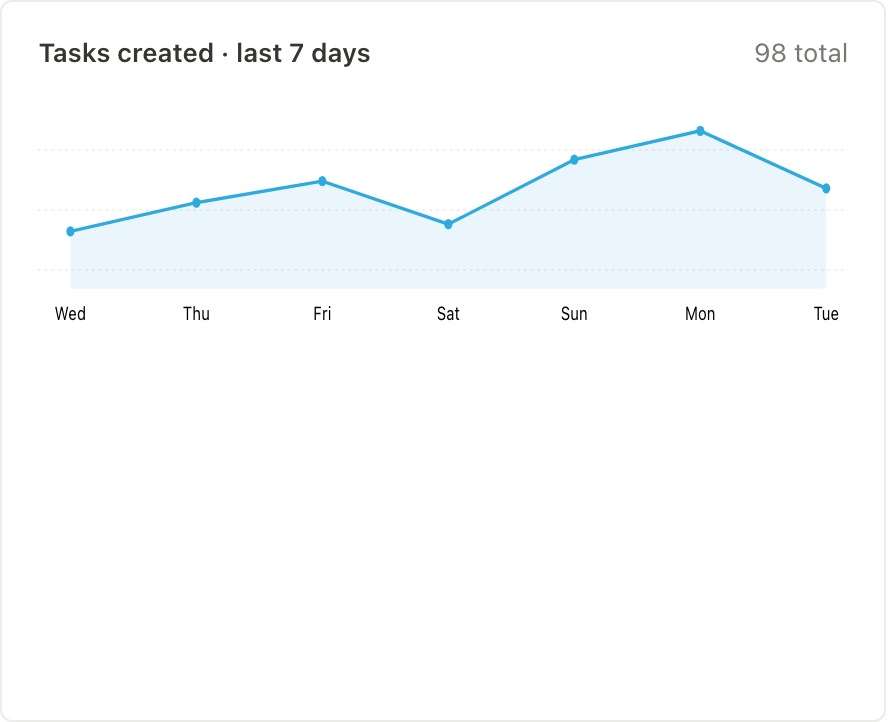
“Tasks created · last 7 days” gives the top-line task count a time window for interpretation.
From Trend to Active Sprint
The middle of the page shifts from summary to explanation. The weekly chart is titled “Tasks created · last 7 days,” shows “98 total,” and orders the horizontal labels Wed, Thu, Fri, Sat, Sun, Mon, and Tue. The plotted line rises through Friday, dips on Saturday, reaches its highest visible point on Monday, and falls on Tuesday. That ordering lets a reader inspect a recent pattern rather than only seeing a total.
Beside the chart, “Recent activity” lists named actions with relative times, including Sarah Chen moving “Q3 Roadmap planning” to In progress at 3 min ago and Mike Park commenting on “Fix mobile nav overflow on iOS” at 11 min ago. The repeated person, action, object, and time pattern supports quick scanning. The tradeoff is that natural-language activity rows can wrap unpredictably as names or object titles grow.
The page then moves into Tasks · Active sprint. Its supporting line states Linked database · filtered by Status ≠ Done · sorted by Updated time. The captured initial rows contain no Done items, and the local renderer sorts them by its sample update timestamps. However, it does not remove rows marked Done by a later simulated refresh, so the filter label is not a fully implemented behavior.
The columns are Name, Status, Assignee, Due, and Priority. In the captured initial state, Fix mobile nav overflow on iOS is Blocked and High priority, while Pricing experiment readout is To do and Low priority. These pairings distinguish state from urgency. Task names truncate with an ellipsis rather than wrapping; below 980px, the source hides the sidebar and the Due and Priority fields, making those details less visible.
| Task | Status | Due | Priority |
|---|---|---|---|
| Q3 Roadmap planning | In progress | May 12 | High |
| Design tokens v2 spec | In review | May 14 | Med |
| Fix mobile nav overflow on iOS | Blocked | May 09 | High |
| Pricing experiment readout | To do | May 18 | Low |
Visible Design and Capability Boundary
The source implements a local sample-data simulation, not a connected Notion workspace. Its initial KPI values and weekly chart match the captured state. A refresh-on-open timer, manual Refresh from Notion button, and 30-second auto-refresh loop mutate local fixture values, task states, and activity entries. The source contains no connector request, authenticated workspace access, or persistent storage.
Auto · on can be toggled off, relative timestamps update locally, and the interface retains its Sample data badge after a refresh. The footer names Notion API and composio.notion, but these labels do not establish a real integration. The initial toast markup says Synced — 3 changes from Notion; the running refresh handler replaces it with a sample-data message, so the initial text is not evidence of a synchronization result.
The local simulation also shows where presentation and data rules can diverge: a row can become Done without being removed from the advertised active-sprint filter, and fixed week-over-week comparison labels do not recalculate when KPI values change. A real adaptation would need explicit metric definitions, filtering, and comparison calculations before using these displays for team decisions.
How to Create Team Workspace Dashboard Design in OpenDesign
Set the Workspace Frame
Start with a persistent left sidebar for Acme Studio navigation and a centered main page capped at a broad desktop reading width. Keep the title, editor metadata, freshness controls, and sample-data notice above the operational modules.
Suggested PromptCreate a desktop Team Workspace Dashboard Design for an Acme Studio-style workspace. Use a persistent sidebar with Workspace, Private, and Connections groups; a main page titled Team Dashboard; and sample data only. Include a four-field KPI row, a seven-day task trend, recent activity, and an Active Sprint table. Do not claim live integrations, real performance, backend storage, or verified connector behavior.
Build the Signal Sequence
Add the four KPI fields with their distinct value formats, then place the seven-day task chart beside Recent activity. Preserve the visible ordering and explain each signal through its label, comparison, denominator, time window, or timestamp rather than reducing everything to one score.
Refine the Active Sprint View
Connect each task with Status, Assignee, Due, and Priority. The source truncates long names with an ellipsis; check that essential identities remain understandable and provide a deliberate narrow-screen treatment for the fields it hides. Implement Status ≠ Done filtering and Updated time sorting rather than relying on their labels.
Check Sample States and Boundaries
Keep the sample-data label visible when demonstrating local refreshes. Preserve distinct In progress, In review, Blocked, and To do states. Reconcile row filtering, KPI values, and comparison labels before connecting a real data source; no connector or workspace integration is provided by the supplied HTML.
Export and Get a Share Link
Export your finished design, then use Share in OpenDesign to get a share link. Open the link in a separate browser window and check that the intended version and its assets are available before sending it.
Analytics Dashboard Wireframe Design
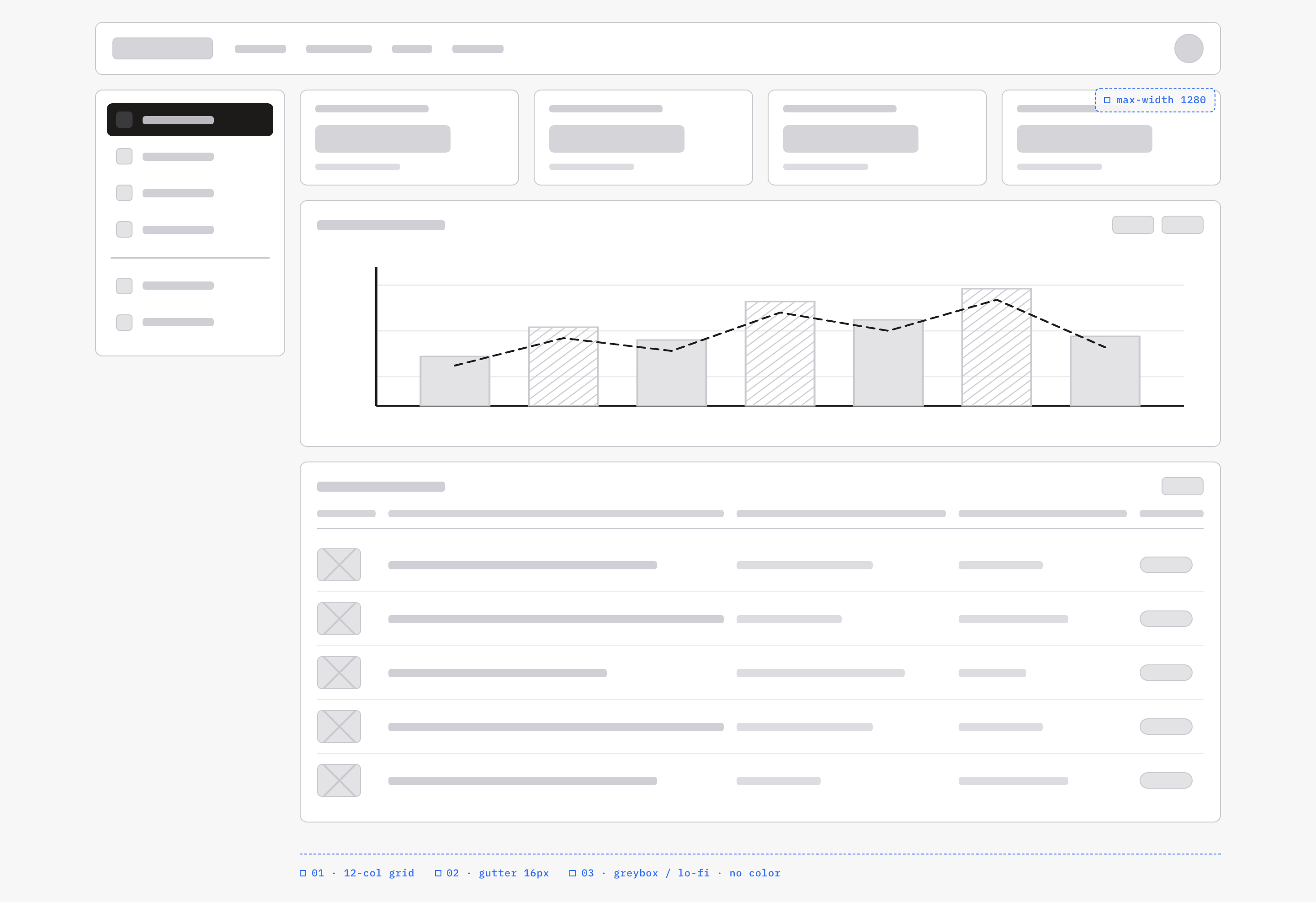
An OpenDesign greybox dashboard maps an analytics workspace through a sidebar, four KPI placeholders, a schematic chart, five table rows and blue layout annotations.
Desktop app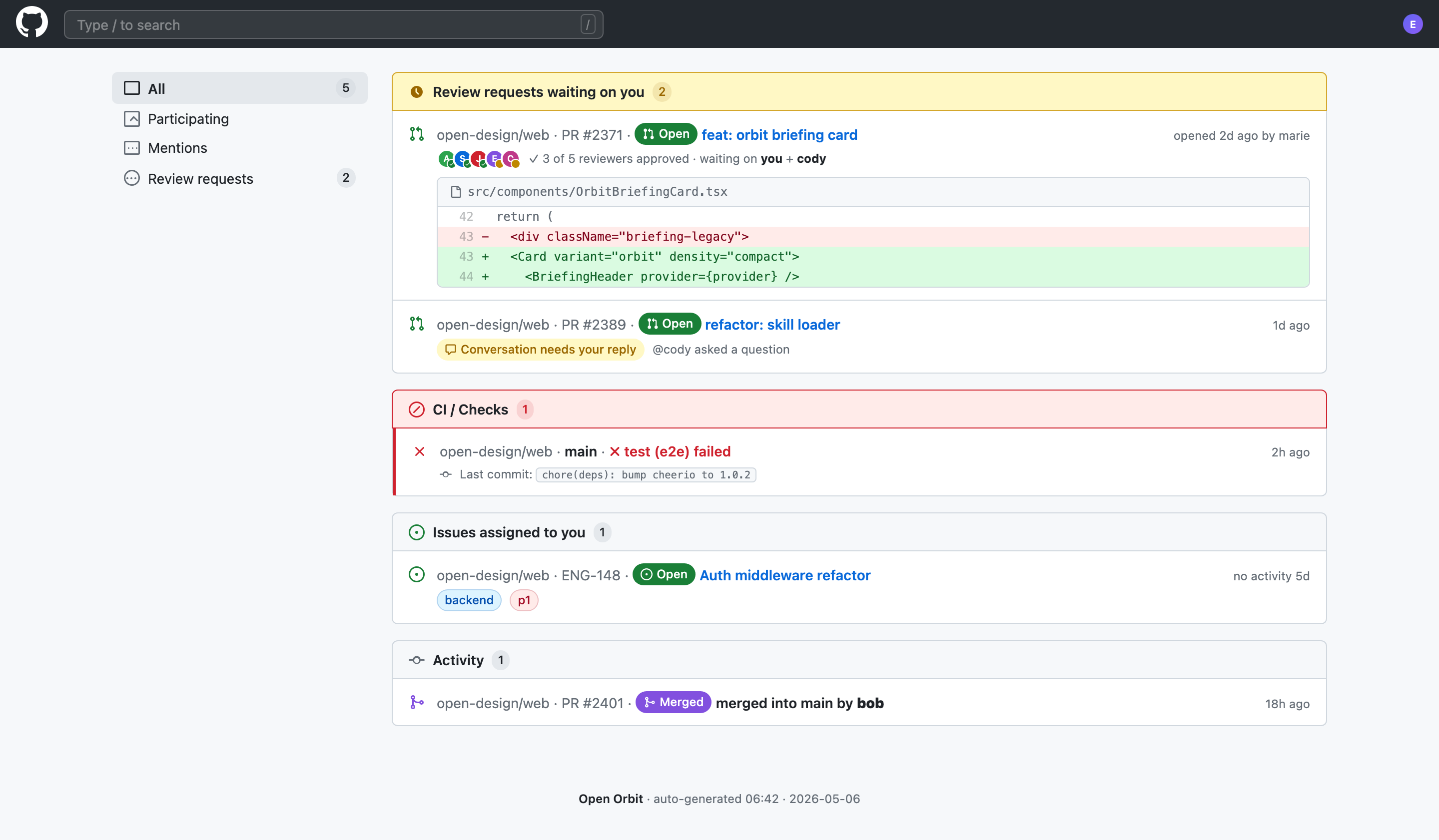
Code Review Inbox App Design
Code Review Inbox App Design brings review requests, CI failures, assigned issues, and activity into one scan-ready workspace for daily triage.
Desktop app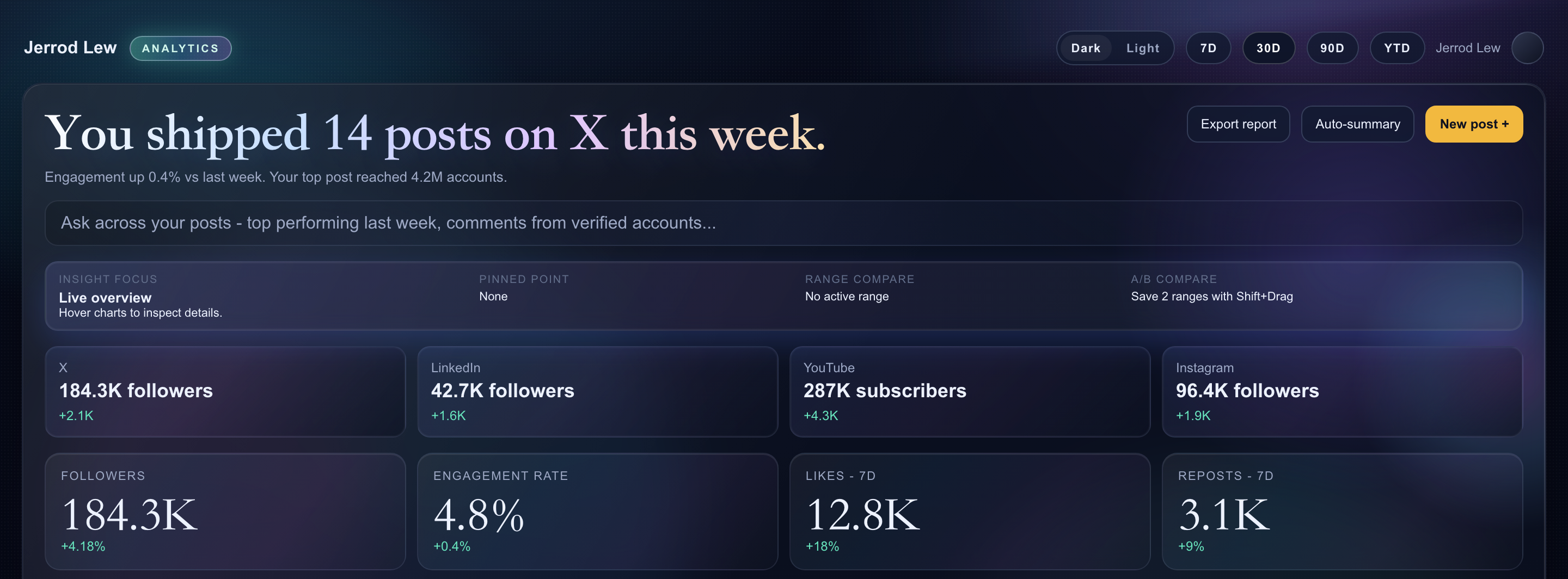
Content Performance Dashboard Design
A dark content dashboard connects platform snapshots with chart inspection, draft planning and a deeper view of audience and conversion signals.
Desktop app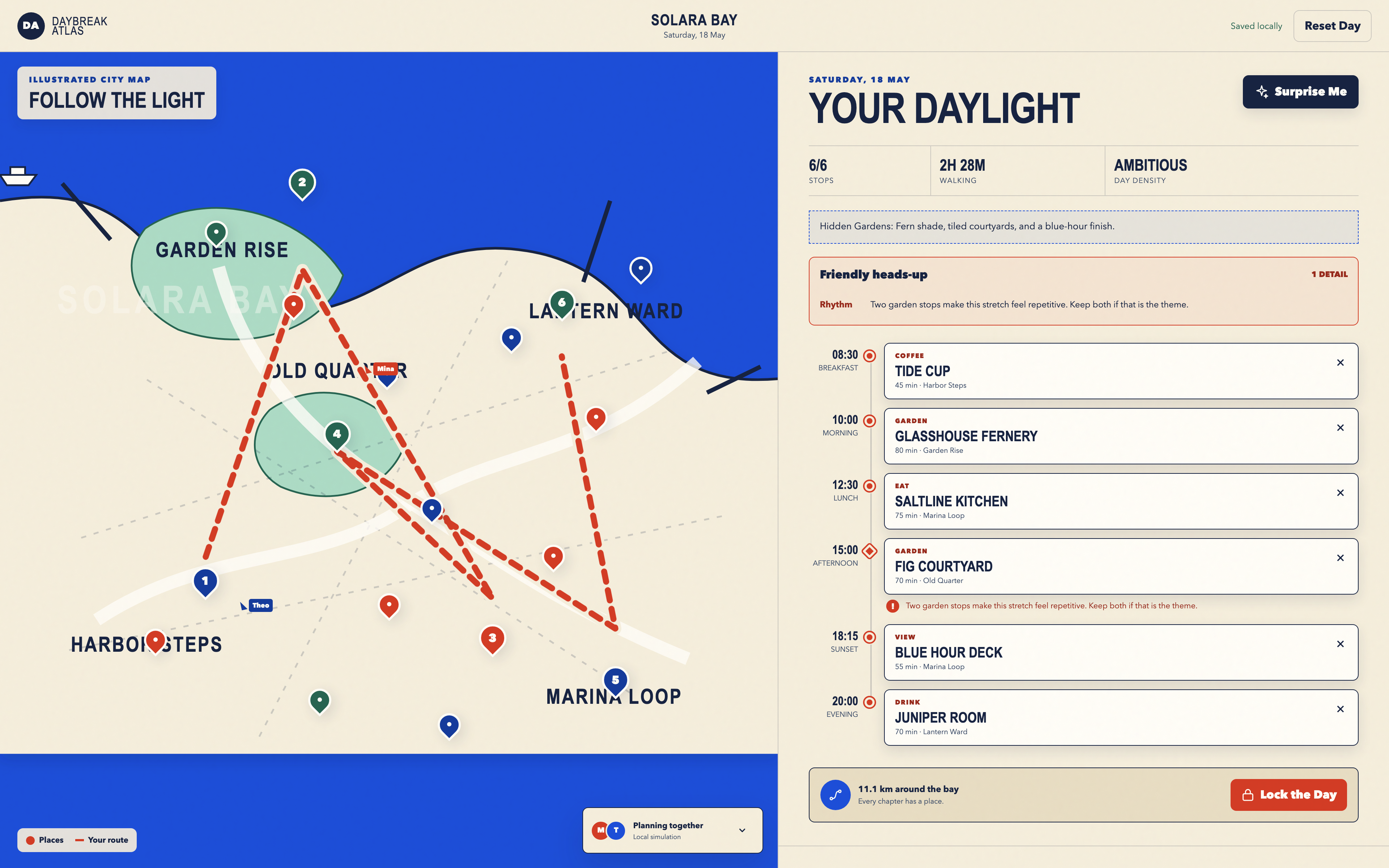
Day Trip Planner Design
Plan six timed stops in fictional Solara Bay, with an illustrated map, walking estimates and useful route warnings.
Desktop app