


Use Claude Design for Free With This Open Source Alternative
A free, open-source alternative to Claude Design for building landing pages and websites with your own LLM — install via desktop or GitHub, prompt your way to a live page, and ship it to production. Based on Fabricando Sua Ideia's walkthrough.
Tired of paying for Claude Design? This guide walks through OpenDesign, the free, open-source tool that works as a Claude Design you fully control — the same landing-page and AI-website workflow, minus the subscription and the vendor lock-in. It follows the walkthrough from Fabricando Sua Ideia’s video, rewritten here as a written, step-by-step guide you can follow at your own pace. Watch the video above for the live run, or read on below.
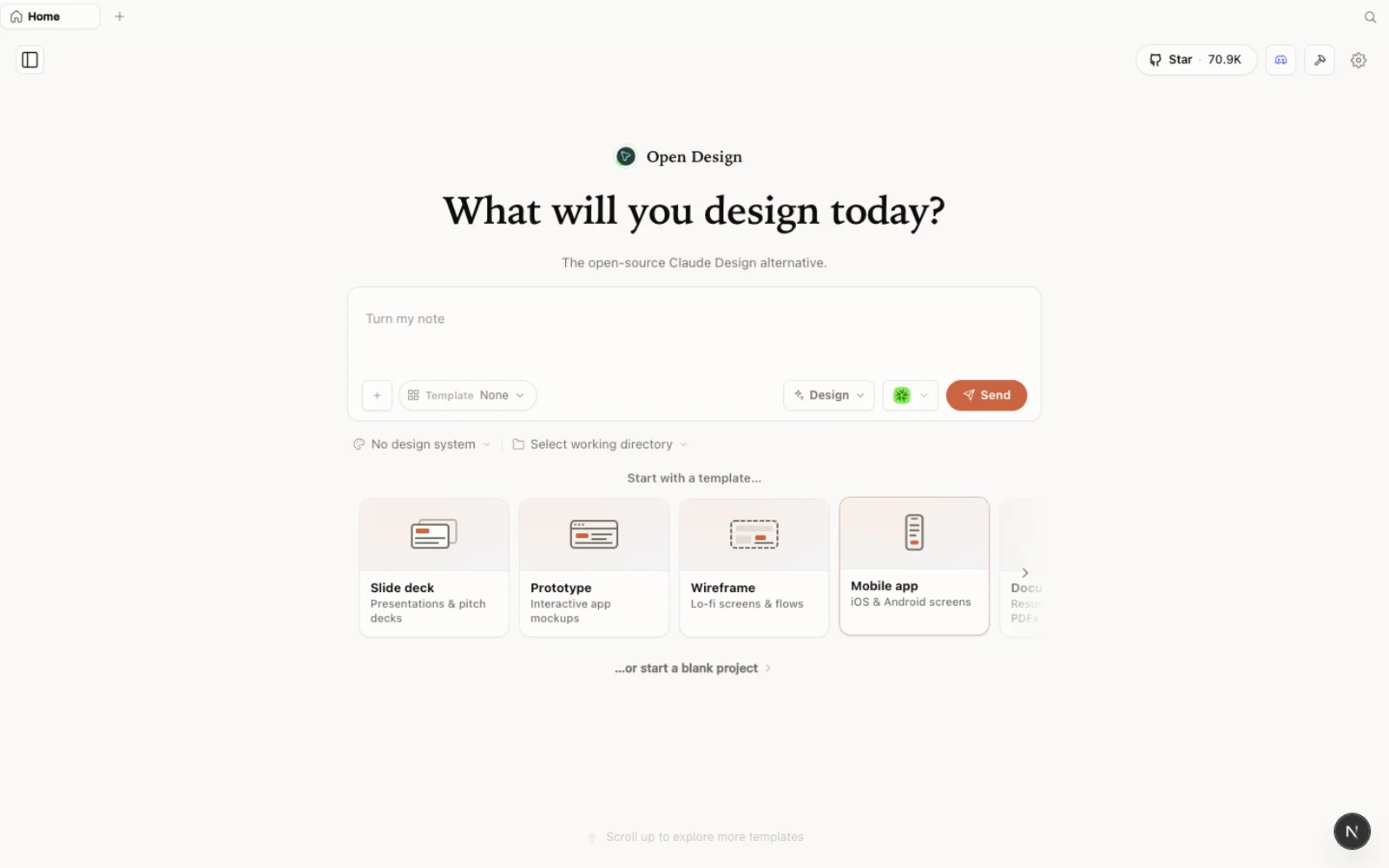 OpenDesign’s workspace: an open-source, agent-native alternative to Claude Design that you install and run yourself.
What is OpenDesign?
OpenDesign is an open-source, local-first design platform built for anyone who likes the Claude Design workflow but does not want to pay for it or be tied to one provider. A few things worth knowing before you install it:
- Open source, Apache-2.0 — the code is public, so you can inspect it, self-host it, or fork it.
- Local-first — it runs on your own machine (or your own server), not inside someone else’s cloud account.
- Bring your own agent and key — it works on top of the coding agent and LLM you already use, from Claude Code to Codex, Gemini, and other providers, so you are never boxed into a single company’s pricing or model.
- More than prototypes — beyond landing pages, it covers design systems, plugins, and full production deploys, not just quick mockups.
Where to Download: Desktop App or GitHub
There are two ways to get OpenDesign, and the right one depends on how comfortable you are with a terminal.
The simplest route is the official site, open-design.ai. From there you download a desktop application for your operating system, install it like any other app, and open it — no command line involved.
The second route is GitHub. Because OpenDesign is an open-source project, you can clone the repository directly and run it from source. This gives you more control over the project internally and is the route to take if you also want to contribute code back or customize the tool beyond what the desktop build exposes. It is the more technical of the two paths, so if you are not comfortable working with code, stick with the desktop app.
Installing and Configuring OpenDesign
Whichever path you pick, the install itself is short. After downloading, you wait for the file to finish setting up on your computer (or, if you cloned from GitHub, for the install process to complete), and a first-run configuration screen appears.
This first screen is where you choose how OpenDesign generates for you: you can leave it in the hands of a preconfigured agent, or point it at your own model. Because OpenDesign does not lock you into one AI provider or model, you get to pick the option that best fits your profile — whatever LLM or provider you already use or prefer, rather than being confined to a single vendor’s plan.
Exploring the Interface and Creating a Landing Page by Prompt
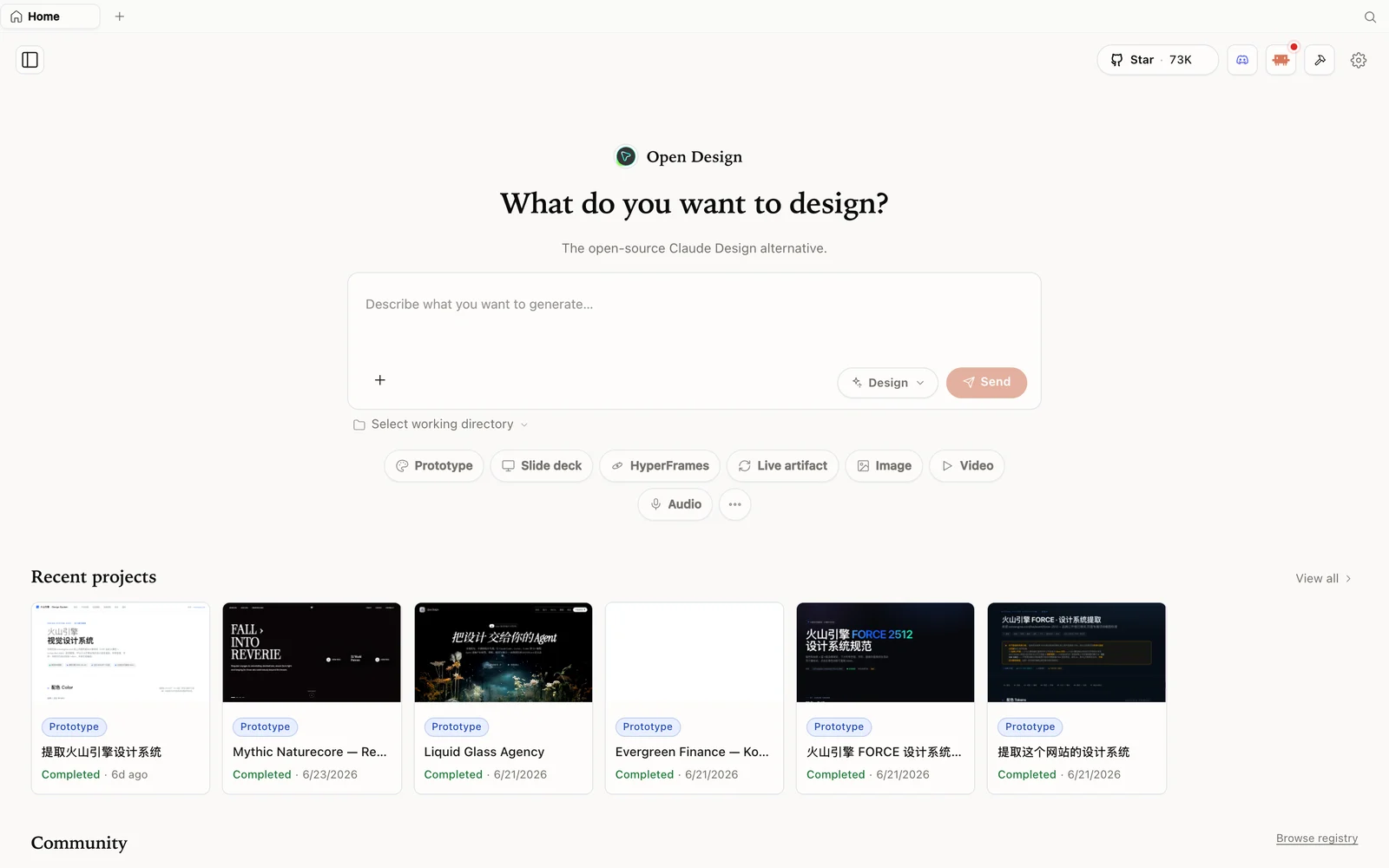 The workspace home: your projects, templates, and design systems all live here.
Once configuration is done, the interface opens on a home screen with ready-made templates you can use as a starting point — for example, templates built for a landing page introducing a technology company, complete with sample data and layout you can reshape into your own idea. You can inspect a template’s details before committing to it, or simply describe what you want in plain language and let OpenDesign build it for you.
A typical prompt might be: build a landing page for a fictitious technology company, with an analytics section showing the company’s performance data. From there, describe your visual preferences — a look with standard fonts and colors, or something more playful — and OpenDesign starts constructing the interface, working through the layout the way a designer would.
Settings: Models, MCPs, and Memory
Inside the settings, you can change the model your project uses at any time — swap providers whenever you want, rather than being stuck with whatever was set at first launch. You can also connect MCP servers here, wiring the agent to outside tools and data sources, and configure memory so the agent retains context about your project’s direction across sessions. Together, these settings are what let OpenDesign behave less like a fixed template tool and more like a design assistant that adapts to how you actually want to work.
Design Systems, Projects, and the CLI
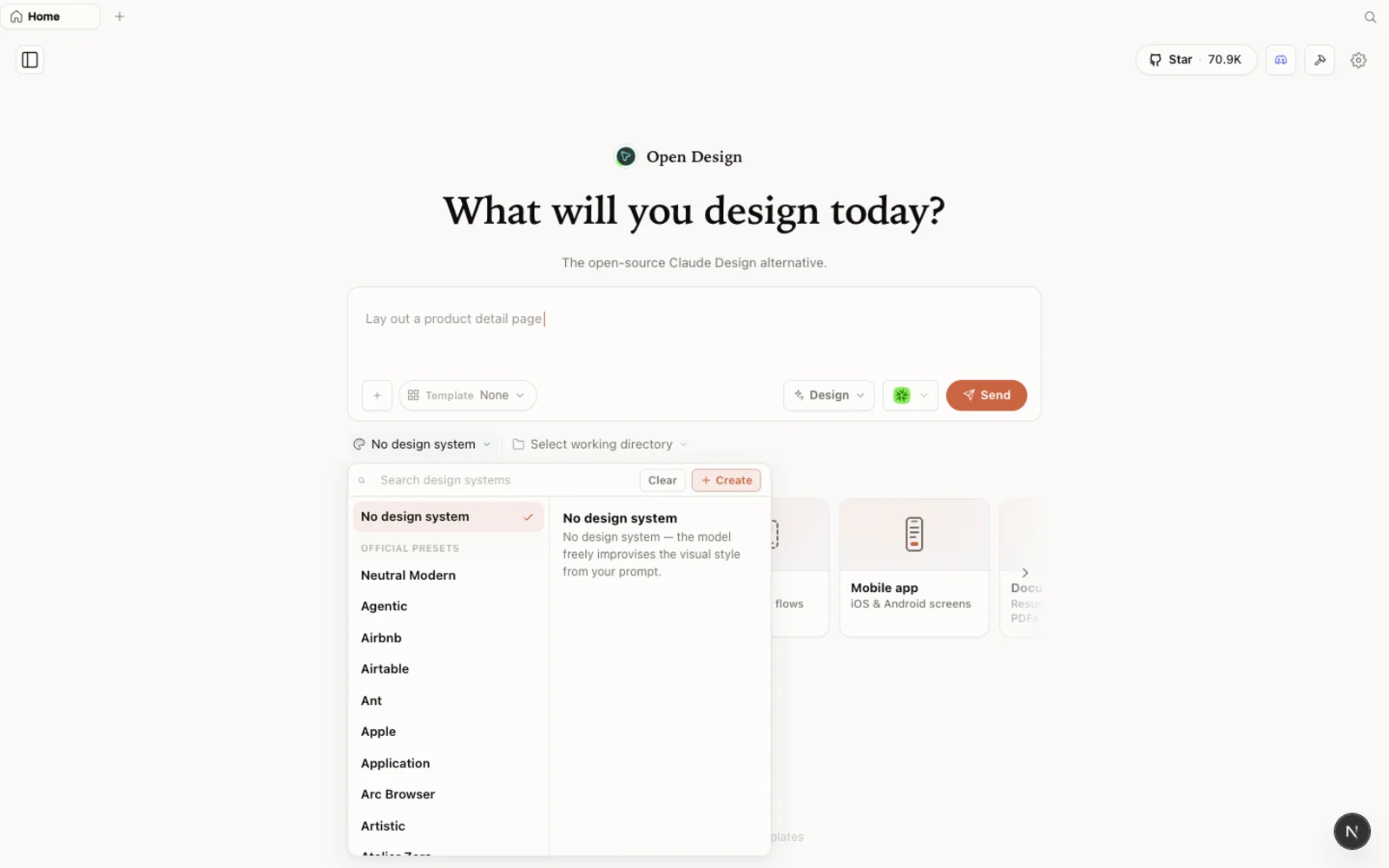 The design-systems library: reusable visual foundations you can apply to a new project instead of starting from a blank page.
Every project in OpenDesign keeps its own design systems, so once you build something you like, you can save it and reuse it as a starting template on future projects. The plugin library sits alongside this, letting you install or build small pieces of functionality that help you along the way as your project develops.
For people who prefer to work outside a graphical interface, OpenDesign also ships a CLI version — the same core tool, usable straight from your terminal, inside your IDE, or wherever you work.
Editing Without Burning Tokens, Then Shipping to Production
Before you deploy, OpenDesign gives you ways to fine-tune the result without spending tokens on a fresh AI generation for every small tweak: click an element or a whole section directly, leave a written or spoken note about what should change, and apply it locally. This is manual, direct editing — no model call, no cost — which is a real difference from having to re-prompt the AI for every minor adjustment.
When you are ready to put a project into production, OpenDesign walks you through deployment: you pick a plan (or whatever tier fits your needs), and it sets up a server for the site — including VPS-style hosting when you want everything running end to end. Once it is live, you get a live preview of the deployed result, a code view if you want to inspect what was generated, and a responsive check so you can confirm the layout holds up on desktop, tablet, and mobile before sharing the link.
If you already have something built in Claude Design, OpenDesign also supports starting a new project by importing it, so you are not forced to rebuild from zero just because you are switching tools.
FAQ
Is OpenDesign really free? Yes — it is open source under the Apache-2.0 license, so running it yourself costs nothing beyond whatever compute, hosting, or model usage you choose to connect.
Do I need to already use Claude Design to try it? No. You can start a project from scratch or from a built-in template. Importing an existing Claude Design project is supported for people switching over, but it is not required.
Can I use my own AI model instead of a fixed default? Yes. OpenDesign is not tied to one provider — you can select the model and provider you prefer during setup or later from the settings.
Does editing always cost tokens? No. The click-to-edit tools for adjusting elements and sections are manual and free — you only spend on model usage when you ask the AI to generate or regenerate something.
Can I run OpenDesign from the command line? Yes. Alongside the desktop app and web interface, there is a CLI version you can run from your terminal or IDE.
This written guide is based on Fabricando Sua Ideia’s walkthrough. Watch the full video above, and subscribe to Fabricando Sua Ideia - Tutoriais for more hands-on AI-tool tutorials.