

Desktop app
Team Operations Dashboard Design
The FlowAI team dashboard design organizes member status, role distribution, activity trends, and risk signals into a focused desktop workspace.

Team Operations Dashboard Use Cases
- Team Operations ReviewsScan membership, activity, and operational signals together
- Role And Access PlanningCompare role distribution with contributor patterns
- Workflow MonitoringReview member workflow states and activity changes
- Security OversightSurface login, API key, and SSO concerns
Team Workspace Design Highlights
- Member SummaryFour headline metrics establish the operating context
- Role DistributionBars compare five visible team role categories
- Activity StatesTabs separate members, details, and activity views
- Risk RadarThree visible risk items sit beside activity trends
The Team Dashboard, View by View
1 / 3FlowAI Team Dashboard Structure
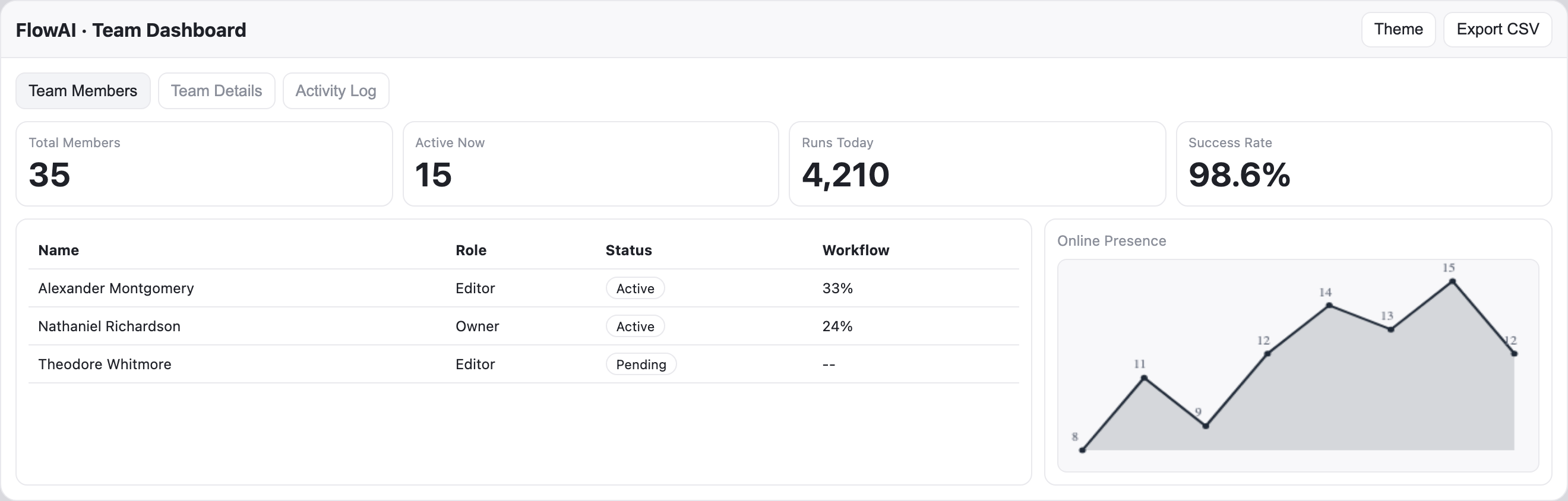
The FlowAI team dashboard is a desktop-app design for reviewing team operations across three named views: Team Members, Team Details, and Activity Log. The persistent header keeps Theme and Export CSV visible while the selected tab changes the primary workspace below.
The first view opens with four headline fields: Total Members, Active Now, Runs Today, and Success Rate. Their values are shown as 35, 15, 4,210, and 98.6% in the supplied sample. This ordering moves from team scale to presence, throughput, and outcome, giving the reader a compact summary before the member table.
Member Table And Presence
The Team Members view pairs a wide table with a narrower Online Presence panel. The table orders Name, Role, Status, and Workflow, so a reader can connect a person’s responsibility and state with the displayed workflow percentage. Alexander Montgomery is shown as an active Editor at 33%, while Nathaniel Richardson is an active Owner at 24%.
Theodore Whitmore is marked Pending and has a two-hyphen placeholder instead of a workflow value. That pairing leaves the missing value visible rather than implying that every member has comparable activity. The table supports quick scanning but does not define what Workflow measures.
Capability Boundary
The captured artifact presents sample names, figures, chart values, and local visual states. The images do not establish live team data, connected services, storage, operational efficacy, or the source of the sample metrics. Controls and animated chart rendering are visible design behavior in the supplied example, not proof of a production backend.
Operational Questions The Layout Supports
The design is most useful when a team needs to move between people, composition, and recent signals without leaving the same workspace. Each view narrows a different operational question, while the repeated metric row preserves context across the tab changes.
Who Needs Attention?
The member table exposes Active and Pending states beside names and roles, making an individual follow-up candidate visible without opening a separate detail view.
How Is The Team Composed?
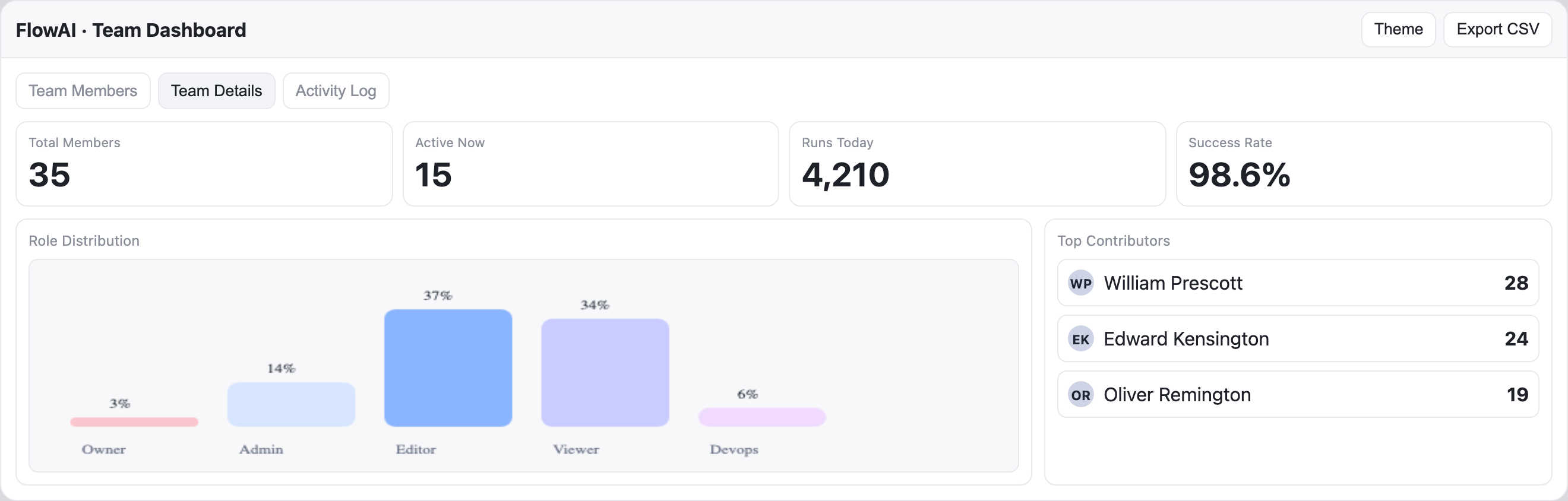
Role Distribution compares Owner, Admin, Editor, Viewer, and Devops categories with visible percentages, supporting a composition review rather than a simple headcount.
What Changed Recently?
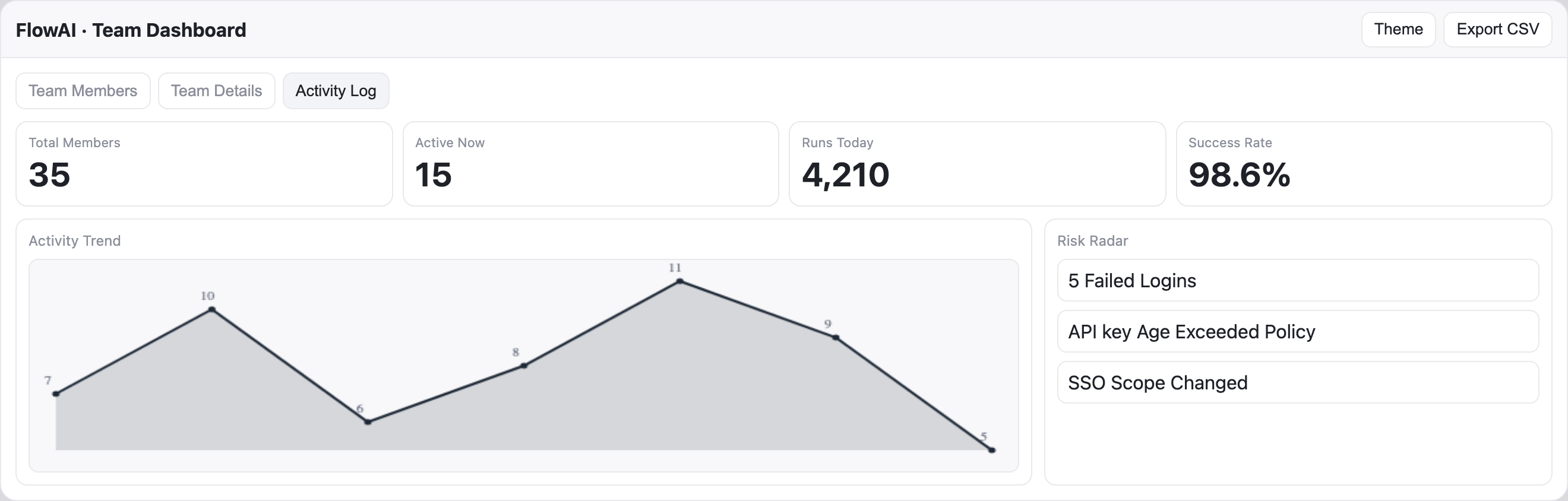
Activity Trend presents a labeled sequence of 7, 10, 6, 8, 11, 9, and 5, while Risk Radar lists five failed logins, an API key age policy issue, and an SSO scope change.
Composition Versus Contribution
The Team Details view places the role chart on the left and Top Contributors on the right. The chart labels Owner at 3%, Admin at 14%, Editor at 37%, Viewer at 34%, and Devops at 6%. The contributor list instead names William Prescott at 28, Edward Kensington at 24, and Oliver Remington at 19.
The five displayed role percentages total 94%, so this sample is not a complete percentage breakdown and cannot be converted into exact counts for the 35-member summary. The adjacent contributor figures also have no stated unit or time period. The pairing offers a visual prompt for investigation rather than a verified conclusion about composition or performance.
From Members To Activity
The three tabs define a deliberate desktop workspace sequence. Team Members starts with people and presence, Team Details changes the main content to role and contributor analysis, and Activity Log changes it again to trend and risk review. The headline metric row remains in the same position across the supplied captures, reducing the cost of comparing states.
| View | Primary Panel | Secondary Panel | Reader Question |
|---|---|---|---|
| Team Members | Member table | Online Presence | Who is active, pending, or associated with workflow values? |
| Team Details | Role Distribution | Top Contributors | How are roles distributed beside contributor values? |
| Activity Log | Activity Trend | Risk Radar | What activity pattern and listed risks need review? |
Reading Order And Proportion
The source CSS specifies a 2fr 1fr grid for the main paired content, then a 1fr layout at the narrower breakpoint. In the desktop captures, the primary chart or table receives roughly twice the horizontal space of its companion panel. This proportion gives trend and distribution graphics room for labels while keeping supporting lists adjacent.
The tradeoff is density: the paired layout supports comparison in one glance but leaves less room for long names or explanatory definitions. A responsive single-column state can improve legibility, though it changes the side-by-side relationship that defines the desktop composition.
Local Chart Motion
The supplied implementation includes local chart helpers and an animation path for bars. In this artifact, that evidence supports a visual rendering technique for chart entrance or state change. It does not establish a live data stream, remote service, or audio or video capability.
Using The Design Responsibly
This official OpenDesign example is best treated as a reference for workspace composition, information ordering, and local chart presentation. Its visible sample data can demonstrate how labels and states fit together, but it should not be presented as measured team performance or a connected operations product.
When adapting the design, define the unit, calculation, and time range behind each percentage, count, and trend point. The source includes dated chart labels, but does not define how Runs Today, Success Rate, workflow percentages, or contributor scores are calculated. The role percentages also leave a six-point gap. Explicit definitions and reconciled totals are needed before this sample can support operational decisions.
Use the captured workspace as a reference for information hierarchy, paired panels, and distinct tab states. Keep the supplied names and figures visibly illustrative until they are replaced with evidence-backed team data.
How to Create Team Operations Dashboard Design in OpenDesign
Set The Workspace Structure
Recreate the persistent FlowAI header with Theme and Export CSV controls, then add Team Members, Team Details, and Activity Log as the three desktop views. Keep the four summary fields in the same order across each state.
Add The Case-Specific Data Views
Build the Team Members state around the Name, Role, Status, and Workflow table plus Online Presence. Add Team Details with Role Distribution and Top Contributors, then Activity Log with Activity Trend and Risk Radar. Treat names and figures as sample content unless you have verified data definitions.
Suggested PromptCreate a desktop FlowAI team operations dashboard design with a persistent header, four summary metrics, and three tab states: Team Members with a member table and Online Presence chart, Team Details with role percentages and top contributors, and Activity Log with a labeled activity trend and risk list. Use local visual states only; do not imply live services, storage, measured outcomes, or undefined metric meanings.
Check Comparison And Boundaries
Review the desktop 2:1 panel pairing for readable labels and chart values, then check wrapping in the stacked narrow layout. Keep a clear placeholder where a pending member lacks a workflow value. Define units, time ranges, and percentage totals before replacing the sample data.
Export and Get a Share Link
Export your finished design, then use Share in OpenDesign to get a share link. Open the link in a separate browser window and check that the intended version and its assets are available before sending it.
Analytics Dashboard Wireframe Design
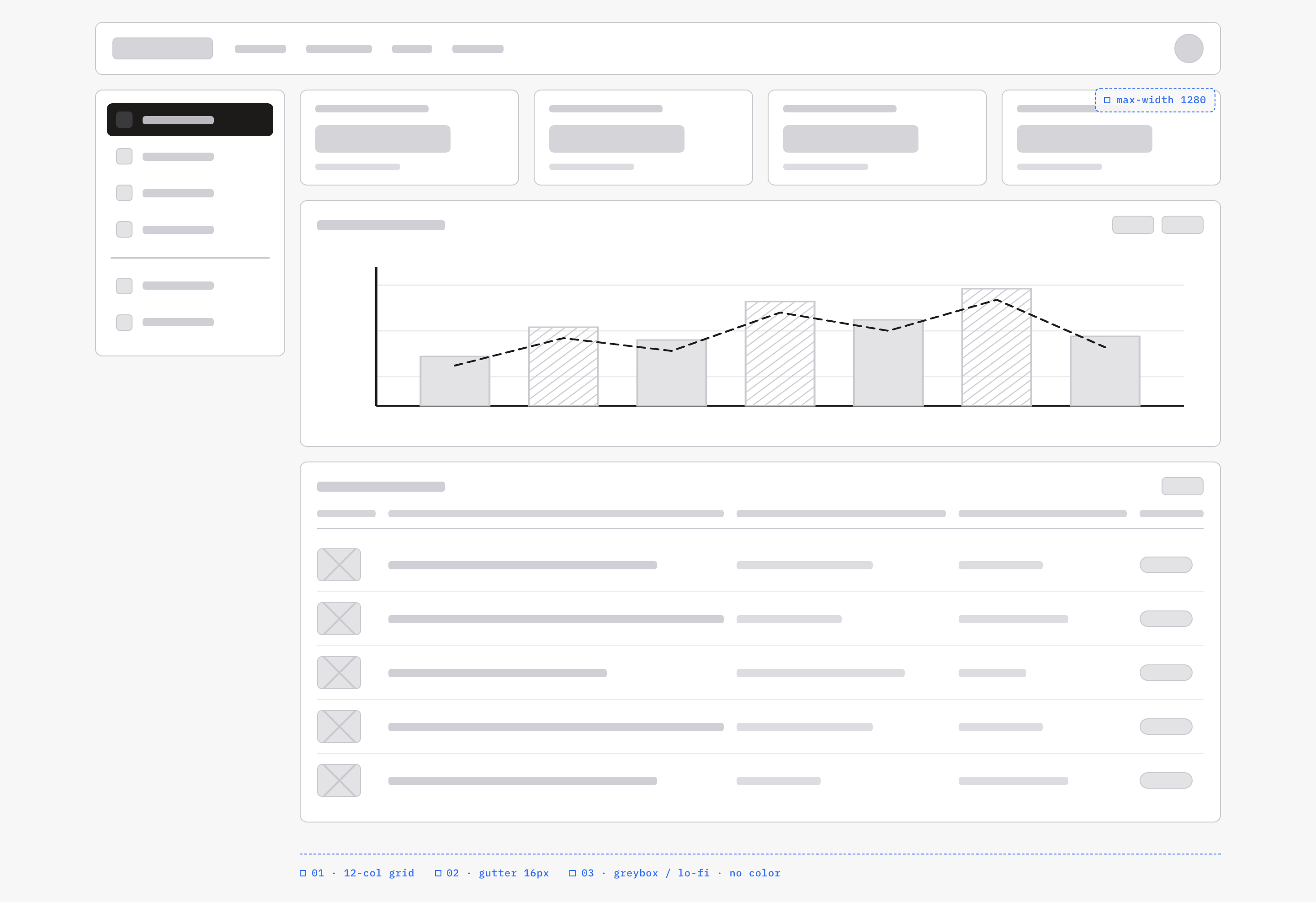
An OpenDesign greybox dashboard maps an analytics workspace through a sidebar, four KPI placeholders, a schematic chart, five table rows and blue layout annotations.
Desktop app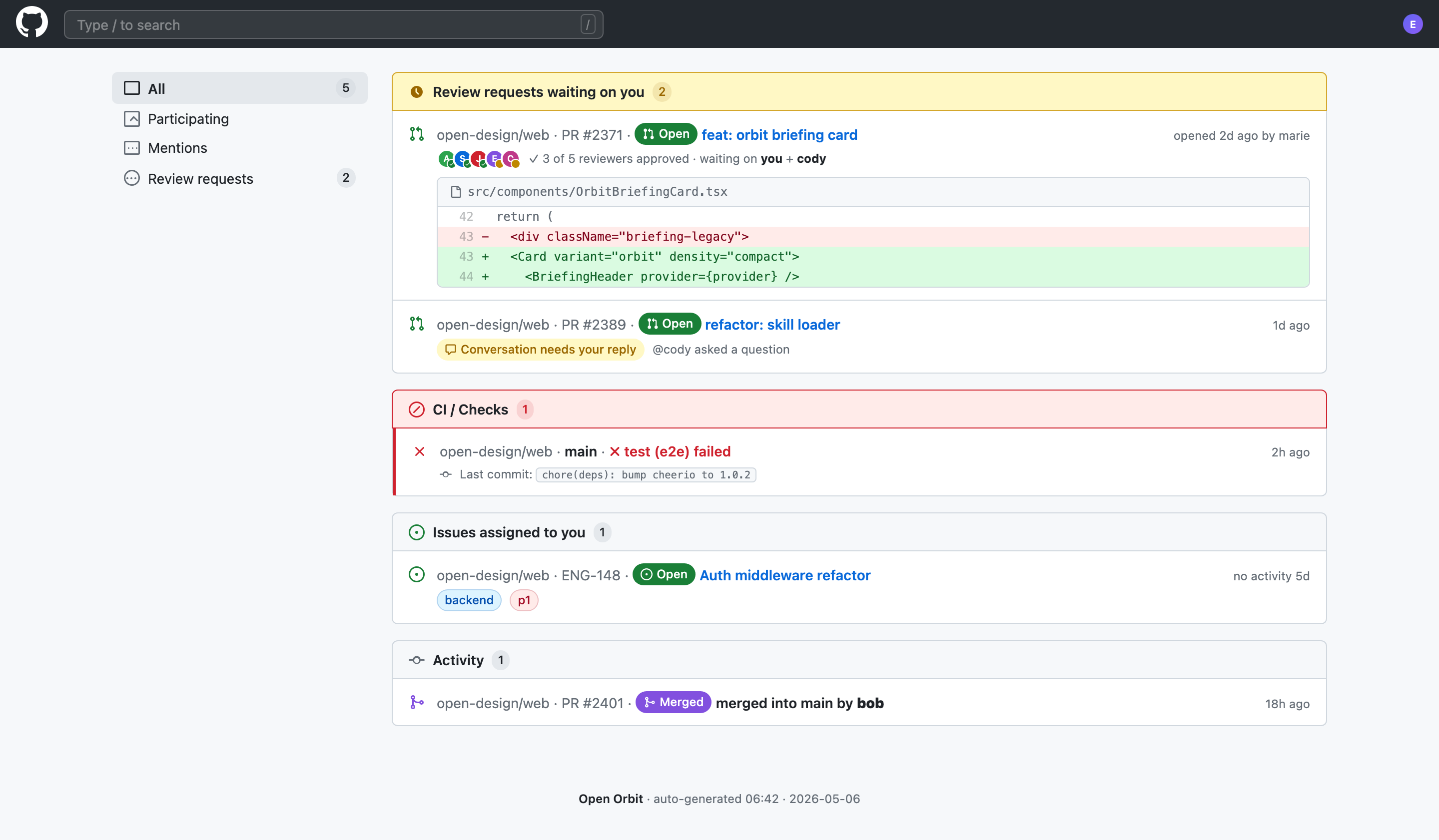
Code Review Inbox App Design
Code Review Inbox App Design brings review requests, CI failures, assigned issues, and activity into one scan-ready workspace for daily triage.
Desktop app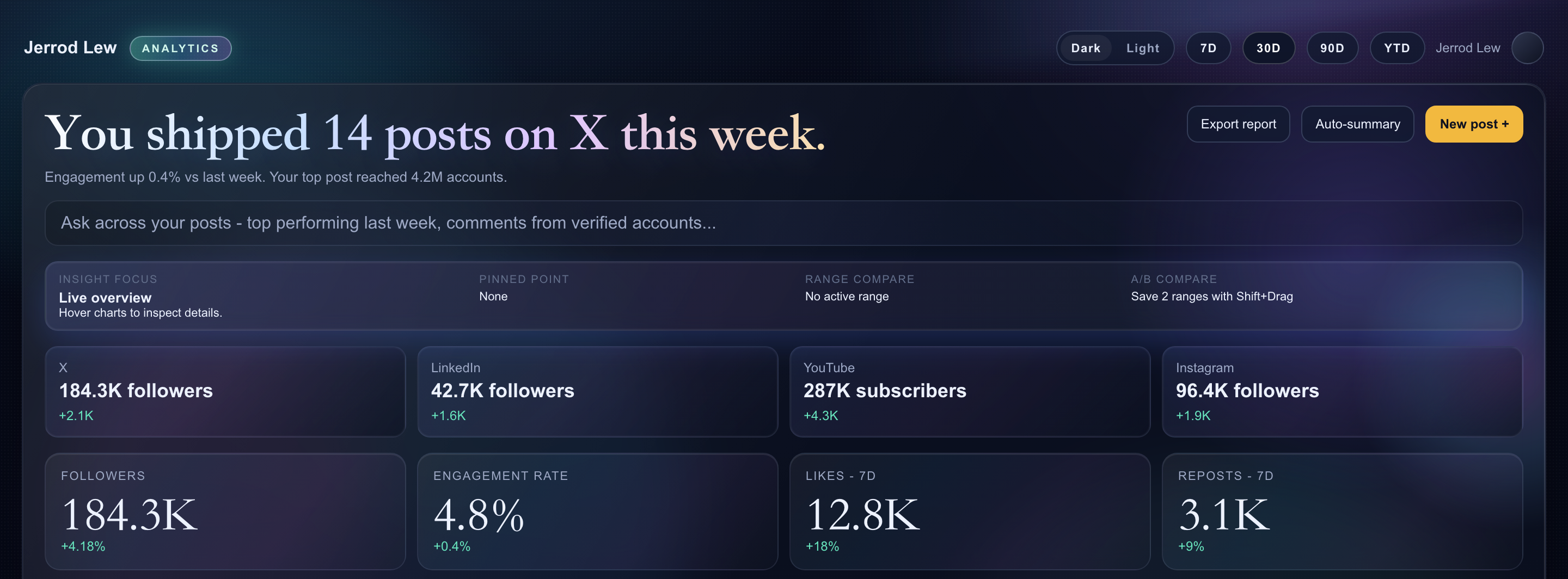
Content Performance Dashboard Design
A dark content dashboard connects platform snapshots with chart inspection, draft planning and a deeper view of audience and conversion signals.
Desktop app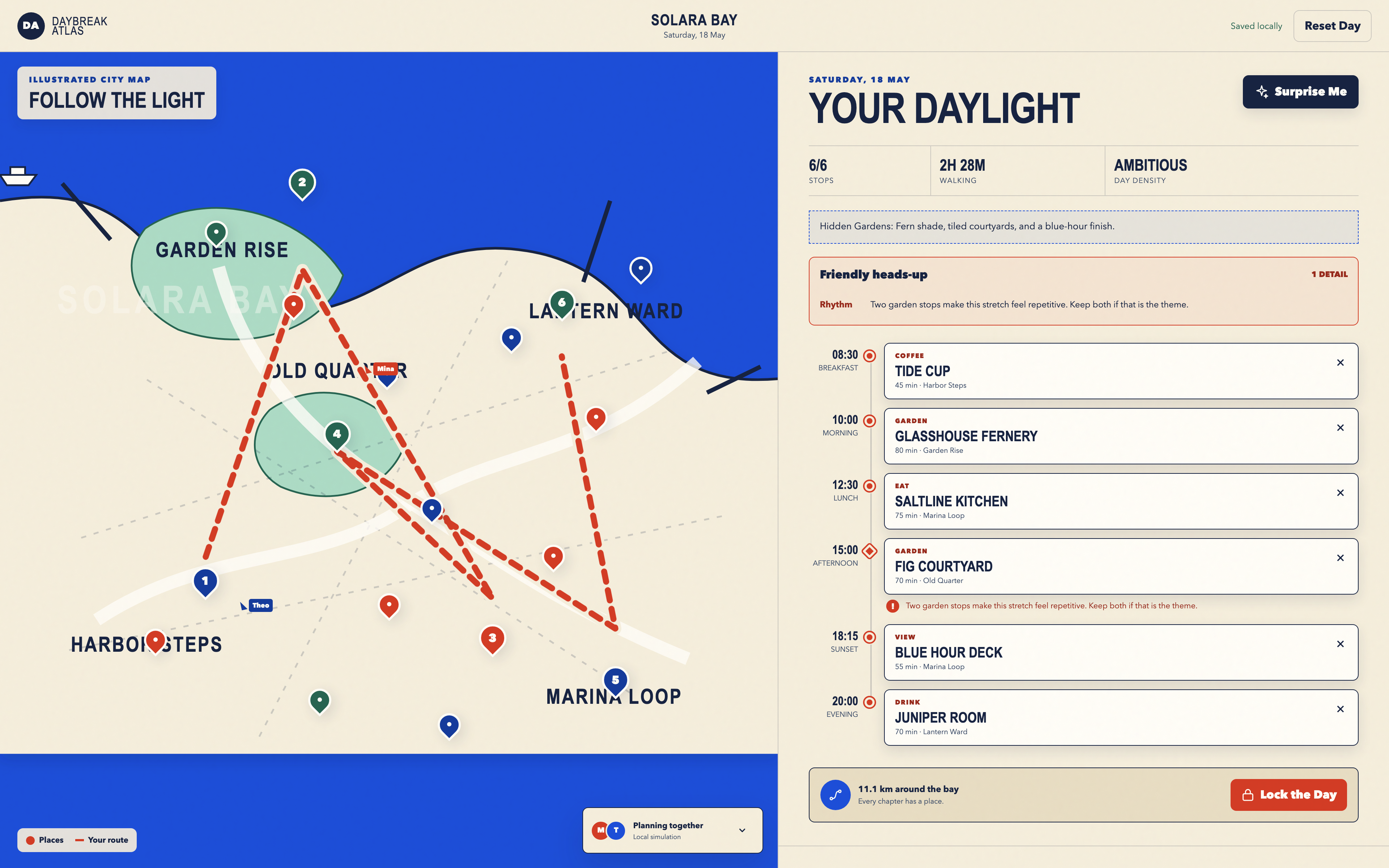
Day Trip Planner Design
Plan six timed stops in fictional Solara Bay, with an illustrated map, walking estimates and useful route warnings.
Desktop app